

| Platform | Plan |
|---|---|
| Selfserve | Add-on (Contact Support) |
Accessing the Coupon Creation Feature
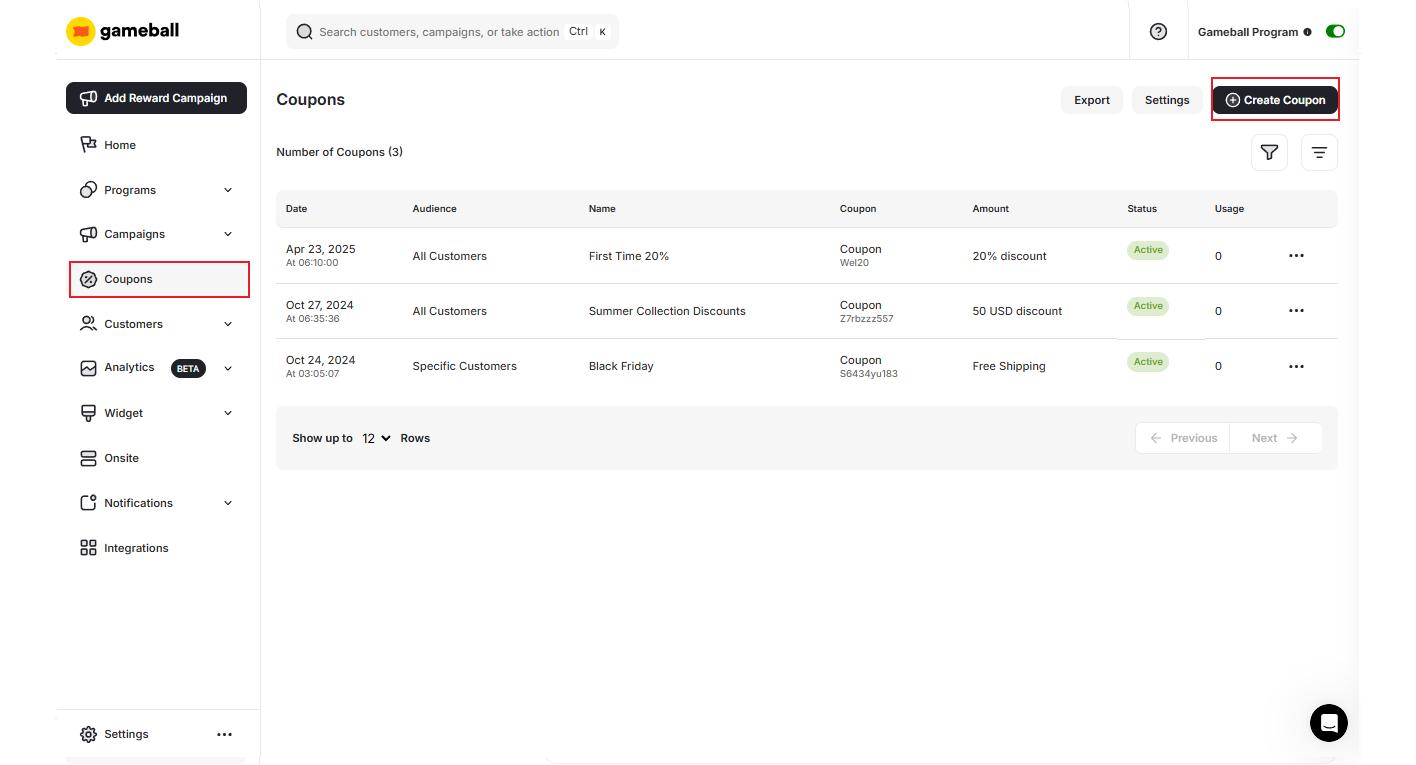
How to Create a New Coupon
Choose the Coupon Type
Define the type of coupon you want to create: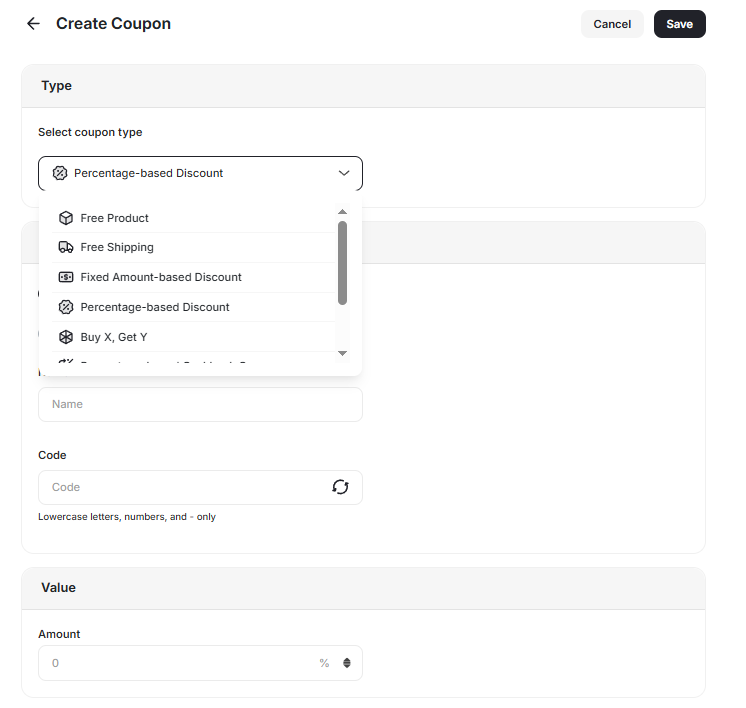
- Free Product
- Free Shipping
- Fixed Amount-Based Discount (e.g., $10 off)
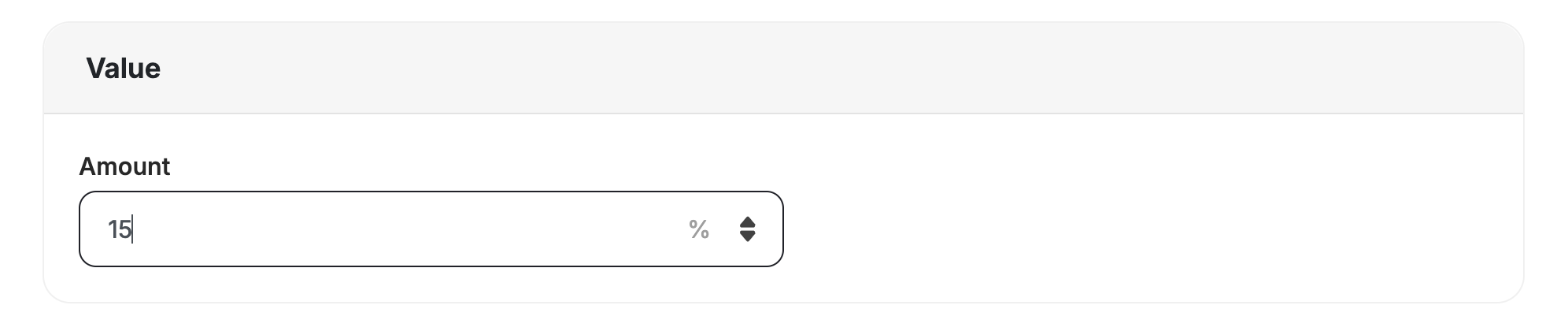
- Percentage Amount-Based Discount (e.g., 15% off)
- Buy X Get Y (for automatically applied coupons only)
- Percentage-Based Cashback
- Fixed Amount-Based Cashback
- Percentage Amount-Based Fees Discount
Add the Coupon Details
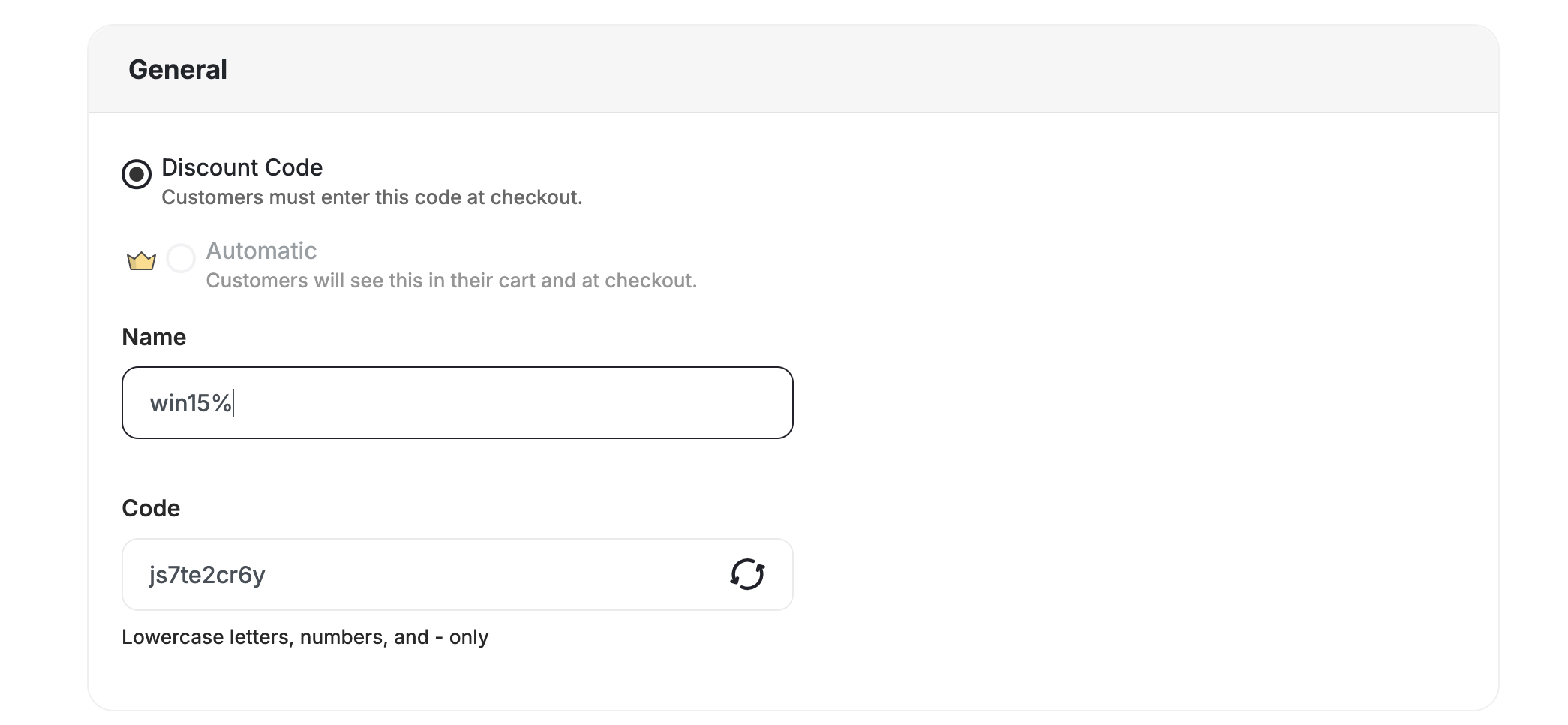
- Set how the coupon will be applied: Choose between Discount Code or Automatic.
- Discount Code: A code shared with customers to use at checkout.
- Automatic: A discount applied automatically once the customer qualifies.
- Internal Name: Provide a unique name for your coupon for better monitoring on the dashboard.
- Coupon Code: Manually enter a code or allow Gameball to auto-generate it.
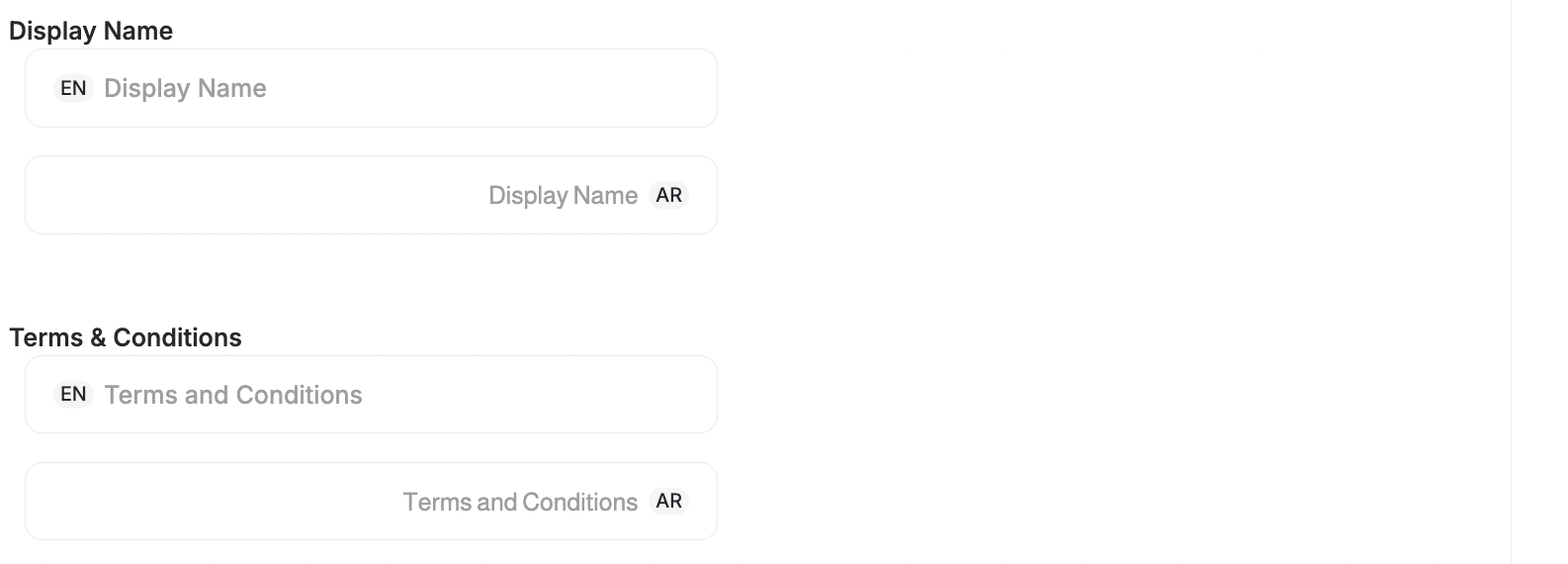
- External Name: Customers see the localized display name in their widget, emails, and web messages.
- Terms & Conditions: Add localized Terms & Conditions for manual coupons to clearly communicate coupon rules and usage limits in each customer’s preferred language.
- Coupon Value: Enter the value based on the type chosen.
- Minimum Purchase Amount: Define the minimum amount required for the coupon to apply.
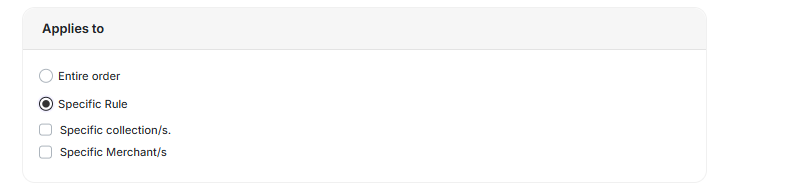
- Apply the Coupon: Decide whether it applies to All Orders or Specific Collections.
Clients can specify whether the coupon should apply to both merchants and collections (AND) or either merchants or collections (OR).
General notes on “Display Name” and “Terms & Conditions”:
- Supports multiple languages, matching your widget’s configured languages.
- Customer-Facing Experience: Customers see the localized display name in their widget, emails, and web messages. If no translation exists for a customer’s language, the default language name is shown instead.
- API Updates:
displayNameis included in coupon API responses as a multi-language object (key-value pairs). No breaking changes for existing API integrations. - Terms & Conditions Field: A dedicated “Terms & Conditions” section is available when creating or editing manual coupons. The coupon API includes a
termsAndConditionsobject containing multilingual key-value pairs with no impact on existing coupon API consumers.
How to distinguish regular coupons from automatic promotions
The Customer Coupons API makes it easier to distinguish automatic promotions from regular coupons and to display promotion rules that define how customers qualify for each offer:"isPromotion": false— Regular or manually issued coupon."isPromotion": true— Promotion or rule-based discount (e.g., “Buy 2 Get 1 Free”, “50% Off Collection”).
promotionRules object provides promotion details:Choose the Audience
Select the target audience for the coupon: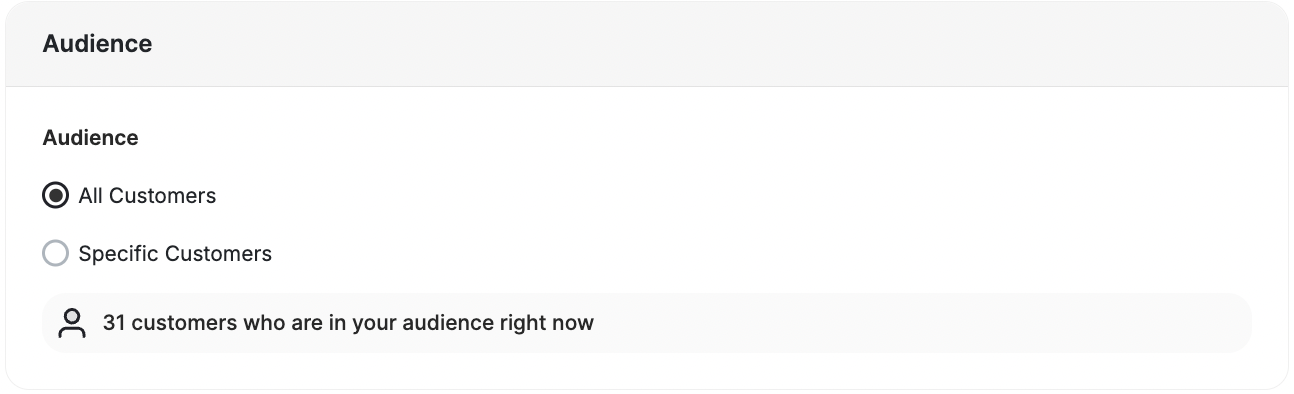
- All Customers: The coupon is accessible to all customers.
- Specific Customers: Target specific customer groups using:
- Segments: Based on predefined customer behaviors.
- RFM Segments: Utilizing Recency, Frequency, and Monetary metrics.
- Tags: Assign tags to filter customers.
- Customer Attributes: Filter by Customer ID or Customer Email.
Configure Advanced Options (if needed)
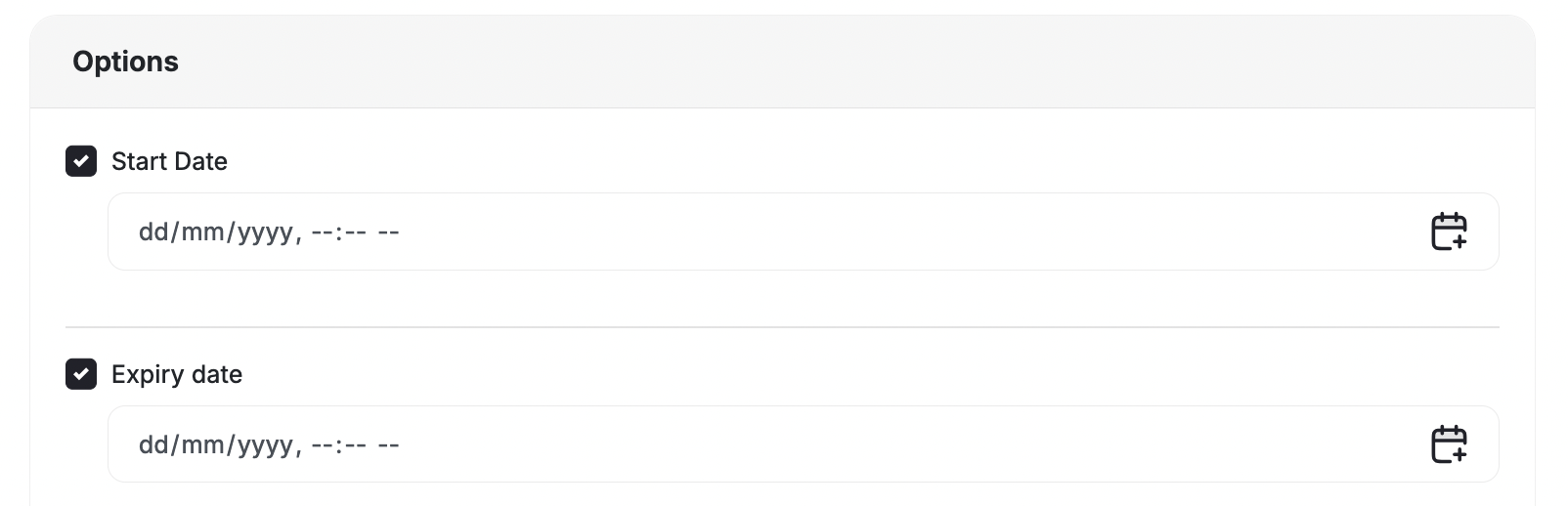
Add optional configurations to customize the coupon further:
| Option | Description |
|---|---|
| Start Date | Specify when the coupon becomes active. |
| End Date | Specify when the coupon expires. |
| Coupon Usage Per Customer Limit | Set how many times an individual customer can use the coupon. |
| Coupon Usage Limit | Establish a total usage cap for the coupon. |
| Reward Combined with Other Coupons | Specify whether the coupon can be used alongside other offers. |
Manage Your Coupons Efficiently
Edit Each Coupon
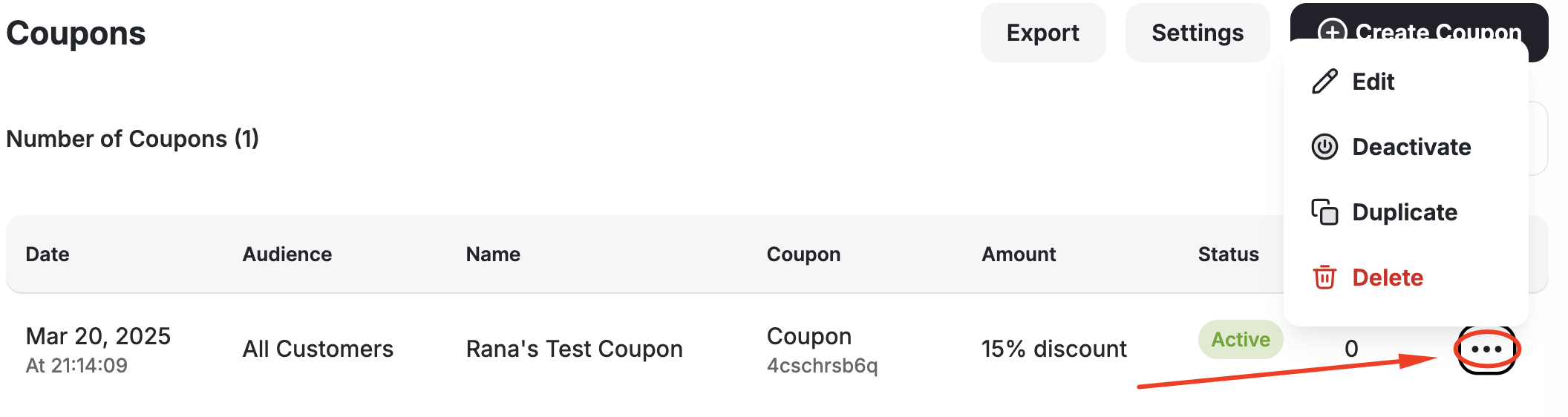
Click the three-dot icon beside any coupon to access management shortcuts:| Action | Description |
|---|---|
| Duplicate | Create an identical copy of an existing coupon for similar campaigns or promotions. |
| Activate/Deactivate | Toggle the coupon’s status to control its availability. |
| Edit | Update the coupon’s details, including name, value, usage limits, and more. |
| Delete | Permanently remove a coupon. Deleted coupons cannot be recovered. |
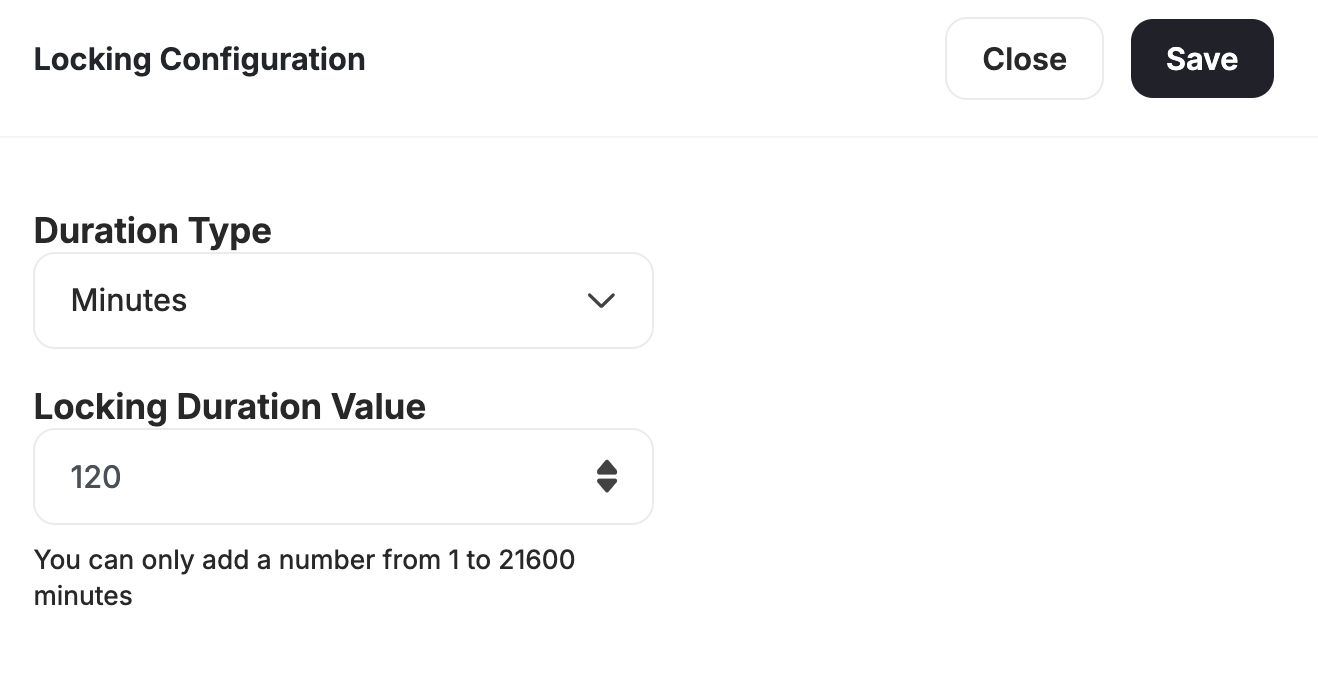
Configure Locking Coupon Duration
To set the duration during which coupons should be locked before they are usable, click Settings on the top right of the page.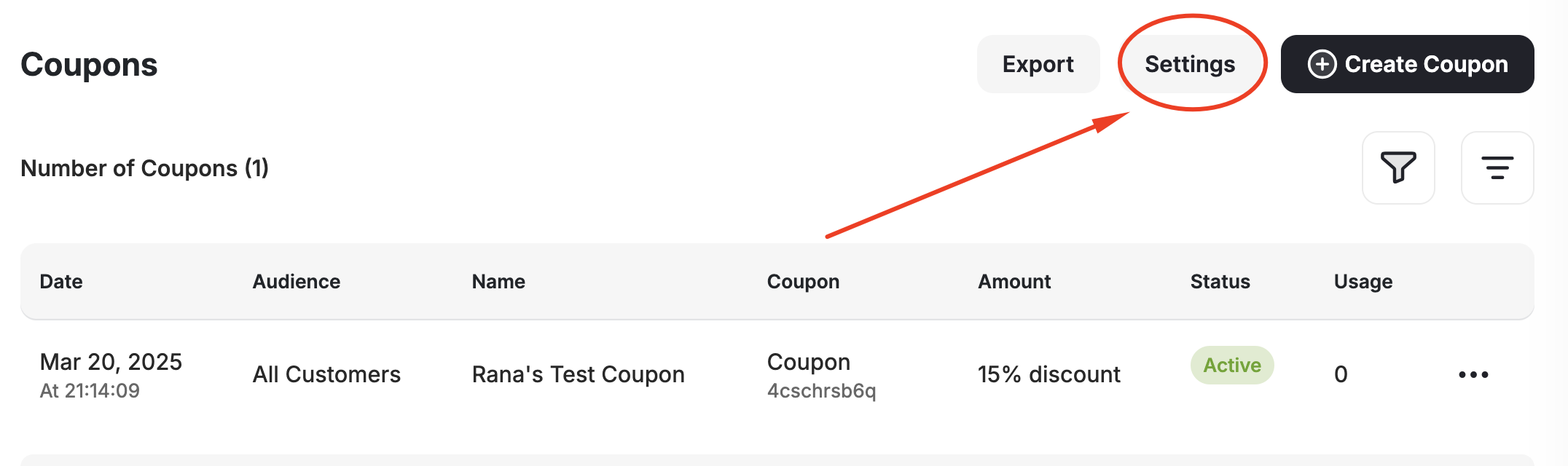
Export Created Coupons
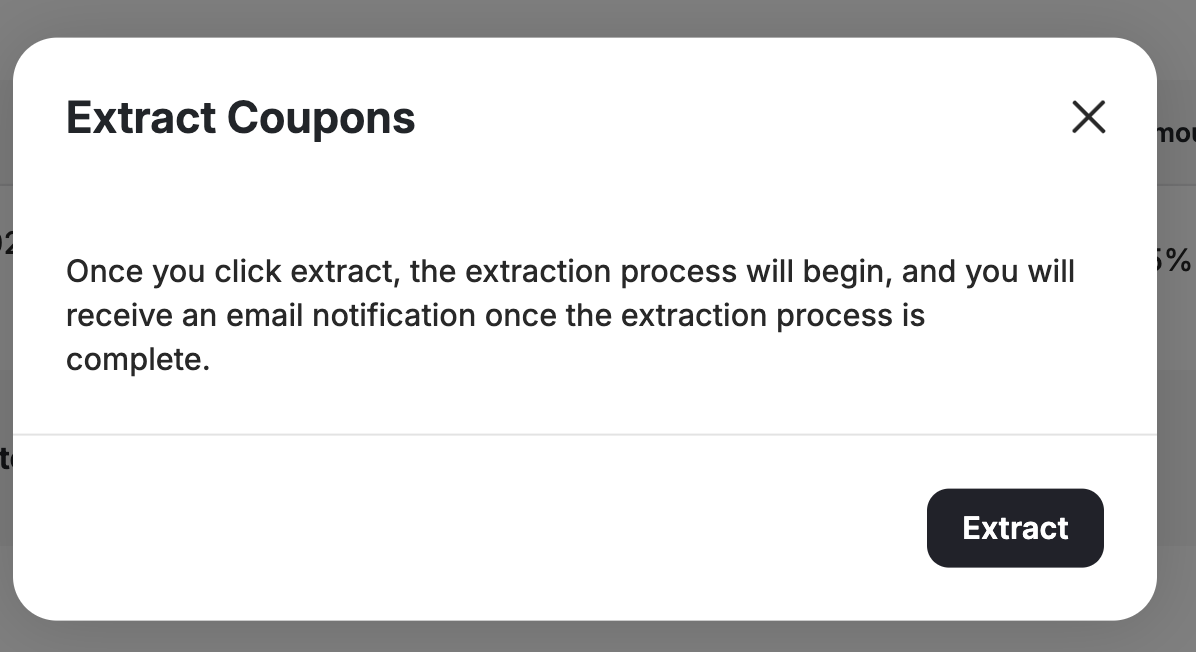
Click Export, then Extract.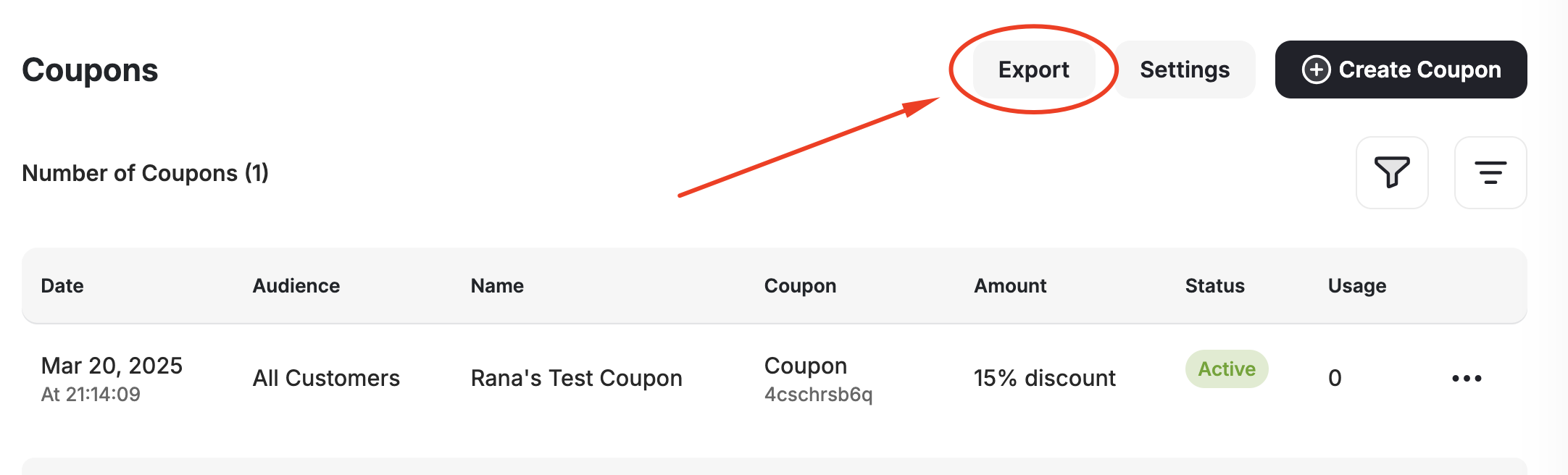
Related Articles
Introduction to Coupon Engine
Learn about all the capabilities of Gameball’s couponing engine.
Request a Coupon Creation
Request coupon creation from your couponing engine via API.