

| Platform | Plan |
|---|---|
| Shopify | Guru |
| Salla | Guru |
| Non-platform Clients | Growth (Add-on) & Guru |
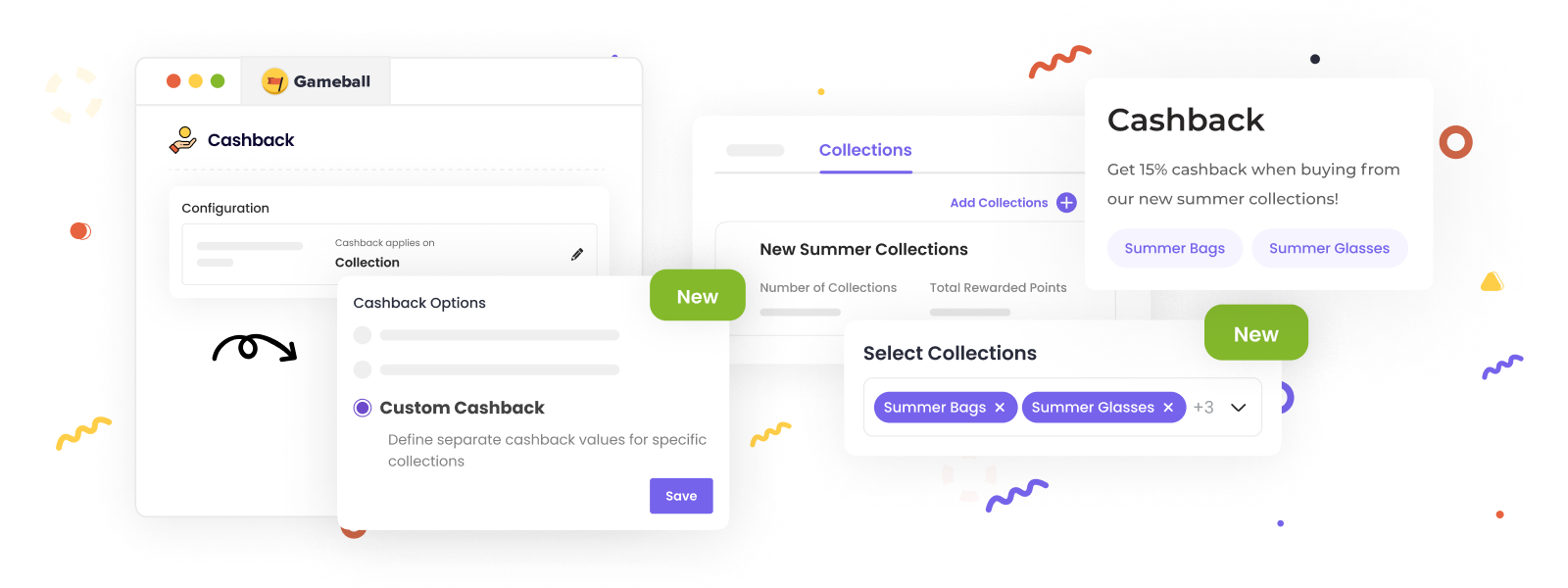
Prerequisites
- Ensure that you have activated the Cashback feature on your Gameball account.
- Confirm that your store collections are properly set up.
Configuring Collection-Based Earning
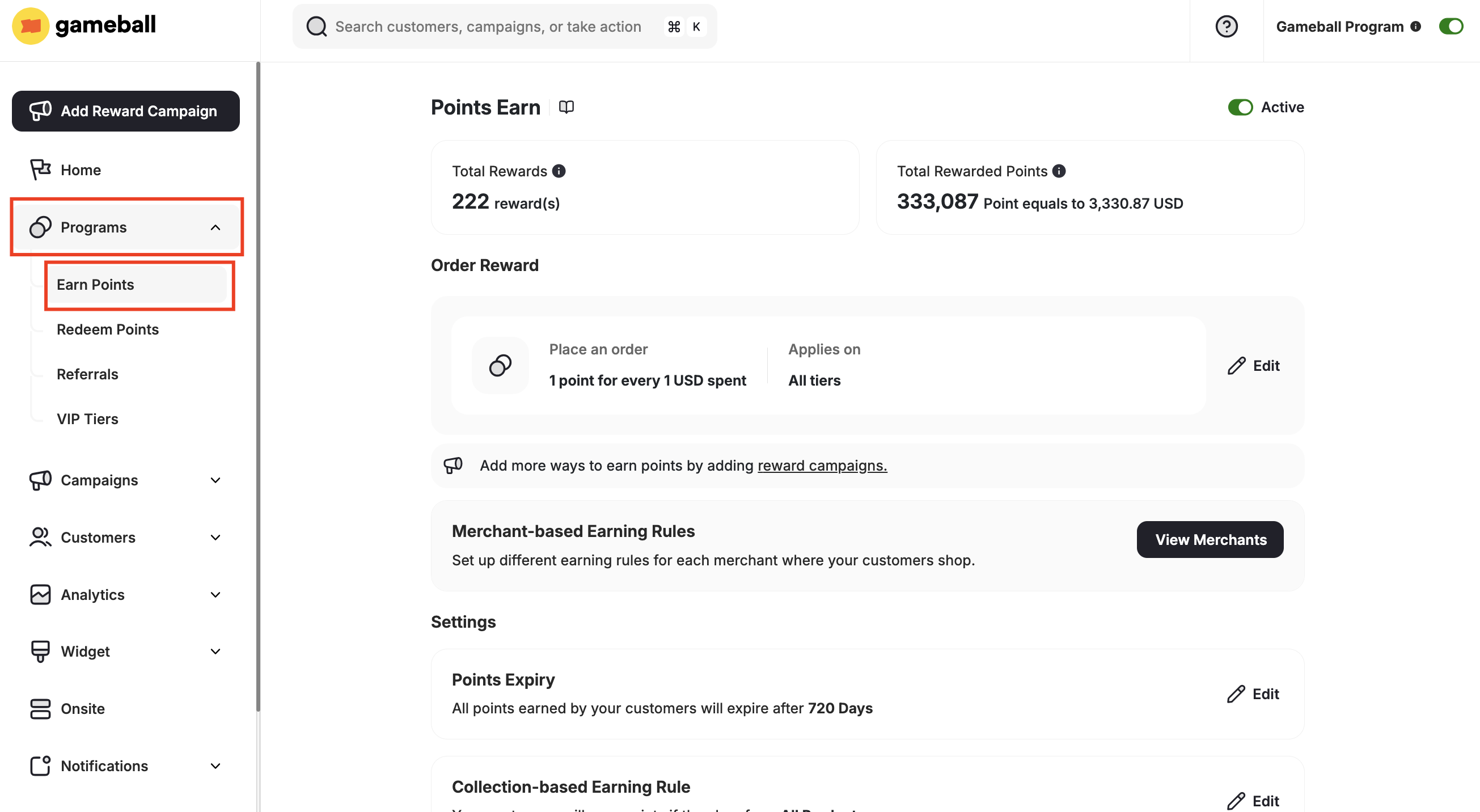
Edit Collection-based Earning Rule
Under Settings, click the Edit Icon beside Collection-based Earning Rule.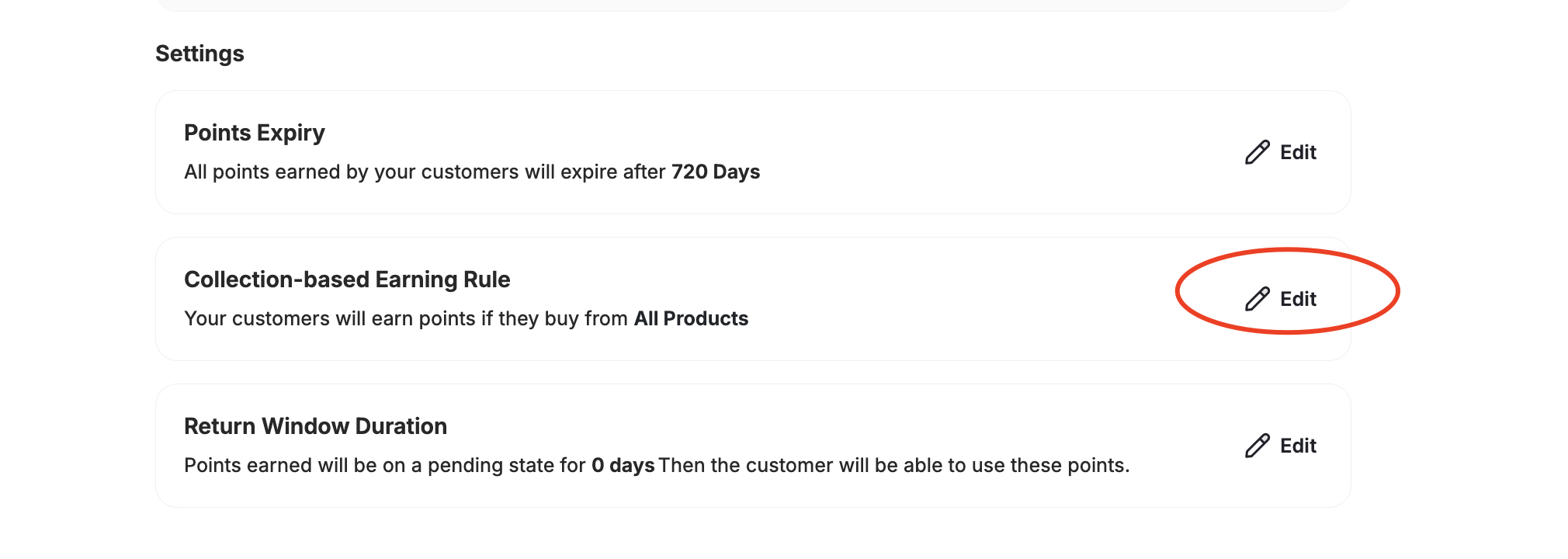
Choose Cashback Option
A pop-up window will appear. Under Cashback Options, you will find four choices: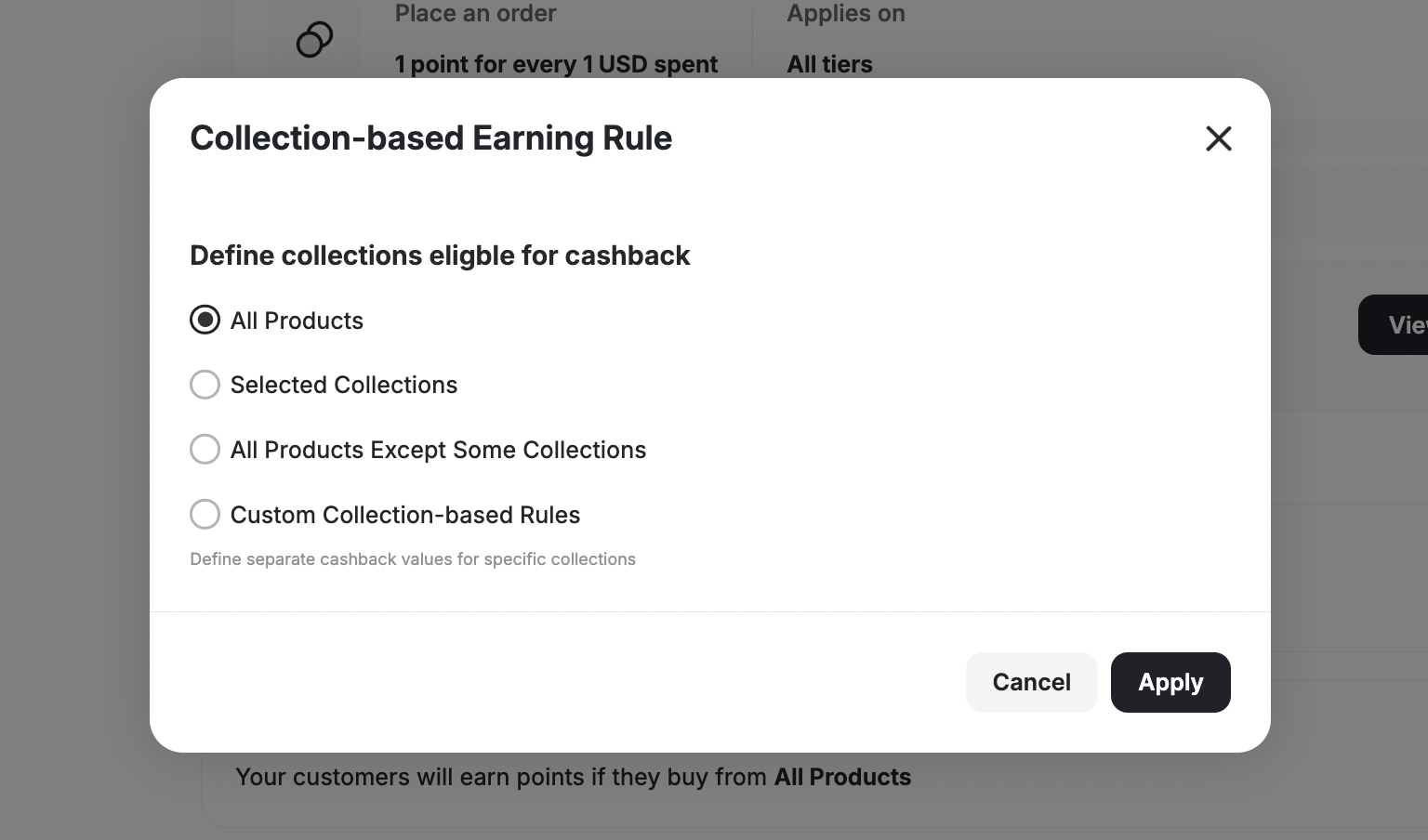
All Products
All Products
The default cashback rule applies to all products. You can add extra cashback rules for different levels.
Selected Collections
Selected Collections
Cashback will only apply to the selected collections. Purchases from other collections will not be eligible for cashback.
All Products Except Some Collections
All Products Except Some Collections
Cashback applies to all collections except the ones you exclude. Purchases from excluded collections will not earn cashback.
Custom Cashback
Custom Cashback
You can define different cashback values for different collections. After saving, further configuration is required.
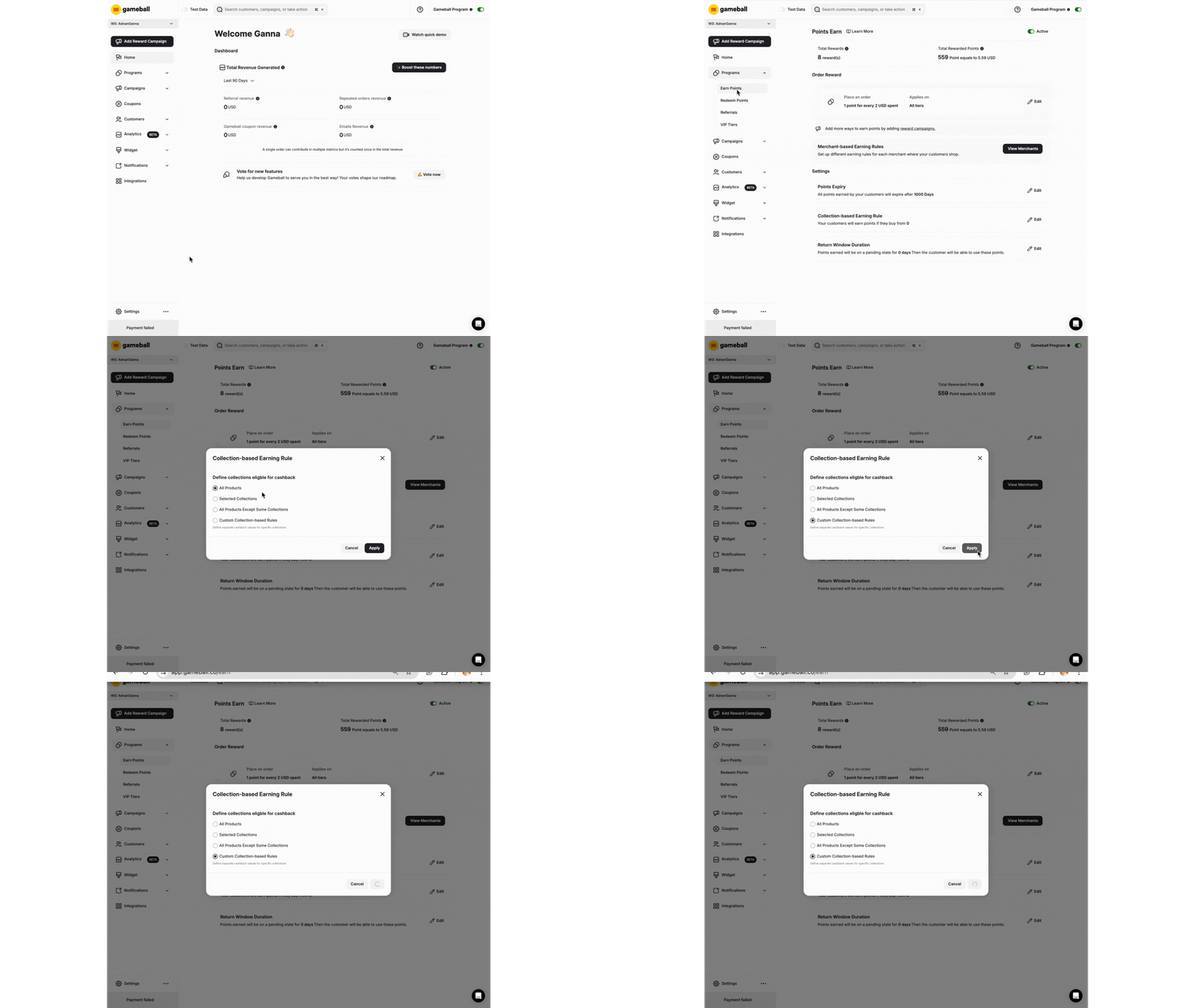
- If you select All Products, Selected Collections, or All Products Except Some Collections, no further configuration is needed. Just ensure your default cashback rule is correctly set.
- If you choose Custom Cashback, you deactivate the Merchant feature on the system. Cashback based on collections and crossover cashback cannot work simultaneously.
Create Different Cashback Values for Different Collections
Access Collection Rules
After selecting Custom Cashback and clicking Save, a new tab called Collection Rules will appear.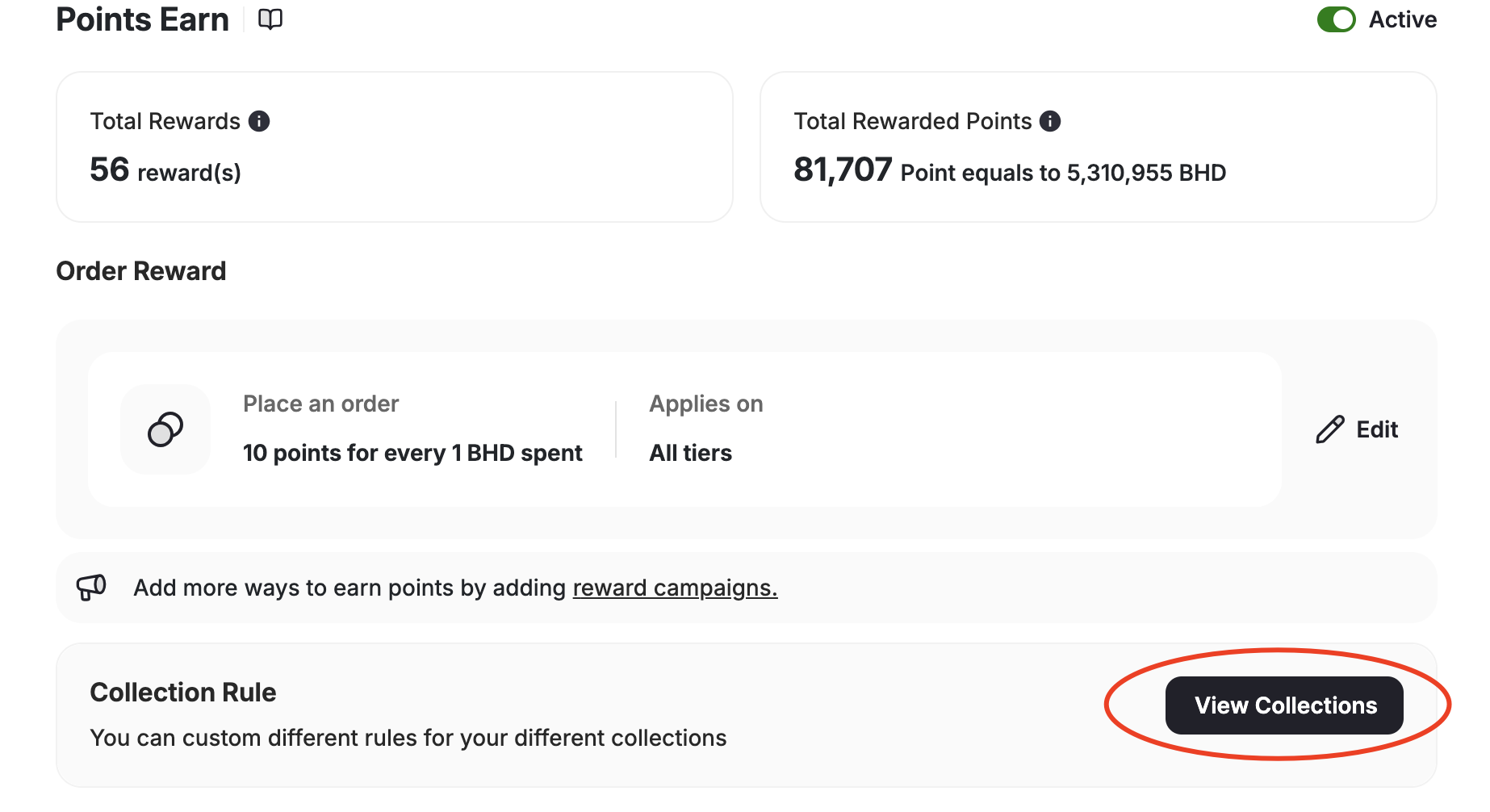
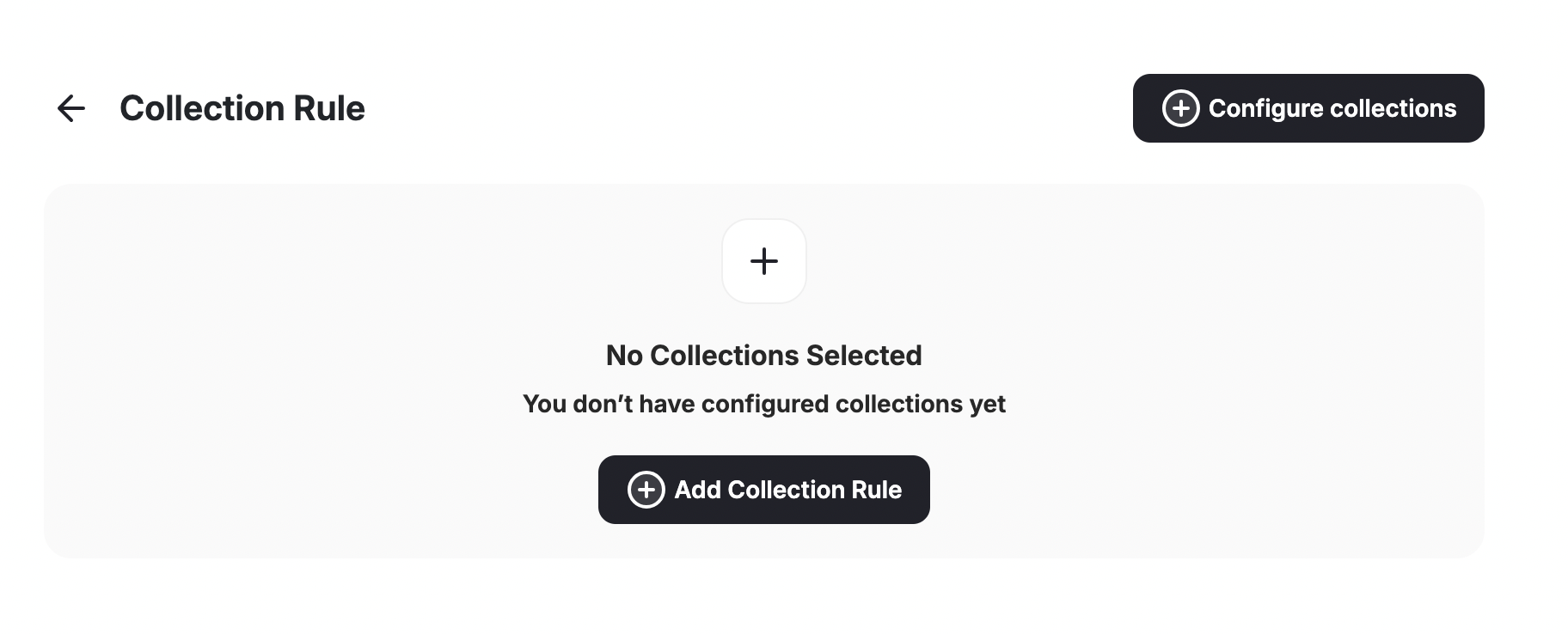
Configure the Cashback Rule
Configure your cashback rule: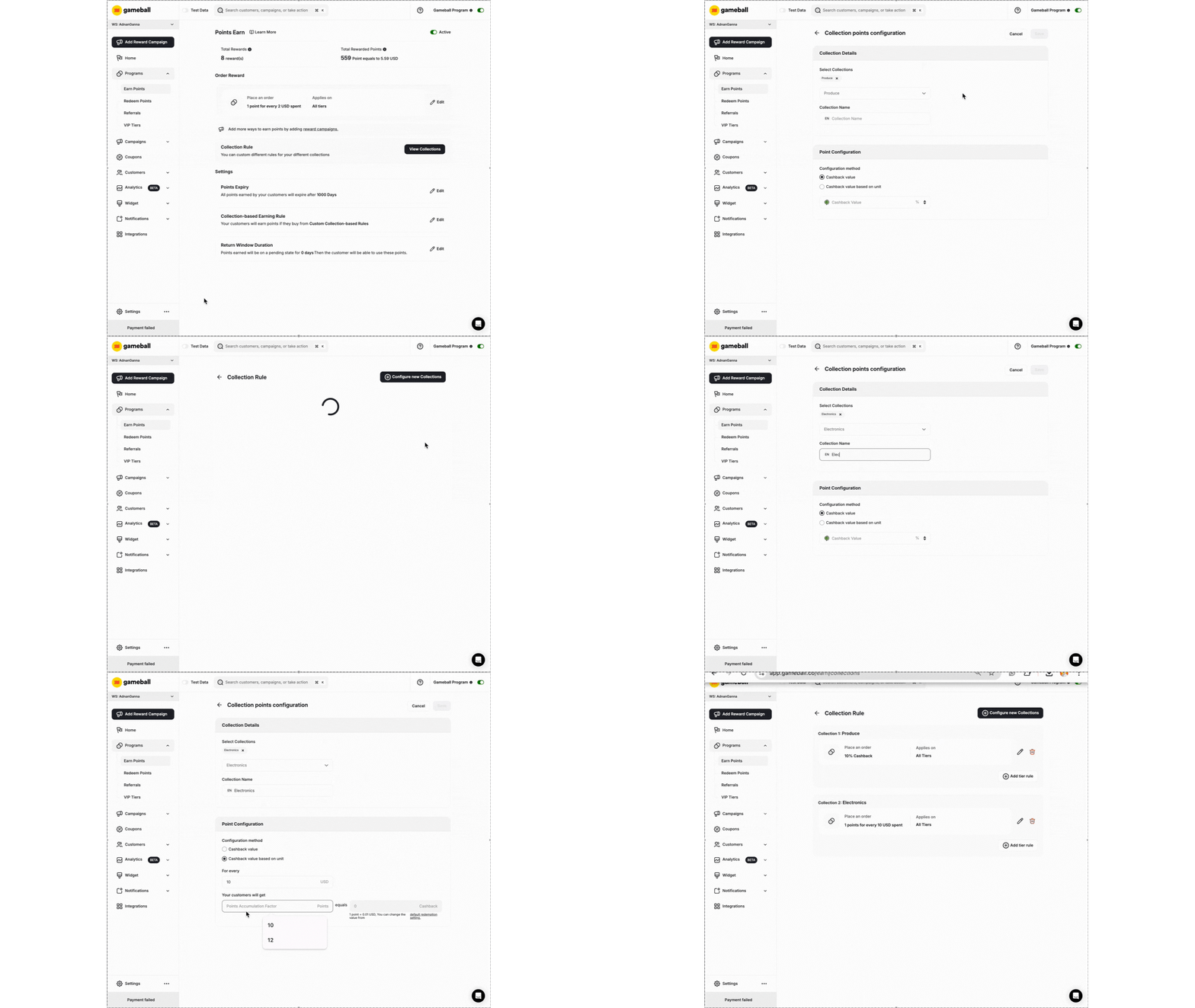
- Select Collection/s: Mark the collections for this rule.
- Collection Rule Name: Name the rule for easy identification.
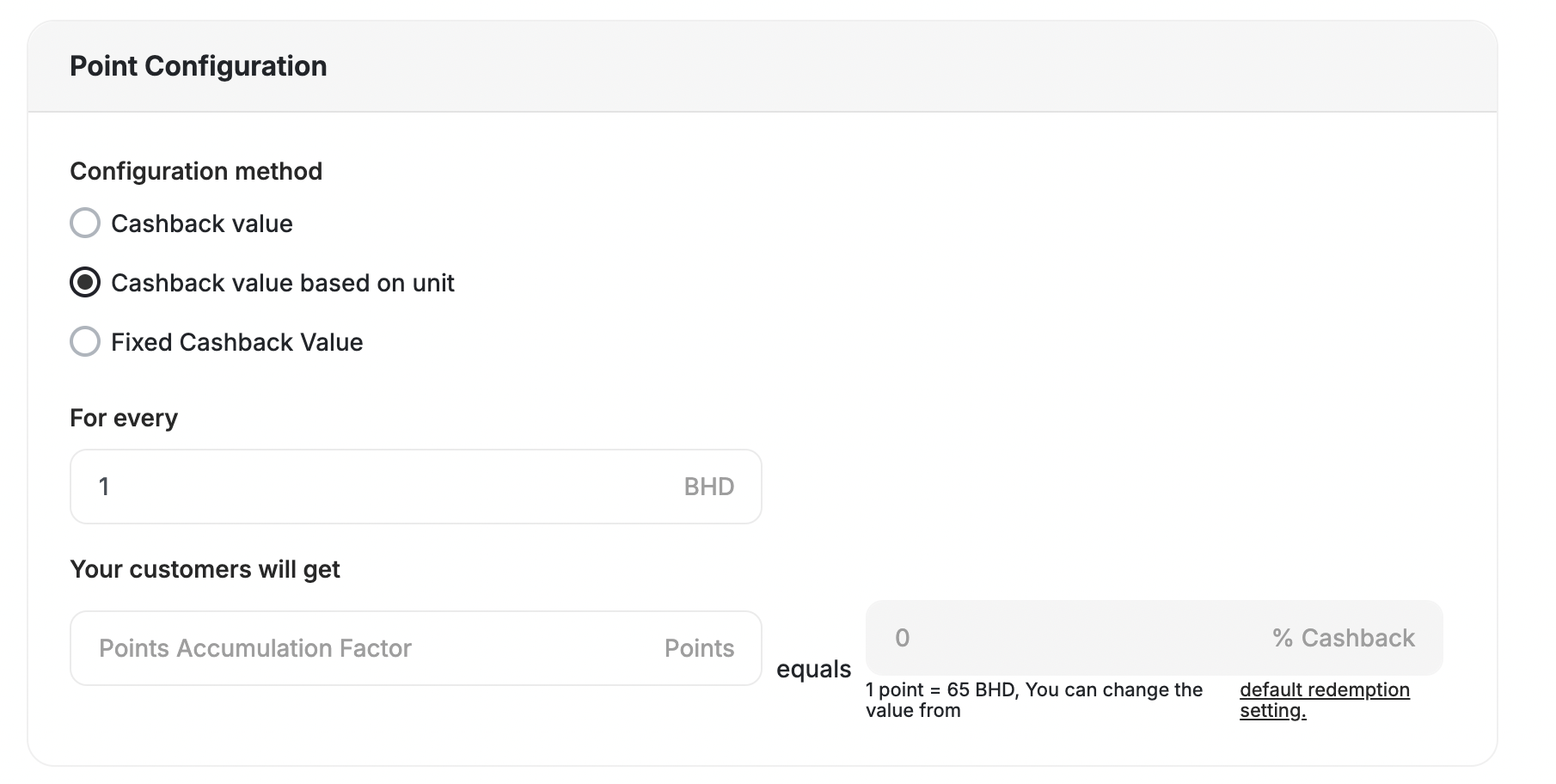
- Cashback Method: Choose between:
Cashback Value (Percentage-Based)
Cashback Value (Percentage-Based)
State the percentage of the cashback you want to grant for orders from that collection.
Cashback Value Based on Unit (Points-Based)
Cashback Value Based on Unit (Points-Based)
State the amount of points you want to give for every dollar they spend buying from the specified collection.
Fixed Cashback Value
Fixed Cashback Value
Ideal if you want to offer consistent point rewards per collection, regardless of the product’s price.Fixed Cashback Key Rules:
Fixed Cashback Value is perfect for exclusive items. For example, if you want to reward 100 points per product in the “New Arrivals” collection, regardless of whether an item costs 200.To enable fixed cashback, you must send the following details per item in the Order API: Collection ID(s), Price, Discount, Taxes, and Product ID.
- If an item belongs to multiple collections, Gameball will reward based on the highest fixed point value.
- If multiple different items from the same collection are purchased, the fixed points reward applies per item.
- The fixed points reward will still respect active Points Multiplier Campaigns (e.g., Double Points: 200 becomes 400).
Common Questions
Can I reward customers on higher tiers with different cashback values under the same collection?
Can I reward customers on higher tiers with different cashback values under the same collection?
Yes. After creating a cashback rule for specific collections, you can modify the cashback value based on the customer’s tier: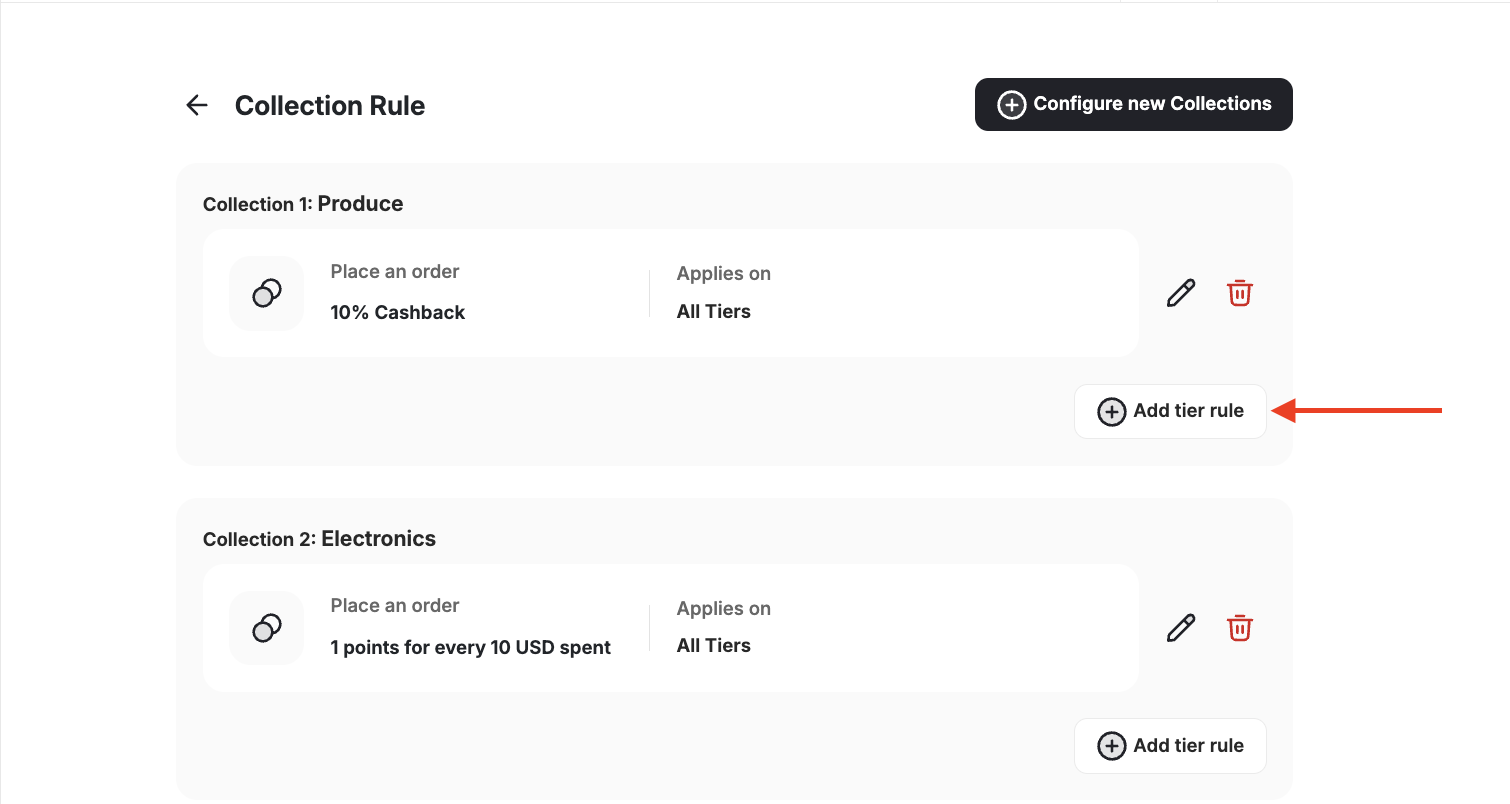
- Under the configured cashback rule, click Add tier rule.
- Select the customer tier.
- Change the cashback value accordingly.
- Click Save.
What happens if an item belongs to multiple collections with different cashback rules?
What happens if an item belongs to multiple collections with different cashback rules?
Gameball will reward based on the highest cashback point value.
What happens if multiple different items from the same collection are purchased?
What happens if multiple different items from the same collection are purchased?
The points reward applies per item.
Related Articles
Launch and Configure Your Earn Pointing System
Configure your default cashback points rules.