

| Platform | Plan |
|---|---|
| Shopify | Free, Starter, Pro & Guru |
| Salla | Starter, Pro & Guru |
| Non-platform Clients | Growth & Enterprise |
Step-by-Step Instructions
Navigate to Earn Points
From the left-side menu, go to Programs and click Earn Points. You will be directed to the Points Earn configuration page.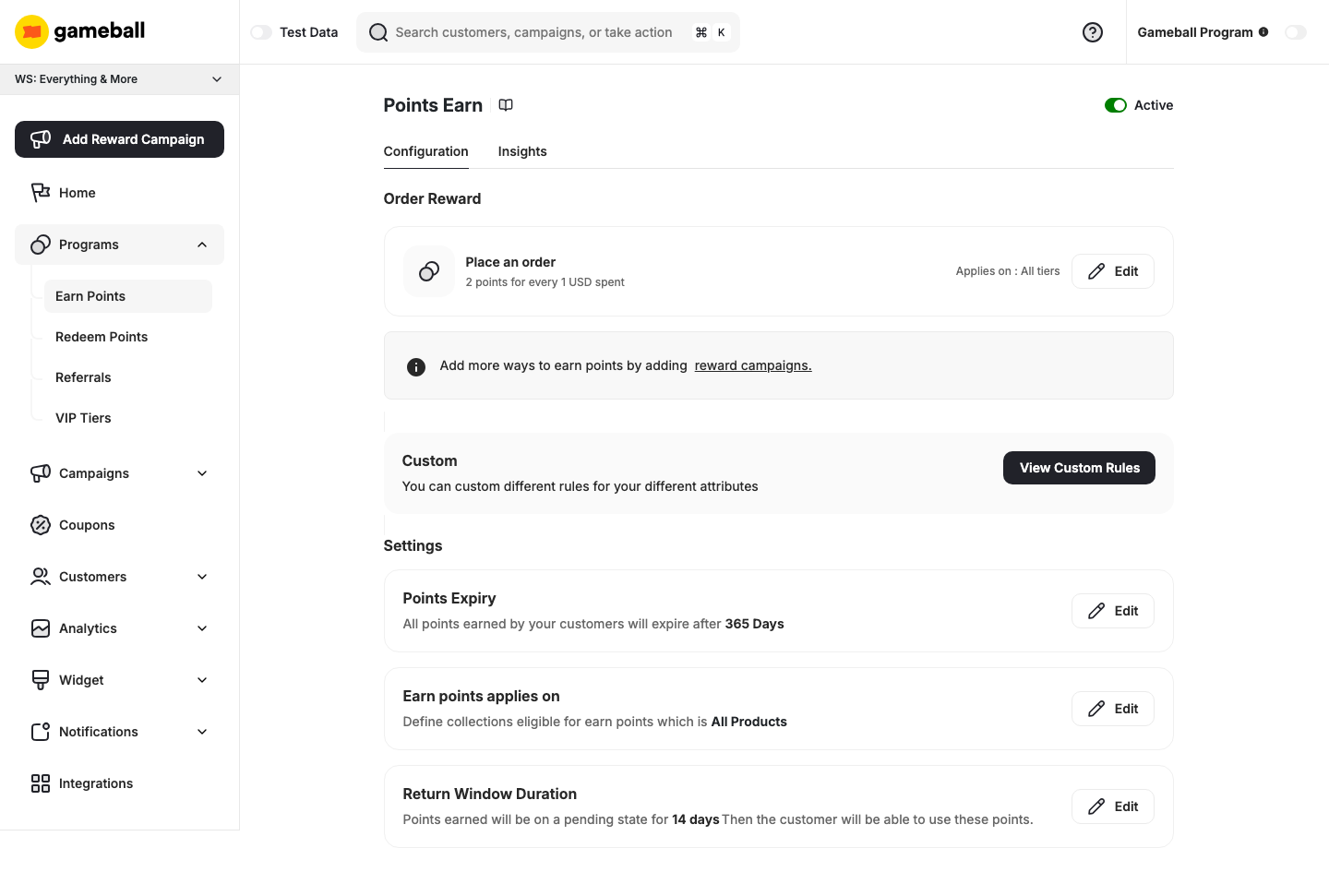
Configure the Earn Rule
In the Order Reward section, click Edit on the Place an order card.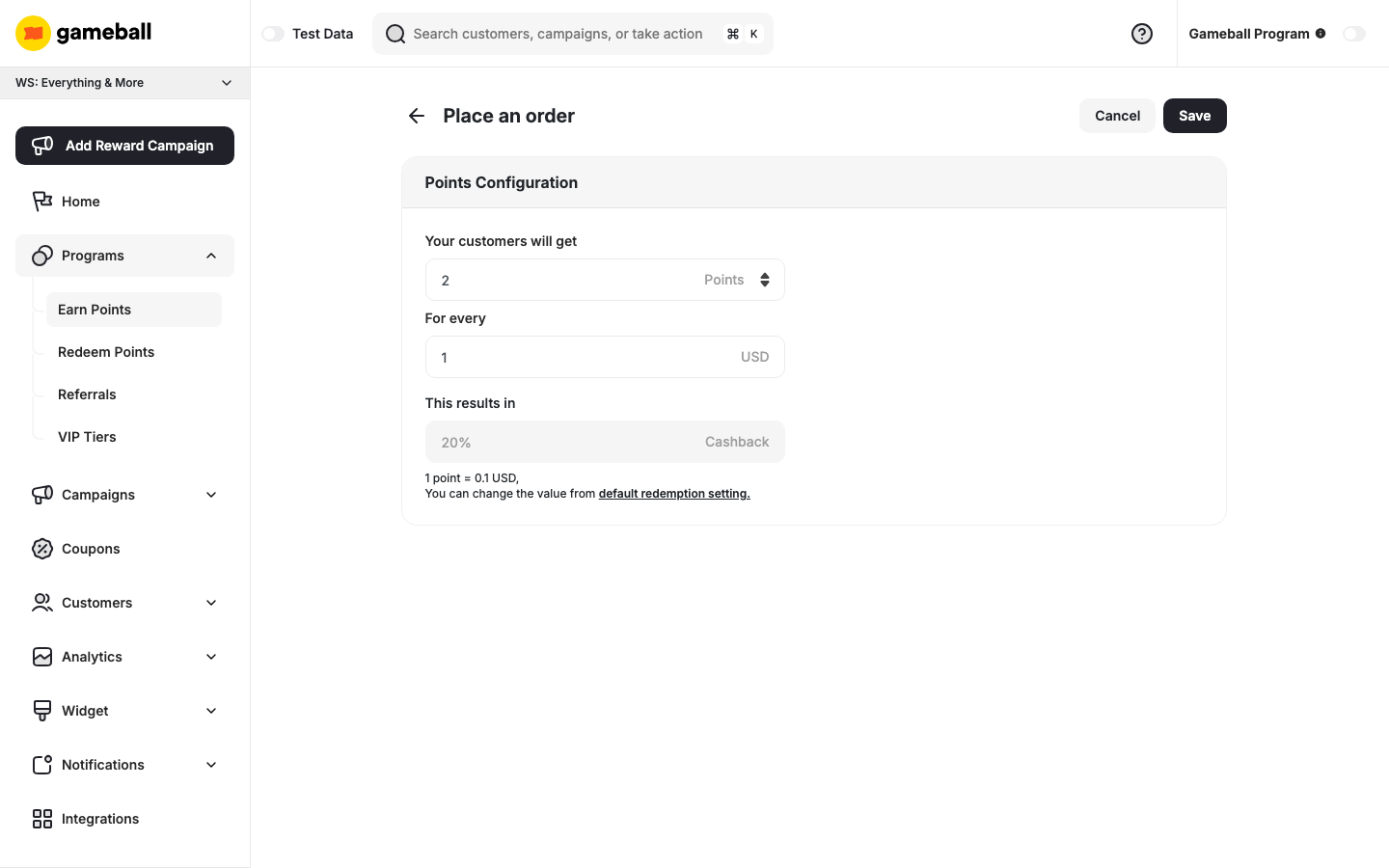
- Your customers will get — the number of points per transaction
- For every — the currency amount that earns those points (e.g., 2 points for every 1 USD spent)
If you use score as your tiering-up method, you will see an additional field to assign the score customers will earn per amount spent. Learn more about Score.
Custom Rules
The Custom section lets you define different earning rules for different order attributes. Click View Custom Rules to configure rules based on order properties such as total price, payment method, or product category. Learn more about Custom Earning RulesMerchant Rules
Set custom earning and redemption rules per merchant or brand, based on your business needs. Learn more about Merchants’ RulesSettings
The Settings section lets you configure how points are issued and which orders qualify. Click Edit next to any setting to update it.Points Expiry
Points Expiry
Define when earned points will expire. Click Edit next to Points Expiry to set the expiry duration and unit (days, months, or years).When setting a point expiry duration of 3 days for example, the points will expire exactly 72 hours after the earning time. Gameball does not round up or down to the nearest day; instead, it calculates the exact time based on the specified duration.
Earn Points Applies On
Earn Points Applies On
Define which collections or products qualify for earning points. Click Edit next to Earn points applies on to choose from:
- All Products
- Selected Collections
- All Products except some collections
Return Window Duration
Return Window Duration
Specify a time gap between when an order is placed and when points are issued. This helps manage potential product returns and ensures proper point issuance.
Cashback Return Window API
You can control when cashback points become active using thereturnWindow attribute.
Available in:
- Order API: under
cashbackConfigurations - Cashback API: under
configurations
returnWindowaccepts values from 0 to 7300 days.- Points remain pending for the set duration, then activate automatically.
- If not provided, the default duration from your Gameball settings applies.
Insights and Analytics
Access in-depth analytics on how your Earn Points System is performing by clicking the Insights tab at the top of the page. Track total earned rewards, total rewarded points, and how reward trends evolve over time.Common Questions
What happens if a customer returns a product after earning points?
What happens if a customer returns a product after earning points?
Use the Return Window Duration setting to delay point issuance, helping avoid rewarding points for refunded purchases.
Can I create different earn rules for different products?
Can I create different earn rules for different products?
Yes, use the Earn Points Applies On setting to filter by collection, or use the Custom section to set rules based on any order attribute.
Can I have an order-level return window?
Can I have an order-level return window?
Yes, you can set a return window at the order level.To do this, include the
returnWindow attribute inside the cashbackConfigurations object when creating the order using the Order API. This allows you to specify a custom return window per order — for example, 7 days for Order A and 10 days for Order B.If returnWindow is not set in the API request, the default duration from your Gameball settings will apply.Related Articles
Custom Earning Rules
Set different point values for different order types and attributes.
Configure Your Redeem Pointing System
Set up how customers can redeem their earned points.