

Step 1: Go to the Updating Page
From the Gameball Admin Dashboard, navigate to Customers > Customers Section > More > Update Customers.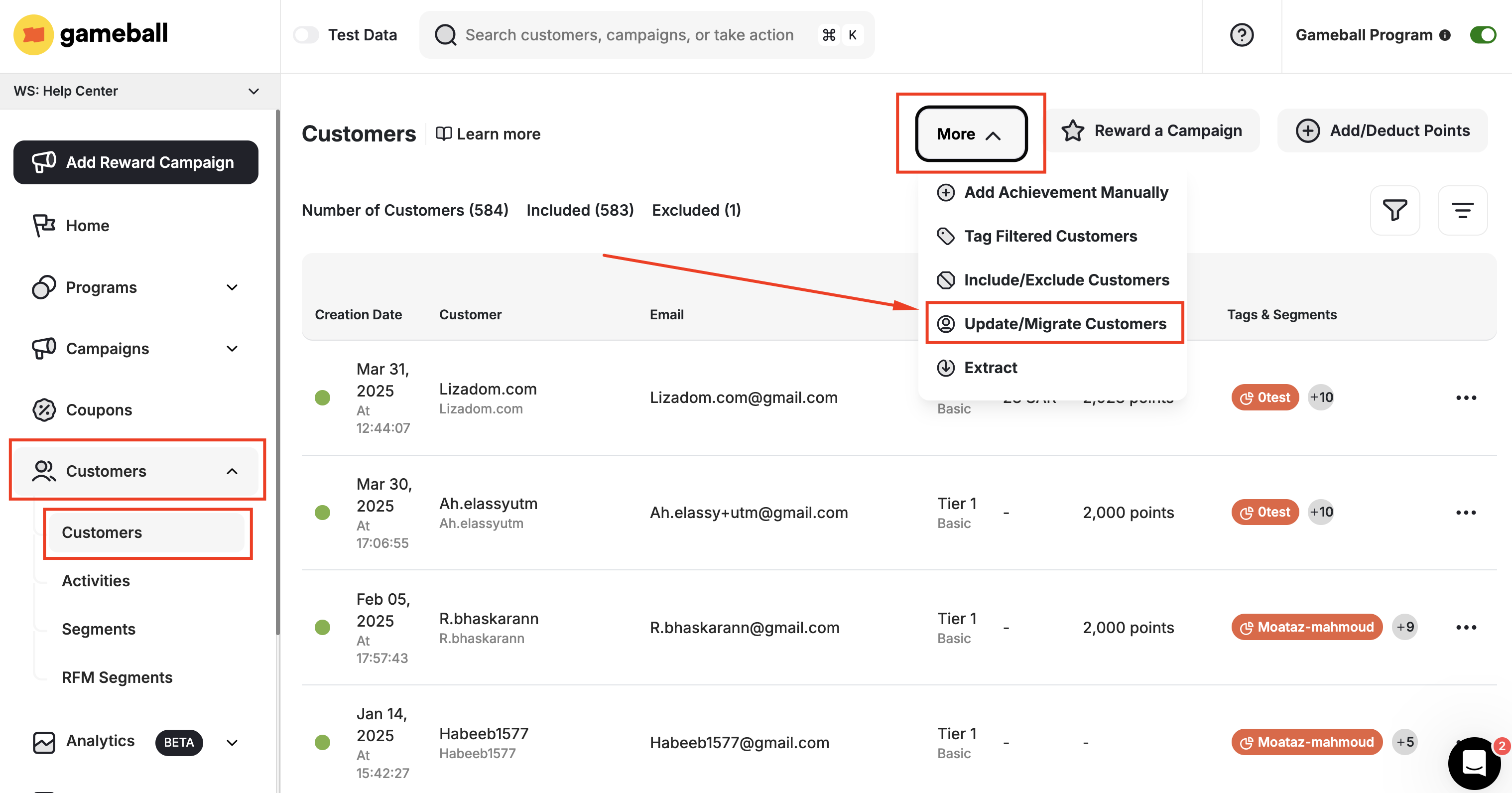
Step 2: Pick What to Update
Choose what you want to update for your customers:Points
Update customers’ points balances.
Tiers
Assign or change customers’ VIP tier levels.
Attributes
Update profile attributes such as tags, birthday, or email subscription status.
If you need to update more than one element (for example, points and tiers), you can do them separately by repeating the process for each.
Step 3: Upload Your Customer File
Select your CSV file and click Open. Once Gameball reads the file, click Continue.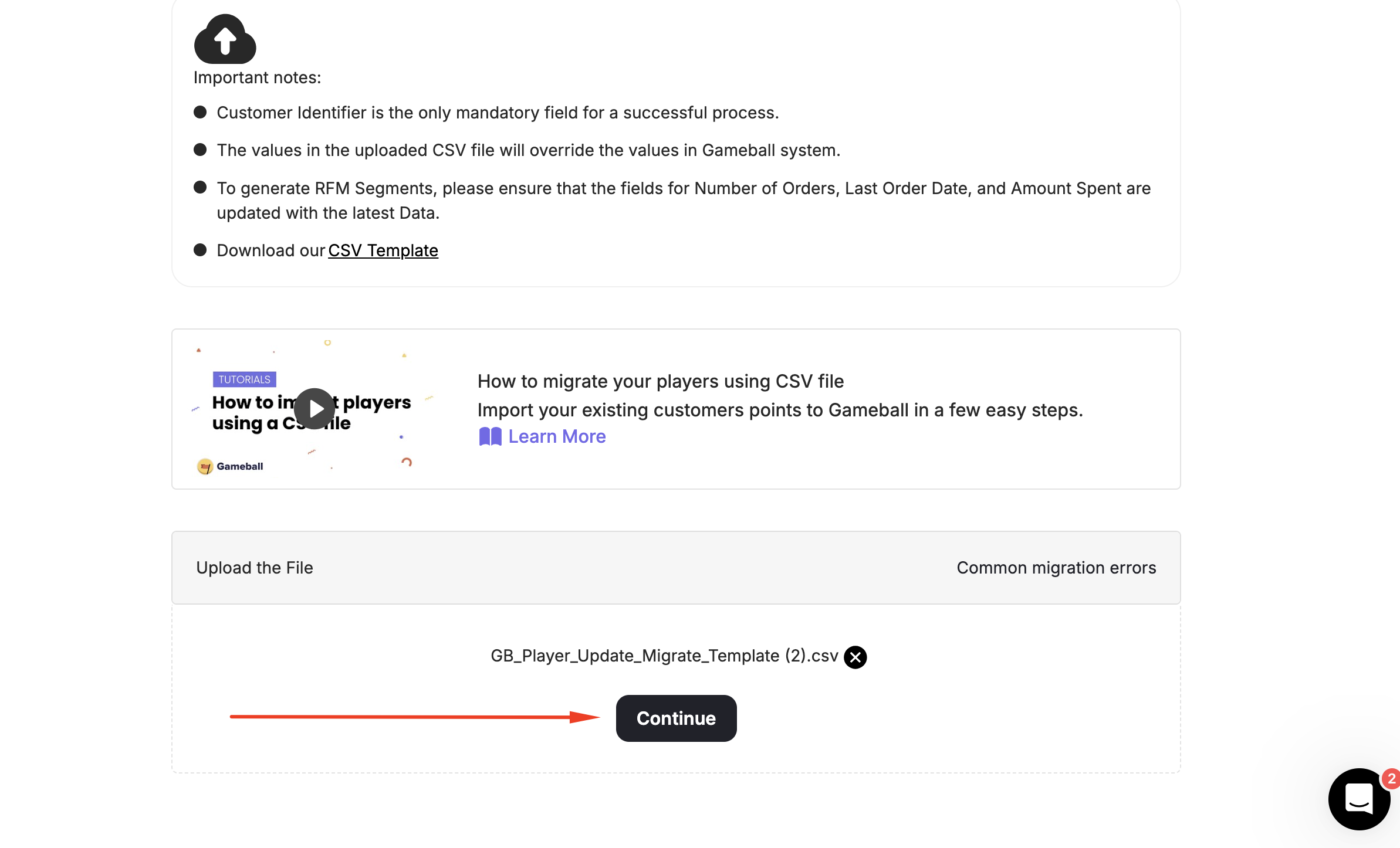
Step 4: Map Your Attributes
Match the column headers in your CSV to the corresponding Gameball fields.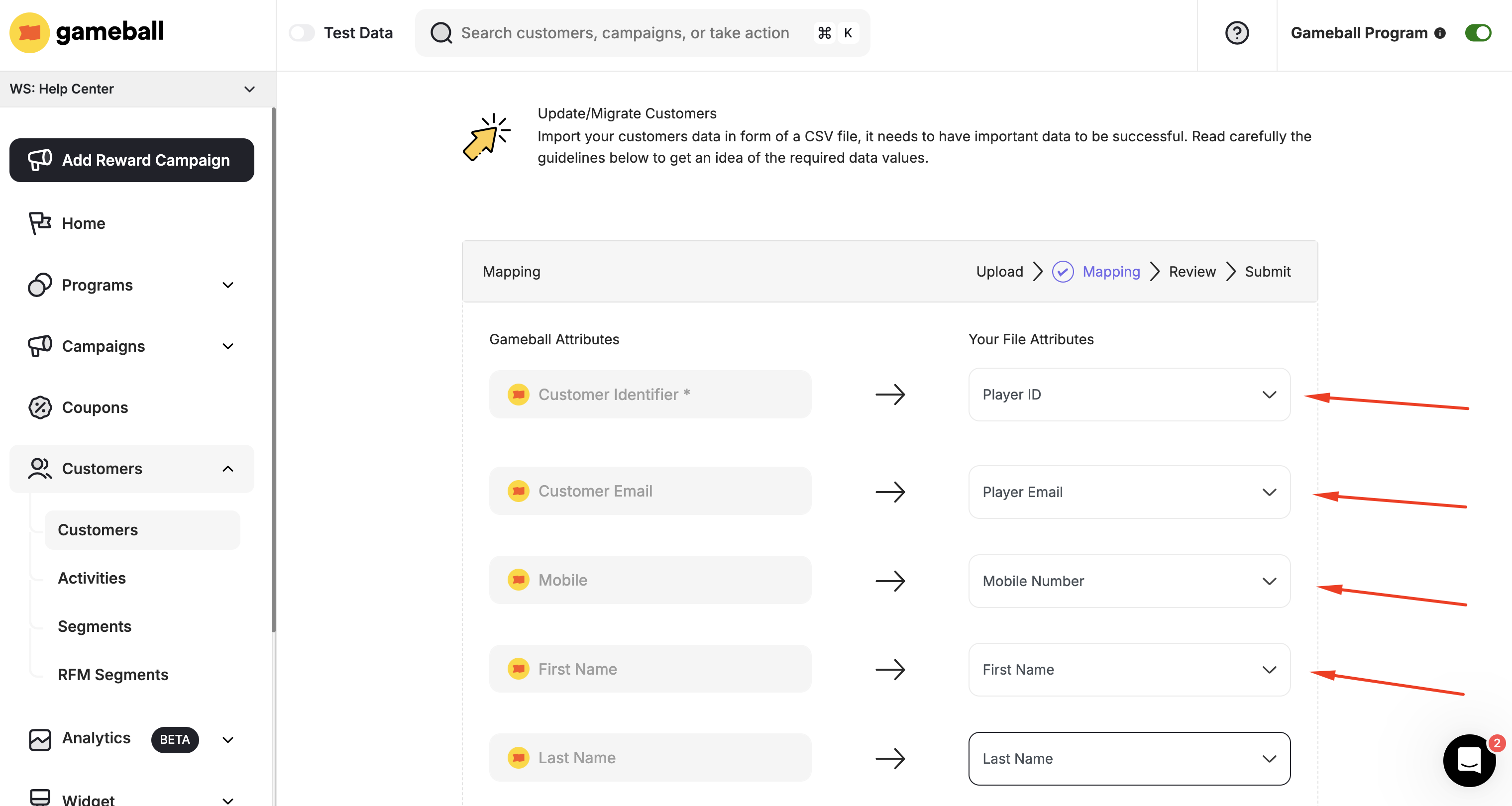
The only mandatory field is the Customer Identifier — this can be the customer’s unique ID or email address.
| Option | Description |
|---|---|
| Re-evaluate on next cycle | Customers are re-evaluated at the next recalculation cycle based on your tier expiry configuration. |
| Place in tier forever | Customers are placed into this tier permanently with no further evaluation. |
| Place in tier until a date | Customers are placed into this tier until a specific date. |
YYYY-MM-DD, MM-DD-YYYY, DD-MM-YYYY, YYYY/MM/DD, DD/MM/YYYY, MM/DD/YYYY
Step 5: Review Errors
If any rows in your file contain data that doesn’t match the expected format, Gameball will display the errors before submission.If there are more than 10 errors, you will need to download the error sheet to see all issues — not all errors are shown on screen at once.
Step 6: Submit the File
Once submitted, you are redirected to the Customers page, where updated records are reflected. An error report is sent to the admin account’s registered email.How to Extract Your Current Customer Data Before Updating
Related Articles
Import Customers via CSV
Migrate customers from other loyalty programs into Gameball using a CSV file.
Common Customer Update/Migration Errors
Troubleshoot errors that may occur during the customer update process.