

Overview of the Activities List
To access this, navigate to Customers > Activities.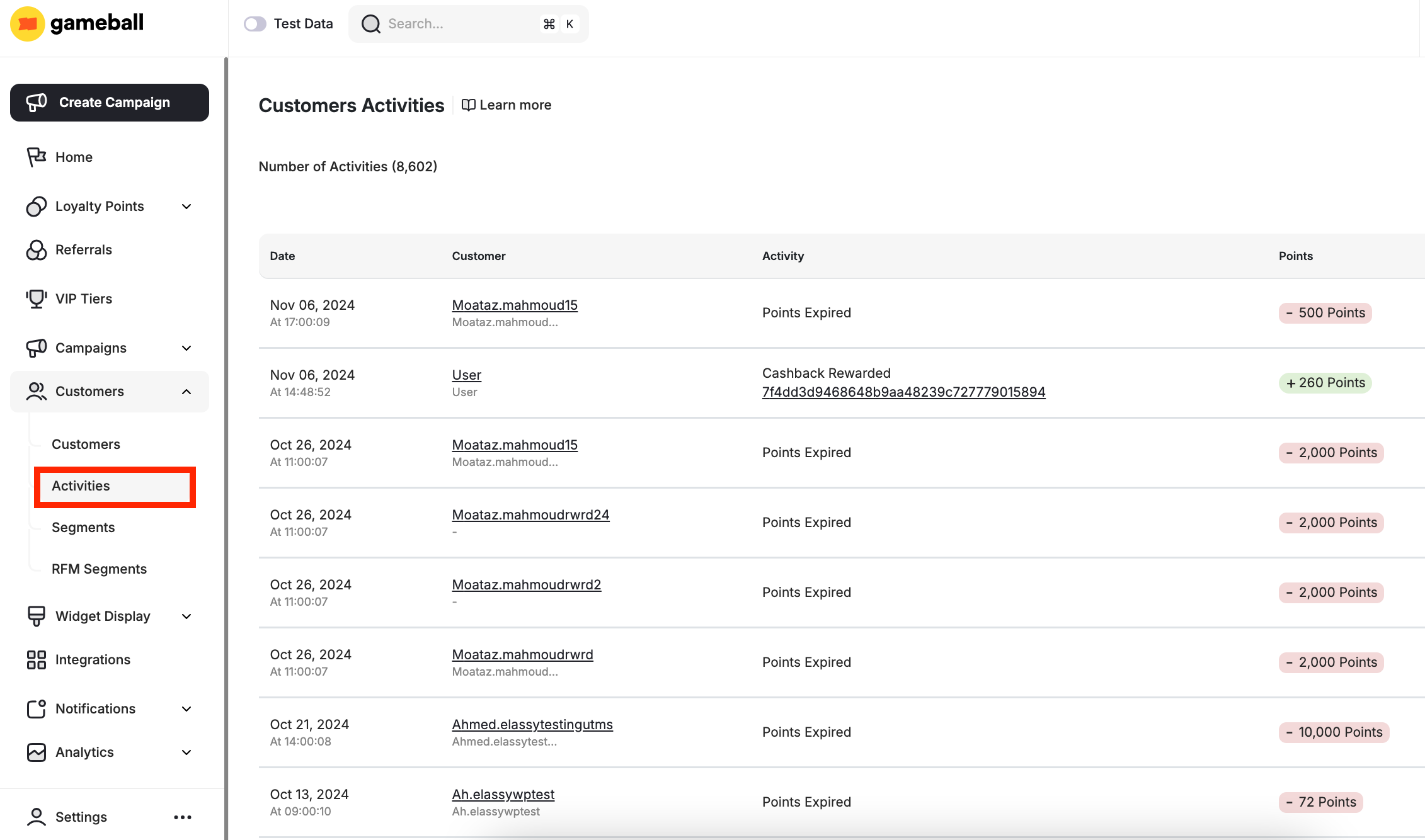
Understand the Columns in the Activities List
Each record includes:| Column | Description |
|---|---|
| Date | The timestamp of the recorded activity. |
| Customer | Displays the customer’s Gameball ID and full name (if available). |
| Activity | The activity type that was logged (see full list below). |
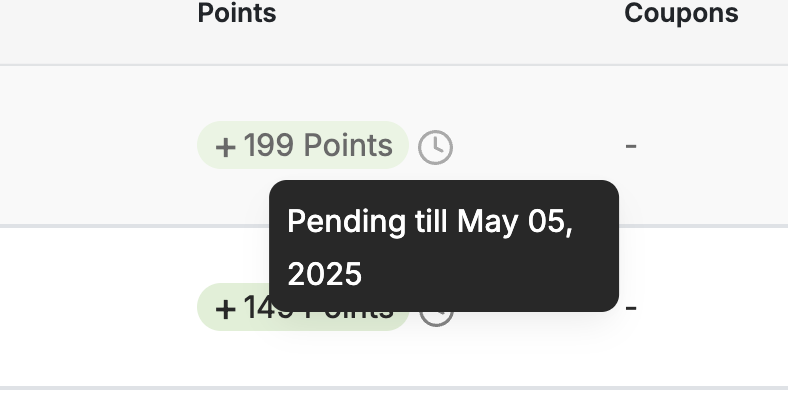
| Points | Reflects the number of points earned or deducted, if applicable. In case points are pending, you will see a clock icon beside the activity points — hover over it to see when it will be activated. Hovering over the points amount will allow you to see their expiration date. |
| Coupons | Shows the coupon type and value if one was issued or redeemed as part of the activity. |
| Merchant | Reserved for multi-merchant activities. It shows the merchant name that owns this activity and the corresponding branch name. This is available only in case the Merchant Module was used by this account. The Merchant Module is only available for non-platform integration with Gameball. |
Types of Logged Activities
Below is a list of activity types you may encounter in this section:| Activity | Description | Comment |
|---|---|---|
| Automation Activity | A customer was rewarded or affected through an automated flow. | The automation name is shown as a clickable link, taking you directly to the source automation campaign. This makes it easy to trace any reward back to the automation that triggered it. |
| Balance Adjustment (+ or -) | Manual adjustment of points by an admin. Includes both addition and deduction. | By default, it has the “Manual” tag. Hover over the manual tag to read the reason behind the adjustment. |
| Bonus Referral Rewarded | An extra reward given to a customer for referring X number of friends. | — |
| Campaign Rewarded | A customer completed a reward campaign and received a configured reward. | The second line shows its name and a link to the reward campaign page. |
| Cashback Cancelled | A previously issued cashback was canceled (e.g., order refund or cancellation). | The second line shows the order ID. Clicking the ID opens a side tab with order details. |
| Cashback Rewarded | A cashback was granted as part of a transaction or campaign. | The second line shows the order ID. Clicking the ID opens a side tab with order details. |
| Friend Referred | A new customer was referred successfully by an existing one. | — |
| Tier Downgraded | The customer was downgraded to a lower VIP tier. | The second line shows the newly reached tier. |
| Tier Upgraded | The customer was upgraded to a higher VIP tier. | The second line shows the newly reached tier. |
| Lifetime Coupon | A lifetime-use coupon was issued to the customer based on the tier. | Read more about this in Customizing Benefits for Different Tiers. |
| Migration | Customer activity imported via CSV or API during data migration. | — |
| Points Expiry | Points expired according to your configured return window and expiration rules. | Read more about Points Configuration. |
| Points Redeemed | Points were used to redeem a reward or benefit. | The second line shows the order ID. Clicking the ID opens a side tab with order details. |
| Points Refunded | Previously redeemed points were returned to the customer (e.g., after reward reversal). | The second line shows the order ID. Clicking the ID opens a side tab with order details. |
| Referee Reward Received | The referred customer received their reward. |
Some activities may include a “Manual” tag. This indicates that the action was performed manually by an admin, either on an individual customer or through a bulk action. Examples include Reward a Campaign manually, or Adjust Balance manually.
Customers Page-Level Actions
This section covers how to filter your customer activities list and how to export it.Apply Filters to Refine the View
You can filter the list based on any of the activities, and you can extract the full list or the filtered list.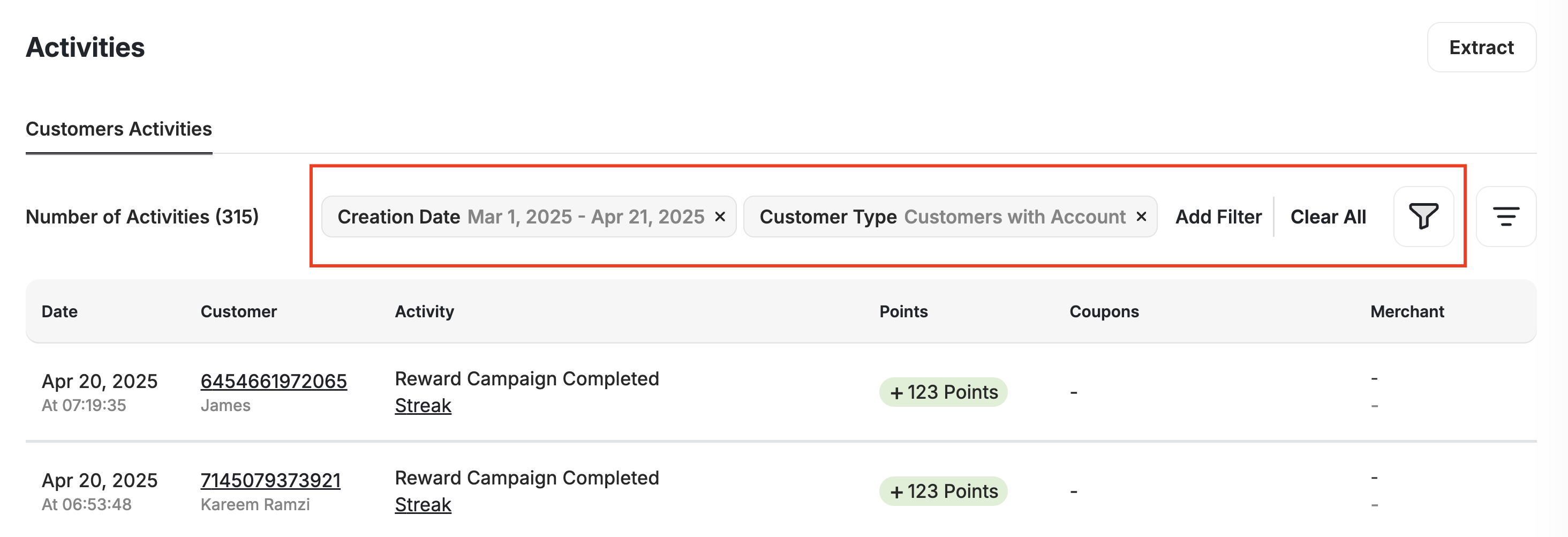
Available Filters
| Filter | Description |
|---|---|
| Creation Date | Filter activities by the date they occurred. |
| Customer Type | Filter between registered customers and guest users. |
| Customer ID | Search activities related to a specific customer by their Gameball ID. |
| Customer Name | Search for activities linked to a customer by name. |
| Customer Email | Filter by a customer’s registered email address. |
| Customer Phone Number | Filter by a customer’s mobile number. |
| Order ID | Filter by the order ID associated with a cashback or reward. |
| Refund ID | Filter activities related to refunds that triggered a point refund. |
| Points Status | Filter based on the status of points: active, pending, blocked, or expired. |
| Manual Actions | View only manually triggered activities, such as manual rewards or adjustments. |
| Activity | Filter by specific activity types (e.g., Points Expiry, Campaign Rewarded). |
| Points | Filter by points value earned, redeemed, deducted, or refunded. |
| Coupon | Search activities linked to a specific coupon code or type. |
| Merchant Name | Filter by merchant in multi-merchant setups, if applicable. |
| Branch Name | Filter by branch name under a merchant, if applicable. |
| Customer Tier | Filter activities based on the customer’s VIP tier at the time of the activity. |
| Reward Campaign Name | Filter by the name of a completed reward campaign. |
| Reward Campaign Type | Filter by the type of campaign completed (e.g., Spin the Wheel, Cashback, Tier-based). |
Export the Activities Log
Read more about this through Export Your Customer Activities Log.
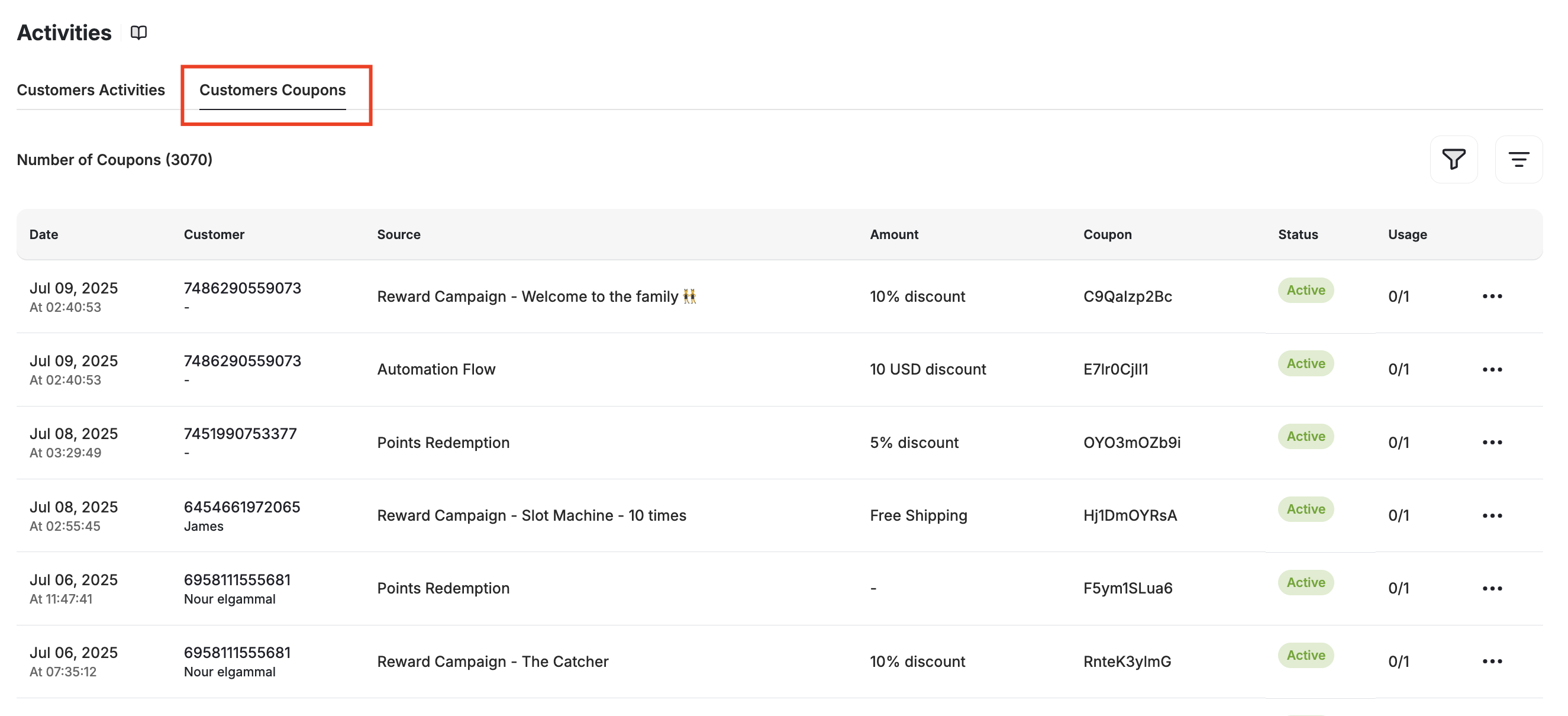
Rewarded Coupons Log
Why Use the Customer Activity Log?
Monitor Engagement
Monitor customer engagement and reward activity across your loyalty program.
Identify Trends
Identify trends in customer behavior to tailor your loyalty program more effectively.
Track Accuracy
Ensure that rewards, points, and tier statuses are accurately tracked for all customers.
Coupon Insights
Gain insights into the effectiveness of your campaigns, including how and when rewarded coupons are being utilized.
Related Articles
Explore a Customer Profile
View and manage individual customer data.
Group Customers by Tags
Use tags to group and target customers.