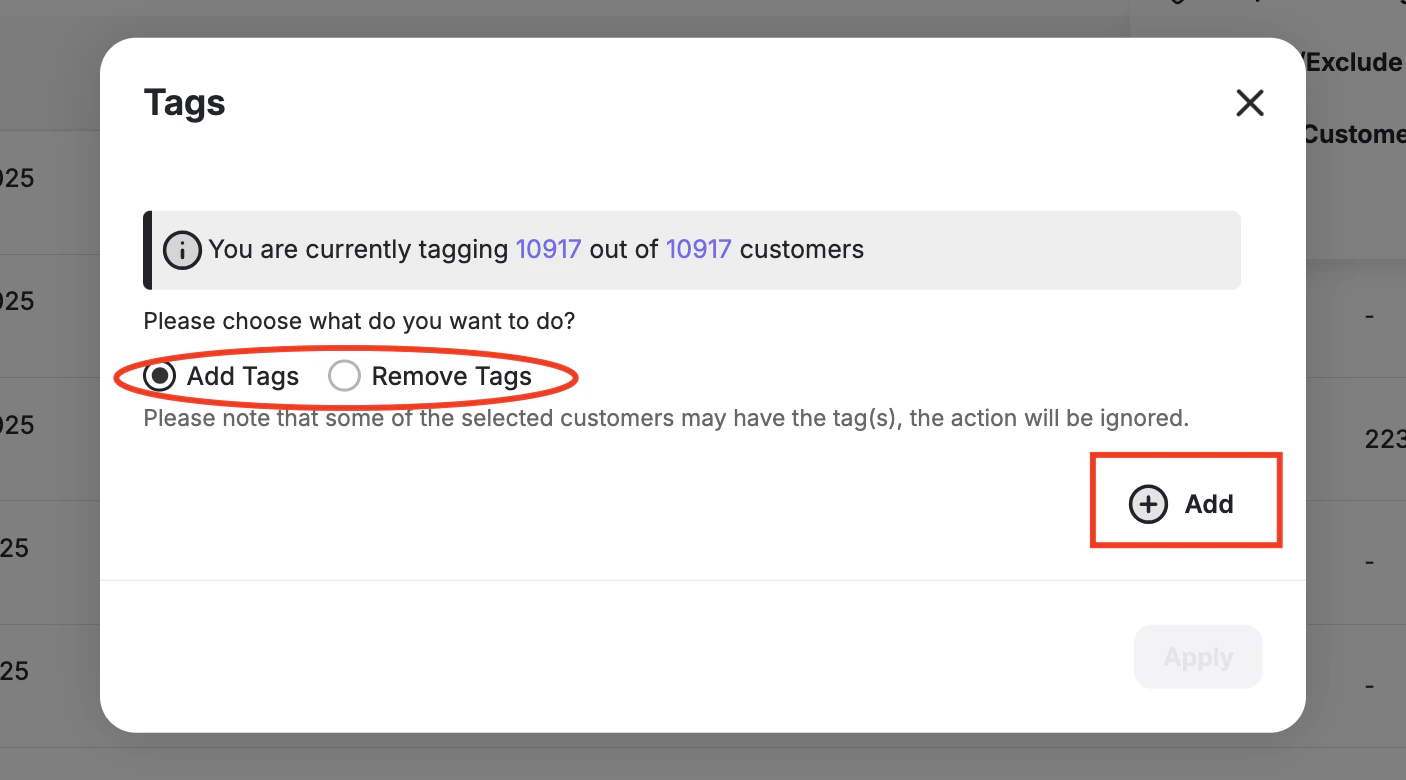
Tags let you group your customers manually. They are great for highlighting VIP customers who may need VIP rewards, loyal customers who should be treated differently, or when you need to simulate different rewards based on the assigned tags. For example, if you want to create and send communication campaigns, notifications, or assign reward campaigns to only a specific group of customers, tags are a great way to link between these customers and the assigned notifications, emails, or reward campaigns.
The maximum number of tags that can be created is 15 tags.

How to Create Customer Tags

The following steps are also what you need to completely remove or delete a tag.
1

Navigate to Customer Tags

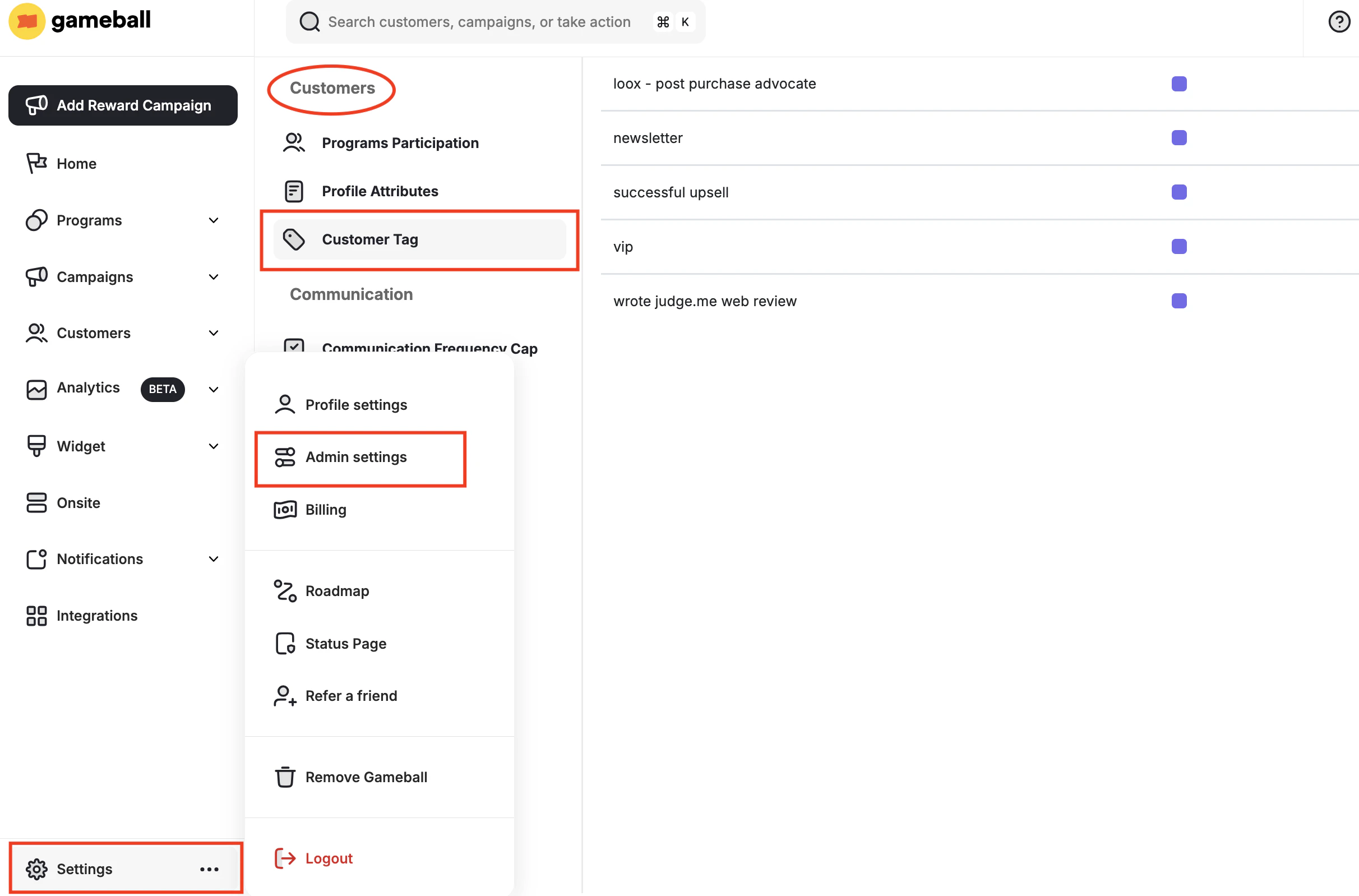
On your Gameball dashboard, go to Settings > Admin Settings > Customer Tags.
Customer tags settings page
2

Create a new tag

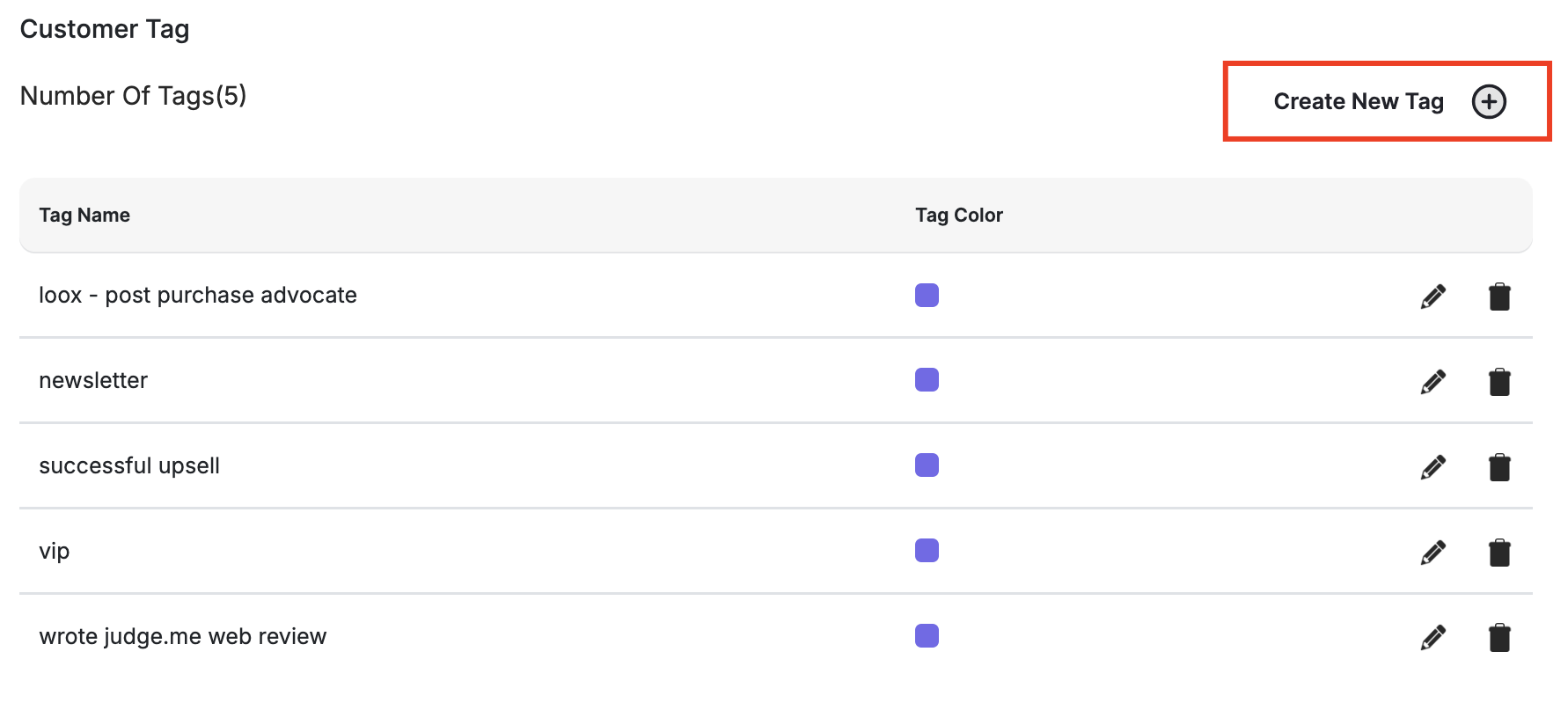
On the top right of the page, click Create New Tag.
Create new tag button
3

Configure and save the tag

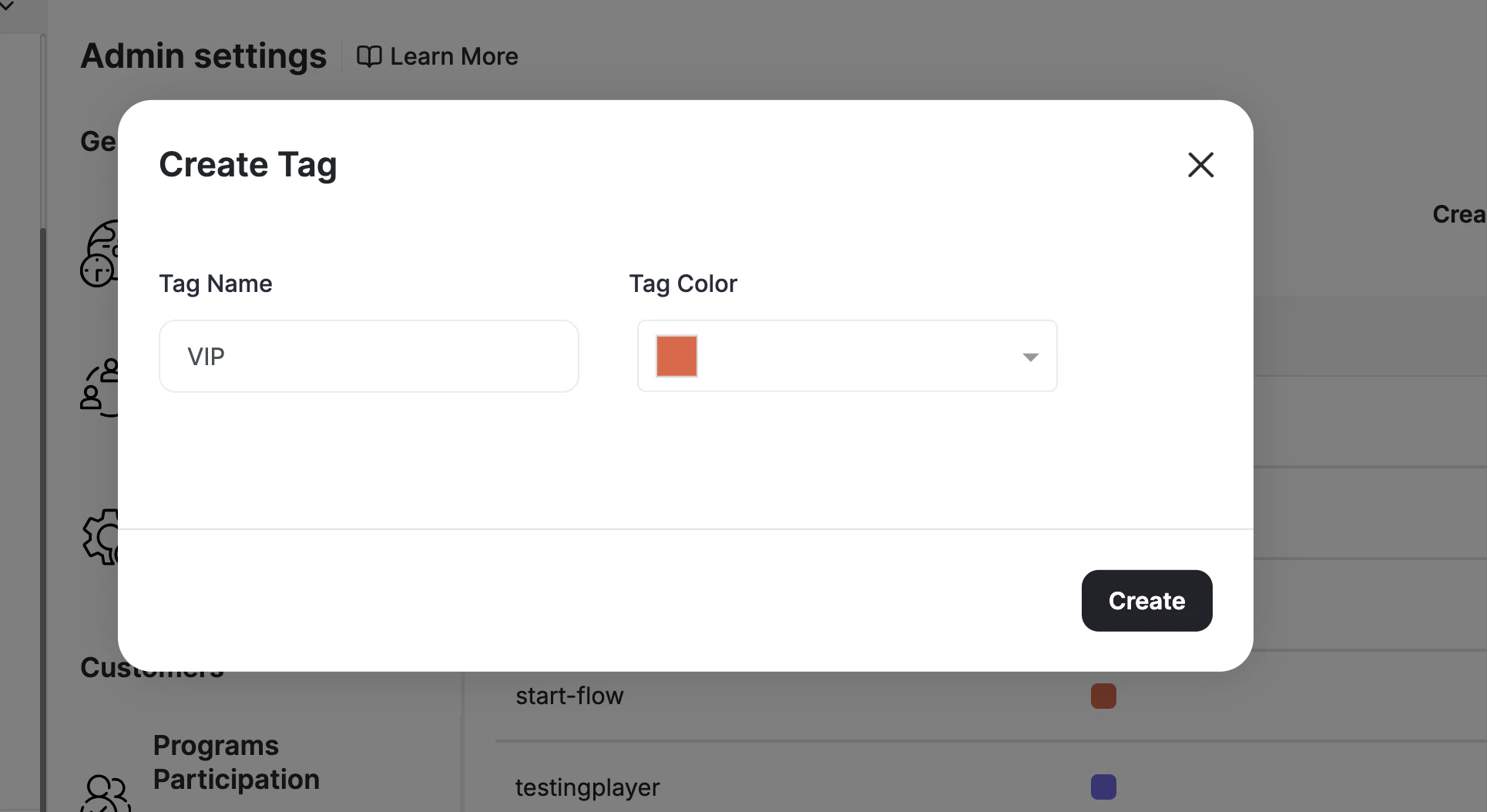
Add the tag name and choose the tag color, then click Create.
Tag name and color configuration

How to Tag Your Customers

The following steps are also what you need to remove tags from a customer.
1

Open a customer profile

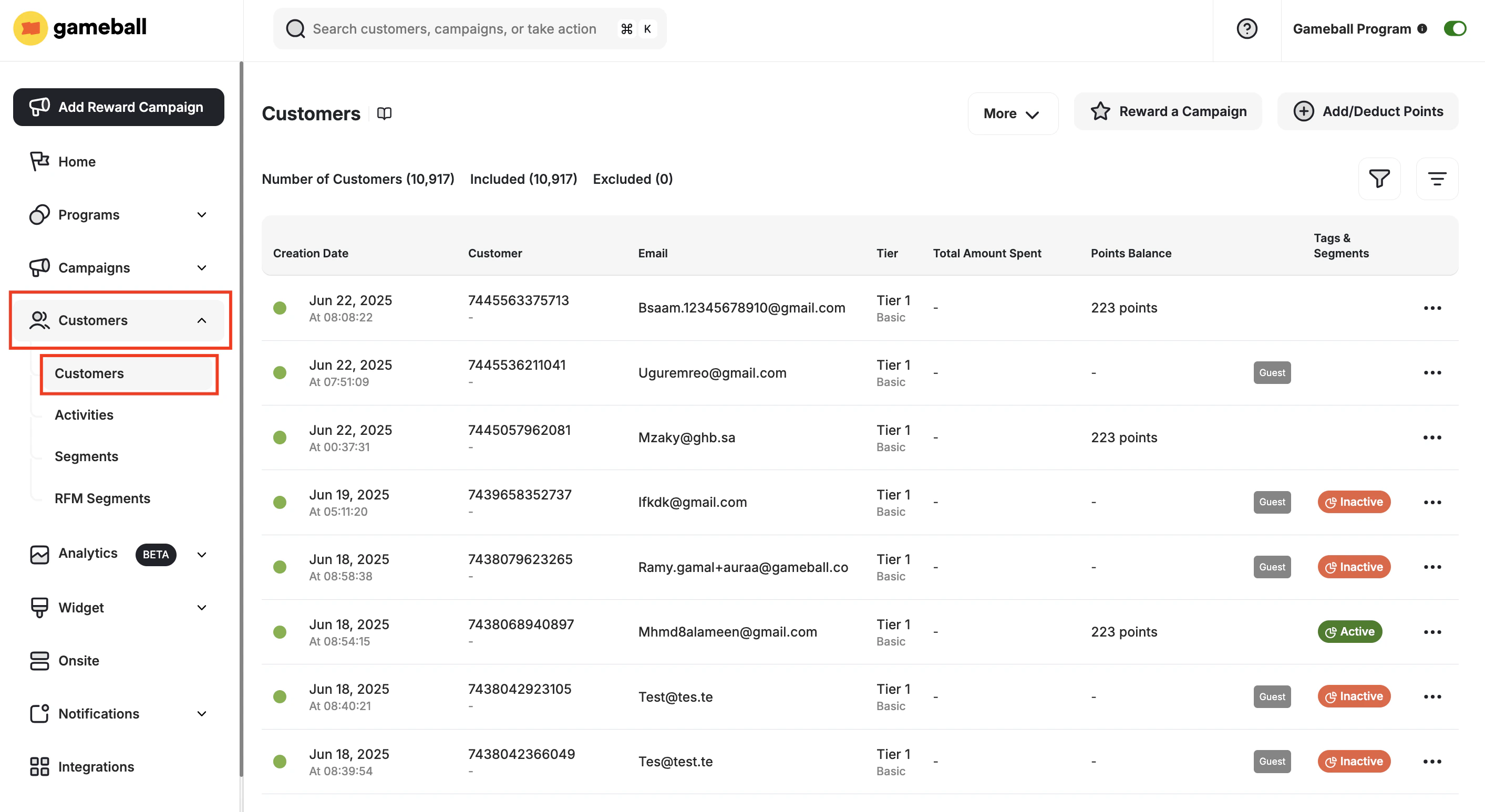
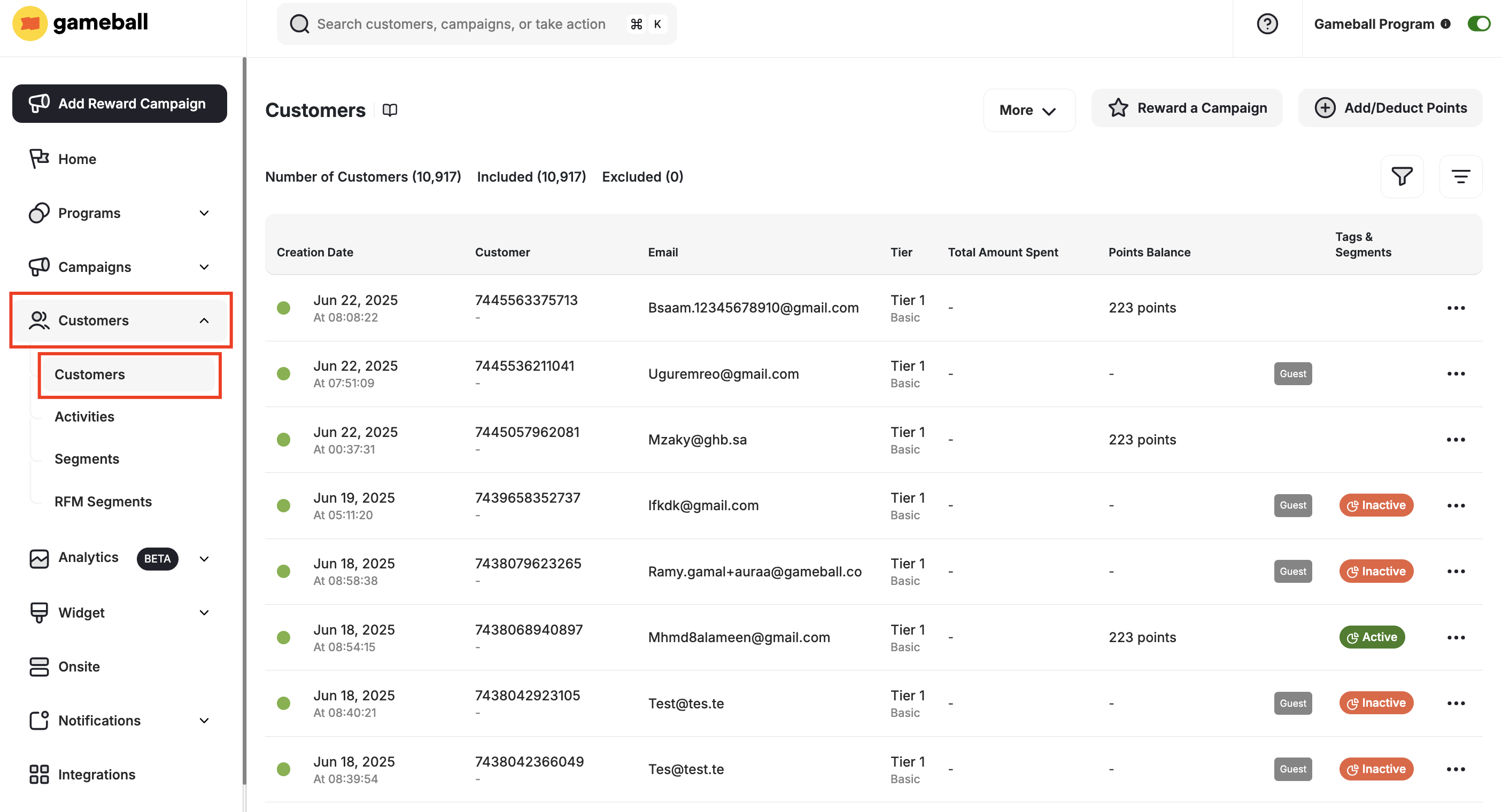
On your Gameball dashboard, go to Customers, then open any customer page.
Customer list page
2

Add a tag

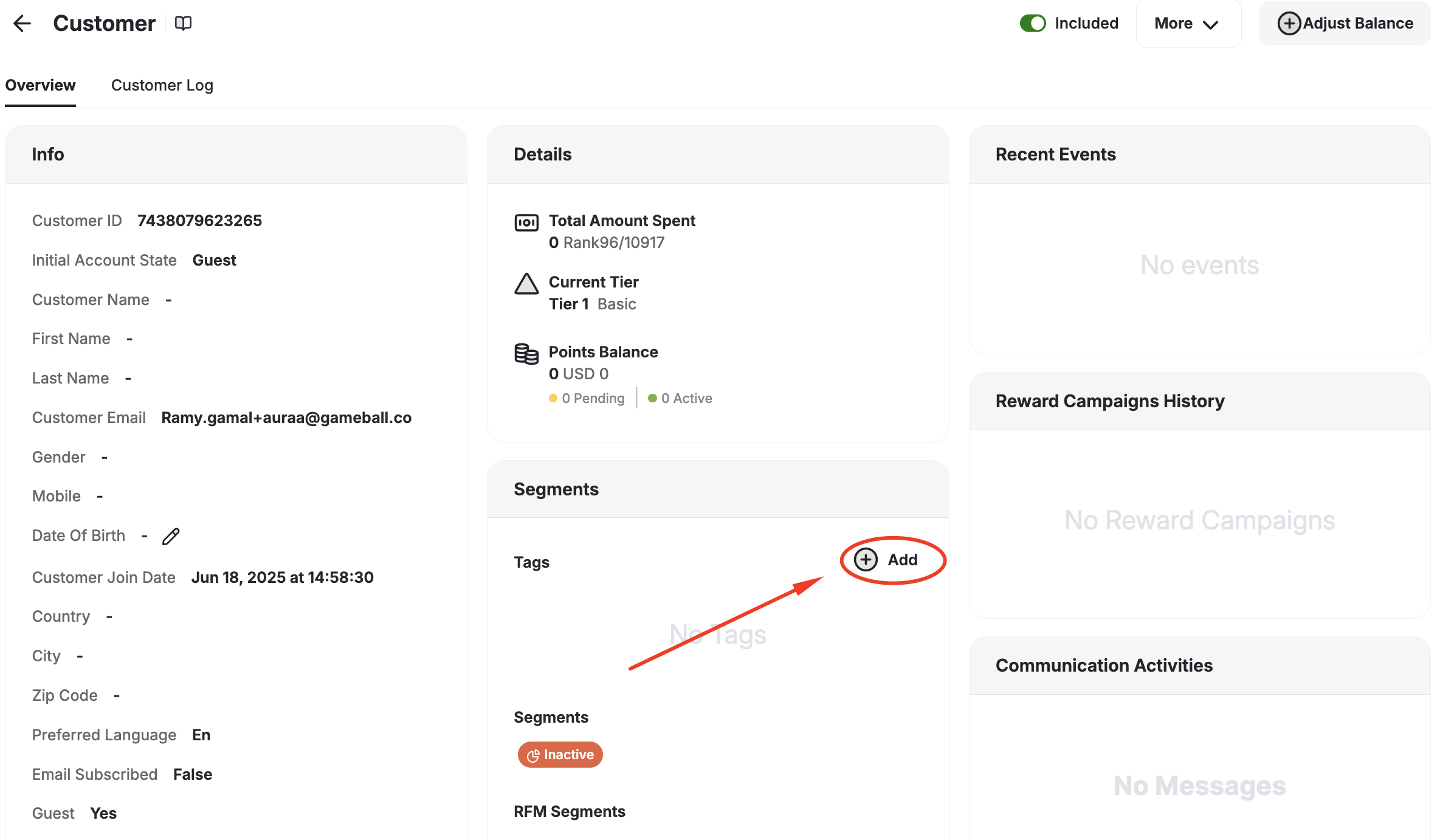
Under the Segments section, beside Tags, click on +Add.
Add tag to customer
3

Select the tag

Search for the available tags and assign the tag to the customer.
This is also where you remove a tag from a customer.

What is Next?