

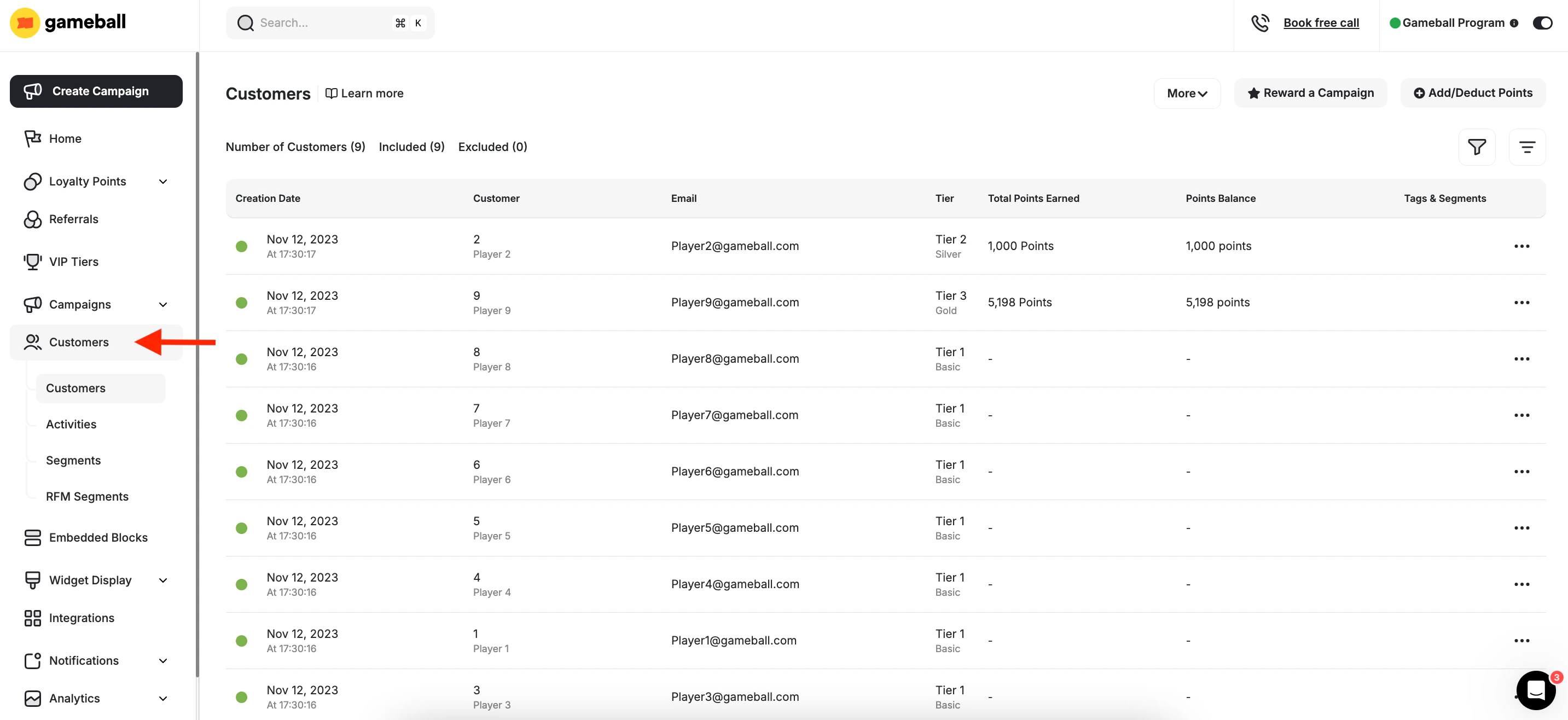
Customer List Overview
Once you access the Customers tab on your Gameball dashboard, you will see a list of all customers along with key profile attributes that help you better understand and manage each customer’s engagement level.Understand the Columns in the Customer List
| Column | Description |
|---|---|
| Creation Date | The date and time the customer profile was created in Gameball. |
| Customer | Displays the customer’s full name and their unique Gameball ID. |
| Customer Email | The registered email address associated with the customer. |
| VIP Tier | The current tier of the customer based on your configured loyalty program. This includes both the tier order and tier name. |
| Score / Total Amount Spent / Total Points Earned | This column varies depending on your configured tiering-up method: if based on Score, this shows the current score; if based on Amount Spent, it shows cumulative spend; if based on Points, it shows the total points earned. You can learn more about the Tiering-up methods. |
| Points Balance | Displays two types of points: Active Points (redeemable points currently available) and Pending Points (non-redeemable points awaiting the completion of the configured return window). Learn more about Pending Points and Return Window. |
| Guest Tag | Indicates that the customer placed an order as a guest and has not yet created an account on your platform. This tag is automatically displayed if the customer’s status is identified as a guest. The guest customers feature is available by default in Shopify or through custom integration with Gameball. |
| Tags and Segments | Lists any tags manually added to the customer, and the segments they belong to, based on dynamic rules or RFM logic. |
Actions Available on Each Row
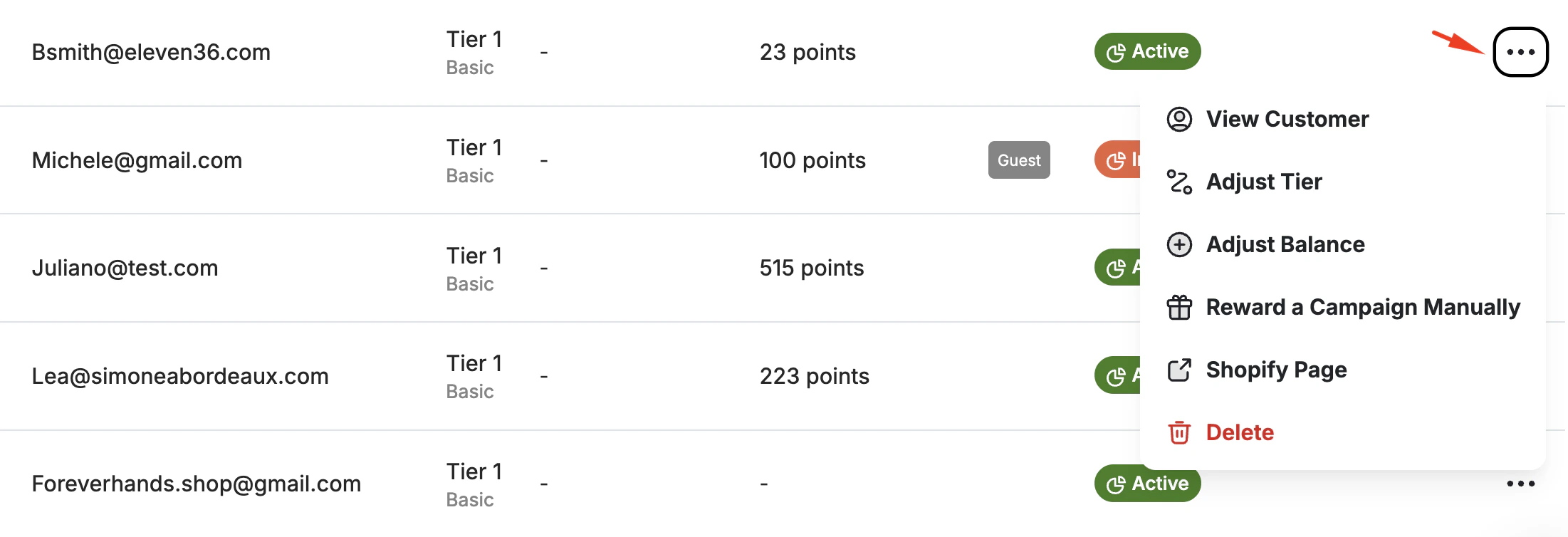
| Action | Description | Availability |
|---|---|---|
| View Customer | Opens the detailed customer profile page, where you can review full data, points history, events, and more. | All platforms |
| Adjust Tier | Manually update the customer’s VIP tier. This allows you to override the default tiering logic when needed. | All platforms |
| Adjust Balance | Manually add or deduct points from the customer’s current balance. | All platforms |
| Reward a Campaign Manually | Manually reward a customer with a configured campaign. Useful for ad-hoc or support-related rewards. | All platforms |
| Shopify Page | Opens the customer’s profile directly within your Shopify admin. | Shopify only |
| Delete | Permanently deletes the customer profile from Gameball. This option is not available for Shopify or Salla integrations. | Non-platform clients only |
Customers Page-Level Actions
This section covers how to filter your customer list and how to apply single actions and bulk actions to one or more selected customers.Apply Filters to Refine the View
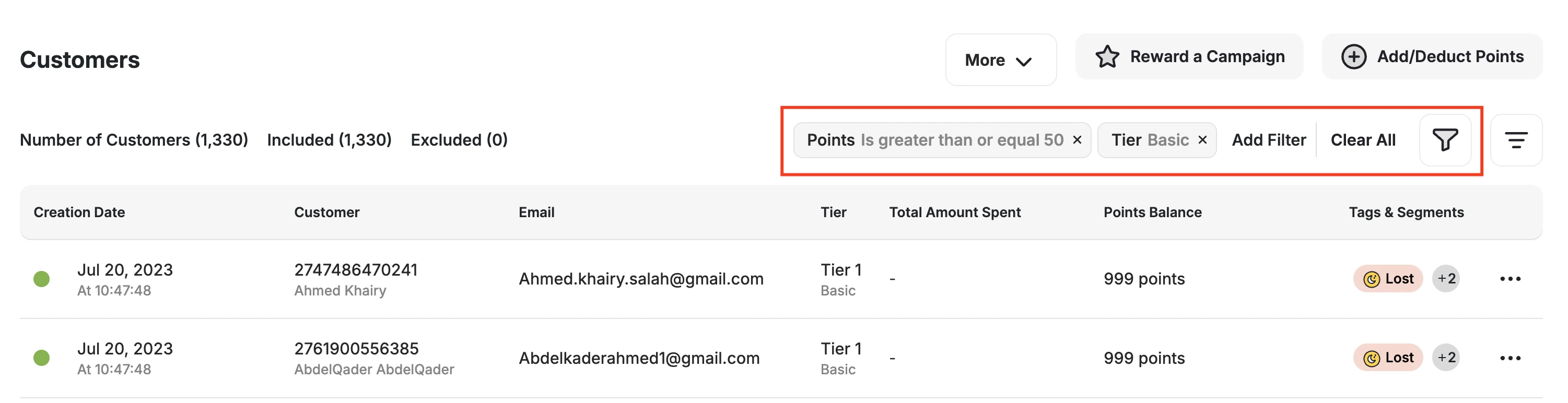
Available Filters
| Filter | Description |
|---|---|
| Creation Date | Filter by the date the customer was added to Gameball. |
| Customer Type | Filter between registered users and guests. |
| Customer ID | Search for a specific customer using their unique ID. |
| Customer Name | Search by full name. |
| Customer Email | Filter by email address. |
| Customer Phone Number | Filter by mobile number. |
| Total Amount Spent | Filter customers based on how much they’ve spent in total (or based on your configured tiering-up method). |
| Points | Filter by current total points. |
| Pending Points | Filter customers based on points currently in a pending state. |
| Included | Filter by inclusion or exclusion from your loyalty program. |
| Tags | Filter by one or more tags applied to customers. |
| Segments | Filter based on the customer’s assigned dynamic segments. |
| RFM Segments | Filter by customers’ RFM segments. |
| Tier | Filter by current VIP tier. |
All applied filters will remain active until you manually reset or remove them. The customer list and any bulk actions will reflect only the filtered results.
Perform Bulk Actions
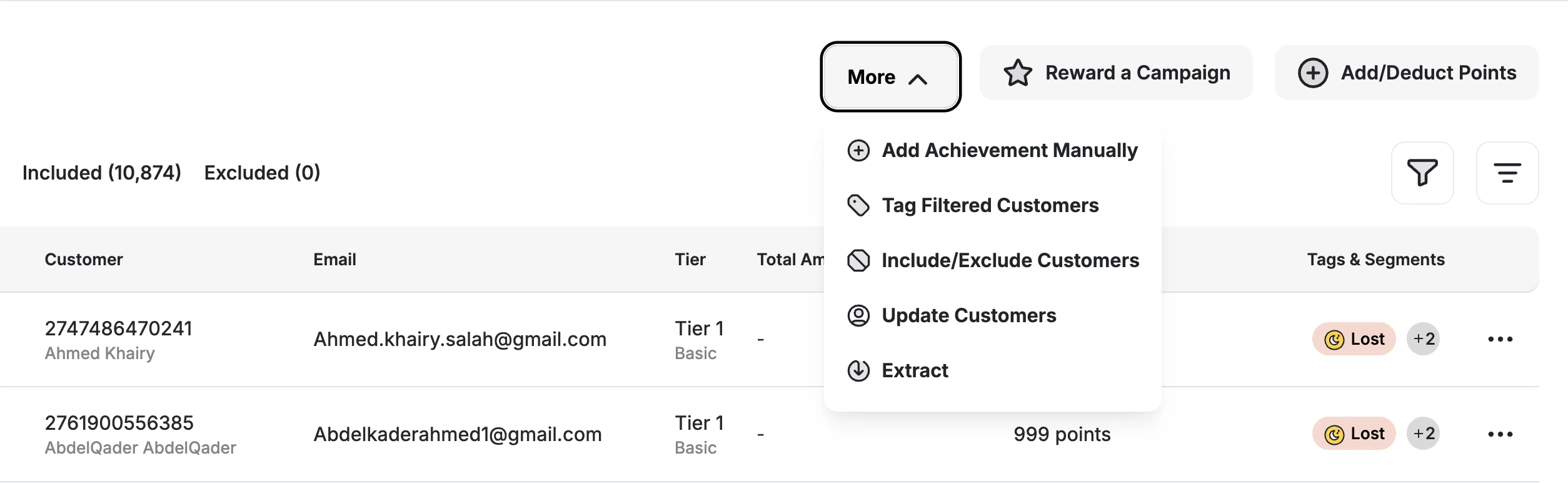
Available Bulk Actions
| Action | Description |
|---|---|
| Reward a Campaign | Manually assign a configured reward campaign to all selected customers. This is useful for delivering one-time rewards or campaign incentives in bulk instead of waiting for the customer to accomplish the reward campaign rules. |
| Add/Deduct Points | Directly adjust the points balance of selected customers by adding or deducting points. Useful for corrections or manual point rewards. |
| Tag Filtered Customers | Apply one or more tags to the selected customers for future targeting or segmentation. |
| Include/Exclude Customers | Bulk include or exclude selected customers from your Gameball loyalty program. |
| Update Customers | Update customer data in bulk via CSV. Labeled “Update Customers” on Shopify/Salla to update existing customer data. Labeled “Update/Migrate Customers” on non-platform integrations to support customer migration and updates. Customer creation and deletion are not allowed through Gameball for Shopify or Salla users — these operations must be handled through the platform, and Gameball will sync automatically. |
| Extract | Export the filtered customer list to a CSV file, including detailed fields beyond those shown on screen. Read more about this through Export Your Customer List. |
- You cannot delete customers in bulk.
- There are some other bulk actions you can apply using the batch creation API.
Related Articles
Export Your Customer List
Export your customer data to a CSV file with detailed fields.
Customer Activity Log
Track all customer transactions and activities.
Group Customers by Tags
Use tags to manually group and target customers.
Explore a Customer Profile
View and manage individual customer data.