- Track your total sales from Gameball programs.
- Learn how much your customers spend on your store and further details on your customers’ placed orders.
- Gain insights into your customers’ behavior to better tailor your loyalty and retargeting strategy on Gameball.
- Impact of Gameball on your revenue, business performance, and growth.
Where to Find Gameball’s Analytics Section
There are four analytics sections you can explore:
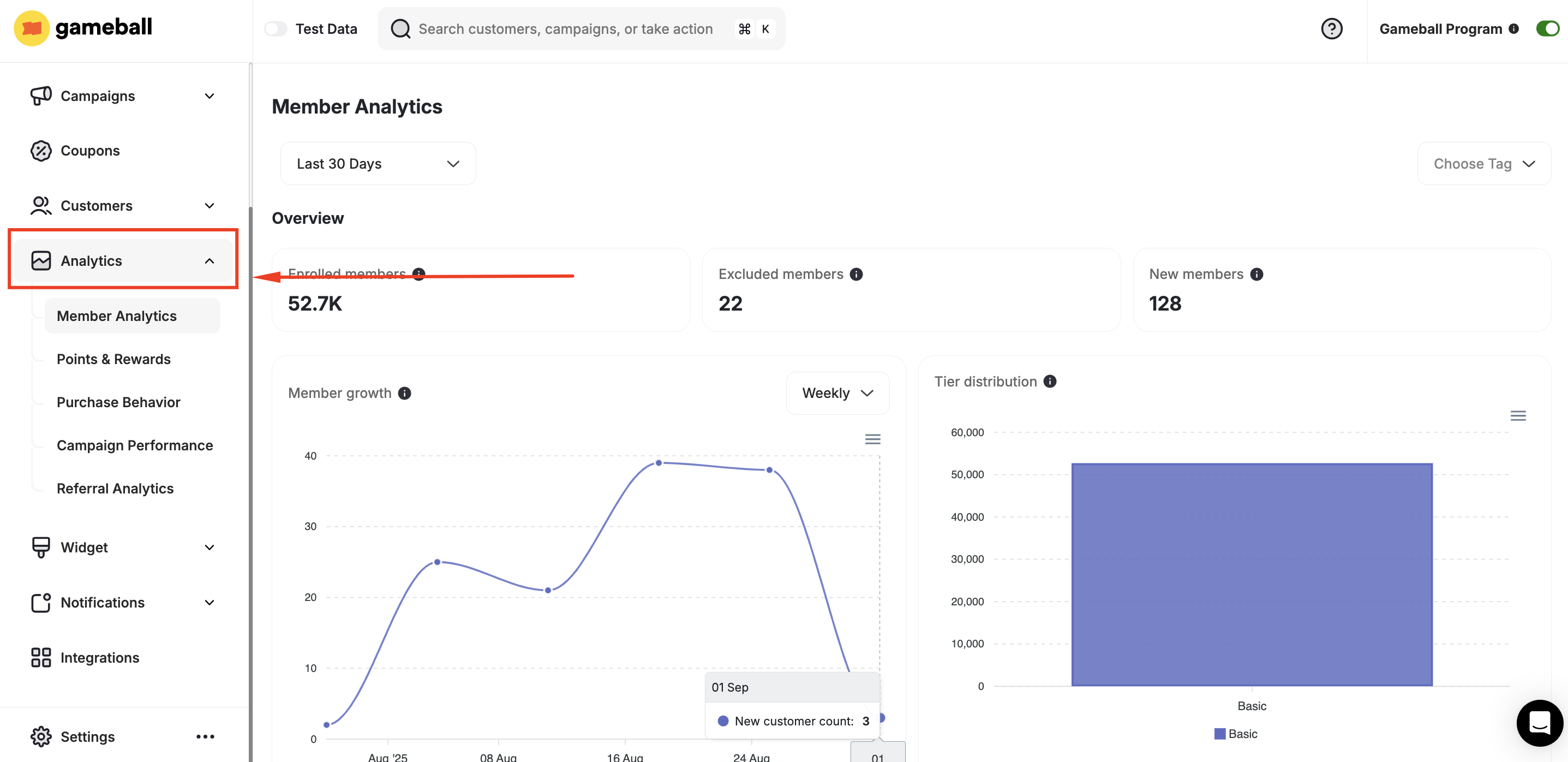
Members Analytics
Track enrolled member growth, engagement rates, and retention metrics.
Points & Rewards
Monitor points earned, redeemed, burned, and export raw data as CSV.
Purchase Behaviour
Analyze customer spending, order values, and Gameball-attributed revenue.
Campaign Performance
Measure campaign reach, completion rates, and rewards distribution.
Referral Analytics
Evaluate referral activity, success rates, and revenue from referrals.
What Do I Need to Know Before Diving Into the Analytics?
When looking straight at numbers and graphs for the first time, it might seem complicated or hard to grasp. Here are some quick tips that will help you figure out what each number or graph means and how to navigate and assemble them according to your preferences:Analytics Time Span
Analytics Time Span
When you are on any of the analytics pages, you can display the data from a particular time span or display all the data from the time you activated your program.Click on the button at the top right of any page to select your preferred time span.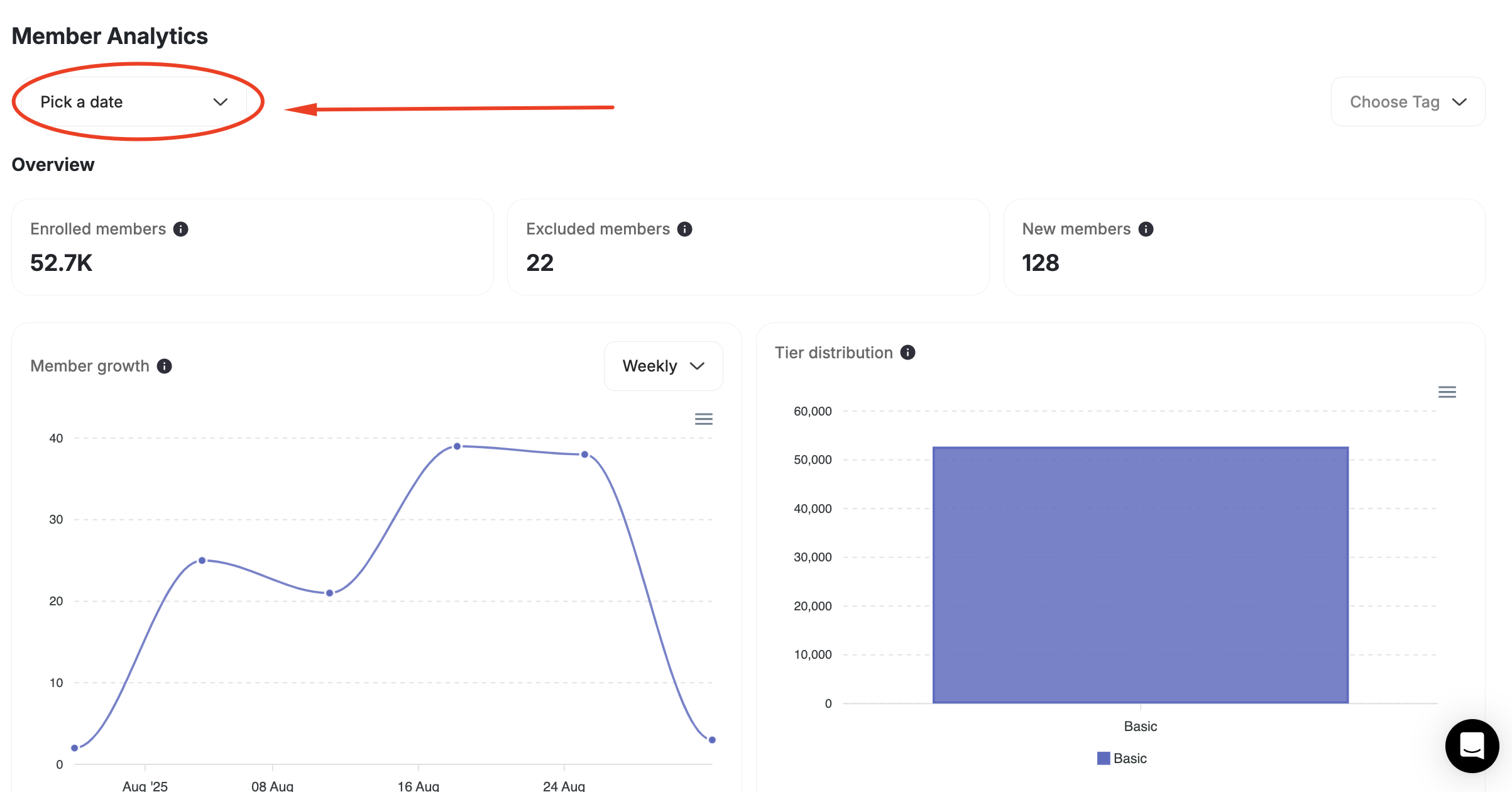
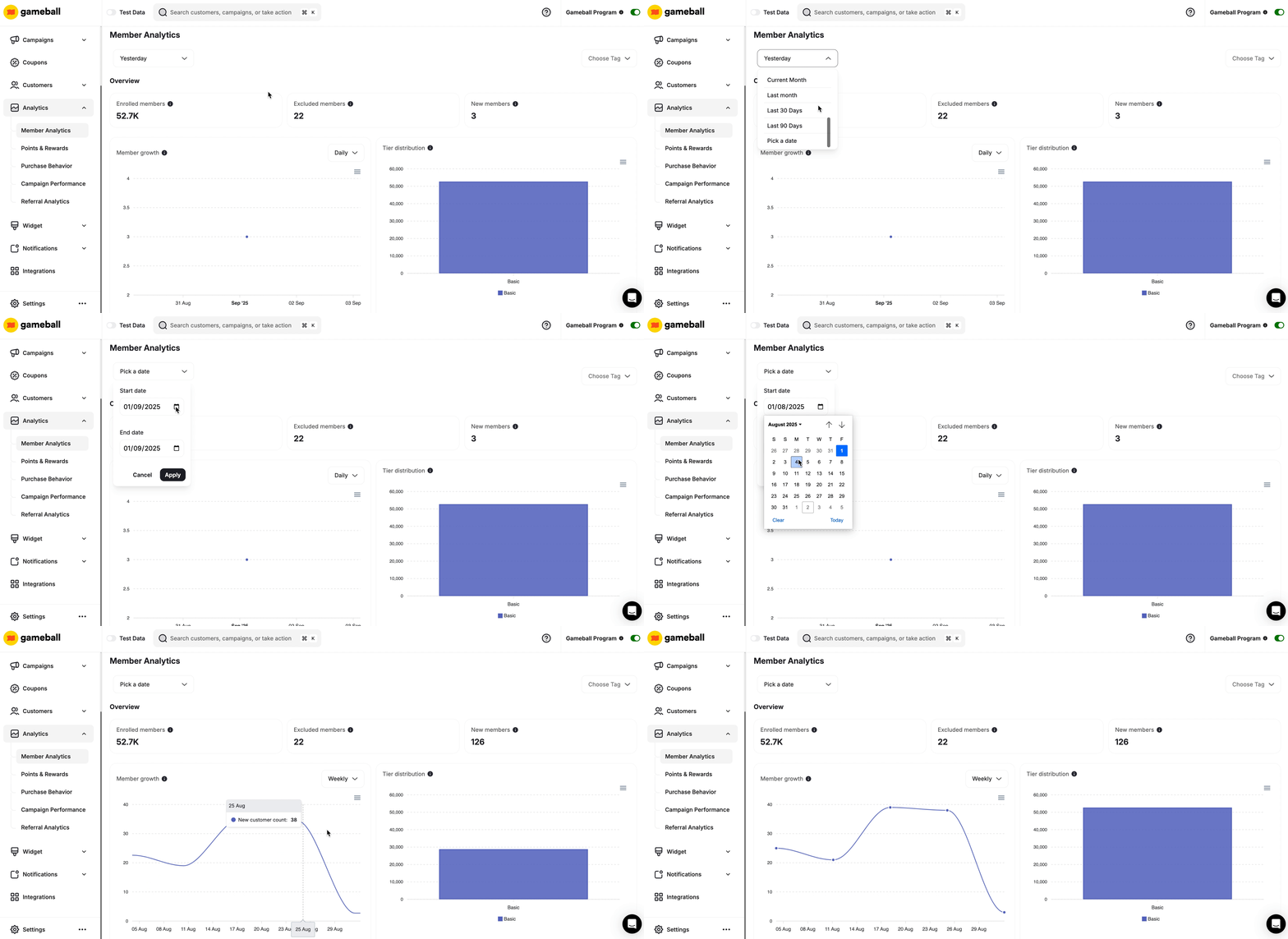
You can manually select a time span to display data between two random dates by clicking “pick a date..”
Tooltip for Data Elaboration
Tooltip for Data Elaboration
If you find yourself uncertain about what specific data refers to precisely, use your cursor to point at the Information Icon beside the data title to read a brief explanation about it.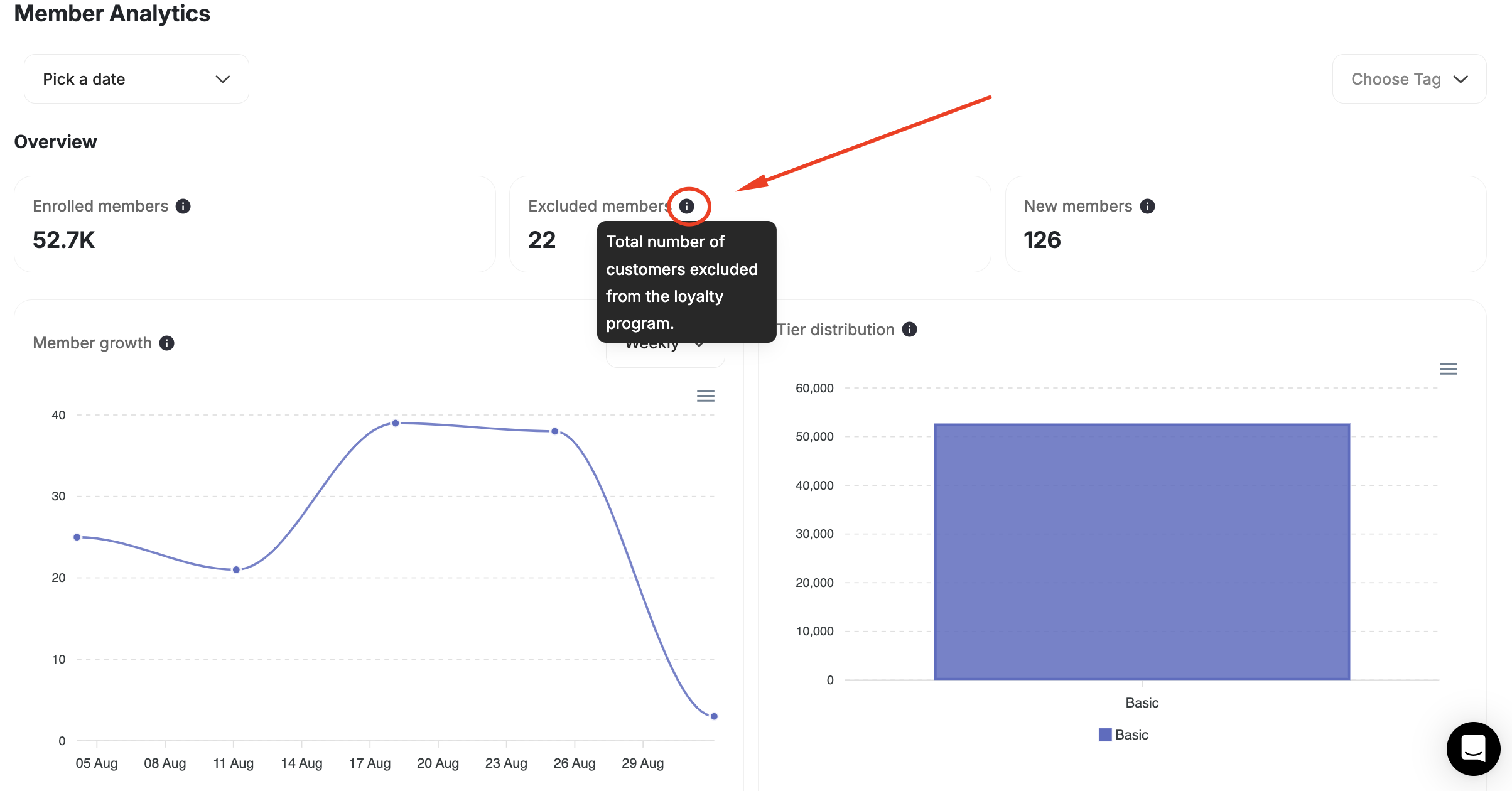
Another way to gain a deeper understanding of what each piece of data reflects is by checking our other help center articles.
View Data Based on Tags
View Data Based on Tags
You can view more details about each group of customers that shares the same tag by clicking Choose Tag.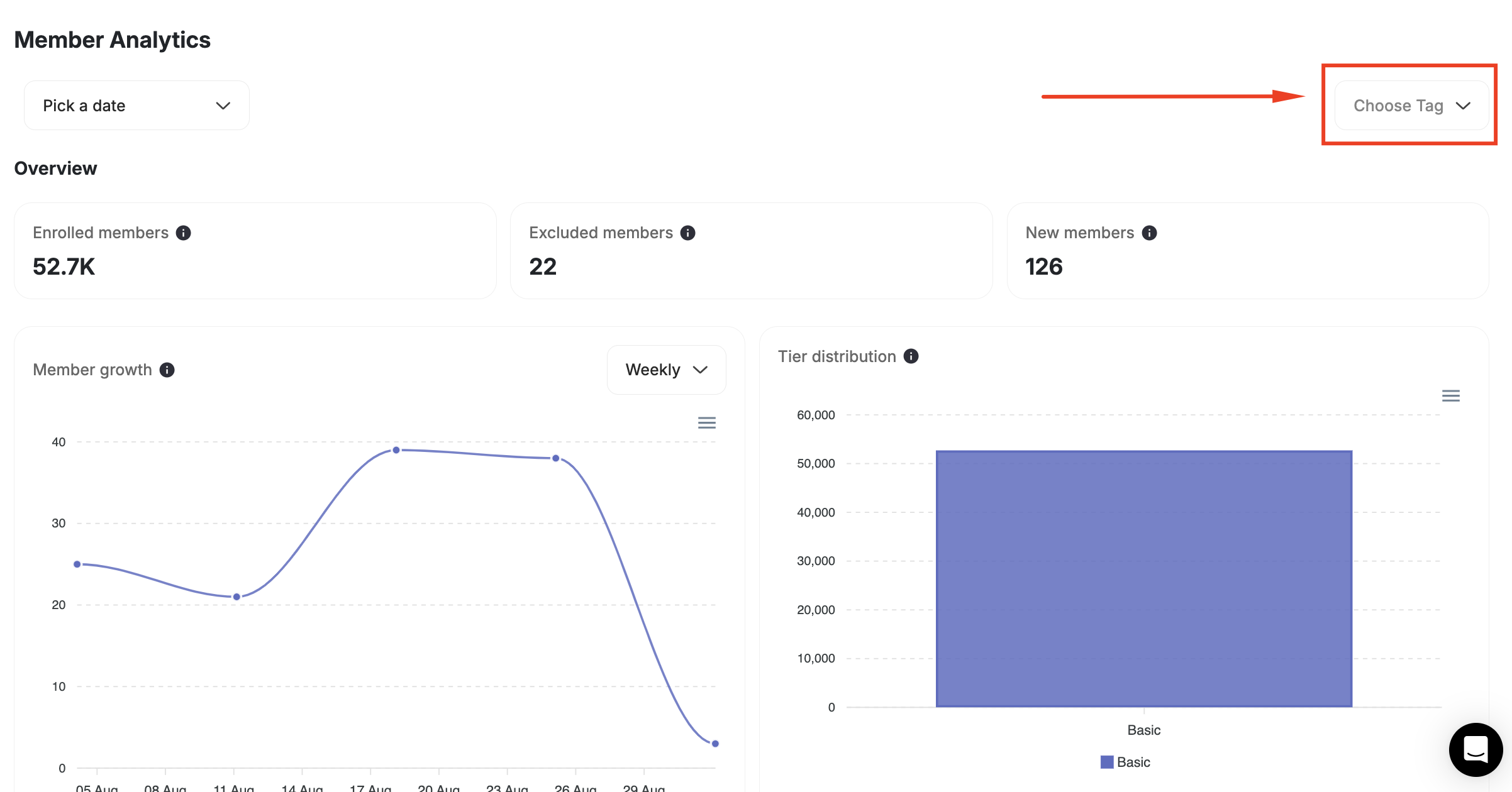
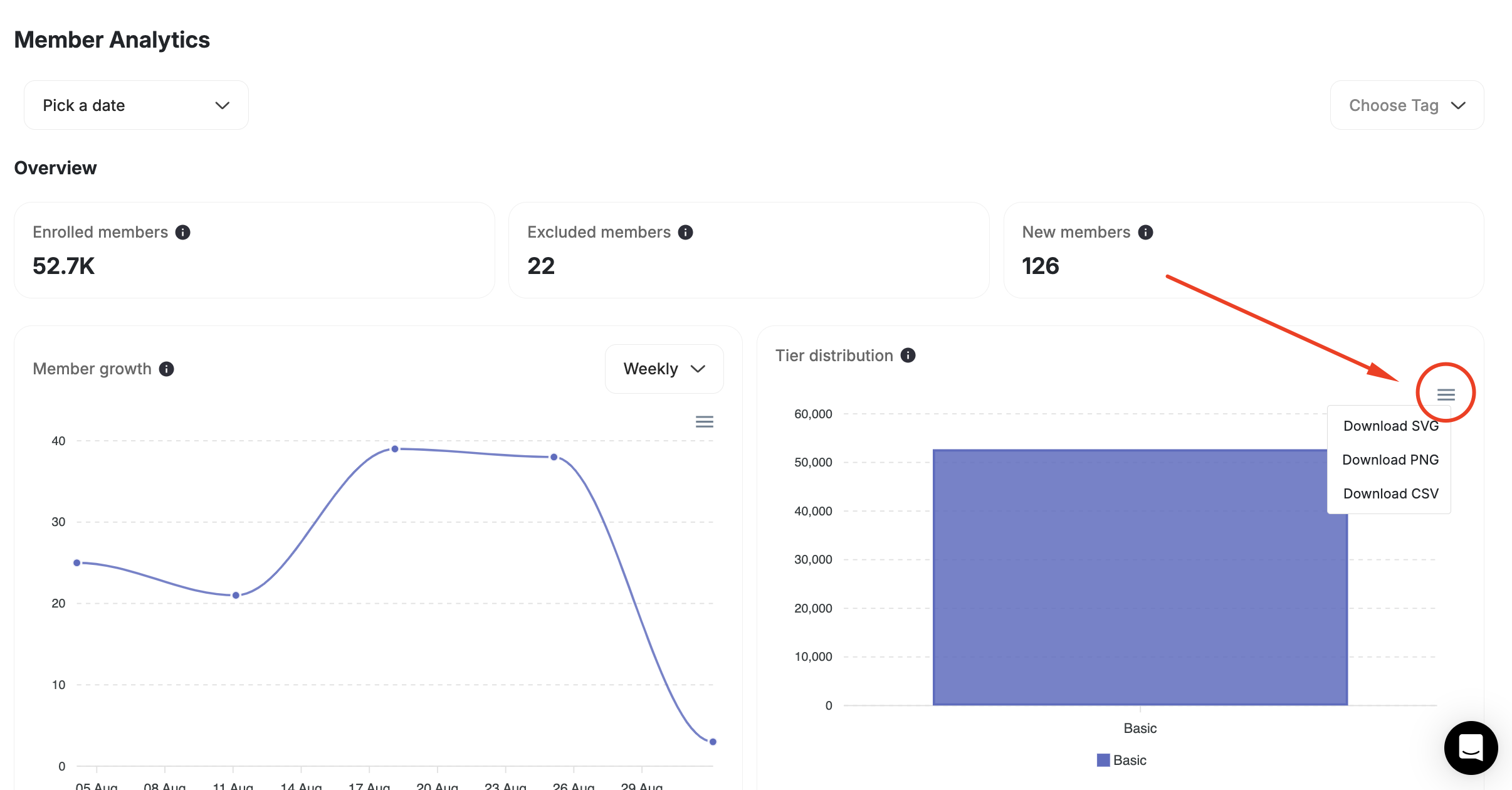
Export Data Reports
Export Data Reports
You can export each report you view on its own to a SVG, PNG, or CSV file by clicking on the Export Icon on the top right of your data.