

Exploring Automation Actions
Automation actions enable you to automate tasks and deliver targeted communications to customers based on specific triggers and conditions.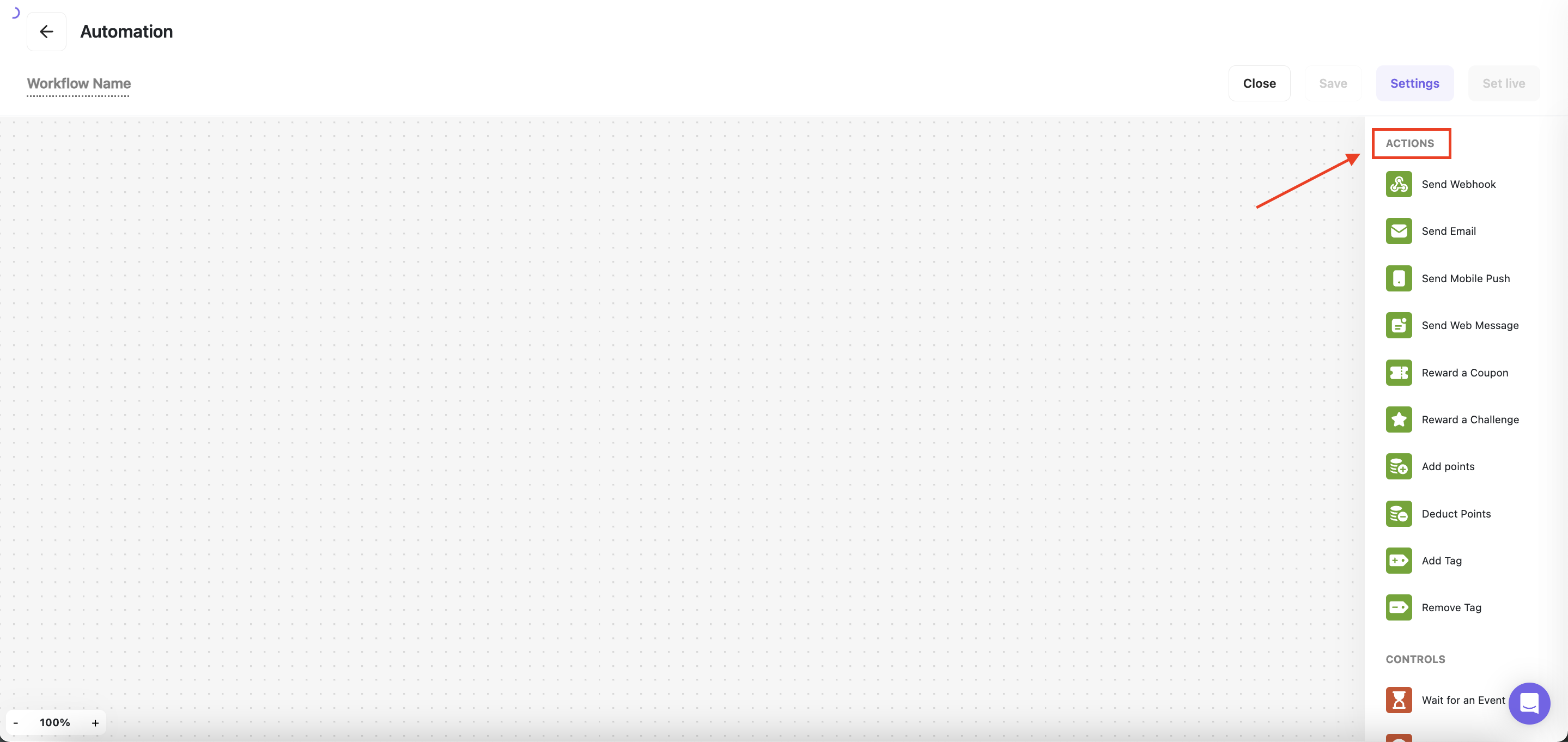
Send Email
Send Email
Send customers a customized email once a workflow is triggered or a condition is met. With Gameball, you can craft compelling email messages tailored to your audience, maximizing the impact of your communication efforts.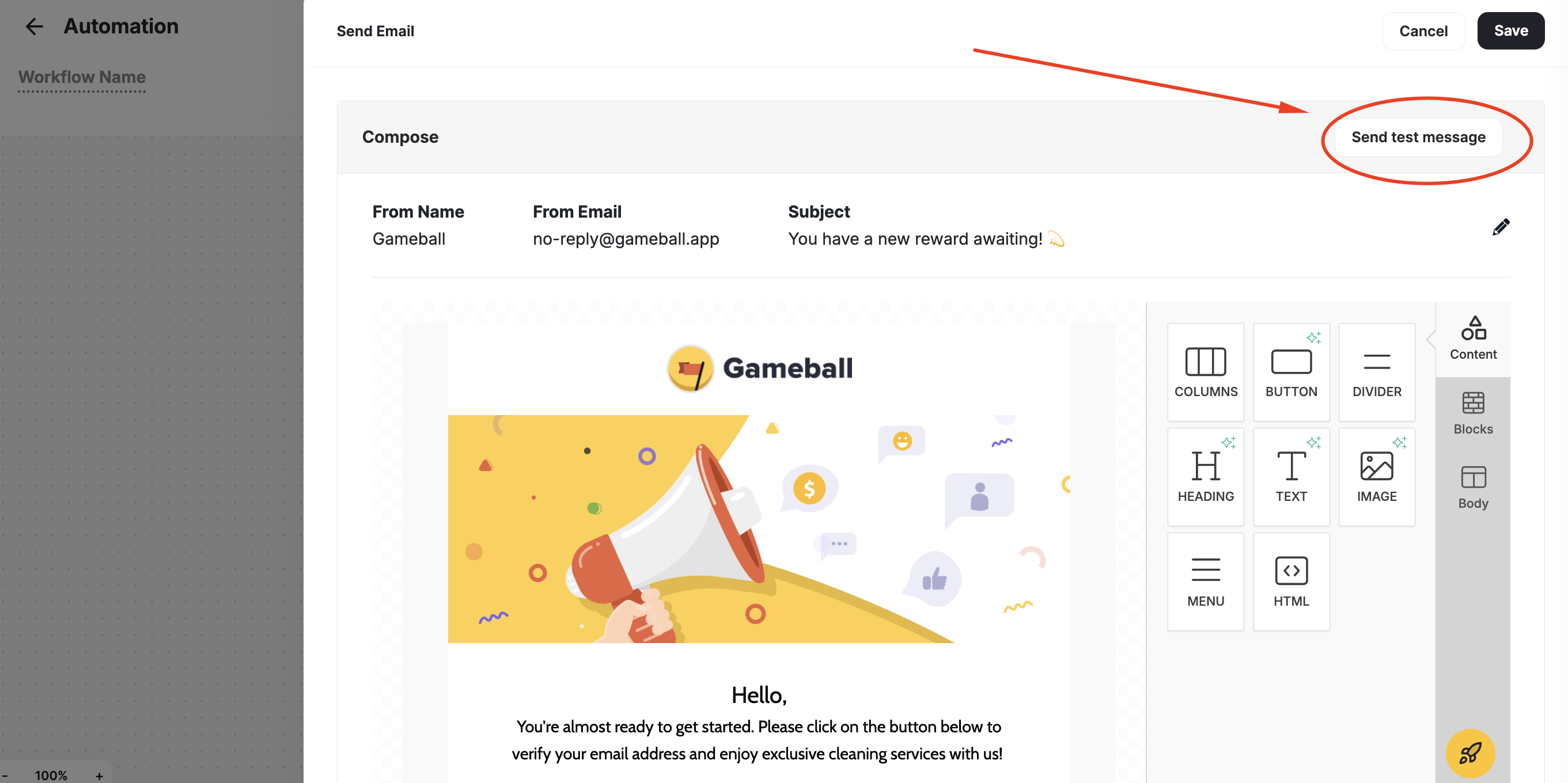
How to compose an email
Compose the Email Header
From the pop-up window to the side, fill in the email header fields:
- From Name: the name of your business, or representative.
- From Email: the email you want to appear in the email header. No need to write the domain here.
- Domain: pick the email address’s domain. If the domain is not saved on Gameball, click Change domain and add it through Gameball’s Admin Settings.
- Subject: write a single line appealing for more open rates. Make sure it’s descriptive of the email content.
Sending Test Email
You can send a test email to yourself when using the “Send Email” as an action to a trigger in an automation. Click Send test Message after composing your email to review it before you launch the automation campaign.View Sent & Clicked Email Analytics Within Automation
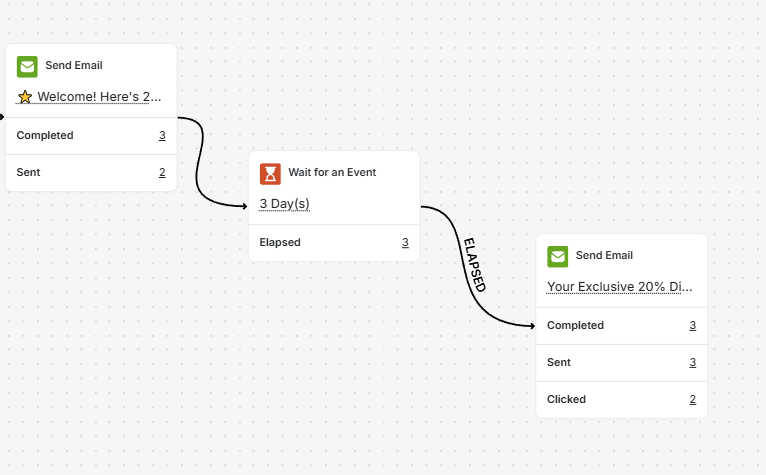
You can view email performance metrics, including Sent and Clicked counts, directly inside each Send Email action node in your automations.- Emails Sent: the total number of successfully delivered emails (excluding bounces and failures).
- Emails Clicked: the number of unique customers who clicked the email.
Send Mobile Push
Send Mobile Push
Deliver personalized mobile push messages to customers, enhancing engagement and driving action. Gameball enables you to create mobile push notifications that resonate with your audience, driving meaningful interactions with your app or platform.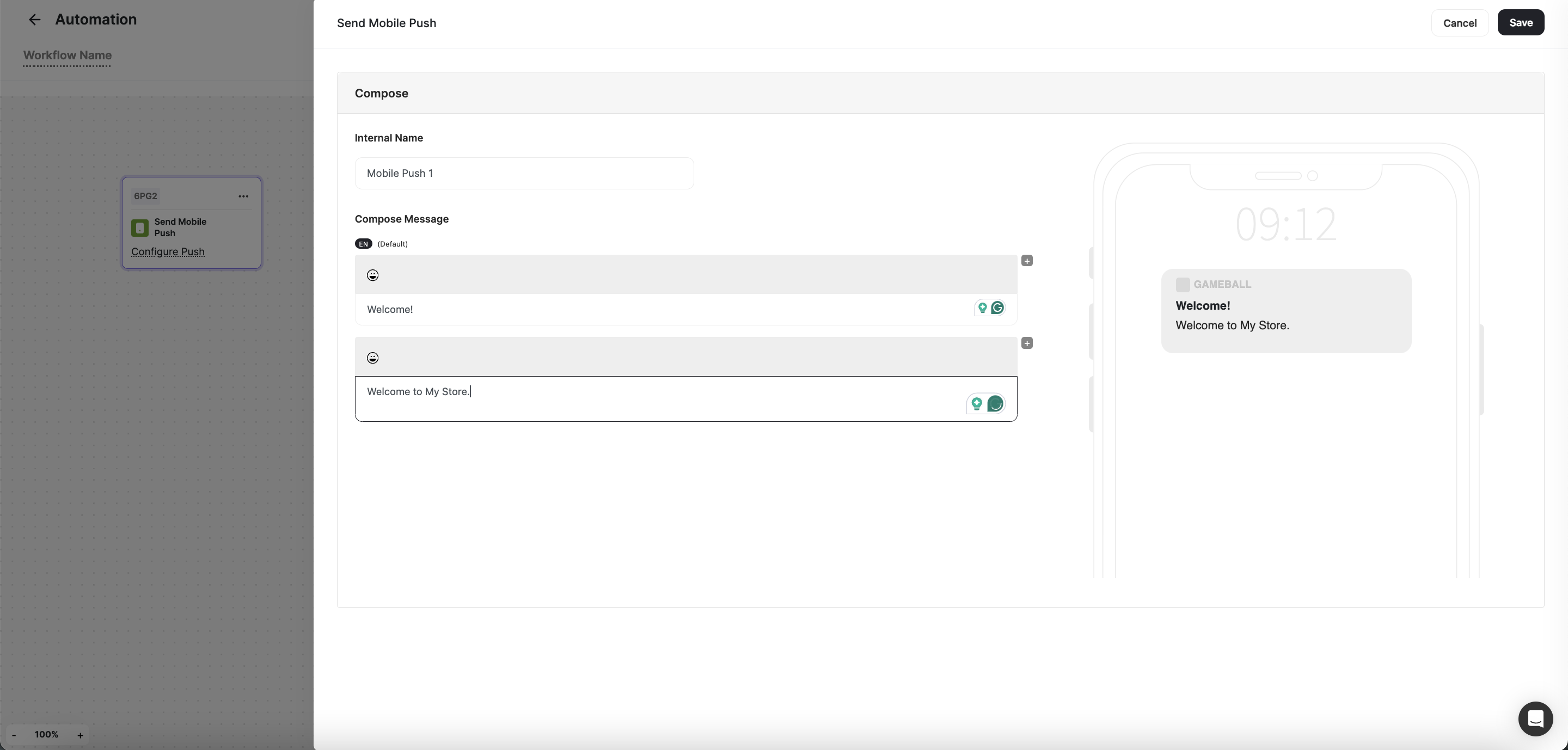
You need to set up your Firebase integration first to be able to send out Push Notifications.
How to compose a mobile push
Fill in Internal Name
From the pop-up window to the side, fill in the Internal Name (this name does not show to customers through the message).
Compose the Message
- Message title: a short bolded header that grabs the customer’s attention.
- Write your message here: compose a short line that is straight to the point and persuasive.
Send Web Message
Send Web Message
Engage customers with targeted web messages delivered directly to their browsers. Whether it’s announcing promotions, providing updates, or delivering personalized recommendations, Gameball allows you to craft compelling web messages that capture attention and drive engagement.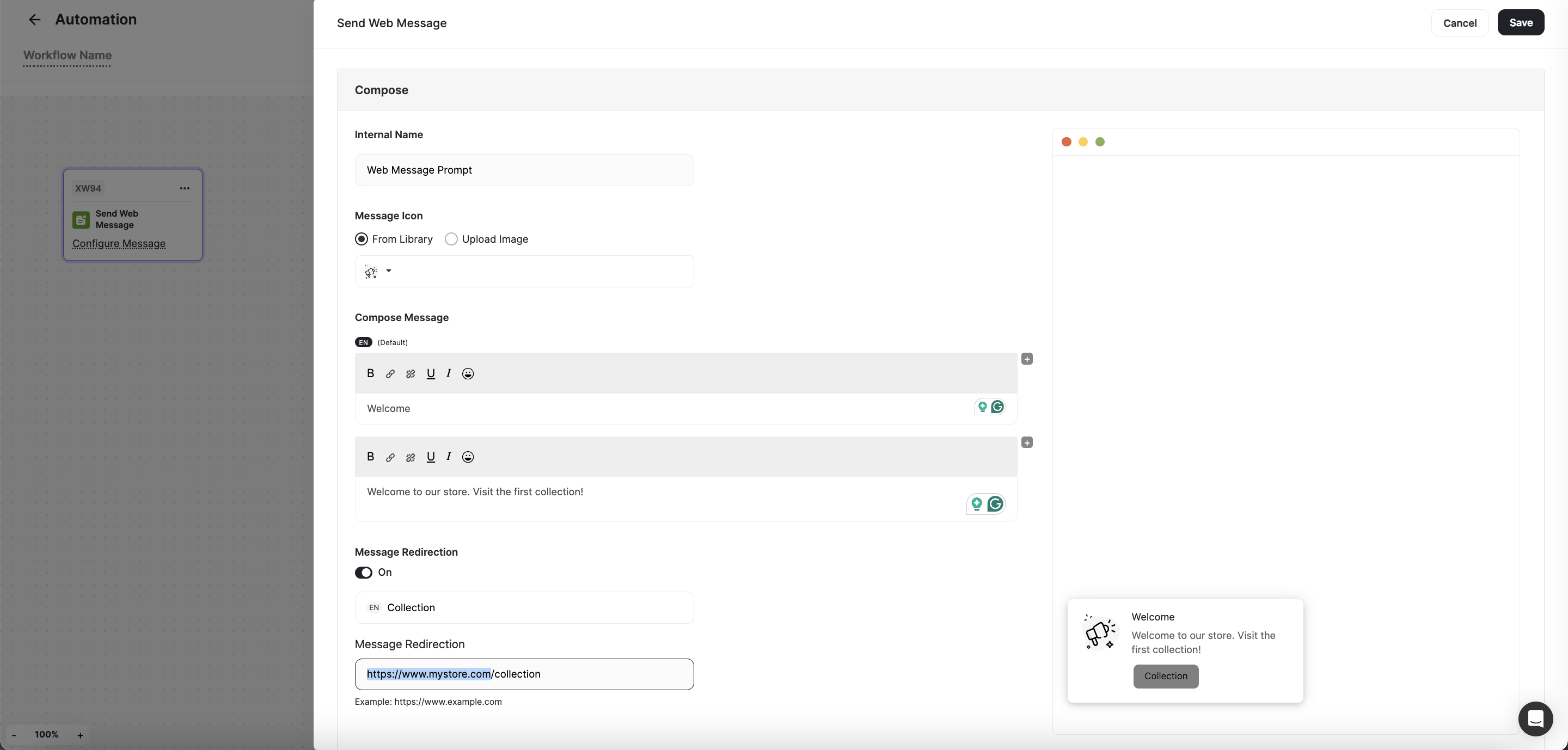
How to compose a web message
Fill in Internal Name
From the pop-up window to the side, fill in the Internal Name (this name does not show to customers through the message).
Compose the Message
- Message title: a short bolded header that grabs the customer’s attention.
- Write your message here: compose a short line that is straight to the point and persuasive.
Configure Message Redirection
- Button Text: A few words that describe where this button leads to when clicked on.
- Redirection URL: insert the link of the page you want the customer to land on when they click on the button.
Reward a Coupon
Reward a Coupon
Incentivize customer behavior by rewarding them with coupons once a workflow is triggered or a condition is met. With Gameball, you can choose from a drop-down list of existing coupons or create new ones to drive conversions and loyalty.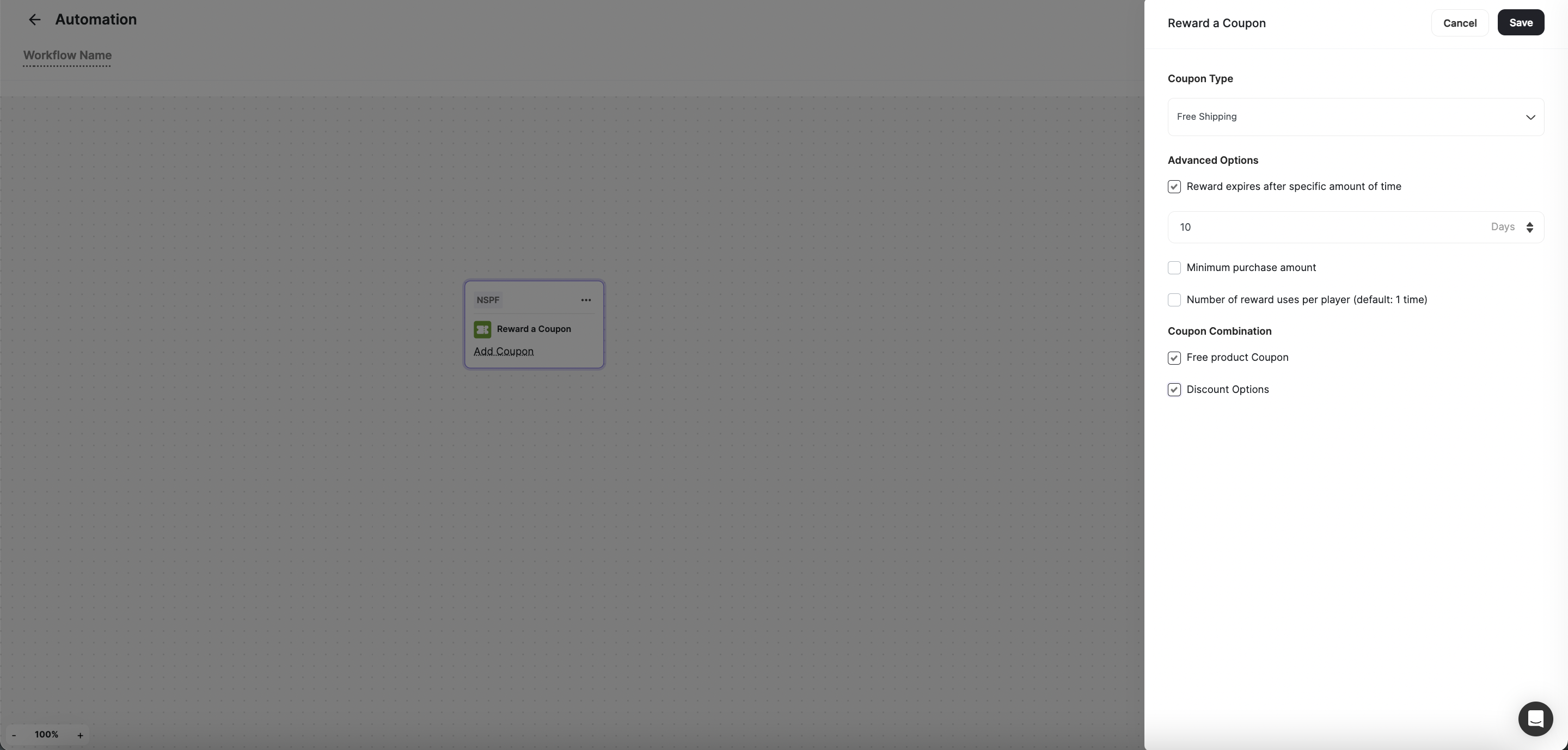
How to set up the Reward a Coupon action
Reward a Badge
Reward a Badge
Motivate customers by rewarding them with a badge once a workflow is triggered or a condition is met. Gameball enables you to choose from a drop-down list of existing badges or create new ones to encourage continuous engagement and progression.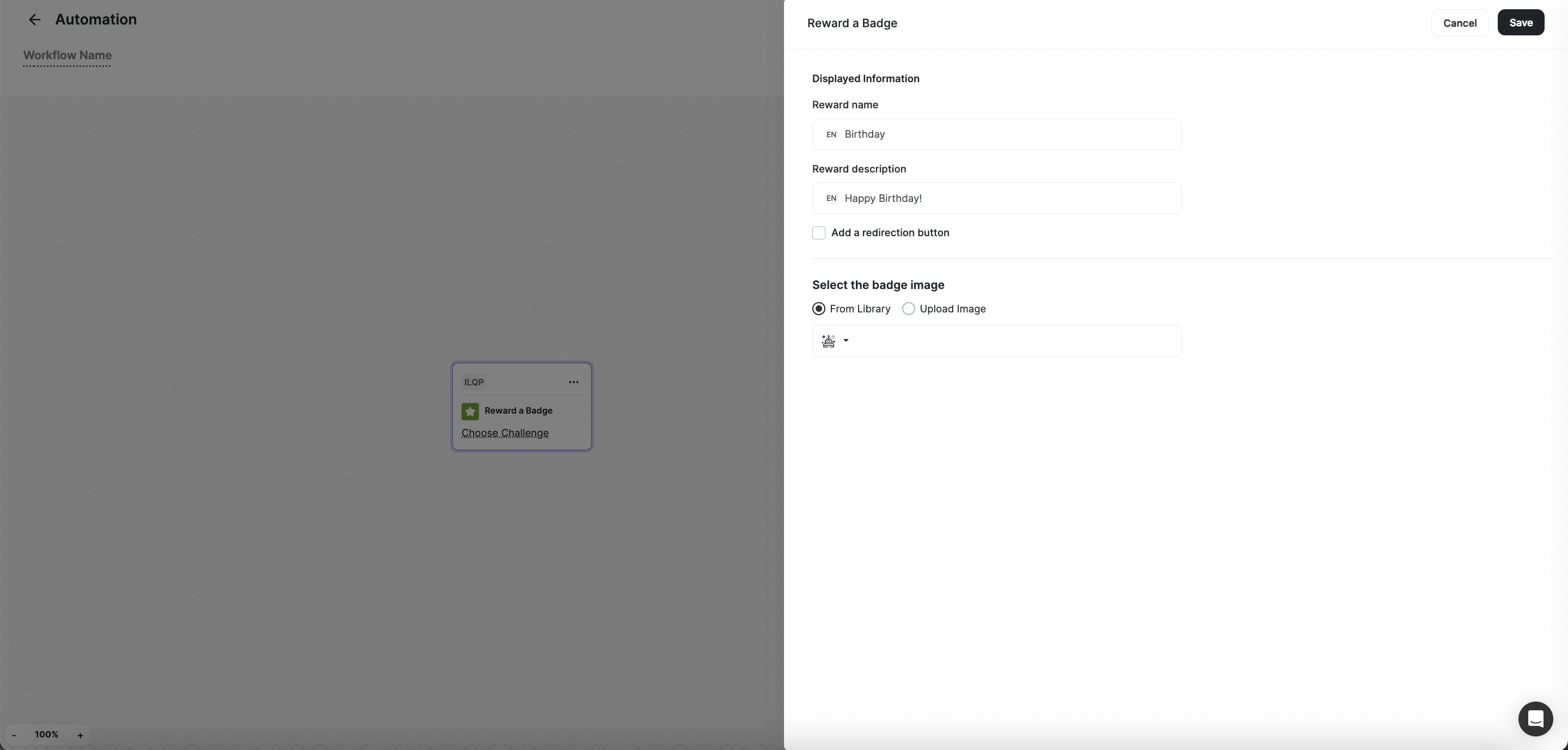
How to set up the Reward a Badge action
Add Points
Add Points
Recognize customer achievements by granting them a certain number of points once a workflow is triggered or a condition is met. You can easily specify the number of points to be added and provide a reason for the reward, fostering a sense of accomplishment and motivation.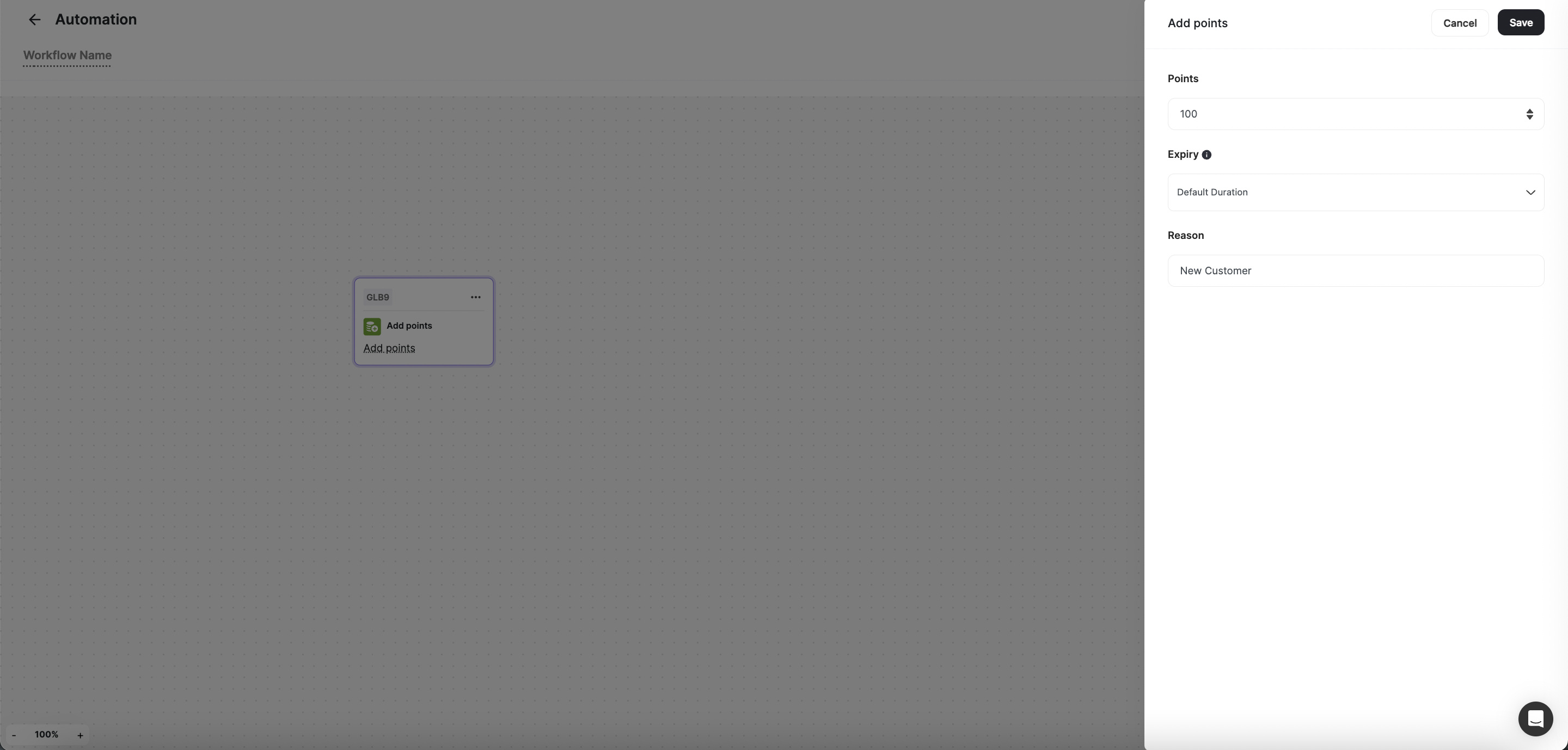
How to set up the Add Points action
Deduct Points
Deduct Points
Maintain balance and fairness by deducting points from customers when necessary. Gameball allows you to specify the number of points to be removed and provide a reason for the deduction, ensuring transparency and accountability in your rewards program.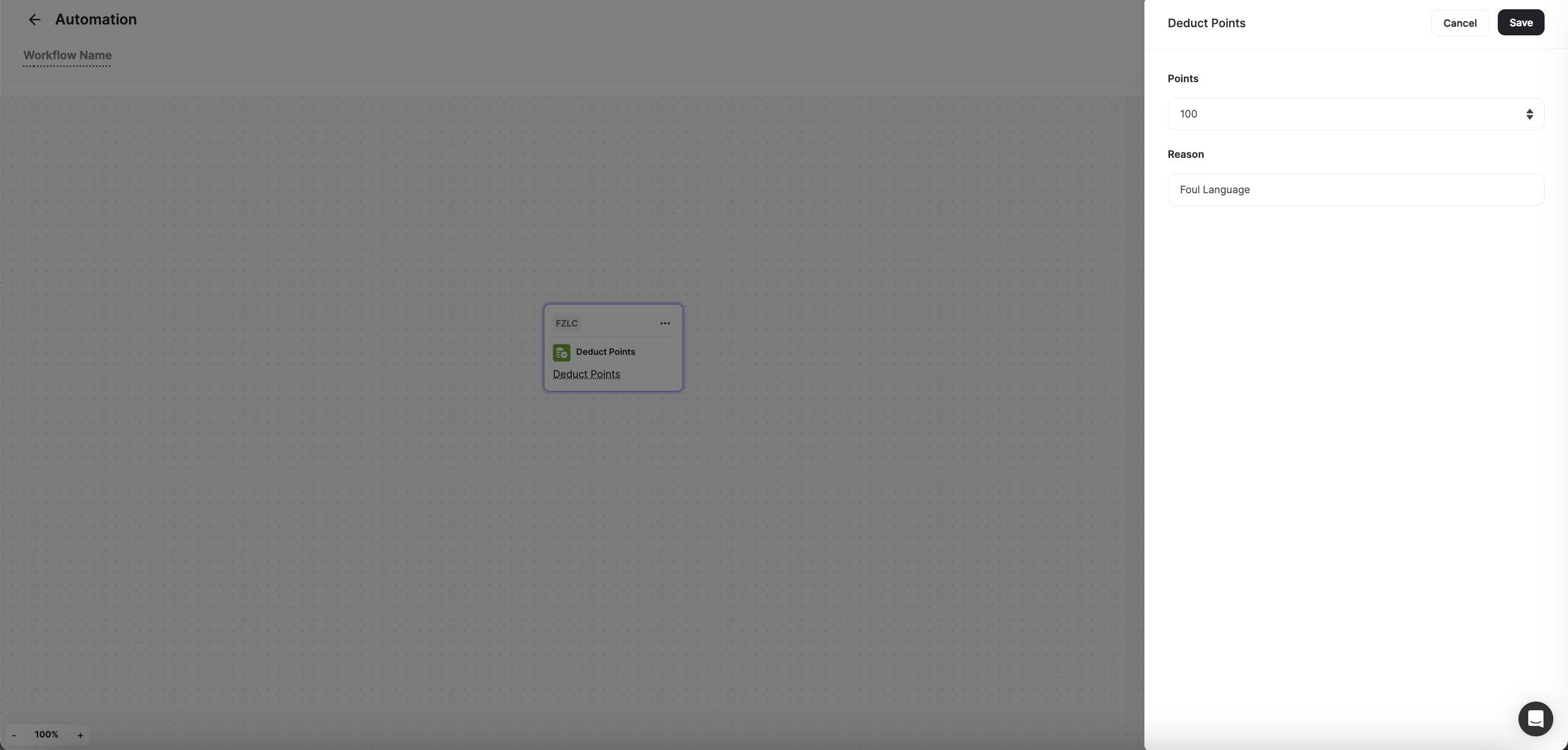
How to set up the Deduct Points action
Add Tag
Add Tag
Segment customers effectively by applying specific tags once a workflow is triggered or a condition is met. With Gameball, you can choose from a drop-down list of existing tags to categorize customers based on their behavior, preferences, or characteristics.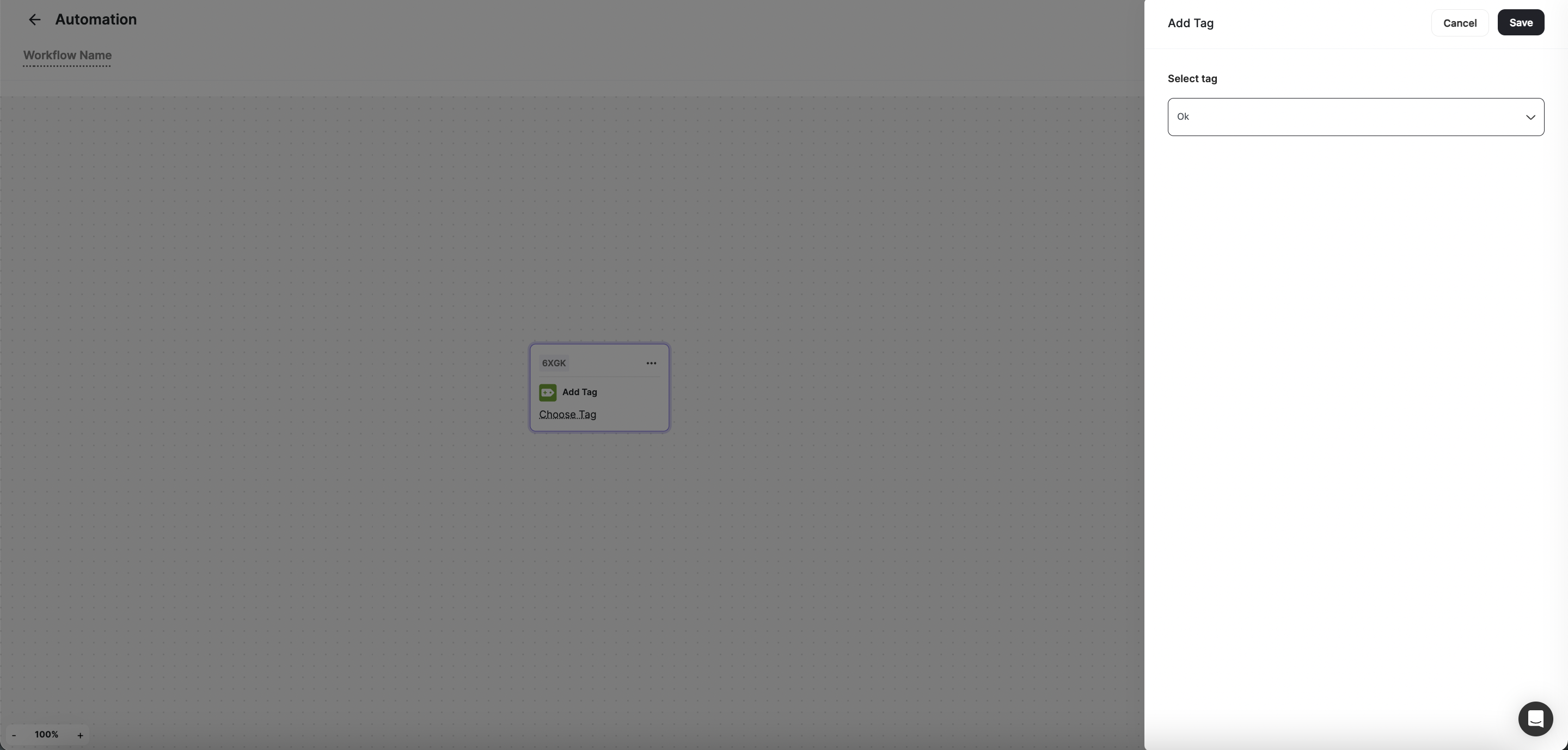
How to set up the Add Tag action
Remove Tag
Remove Tag
Refine customer segmentation by removing specific tags once a workflow is triggered or a condition is met. Gameball enables you to choose from a drop-down list of existing tags, ensuring that your customer data remains organized and actionable.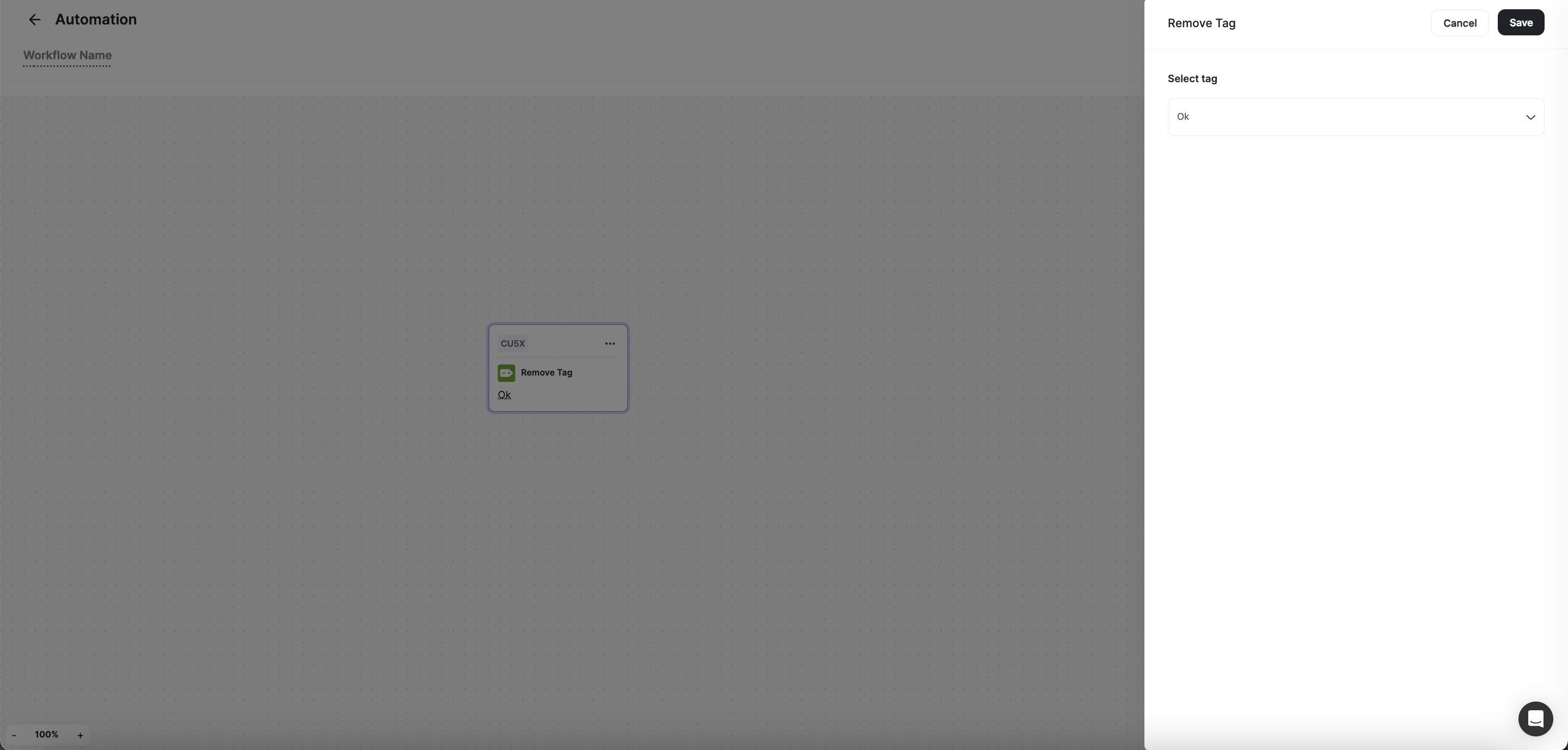
How to set up the Remove Tag action
Send Webhook
Send Webhook
Integrate seamlessly with external apps and services by sending customers’ information via webhooks. Gameball allows you to set up webhooks to transfer data securely, enabling real-time communication and synchronization between systems. Learn how to set up the Send Webhook action.
Related Articles
How to Create an Automated Workflow
Step-by-step guide to building your first automation campaign.
Automation Triggers
Learn about all available triggers that can initiate your automation workflows.
Automation Controls
Learn about conditions and branching logic available in automations.