

| Platform | Plan |
|---|---|
| Shopify | Starter (create up to 3 Segments), Pro, & Guru |
| Salla | Pro, & Guru |
| Non-platform clients | Growth & Enterprise |
How to Create Segments
Creating a new segment is simple. Begin by identifying the criteria you want to target from your wide customer base. For instance, you can create a segment for female customers who have been active within the past 30 days and frequently visit a specific product category. Once these rules are configured, Gameball automatically identifies any customer who meets the criteria and adds them to the segment.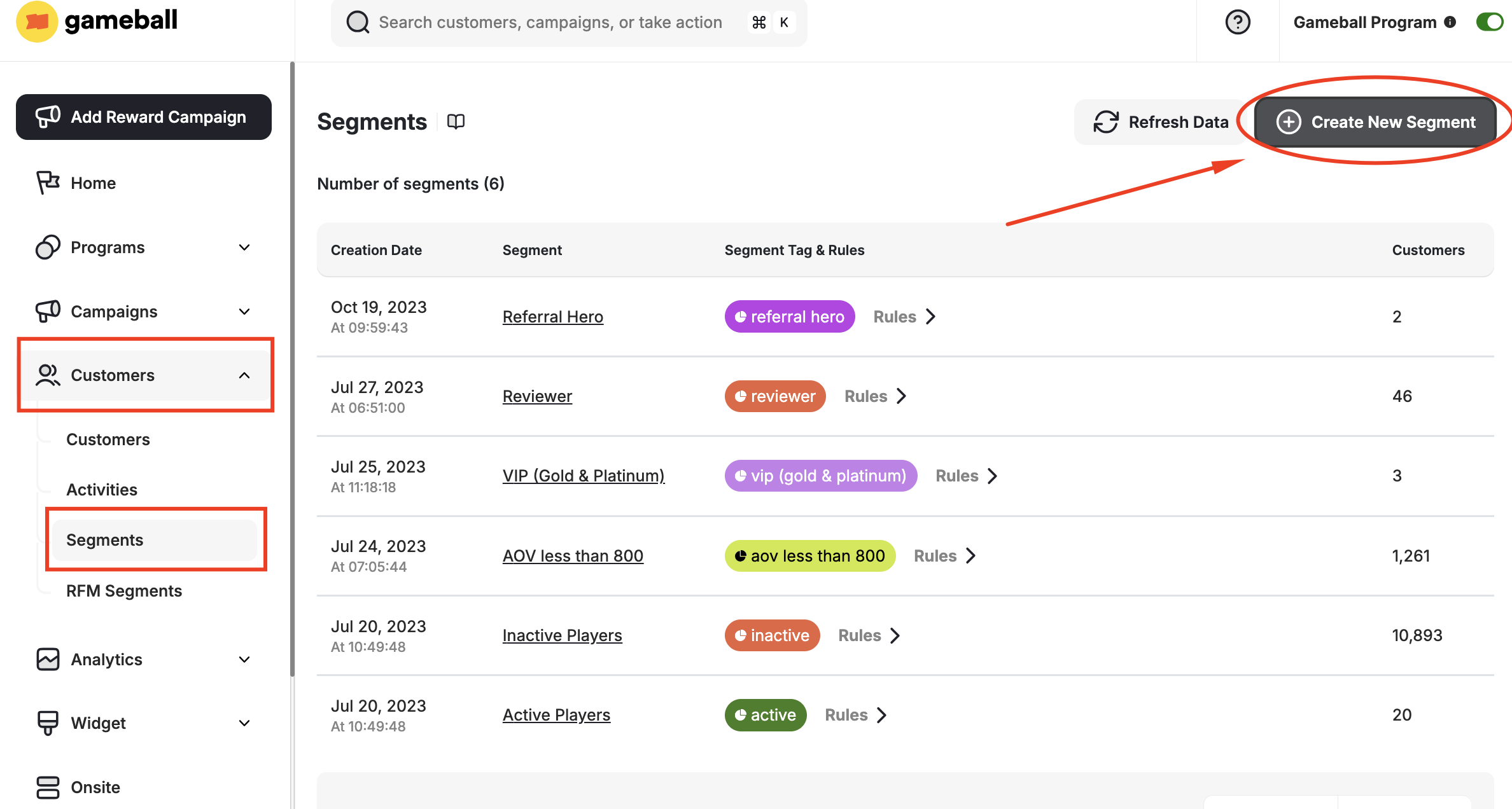
Fill in General Information
Fill in the segment’s general information: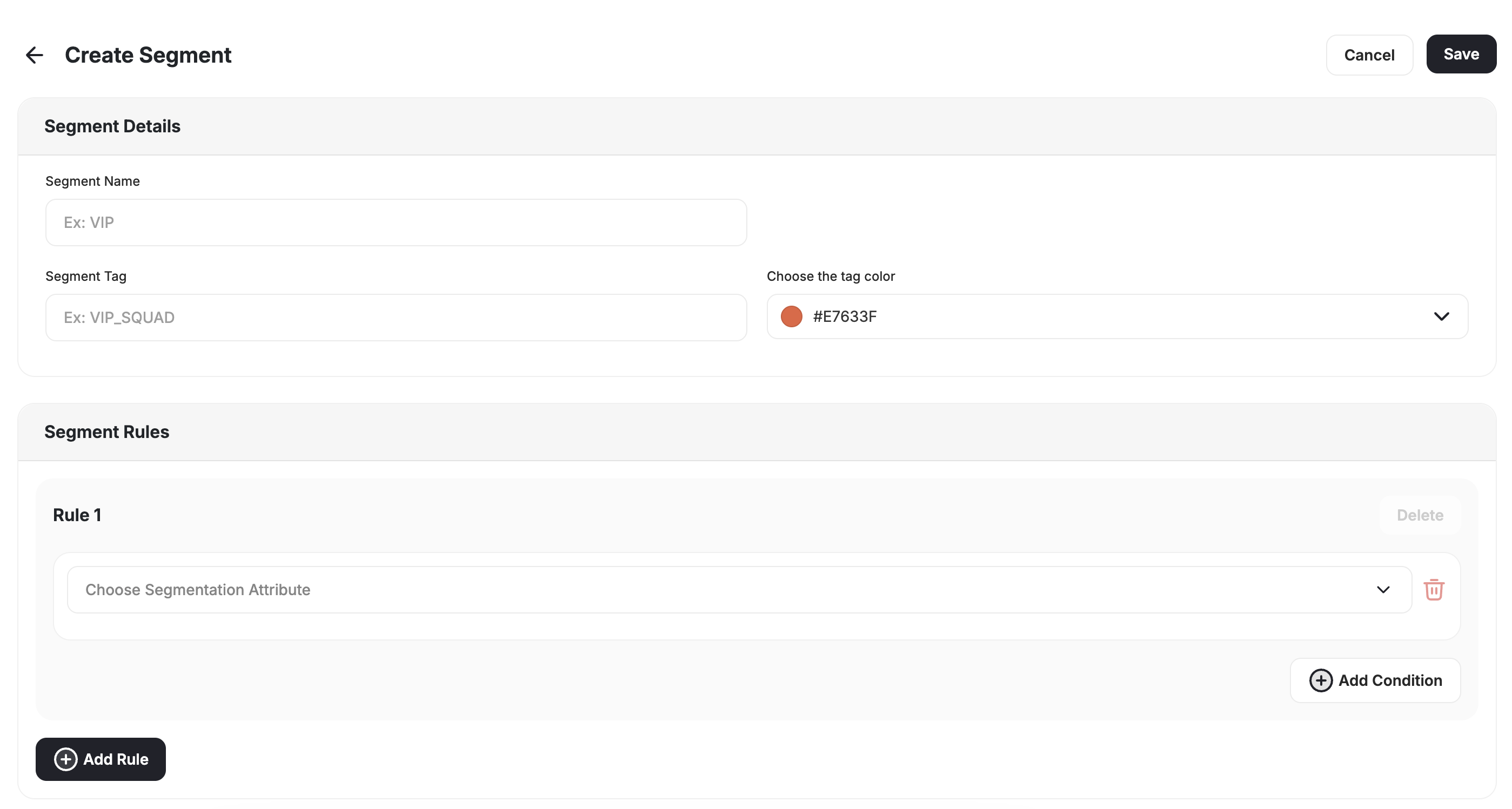
- Segment Name: Use a descriptive name, e.g., Engaged Customers.
- Segment Tag Name: Provide a short label, e.g., Engaged.
- Color: Choose a color for the tag.
How to Use the Segmentation Rule Engine
You can create a segment using a single or multiple conditions. Begin by creating the first rule.Choosing 'Customer Attribute'
Choosing 'Customer Attribute'
When selecting Customer Attribute, choose the customer profile data that will determine segment membership.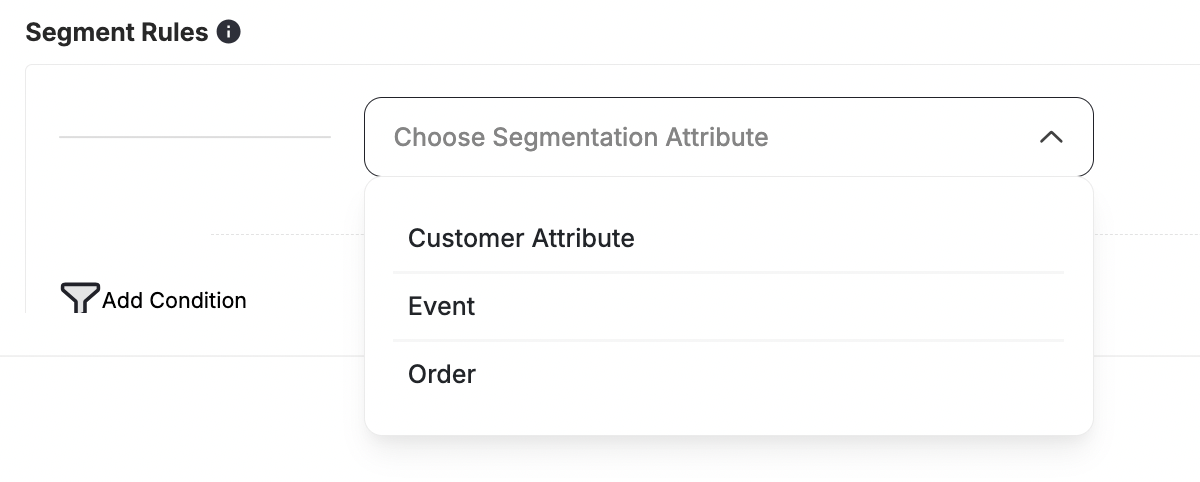
After choosing the attribute, define its metadata values accordingly.
| Category | Attributes |
|---|---|
| Customer Info | Customer Email, Mobile Number, Gender, Date Of Birth, Customer Creation Date, Customer Join Date, Is Guest Customer, Is Referred, Country, City, Zip Code |
| Engagement | Score, Points, Tier, Channel, Merchant, Branch, Last Login Date |
| Order Data | Total Orders Count, Total Amount Spent, Last Order Date, Average Order Value |
| Gameball Tracked | Last Captured Order Date, Average Captured Order Value, Total Captured Orders, Total Captured Amount Spent |
| Redemption | Total Redeemed Amount, Total Redemptions, Last Redemption Date, Last Coupon Usage, Last Gameball Coupon Usage |
| Referral | Total Referrals, Last Referral Date |
| Communication | Last Message Sent Date, Last Email Sent Date |
| UTM Tracking | UTM Campaign, UTM Source, UTM Medium, UTM Content, UTM Term |
| Device Info | Device, Browser, Operating System |
| Product Data | Product ID, SKU, Category, Collection, Product Title, Quantity Purchased (per product), Price (per line item) |
| Spending | Total Spent, Orders Count |
- “Total captured orders” is calculated via Gameball, which counts the number of orders sent via the Order API. However, “total amount spent” relies on you sending the total orders of every customer via the API. Choose the correct attribute based on whether you need data from your side or data counted by Gameball.
- All attributes automatically calculated and maintained by Gameball are visually prefixed with “Gameball” so you can recognize them amongst your custom attributes sent through API.
Choosing 'Customer Event'
Choosing 'Customer Event'
Events represent actions customers perform on your platform.To create an event-based segment rule: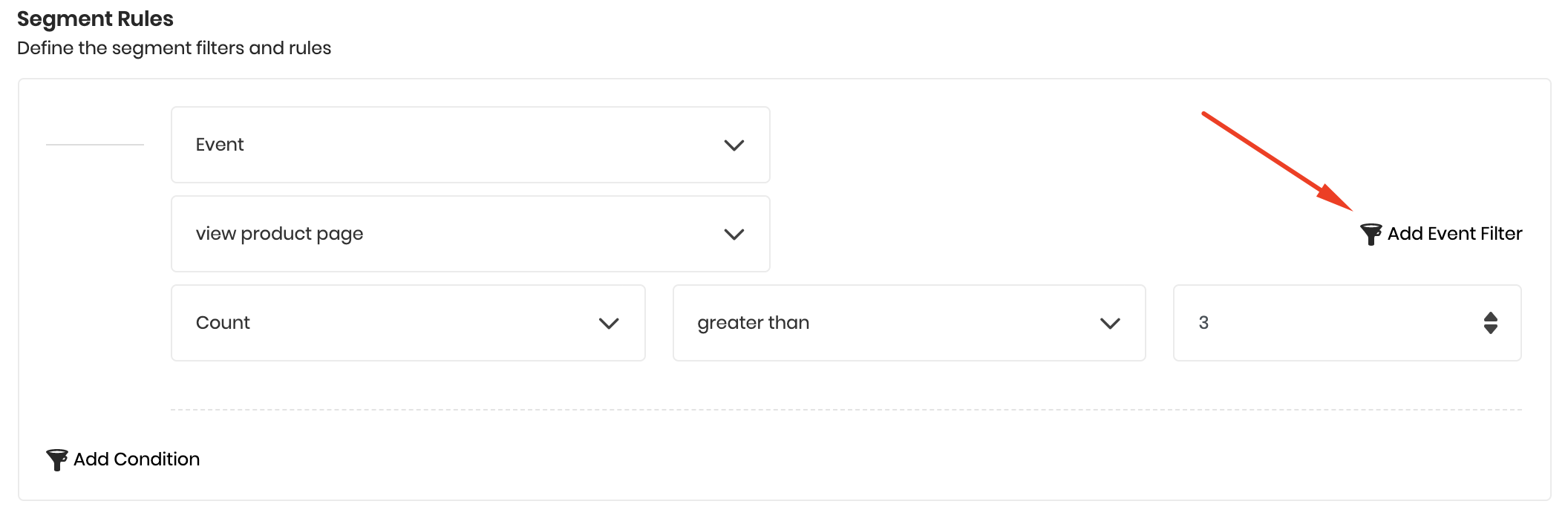
- Select the relevant Customer Event.
- Define the event metadata.
- Click Add Event Filter to add more metadata filters to a single event.
- Click Add Condition to include multiple conditions under the same rule.
Choosing 'Order'
Choosing 'Order'
You can create customer segments based on actual order data, providing more accurate, real-time customer targeting.Available order data includes:
- Count
- First Occurrence
- Last Occurrence
- Total Order Value (excluding fully refunded orders)
- Order Date Range
- Average Order Value
- Specific Order Value Ranges
Fully refunded orders are excluded by default from the calculations.
Common Questions
Can multiple segment conditions include both Customer Attribute and Customer Event at the same time?
Can multiple segment conditions include both Customer Attribute and Customer Event at the same time?
Yes. You can combine both customer profile attributes and behavior-based events in one segment. For example:
- Female customers
- Under 50 years old
- Recently active on your platform
- Made at least one purchase or added an item to the cart within the past month
How do you create multiple conditions under one segment?
How do you create multiple conditions under one segment?
After adding the first rule: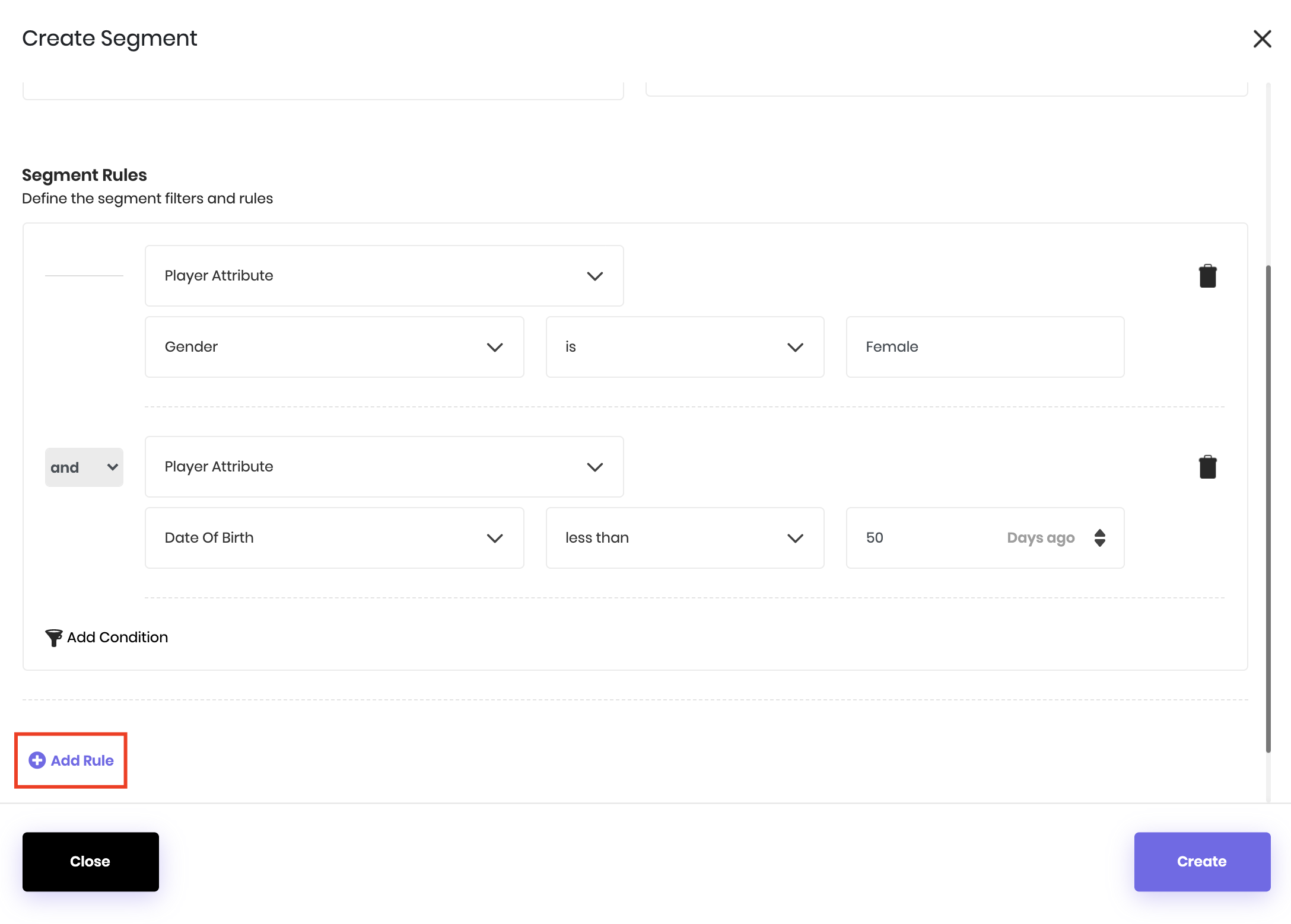
- Click Add Rule.
- Choose the correlation type between rules:
- AND: Customers must meet all rules.
- OR: Customers must meet at least one rule.
- Repeat the rule setup process for each additional rule.
Where to find data on existing segments?
Where to find data on existing segments?
To view details about an existing segment: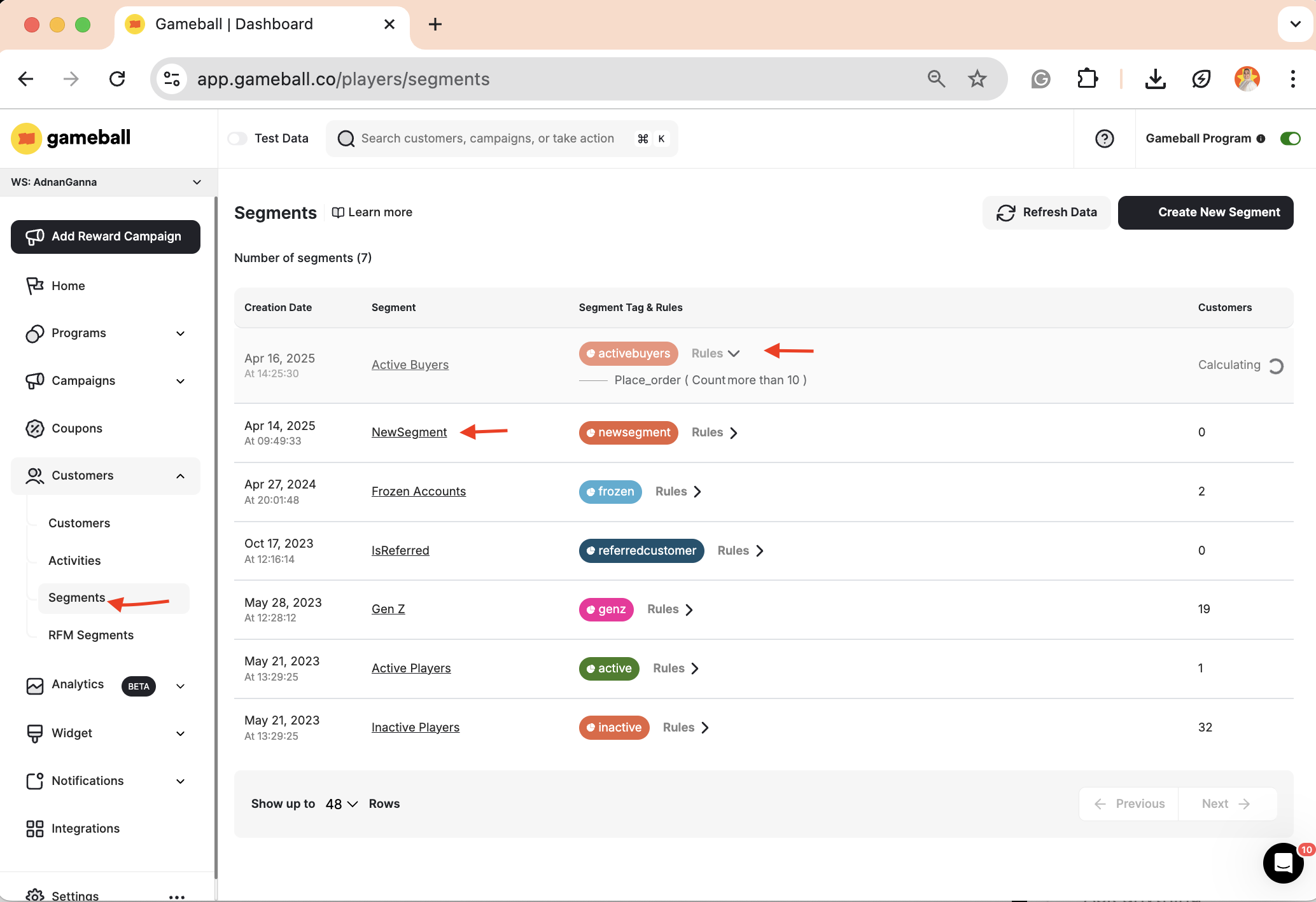
- Go to the Segments tab on the Gameball dashboard.
- Scroll to the list of created segments.
- Click on the name of the segment you want to explore.
- The rules that define the segment
- The number and types of communication campaigns sent to customers in the segment
- A chart displaying how many customers joined the segment per day
- A full list of customers in the segment
How to filter customer segments?
How to filter customer segments?
Advanced FiltersA Filter option is available in the Segments table header, allowing you to refine your segment list using: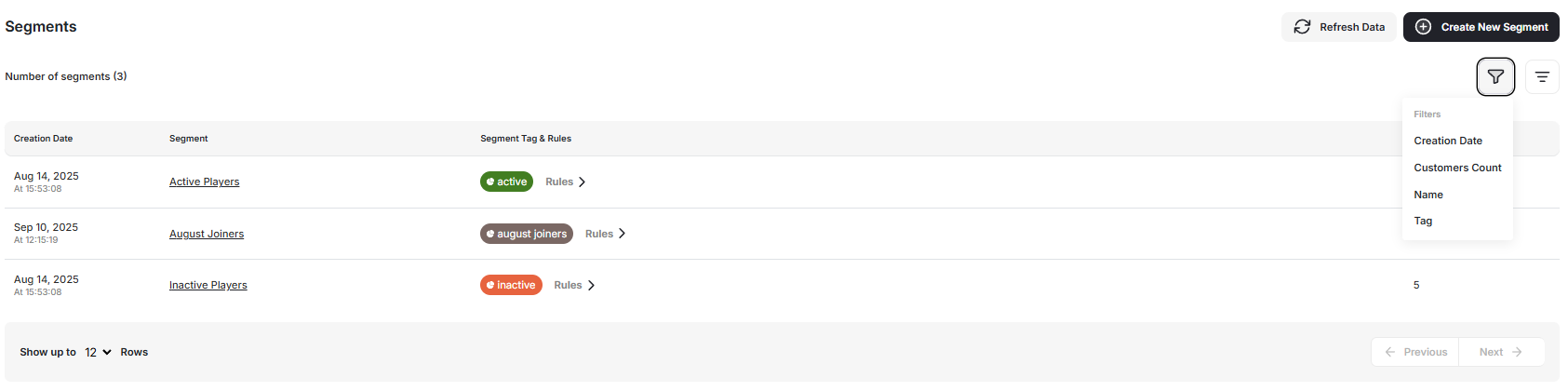
The chosen sorting order remains active until manually reset.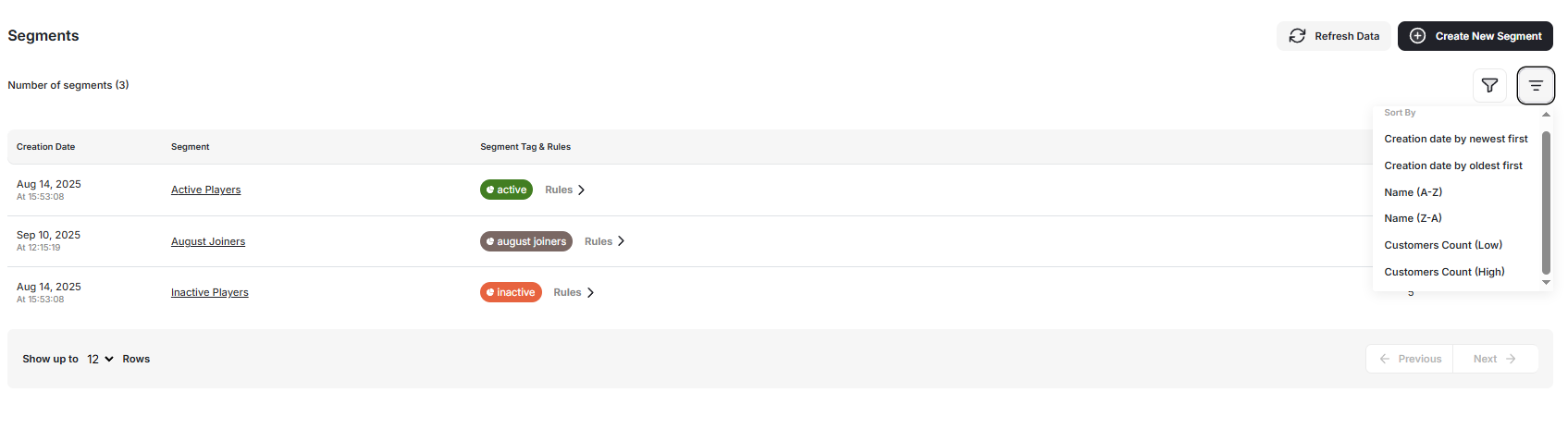
- Status / Tag (e.g., active, inactive, draft)
- Creation Date (date range selection)
- Customer Count Range
| Column | Sort Options |
|---|---|
| Segment Name | A-Z / Z-A |
| Creation Date | Newest / Oldest |
| Customer Count | High to Low / Low to High |