

Customers who do not want to keep receiving your emails can easily unsubscribe through a small hyperlink at the bottom of every Gameball email.
Where to Find the Email Notification Section
On the Gameball Dashboard, from the left bar, click Notifications, then select Emails.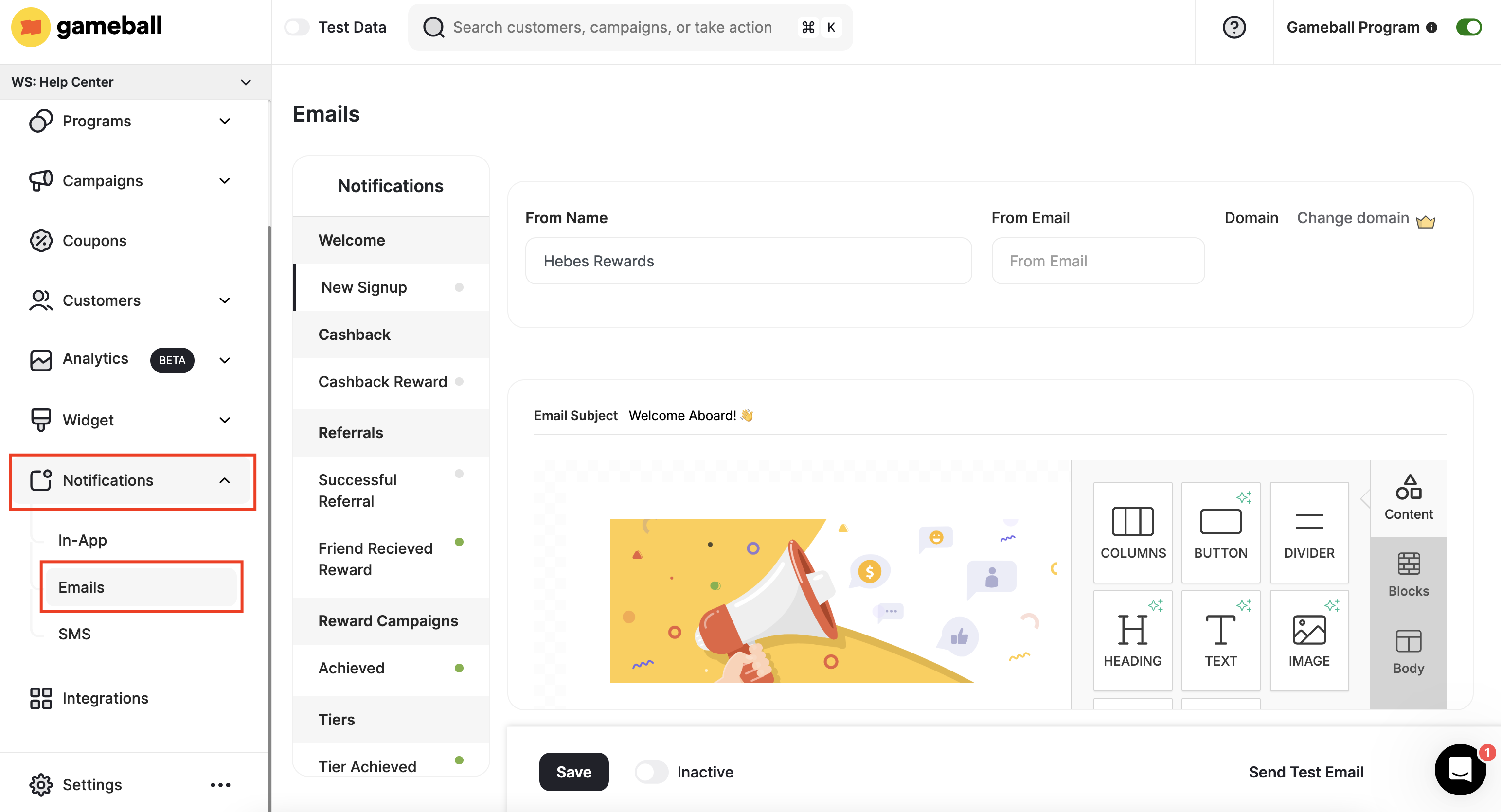
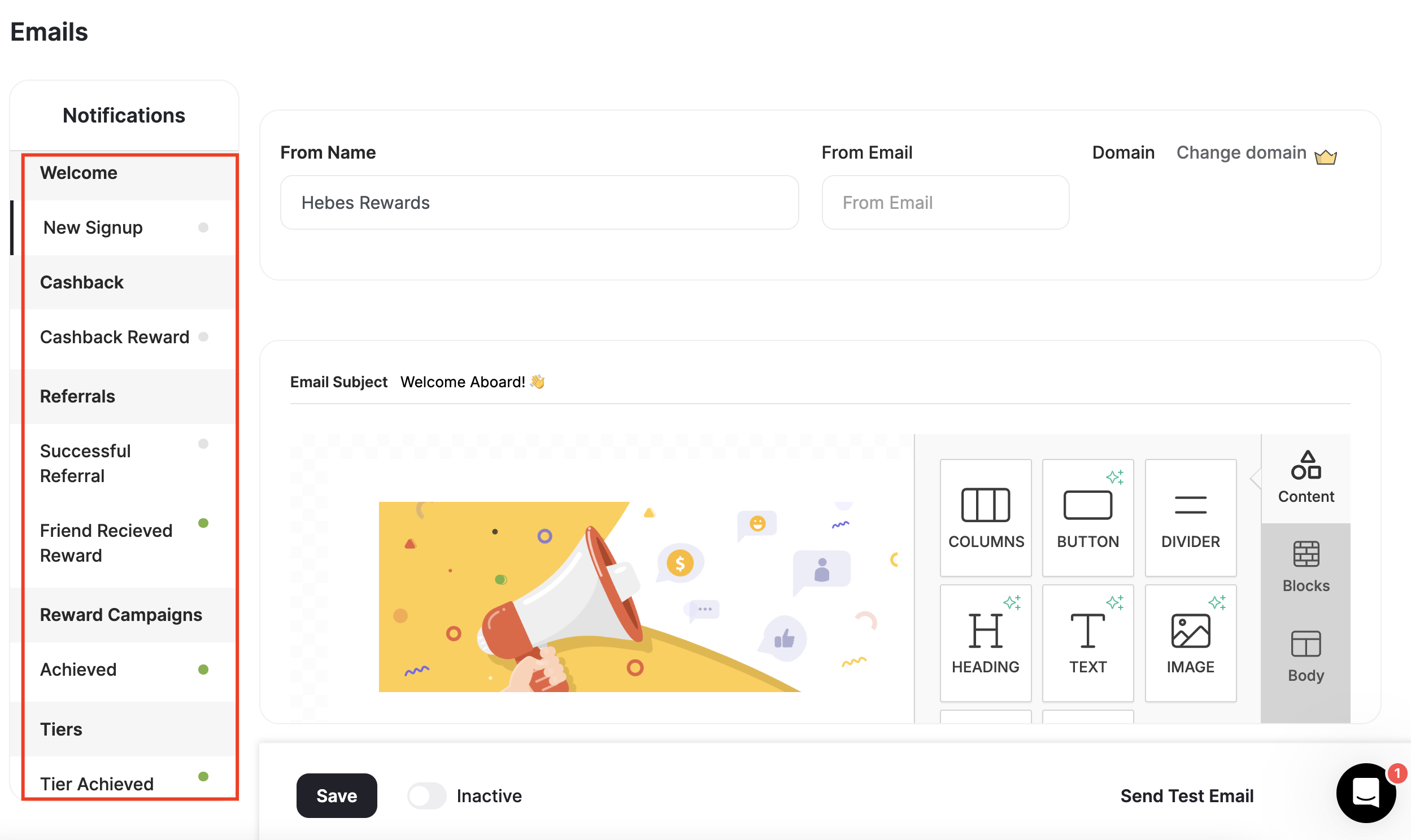
Types of Email Notifications
You can enable email notifications for the following types of achievements:Welcome
Welcome
Welcome new customers who have just signed up to your loyalty program.
Cashback
Cashback
Inform your customers when they receive a cashback reward.
Referrals
Referrals
Inform your customer when a previous referral attempt becomes successful, or when they receive a reward for that referral.
Reward Campaigns
Reward Campaigns
Congratulate your customers upon achieving all the reward campaign requirements and winning it.
Tiers
Tiers
Congratulate and inform your customers when they reach a new tier or level.
Rewards
Rewards
Inform your customers upon the following transactional rewards events:
- Coupon Earned: Sending customers an email every time they successfully receive a coupon as a reward.
- Points Expiry Reminder: Reminding customers with the points about to expire 15 days before the expiry date.
- Coupon Expiry Reminder: Reminding customers with the coupons about to expire 15 days before the expiry date.
Email Notifications Settings
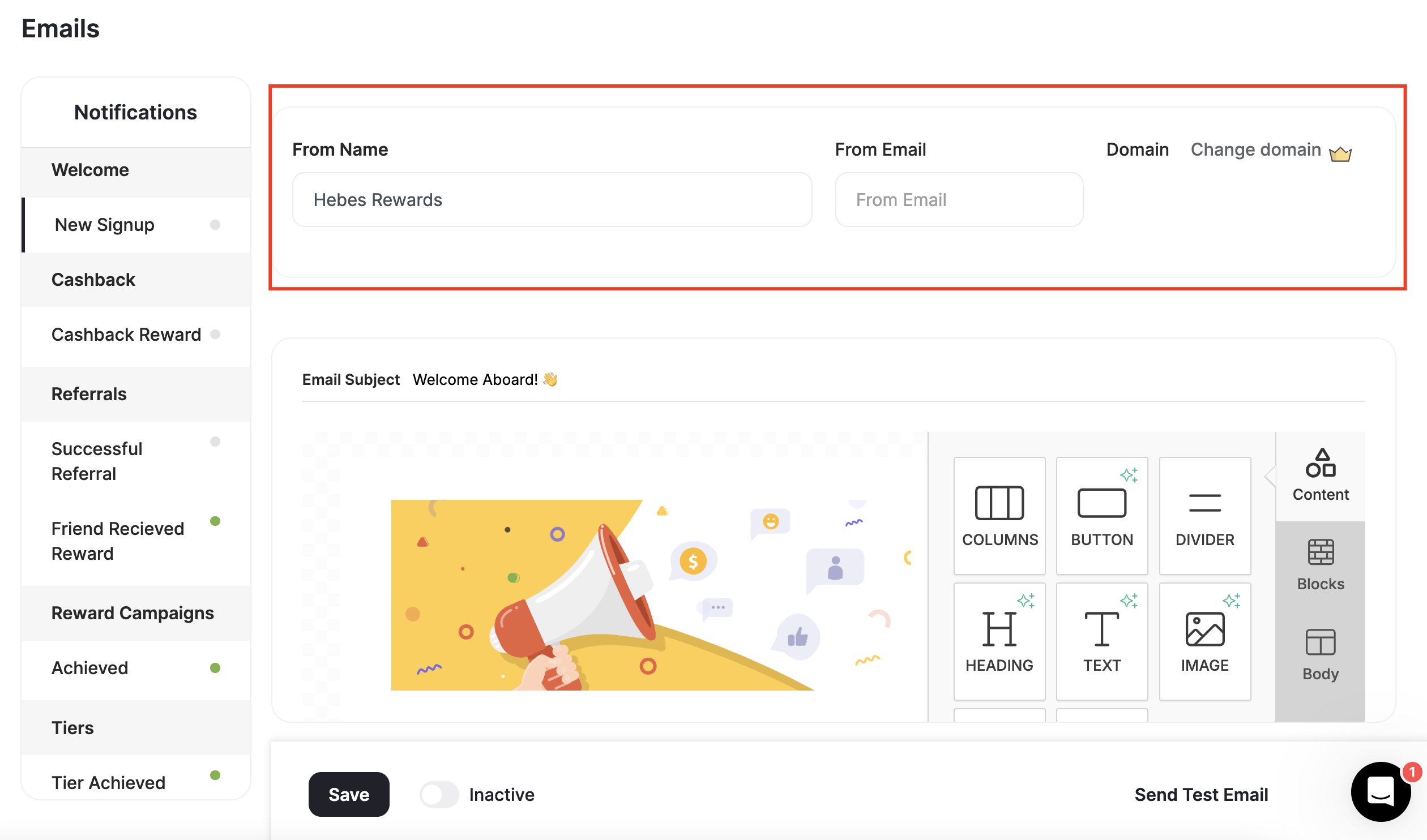
The email settings section is where you configure general settings for all your emails:| Setting | Description |
|---|---|
| From Name | Your brand or business name. |
| From Email | Your customer-facing official email. |
| Domain | Available on Enterprise and Guru plans. |
Email Notifications Components
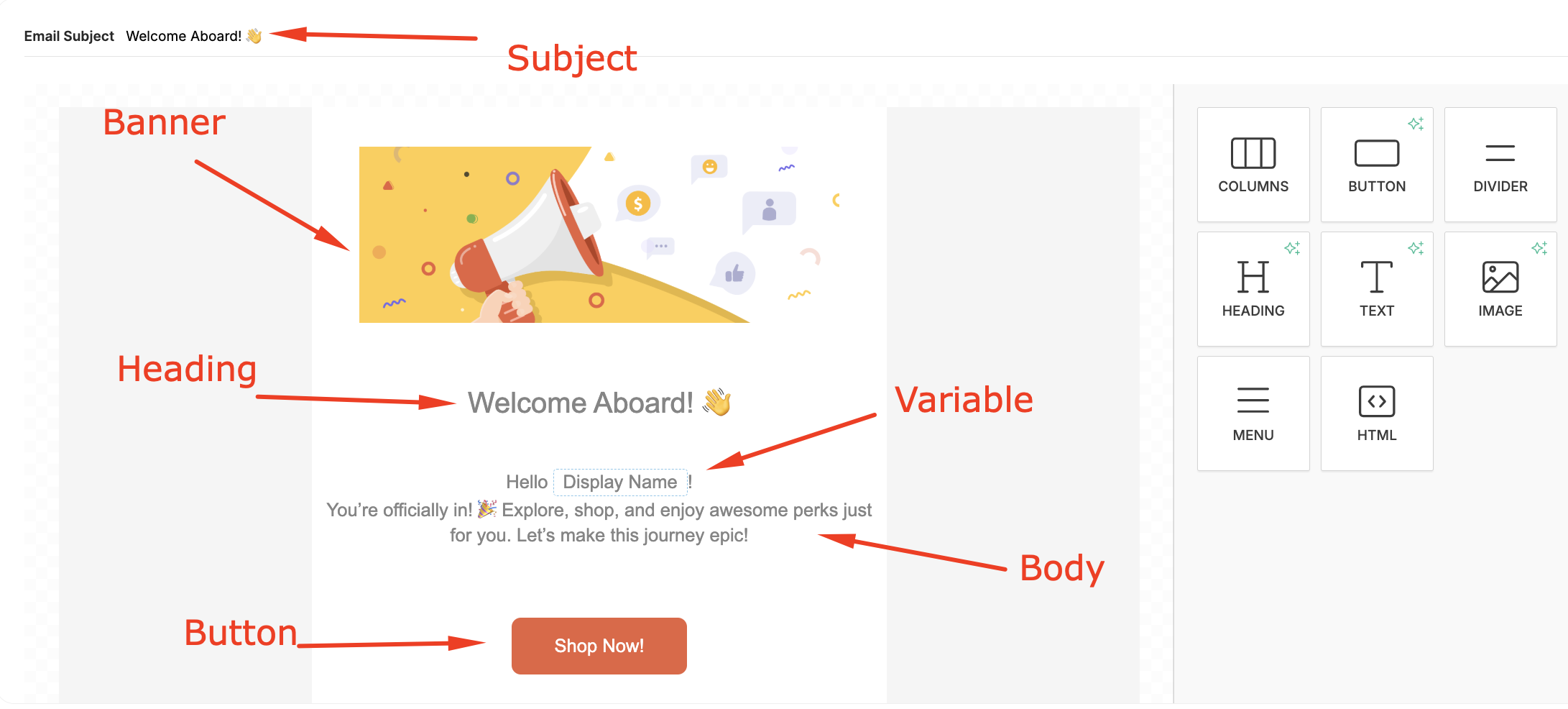
For each email type, there is a default template that you can use, or you can customize your own email template. There are some components you need to be aware of before customizing your own emails:- Subject
- Logo
- Banner / Image
- Title / Heading
- Body
- Variables
- Button
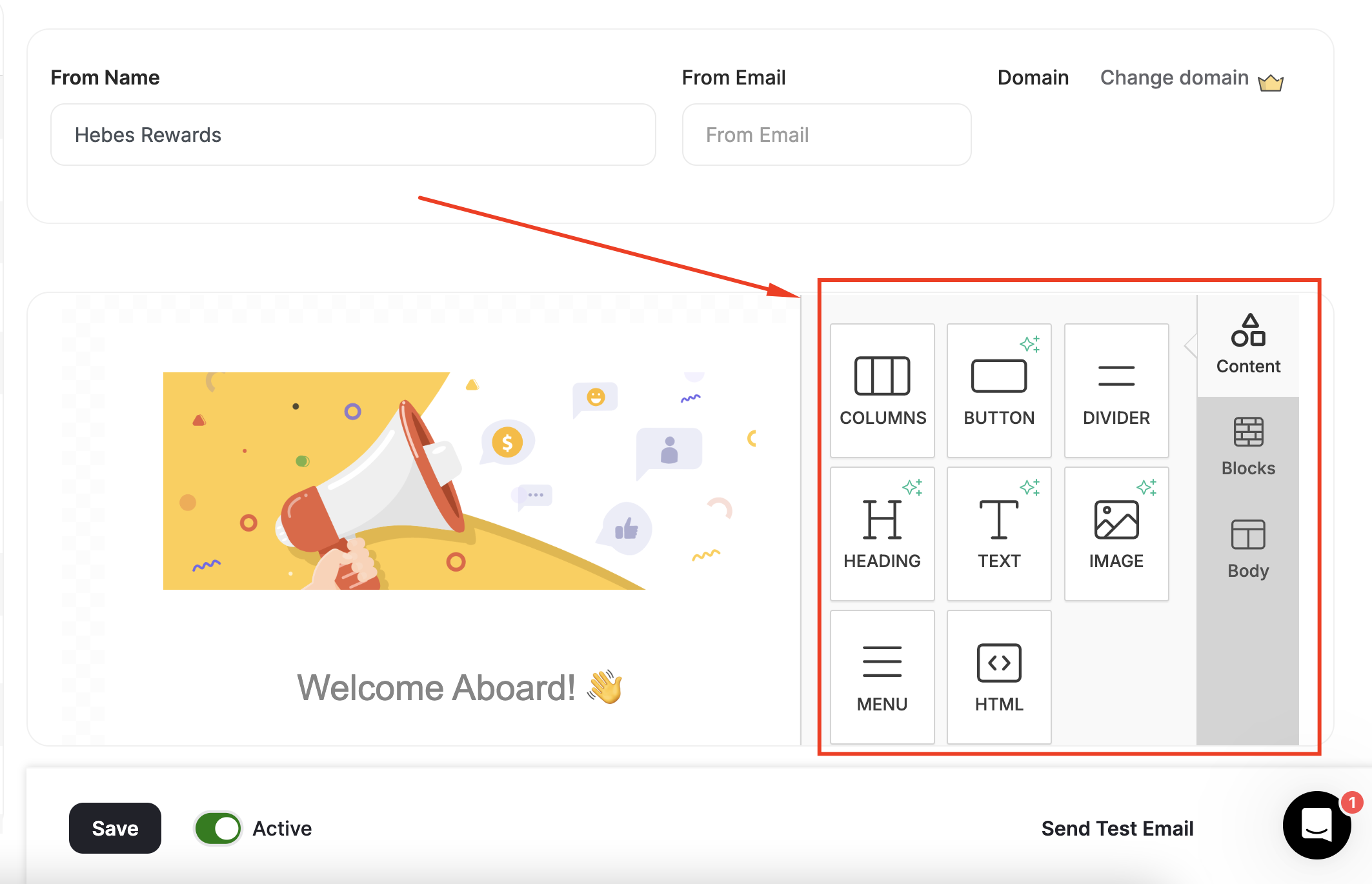
Setting Up and Activating Email Notifications
Send a Test Email
Before activating your customer email notifications, you can send a test email to yourself (the logged-in user) to preview what will be sent to your customers. Click Send Test Email.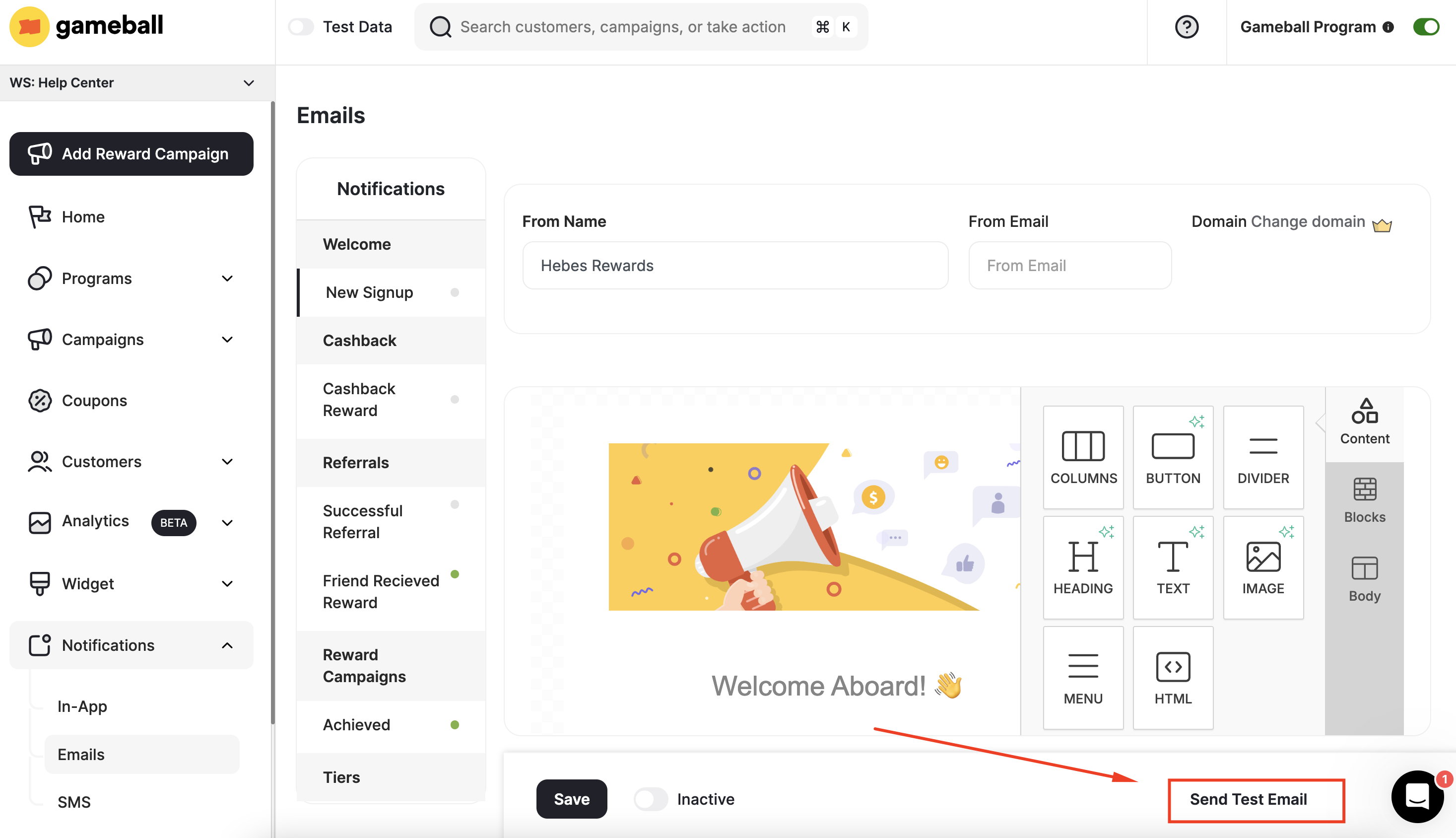
You have a limit of only 50 test emails per day.
Activate Email Notifications
To activate any of your customer email notifications, all mandatory fields must be filled first. For templates you have configured, tested, and are ready to activate, go to the tab of the same email type and switch the toggle to Active.You can enable or disable the notification through the Active Toggle.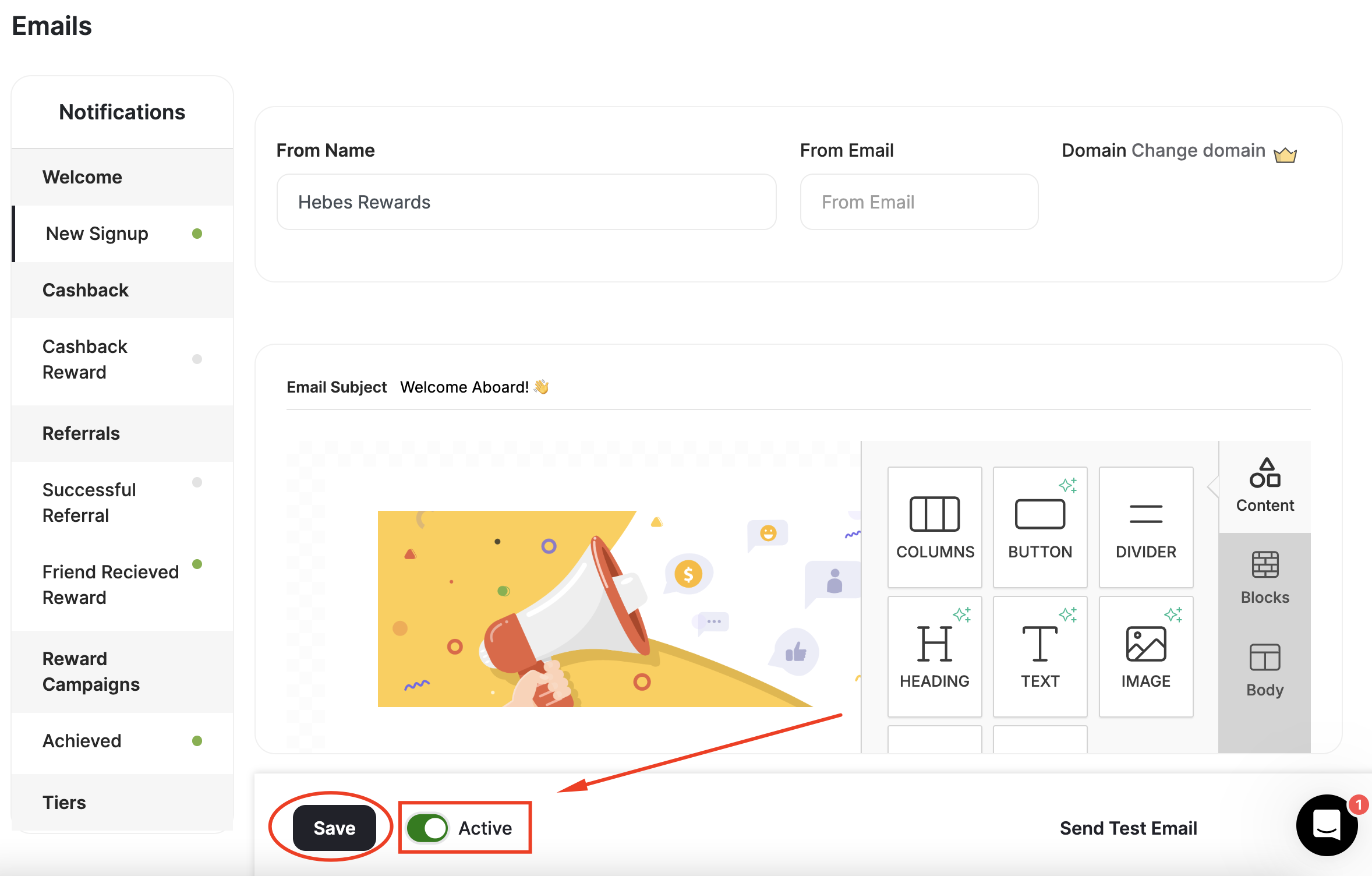
Do not forget to click on “Save” before you exit.
You must activate each and every email type through their designated tab; the toggle on each tab only activates the email type you are viewing.
Communication Campaign Emails (Outbounds) is a separate feature that allows you to send customized emails. Email campaigns have a limit of 10,000 emails per billing cycle for PRO and Guru plans. Learn more about Email Campaigns.
Common Questions
Can I remove the 'Powered by Gameball' from the email footer?
Can I remove the 'Powered by Gameball' from the email footer?
Related Articles
Placeholder Variables in Email Notifications
Use merge tags and variables to personalize every email sent to your customers.