

| Platform | Plan |
|---|---|
| Shopify | Starter, Pro & Guru |
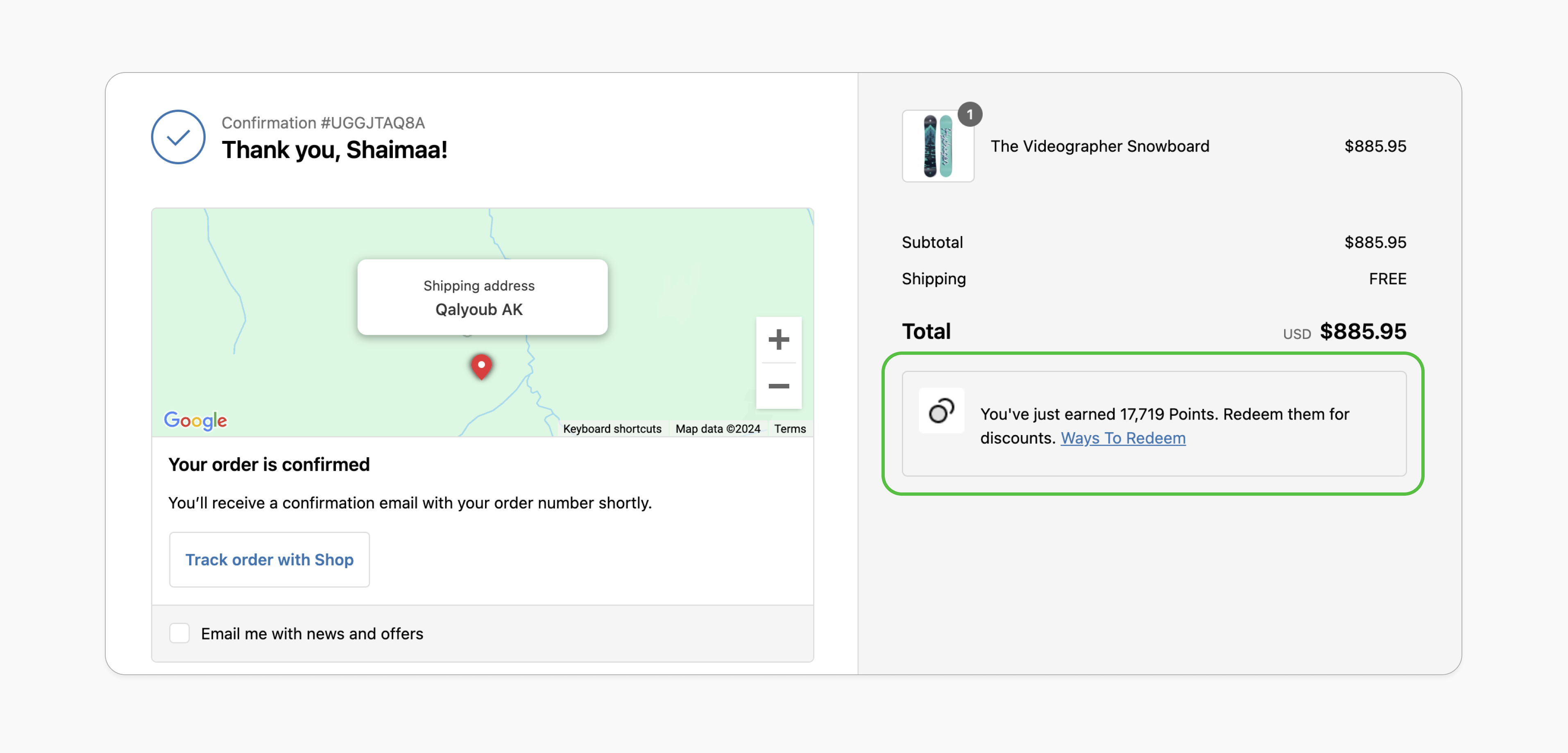
Increases Loyalty Program Awareness
By showcasing earned points and offering clear redemption options, customers are reminded of the value of the loyalty program, strengthening their connection with the brand.
Encourages Repeat Purchases
Seeing how many points they’ve earned motivates customers to come back and redeem their rewards, which drives repeat purchases and enhances customer retention.
Prerequisites
Updated Shopify Theme
Your Shopify theme must support app blocks. Without this, the option to add the Gameball block won’t appear in the editor. Learn more.
Enable Gameball Embed Block
Go to the Theme Editor in your Shopify admin. Select App Embeds from the left menu, search for “Gameball,” and toggle it on.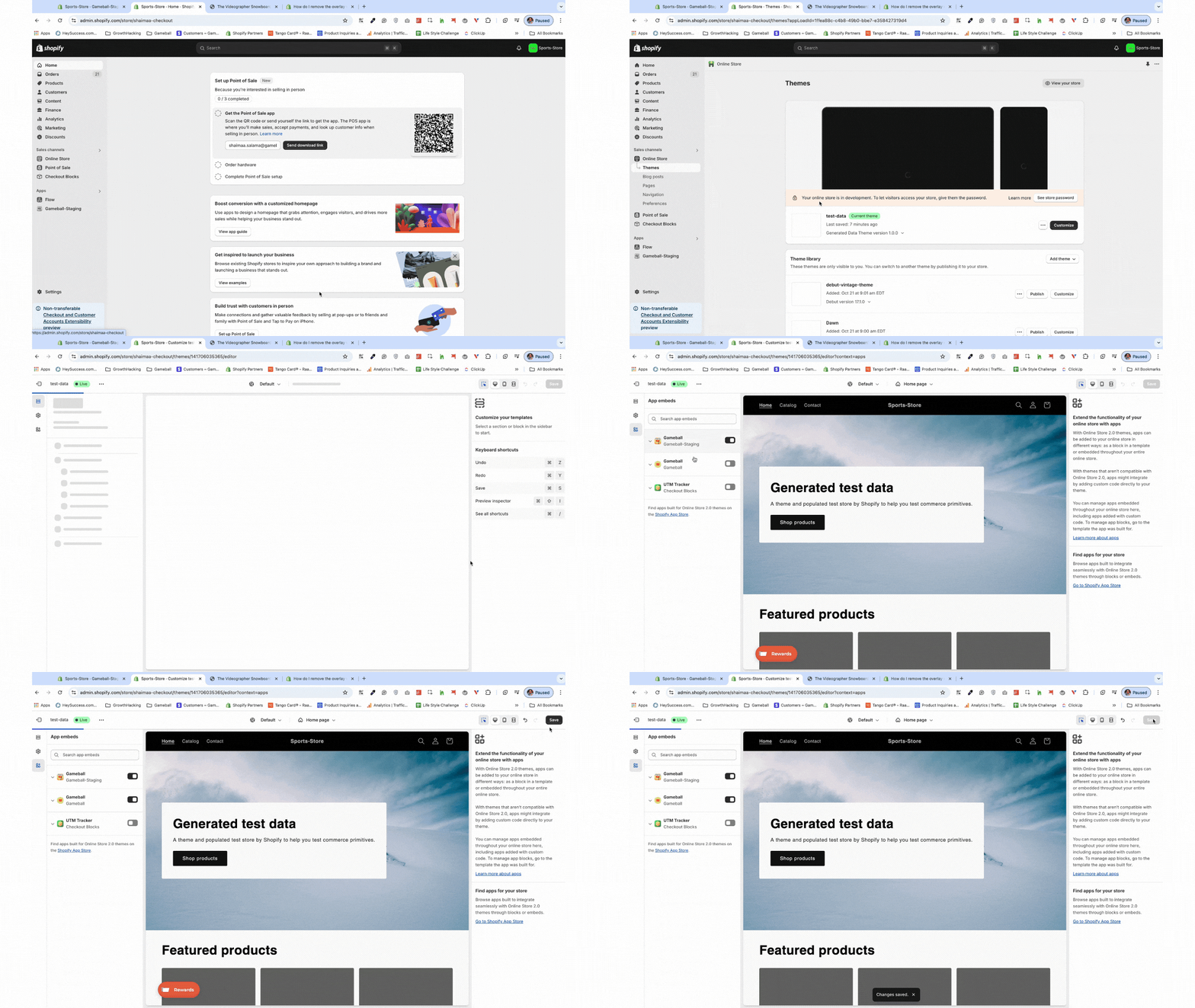
Activate the "Earn Points" Module
In the Gameball dashboard, navigate to Programs > Earn Points, then activate the module.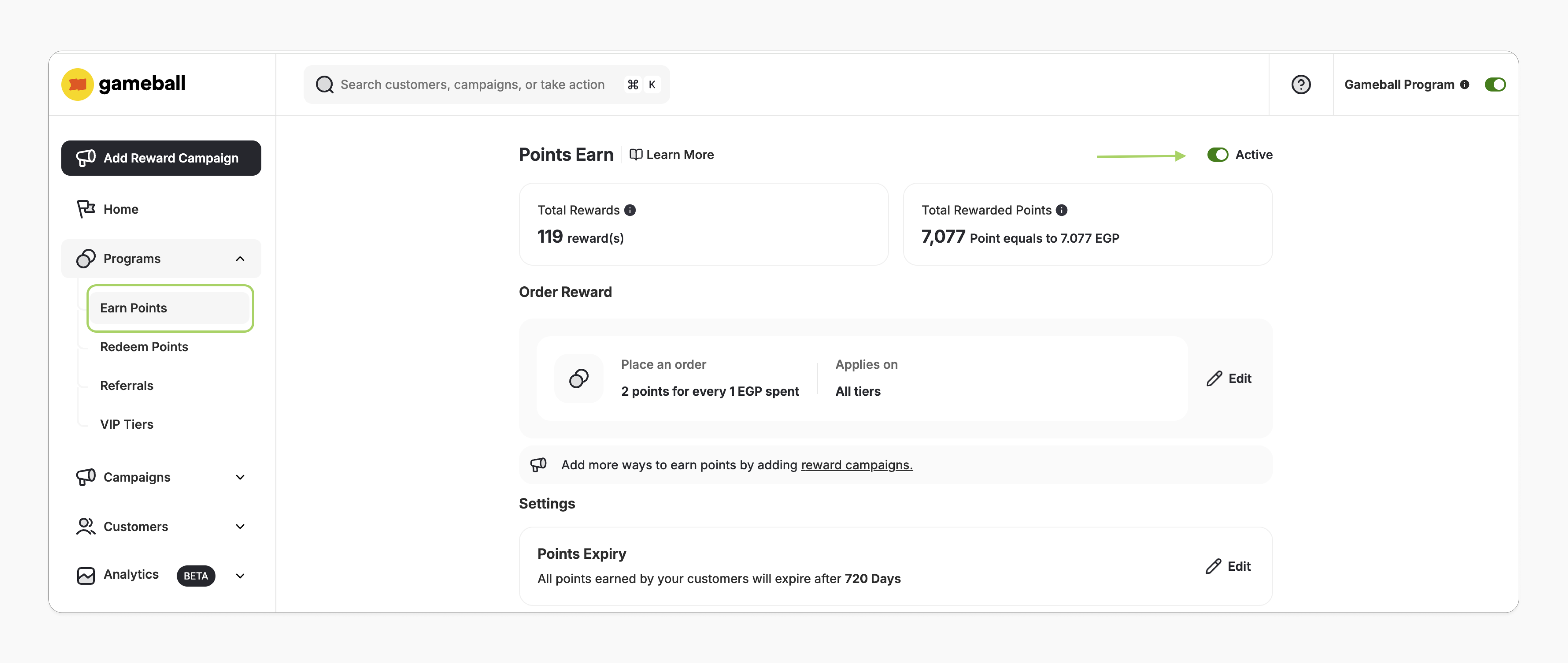
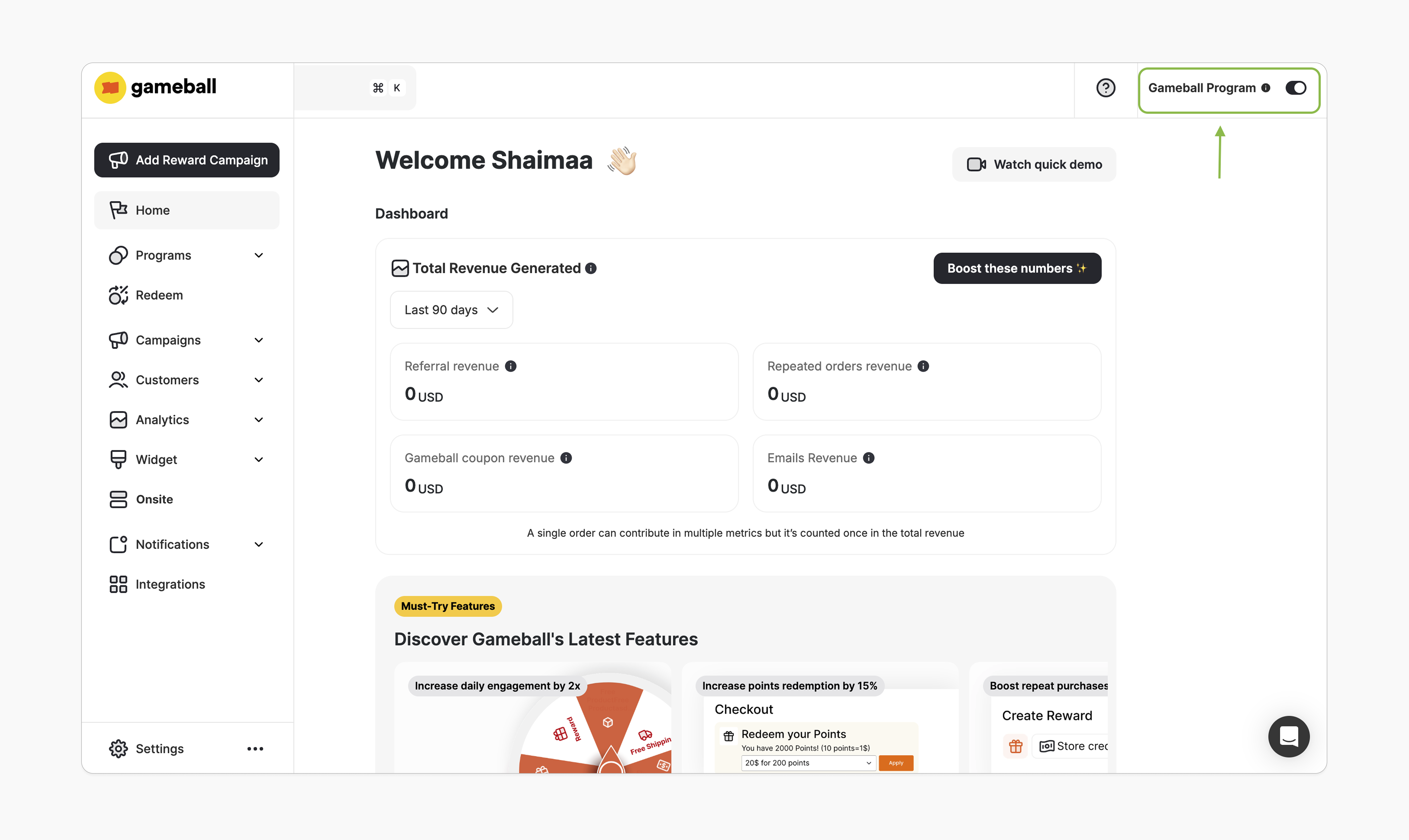
How to Install the Block
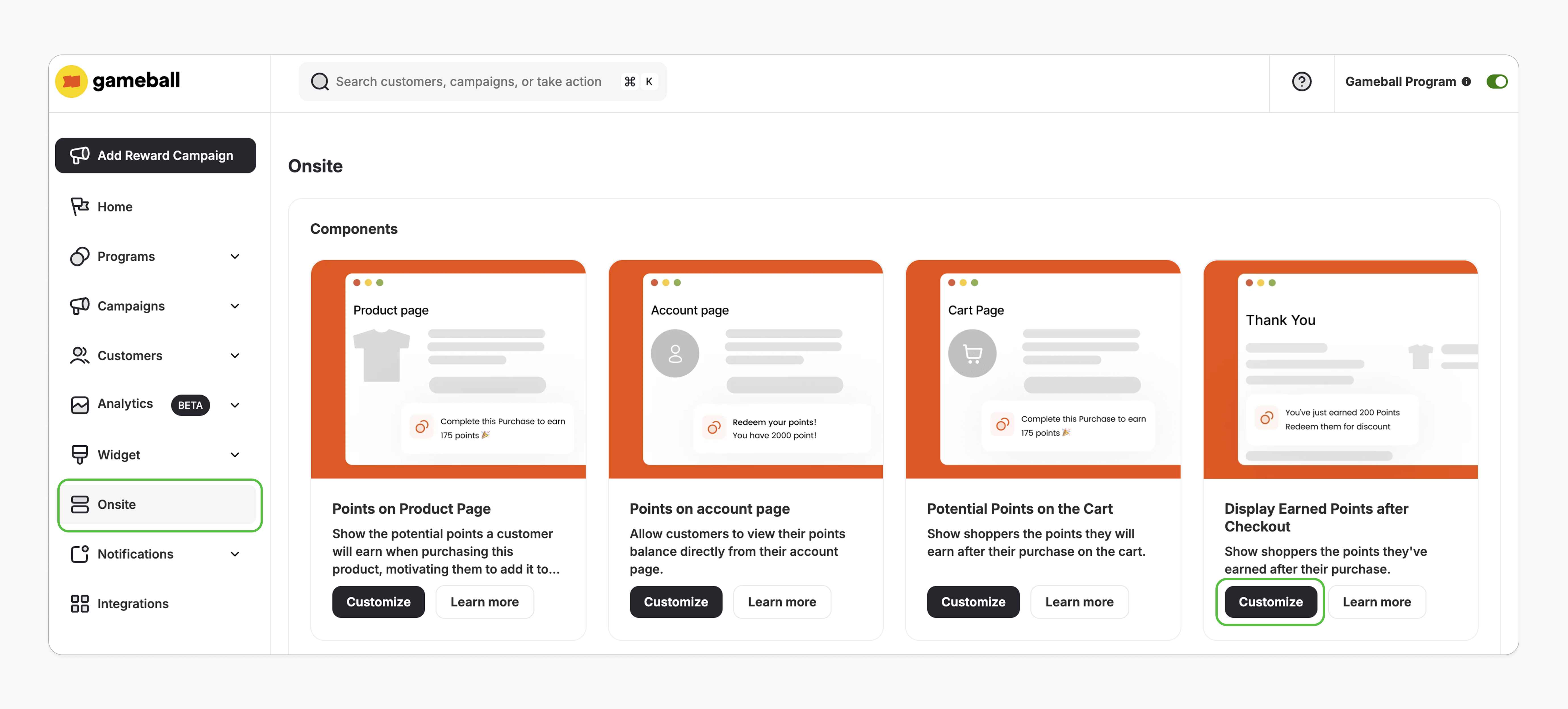
Open Theme Editor
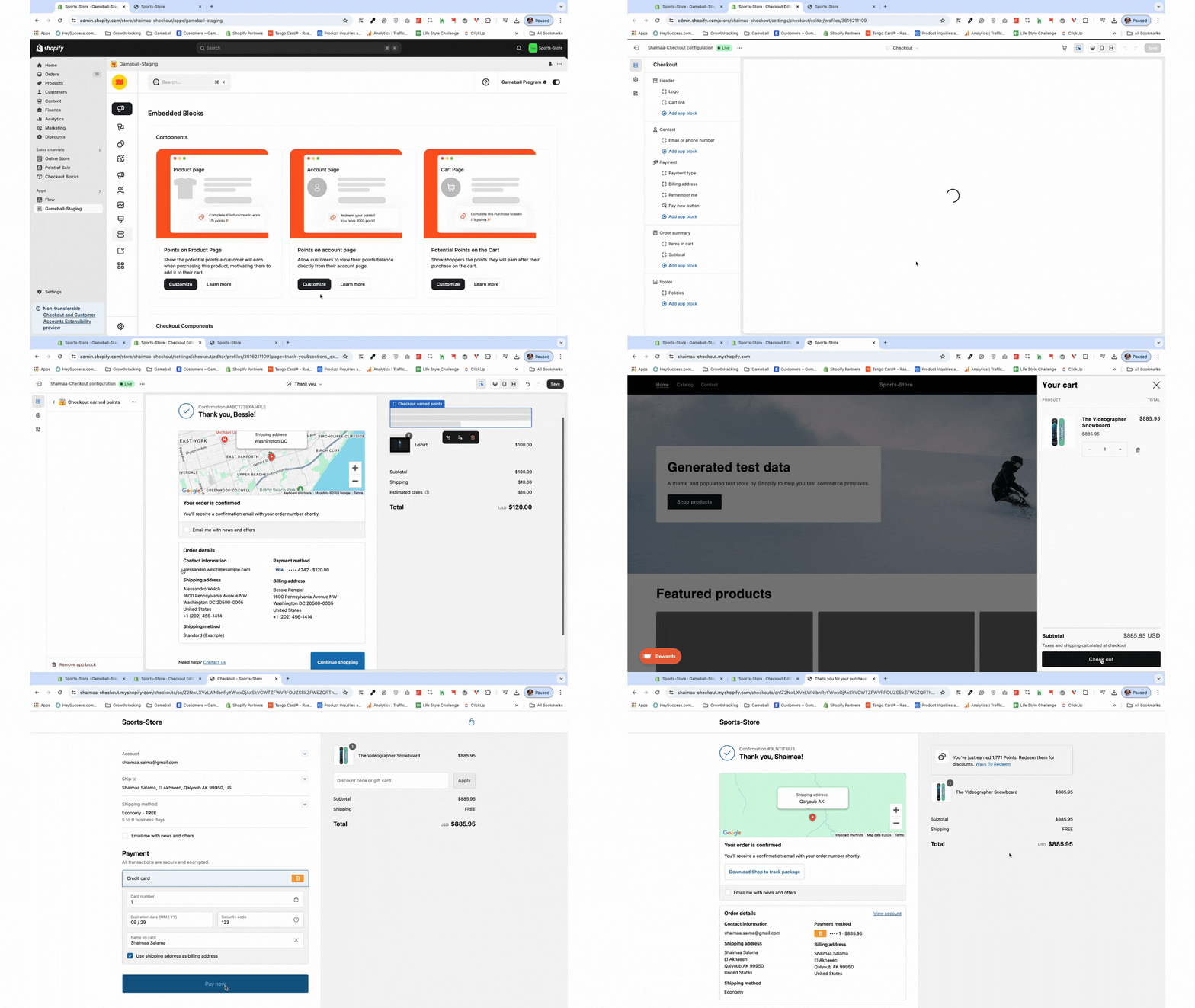
You’ll be redirected to the Shopify theme editor on the thank you page. If this doesn’t happen, please review the prerequisites.
Add the App Block
In the left sidebar, under the “Order Summary,” click Add App Block > Apps, and search for the “Checkout earned points” block.
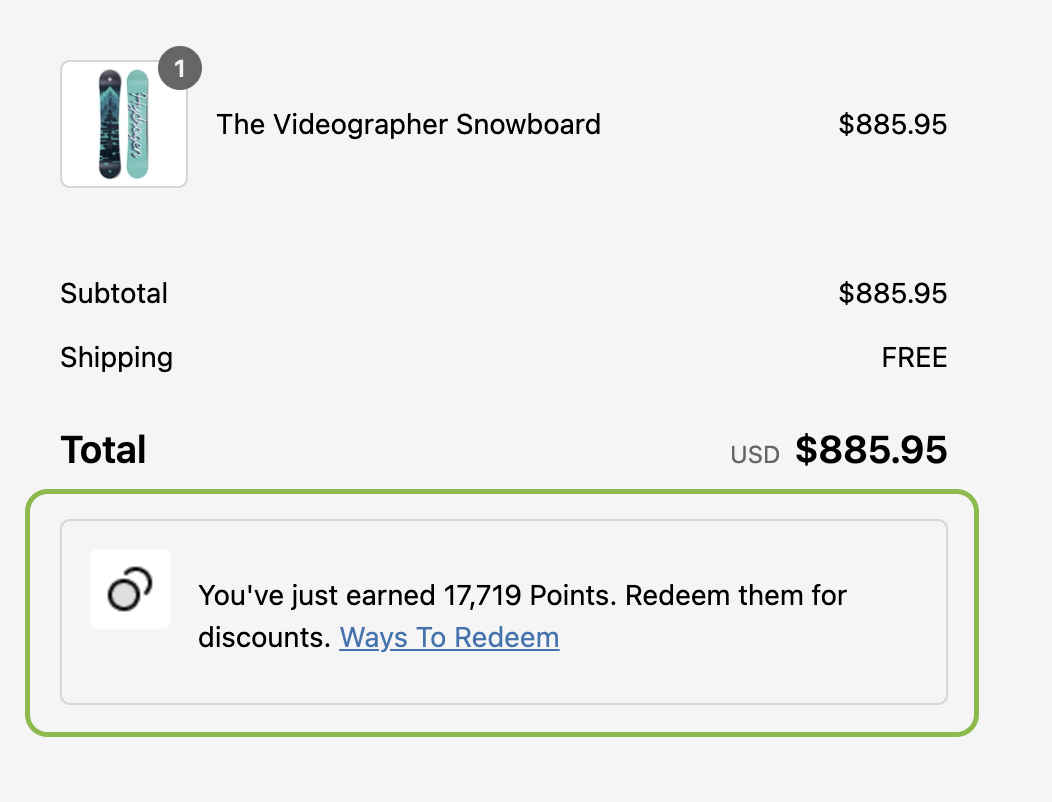
Logged-In vs. Guest (Not-Logged-In) Customers
- Not Logged-In Customers
- Logged-In Customers
If you are not logged in, the extension will show the earned points in addition to asking you to log in or register to be able to use your points.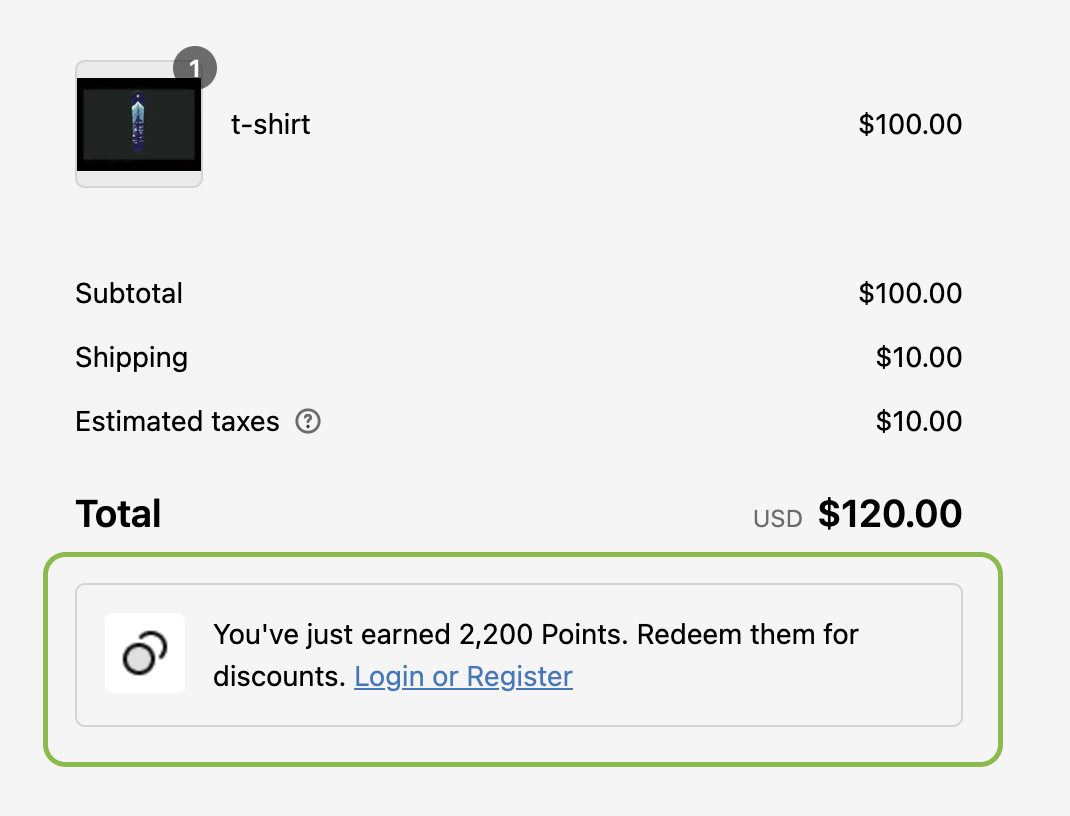
Customization
Style Customization
Style Customization
The checkout extensions have no style customization options. However, you can customize its position by simply dragging and dropping it to your desired location on the checkout page.
Content & Translation
Content & Translation
In the Gameball Dashboard, go to Widget > Content. Under the Onsite tab, edit the text and customize it for supported languages.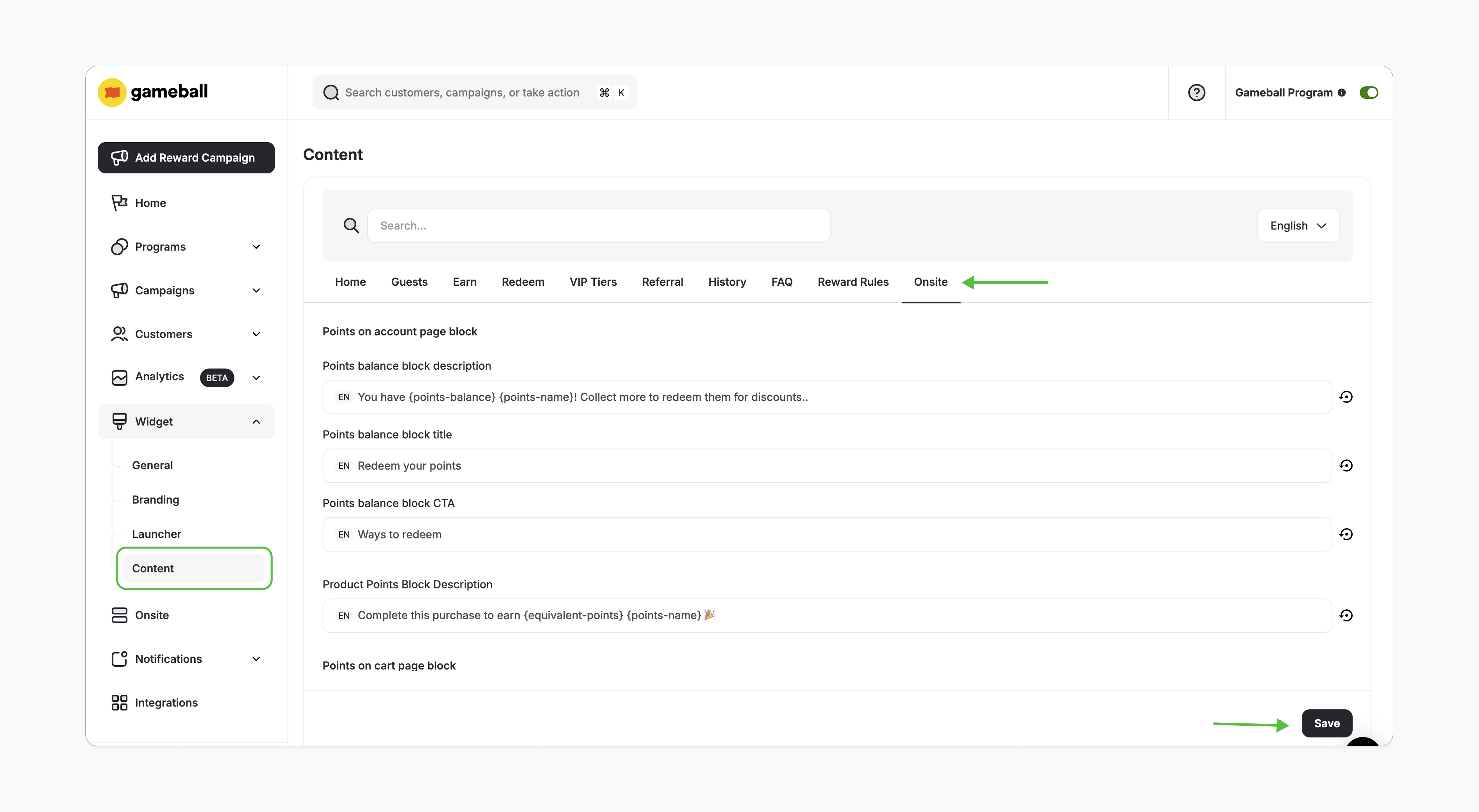
Important Notes
Frequently Asked Questions
I downgraded to the Free plan. What will happen to the block?
I downgraded to the Free plan. What will happen to the block?
The block will automatically hide once you’re on a plan that doesn’t support it.
What should I do if I clicked on Customize but saw a "There is a problem loading the page" message?
What should I do if I clicked on Customize but saw a "There is a problem loading the page" message?
Please review the prerequisites and ensure all conditions are met. If you still encounter an issue, contact us at support@gameball.co.
Related Articles
Embed Points in Customer Profile
Display customers’ points balances in their profiles.
Display Potential Points on Product Pages
Show potential points directly on product pages.