

| Platform | Plan |
|---|---|
| Shopify | Starter, Pro & Guru |
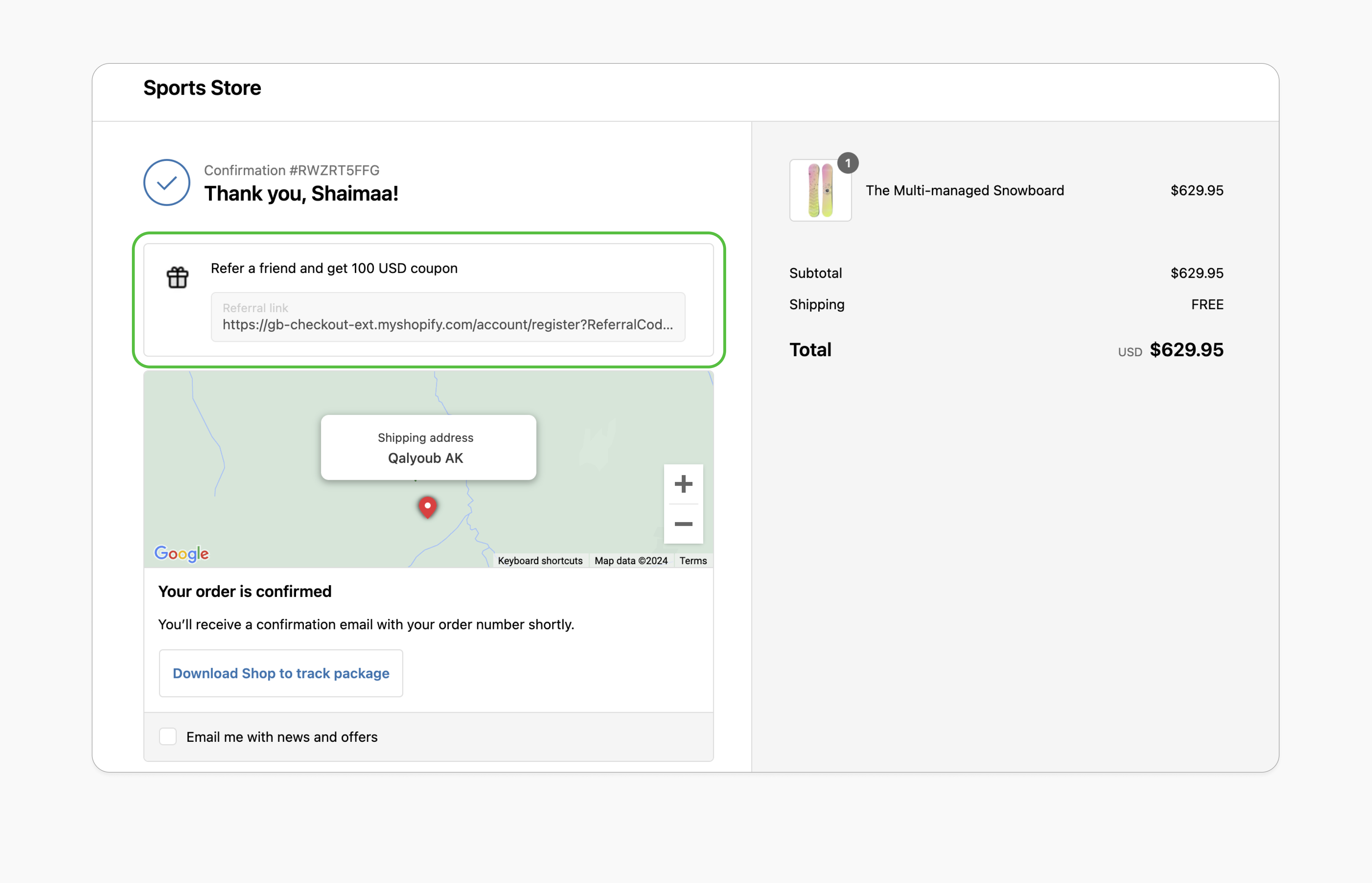
Encourage Immediate Sharing
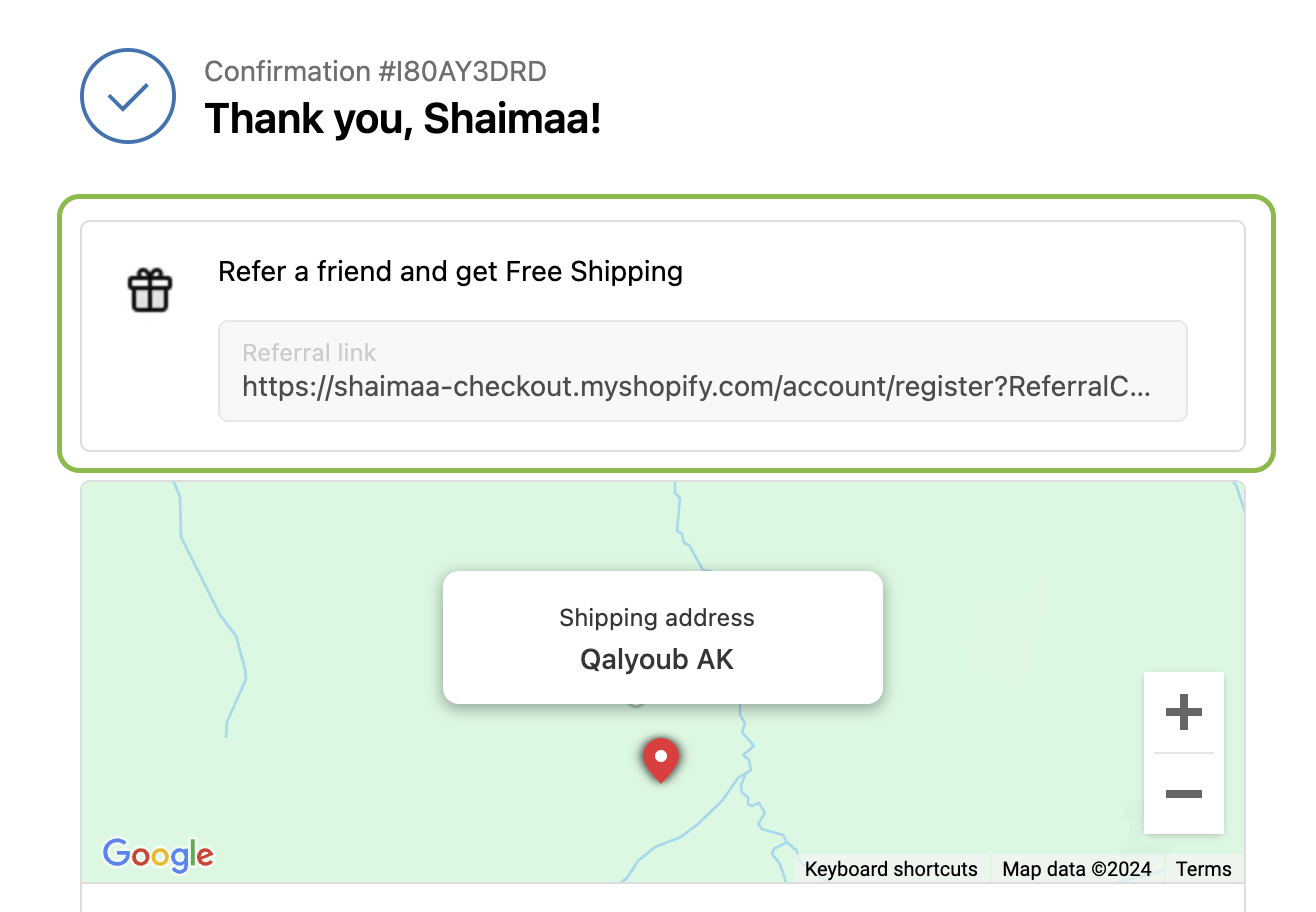
Displaying the referral prompt right after an order is completed taps into the customer’s post-purchase enthusiasm, increasing the likelihood of referrals.
Boost Customer Acquisition
Leveraging recent buyers’ excitement can lead to more personal recommendations, attracting high-quality new customers through word-of-mouth.
Prerequisites
Updated Theme
Your Shopify theme must support app blocks. Without this, the option to add the Gameball block won’t appear in the editor. Learn more.
Enable Gameball Embed Block
Go to the Theme Editor in your Shopify admin. Select App Embeds from the left menu, search for “Gameball,” and toggle it on.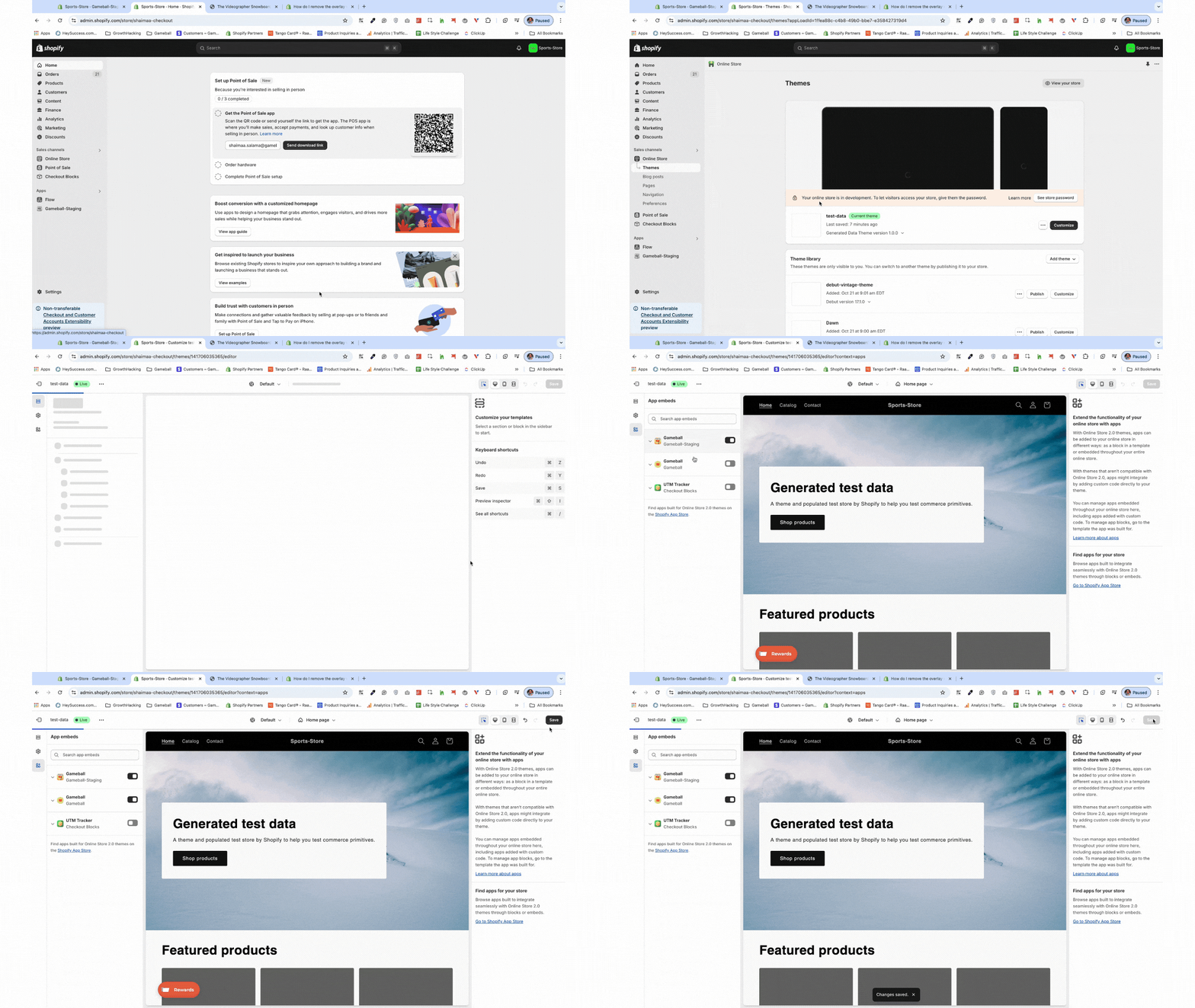
Activate Referral Module
In the Gameball dashboard, navigate to Referrals, then activate the module.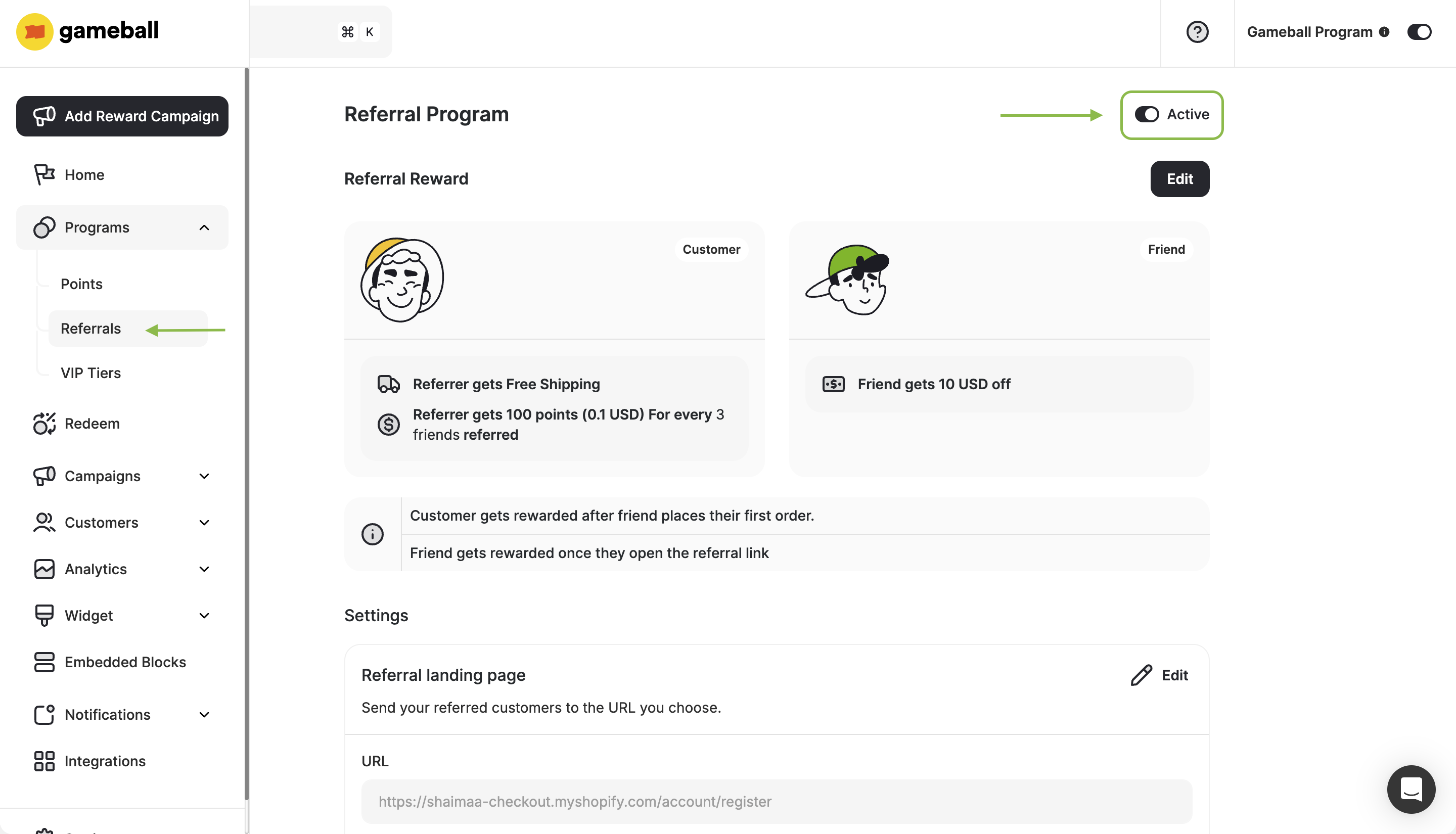
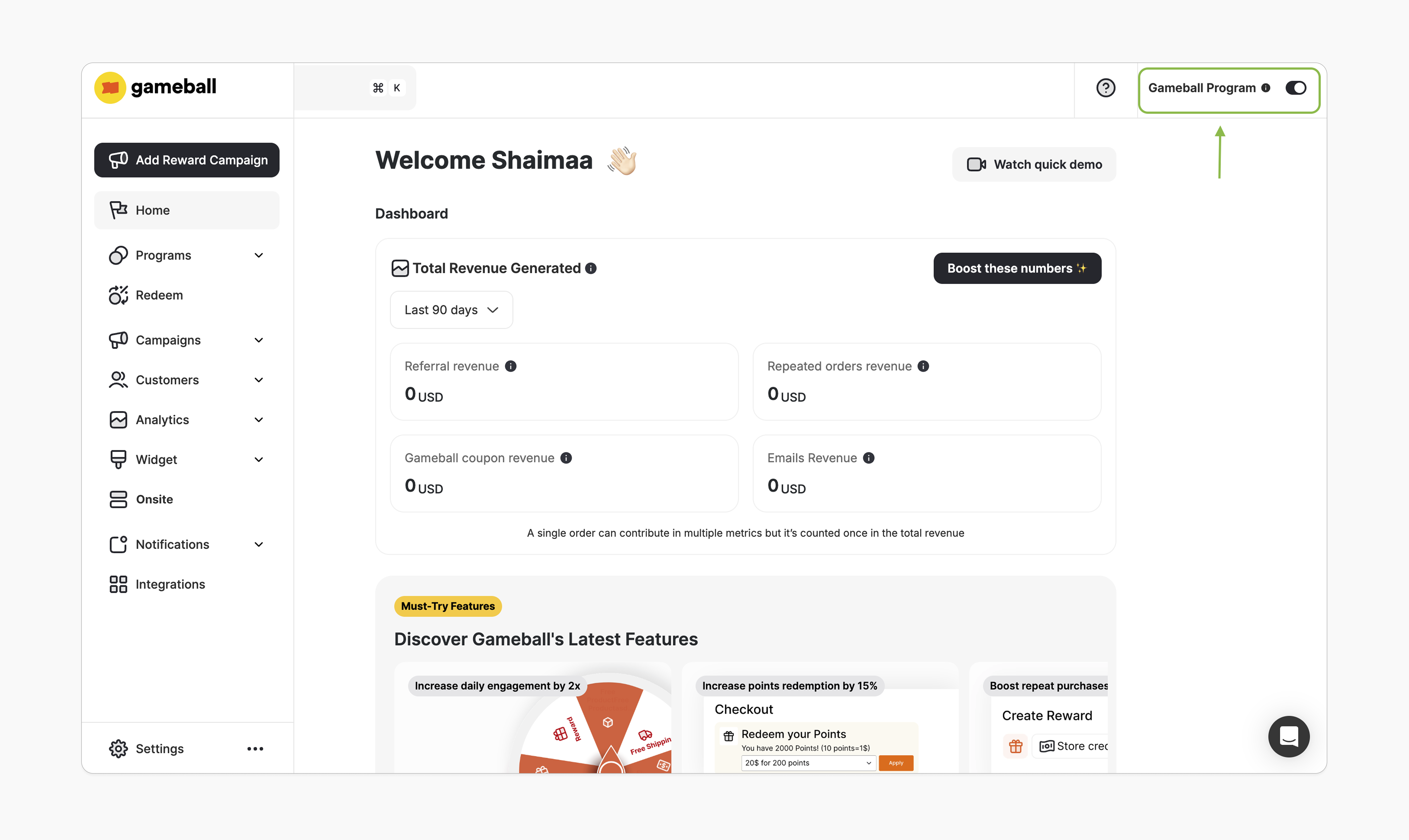
How to Install the Block
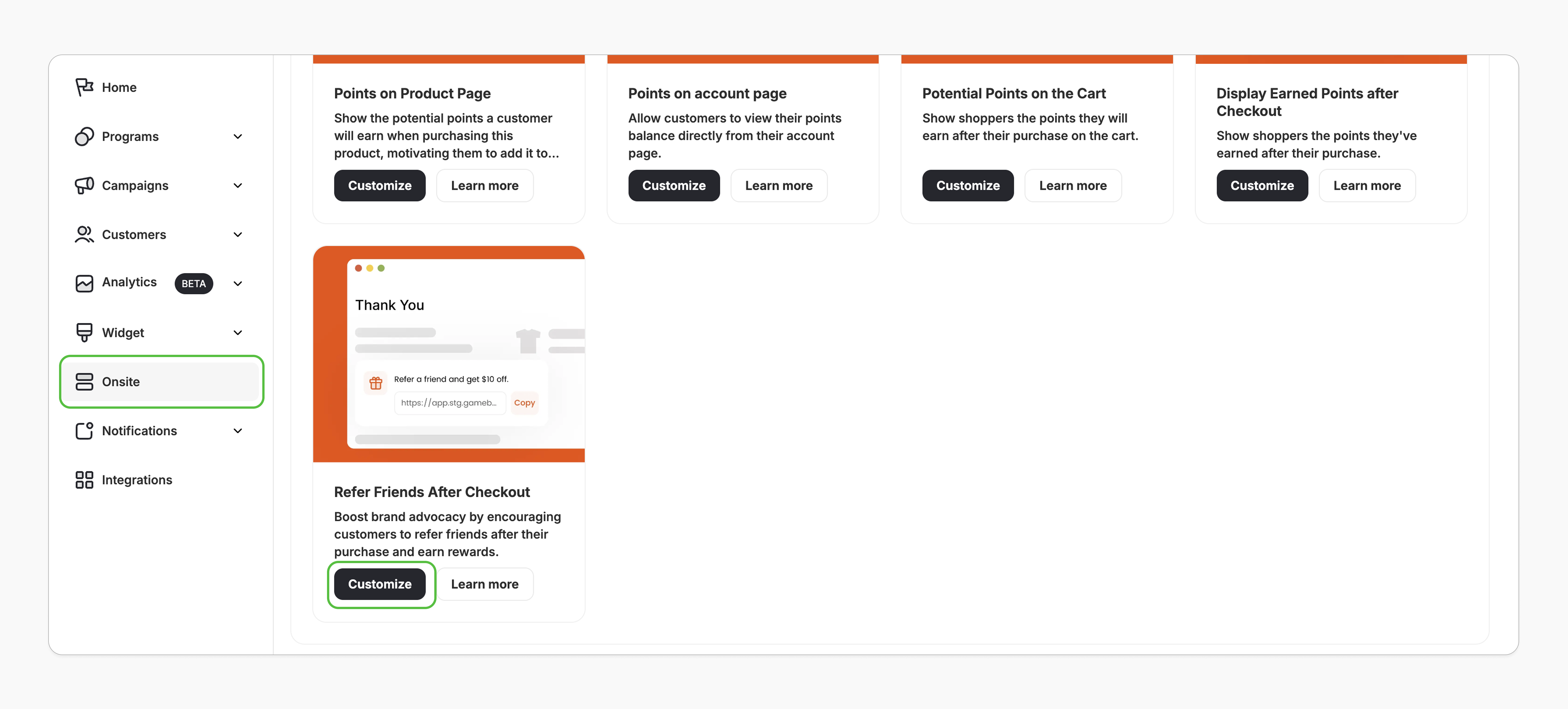
Open Theme Editor
You’ll be redirected to Shopify’s theme editor. If not, double-check the prerequisites.
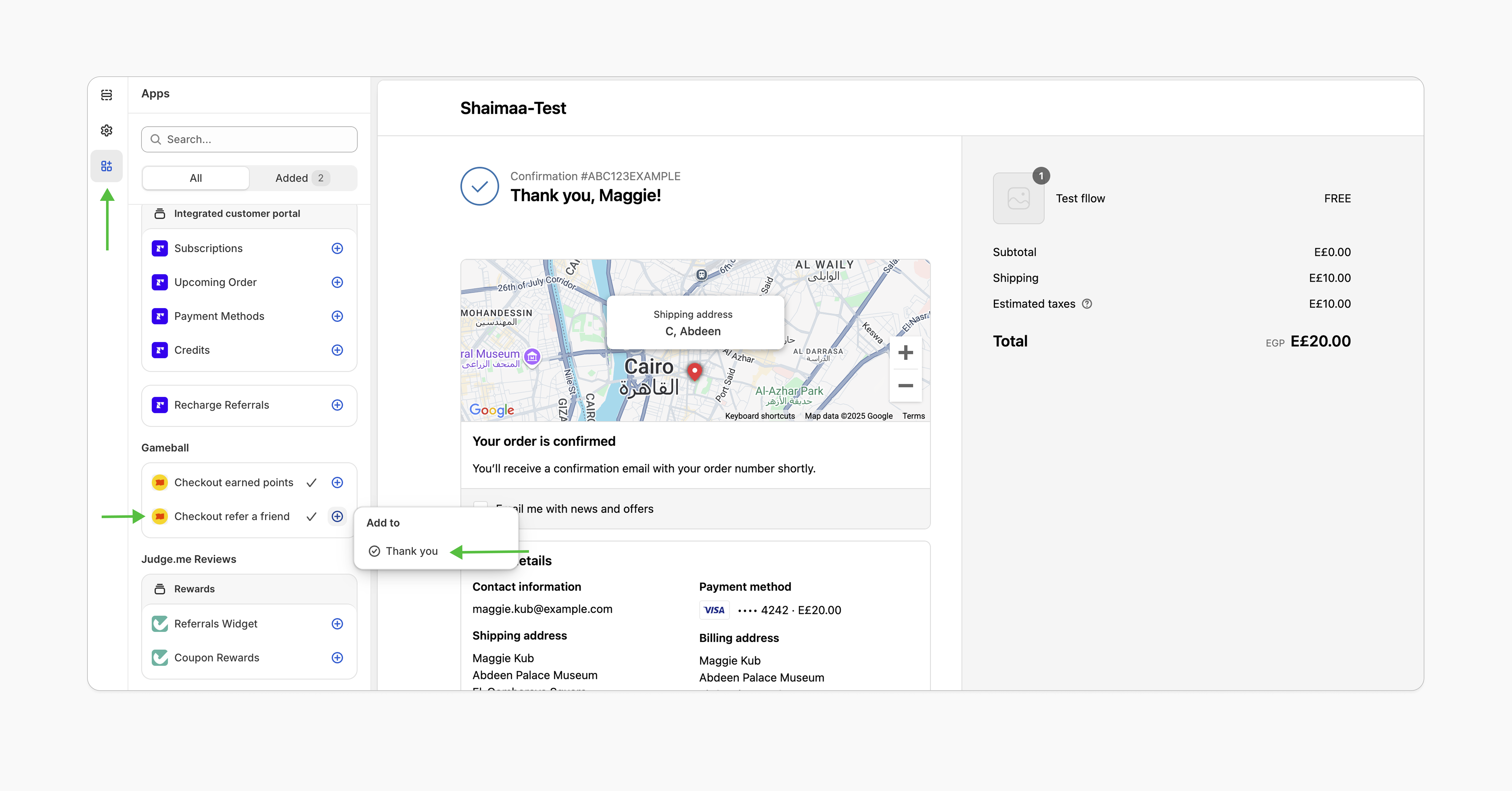
Customization
Style Customization
Style Customization
The checkout extensions have no style customization options. However, you can customize its position by simply dragging and dropping it to your desired location on the checkout page.
Content & Translation
Content & Translation
In the Gameball dashboard, go to Widget > Content. In the Onsite tab, edit the displayed text as needed and click Save.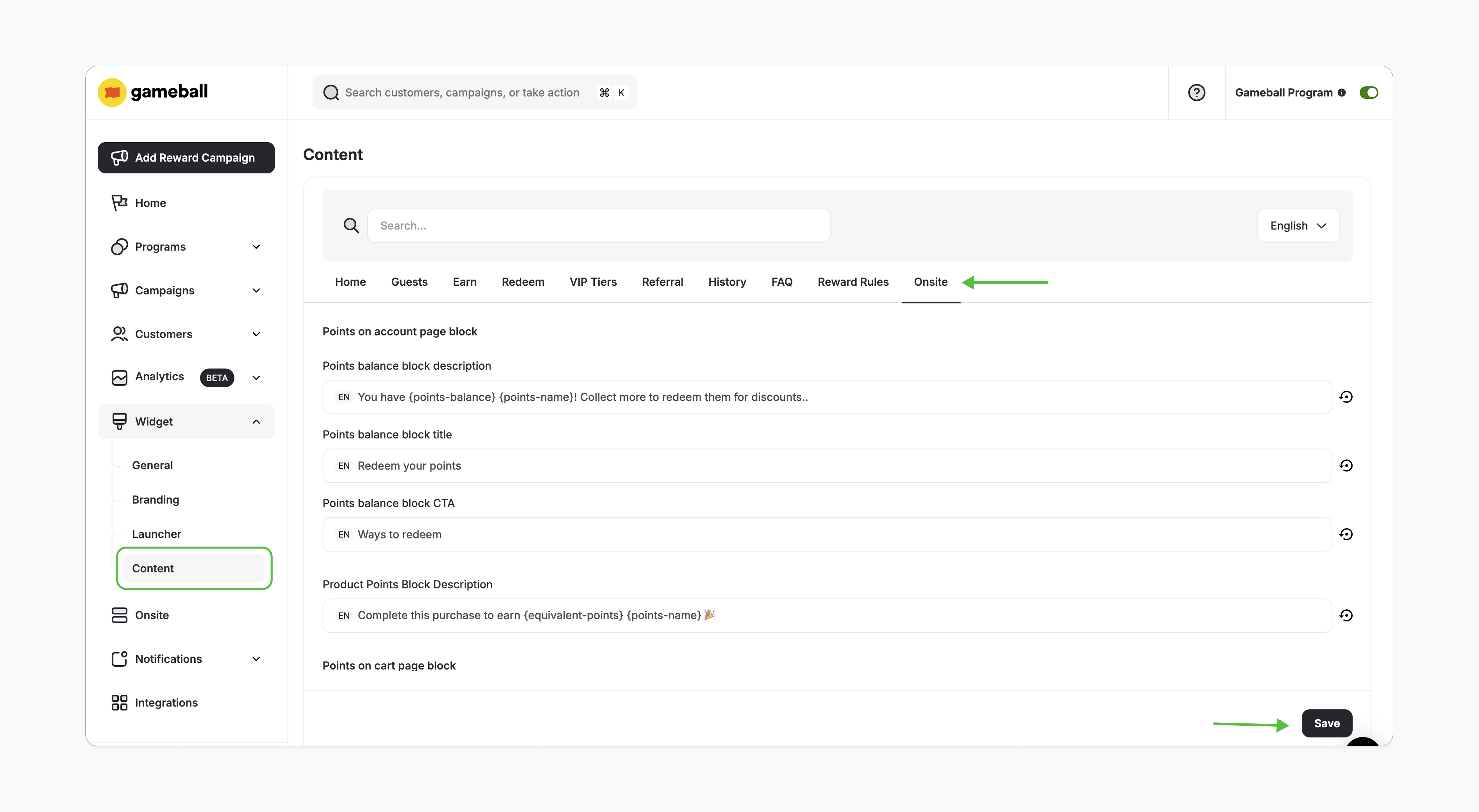
Logged-In vs. Guest (Not-Logged-In) Customers
- Not Logged-In Customers
- Logged-In Customers
If you are not logged in, the extension will prompt you to log in or register to be able to refer your friends and earn the referral reward.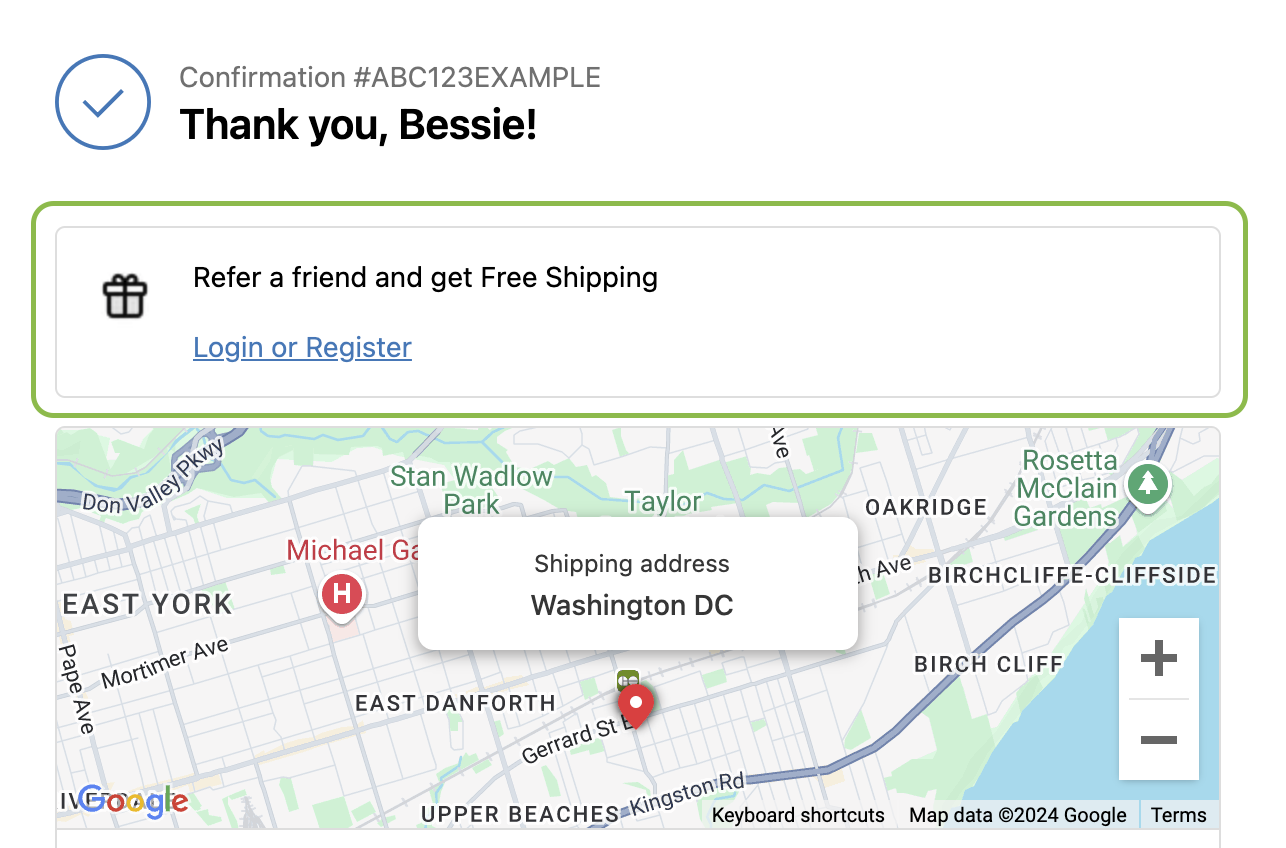
Important Notes
Frequently Asked Questions
Can the Referral Link Block be displayed on other pages?
Can the Referral Link Block be displayed on other pages?
Currently, the referral link block can only be embedded on the checkout confirmation page.
What if I downgrade my plan?
What if I downgrade my plan?
The referral link block will automatically hide if your plan no longer supports this feature.
Related Articles
Embed Points in Customer Profile
Display customers’ points balances in their profiles.
Display Potential Points on Product Pages
Show potential points directly on product pages.