

Direct Points Redemption Discount
Give your customers a seamless experience by allowing them to redeem their loyalty points instantly at checkout, with no need for coupon codes or additional steps. This guide will walk you through showing the points balance, validating redemptions, applying them in real time, and handling both immediate and delayed checkout scenarios.What is Direct Points Redemption Discount?
With Direct Points Redemption Discount, customers can apply their available loyalty points directly on the checkout screen to get an immediate discount on their order. It’s fast, real-time, and ideal for native apps and web platforms aiming for a frictionless shopping experience.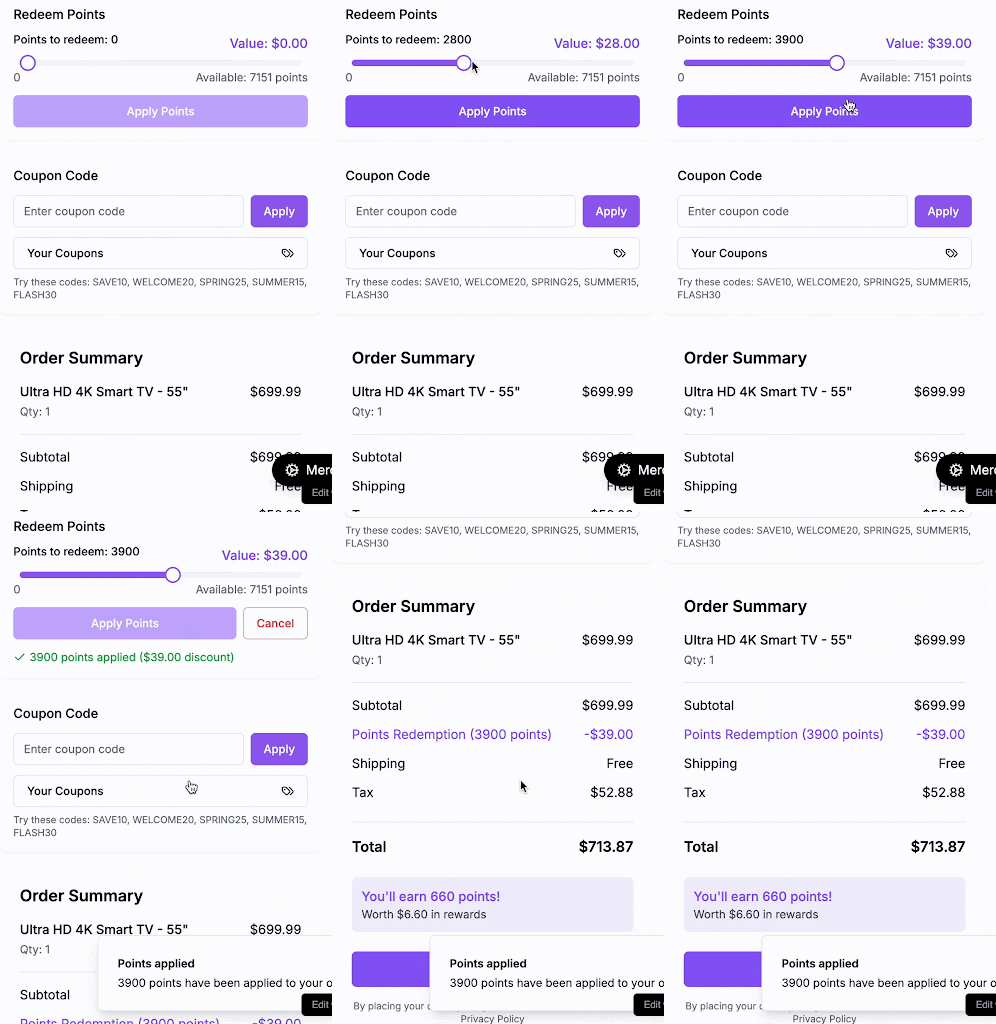
When and Why Use This Method?
This model is ideal for providing a fast, seamless redemption experience, especially in mobile apps or one-page checkouts, where minimal friction is key to conversion. Use it when you want:- A real-time, coupon-free checkout experience
- To reflect discounts instantly as customers apply points
- Backend control over how redemptions are validated and applied
- A frictionless UI with fewer steps between the cart and confirmation
Integration Overview
Your role as the implementer: You will build a points input field or slider in the checkout UI, showing:- Customer’s available balance
- Equivalent monetary value
- Live discount on the cart when they apply points
Customer Journey Overview
Here’s the high-level customer experience:
Gameball handles points, state, and redemption safely, preventing issues like double usage across tabs or devices.
Implementation Flow for Developers
Step 1: Retrieve and Display the Points Balance
When the customer lands on the checkout screen, one of the first things you should do is show them how many points they can use and what those points are worth in real currency.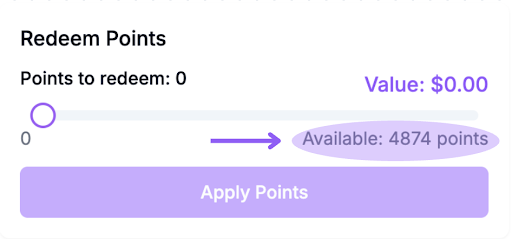
Why This Matters:
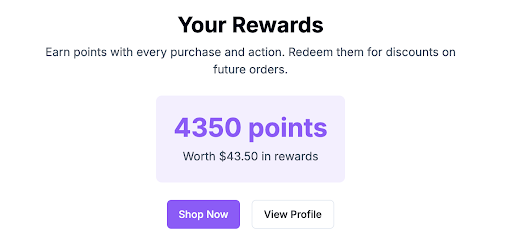
Displaying point values transparently empowers customers to make informed redemption choices. It boosts engagement and encourages them to apply points immediately, especially if they see the direct savings impact.- totalPointsBalance: Total points including pending ones, useful for showing potential future value.
- totalPointsValue: The total monetary value of the customer’s points, including pending points.
- availablePointsBalance: Points that the customer can use right now.
- availablePointsValue: Monetary equivalent of available points (e.g., 1,000 points = $50).
- pendingPoints: Points that are earned but temporarily held during the return/cancellation window.
- pendingPointsValue: Monetary equivalent of pending points.
Understanding Pending Points:
Pending points are loyalty points that have been earned but are still within a return period (e.g., 14 days after a purchase). These points:- Cannot be used for redemption until they are fully confirmed.
- They are held to protect against early redemption in case of cancellations or returns.
- Available Points: You have 1,000 points = $50 available to spend
- Pending Points (optional): 200 points ($10) pending, available after 14 days
- A slider or input field to let users decide how many of their available points they want to redeem.
- Real-time calculation of the discount based on the number of points applied
Validate Customer Balance before Redemption:
Ensure the customer has enough points to redeem.Step 2: Let the Customer Apply Points in Cart (Hold Points)
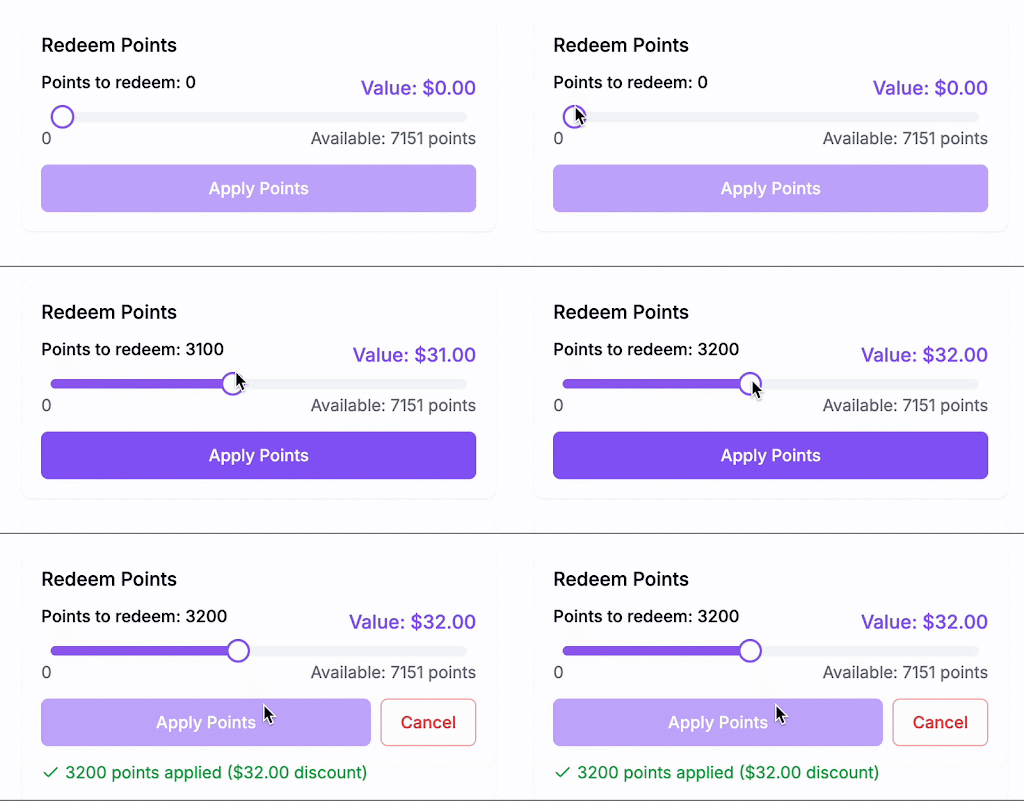
After displaying the balance, give users a field or slider to choose how many points they want to redeem (e.g., 200 points). Once they click “Apply Points”:- Call the Hold Points API
- This temporarily holds those points on Gameball’s side, ensuring they can’t be used twice (e.g., on another device or browser)
- The response includes a
holdReferencethat you must save for later
Why this matters:
Without this step, customers could accidentally overspend points from multiple tabs or sessions. This secures the transaction and improves data consistency.Request:
POST /hold-pointsResponse:
holdReferenceYou’ll need it at the order confirmation stage.
In the UI:
3200 points applied = $32 discount Gameball touchpoint: When the user presses “Apply Points”, the Hold Points API should be triggered.Step 3: Confirm and Complete Order (Burn Held Points)
Once the customer reviews the final cart and hits “Place Order”, your backend should:- Call the Order API
- Pass the
holdReferenceyou received earlier - This burns (deducts) the points and associates them with the order
Why this matters:
This is the final step that marks the redemption as complete and deducts the reserved points from the customer’s balance. It ties the redemption to a confirmed purchase.Request:
POST /order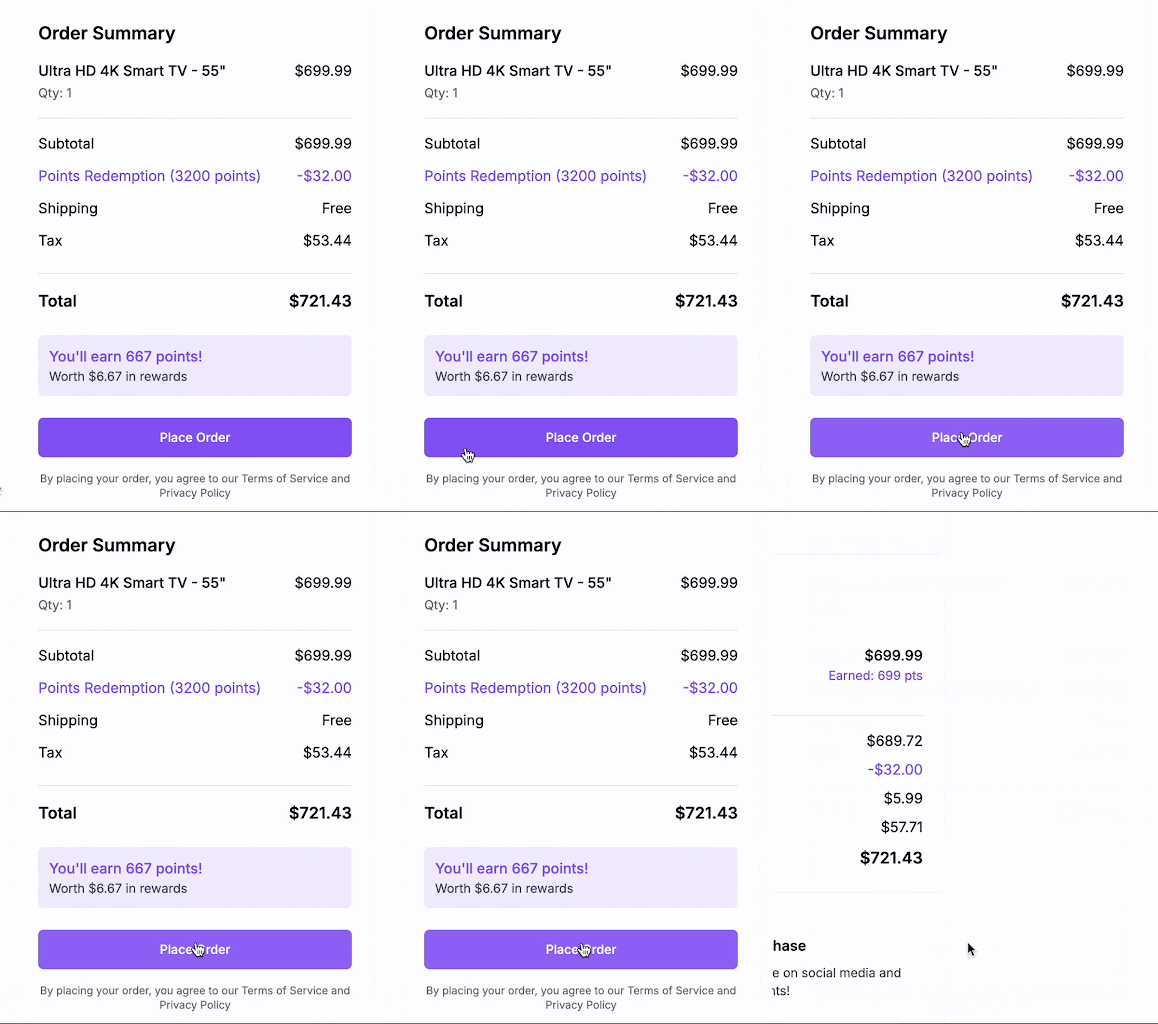
What If the Order Is Cancelled or Interrupted?
Gameball gives you two ways to handle held points safely:Auto-Release (Hold Timeout)
If the customer starts checkout but doesn’t complete the purchase (e.g., exits or times out), Gameball will automatically release the held points after a period of time. This timeout duration is configurable from your Gameball dashboard. You can adjust it to fit your checkout flow (e.g., 10 minutes, 20 minutes, etc.). This protects the customer experience while ensuring points don’t remain locked forever.Manual Release (Release Hold API)
If the customer decides to cancel the order or wants to use their points for a different purchase before the hold timeout ends, you can proactively release the held points. To do this, call the Release Hold API using the original holdReference. POST /release-pointsDeveloper Checklist
| Task | API | Purpose |
|---|---|---|
| Show Points Balance | GET /customer-points-balance | Display current usable points |
| Apply points | POST /hold-points | Reserve points temporarily |
| Place order | POST /order | Finalize redemption and burn points |
| Order Cancelled | POST /release-points | Manually release held points |
Related Resources
Get Customer Balance API
Retrieve available, total, and pending points
Hold Points API
Reserve points during checkout before payment
Order API
Submit orders and finalize point redemption
Release Hold API
Return held points when checkout is canceled