

| Platform | Plan |
|---|---|
| Shopify | Guru |
| Salla | Guru |
| Non-platform Clients | Guru |
Prerequisites
- Ensure your subscription plan is Guru.
- Contact Gameball support to enable the Merchants feature.
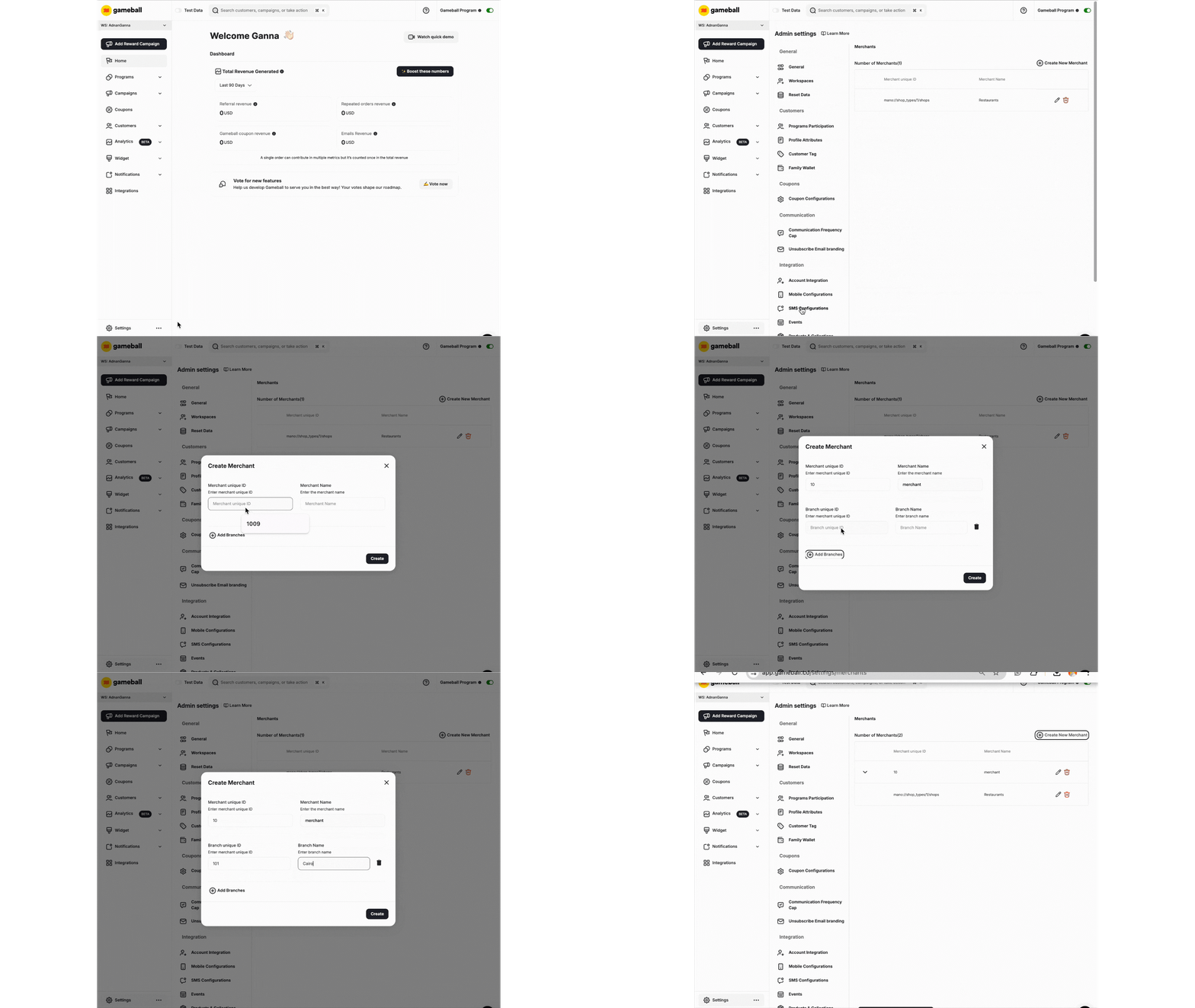
How to Create a New Merchant
Add Branches (Optional)
If you want to add different branches to the brand, click Add Branches. Enter the branch ID and name under Branch Unique ID and Branch Name.
Important Notes
Common Questions
Can I add multiple branches under the same merchant?
Can I add multiple branches under the same merchant?
Yes, you can add different branches under the same merchant by clicking Add Branches during the merchant creation process.
What happens if a transaction is made with an unregistered brand?
What happens if a transaction is made with an unregistered brand?
Gameball will automatically create a new merchant and ID to complete the transaction if it does not exist.
Related Articles
Configure Cashback per Brand
Set up different cashback values for each brand or store.