

| Platform | Plan |
|---|---|
| Shopify | Starter, Pro & Guru |
| Salla | Starter, Pro & Guru |
| Non-platform Clients | Growth & Enterprise |
Activating Gameball’s Referral Program
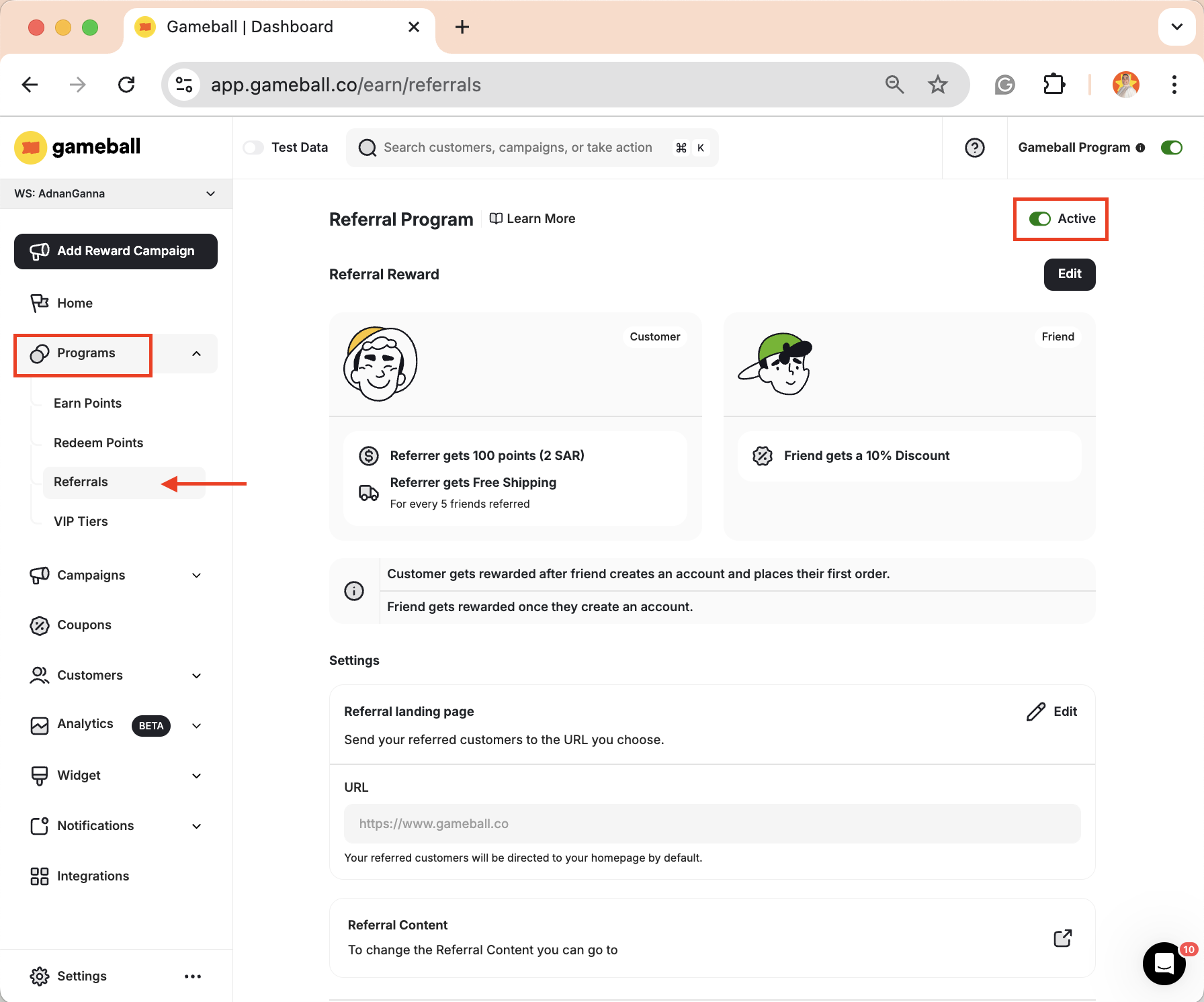
Referral Program Configuration
1. Referral Reward
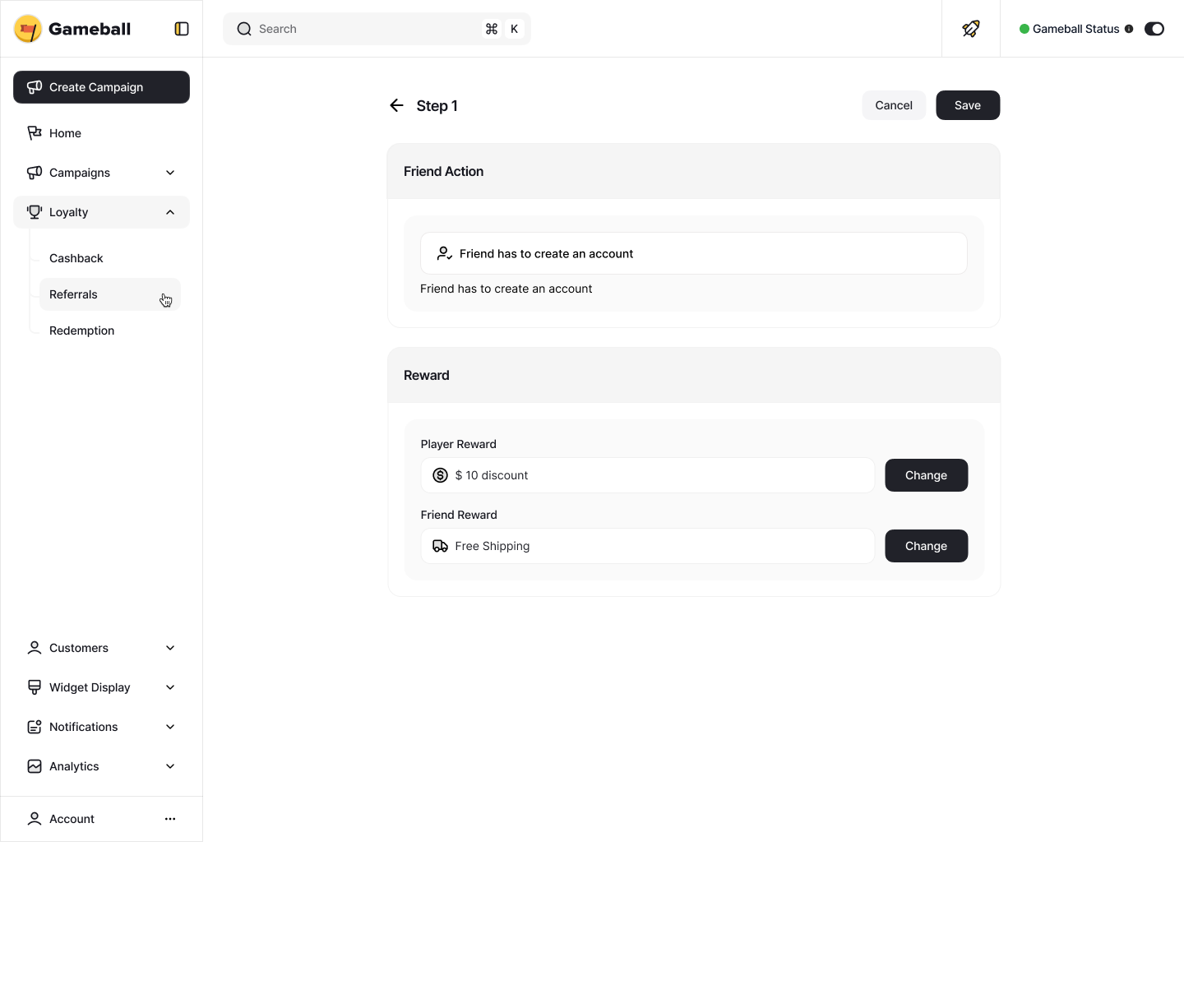
Gameball allows you to decide who gets rewarded in your referral program. You can choose to reward:- Both the customer and their friend
- Only the customer
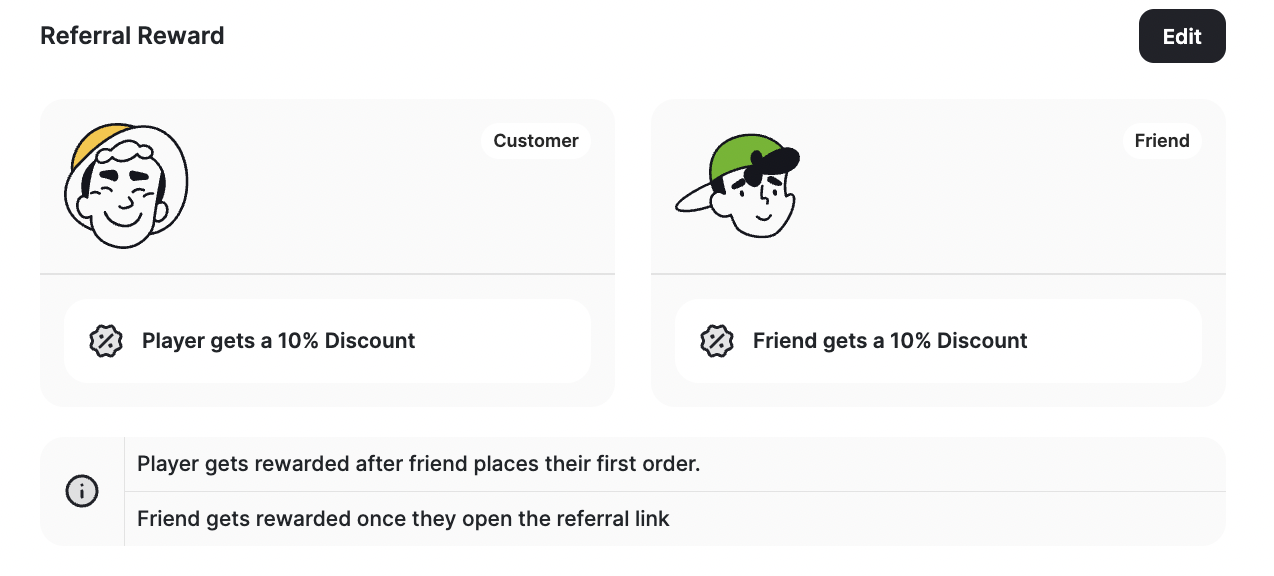
Choose the Friend's Action
Under Friend’s Action, choose what qualifies a referral as successful: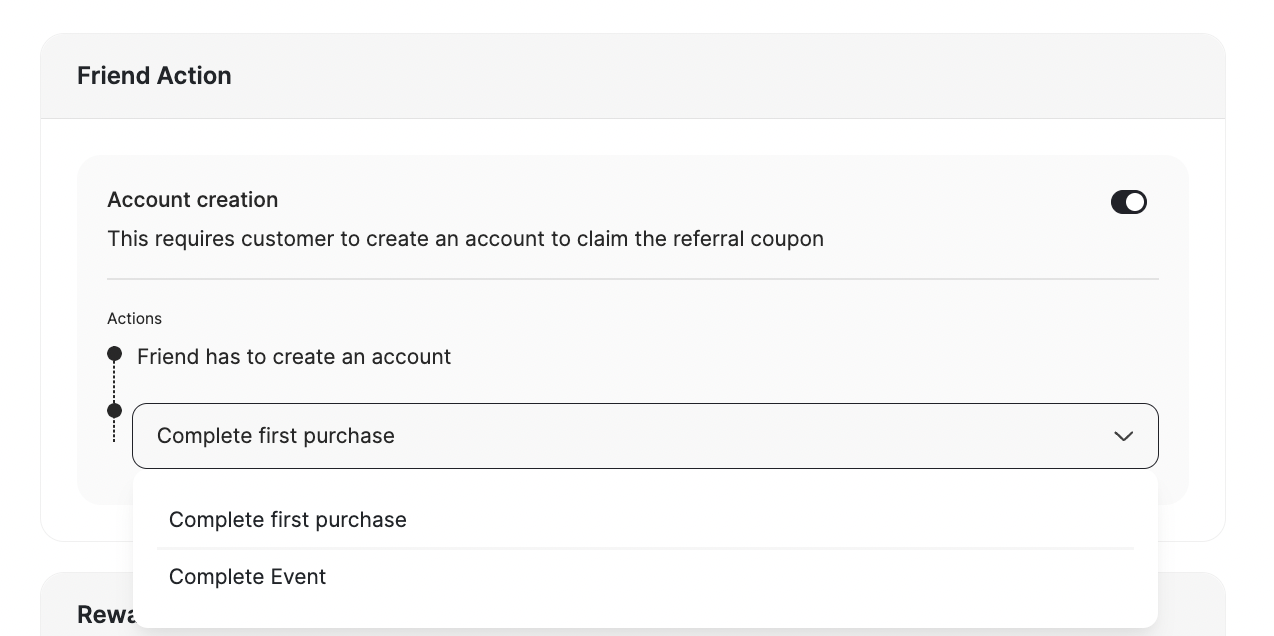
- The friend completes their first purchase (account creation not required).
- The friend creates an account and completes a specific action, such as:
- Completing their first purchase
- Triggering a custom event that you have configured
Set Up the Rewards
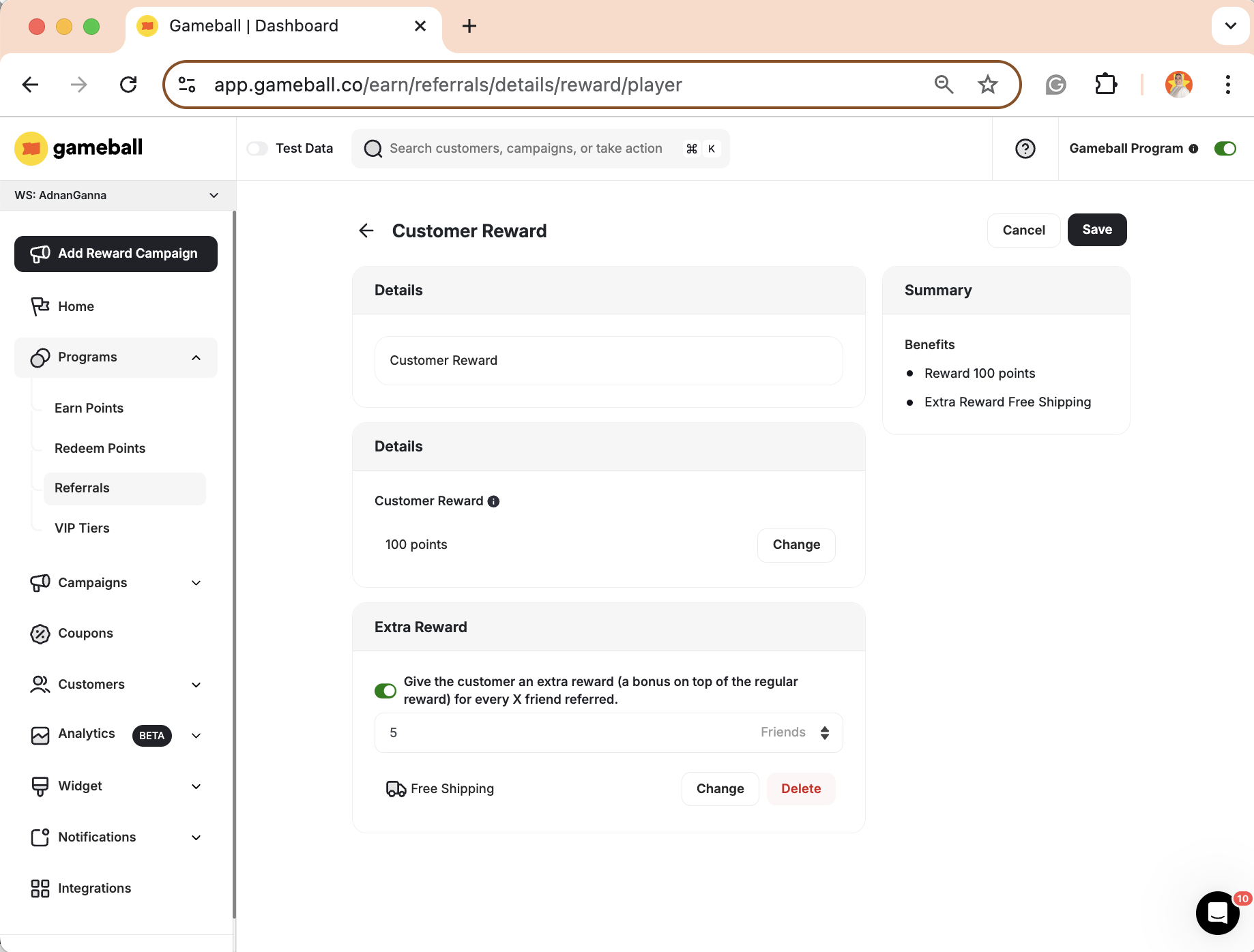
Customer Reward
Customer Reward
- Click Change under Customer Reward.
- Choose the type of reward from the Rewards section. Learn more about Rewards Types.
- [Optional] Add an extra reward for every X successful referrals. For example, reward the customer with 100 extra points for every 5 successful referrals.
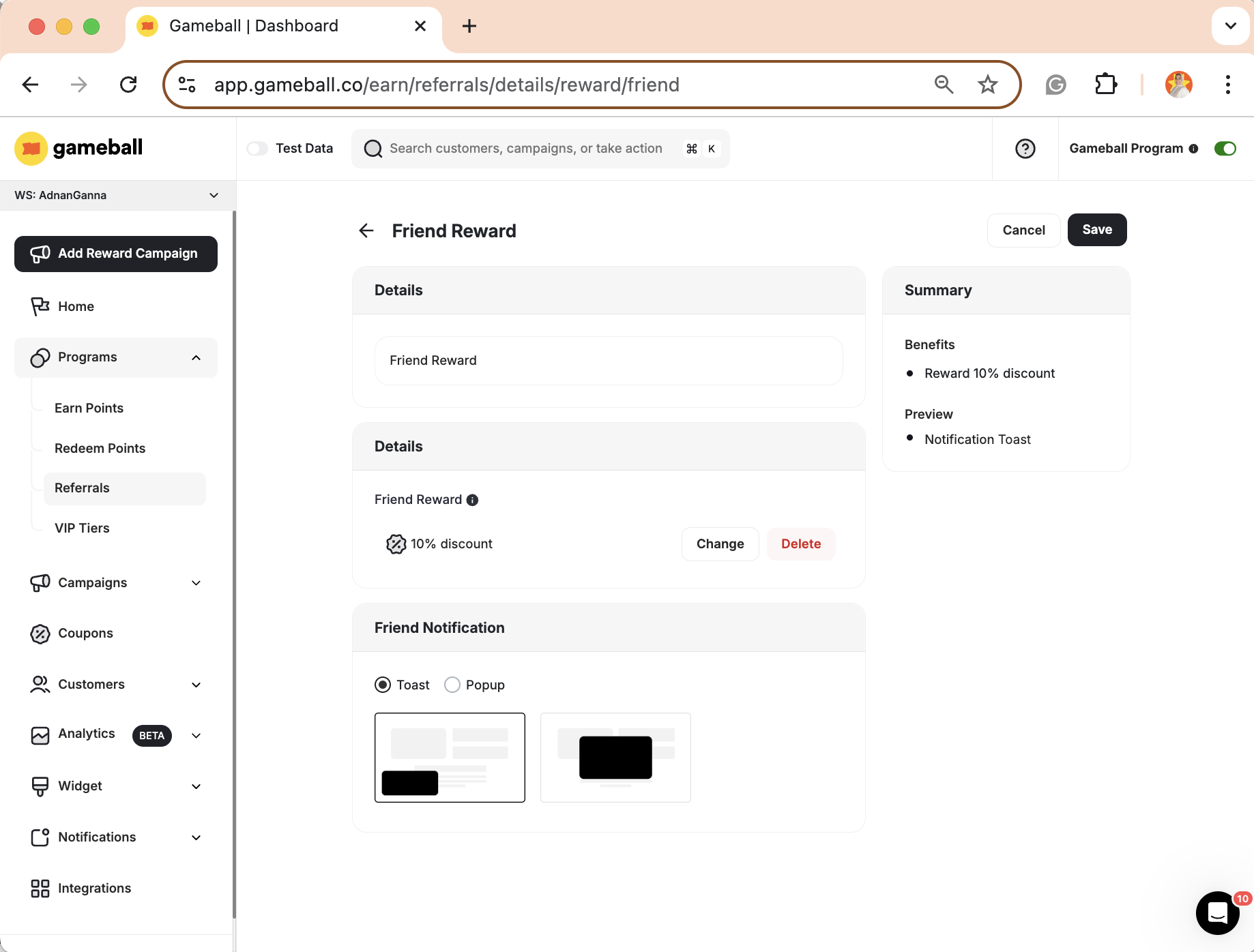
Friend Reward
Friend Reward
- Click Change under Friend Reward.
- Choose the type of reward from the Rewards section.
- Select the notification style you want to use.
2. Settings
Referral Landing Page
Referral Landing Page
Choose the page you want referred friends to be directed to: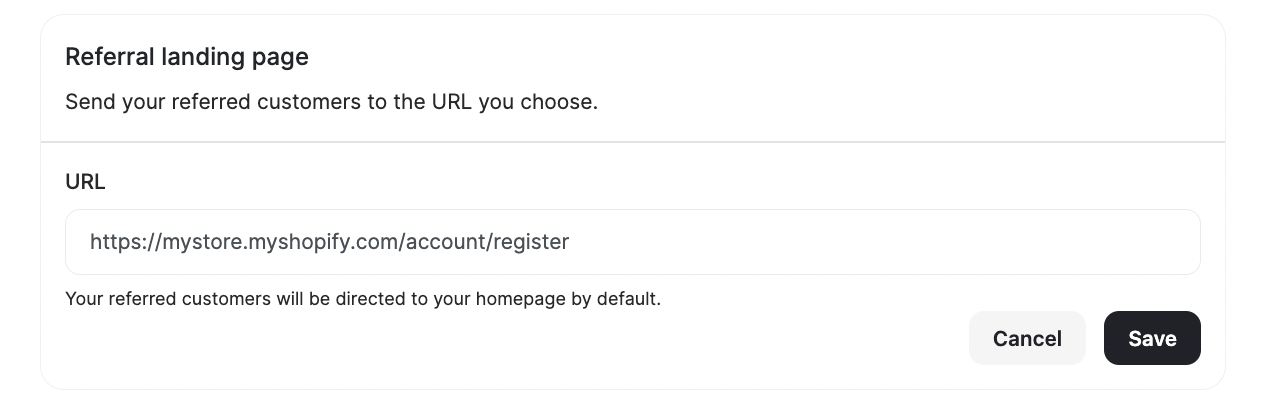
- Enter your desired URL (by default, it redirects to your homepage).
- Press Save.
Referral Content
Referral Content
To customize the content of the referral module displayed on the widget:
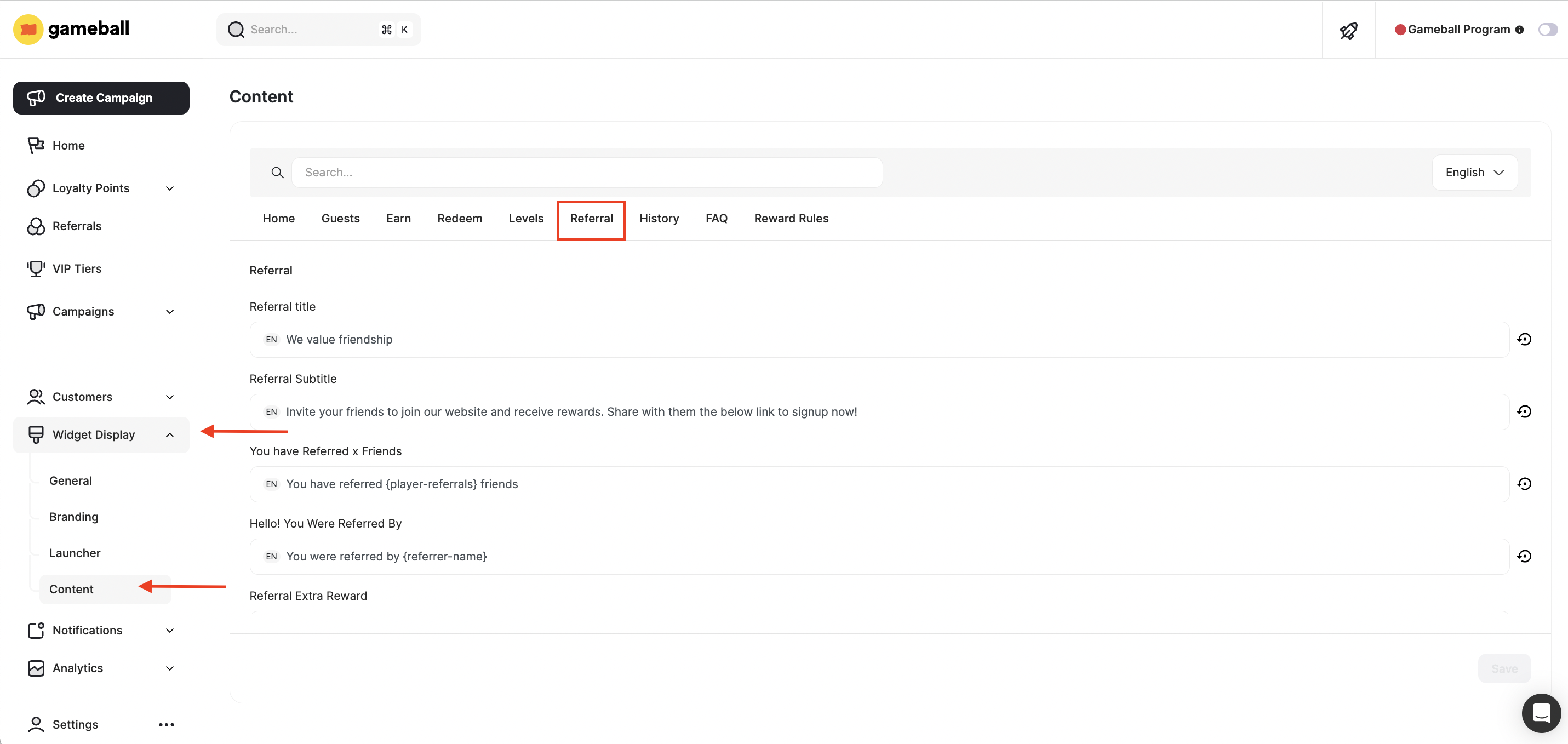
- Click the redirection link in the Referral Content section
- From the left-side menu, go to Widget Display > Content, then select the Referral tab
Multi-Step Rewards [Add-on]
Multi-step rewards allow you to incentivize both your customers and their friends at different stages of the referral journey. For example, you can reward a customer when their friend:- Creates an account
- Completes an order
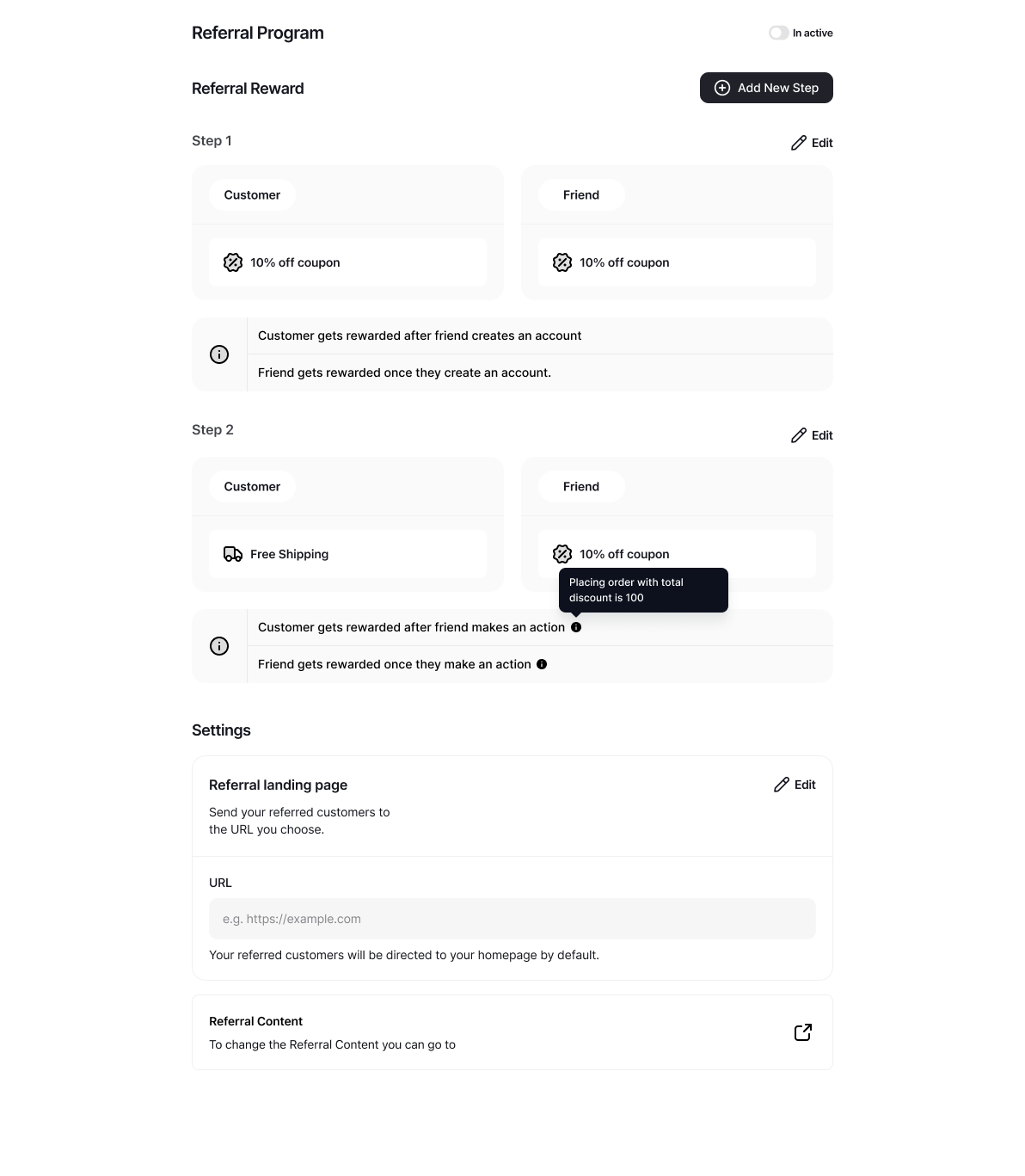
You can now configure multi-step referral flows to mark an event as “Happens One Time”, without needing to define additional metadata or complex custom rules.
Common Questions
How do I generate and track referral deep links?
How do I generate and track referral deep links?
You can use Branch.io and Adjust to generate and track referral links for your customers.Branch.io and Adjust are tools used to create dynamic referral links, primarily for clients with mobile apps who want to redirect users to their app. Both platforms offer free plans, but these come with limits based on the number of Monthly Active Users (MAUs) or attributions.
- Read about how to integrate Branch.io with Gameball
- Read about how to integrate Adjust with Gameball
Can I create referral links without using deep link generators like Branch.io and Adjust?
Can I create referral links without using deep link generators like Branch.io and Adjust?
The referral process can be completed without using a deep link generator like Branch or Adjust. In such cases, you will need to provide your own referral link. Gameball will simply append the referral code to it.Deep link generators are only responsible for generating the link that appears in the referral widget. If you’re not using one, the referral link will follow this format:
{referralLink}?GbReferral={referralCode}
Can I show referral codes rather than links?
Can I show referral codes rather than links?
You can choose to display a customer’s referral code instead of the full referral link, making it easier for customers to copy, share, and use referrals during sign-up especially in offline or manual flows.From the dashboard, navigate to Widget > General > Visibility > Referral Page.
You can choose whether referral experiences display the full referral link or only the customer’s unique referral code.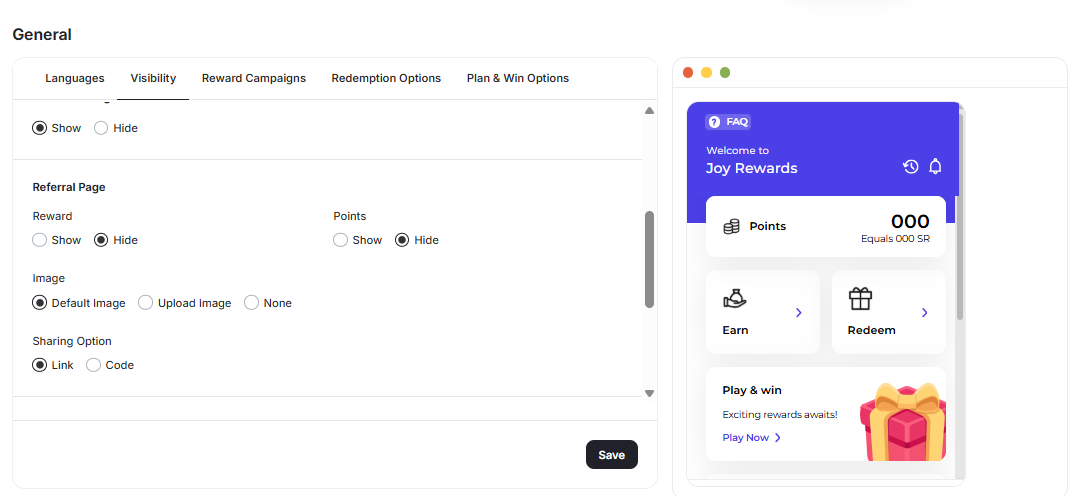
Related Articles
Referrals on Gameball Widget
See how customers experience referrals on the Gameball widget.
Integrate Gameball with Branch.io
Generate and track deep referral links with Branch.io.
Integrate Gameball with Adjust
Generate and track deep referral links with Adjust.