

Audience
This is where you decide who will see and interact with your campaign. Gameball gives you flexible options to target the right users.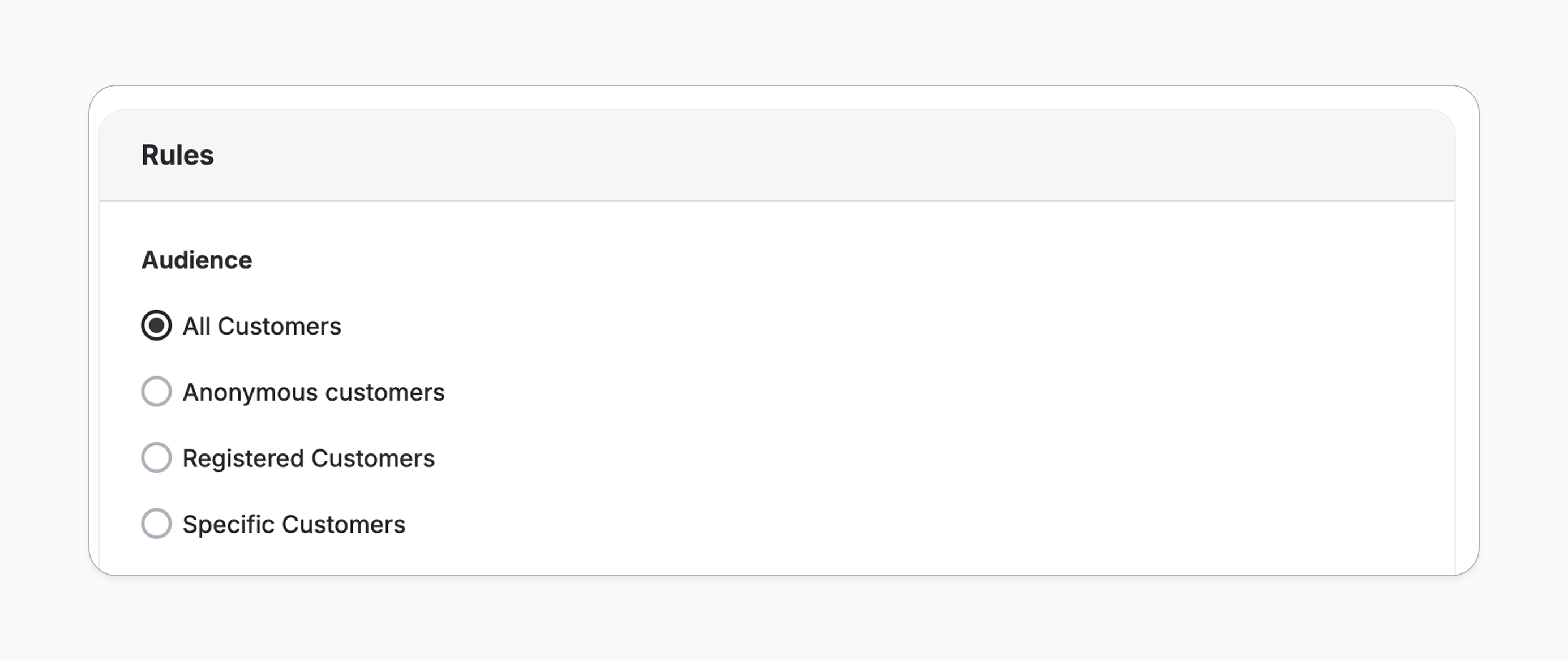
All Customers
All Customers
The campaign will be visible to everyone, whether they are signed in or not.
Registered Customers
Registered Customers
Only customers who are logged into their accounts will be able to see and engage with the campaign.
This option is not available for all campaigns.
Anonymous Customers
Anonymous Customers
Targets visitors who haven’t signed up yet. Great for encouraging signups or collecting emails before they can join the campaign.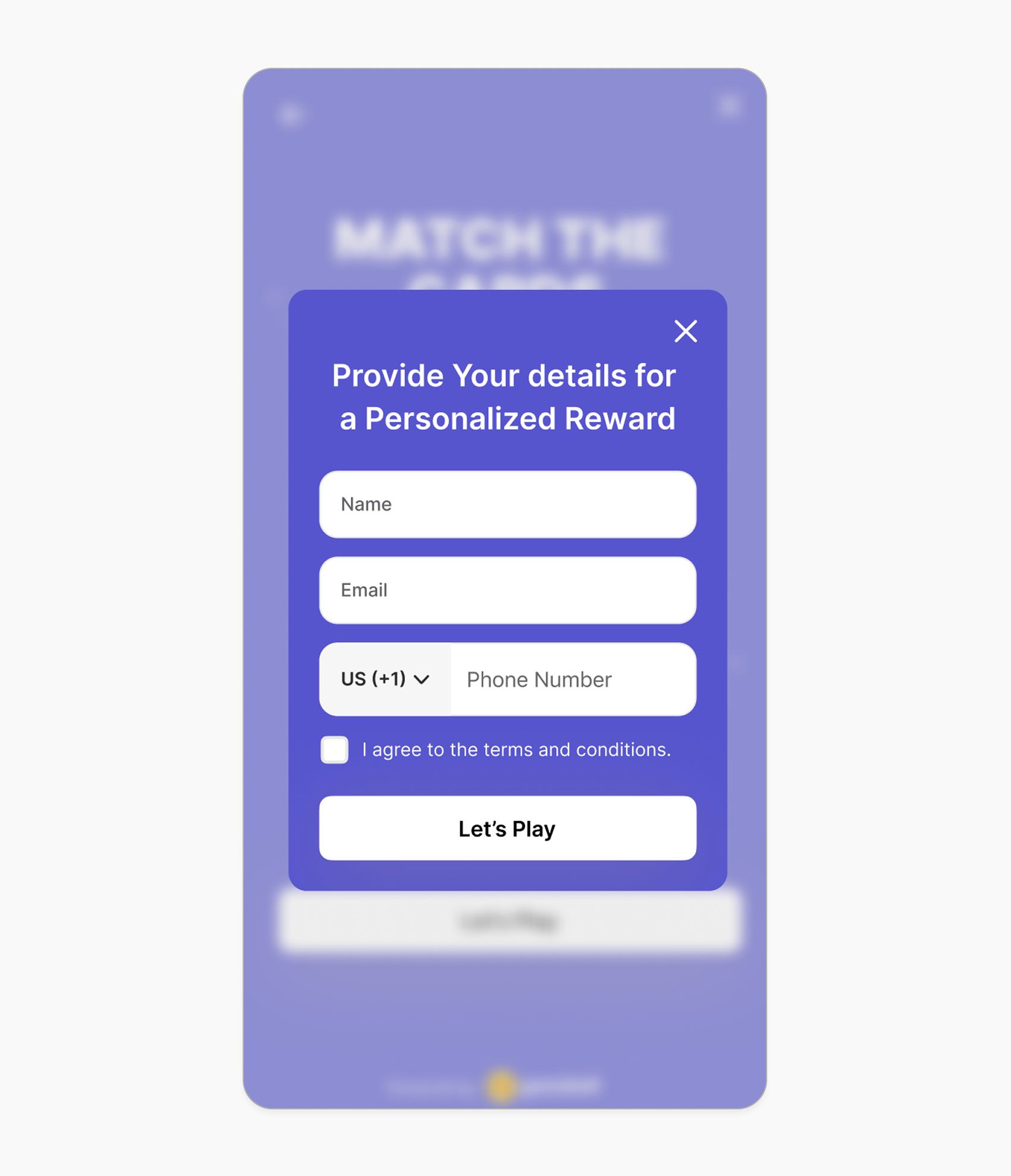
- If you choose Anonymous as the audience, the campaign will be available to visitors who are not yet identified on your store.
- Once enabled, a lead form will automatically appear prompting the customer to enter their information (e.g. name, email).
- This is a great way to collect leads and retarget potential customers later.
- You can fully customize this form by navigating to Customize Design > Lead Form.
- Available for Shopify and Non-platform only.
- This option is not available for all campaigns.
Specific Customers
Specific Customers
Narrow down your audience using detailed filters:
- Segment: Target predefined or custom audience segments from your dashboard. Learn more
- RFM Segment: Reach users based on their Recency, Frequency, and Monetary values. Learn more
- Tag: Include or exclude users based on specific tags assigned to them. Learn more
- Customer Attribute: Use custom fields like level, join date, total orders, etc.
Trigger
Triggers vary between campaigns, some are based on actions like orders or referrals, others on social interactions such as likes or shares, and some are tied to special occasions like birthdays or anniversaries. Check the guide for trigger details per campaignRepeatability
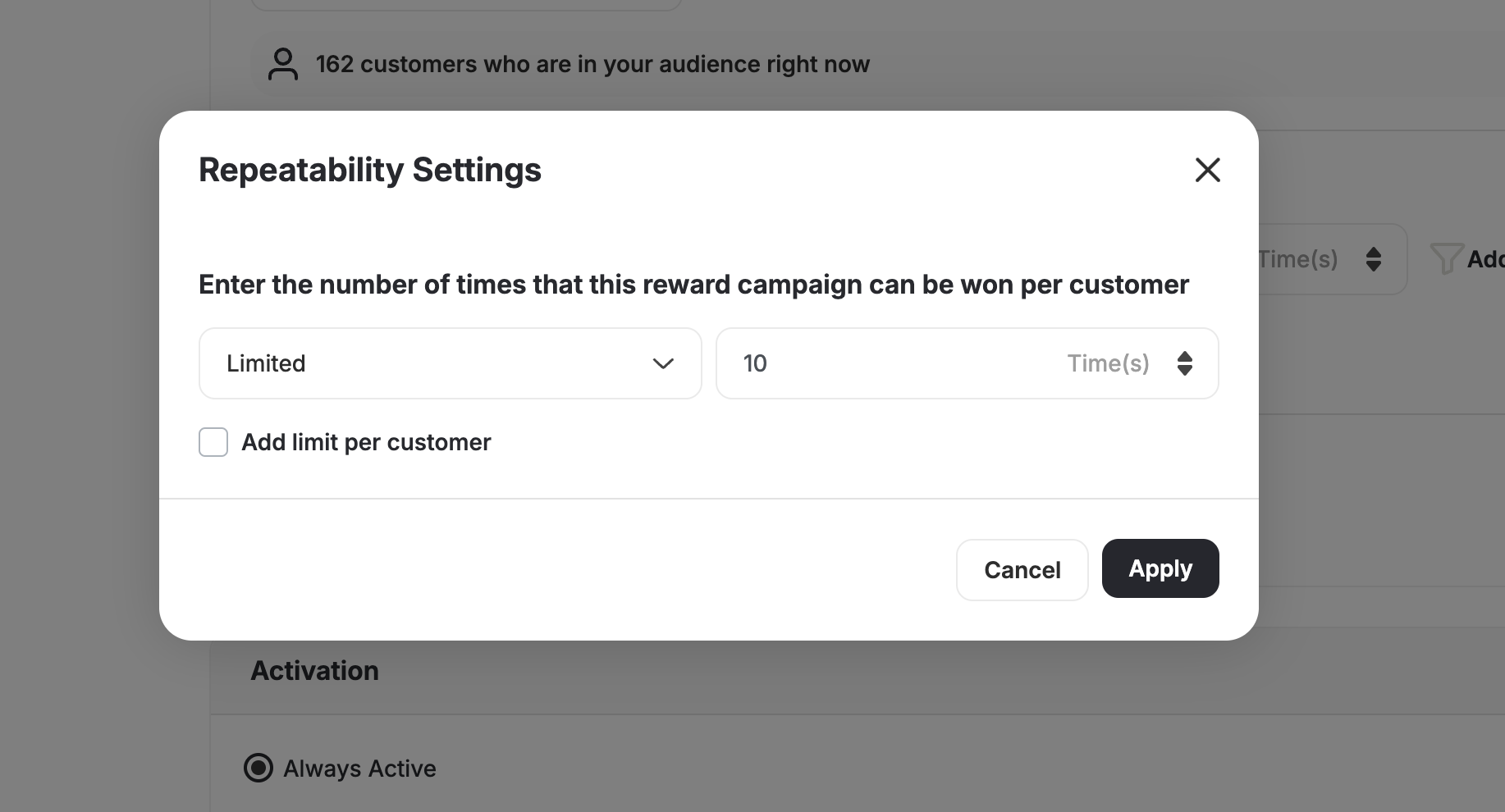
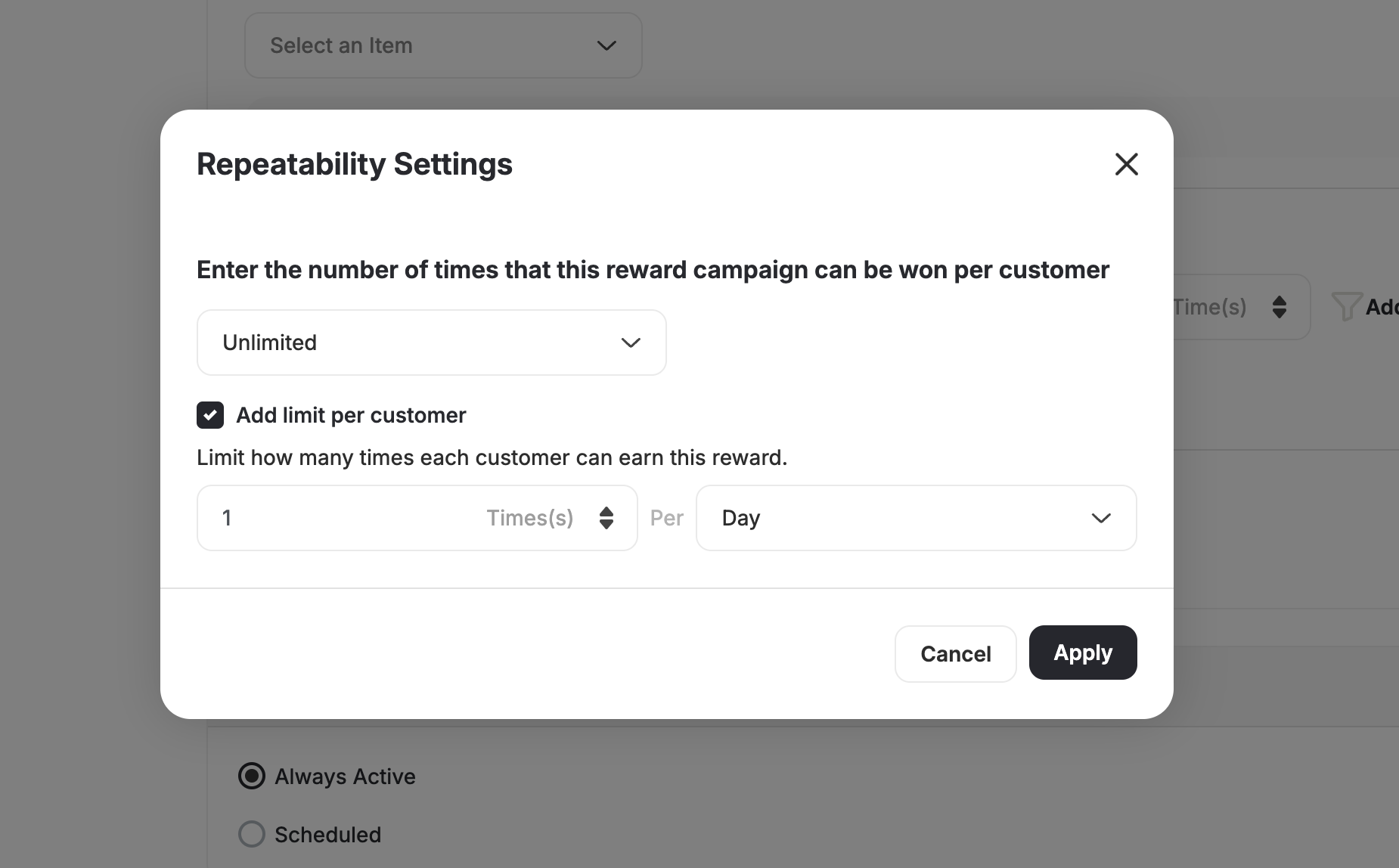
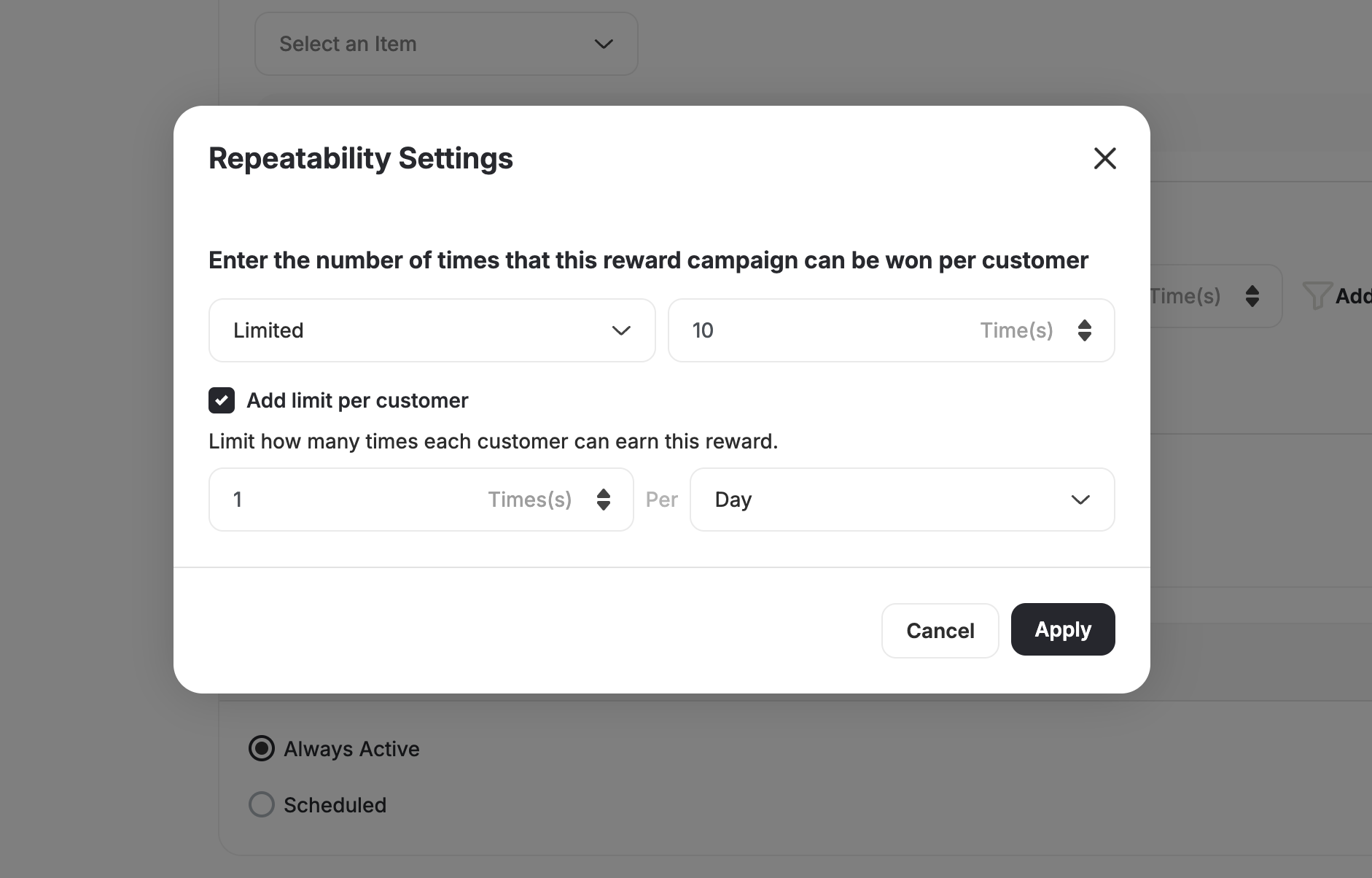
Set how many times a customer can receive the reward from your campaign.- Unlimited
- Limited to X Times
- Unlimited with Time-Based Limit
- Limited with Time-Based Limit
Customers can receive the reward every time the trigger is fulfilled, with no limit.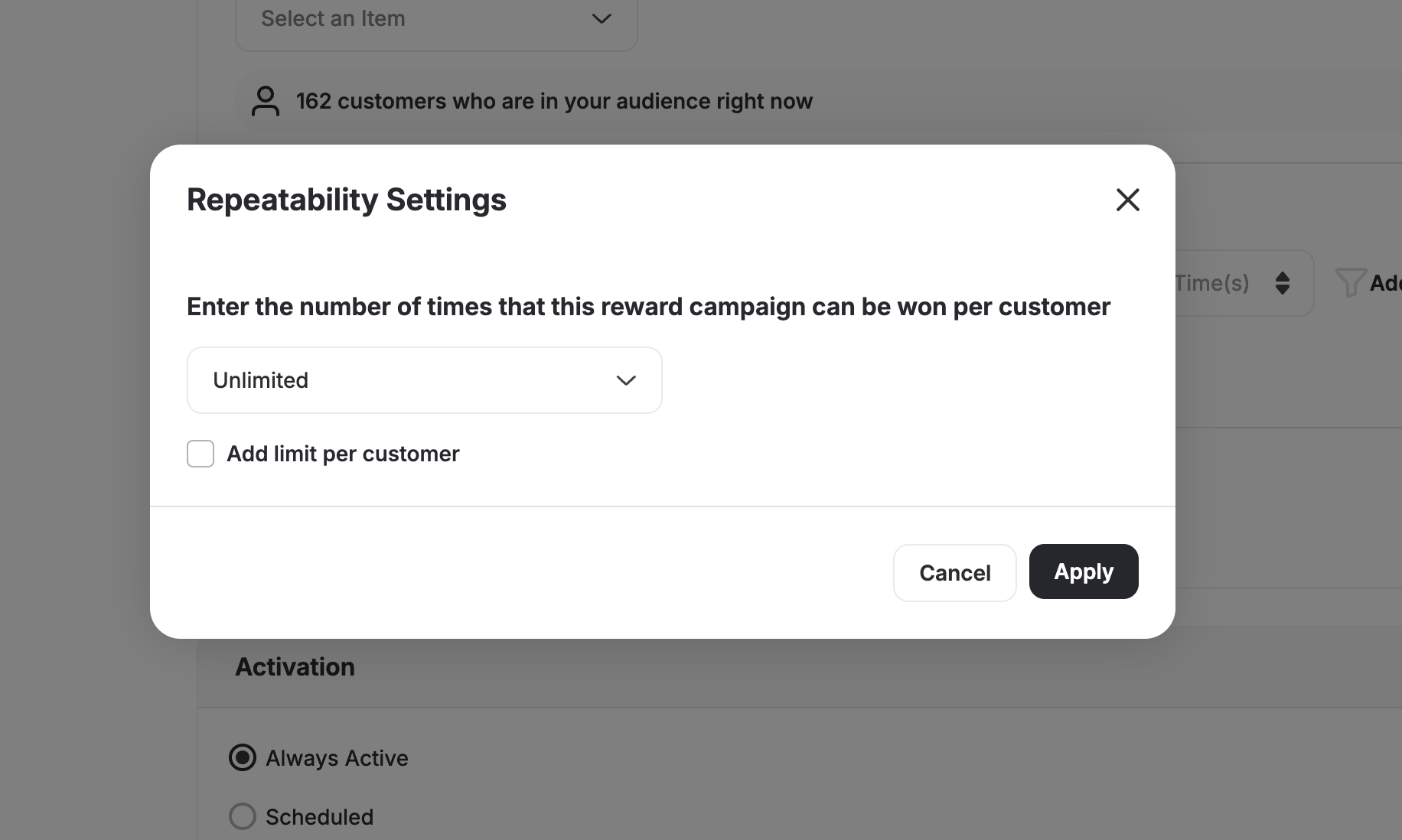
Activation
Decide when the campaign will be active for your customers.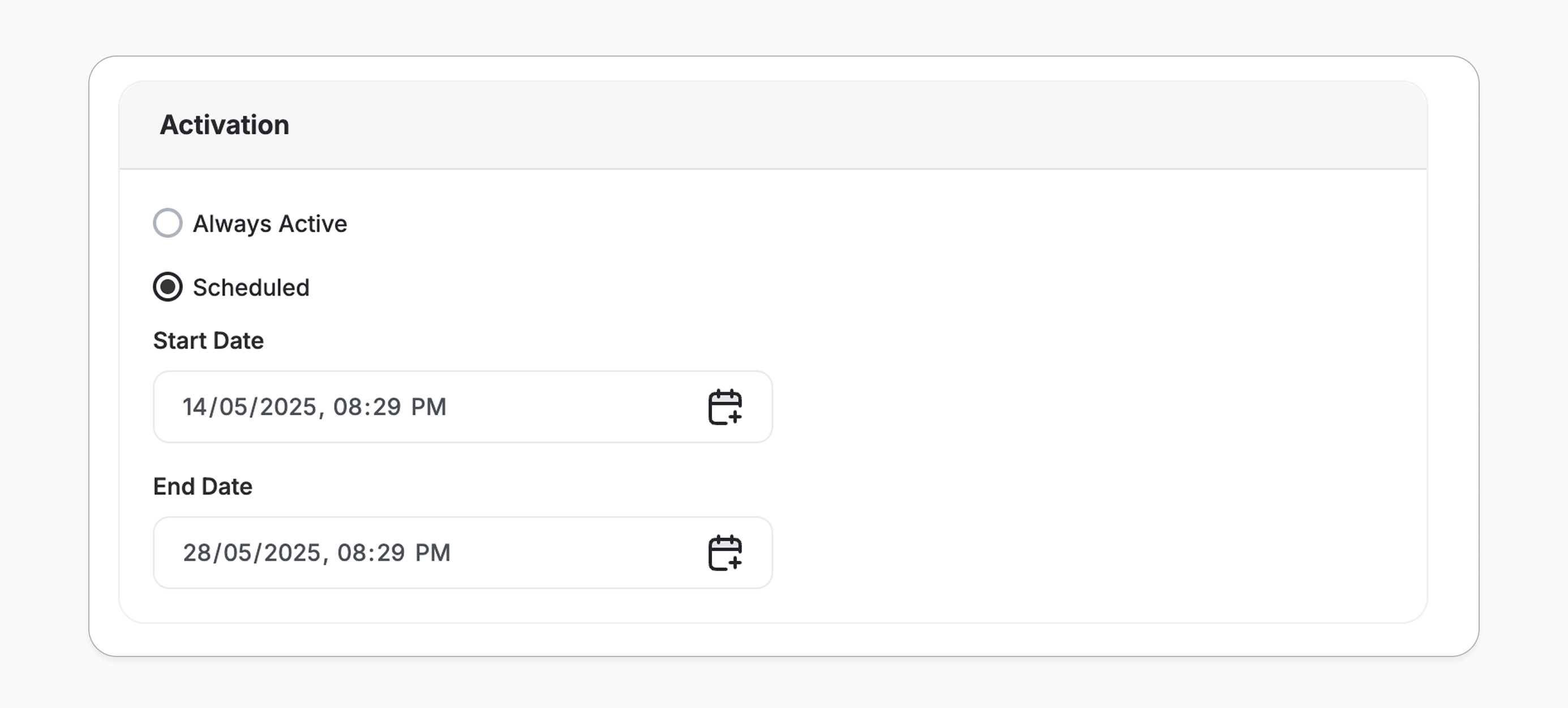
- Always Active
- Scheduled
The campaign will run continuously unless you manually deactivate it.
Details
Set up what your customers will see on Gameball’s widget in your app or website.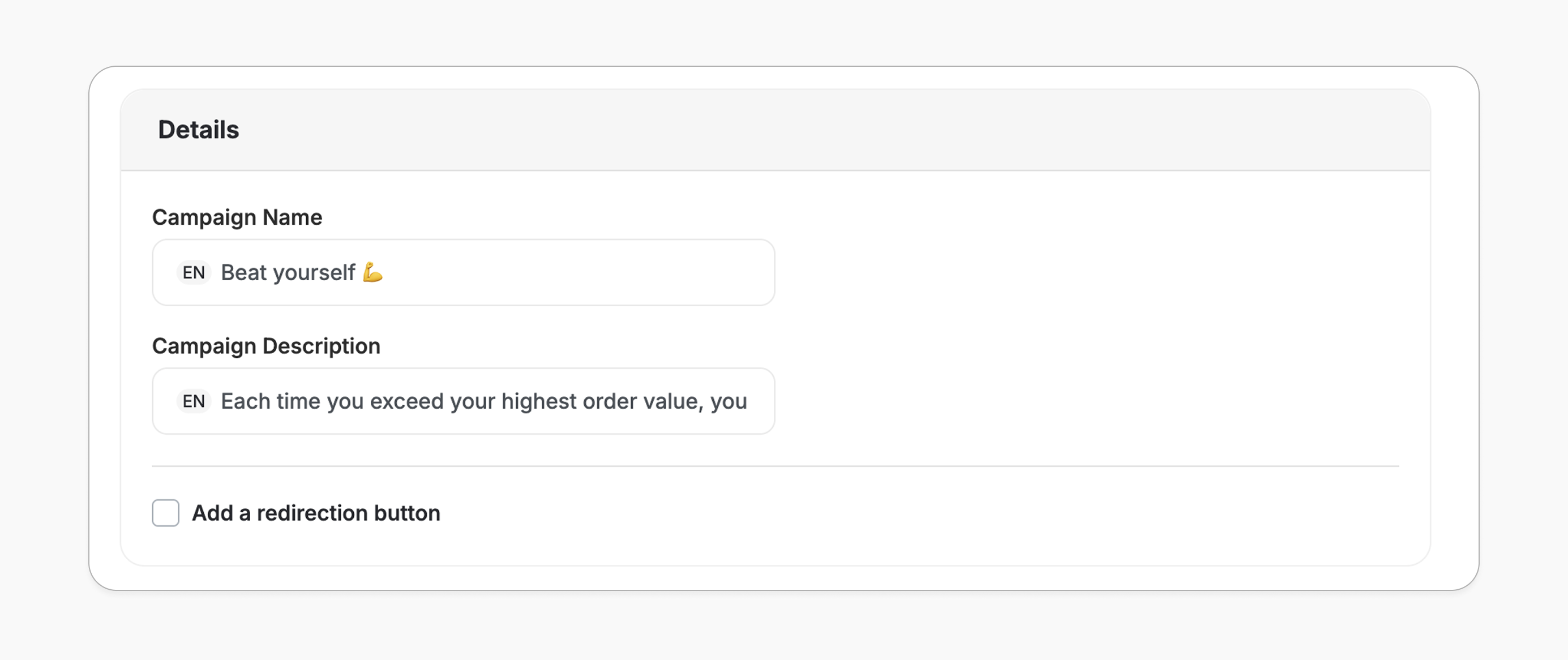
- Redirection URL: e.g.,
https://example.com - Button Text: Text that appears on the button.
- Query Parameters (optional): Add custom parameters to personalize or track the link (e.g., UTM-source)
- This option is not available in all campaigns.
Reward
Set the type of reward customers will receive when they complete the campaign. Choose one of the following reward types: points, free product, free shipping, etc. Learn how to set up each reward type and advanced options.Badge
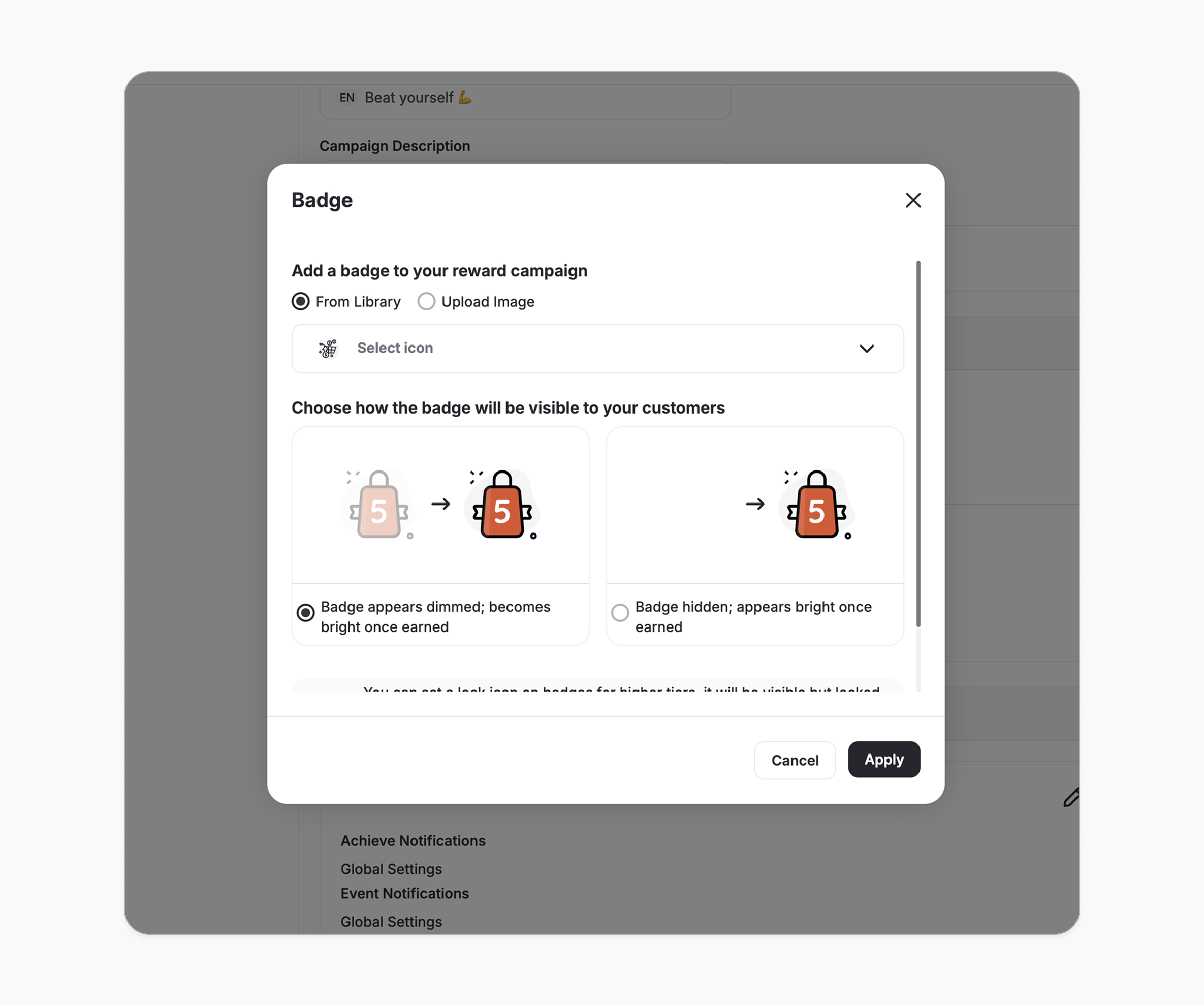
Icon Select from Gameball’s available badge icons or upload your own custom design. Visibility By default, no badge is selected, meaning the campaign won’t appear on the widget. You can choose to:- Show dimmed badge until earned: Badge appears faded, then becomes bright when achieved.
- Show only when earned: Badge is hidden until the customer earns it.
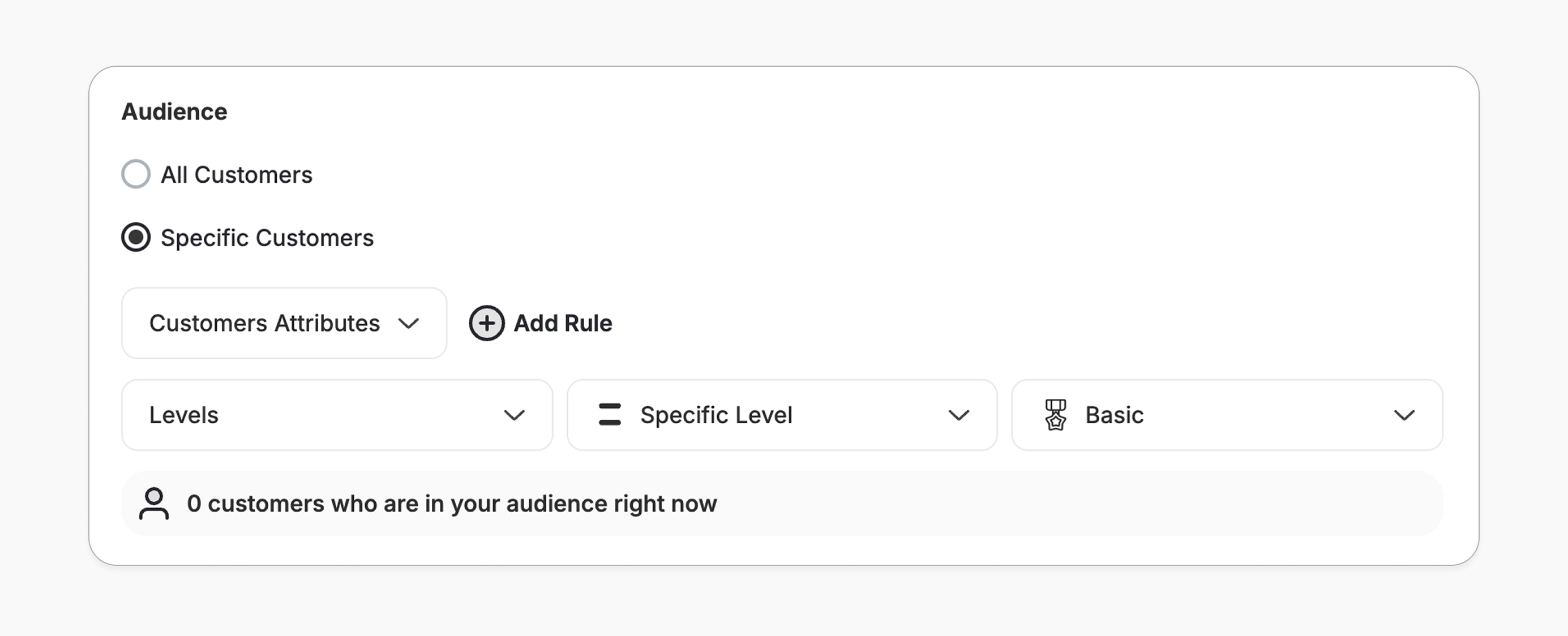
- By default, the badge is hidden if you’re not part of the selected audience, except when the audience is a specific tier. In that case, the badge will appear with a lock icon, indicating it will unlock once the user reaches that tier.
- To enable this, apply an audience filter based on the tier from the campaign’s main configuration page.
Notification
Keep your customers engaged and informed by setting up notifications for their actions and achievements. Achievement Notification Choose whether to notify customers when they successfully achieve the campaign reward.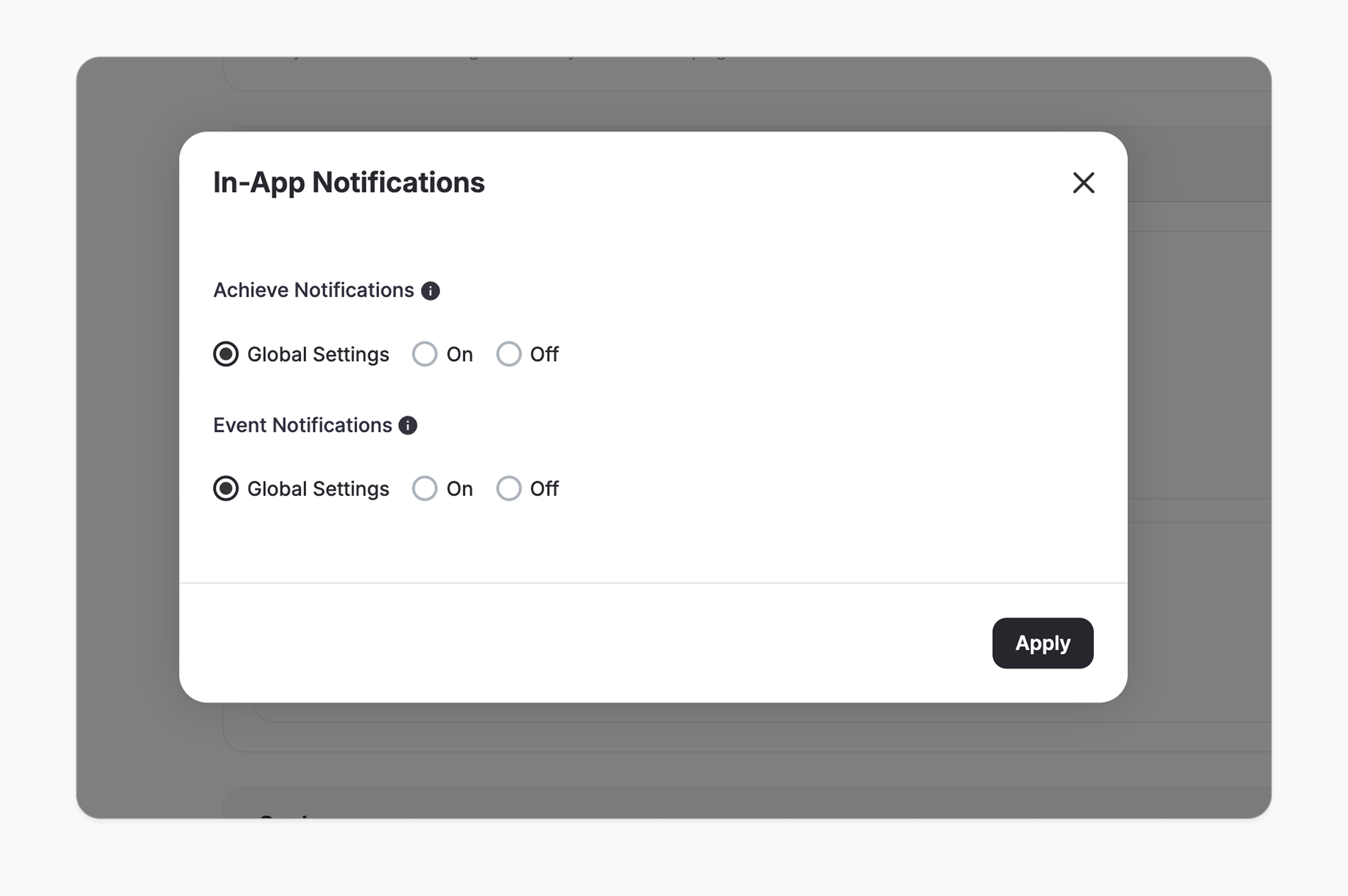
- Global Setting
- Always ON
- Always OFF
Uses the default notification preferences you’ve already set in your Notifications settings.Learn more about configuring global notifications
Goal
Measure the impact of your campaign by tracking a specific action you want your customers to complete.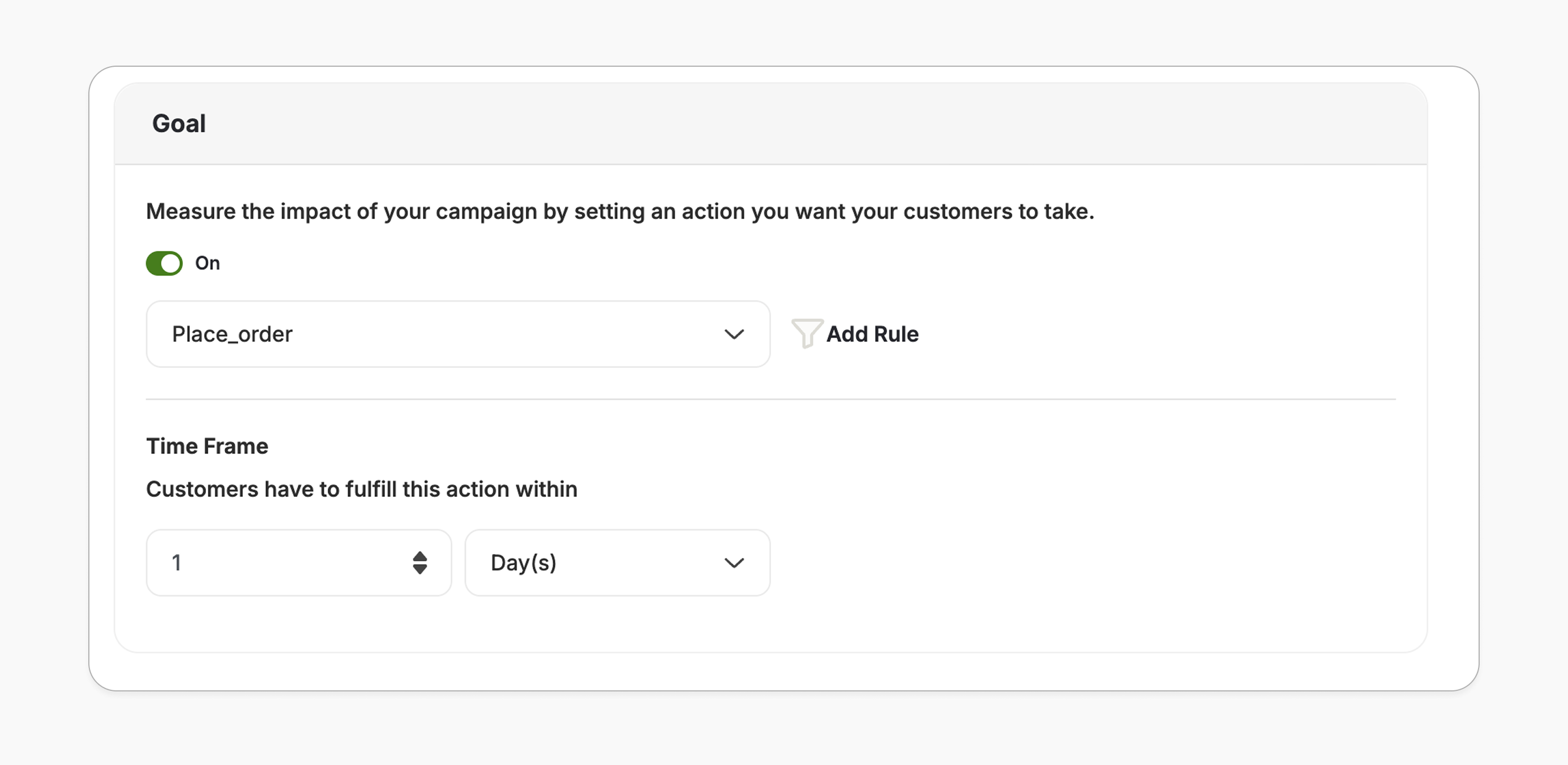
place_order, and optionally add filters such as order value, location, or product category to refine it.
Time Frame
The goal time frame defines how long customers have to complete the action after the campaign starts (e.g., within 7 days). The count starts from when the campaign starts, not when it ends.
Customization
Design and Content
You can fully customize each stage of the campaign through dedicated tabs representing the different screens in the flow:- Banner (For game-based campaigns)
- Intro / Main Screen
- Lead Form (if audience set to Anonymous Customers - Not logged in)
- Success Screen
- No Luck Screen
- Branding: Adjust background colors, text colors, and upload custom artworks.
- Content: Edit the headlines, descriptions, and call-to-action messages to match your tone and messaging.
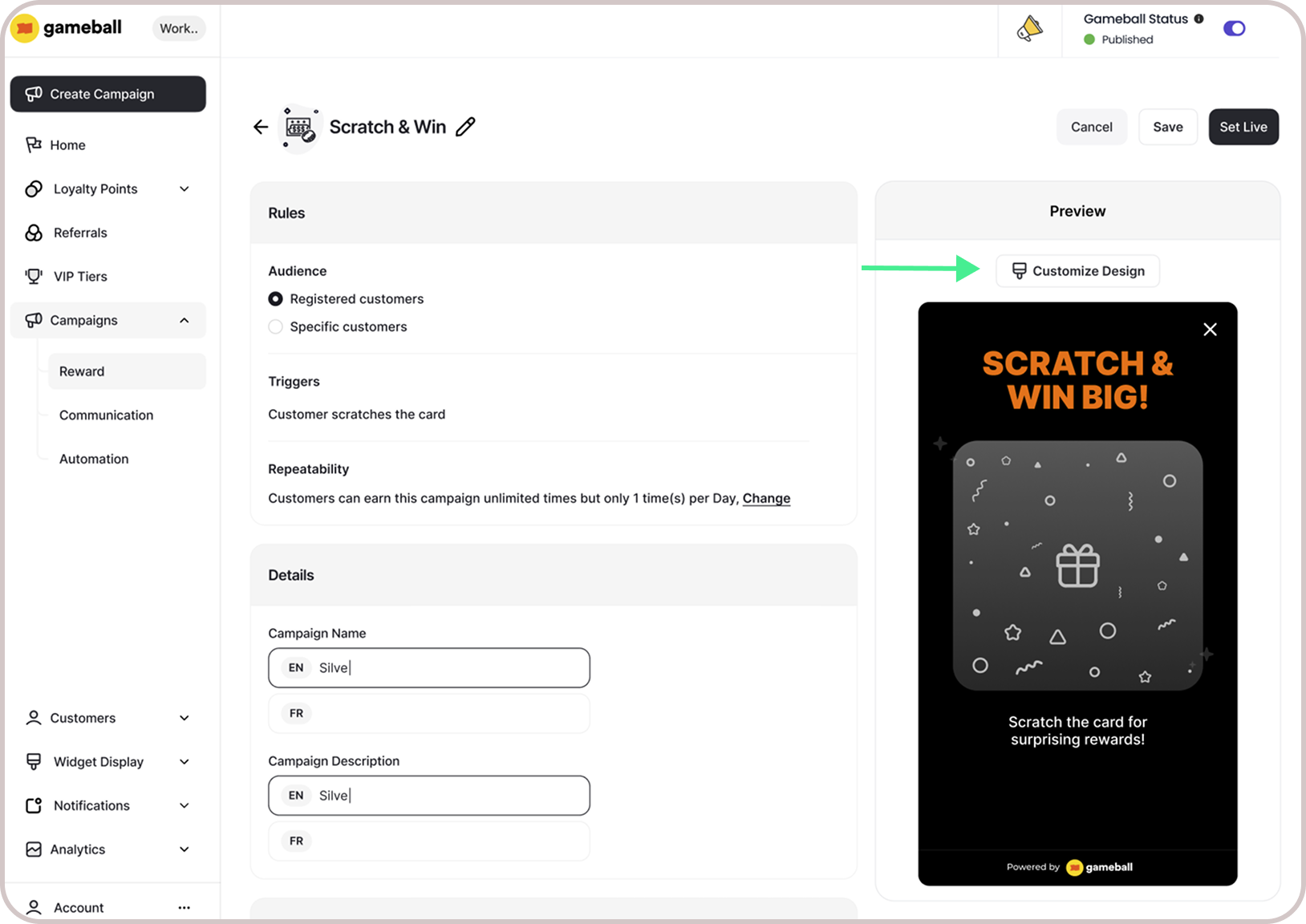
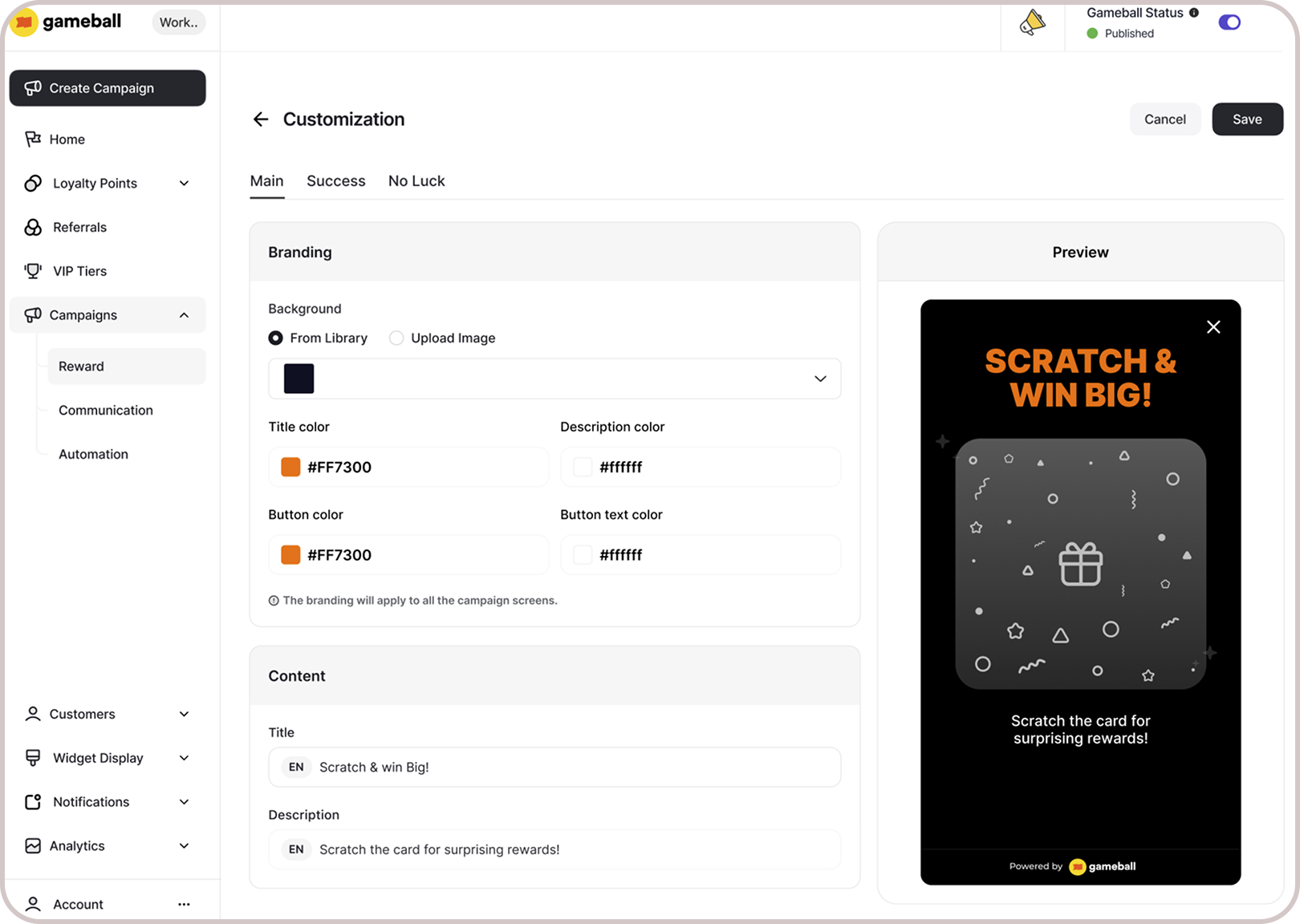
Customizing the lead form also allows you to add a hyperlink to the “terms and services” so that customers can read and accept them before clicking submit.
Budget Control
Budget Control system allows you to define, monitor, and enforce spending limits for reward-based campaigns. This provides tighter cost governance, clearer visibility, and automated safeguards against overspending.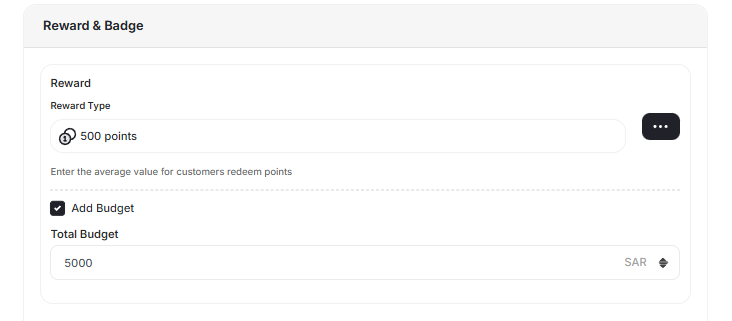
If a campaign budget is fully consumed, will the campaign automatically stop? Will its badge still appear in the widget?
If a campaign budget is fully consumed, will the campaign automatically stop? Will its badge still appear in the widget?
Yes. Once a campaign reaches 100% of its budget, it is automatically deactivated. You will also receive email notifications when the budget reaches 50%, 80%, and 100%.As for the badge, its visibility depends on two things:
- Whether the customer has completed the campaign.
- The badge visibility setting you selected when configuring the campaign.