

Types of Reward Campaigns
There are two ways you can create reward campaigns on Gameball:Start from Scratch
Customize a campaign from the beginning with full control over every setting.
Use a Template
Ready-to-use templates that help you serve specific goals quickly.
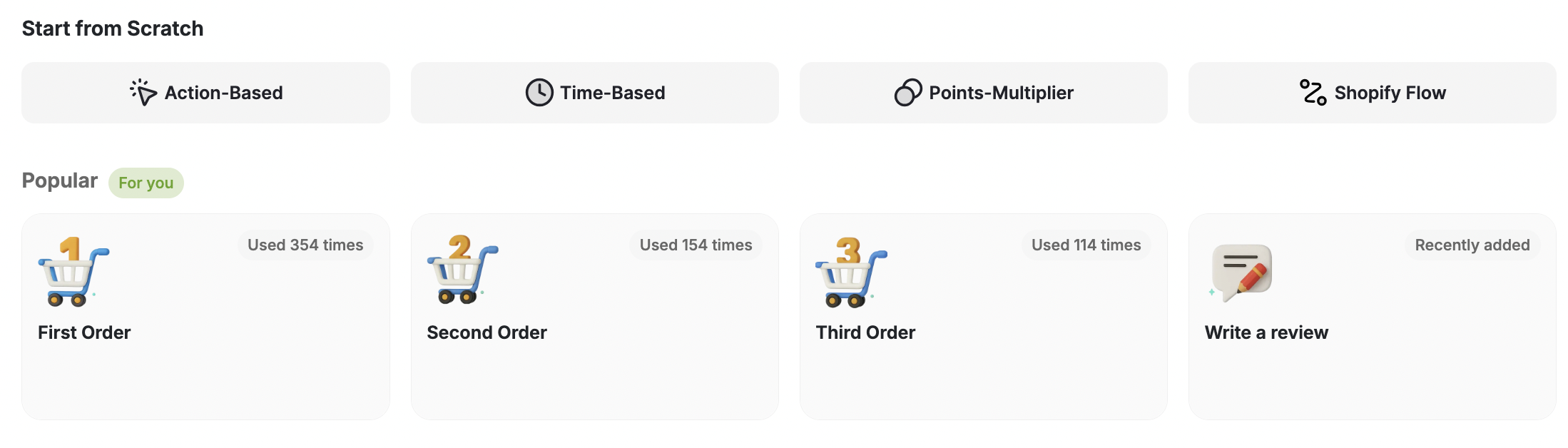
Start a Campaign from Scratch
To start creating a campaign from scratch, pick one of the following campaign types:Action-Based Reward
Reward customers based on specific actions they take, such as making a purchase, referring a friend, or completing a survey.
Time-Based Rewards
Reward customers on certain dates or occasions, such as birthdays, anniversaries, or holidays, to create a sense of exclusivity and appreciation.
Points Multiplier Rewards
Multiply the points earned by customers when they make a purchase, previously known as Cashback Campaigns, to incentivize spending and drive repeat purchases.
[Shopify] Shopify Flow Rewards
Create custom rewards triggered by specific actions on apps connected to Shopify Flow, letting you tailor rewards for unique actions like social engagement.
Ready-Made Reward Campaign Templates
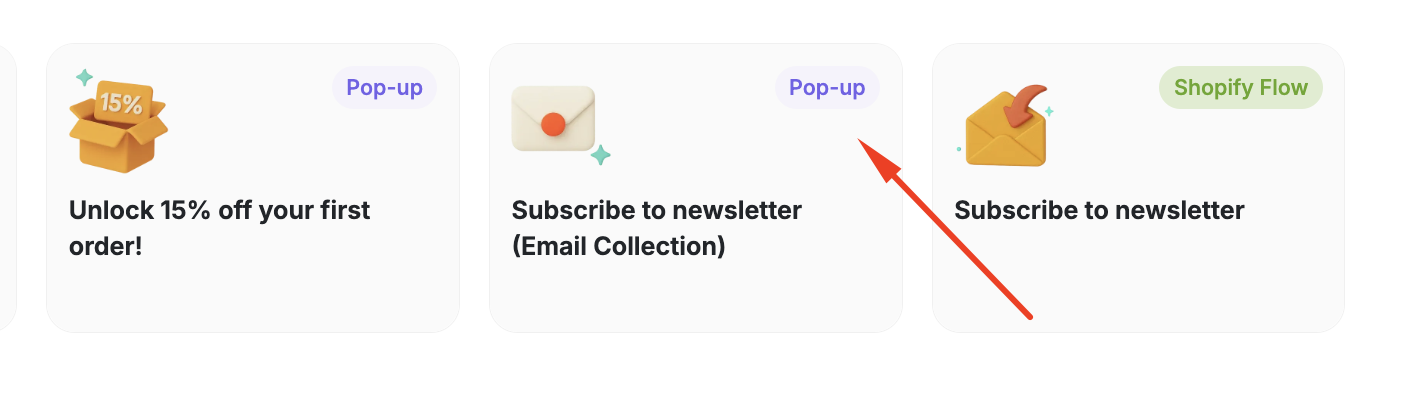
Gameball offers a range of ready-made templates categorized based on your objectives. These templates can be filtered by reward campaign types. Before diving into the available templates, you must recognise the different types of templates you can distinguish through the Tags and Icons on each card.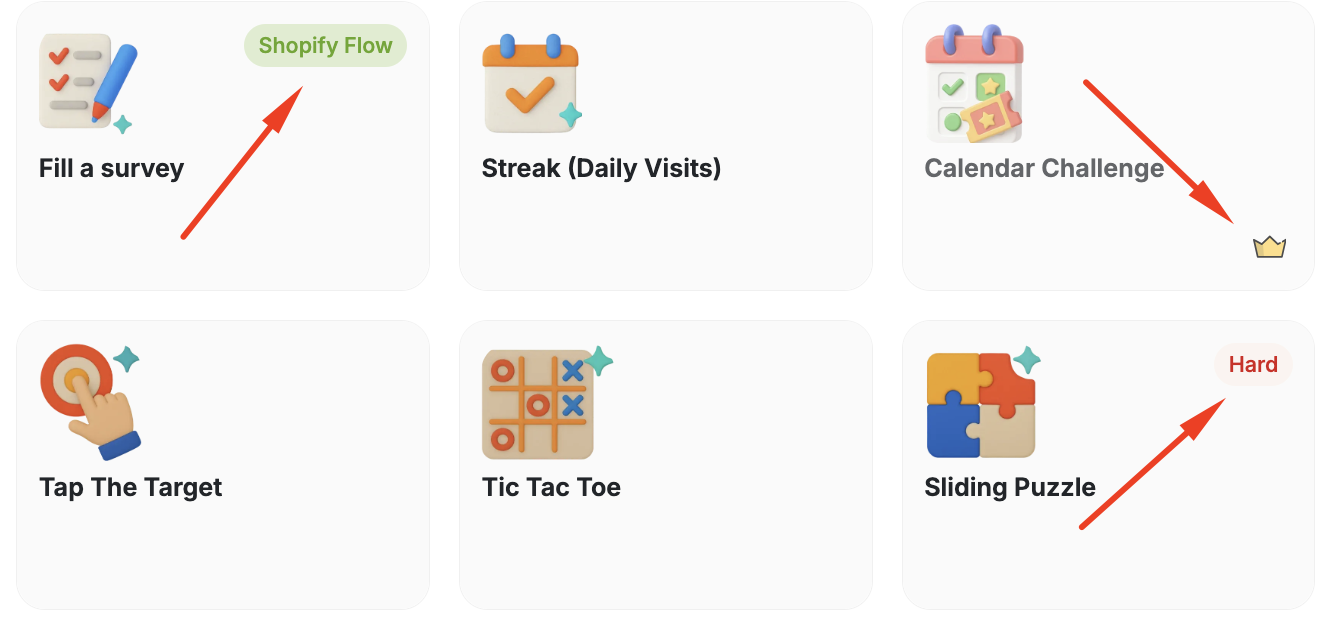
| Tag | Description |
|---|---|
| Shopify Flow | Available only on Shopify Flow. |
| Pop-up | This campaign does not only appear on the widget, but could be displayed as a pop-up when your customers visit your platform. This guarantees higher participation number. |
| Hard | Usually found on Game related campaigns. Means it is relatively more difficult to play and win than the other games. |
| Crown icon | Available on under a specific plan. |
Available Types and Templates
Engagement and Gamification Templates
Engagement and Gamification Templates
Aimed to engage with customers in a fun, interactive manner and to keep them coming back for more.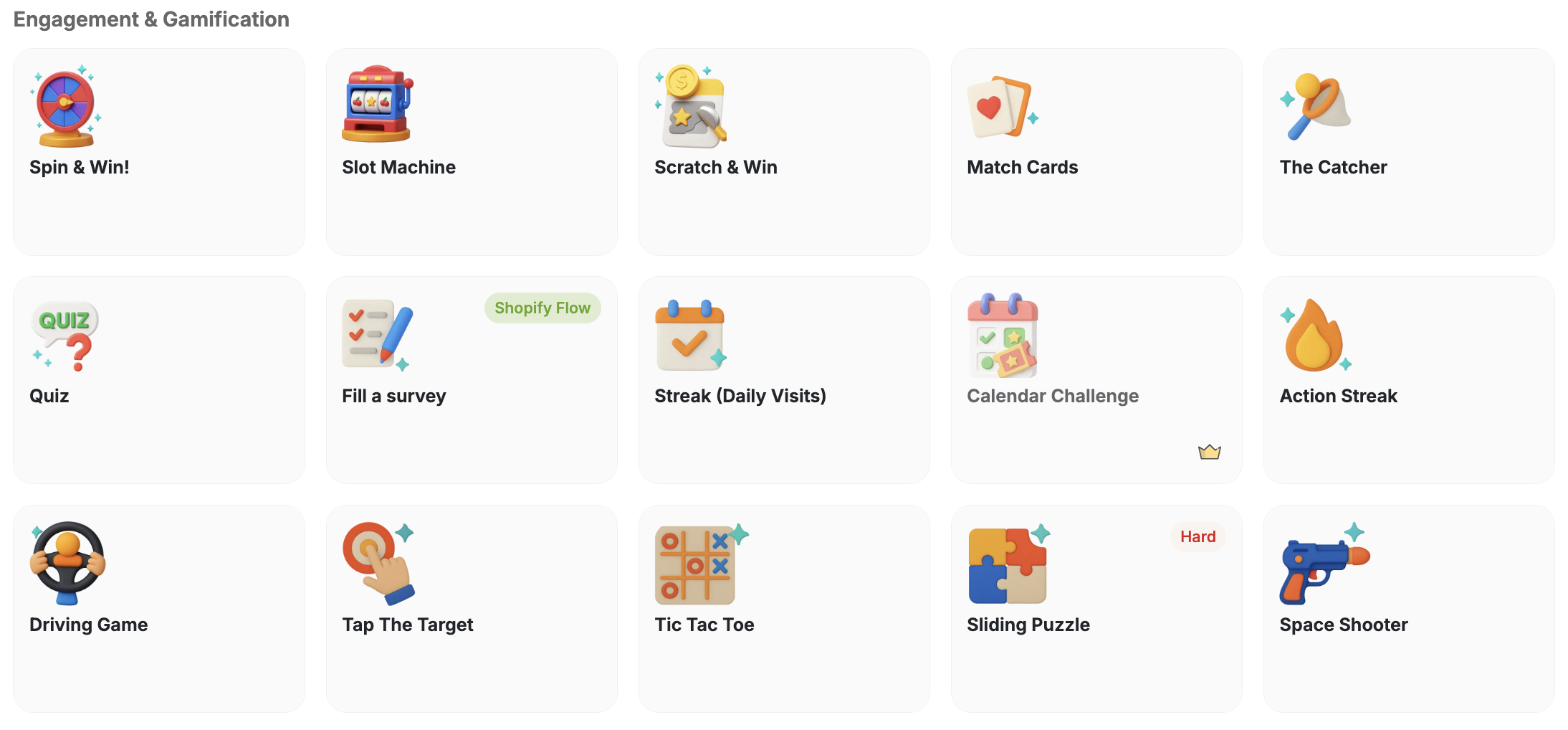
Spin and Win!
Let customers spin a wheel for a chance to win prizes.
Slot Machine
A slot machine game that rewards lucky customers.
Scratch and Win
Customers scratch a card to reveal their reward.
Match Cards
A memory card-matching game with rewards for winners.
The Catcher
An arcade-style catching game with reward prizes.
Quiz
Reward customers who answer quiz questions correctly.
Fill a Survey (Shopify Flow)
Reward customers for completing a survey via Shopify Flow.
Streak (Daily Visits)
Encourage daily visits by rewarding consecutive check-ins.
Calendar Challenge
A calendar-based challenge campaign for sustained engagement.
Stamps
Reward customers who collect stamps through repeated actions.
Driving Game
An interactive driving game that rewards top performers.
Tap The Target
A tap-based game where customers aim for targets to win.
Tic Tac Toe
A classic tic-tac-toe game with reward-based outcomes.
Sliding Puzzle (Hard)
A challenging sliding puzzle game for dedicated players.
Space Shooter
An arcade space shooter game with points and prize rewards.
Acquisition and Conversion Templates
Acquisition and Conversion Templates
Aimed at attracting new customers and incentivizing them to take specific actions, such as making their first purchase.
Create Account
Reward customers who create a new account on your platform.
Unlock 15% Off Your First Order! (Pop-up)
Display a pop-up offering a first-order discount to new visitors.
Subscribe to Newsletter (Email Collection) (Pop-up)
Capture emails and reward newsletter sign-ups via a pop-up.
Subscribe to Newsletter (Shopify Flow)
Reward newsletter subscriptions triggered through Shopify Flow.
Social Sharing Templates
Social Sharing Templates
Purchase and Order Incentives Templates
Purchase and Order Incentives Templates
Geared towards growing your customer base and increasing sales through promoting a specific product or collection, and other growth-oriented activities.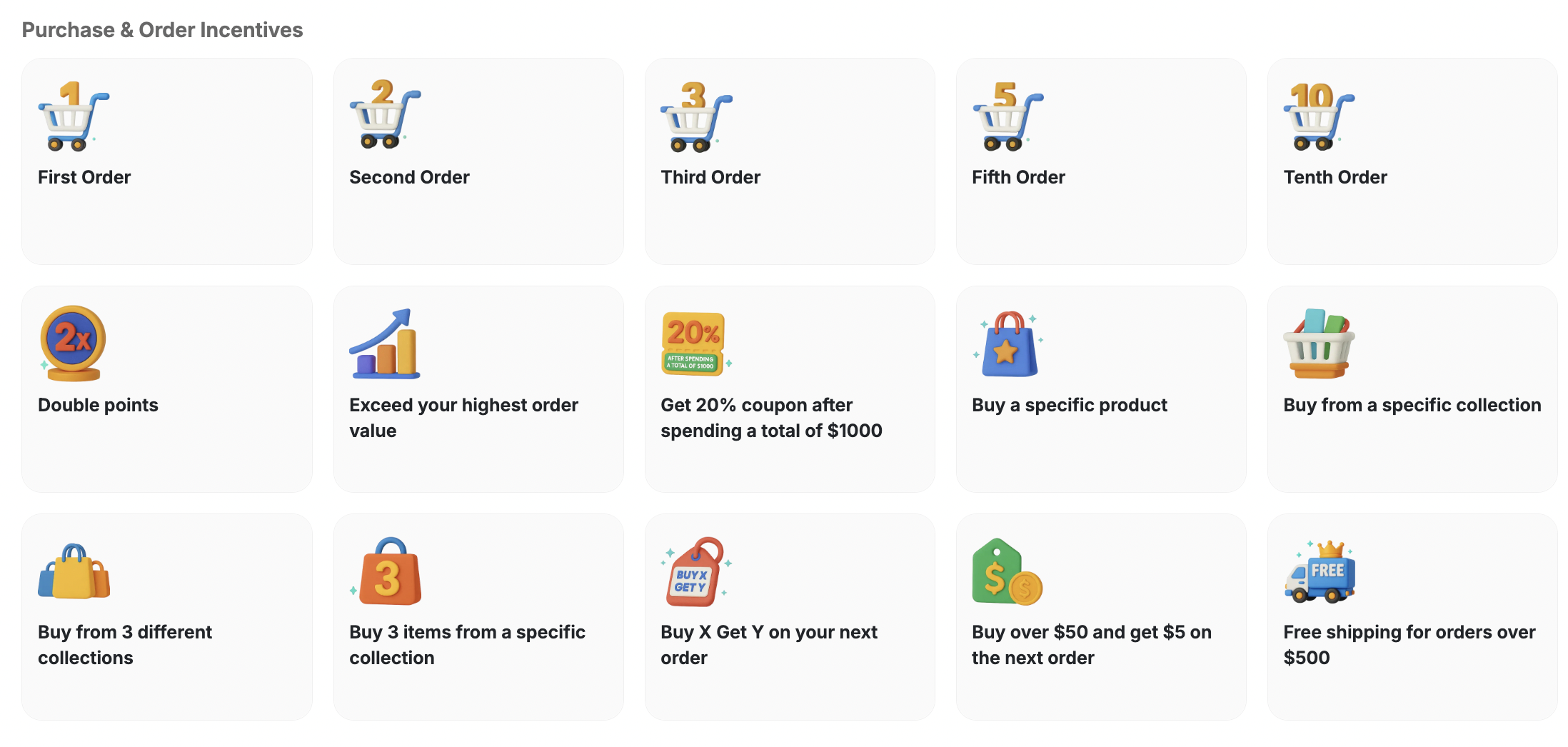
First Order
Reward customers who place their first order.
Second Order
Incentivize customers to return with a second purchase reward.
Third Order
Drive a third purchase with a loyalty reward.
Fifth Order
Celebrate the fifth order milestone with a special reward.
Tenth Order
Reward customers who reach their tenth order.
Double Points
Run a limited-time double points earning promotion.
Exceed Your Highest Order Value
Reward customers who beat their personal highest order value.
Get 20% Coupon After Spending $1000
Issue a 20% coupon once a customer crosses a $1000 spend threshold.
Buy a Specific Product
Reward customers who purchase a targeted product.
Buy from a Specific Collection
Incentivize purchases from a featured collection.
Buy from 3 Different Collections
Reward customers who shop across three different collections.
Buy 3 Items from a Specific Collection
Reward customers who add three items from the same collection.
Buy X Get Y on Your Next Order
Offer a reward on the next order after a qualifying purchase.
Buy Over $50 and Get $5 on the Next Order
Give a 50.
Free Shipping for Orders Over $500
Unlock free shipping for customers who spend over $500.
Seasonal and Special Occasion Templates
Seasonal and Special Occasion Templates
Celebrate special occasions such as birthdays, holidays, or milestones with your customers by offering exclusive rewards and promotions.
Birthday
Send a special reward to customers on their birthday.
Anniversary
Celebrate customers’ anniversaries with exclusive rewards.
Seasonal Offer
Run time-limited campaigns tied to seasonal promotions.
Black Friday
Supercharge Black Friday sales with a targeted reward campaign.
Christmas
Delight customers with a festive Christmas reward campaign.
How to Use Reward Campaigns
Log in to your Gameball Dashboard
From the left side menu, navigate to the Campaigns section and click on Rewards.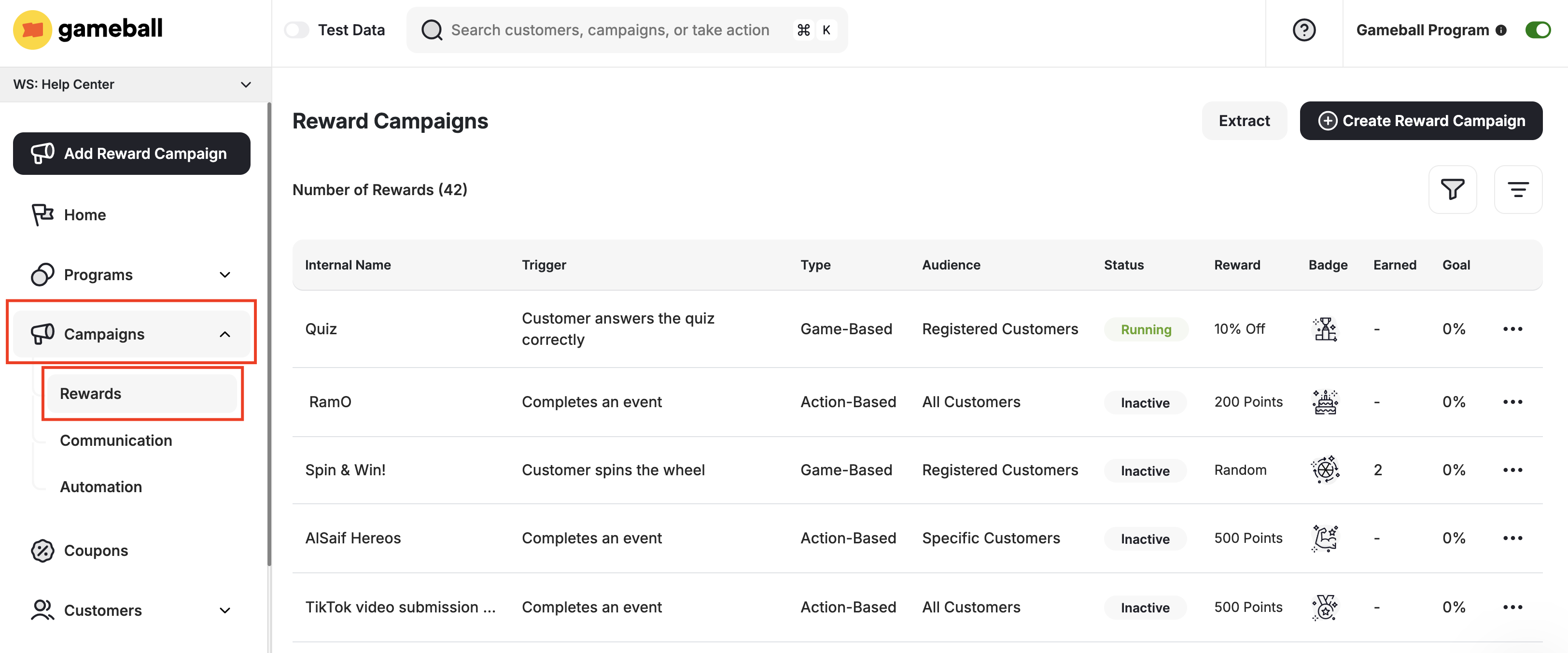
Choose a template or create from scratch
Choose the desired template based on your objectives, or choose to create a new reward campaign from scratch.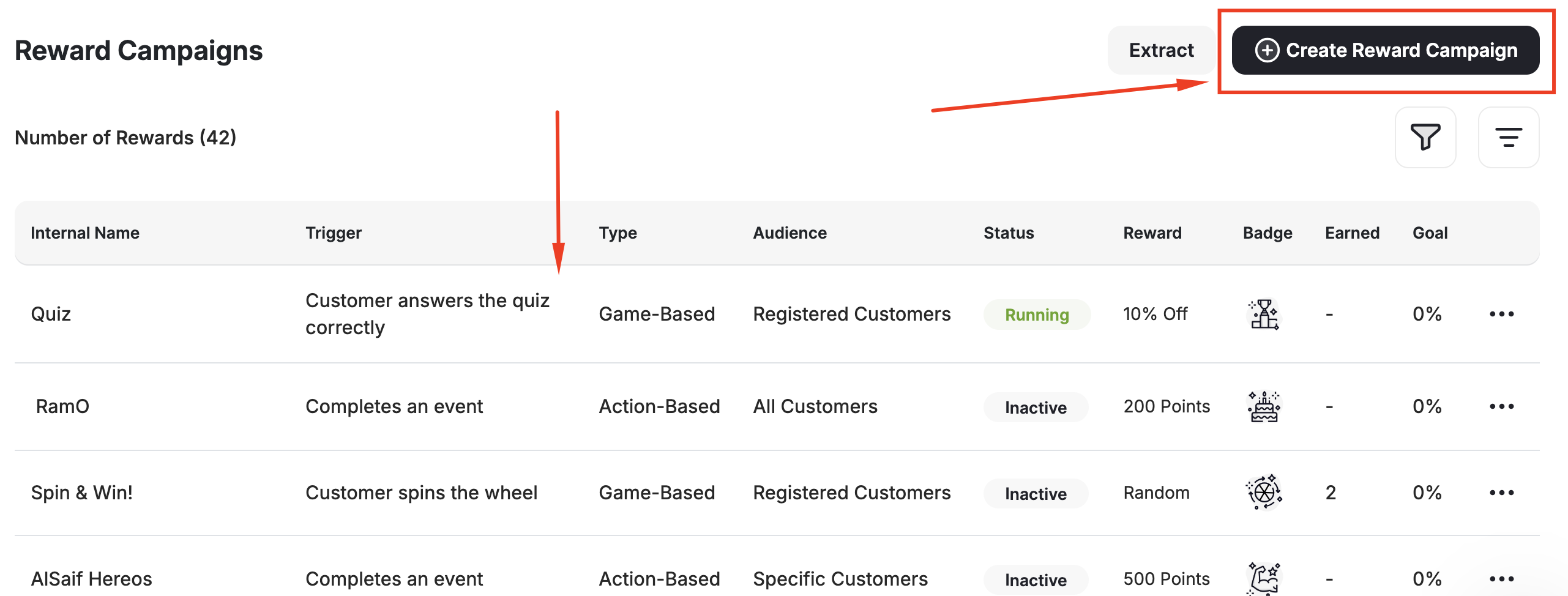
Manage Your Campaigns Efficiently
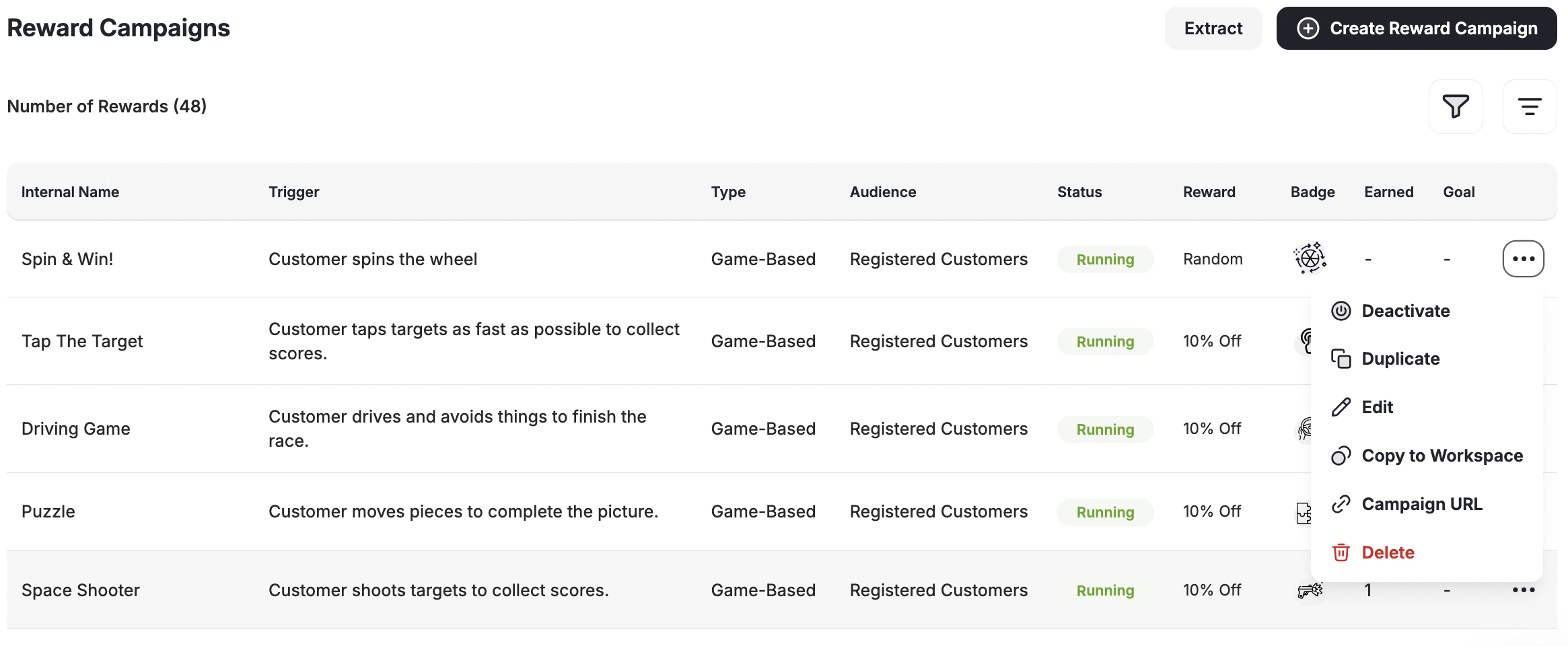
Gameball offers convenient shortcuts to manage your reward campaigns seamlessly. When you access your campaigns through the Gameball Admin Dashboard, you’ll find a comprehensive list of all your created campaigns along with their details. By clicking on the points beside each campaign, you’ll unlock a range of options to streamline your campaign management process.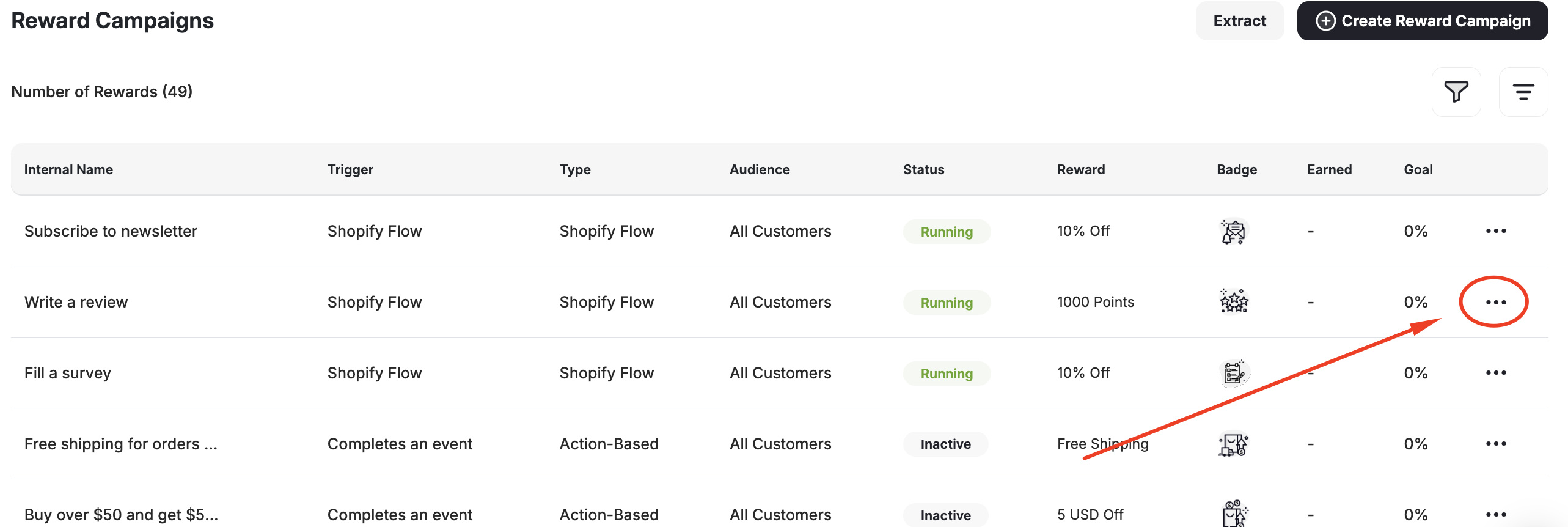
| Shortcut | Description |
|---|---|
| Duplicate | Create an identical copy of the selected campaign. This is useful when you need to replicate a campaign with minor adjustments. |
| Activate / Deactivate | Toggle the active status of the campaign. Easily enable or disable a campaign to control its visibility and functionality. |
| Edit | Make adjustments to the settings and details of the selected campaign. Access the campaign’s inner page to modify its configuration as needed. |
| Copy to Workspace | Copy that same campaign to a different workspace. |
| Campaign URL | Copy campaign URL. |
| Delete | Permanently remove the selected campaign. Exercise caution when using this option, as deleted campaigns cannot be recovered. |
Related Articles
Understanding Rewards Types in Gameball
A deep dive into every reward type available and how to configure each one.
Understanding Reward Campaigns Insights
Learn which metrics to track and how to measure campaign performance.
Facebook
Instagram
Twitter
TikTok
Write a Review
Write a Review (Shopify Flow)
Google Review