

Plan Availability
- Shopify & Salla
- Non-Platform
| Plan | Available |
|---|---|
| Pro & Guru | Yes |
Creating a New Action-Based Reward Campaign
Navigate to Reward Campaigns
Log in to your Gameball Dashboard. Navigate to the Campaigns section on the left side menu and click on Rewards.
Create the Campaign
Click Create Reward Campaign. Choose Action Based Reward from the ‘Start from Scratch’ section.
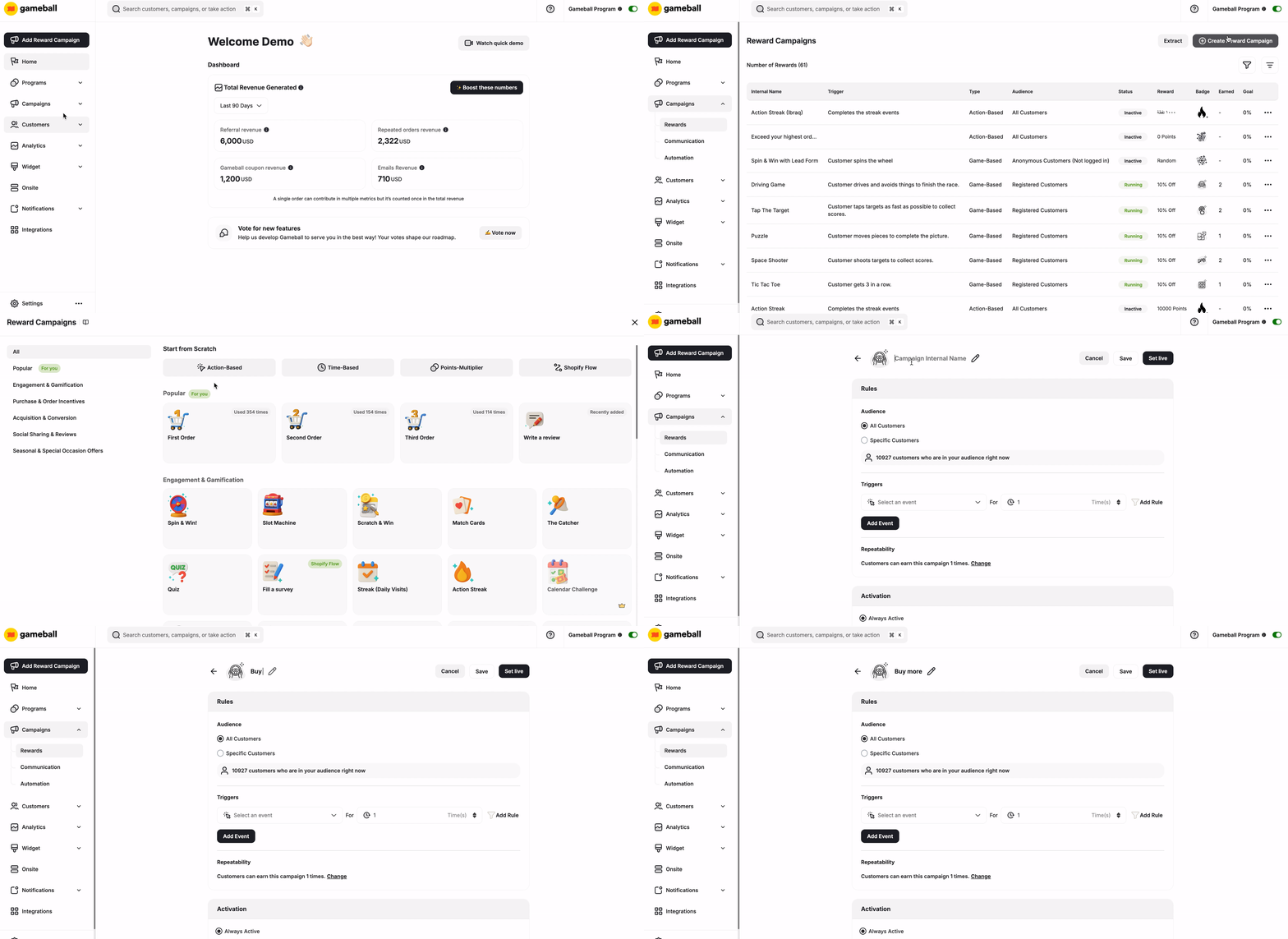
Configuration of an Action-Based Reward Campaign
Rule
Define the rules that determine when customers receive the campaign’s rewards. Utilize Gameball’s event-based engine to create sequences of rules that customers must follow to earn rewards.
Audience
Audience
Choose who is eligible to view and participate in this campaign: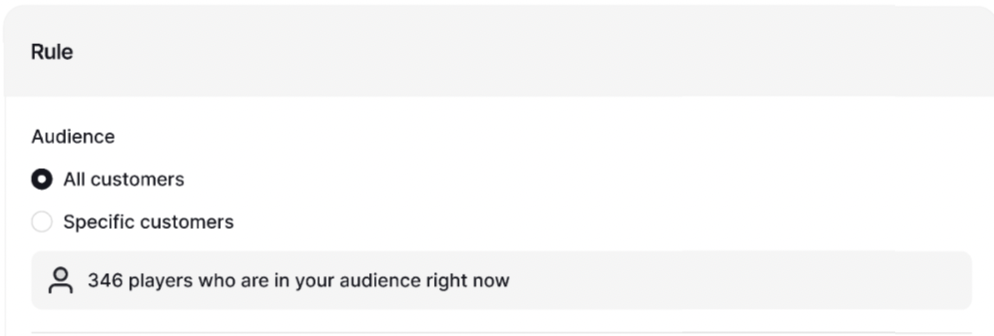
- All Customers
- Specific Customers:
- Segments
- Tags
- Customer Attributes
- Combination of Segments, Tags, or Customer Attributes
Trigger
Trigger
Choose the rules that grant the customers the campaign’s reward once achieved.Let’s say you want to reward the campaign’s audience once they complete 1 order from Collection X, and 1 order from Collection Y: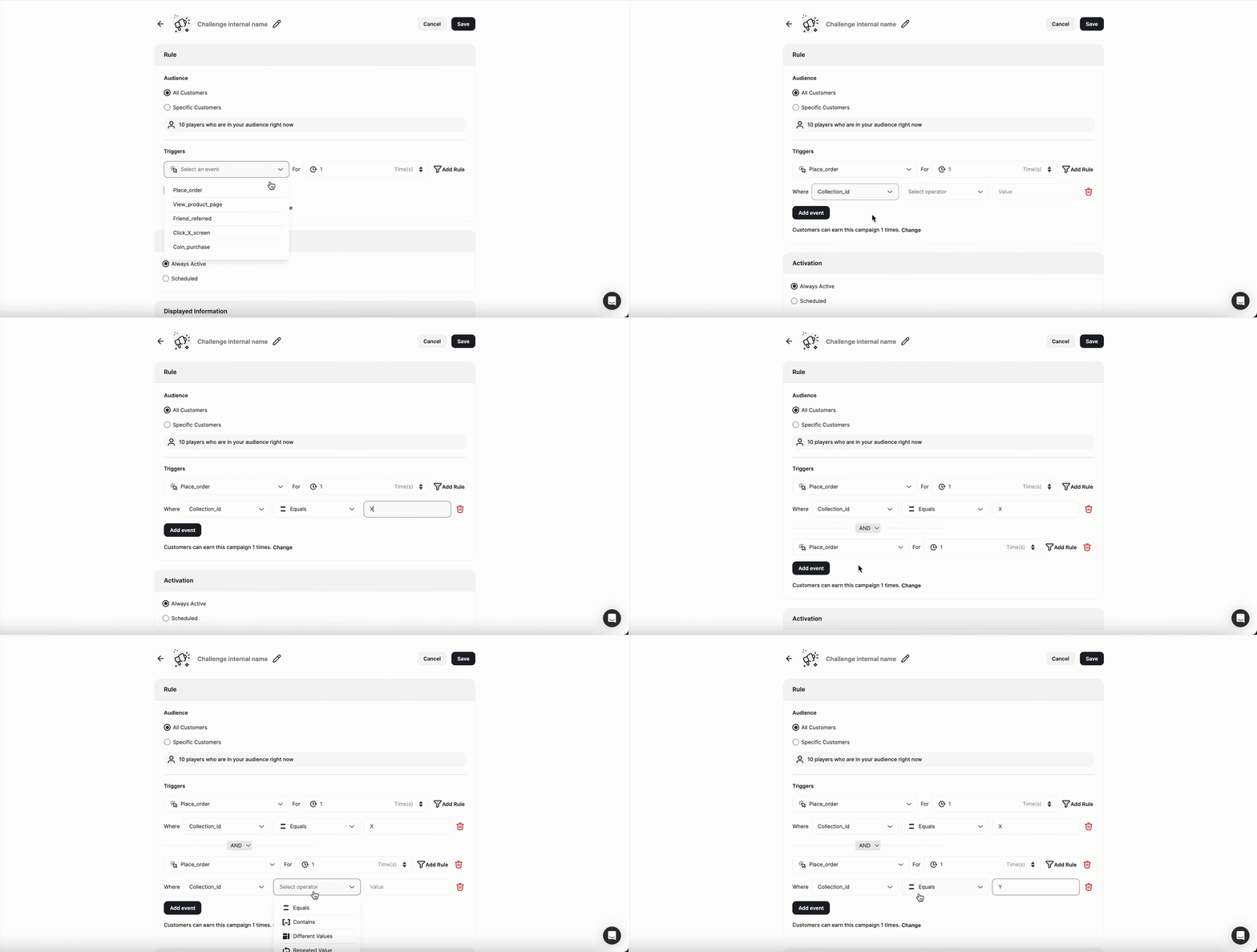
- Select Place Order for the Choose Event dropdown menu.
- Make your After Counter to 1 (this sets how many times the event should be achieved before rewarding the campaign).
- Add a Rule, where the Collection ID equals X.
- Add another Rule to complete the second part of the trigger. Click on Add Rule.
- Select Place Order for the Choose Event dropdown menu.
- Make your After Counter to 1.
- Add a Rule, where the Collection ID equals Y.
Check this article about using the event engine to understand more about how to create a campaign trigger.
Repeatability
Repeatability
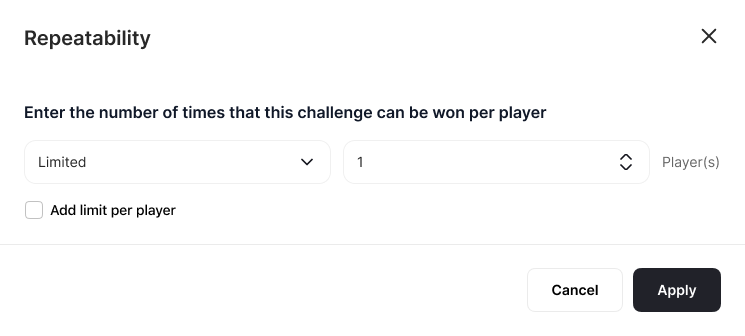
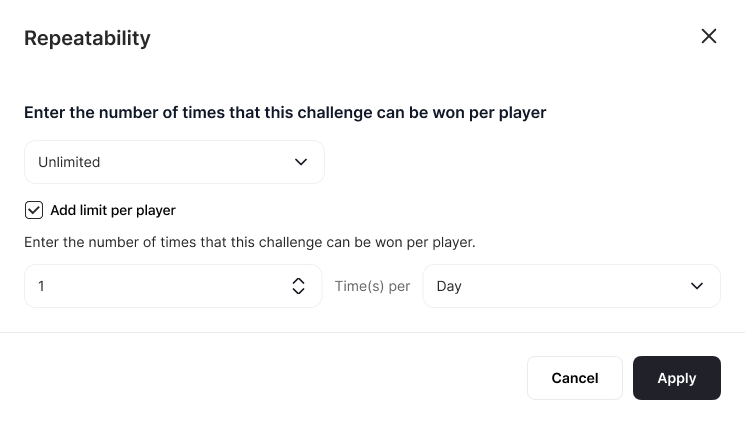
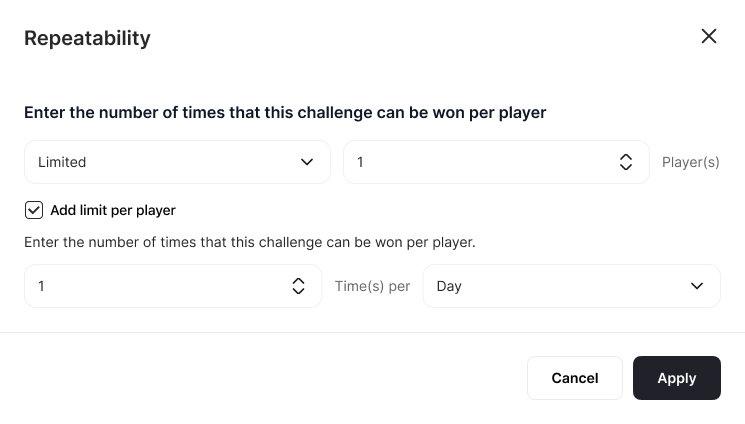
Define the repeatability settings to specify how many times customers can achieve the campaign’s rewards.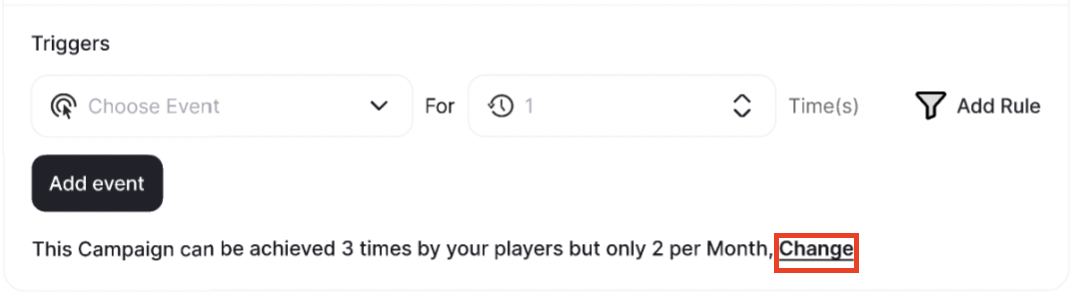
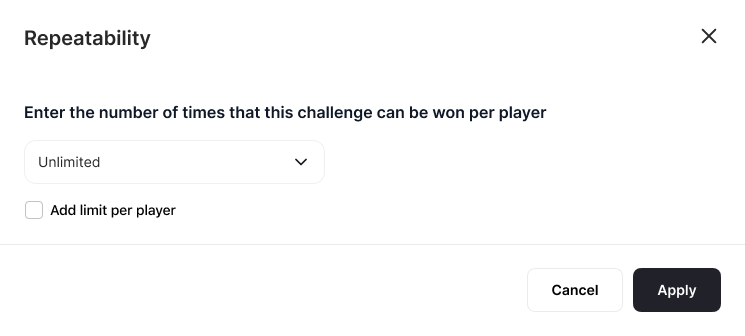
- Unlimited per customer: this campaign can be achieved by your customers every time the trigger is fulfilled.
- Limited to 1 time or more: this campaign can be achieved 1 time(s) after fulfilling the trigger.
- Unlimited Repeatability with a limit of 1 per day: This campaign can be achieved by your customers every time the trigger is fulfilled, however, every customer can achieve it only 1 or more times/day.
- Limited Repeatability with a limit of 1 per day: This campaign can be achieved by your customers every time the trigger is fulfilled until the limit you’ve set, however, every customer can achieve it only 1 or more times/day.
Activation Settings
Choose when this campaign will be available for your customers: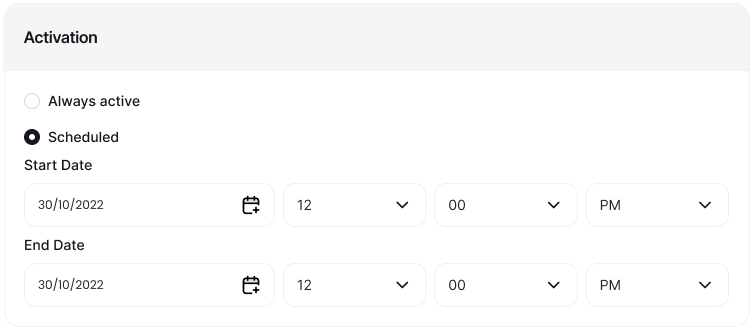
- Always Active: The campaign will always be available for its audience unless you deactivate it.
- Scheduled: The campaign will have a certain start date and end date. Before and after these dates, the campaign will not be visible to the audience.
Details
Set up the information that will be displayed to the customers on Gameball’s widget on your website/mobile app: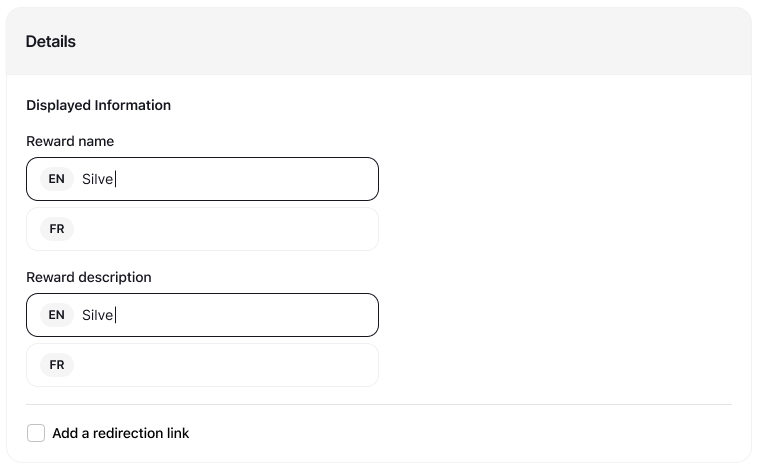
- Reward Name
- Reward Information
- [Optional] Redirection Link (Navigates the customers to a desired page on the website/mobile app).
Rewards & Badges
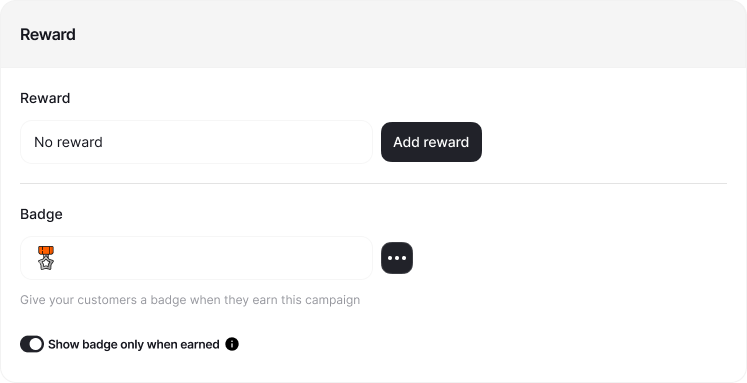
RewardsChoose the type of reward that you will offer the audience once they achieve this campaign, and define the reward parameters to ensure it aligns with your campaign goals.Choose one of the following Reward Types: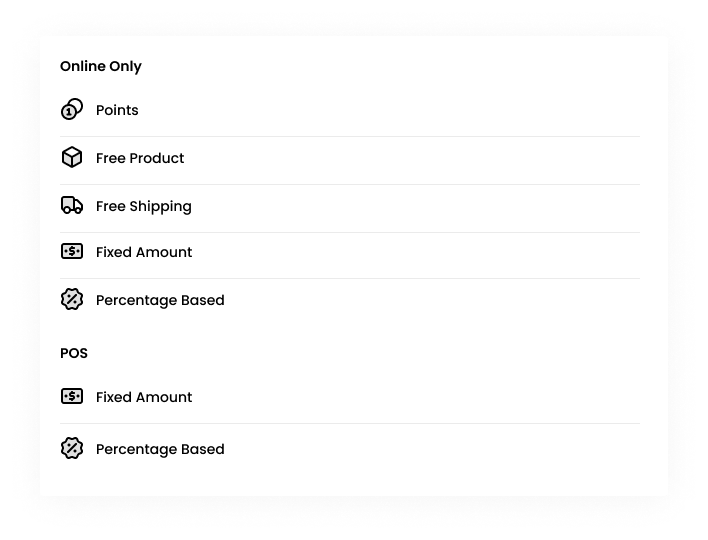
- Points
- Free Product
- Free Delivery
- Fixed Amount
- Percentage Based Discount
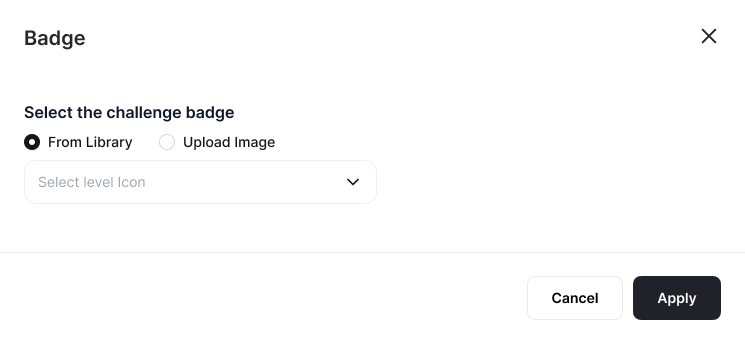
- Choose a Badge Icon from available options or upload your own:
-
Configure Badge Visibility:
- By default, no badge will be chosen (Campaign not visible on the widget).
-
You can choose for it to be:
- Dimmed and becomes bright upon earning
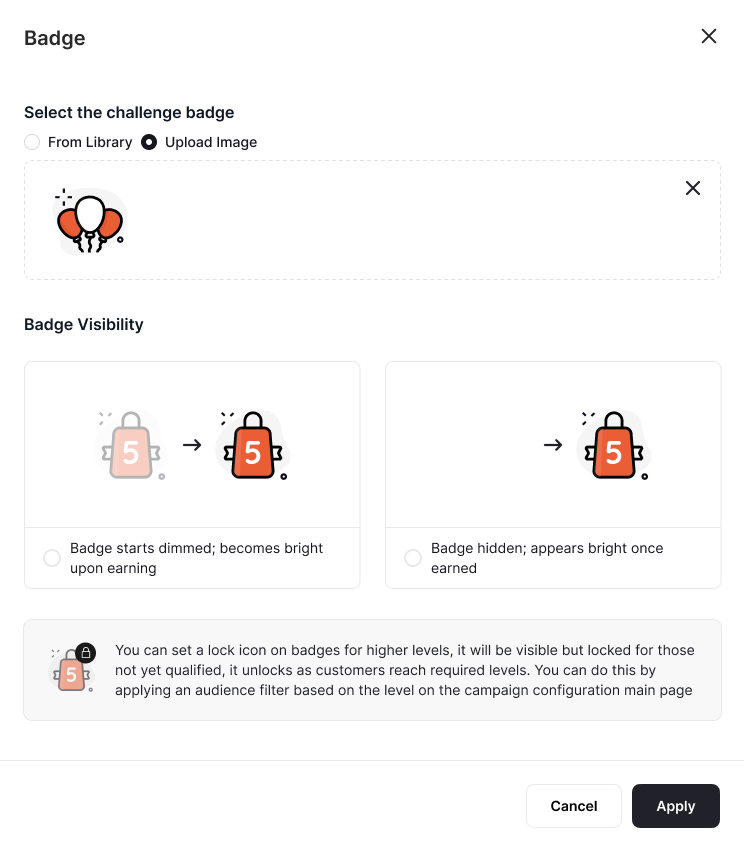
- Only show badge when earned
-
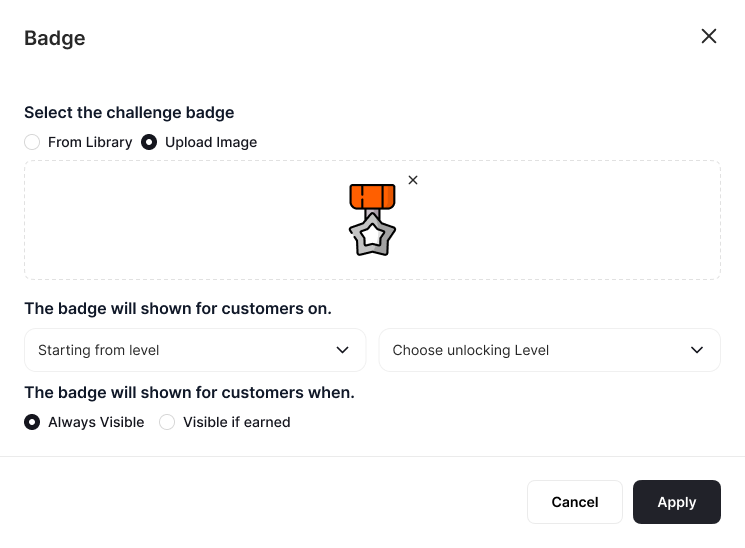
Configure Badge Unlocking Process:
By default, the badge will be unlocked to all tiers; it will appear dimmed until earned. However, you can choose for the badge to start appearing to customers when they are on a certain tier:
Notifications
Configure in-app and email notifications to keep customers informed about their progress and achievements.
For both Notification types, you have the option to choose from the following: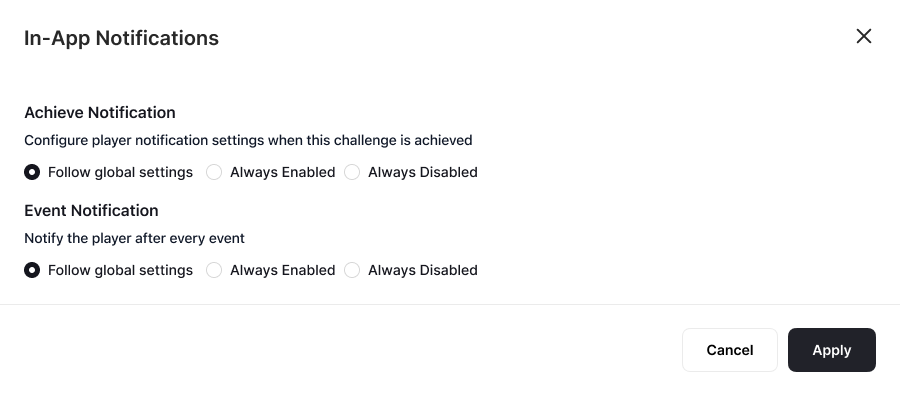
Achievement Notifications
Achievement Notifications
Decide whether you’d like to inform your customers upon achieving a reward campaign.
Event Notification
Event Notification
Select whether to notify customers after every completed action that brings them closer to achieving the reward campaign.
- Follow Global Settings: Notifications will adhere to the predefined notification settings you configured in the notifications section. Learn more about sending real-time notifications for reward campaign programs.
-
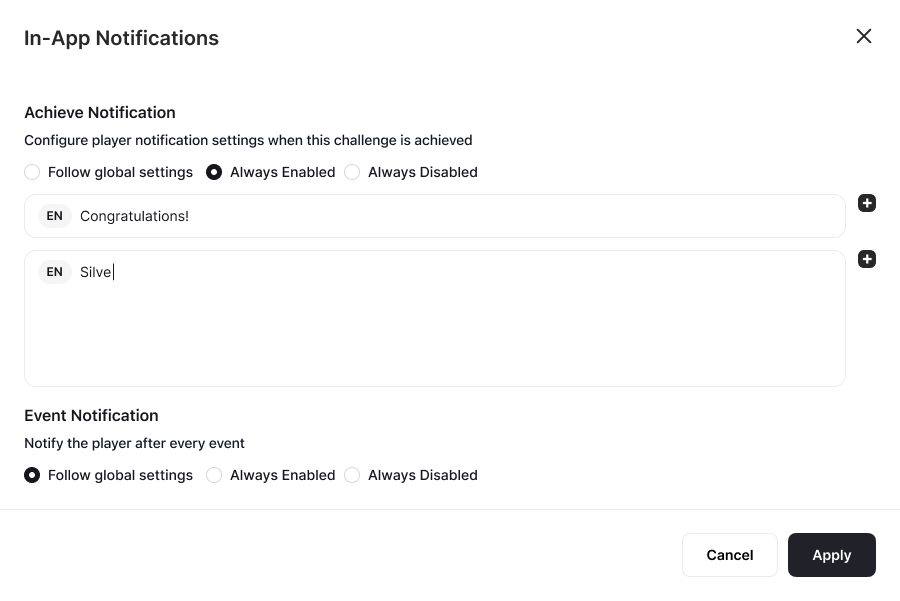
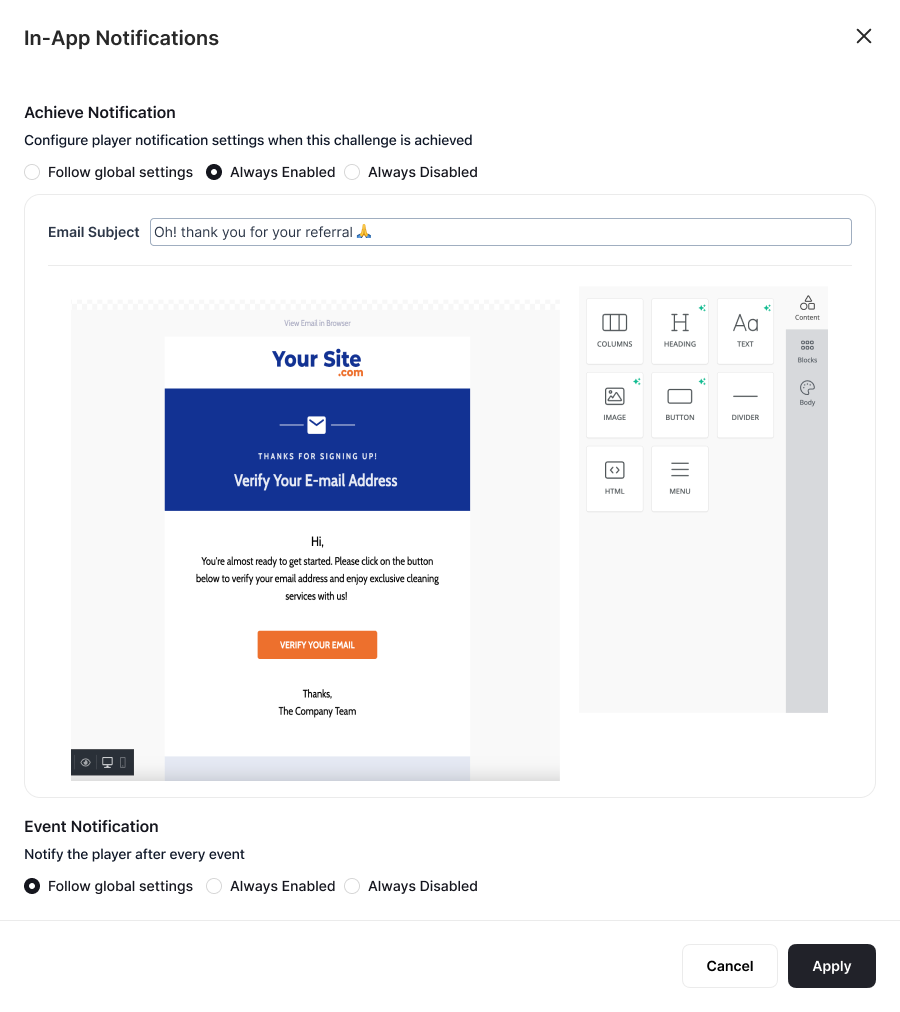
Always Enabled: Customers will receive a notification after completing an event or reward campaign.
- In-app Notification: Add Notification Title and Notification Body.
- Email: Add Email Subject and use the Email Builder to Customize the Email.
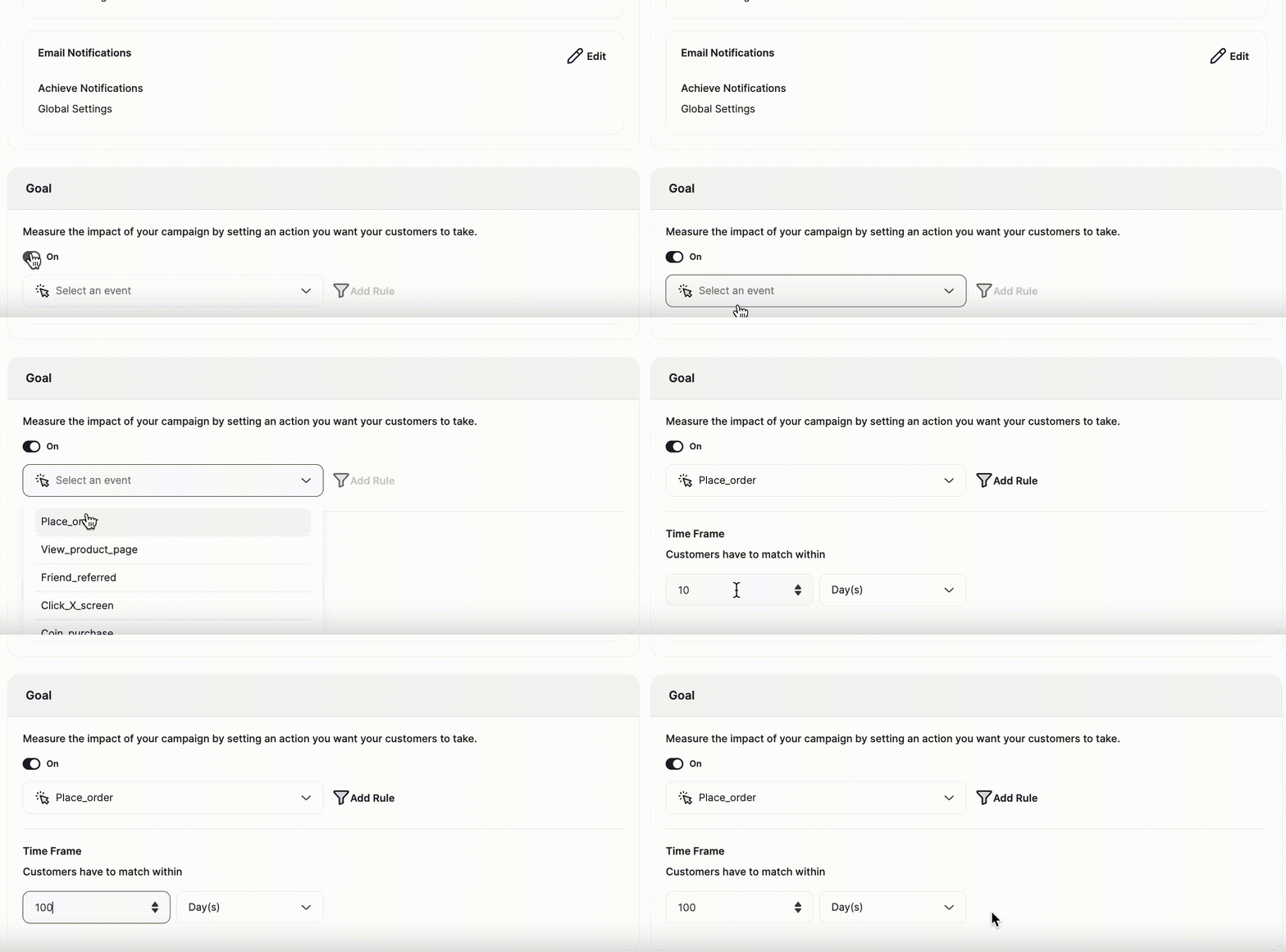
- Always Disabled: Customers will not receive any notifications after completing an event or reward campaign.
There are other types of Reward Campaigns. Learn how to create and configure each of them below:
Related Articles
Reward Campaign Insights
Explore the full setup guide for reward campaigns, including events, rewards, and notifications.