

Plan Availability
- Shopify & Salla
- Non-Platform
| Plan | Available |
|---|---|
| Starter | Yes |
| Pro & Guru | Yes |
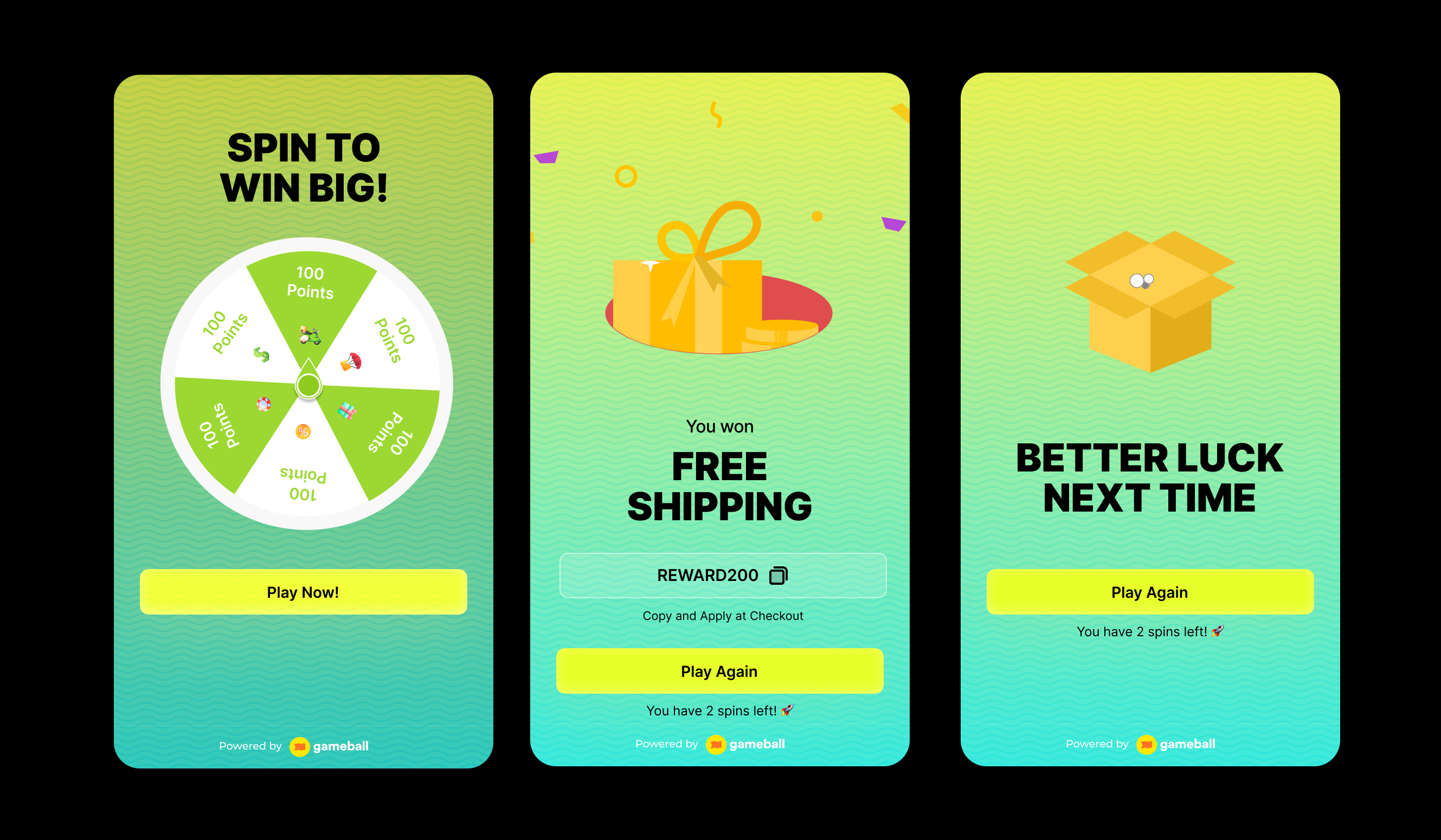
Creating a Spin the Wheel Campaign
Campaign Configuration
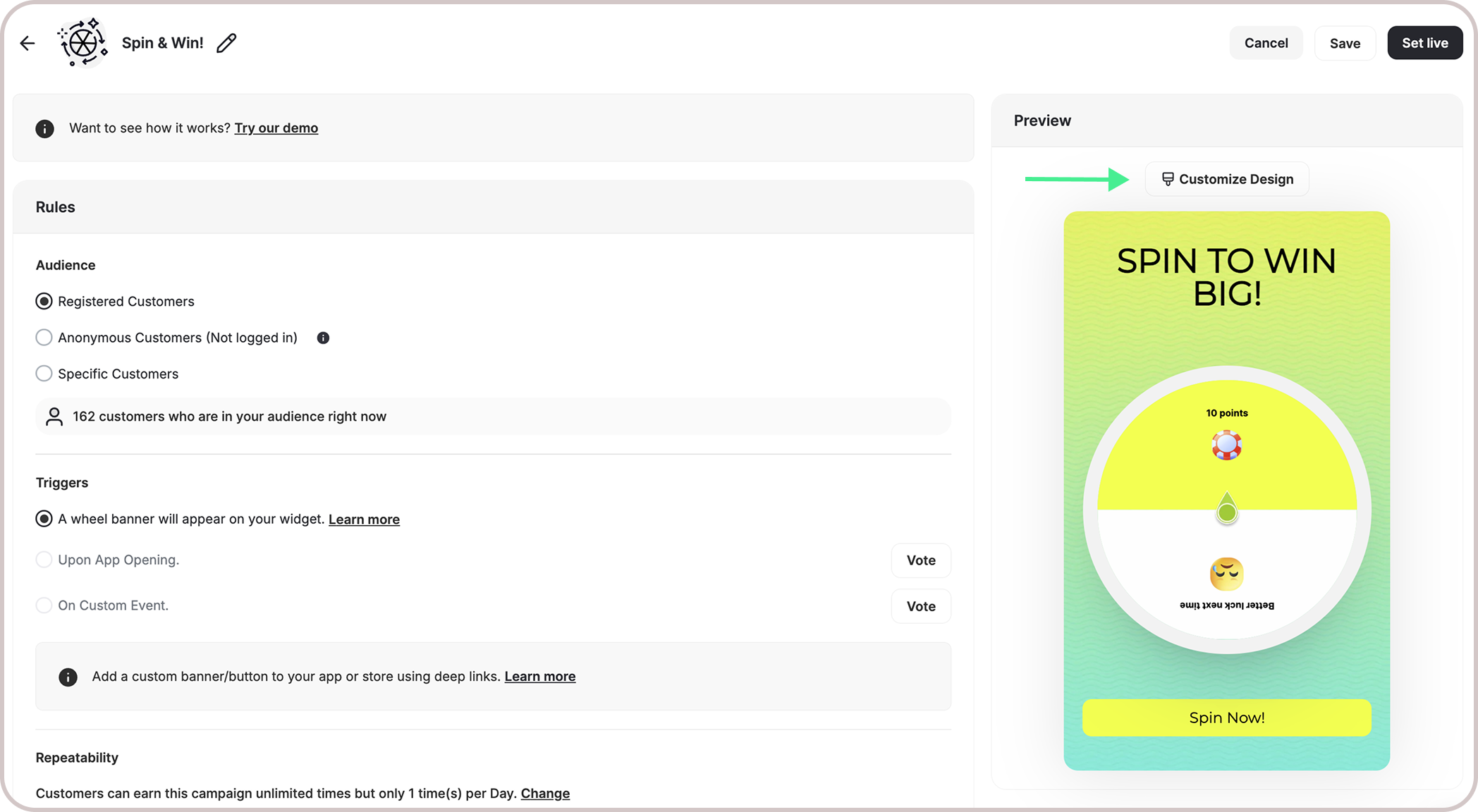
Audience
Audience
- Registered Customers: Customers who have an account on your platform (signed up)
-
Anonymous Customers:
Visitors browsing anonymously without providing any contact information or identifiable details (not signed up)
- Visitors can open the game, submit basic information through the lead form, play, and receive rewards, matching the standalone game URL experience.
- Widget deep links that open a specific game work for guests as well. The widget would open directly into the game screen and allow participation without login.
- Specific Customers: You can choose for a specific selection of customers to participate in this campaign by filtering using segments, tags or customer attributes.
Trigger
Trigger
- Wheel Banner on Widget: A banner will display on your widget’s homepage. When customers click the banner, they’ll be taken to the game screen where they can spin the wheel.
-
Deep Link:
Use the
#gameball-wheeldeep link to trigger the Spin the Wheel campaign from a custom banner or button on your website or app. Learn more.
Repeatability
Repeatability
By default, customers can spin the wheel once per day. A new opportunity to replay it begins at 00:00 AM based on the chosen time zone.All Games campaigns support only the Limit per day/week/etc. Learn more.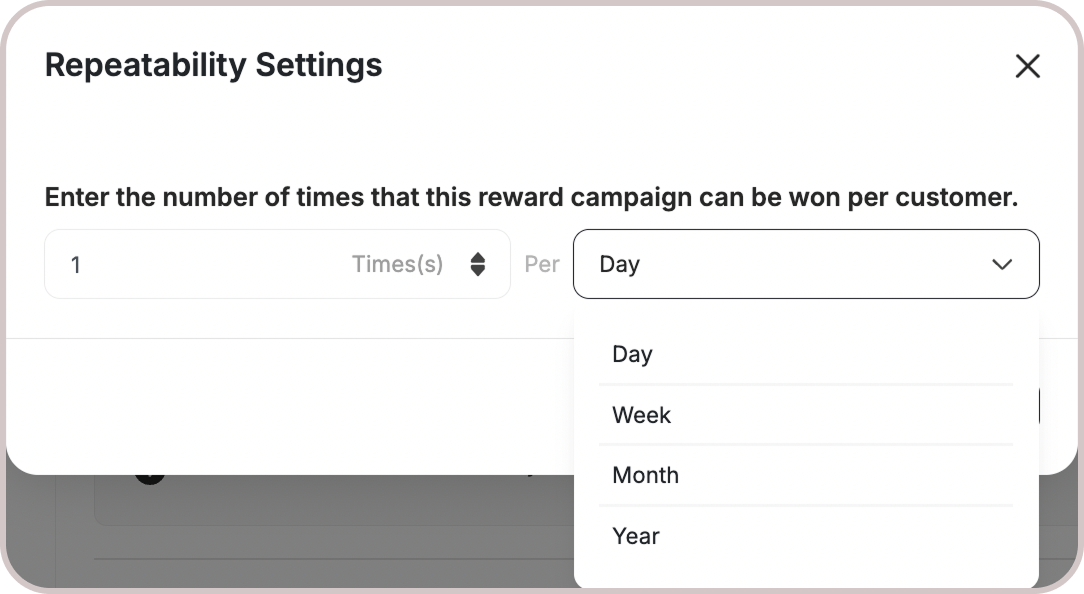
Platform Visibility
Platform Visibility
You can choose whether the game campaign is shown on web, mobile, or both, giving you better control over engagement strategies across platforms.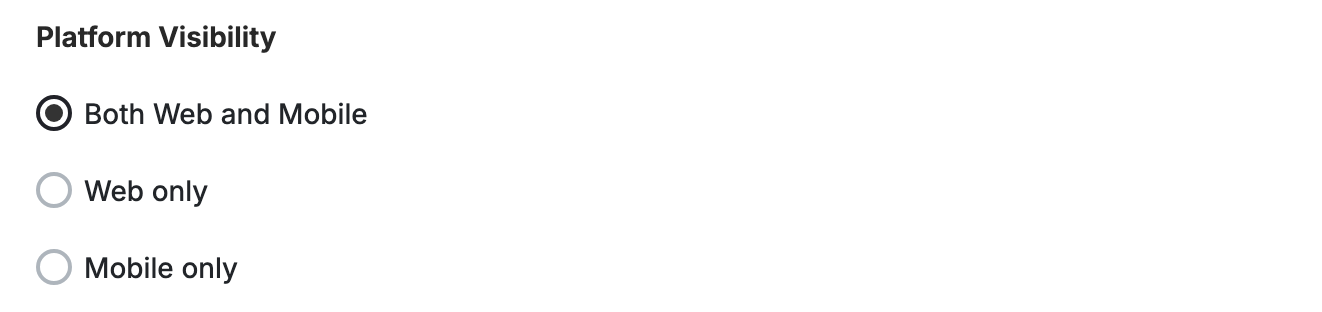
This template uses the standard reward campaign setup. See the Generic Setup Guide for details.
Rewards Setup
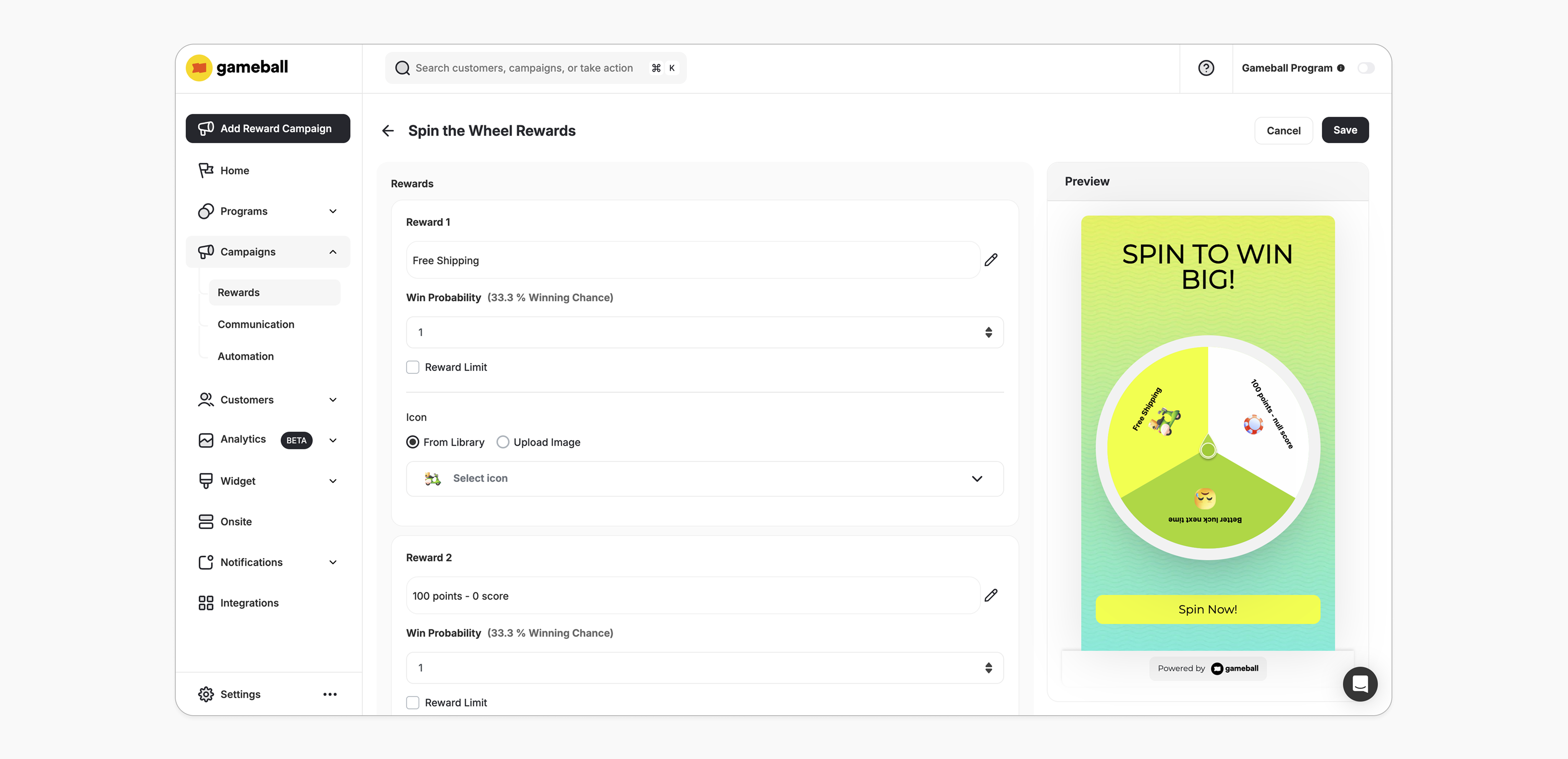
Reward Types
Reward Types
Choose from any of the reward types supported by Gameball. Learn more.
| Setting | Value |
|---|---|
| Minimum rewards allowed | 2 |
| Maximum rewards allowed | 8 |
Probability
Probability
Enter a numerical value (e.g., 2, 3, 4) to represent the probability of a customer receiving this reward. Every spin is completely independent of the previous ones, and the chance of landing on a specific reward is always the same, no matter how many times the wheel has been spun.
- The probability input can accept a value of 0, meaning the reward will not be available.
- Probabilities are calculated based on the sum of all assigned probabilities across the rewards.
- Probability Adjustments: The new probability will take effect immediately for future spins.
- Reward #1: Probability 1
- Reward #2: Probability 1
- Reward #3: Probability 1
- Reward #1: 27 times
- Reward #2: 36 times
- Reward #3: 37 times
Reward Limits
Reward Limits
The maximum number of times a specific reward can be claimed by all customers throughout the campaign.
- Optional Feature: You can choose to add a reward limit when configuring the campaign.
- Tracking Wins: Gameball will track how many times each reward has been won. After the limit is reached, the reward will still appear on the wheel but will no longer be winnable.
- Reward Limit Adjustment:
- Increase the Limit: If the new limit is higher, customers can win the reward again.
- Decrease the Limit: If the new limit is lower, the system will prevent the reward from being won if the initial limit was already reached.
- Removing a Reward:
- Setting a probability to 0 effectively makes the reward unavailable. The reward will still appear on the wheel, but will no longer be winnable.
- Removing a reward completely will make the reward unavailable on the wheel and unwinnable.
- Reward 1: Probability 1, Limit: 1
- Reward 2: Probability 1, No Limit
- Reward 3: Probability 1, No Limit
- If all rewards have limits and they are reached, customers will see a “No rewards available at the moment” message.
- Drag and drop the created reward to reorder them on the wheel.
End User Experience
How it works:Win a Prize
Spinning offers a chance to win rewards: discounts, free products, bonus points, and more.
Get Notified
The customer is notified via the widget or email, depending on your configuration when they earned a reward. Learn more.
Customization
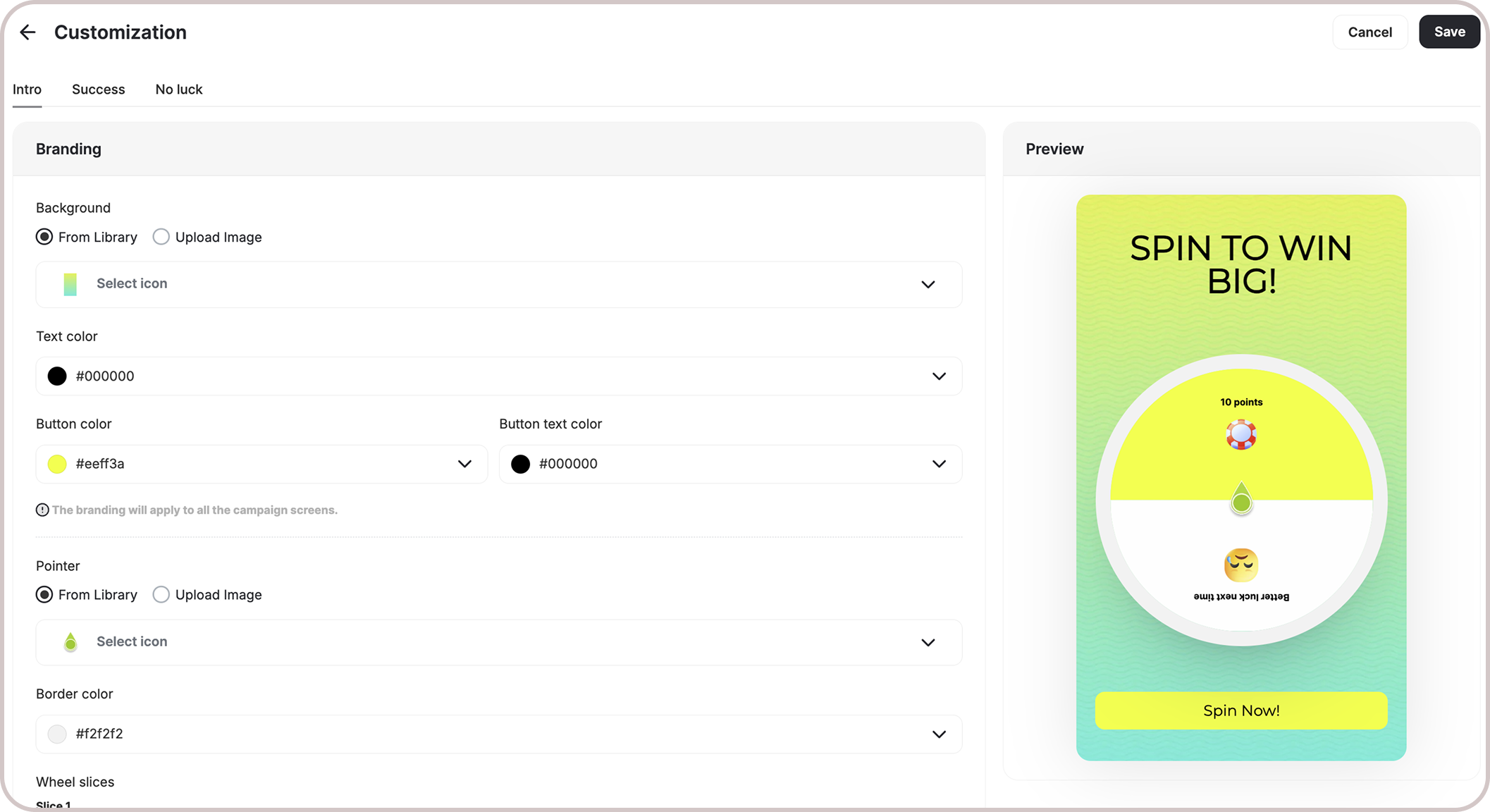
You can fully customize each stage of the campaign through dedicated tabs representing the different screens in the flow:- Intro / Main Screen
- Lead Form
- Success Screen
- No Luck Screen
- Branding: Adjust background colors, text colors, and upload custom artworks.
- Content: Edit the headlines, descriptions, and call-to-action messages to match your tone and messaging.
Important Notes
Fraud Prevention
In the “Spin the Wheel” campaigns for guests (Audience is Anonymous/Not Logged-in), the following protections apply:| Protection | Description |
|---|---|
| Single Spin Per Session | Guest users can spin the wheel only once per session. If they attempt to re-enter, a message displays: “You have already spun the wheel.” |
| Multiple Wheels in Campaign | For campaigns with multiple wheels, this restriction applies individually to each wheel. Guests can still spin any other wheels they haven’t tried. |
| Session Restriction | If a guest opens a new browser tab or window after spinning, the same restriction message will appear. |
Customer EligibilityGames in the widget update dynamically based on customer eligibility, ensuring customers only see games they can still participate in.Games are hidden when customers become ineligible.If a customer no longer belongs to the game’s target segment, the game is automatically removed from the widget and won’t reappear unless eligibility is restored.
Anonymous Option
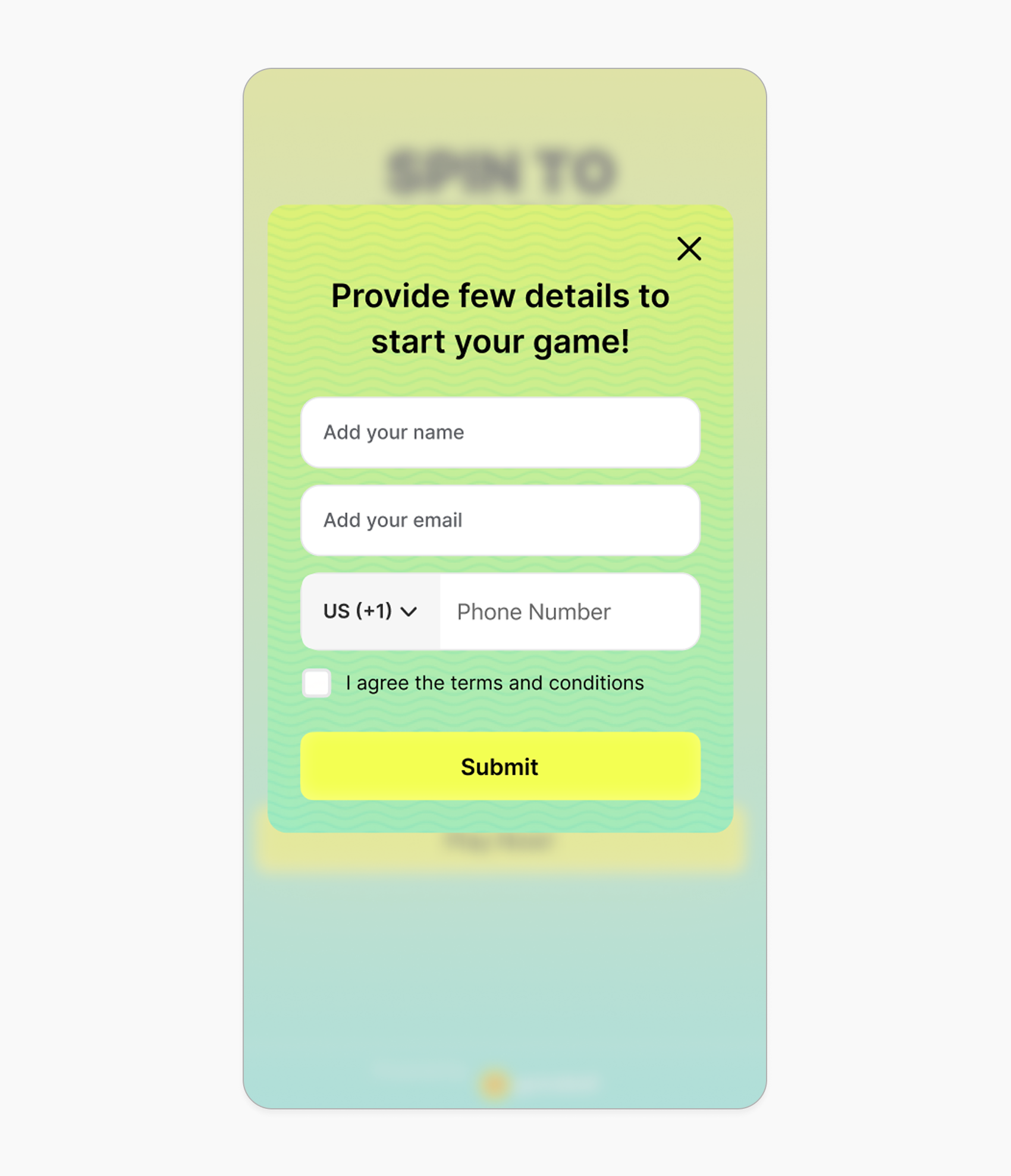
- If you choose Anonymous as the audience, the campaign will be available to visitors who are not yet identified on your store.
- Once enabled, a lead form will automatically appear prompting the customer to enter their information (e.g. name, email).
- This is a great way to collect leads and retarget potential customers later.
- You can fully customize this form by navigating to Customize Design -> Lead Form.
Related Articles
Set Up a Reward Campaign
Learn the full setup process for creating and activating reward campaigns.
Reward Types in Gameball
Explore all reward types available and how to configure each one.
Notification After Earning a Reward
Configure in-app and email notifications triggered when customers earn rewards.