

Plan Availability
- Shopify & Salla
- Non-Platform
| Plan | Available |
|---|---|
| Starter | Yes |
| Pro & Guru | Yes |
How to Create a Streak Campaign
Navigate to Reward Campaigns
From the left bar, choose Reward under Campaigns. Click Create New Reward Campaign.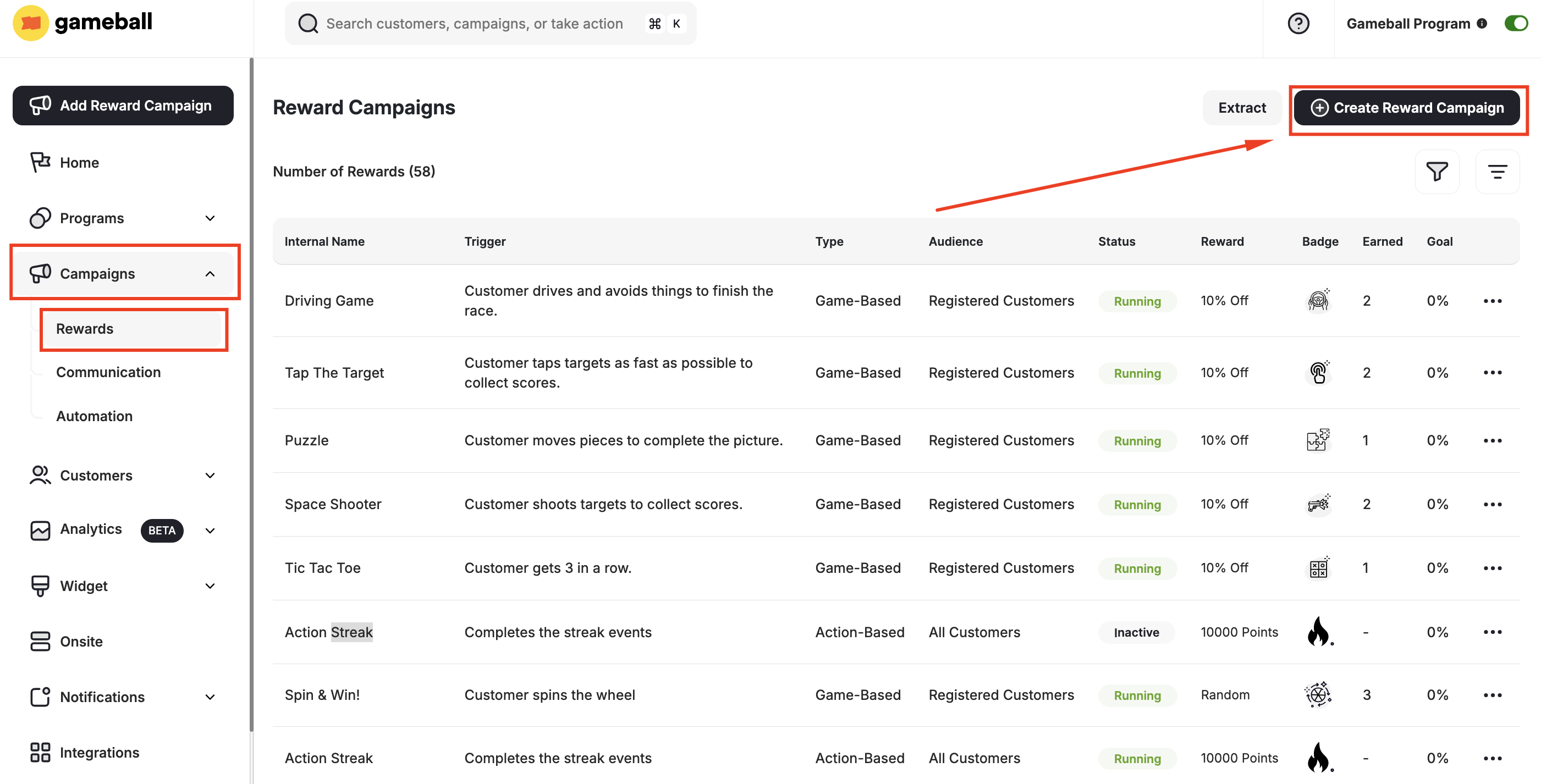
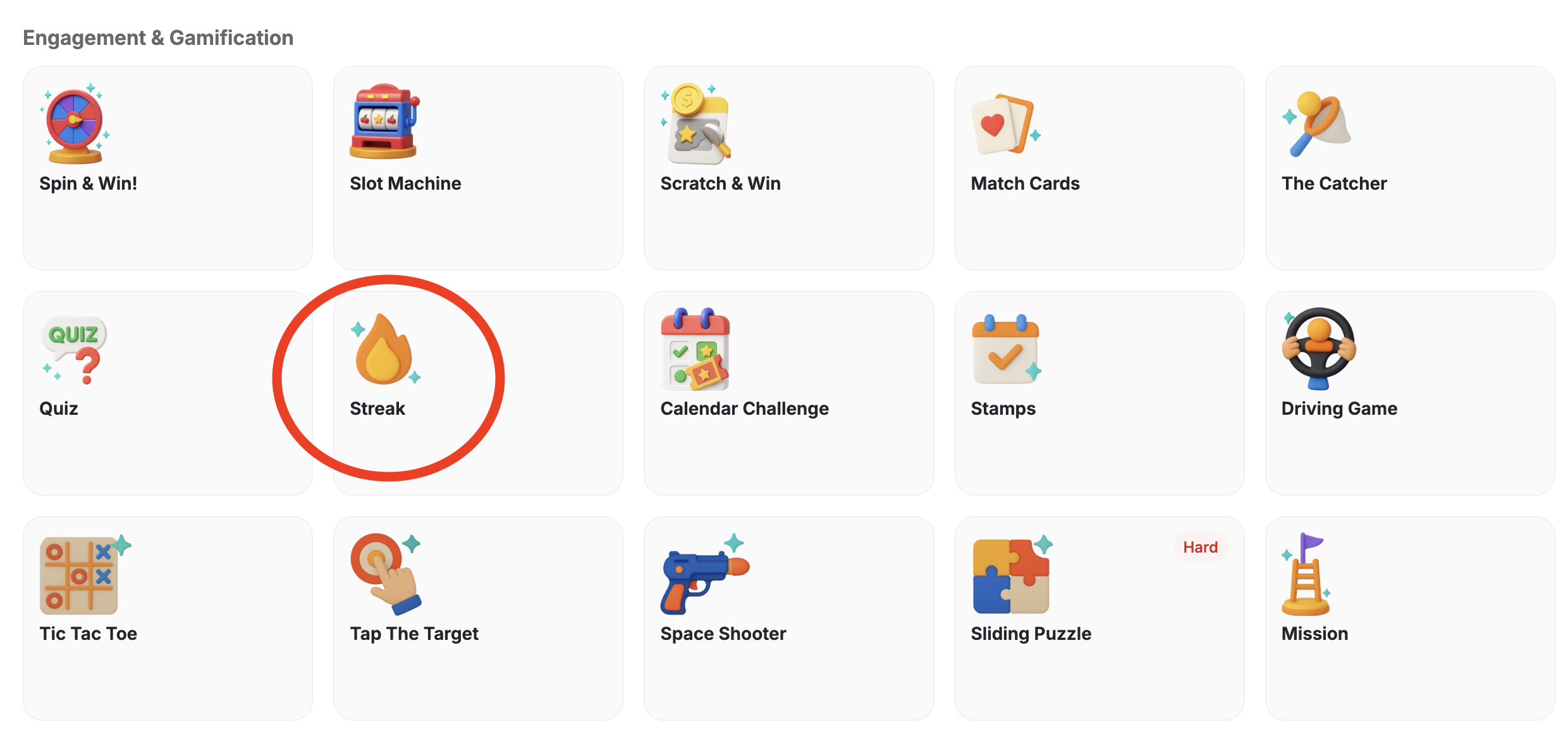
Configure General Settings
You may follow the steps in this article to configure the general settings of this campaign. Learn more about setting up a Reward Campaign.
Select Streak Actions
Select the actions that will count toward the streak. Examples:
- Purchases
- Reviews
- Website visits
Set Up the Rewards
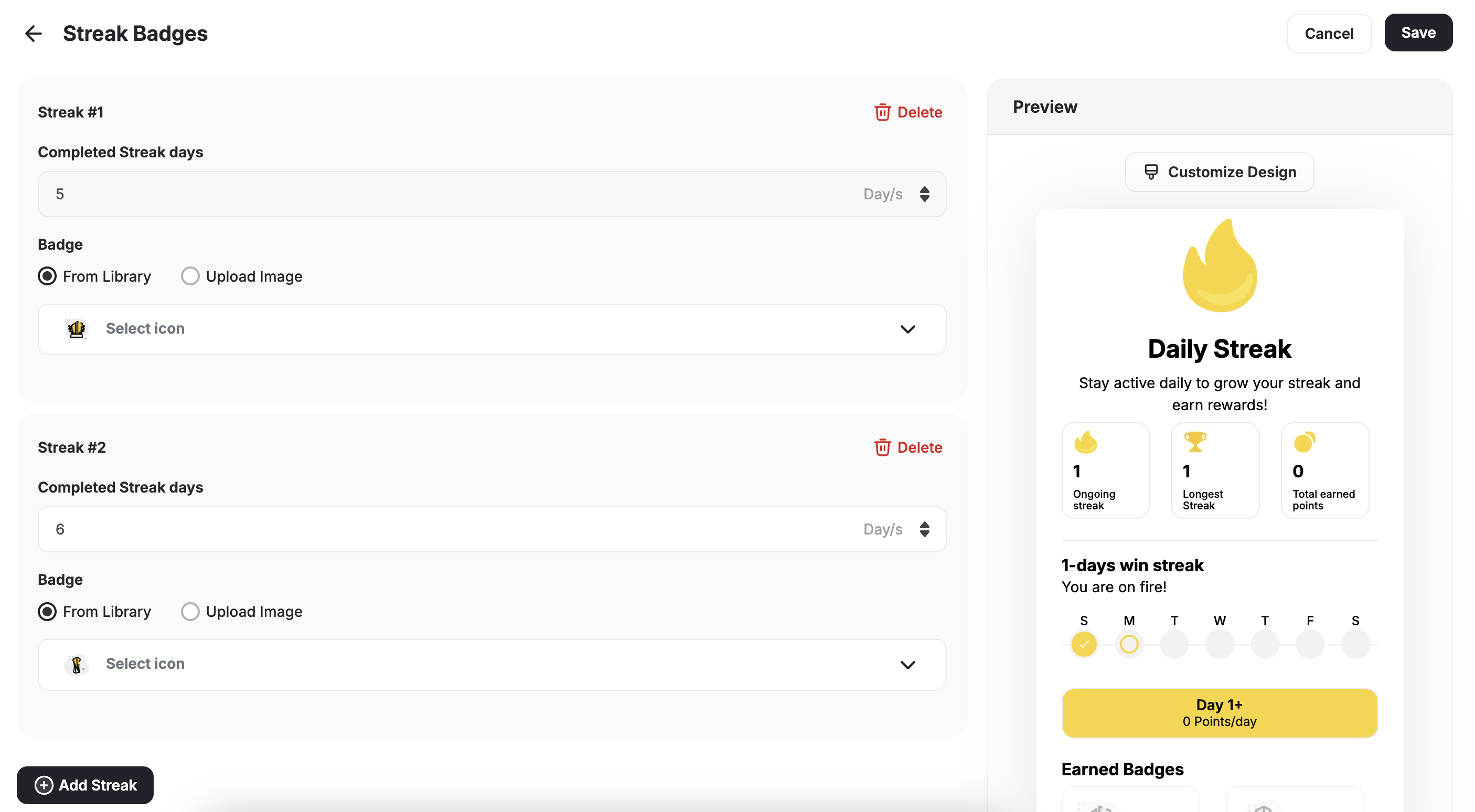
In the Rewards section, set up the streak rewarding system. For example, you might want customers to get 10 points every day they purchase until the 5th day, then 20 points daily until the 10th day, then 50 points thereafter.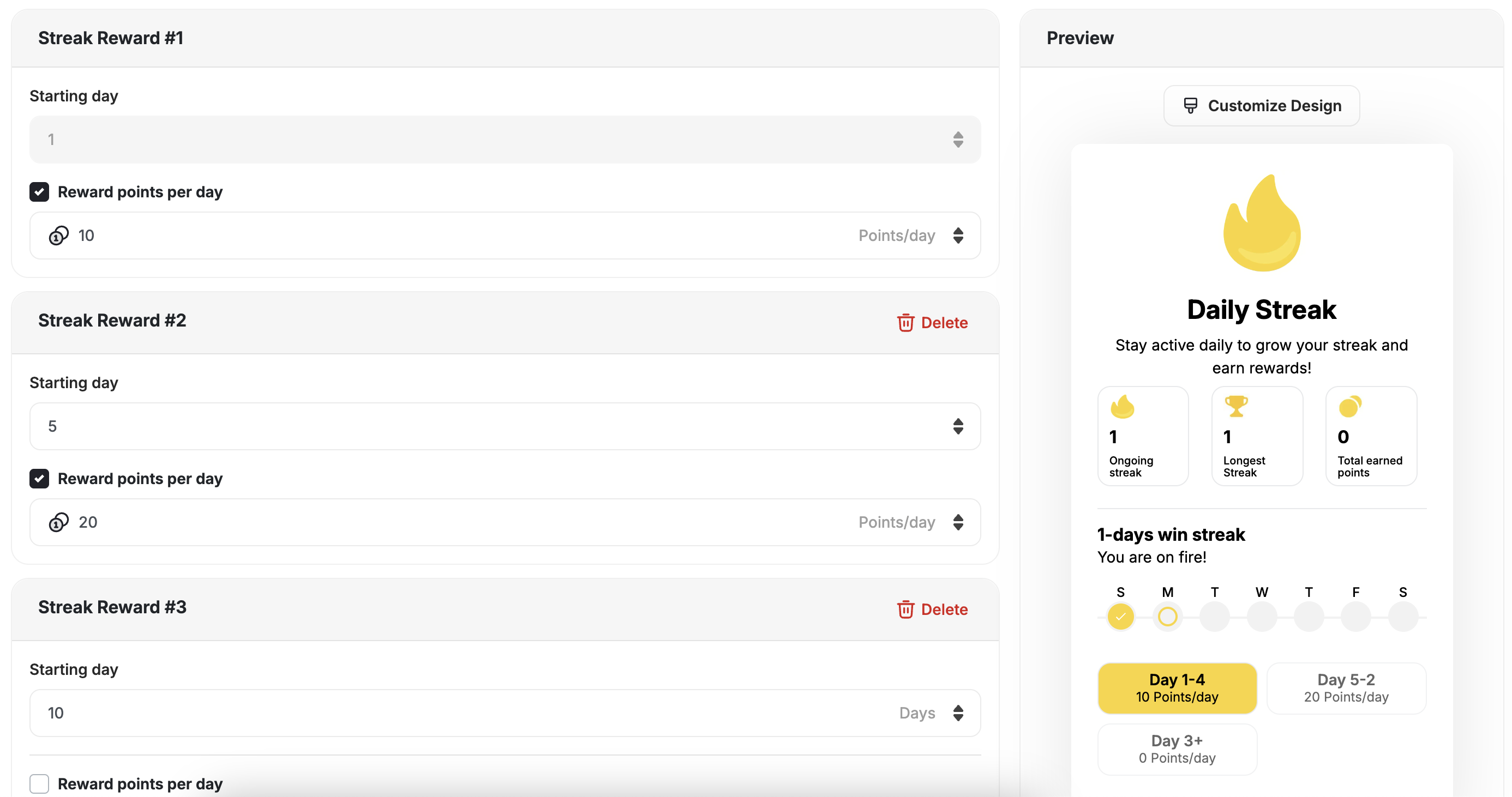
How Gameball Tracks Daily Visits
If the trigger chosen is Daily Visits, here is how Gameball records customer check-ins: A daily visit (check-in) is recorded when a registered customer interacts with your platform after midnight (00:00 AM) in their local time.- Web Visits
- Mobile App Visits
A customer visit is counted as a daily check-in in any of the following cases:
- The customer is logged in and loads any page that includes the Gameball widget (typically added via a JavaScript snippet).
- If the customer is logged out, they must log in for the visit to count.
- The platform sends any event on behalf of the customer (e.g., a purchase or tier-up event).
- You retrieve customer details via the Gameball API (e.g., calling
Get Customerendpoint).
If you’re not using a built-in Gameball plugin like Shopify or Salla, make sure the widget is integrated using our JavaScript SDK guide to ensure proper tracking.
Streak Achievement Events
Every time a customer progresses in a streak, Gameball fires astreak_progression event. You can use this event to trigger automations, send personalized messages, or build custom segmentation logic.
Event Fired on Every Streak Progression
Thestreak_progression event fires automatically whenever a customer advances their streak — regardless of whether a reward milestone was reached.
Using Streak Events for Automation and Personalization
You can reference this event in:- Automation campaigns — trigger a flow when a customer reaches a specific streak length
- Communication campaigns — send a congratulatory message at key milestones
- Segmentation — group customers based on their current or longest streak
Event Metadata
| Field | Description |
|---|---|
campaign_id | The ID of the streak campaign |
campaign_name | The name of the streak campaign |
current_streak_duration | The customer’s current consecutive streak count |
longest_streak_duration | The highest streak the customer has ever reached in this campaign |
- The
streak_progressionevent fires on every progression, not just on reward milestones. - If the streak resets,
current_streak_durationresets to 0, butlongest_streak_durationretains the historical maximum. - Milestone badges earned remain with the customer even after a reset.
Related Articles
Set Up a Reward Campaign
Learn the full setup process for creating and activating reward campaigns.
Reward Types in Gameball
Explore all reward types available and how to configure each one.
Notification After Earning a Reward
Configure in-app and email notifications triggered when customers earn rewards.