

| Platform | Plan |
|---|---|
| Shopify | Pro & Guru |
| Salla | Pro & Guru |
| Non-Platform | Add-on |
- Limited-Time Promotions: Use scratch cards for seasonal sales, holiday campaigns, or product launches to create excitement and urgency.
- Product Awareness & Upselling: Feature new or high-margin products as potential rewards to introduce users to items they might not have considered.
How to Set Up
Campaign Trigger
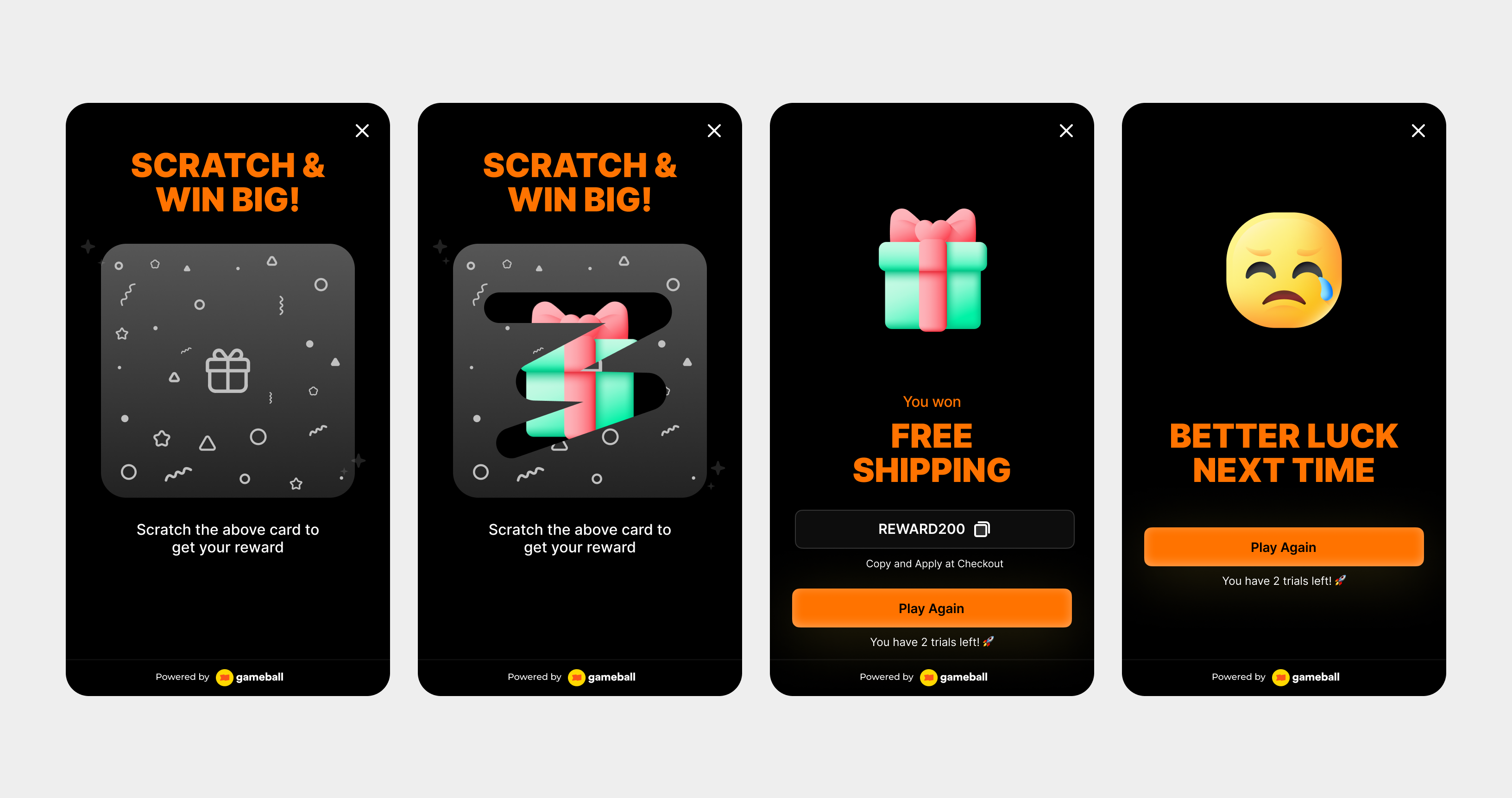
Customers can access the scratch card through the Badges section in the widget. Tapping the badge redirects them to a screen where they can start playing and trigger the campaign to begin scratching. Use the#gameball-scratch deep link to trigger the scratch the card campaign from a custom banner or button on your website or app. Learn more.
Audience
- Registered Customers: Customers who have an account on your platform (signed up).
-
Anonymous Customers: Visitors browsing anonymously without providing any contact information or identifiable details (not signed up).
- Visitors can open the game, submit basic information through the lead form, play, and receive rewards, matching the standalone game URL experience.
- Widget deep links that open a specific game work for guests as well. The widget would open directly into the game screen and allow participation without login.
- Specific Customers: You can choose for a specific selection of customers to participate in this campaign by filtering using segments, tags or customer attributes.
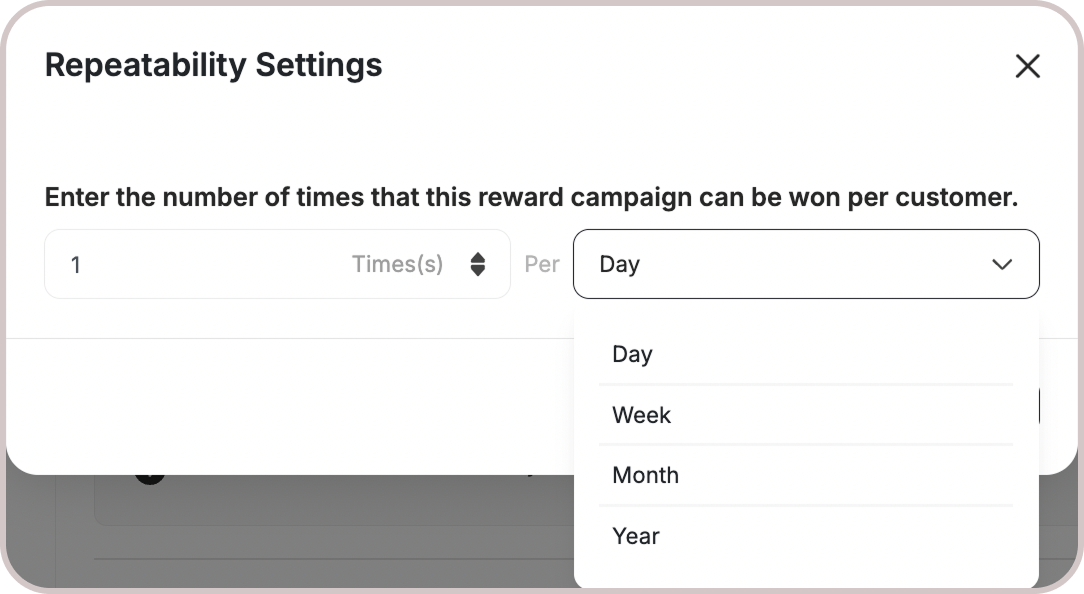
- By default, customers can scratch the card once per day. A new opportunity to replay it begins at 00:00 AM based on the chosen time zone.
- All Games campaigns support only the Limit per day/week/etc. Learn more.

Rewards Setup
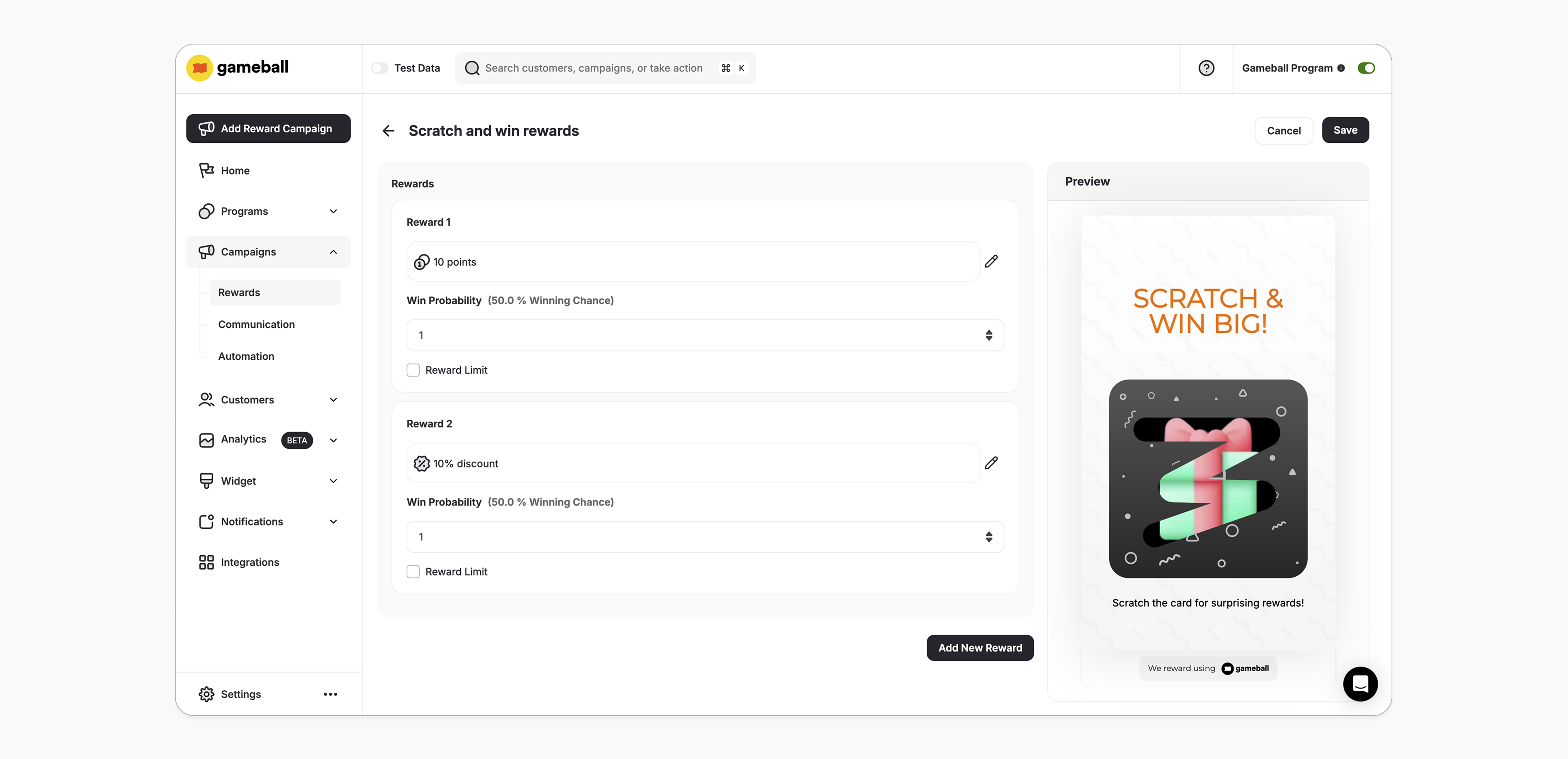
- Choose from any of the reward types supported by Gameball. Learn more.
- Min & Max Rewards Count:
- The minimum number of rewards allowed is 2
- The maximum number of rewards allowed is 8
- The probability input can accept a value of 0, meaning the reward will not be available.
- Probabilities are calculated based on the sum of all assigned probabilities across the rewards.
-
Example:
- Reward #1: Probability 1
- Reward #2: Probability 1
- Reward #3: Probability 1
- Reward #1: 27 times
- Reward #2: 36 times
- Reward #3: 37 times
- Reward #1: 28 times
- Reward #2: 49 times
- Reward #3: 23 times
- Optional Feature: You can choose to add a reward limit when configuring the campaign.
- Tracking Wins: Gameball will track how many times each reward has been won. After the limit is reached, the reward will no longer be winnable.
-
Reward Limit Adjustment: If you adjust the reward limit while the campaign is running:
- Increase the Limit: If the new limit is higher, customers can win the reward again.
- Decrease the Limit: If the new limit is lower, the system will prevent the reward from being won if the initial limit was already reached.
-
Example:
Reward 1: Probability 1, Limit: 1
Reward 2: Probability 1, No Limit
Reward 3: Probability 1, No Limit
After 10 scratches, the results might look like this:
- Reward 1: 1 win (limit reached)
- Reward 2: 5 wins
- Reward 3: 4 wins
If all rewards have limits and they are reached, customers will see a “No rewards available at the moment” message.
How It Works for Customers
Notification
The customer is notified via the widget or email, depending on your configuration when they earned a reward. Learn more.
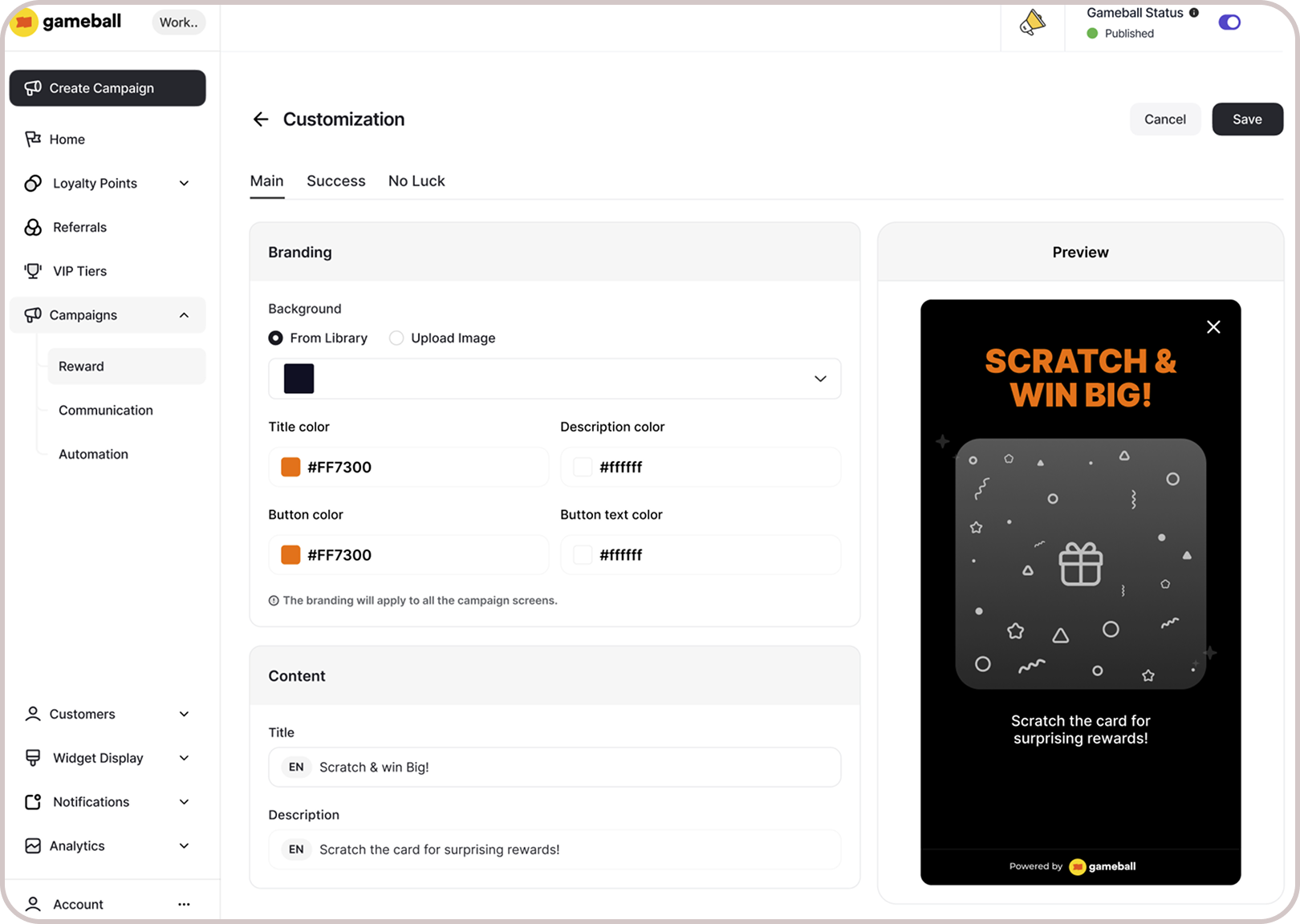
Customization
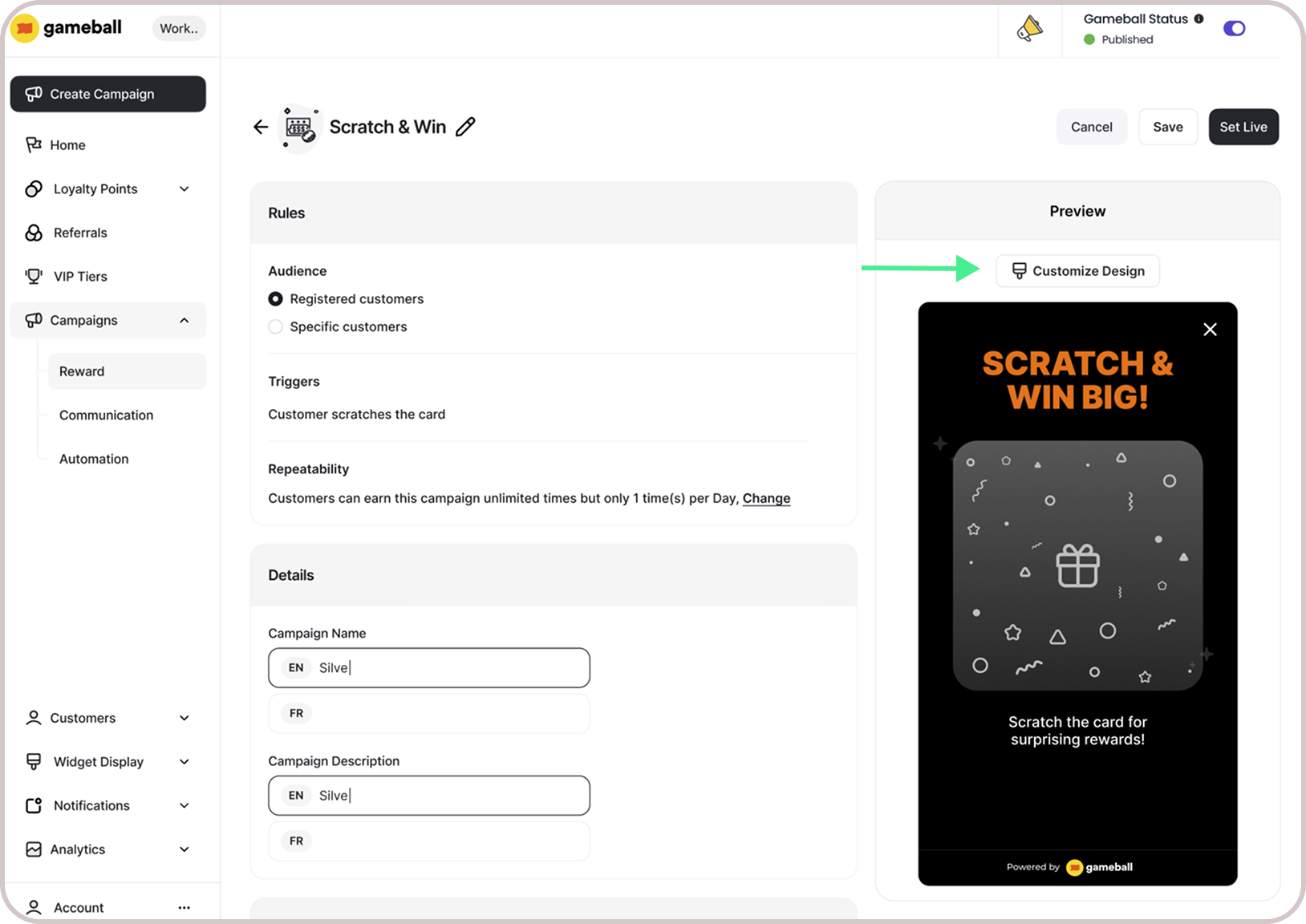
Design & Content You can fully customize each stage of the campaign through dedicated tabs representing the different screens in the flow:- Banner (For game-based campaigns)
- Intro / Main Screen
- Lead Form (if audience set to Anonymous Customers - Not logged in)
- Success Screen
- No Luck Screen
- Branding: Adjust background colors, text colors, and upload custom artworks.
- Content: Edit the headlines, descriptions, and call-to-action messages to match your tone and messaging.
Important Notes
Customer EligibilityGames in the widget update dynamically based on customer eligibility, ensuring customers only see games they can still participate in.Games are hidden when customers become ineligible.If a customer no longer belongs to the game’s target segment, the game is automatically removed from the widget and won’t reappear unless eligibility is restored.
Related Articles
Set up a reward campaign
Step-by-step guide to configuring any reward campaign.
Reward types in Gameball
Explore the different reward types you can offer customers.
Notification after earning a reward
Configure how customers are notified when they earn a reward.