

| Platform | Plan |
|---|---|
| Shopify | Add-on |
| Salla | Add-on |
| Non-Platform | Add-on |
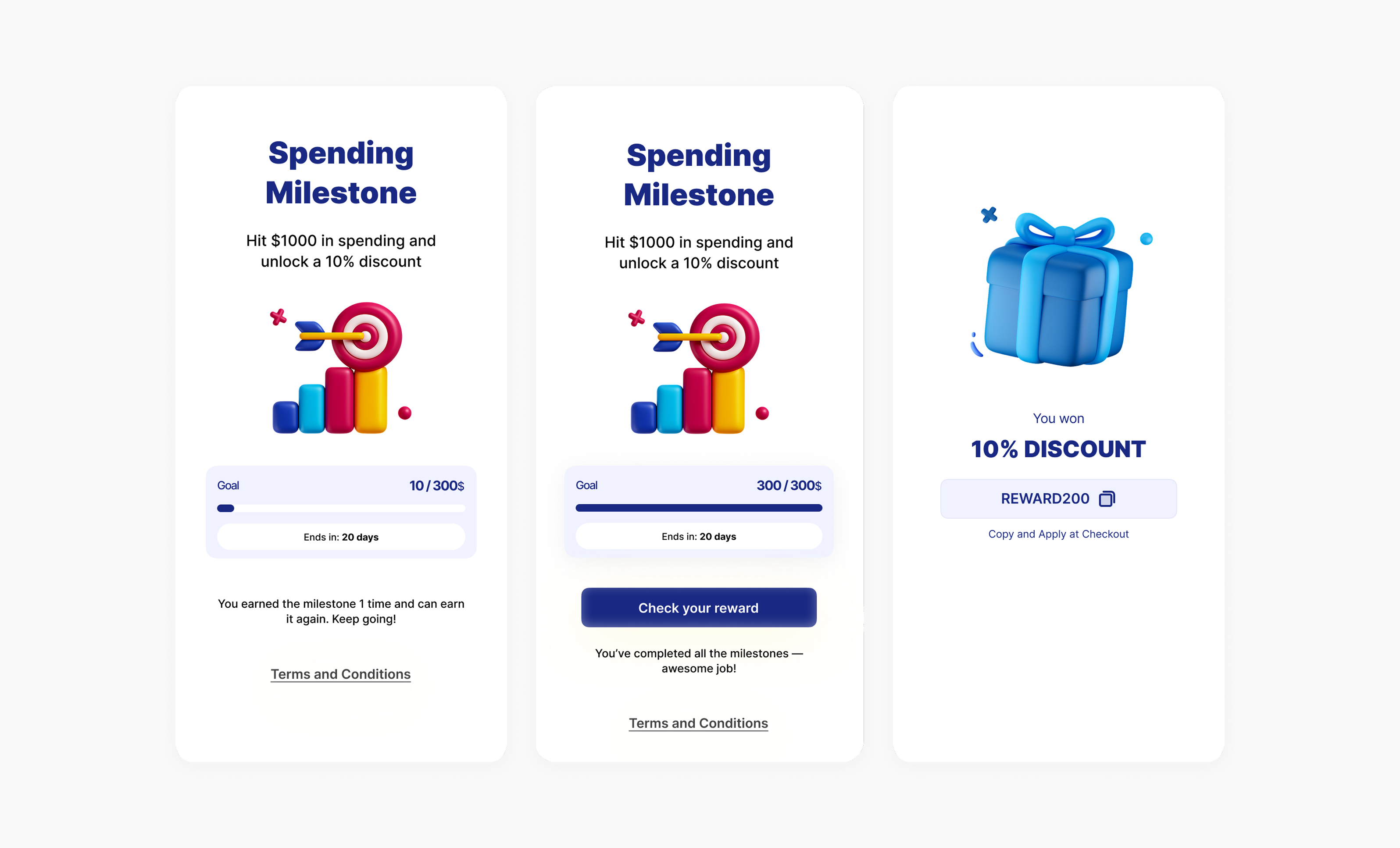
- Spending Milestones Reward based on total spend within a period. Example: “Spend 100 gift card.”
- Collection/Tag/SKU/Branch-Specific Milestones Only spending on a chosen collection/category/SKU counts. Example: “Spend 50 off your next order.”
- Items-Purchased Milestones (count) Reward by quantity of items, regardless of price. Example: “Buy 10 items and get 20% off next order.”
How to Set Up
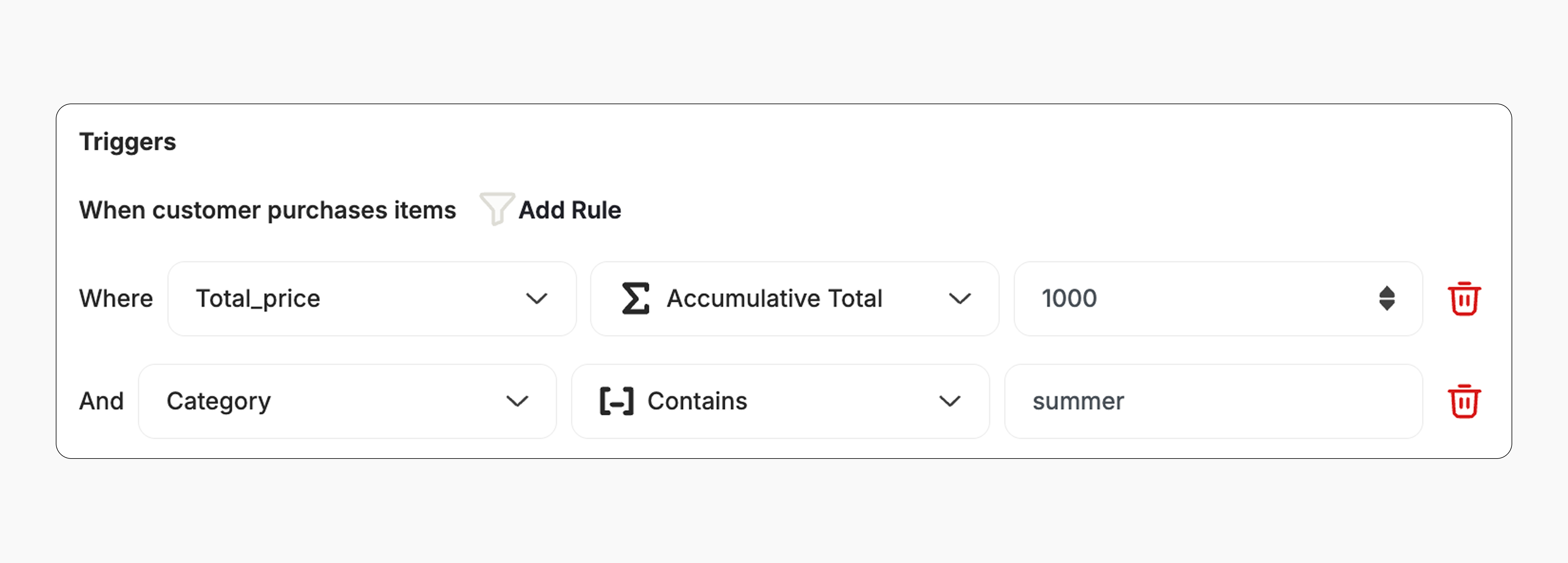
Campaign Trigger
How It Works for Customers
Begin Milestone
A customer begins the milestone by placing an order that meets the configured conditions.
Milestone Completed
Once the milestone is completed, the configured reward is issued immediately (e.g., points, discount, badge).
Customization
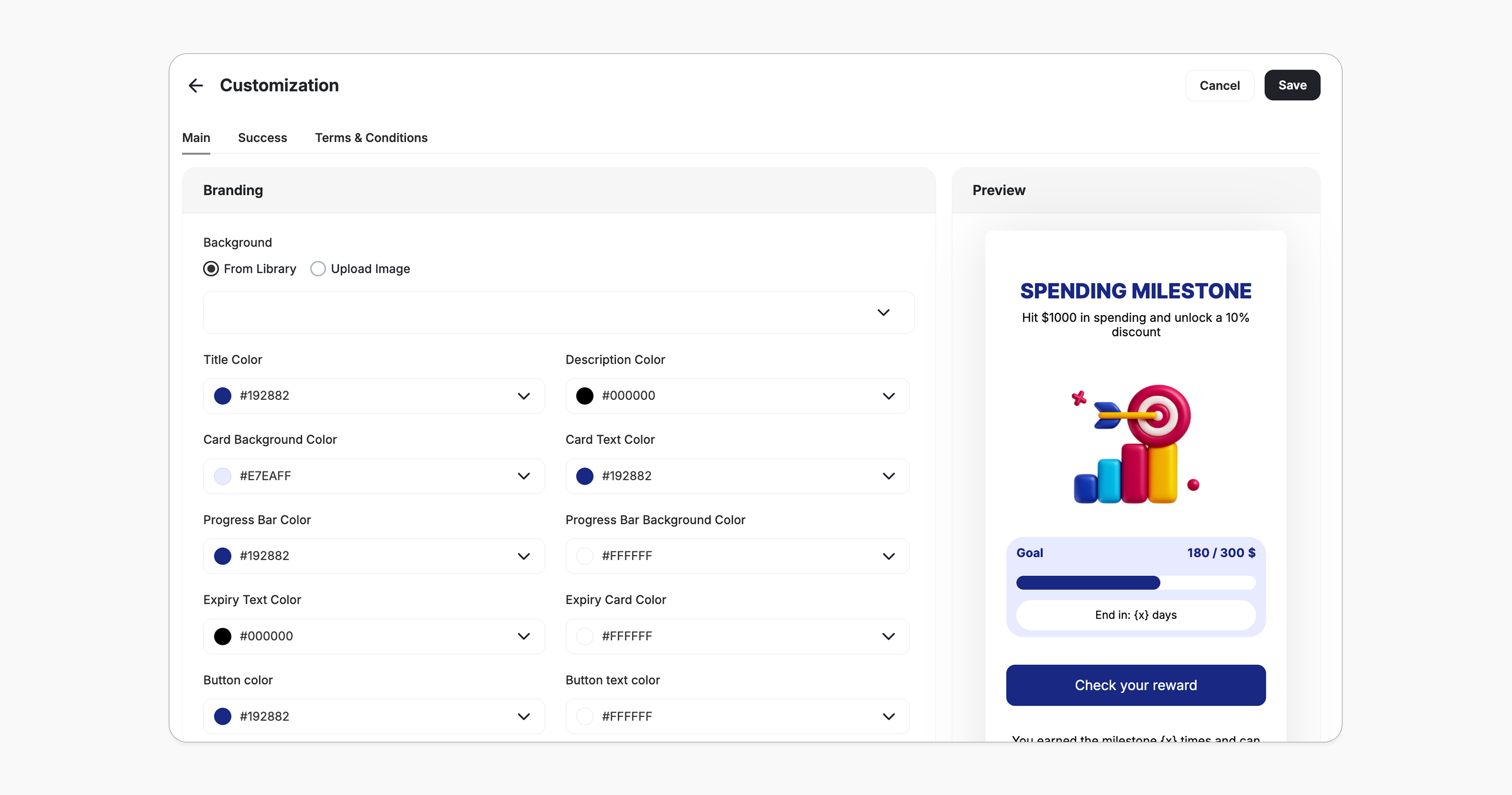
Design & Content You can fully customize each stage of the campaign through dedicated tabs representing the different screens in the flow:- Main Screen
- Success Screen
- Terms & conditions
- Branding: Adjust background colors, text colors, and upload custom artworks.
- Content: Edit the headlines, descriptions, and call-to-action messages to match your tone and messaging.
Related Articles
Set up a reward campaign
Step-by-step guide to configuring any reward campaign.
Reward types in Gameball
Explore the different reward types you can offer customers.
Notification after earning a reward
Configure how customers are notified when they earn a reward.