

| Platform | Plan |
|---|---|
| Shopify | Pro & Guru |
| Salla | Pro & Guru |
| Non-Platform | Add-on |
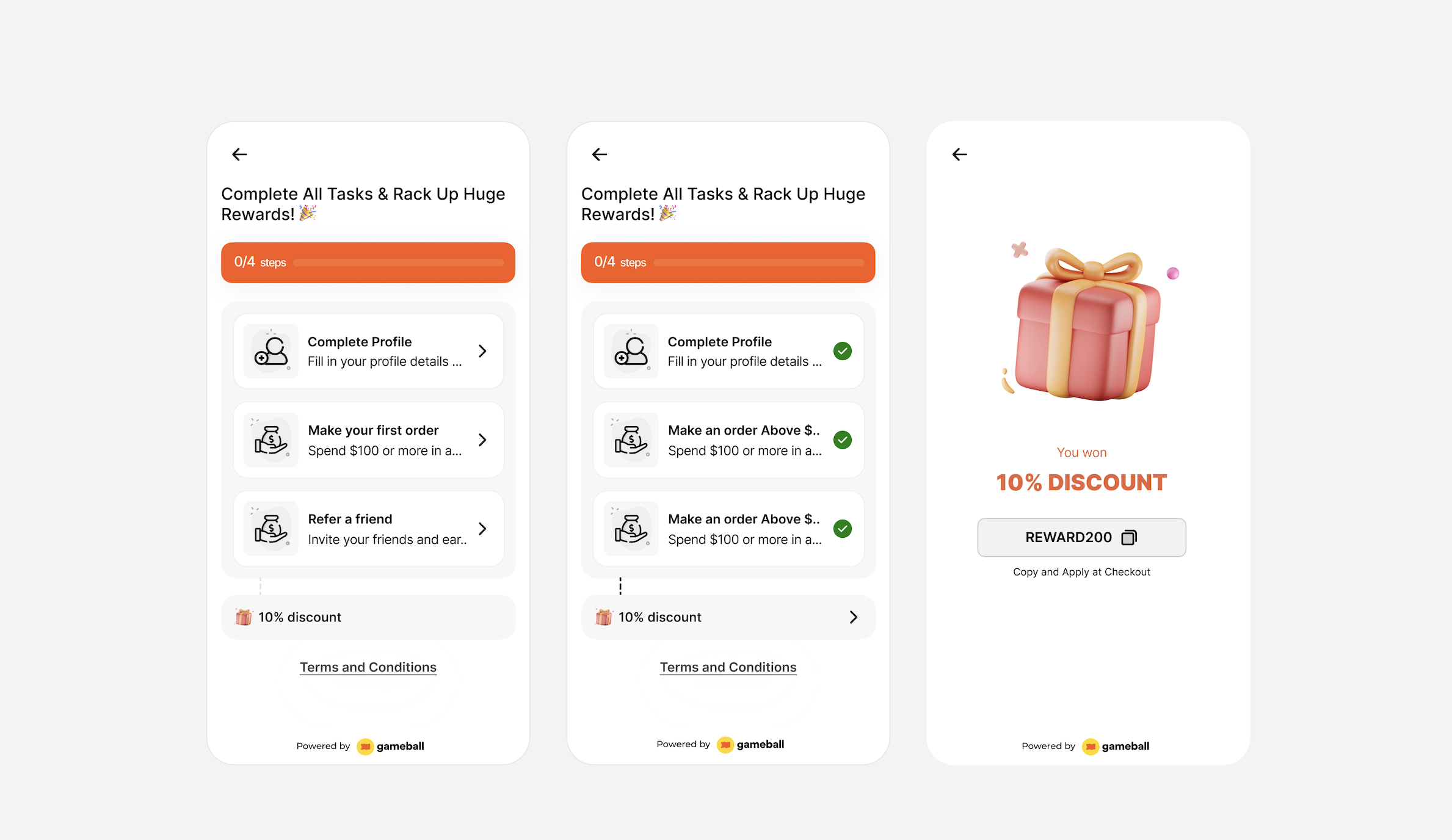
- User Onboarding Complete “Create Account,” “Verify Email,” and “Place First Order”.
- Complete Your Profile “Upload profile picture”, “Add address” and “Add payment method”.
- Repeat Purchase Encouragement “Place Second Order”, “Purchase with min-value $100”, and “Leave a Review”.
- Milestone Engagement “Make a $100 purchase,” “Add 3 items to cart,” and “Refer a friend.”
How to Set Up
Campaign Trigger
TasksChoose Task Action
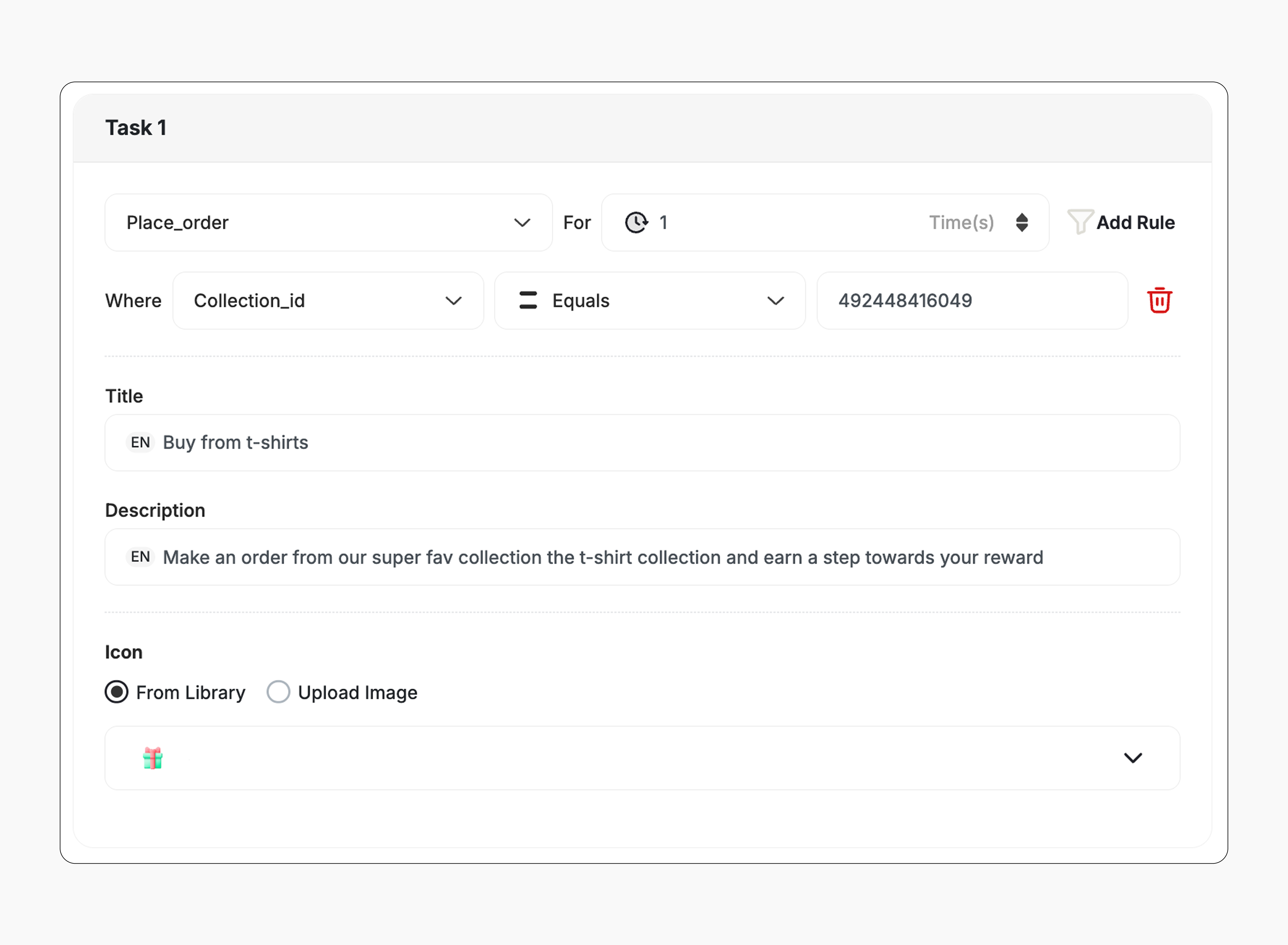
You can define an event for each task, such as placing an order, visiting a product page, and so on.
Add Rules (Optional)
You can add rules for each event — for example:
- Specific order value
- Specific product/category requirement
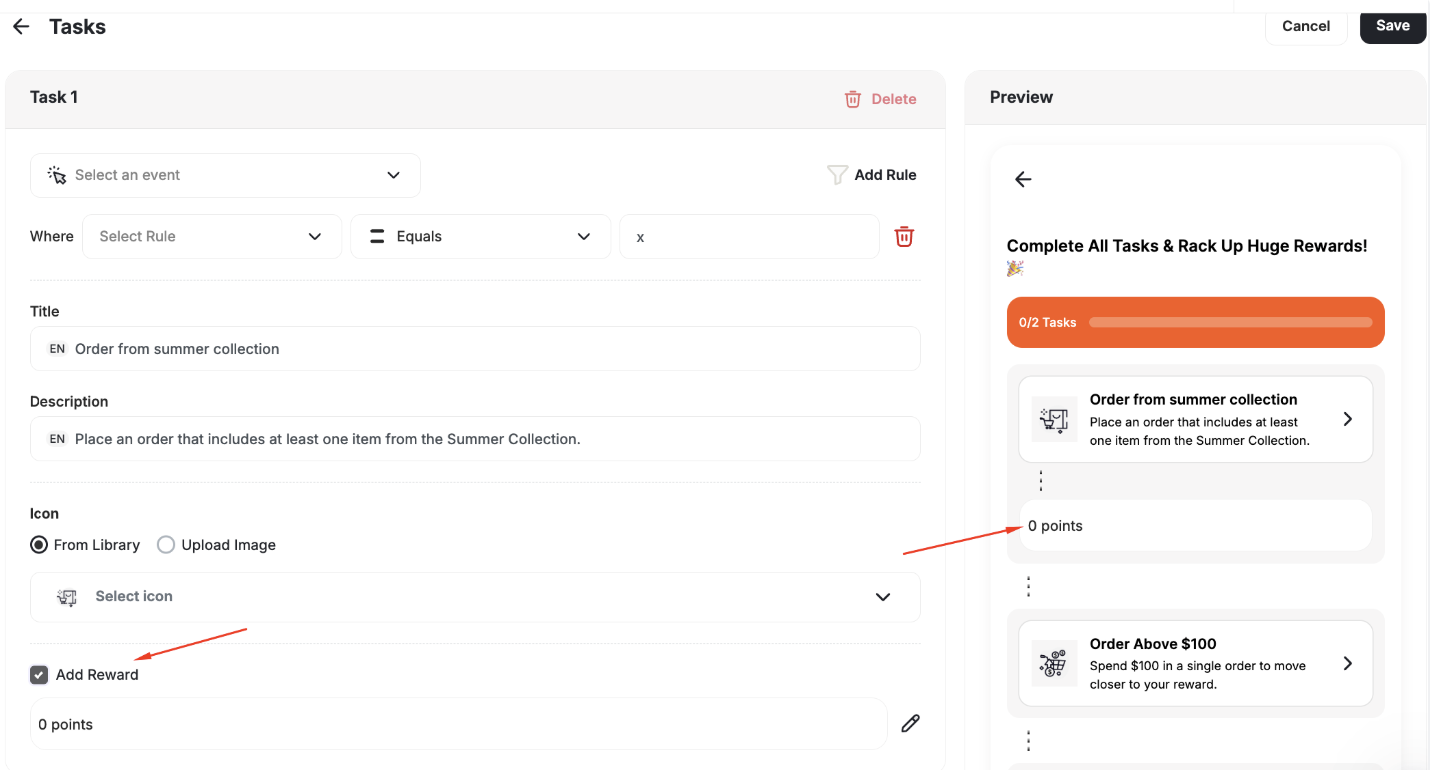
- Task rewards can be configured independently per task.
- If no task reward is set, it only contributes to overall mission progress and no immediate reward is granted until the end of the mission.
- No repeatability option.
How It Works for Customers
Start Mission
The customer can start the mission by completing any of the required tasks (e.g., creating an account, placing an order).
Earn Final Reward
After completing all tasks, the customer receives the reward immediately (points, discount, badge — based on your setup).
Customization
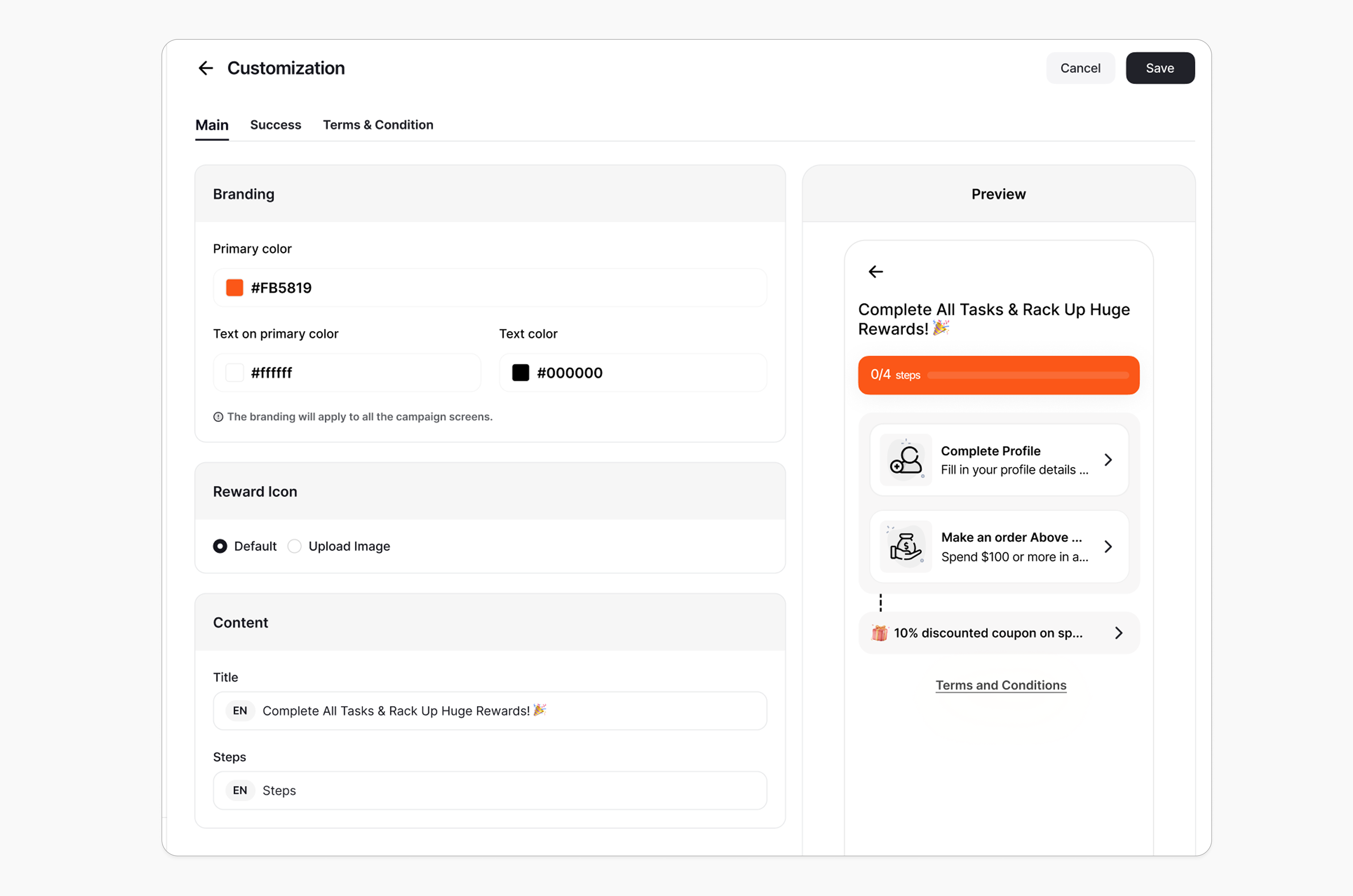
Design & Content You can fully customize each stage of the campaign through dedicated tabs representing the different screens in the flow:- Main Screen
- Success Screen
- Terms & conditions
- Branding: Adjust background colors, text colors, and upload custom artworks.
- Content: Edit the headlines, descriptions, and call-to-action messages to match your tone and messaging.
Editing a Live Mission
Editing a live mission should be done with care to ensure a smooth experience for your customers. Below, we break down each scenario and its impact.Editing a Task
Editing task Content:- If a customer changes (title, image, description), it is instantly updated for all users, regardless of progress.
- If the user has already completed the task, their task remains marked as completed.
- If the task is not yet completed, the updated event/condition will take effect. Any progress already made will be preserved, and the user must fulfill the remaining requirement based on the new condition.
Example:
Task: Spend $1000 on Collection A
- A user spends $500 before the customer updates the task to Collection B.
- The 500 on Collection B** to complete the task.
Deleting a Task
Impact on Customers In Progress:- If a task is deleted while some users are still in progress, the task will be removed from their task list. Their overall progress will be recalculated. If this were their only pending task, the campaign would be marked as complete, and the final reward would be granted.
- Deleted tasks will continue to appear in both the analytics and customer task lists, but without a specific task number. They will be clearly labeled as “Deleted”.
Adding a New Task
- If the mission is already completed, the newly added task will not appear for the customer, and the mission will remain marked as earned.
- If the mission is still in progress, the new task will be visible, and the customer must complete it along with the others to earn the reward.
De-activate
- Customer progress is saved.
- Any actions performed while the campaign is inactive will not be counted toward the campaign.
Re-activate
Customers resume from the last saved state. Progress continues as normal.Task Overlap Handling
A single customer action can fulfill multiple tasks at once.- For example, if a player makes a $200 purchase with 5 items, it can simultaneously complete two tasks:
- Task A: Spend $200
- Task B: Buy 5 items
Related Articles
Set up a reward campaign
Step-by-step guide to configuring any reward campaign.
Reward types in Gameball
Explore the different reward types you can offer customers.
Notification after earning a reward
Configure how customers are notified when they earn a reward.