

| Platform | Plan |
|---|---|
| Shopify | All Plans |
| Salla | Not Available |
| Non-Platform | Not Available |
How to Set Up
On Gameball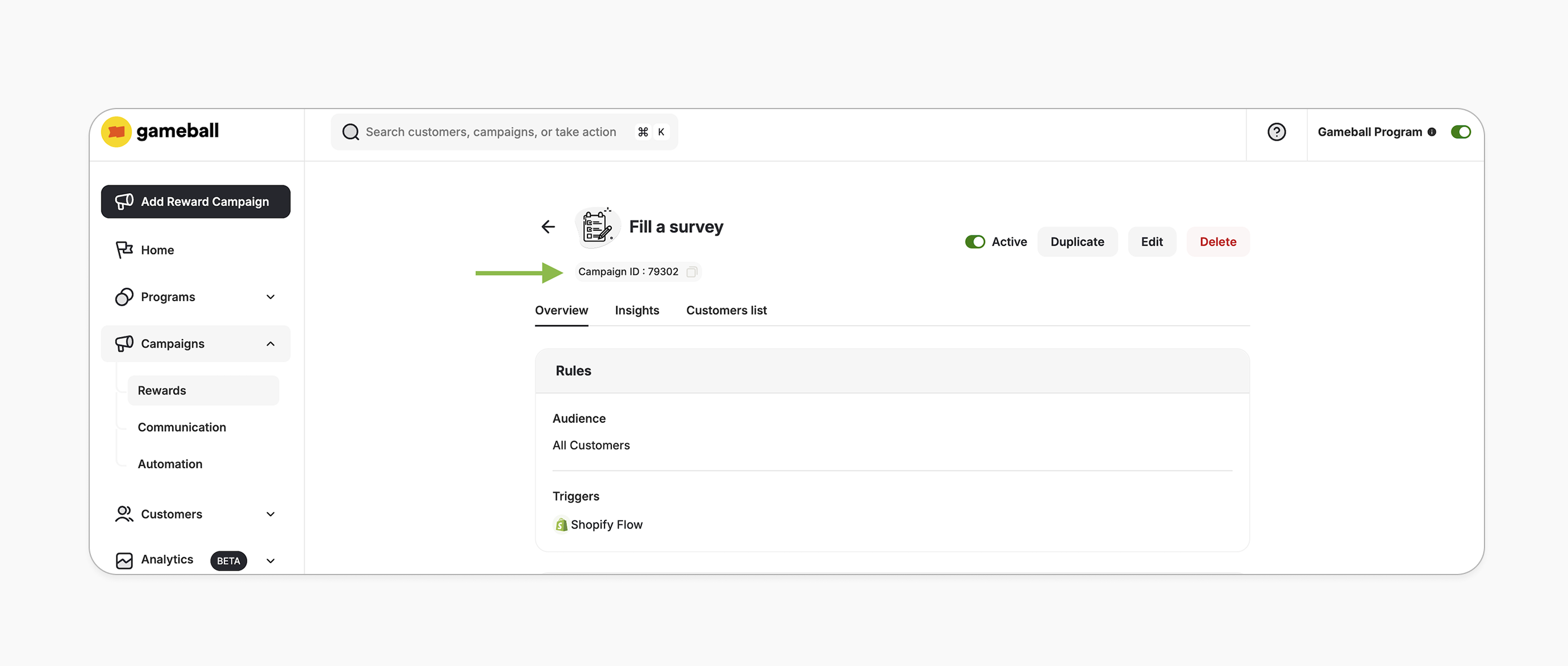
Campaign Trigger
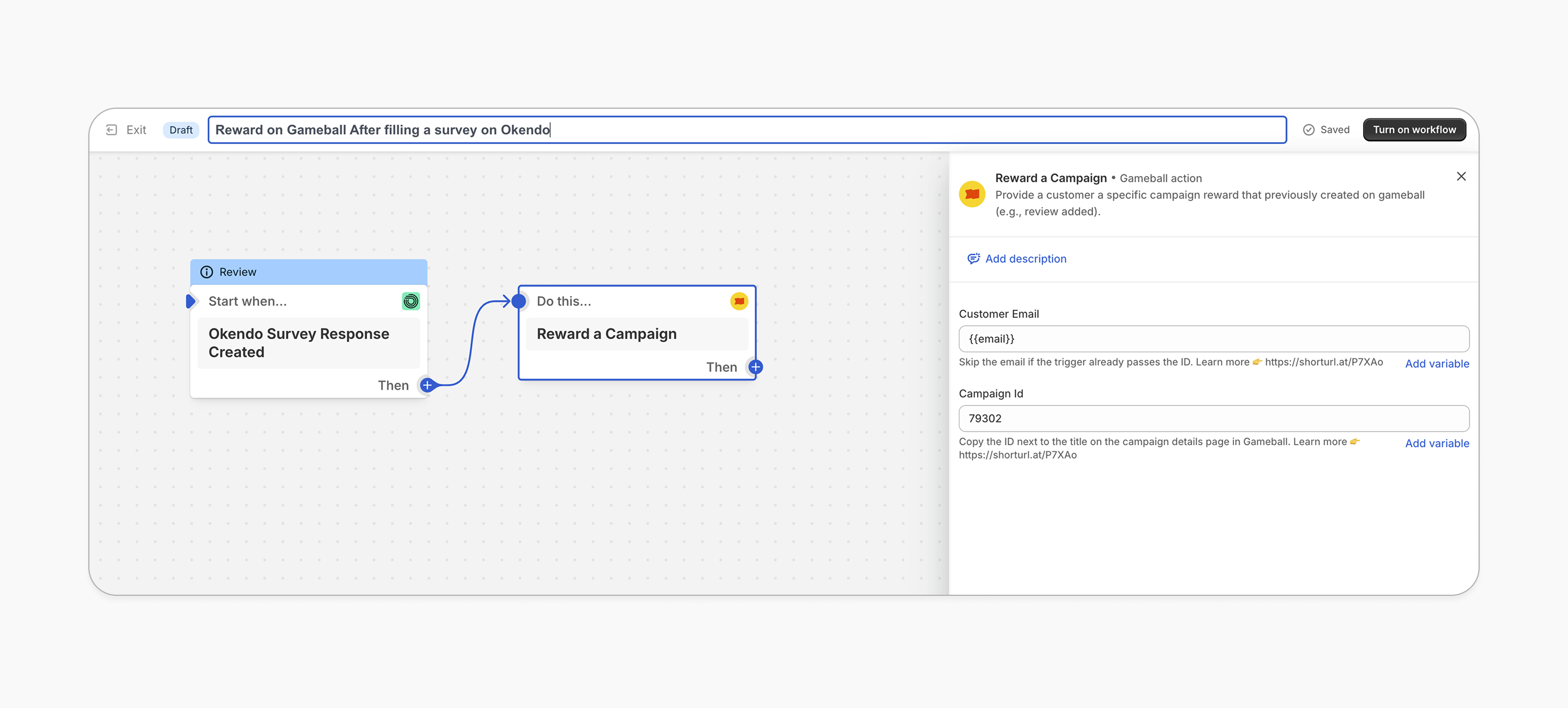
On Shopify FlowChoose Trigger
Choose “Okendo Survey Response Created” as the trigger (or another relevant app trigger).
Add Customer Email
Add the customer email if the trigger doesn’t pass the customer identifier automatically. See the important notes below for more details.
Add Reward Action
Add the “Reward a Campaign” action and paste the Campaign ID you copied from the campaign details page.
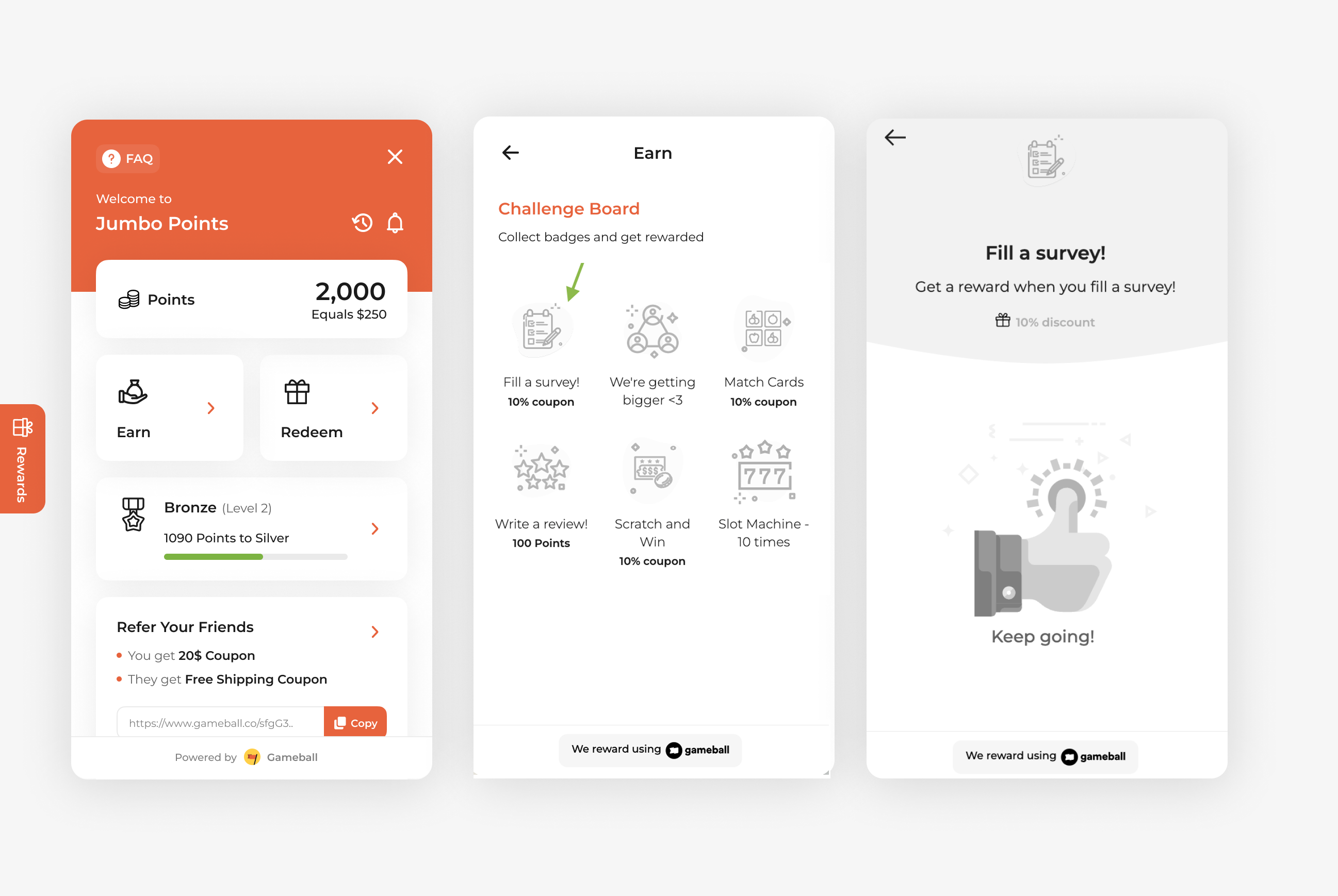
How It Works for Customers
Notification
The customer is notified via the widget or email, depending on your configuration. Learn more.
Important Notes
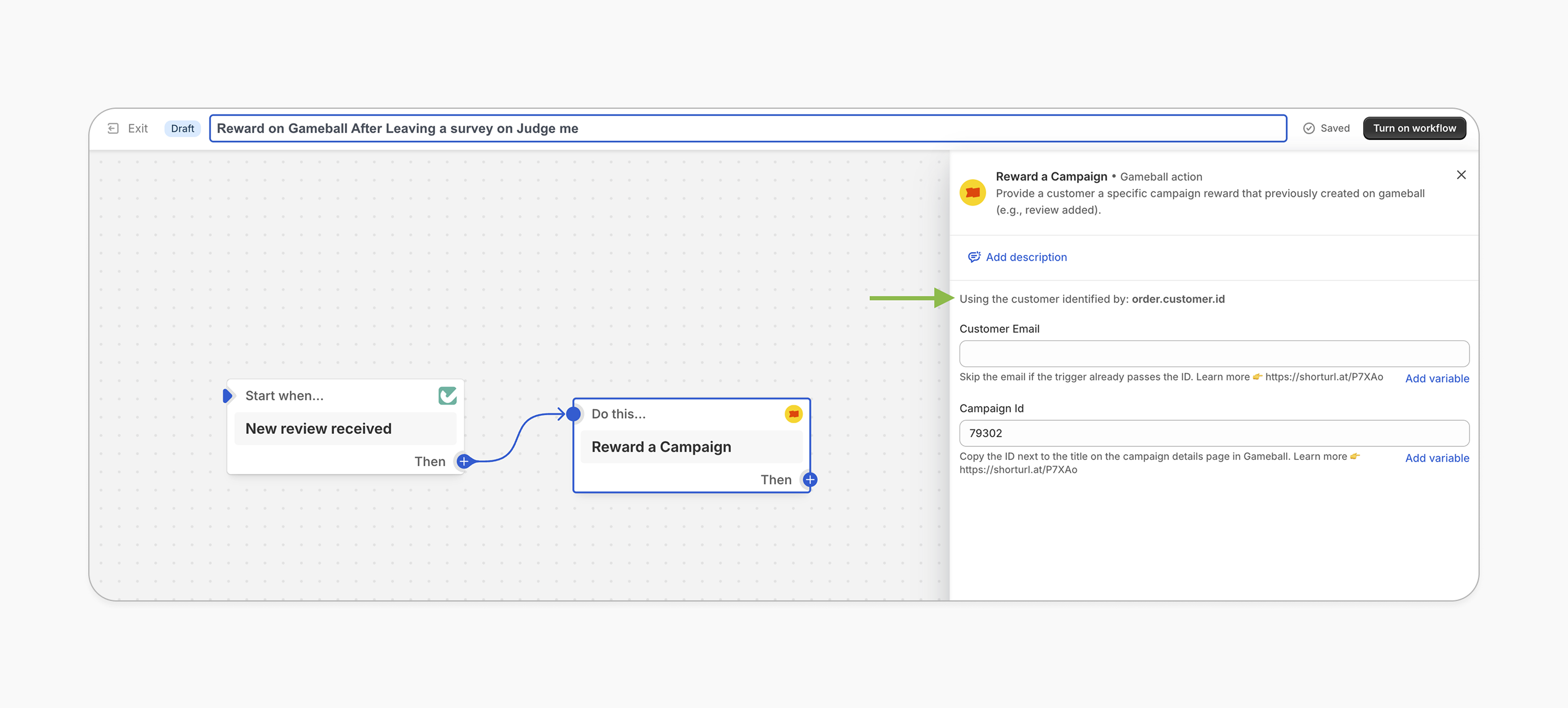
Skip Email FieldWhen setting up Gameball as an action in Shopify Flow, you may not need to fill in the email field if the trigger app already passes the customer identifier automatically. In this case, the identifier will appear just above the email field.
Related Articles
Shopify Flow Guide
Learn how to build Shopify Flow workflows with Gameball.
Set up a reward campaign
Step-by-step guide to configuring any reward campaign.
Reward types in Gameball
Explore the different reward types you can offer customers.
Notification after earning a reward
Configure how customers are notified when they earn a reward.