

| Platform | Plan |
|---|---|
| Shopify & Self Serve | All New Plans (Not available on any legacy plan) |
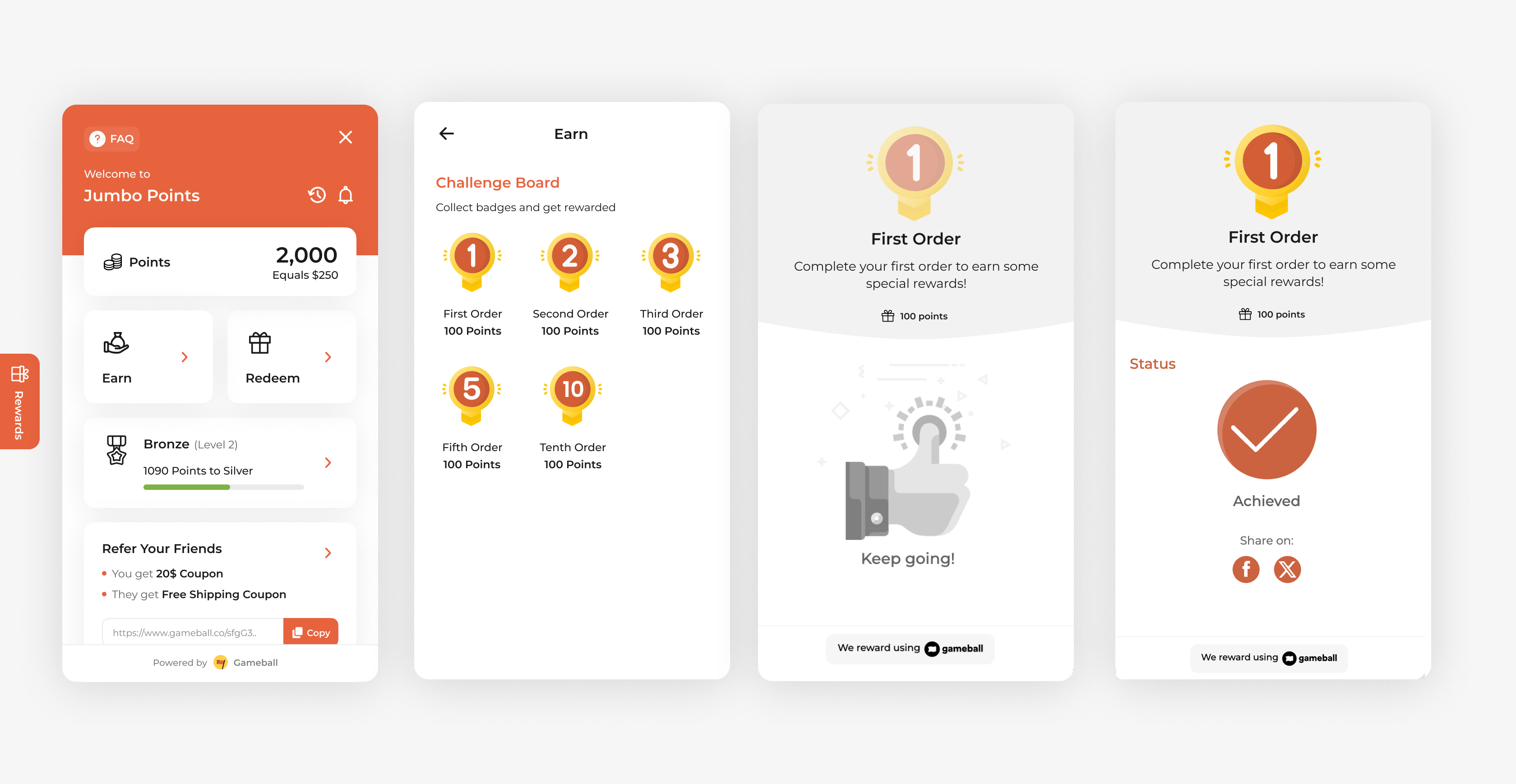
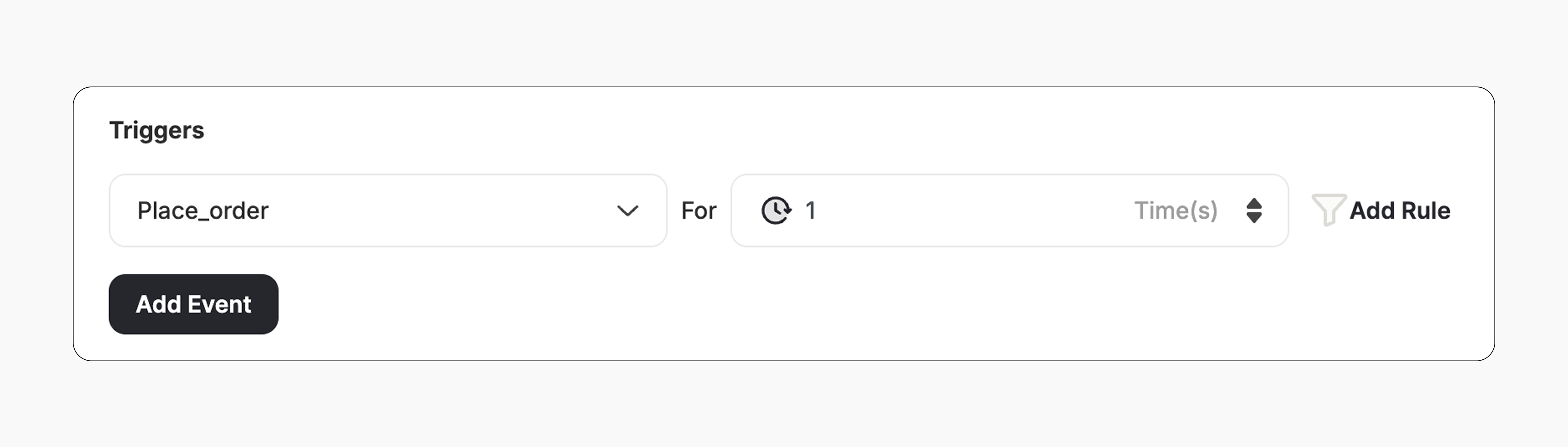
Subscribe to Newsletter (for Shopify Users)
Encourage customers to give you their emails as approval for their subscription to your newsletter. Once the customer writes down their emails, they will automatically be marked as subscribed on Shopify. You can customize a reward that is convenient for this approval. For example, you can reward them with 10% off for doing so.How to Set Up
Choose Your Audience
Select the audience for the campaign from the following options: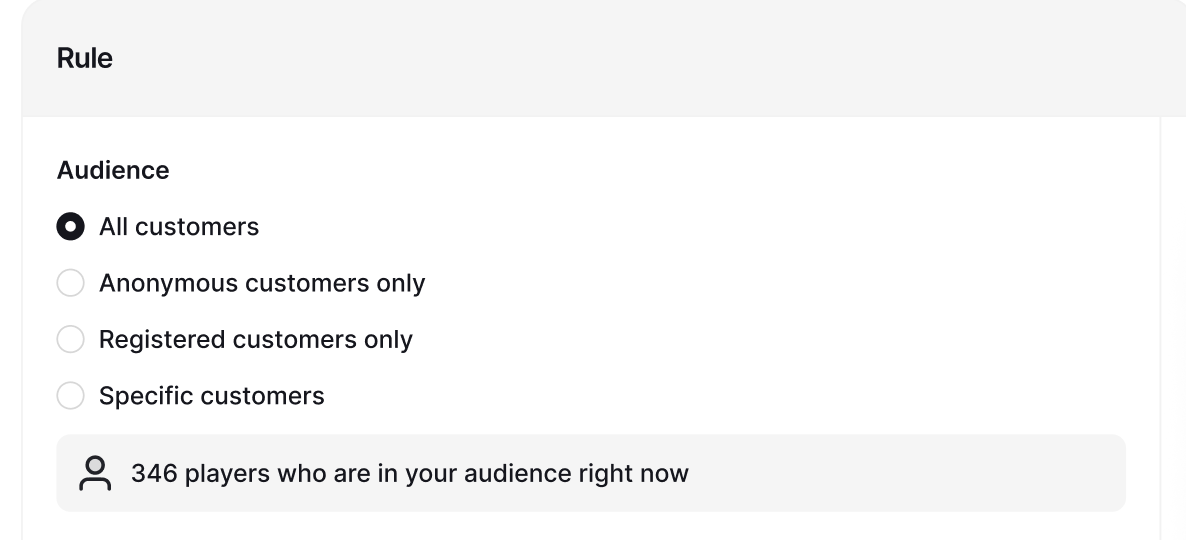
- All customers (This includes Anonymous and Registered visitors)
- Anonymous customers only
- Registered customers only
- Specific customer segments
Set Trigger Delay
Set a delay to your Trigger if needed. Select when the pop-up should appear: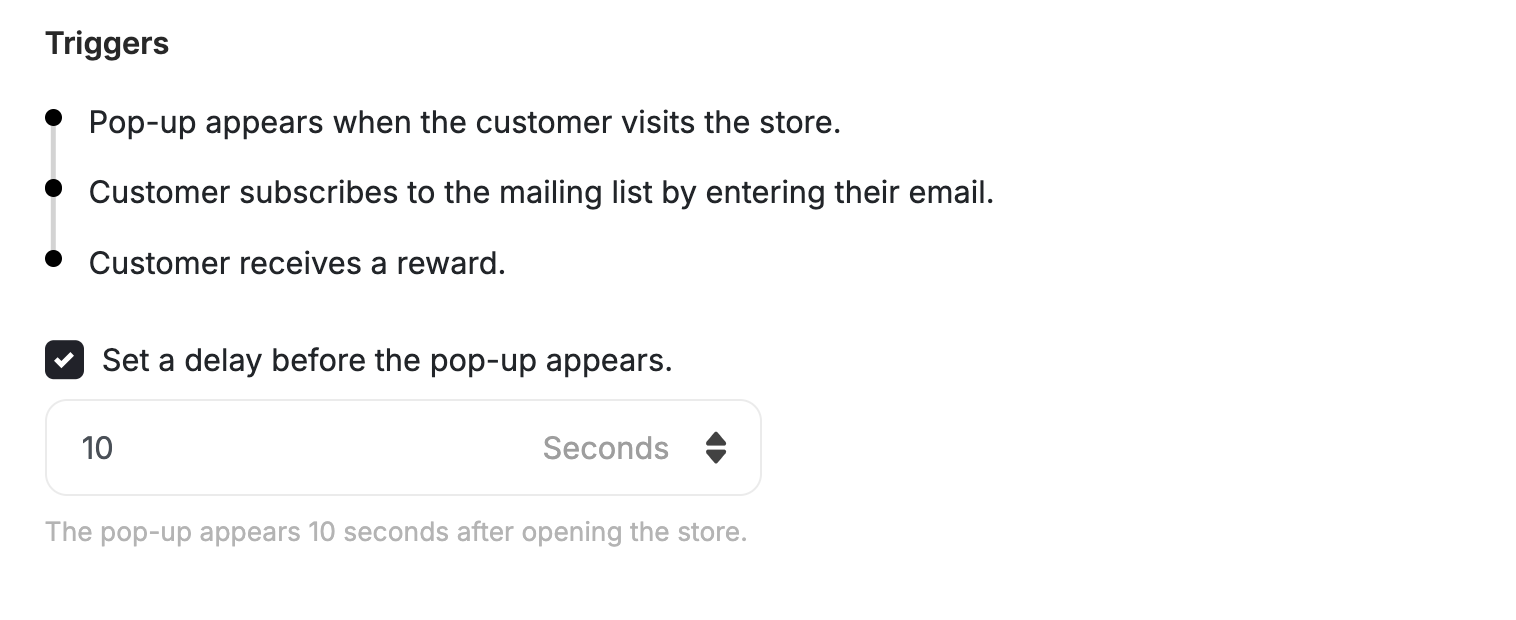
- Immediately (Default)
- After a delay: you can specify the number of seconds for the delay (e.g., 5 seconds).
- Display frequency: The pop-up will be shown once per session. This means that the customer will not be seeing this more than once unless they completely close their browser and open it in a new session.
- If a customer is eligible for more than one newsletter subscription campaign, they will only be rewarded the first time they give their email address.
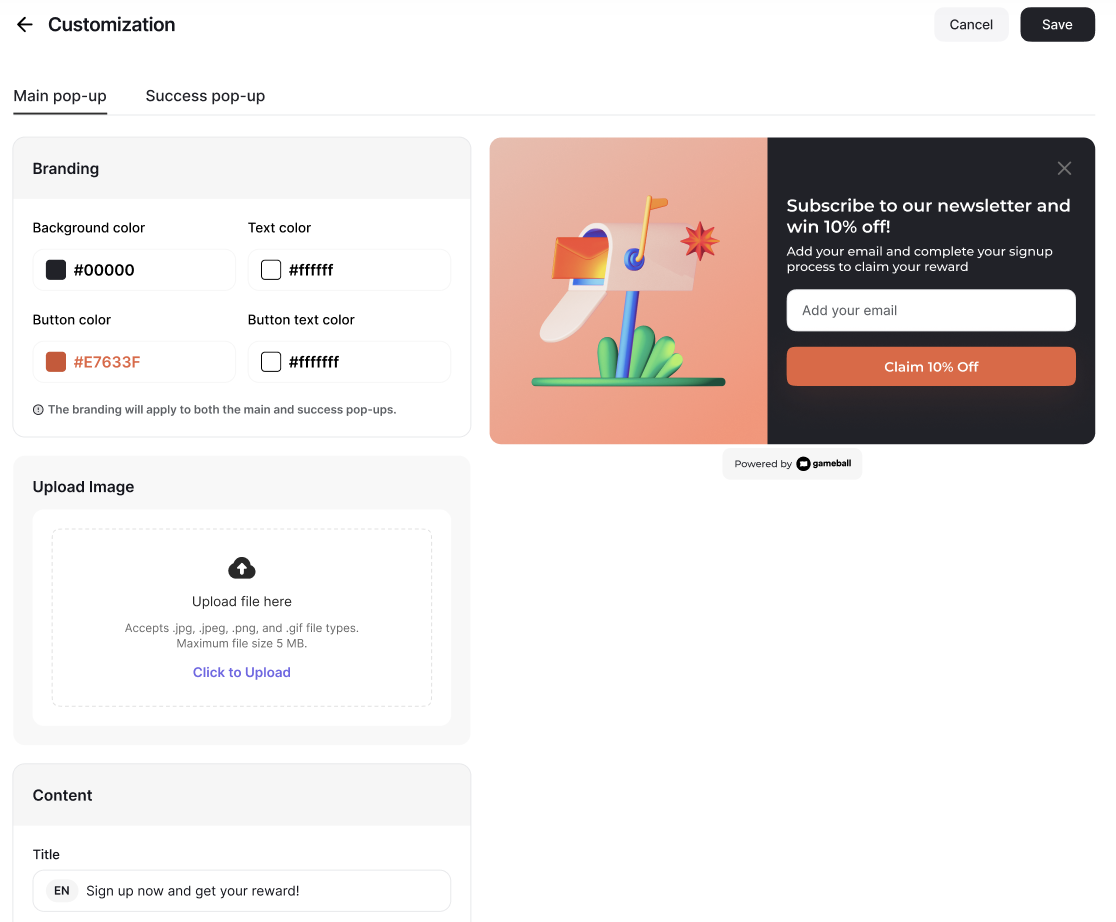
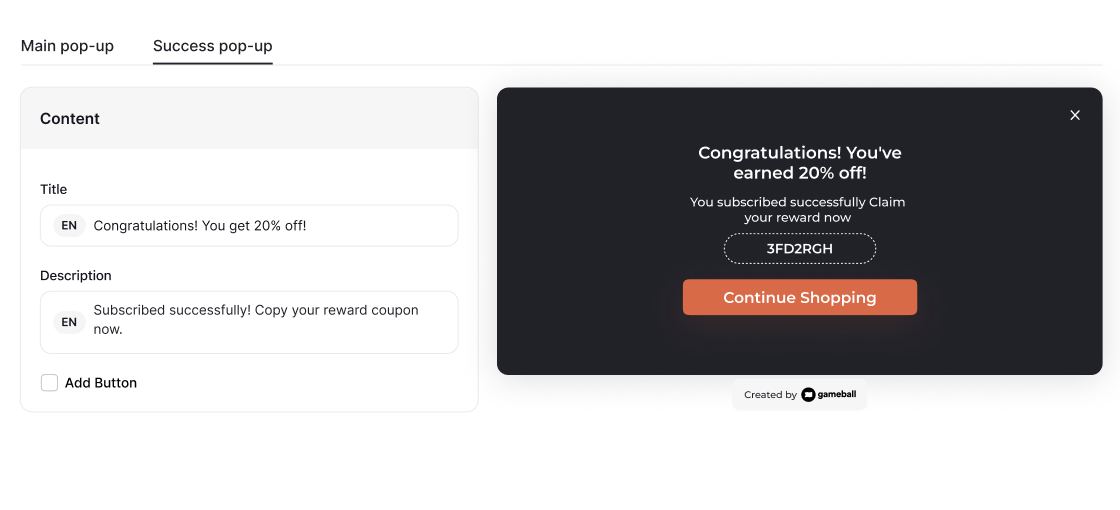
Customize Your Pop-up
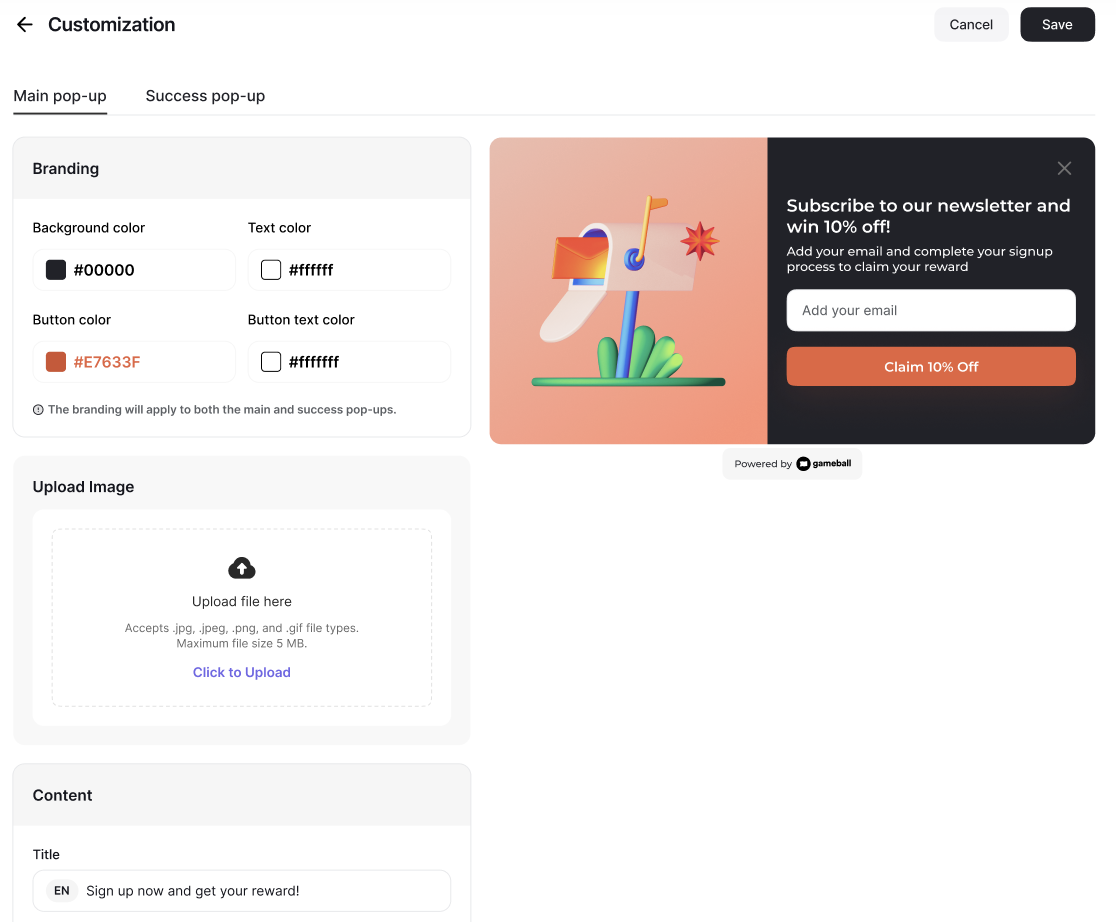
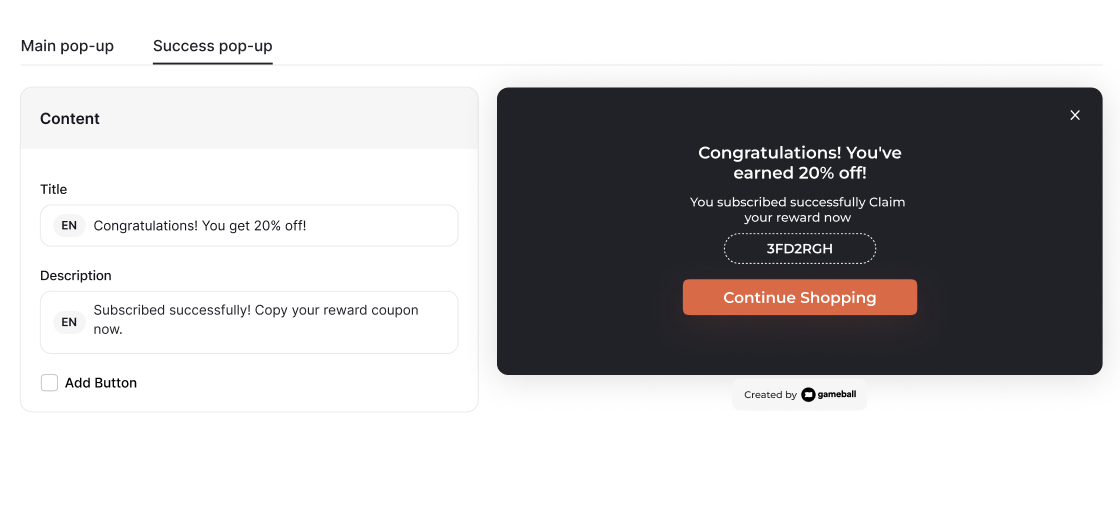
Create the content, look and feel of the pop-up so that it is clear and helpful. Choose Customize Design.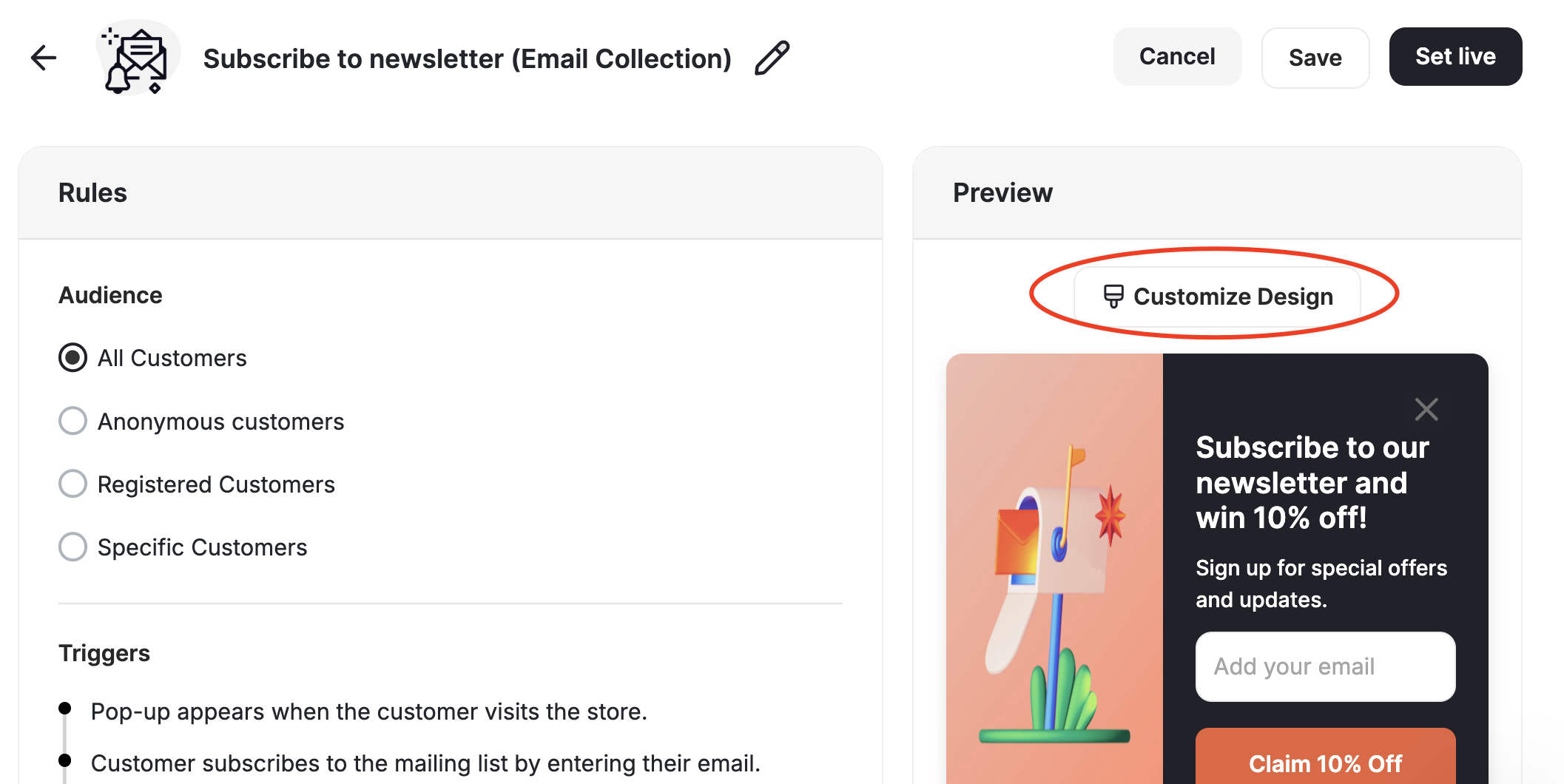
Unlock x% of Your First Order
Similarly, incentivize customers especially visitors who have not signed up yet to give their emails by rewarding them with a discount when doing so.How to Set Up
Choose Your Audience
Select the audience for the campaign from the following options: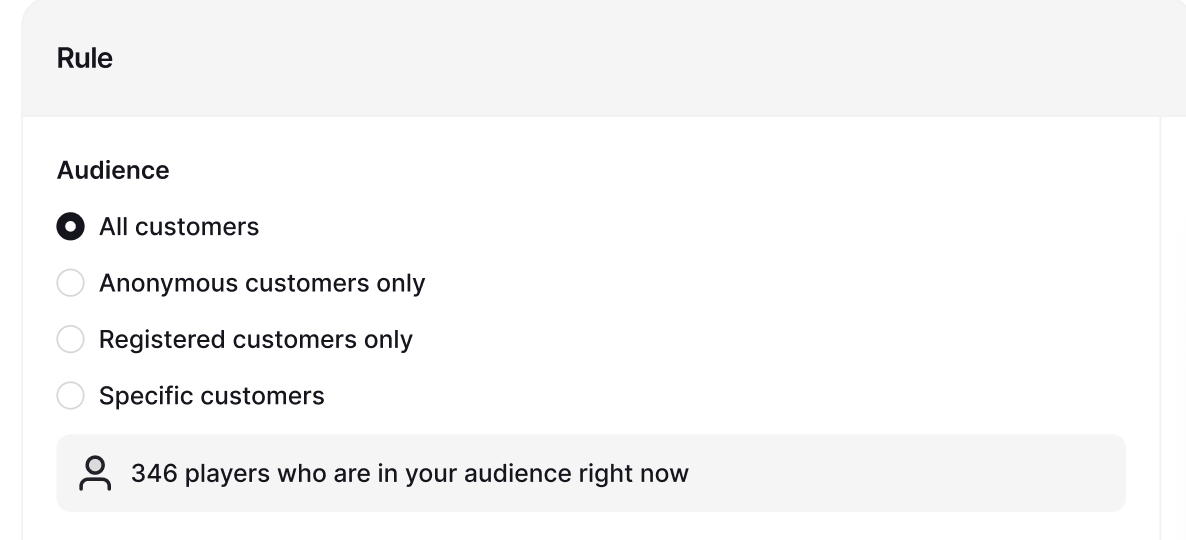
- All customers (This includes Anonymous and Registered visitors)
- Anonymous customers only
- Registered customers only
- Specific customer segments
Set Trigger Delay
Set a delay to your Trigger if needed. Select when the pop-up should appear: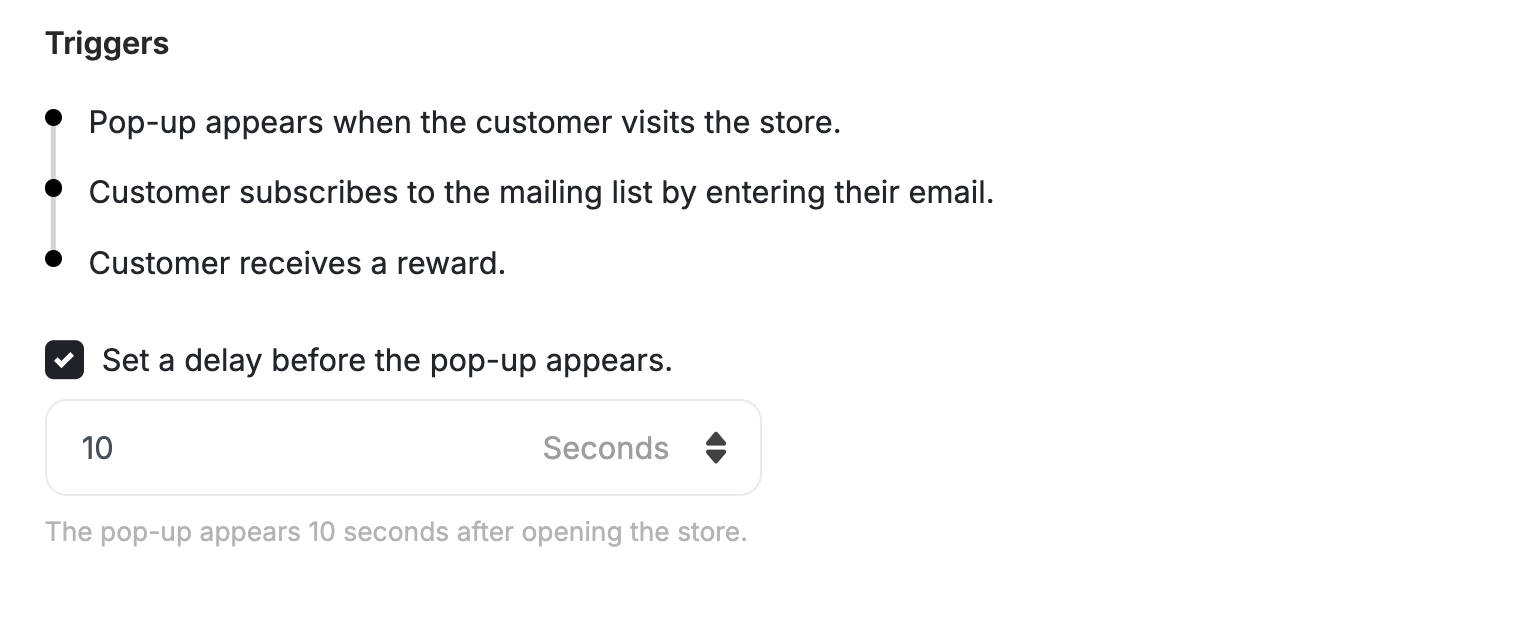
- Immediately (Default)
- After a delay: you can specify the number of seconds for the delay (e.g., 5 seconds).
- Display frequency: The pop-up will be shown once per session. This means that the customer will not see this more than once unless they completely close their browser and open it in a new session.
- If a customer is eligible for more than one newsletter subscription campaign, they will only be rewarded the first time they give their email address.
Configure Campaign Settings
Choose Your Audience and edit your trigger by adding the Collection ID to the Place Order event that is already set up.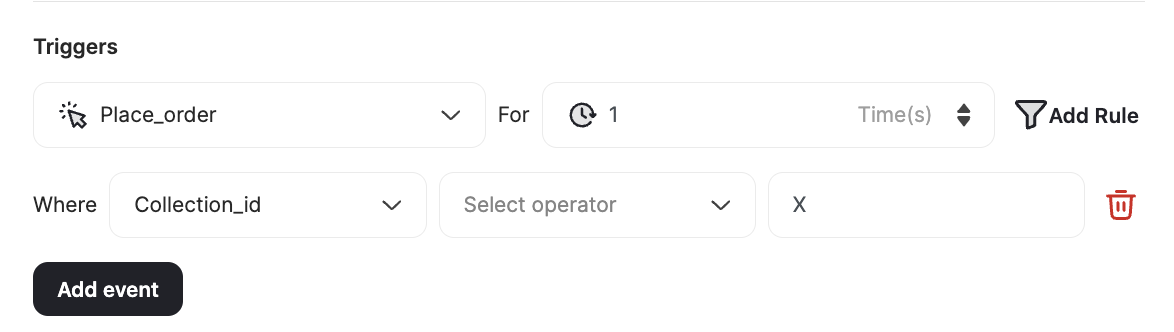
Customize Your Pop-up
Create the content, look, and feel of the pop-up so that it is clear and helpful. Choose Customize Design.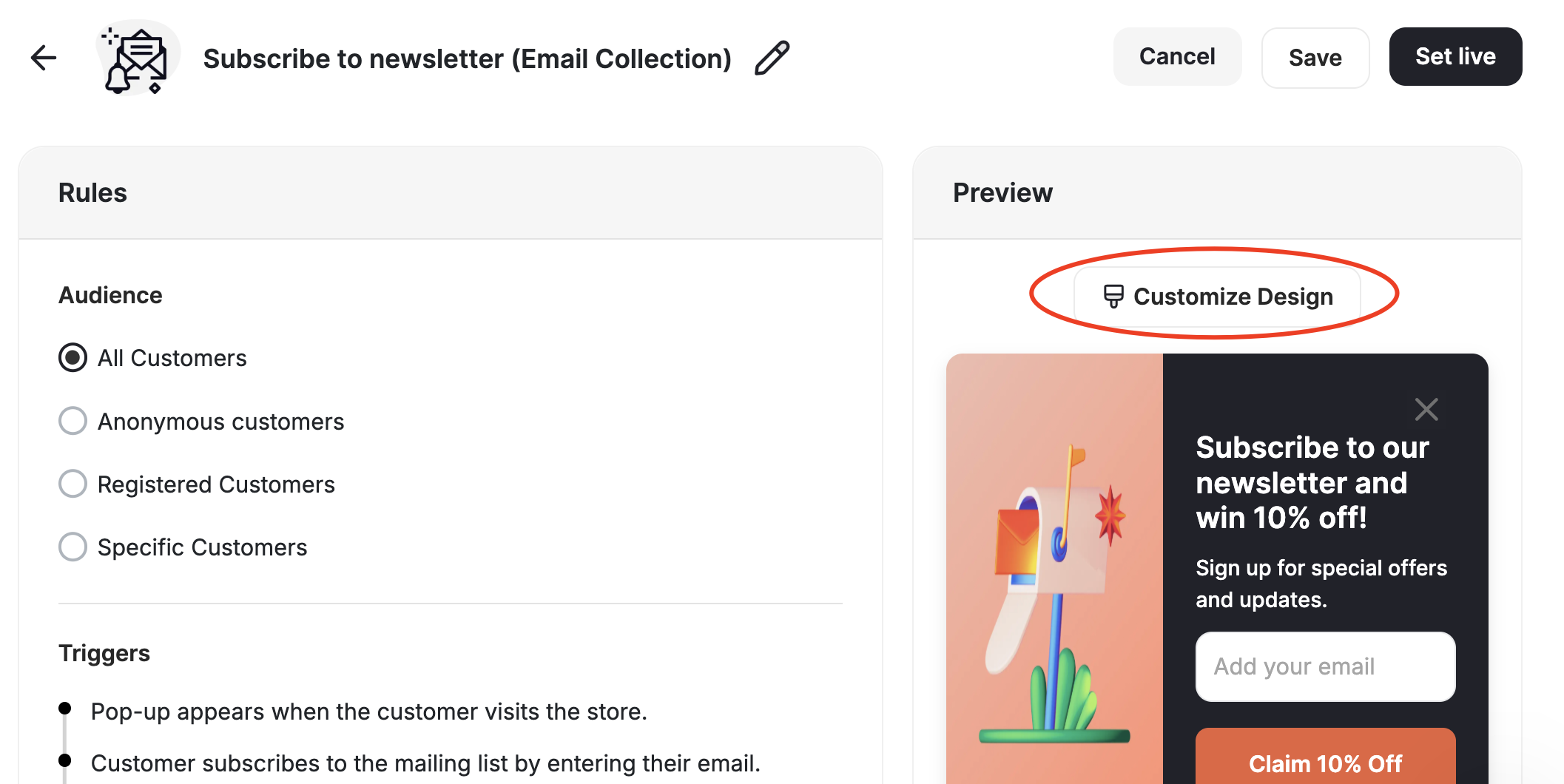
Review Campaign Insights
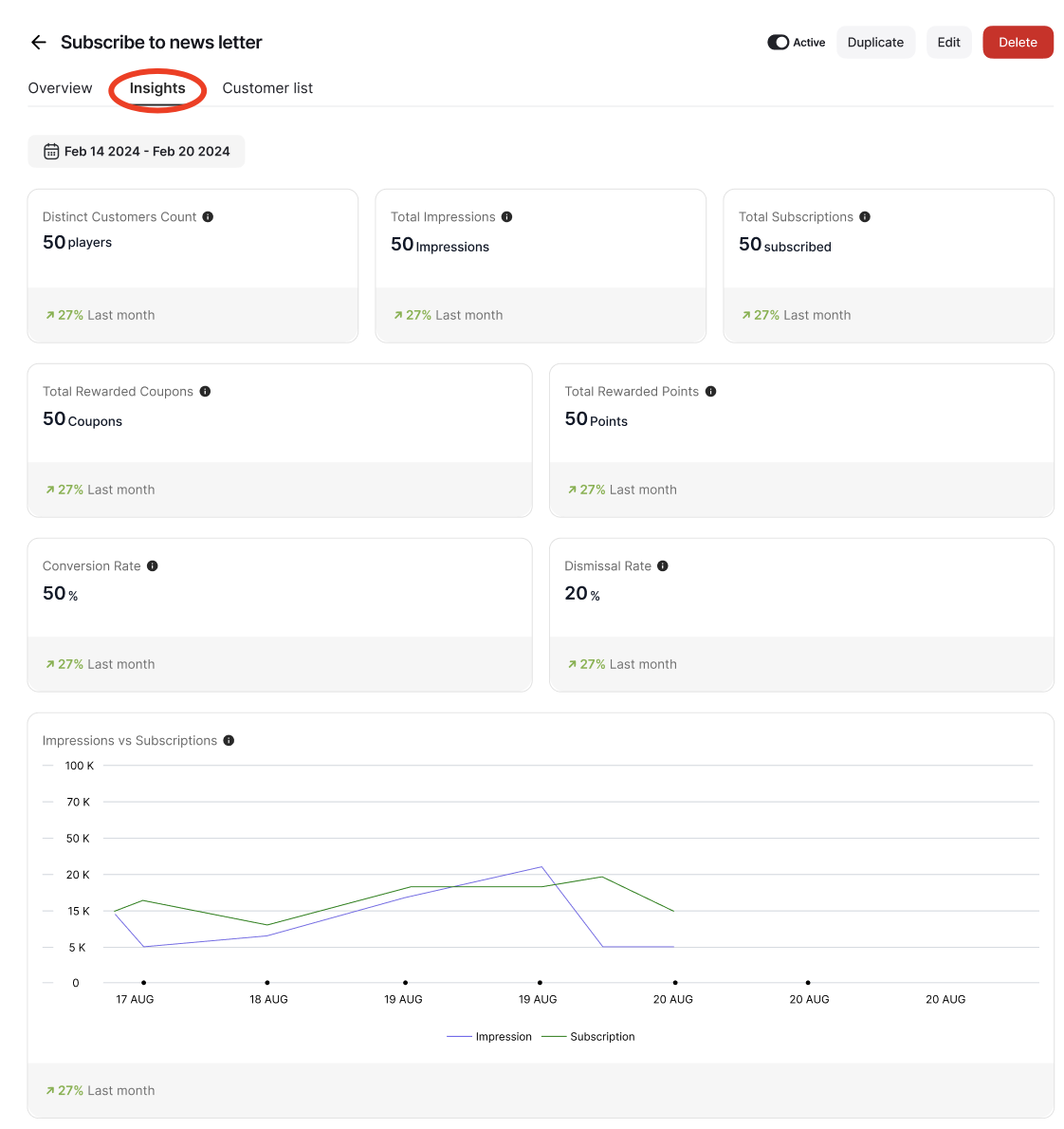
Choose Insights to see how the campaign is doing in terms of performance.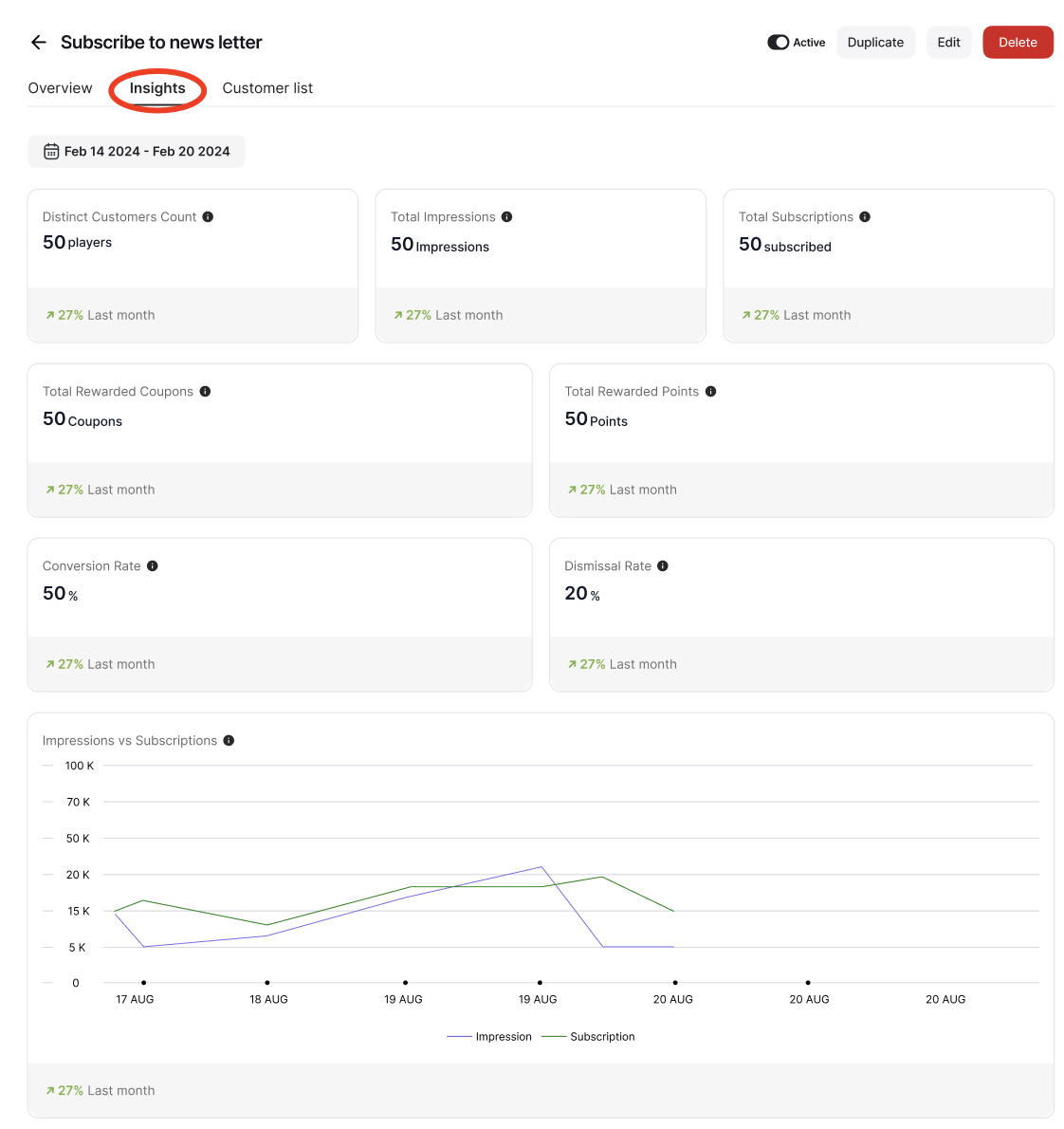
- Distinct customers Count: Unique players achieved this campaign.
- Total Impressions: Total Number of pop-up views.
- Total Subscriptions
- Total Rewarded Coupons
- Total Rewarded Points
- Conversion Rate: The percentage of users who achieved the campaign (Calculated as: Total Subscription / Total Pop-up Views.)
- Dismissal Rate: The percentage of users who dismissed the pop-up (Calculated as: Total Dismissals / Total Pop-up Views.)
- Impressions vs Subscriptions overtime Report
Related Articles
Acquire Reward Campaign Templates
Browse acquisition and conversion campaign templates.
Retain Reward Campaign Templates
Explore purchase and order incentive campaign templates.
Personalize Reward Campaign Templates
Discover personalization and gamification campaign templates.
Engage Reward Campaign Templates
Find engagement-focused campaign templates.
Occasions Reward Campaign Templates
Set up campaigns for special occasions and seasonal events.