

Utilizing Gameball’s SMS Communication Campaigns
Gameball’s SMS Communication Campaign feature allows businesses to craft and send tailored messages to customers based on behavior, segmentation, or specific triggers.Promo Codes
Share limited-time promo codes directly to customers’ phones for instant redemption.
Flash Sale Alerts
Notify customers about flash sales and time-sensitive offers they cannot miss.
Abandoned Cart Reminders
Remind customers about their abandoned carts to recover lost sales.
Thank-You & Order Updates
Send thank-you messages or order status updates to keep customers informed.
Configuring an SMS Communication Campaign
To set up an SMS communication campaign from scratch in Gameball, follow these steps:Create Communication Campaign
Choose Create Communication Campaigns, then click on the Create Campaign button.
Step 1: Rules
Set Your Audience
In the Audience section, choose who will receive this SMS: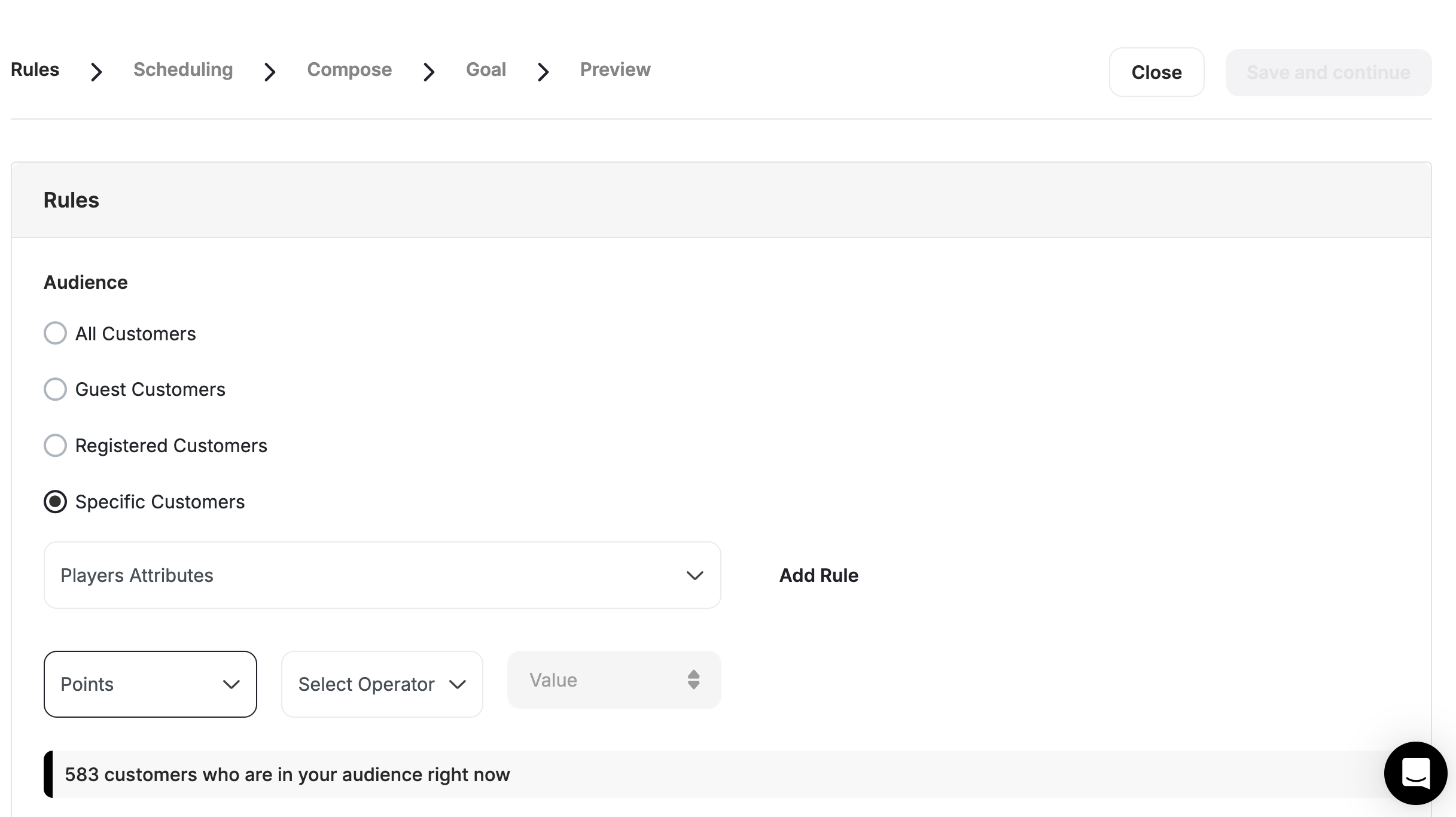
- All Customers (Registered & Unregistered)
- Guest customers (Unregistered Customer)
- Registered Customers (Customers with Accounts)
- Specific Customers based on:
- Segments
- RFM Segments
- Tags
- Customer Attributes
- Combination for Segments, Tags, or Customer Attributes
Define Triggers
Define what Triggers sending this SMS to your audience. You can choose between: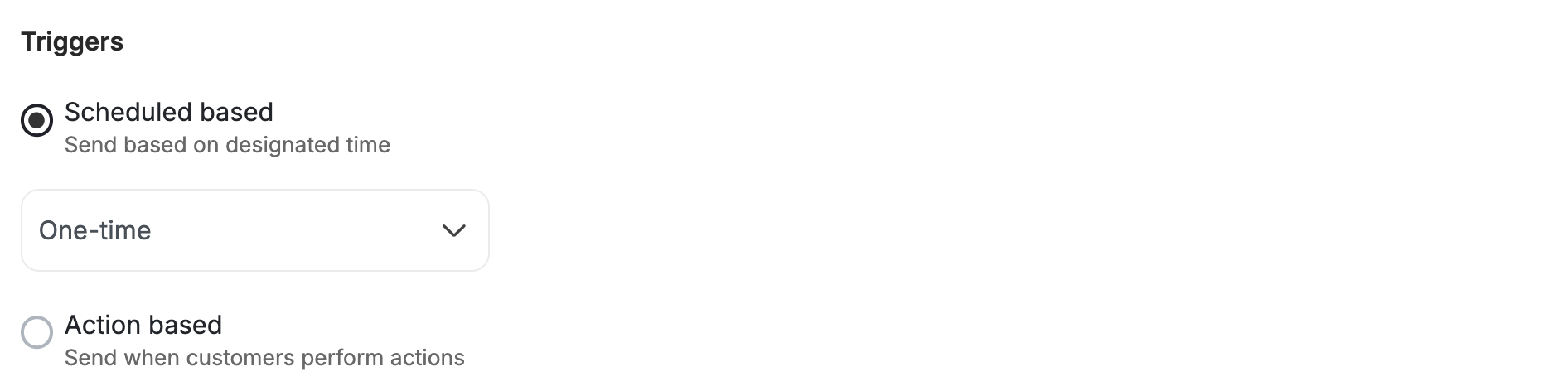
- Scheduled Based: All your audience will receive this SMS at a scheduled time. You can decide between:
- One-time: SMS will be sent only once
- Recurring: SMS will be sent more than once
- Action Based: All of your audience will receive this SMS once they complete a specific action. All you have to do is select the event from the drop-down and add its filters.
Step 2: Scheduling
Now let’s set the timing for sending the SMS, based on the trigger that you chose in the previous step.- Scheduled Based — One-Time
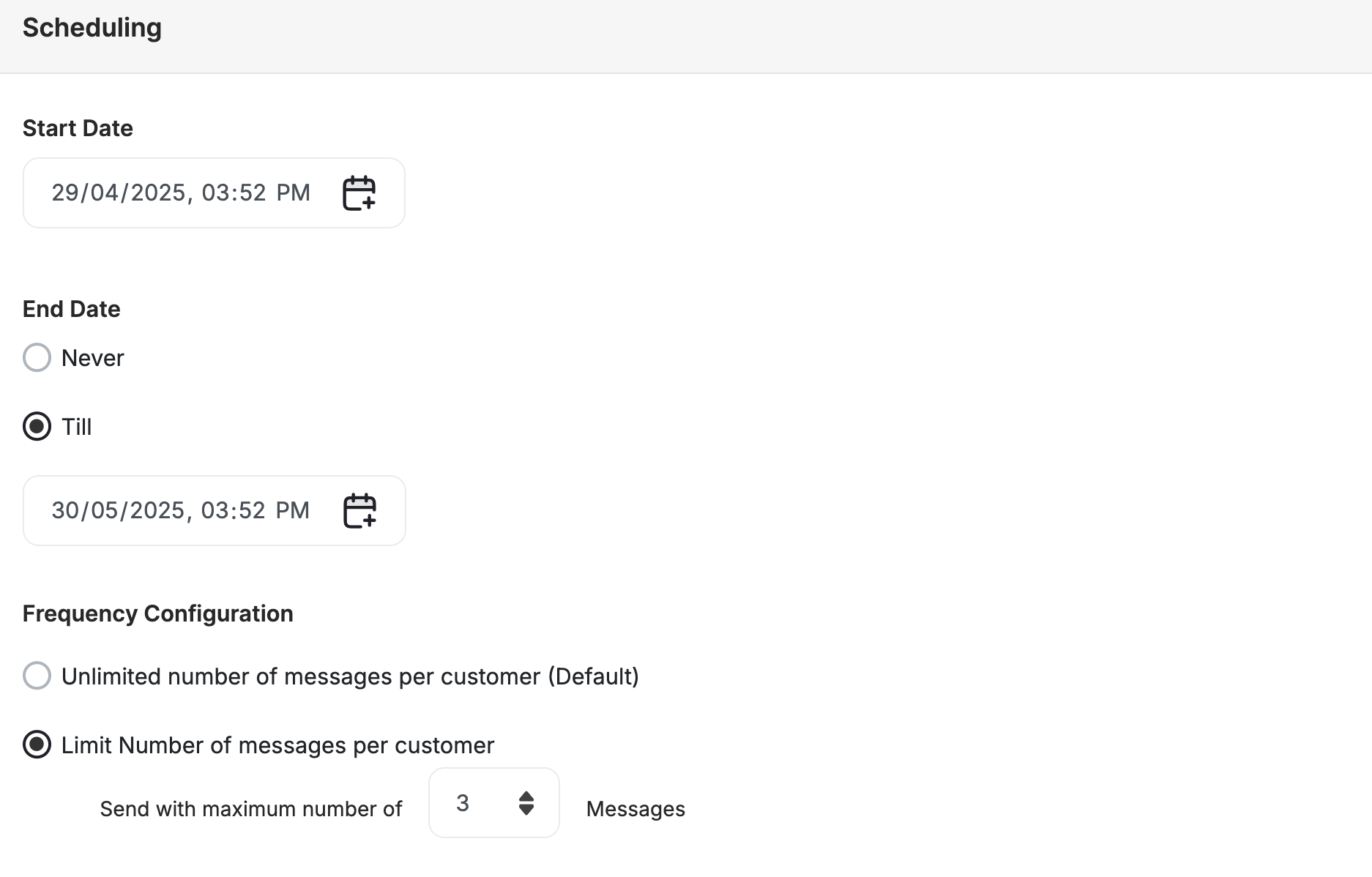
- Scheduled Based — Recurring
- Action Based
Choose one of these options: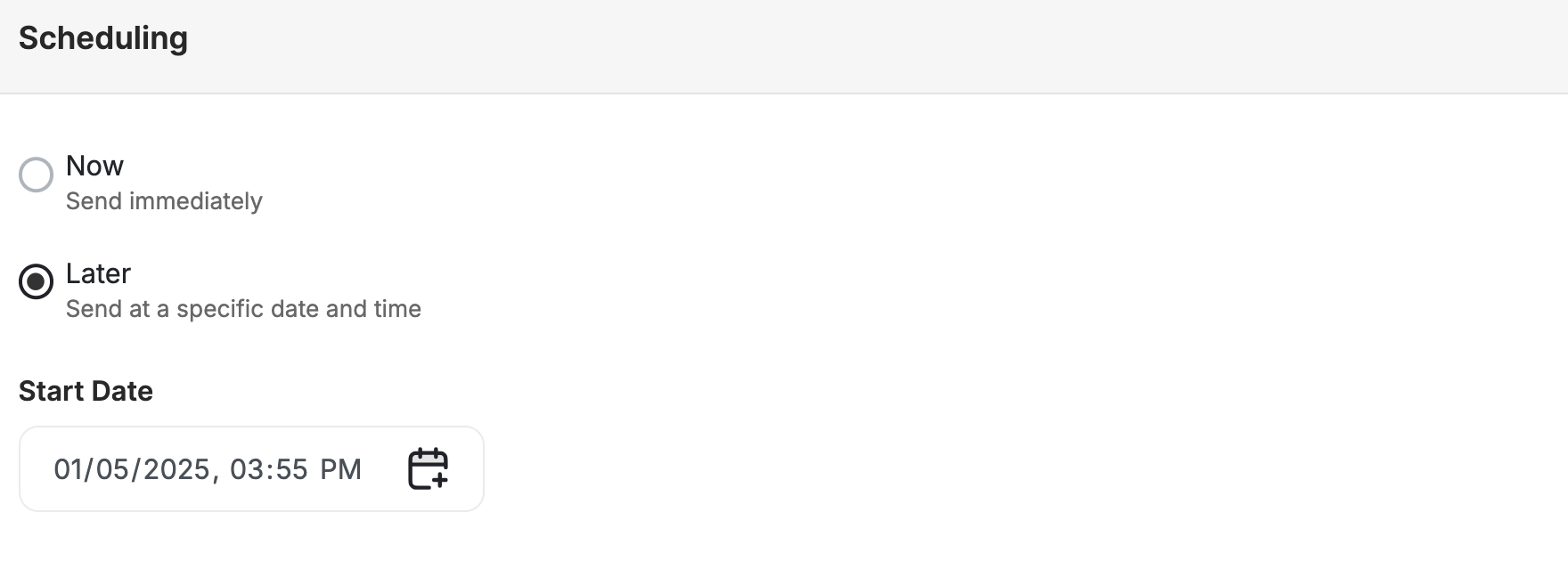
- Now: The SMS will be sent once the campaign is set live
- Later: The SMS will be sent on the Start Date that you choose
Step 3: Compose
Customize Message Content
Customize the content and design of the communication campaign, including the message title and body text.
Craft a Compelling Message
Craft a compelling message that grabs users’ attention and encourages action, such as promoting new collections, products, sales, or promo codes.
Step 4: Goal
Define the Campaign Goal
Define the goal of the communication campaign, such as increasing product views, driving conversions, or boosting engagement.
Step 5: Preview
Review Configurations
Review and edit the configured settings to ensure alignment with campaign objectives and user preferences.
Send a Test Message
Send a test message to preview the communication campaign before sending it to users.
Viewing and Managing Communication Campaigns
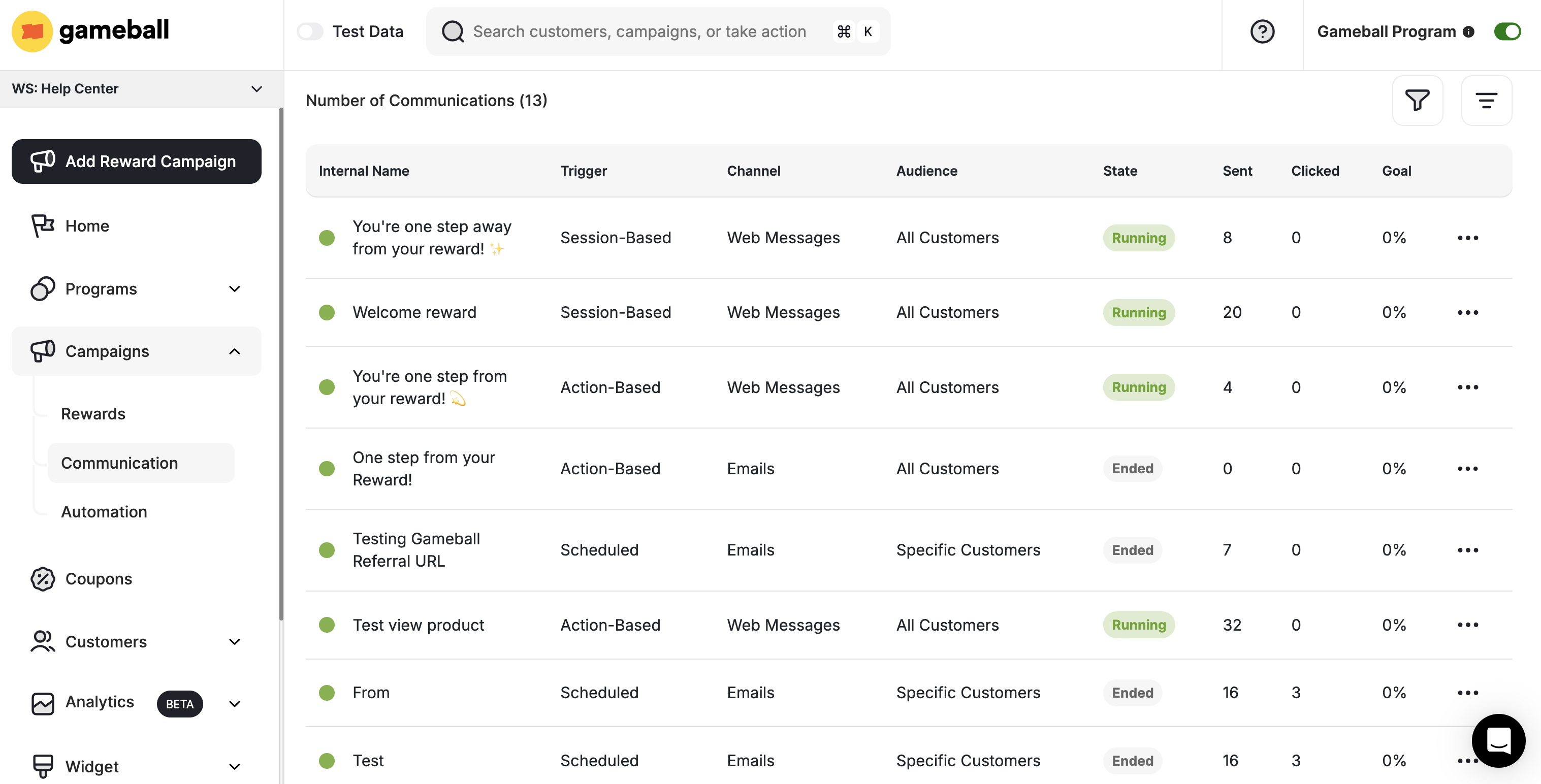
- Access the Communication Campaign section in the Gameball Dashboard to view all configured campaigns, including SMS.
- Monitor key metrics such as triggers, audience, state, number of sent campaigns, clicks, and goal achievement percentage.
Tracking User Interaction and Performance
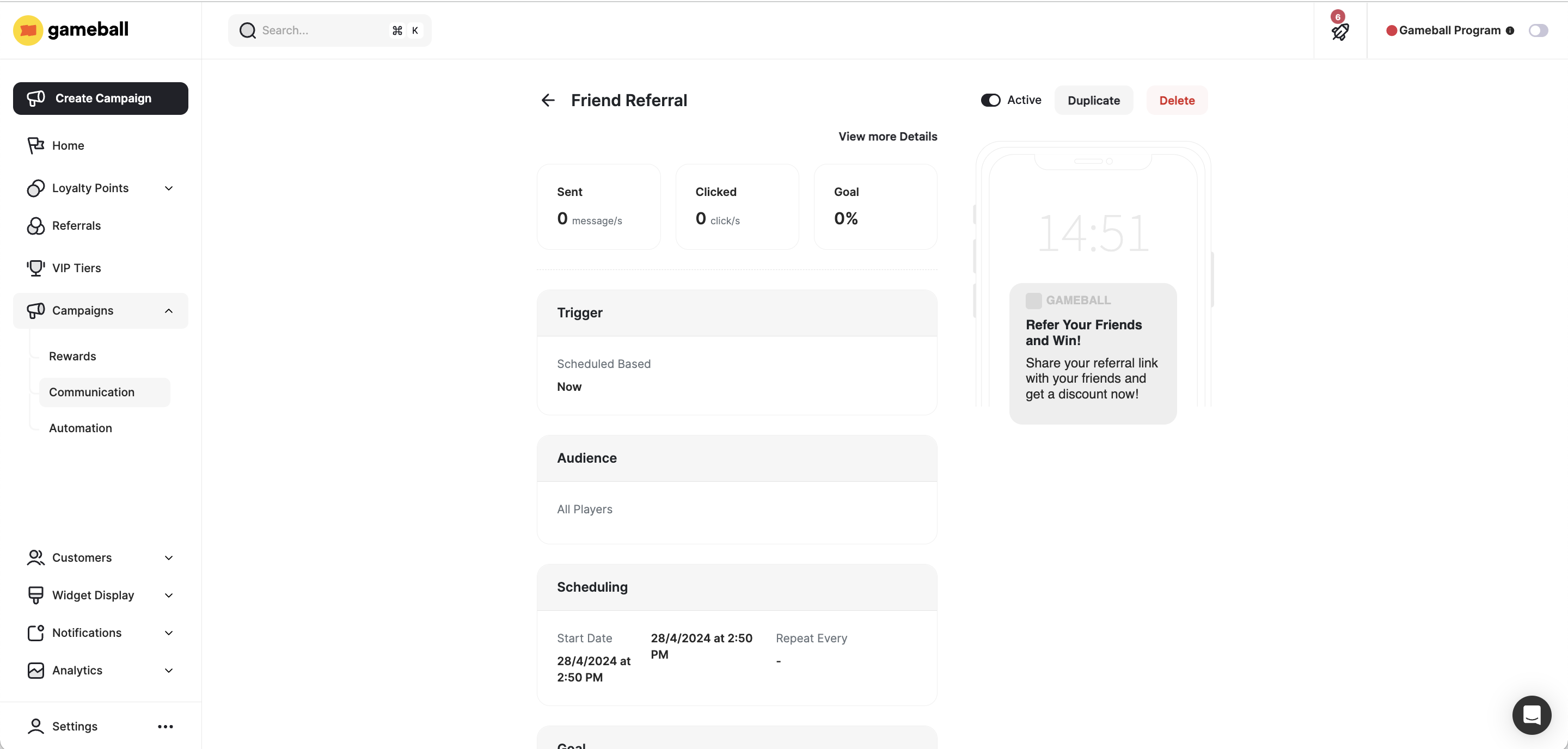
- Gain insights into user interaction with communication campaigns by selecting a specific campaign and viewing details.
- Identify users who received the notification and track their engagement, including clicks and goal achievements.
Deactivating or Deleting Communication Campaigns
- From the Communication Campaign section in the Gameball Dashboard, select the desired communication campaign.
- Choose to deactivate/activate or delete the campaign from the options menu.
Create and Configure Email Campaigns
Set up email campaigns to reach customers with personalized messages.
Create and Configure Web Message Campaigns
Set up web message campaigns to engage customers during their platform journey.
Create and Configure Mobile Push Campaigns
Set up push notification campaigns to reach customers directly on their devices.