

What to Use the Dynamic Variables For
By allowing event-triggered messages to dynamically incorporate event properties into their content. Whether you’re sending an email, web message, push notification, or SMS, you can now use event-specific data as variables within the message body. This update is particularly useful for transactional messages, ensuring that every communication is relevant, personalized, and context-aware.Use Cases
Subscription Renewal Completion with Personalized Details
Subscription Renewal Completion with Personalized Details
Send an automated renewal thank you message via email, push, or SMS, including customer-specific details like the subscription plan name, ID, and the amount charged.Example: “Hey [Customer Name], your [Gold Membership] subscription was renewed successfully for [Amount] and your payment ID is [Payment ID]. Enjoy our uninterrupted benefits!”
Shipment & Delivery Updates with Live Tracking Links
Shipment & Delivery Updates with Live Tracking Links
For e-commerce stores, dynamically insert tracking numbers, estimated delivery dates, and tracking links in emails and SMS.Example: “Your order [#Order ID] has been shipped! Track your package here: [Tracking Link]. Expected delivery: [Delivery Date].”
How to Set Up and Trigger Transactional Communication Campaigns Using Dynamic Variables
Navigate to Communication Campaigns
From the left bar, go to Campaigns then Communication, then click Create Communication Campaign.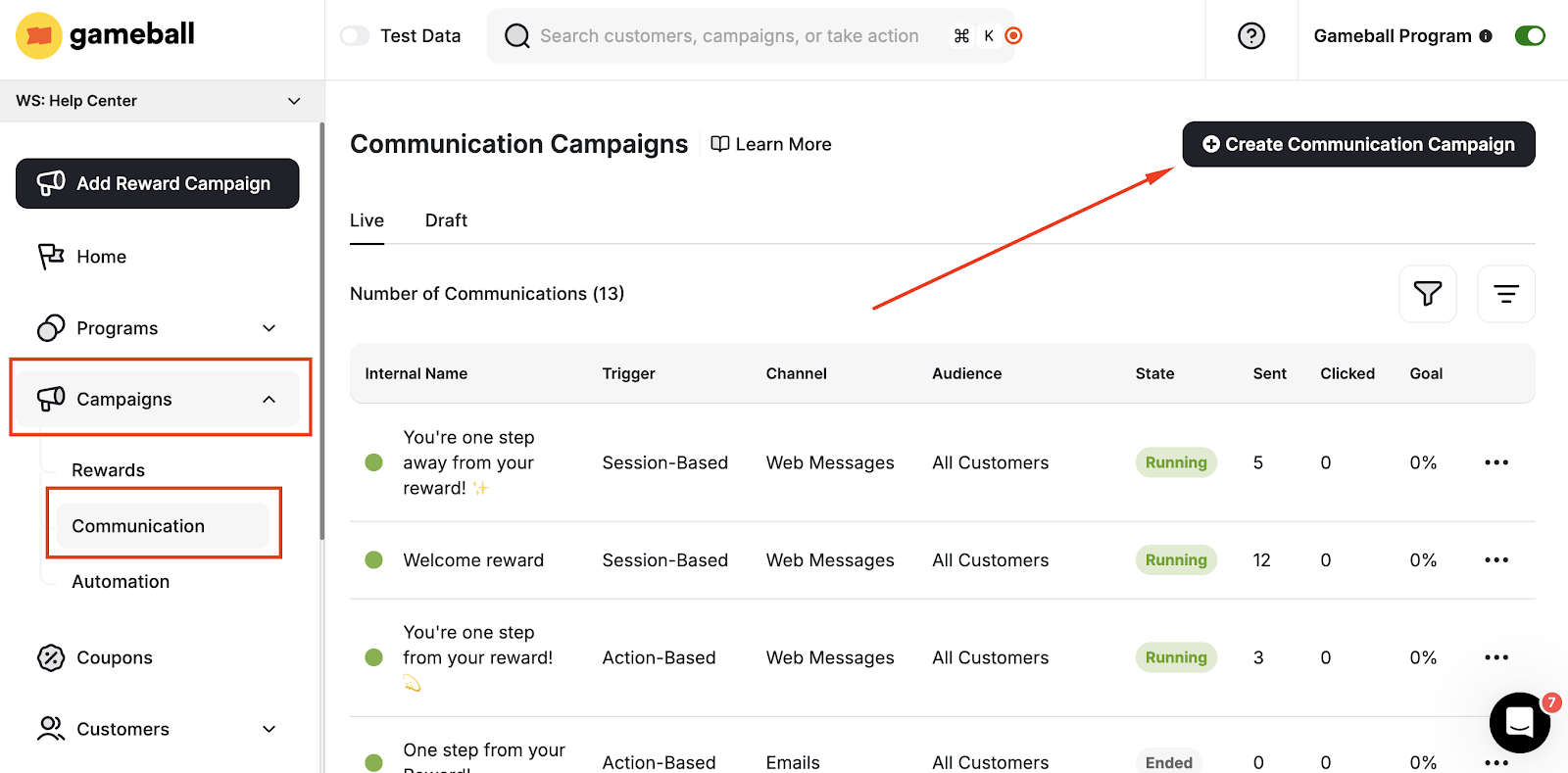
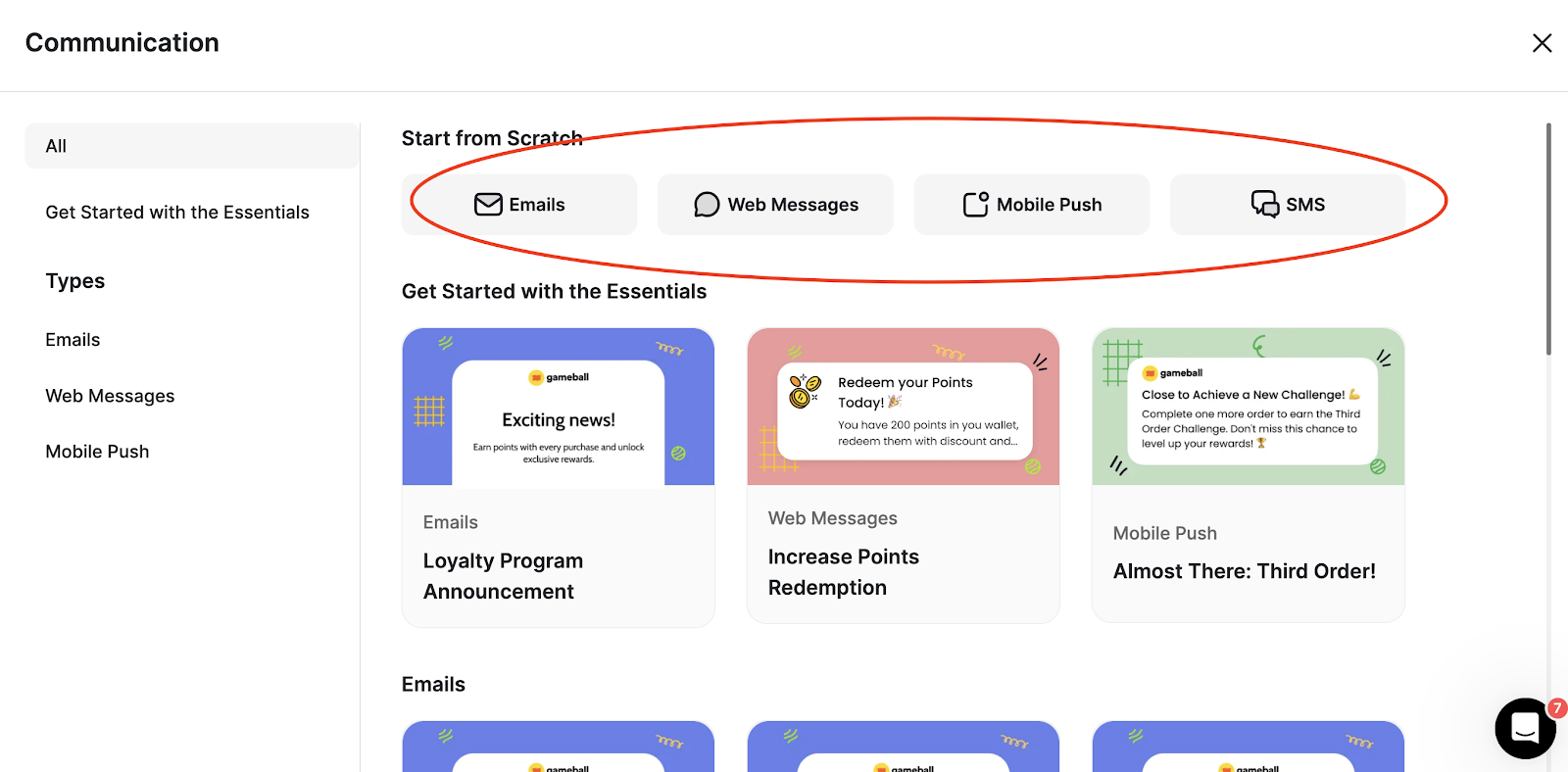
Follow the Configuration Steps
Follow the normal configuration steps for creating a communication campaign.
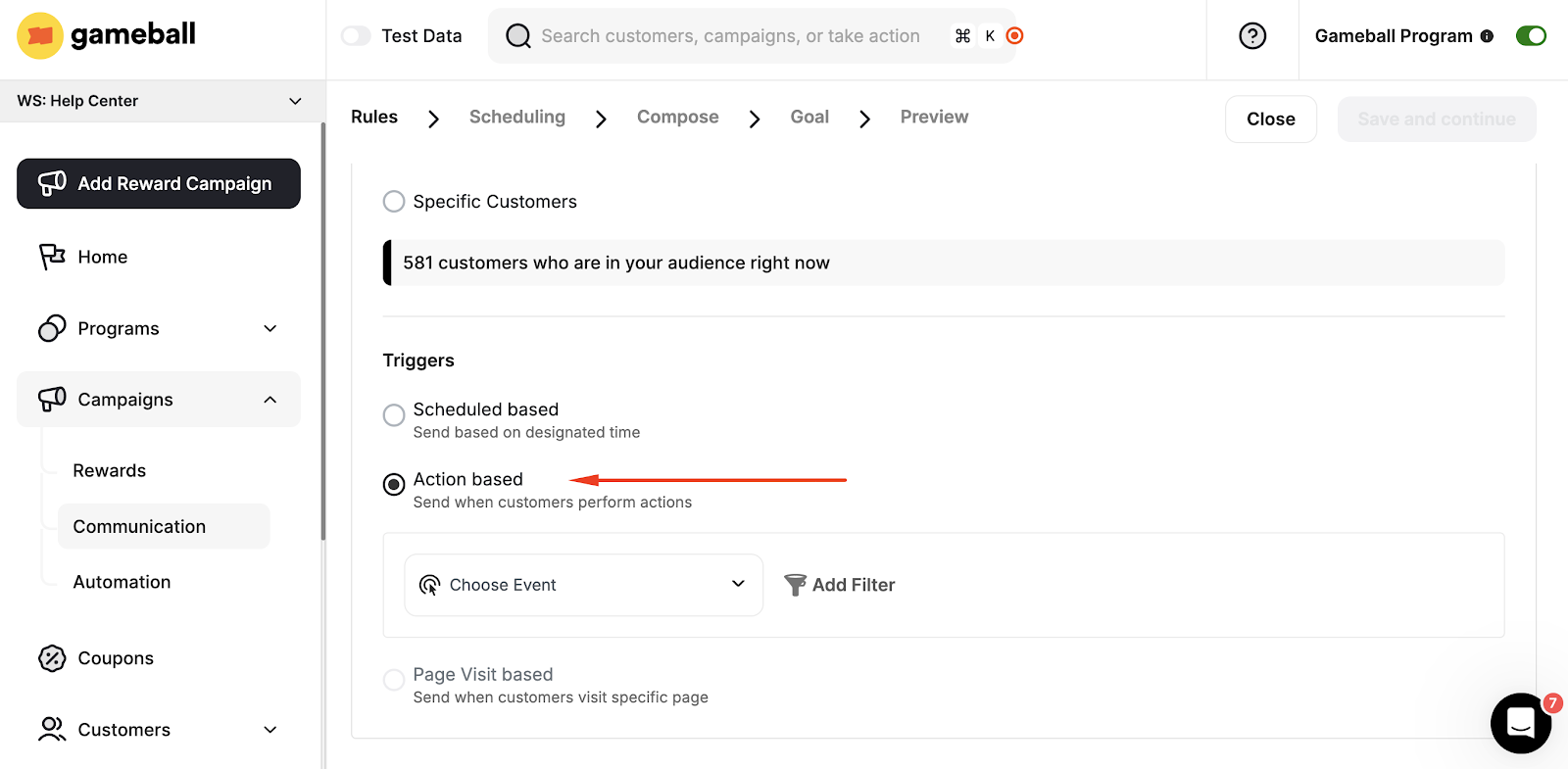
Choose the Transactional Action
Choose the type of transactional action you want to set as a trigger for the message. You can choose actions.
Proceed to Scheduling
Proceed with the scheduling step. Afterwards, you will move to the Composing part.
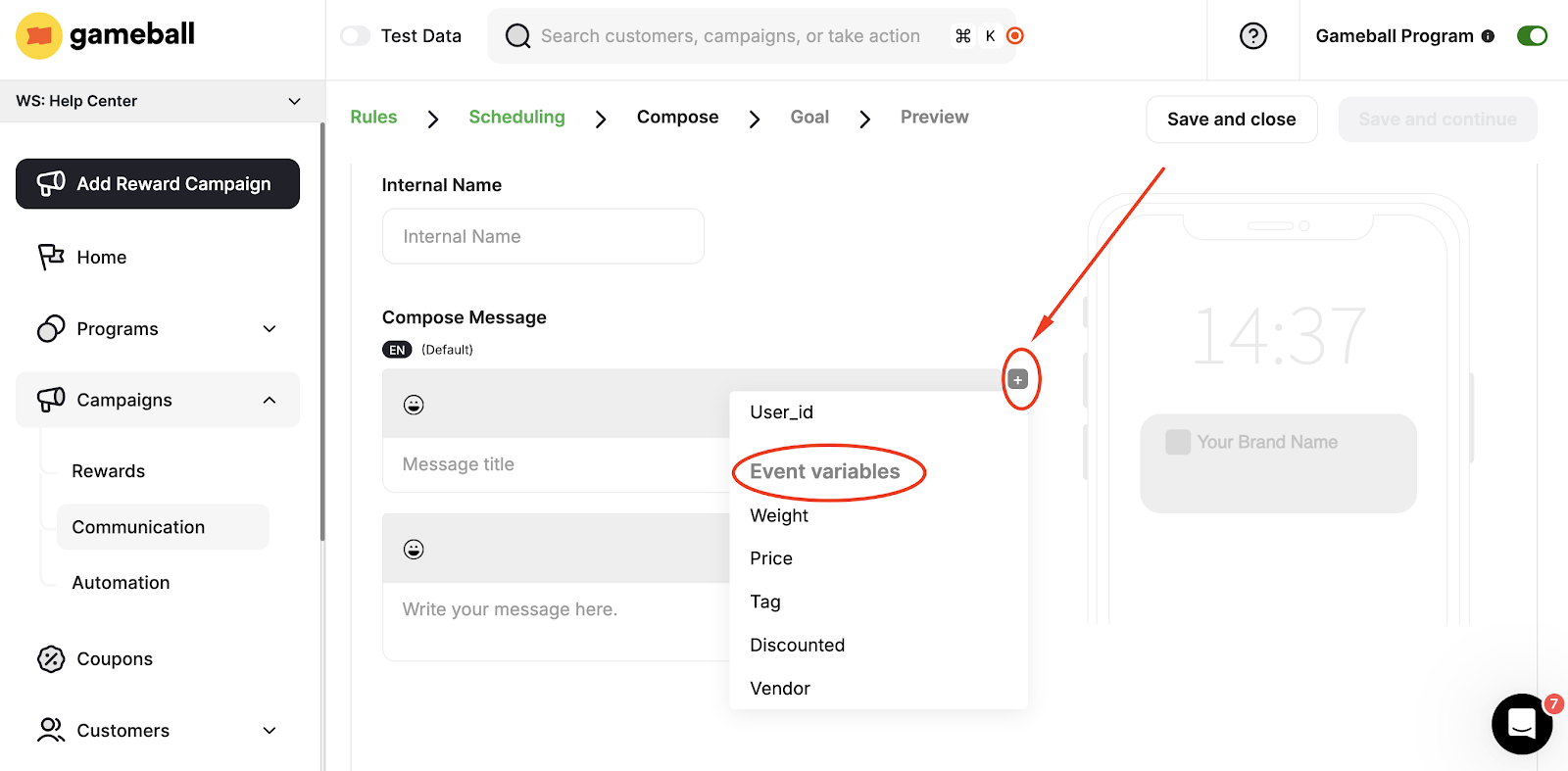
How to Set Up and Trigger Transactional Email Campaigns Using Dynamic Variables
Emails usually have a slightly different configuration process. To create an email using dynamic variables, follow the first steps of creating an action-based communication campaign, then when you reach the step for writing the content or body of the email, click Merge Tags to use the event-related variables.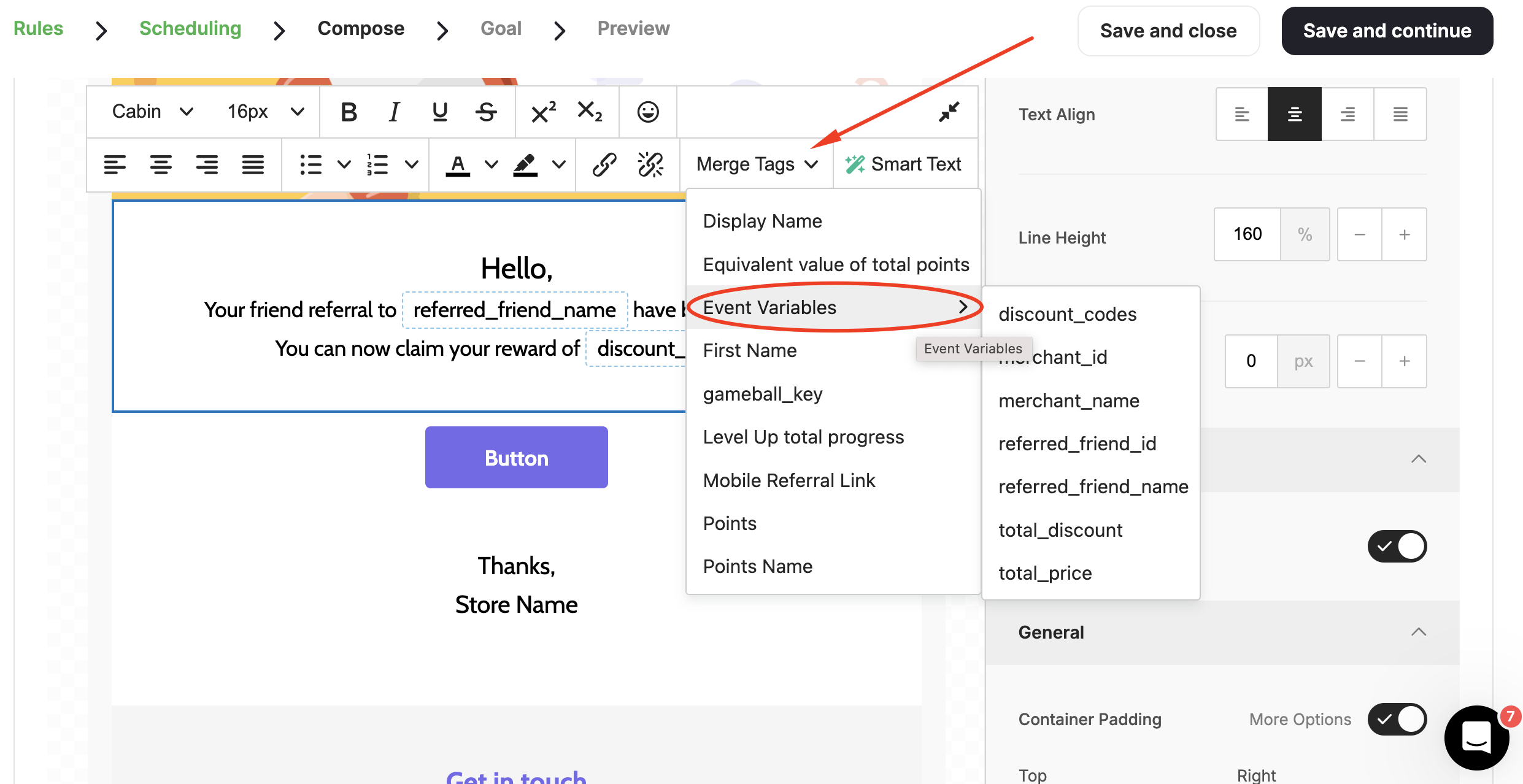
Create & Configure Email Campaigns
Learn how to build and configure email communication campaigns step by step.
Create & Configure Web Message Campaigns
Learn how to build and configure web message campaigns for real-time customer engagement.