

Plan Availability
- Shopify & Salla Free
- Shopify & Salla Starter
- Pro, Guru & Non-platform
| Tiering-Up Method | Available |
|---|---|
| Amount Spent | Yes |
Configuring VIP Tiers
Navigate to VIP Tiers
Log in to Gameball’s Dashboard, head to the Programs section from the left side menu, then click VIP Tiers. View your current tiers to make any necessary adjustments.
Create a New VIP Tier
Click on Add New Tier. In the Add New Tier page, you have three sections to fill in:
Display
Display
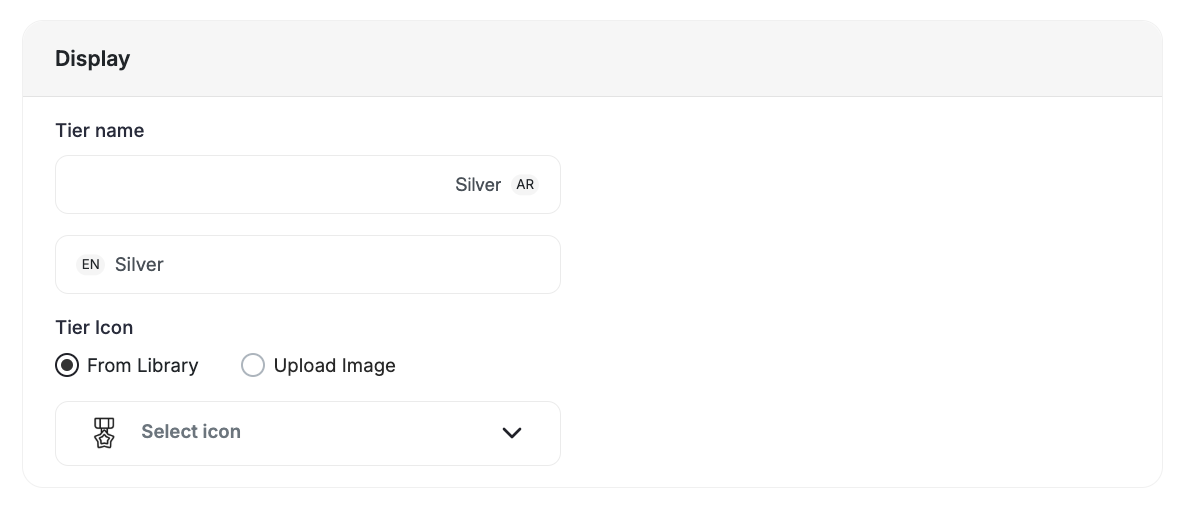
- Tier Name — Enter the name that will appear to your customers in the customer widget. You can choose something like bronze, silver, gold, or something that matches the theme of your platform.
-
Tier Icon — Select or upload an image that will appear in the customer widget. Pick an icon that matches your tier name and your platform theme.
- Choose an Icon from our library
-
OR Upload an image from your device
Milestone to Achieve this Tier
Milestone to Achieve this Tier
Enter the value that you want your customers to achieve so they can enter this tier based on your tiering-up method.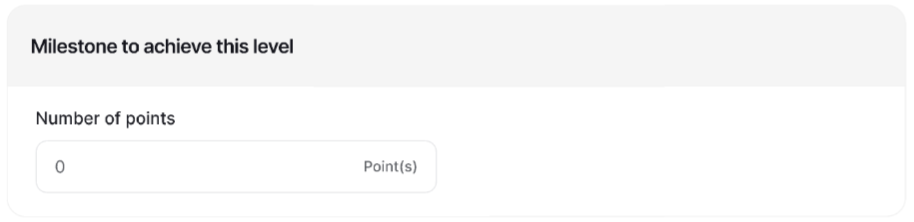
Benefits
Benefits
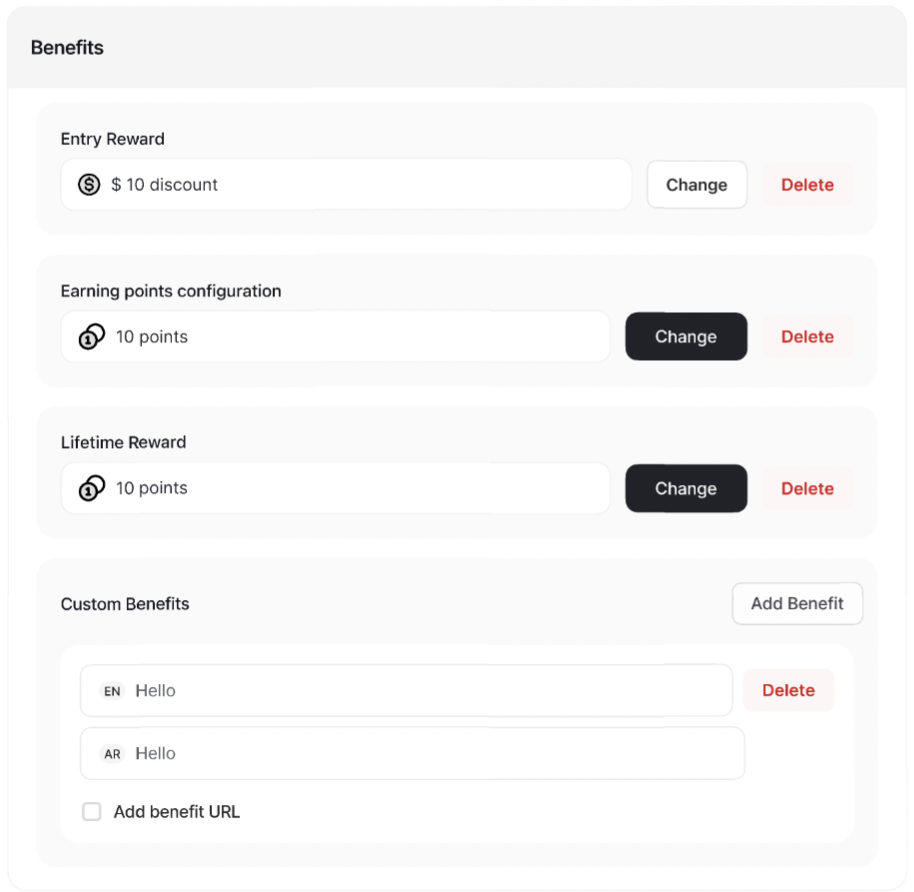
- Entry and Lifetime Rewards — Reward your customers for reaching new tiers with points, free products, discounts, and exclusive offers to incentivize continued engagement.
- Earning Points Configuration — Customize the earning points system per tier. For example, customers on tier 2 could get 10 points for every dollar they spend instead of the default setup. Learn more about the default Earn Points system.
-
Custom Benefits — Go beyond traditional rewards and offer custom benefits to customers on specific tiers. Whether it’s access to VIP products or exclusive events, unleash your creativity to enhance the customer experience. Learn more about Tier Benefits.
Configure Settings
After creating your tiers, configure the global VIP Tier settings: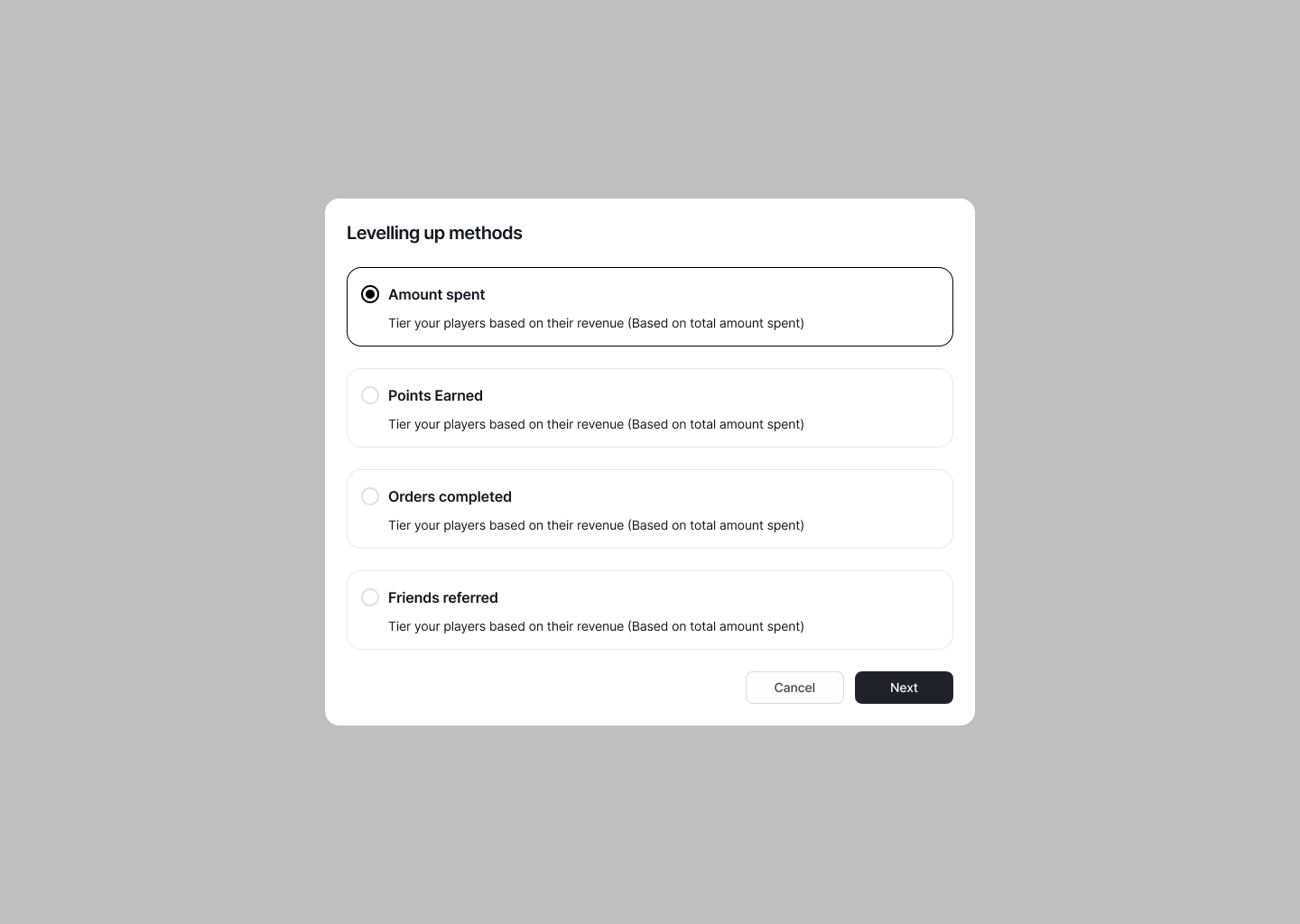
Tiering-Up Method
Choose how customers advance through tiers:
- Amount Spent
- Points Earned
- Orders Completed
- Friends Referred
- Score
Tier Expiry
Set an expiry date to keep progression dynamic. Choose from no expiry or based on the last 3, 6, 12, or 24 months.Learn more
Refunded Orders
Choose whether refunded orders contribute to customers’ tier advancement, ensuring your loyalty logic stays aligned with your business rules.
Program Activation
Control when the tiering program goes live. Set it to Active or Inactive and configure a Start Date for when tier evaluation begins.
Refunded Orders Behavior
When Refunded Orders setting is enabled:| Scenario | Behavior |
|---|---|
| Enabled | Refunded orders do not count toward tier progress; earned progress is deducted |
| Disabled | Refunded orders remain included (default) |
Tier progress in both the dashboard and widget automatically reflects the updated calculation. Progress reductions from refunds are shown in real time.
Program Activation and Start Date
The tiering program includes an Active / Inactive toggle in the VIP Tier settings. If you are new to Gameball, the program is set to Inactive by default, giving you time to fully configure your tiers, benefits, and rules before going live. When you activate the program, you are required to set a Start Date. Tier evaluation begins from this date — orders and events that occurred before it do not count toward customers’ tier progression.| Setting | Behavior |
|---|---|
| Inactive | Tiers are hidden from customers in the widget. No tier progress is tracked. |
| Active | Tiers are visible in the widget. Tier progress is tracked from the configured start date onward. |
| Start Date | Only orders and events on or after this date contribute to tier advancement. Earlier activity is ignored. |
Activation and any changes to the start date are logged in the Audit Trail for tracking and accountability.
Related Articles
Tiering-Up Methods
Understand the different methods for advancing customers through your VIP tiers.
Customizing Tier Benefits
Configure entry rewards, lifetime rewards, and custom benefits for each tier.