

Arabic
ar
Danish
da-DK
Dutch
nl
English
en
French
fr
German
de
Hungarian
hu
Italian
it
Polish
pl
Portuguese
pt
Spanish
es
Swedish
sv
Taiwanese Mandarin
zh-TW
How to Choose the Default Language
Your account must have a default language. The data under this default language will be displayed to your customers whenever any additional active language has missing data.
However, you can still add and activate more than one language on your account.
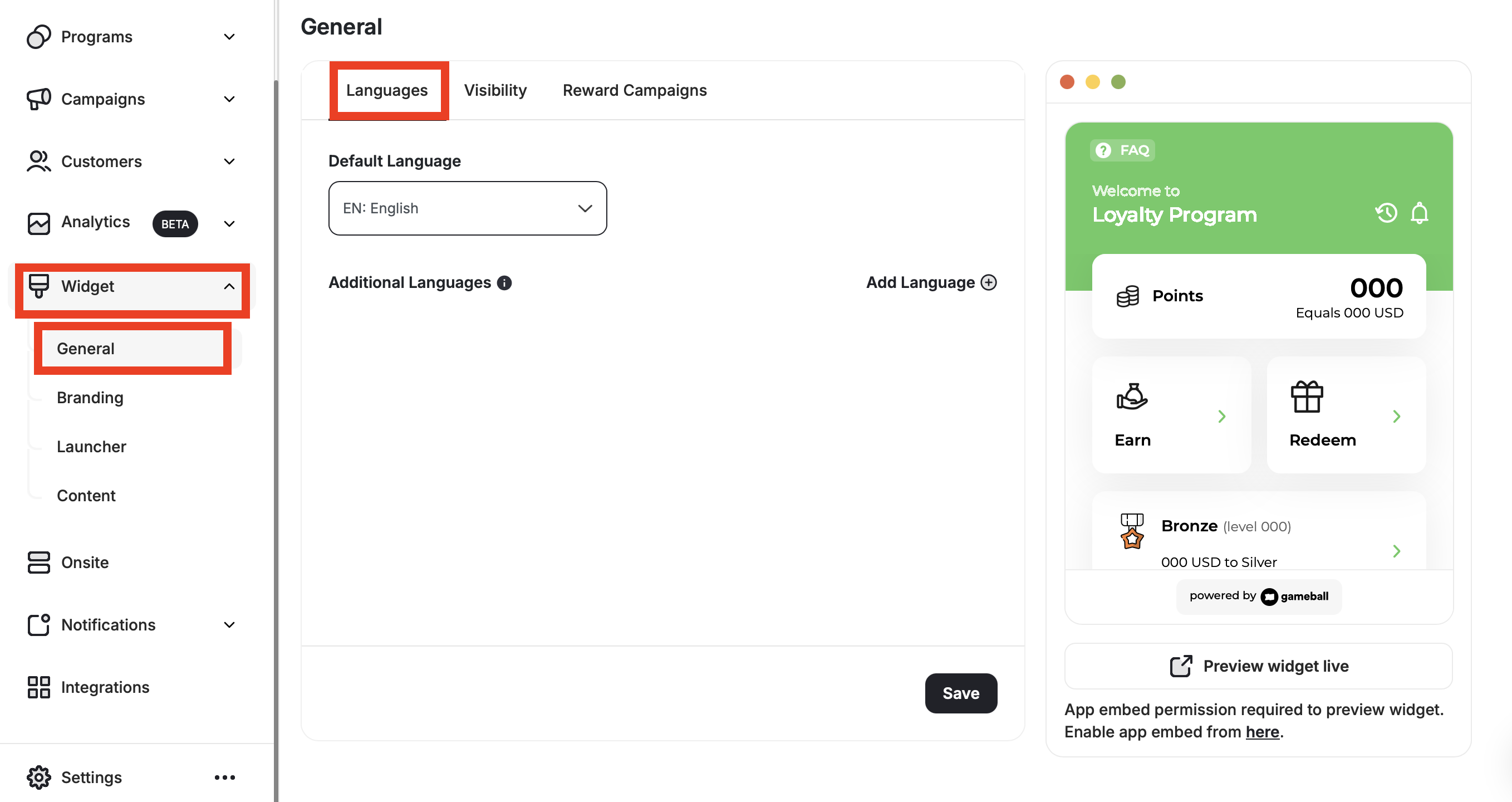
How to Add an Extra Language
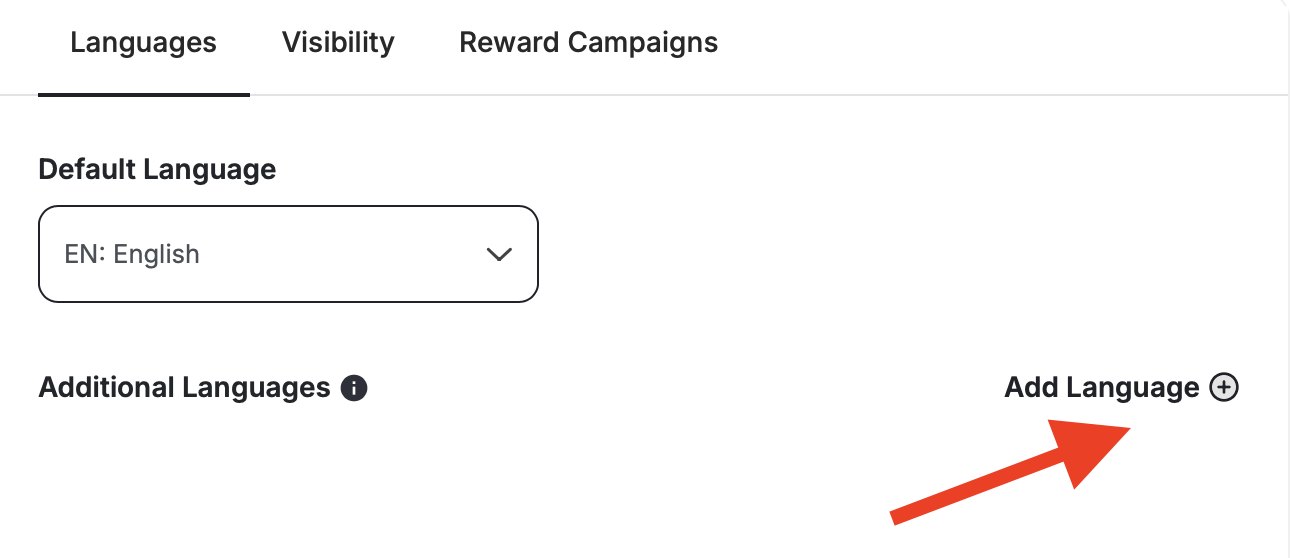
What Happens After Adding an Additional Language?
Once you add a new supported language to your Gameball account in addition to the default one, all fields across the system that are shown to your customers through the widget will display an additional input field for the newly added language. See the example below for how the level name field appears when two languages are active (left) versus when only one language is active (right):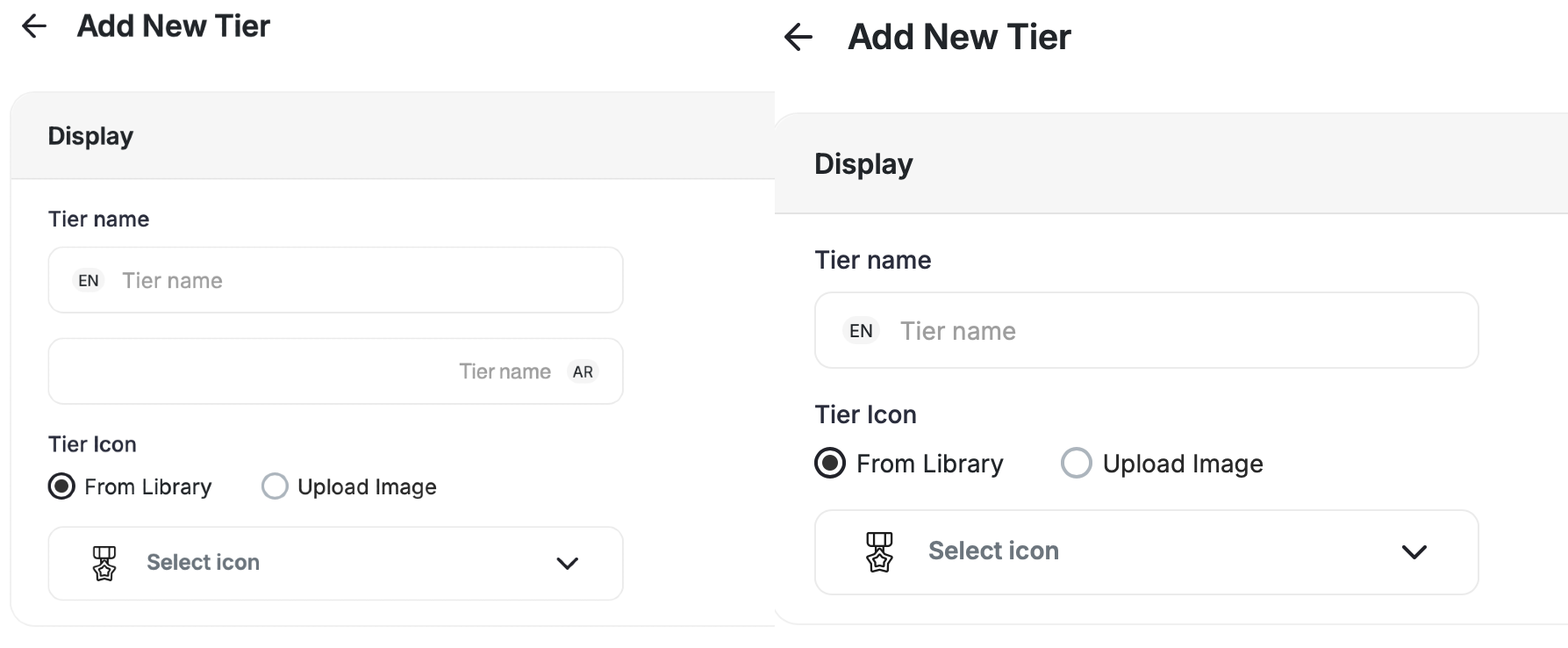
What Fields Will Be Affected Once You Add a New Language?
Once you add a new supported language to your Gameball account in addition to the default one, the following fields will require corresponding data in the newly added language:- Score name, if you are using Score as the leveling-up method
- Points name
- Level name
- Challenge name and description
- Guest view intro and button text
- Referral tab title and description
- Message title, body, and button text
- All system notifications
What’s Next?
Customize Widget to Match Your Brand
Adjust colors, fonts, icons, and identity to align the widget with your platform’s look and feel.
Customize Tabs Visibility and Order
Control which tabs appear in your widget and in what order they are displayed.
Guest Profile Configuration for Web
Configure the guest experience, including images, sign-up URLs, and login redirects.
Customize the Widget Launcher
Control the shape, position, icon, and visibility of your loyalty launcher button.