

Configuring the Guest Widget
Set the Guest Image
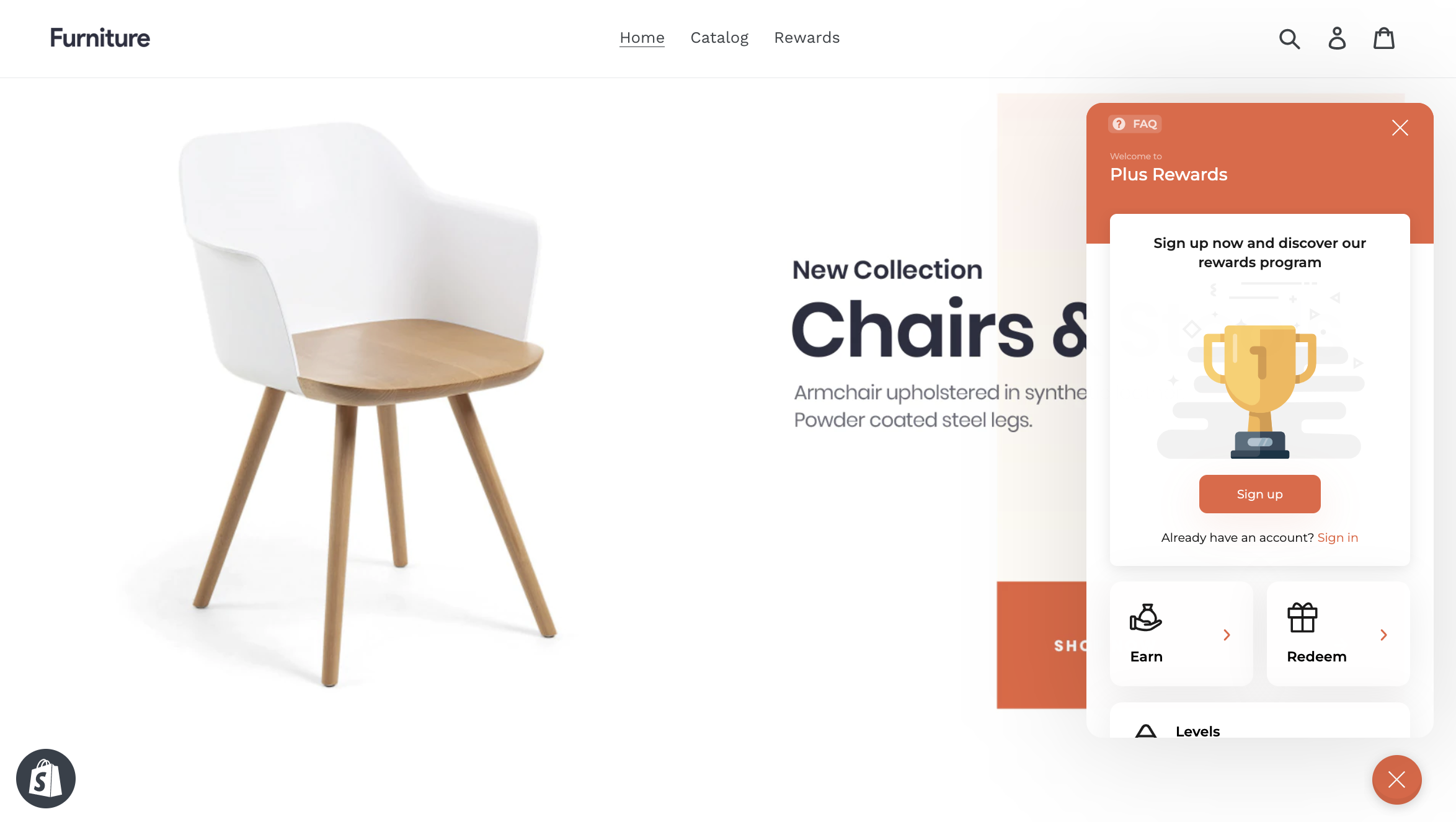
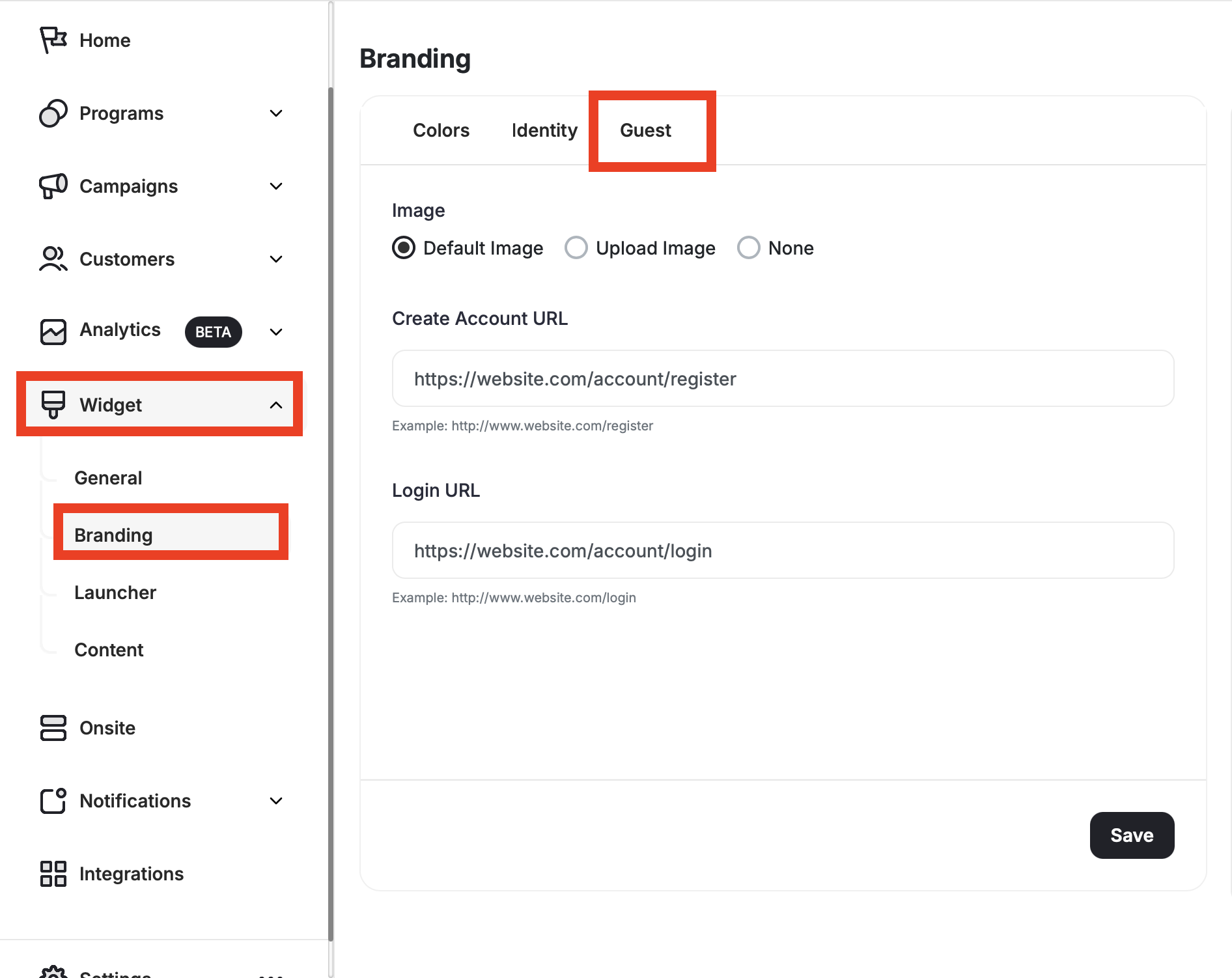
By default, Gameball has an image of a trophy set right above the sign-up button. Choose one of the following options:
- Default Image: Leave the trophy image as-is.
- Upload Image: Choose an image that goes with your brand.
- None: Remove the image entirely.
Uploading a custom guest image is available on:
| Platform | Plan |
|---|---|
| Shopify | Pro, Guru |
| Salla | Pro, Guru |
| Non-platform clients | Growth, Enterprise |
Set the Create Account URL
Insert the URL of the registration/signup page on your platform. Guests will be directed here when they click the sign-up call-to-action.
Set the Login URL
For guests who have previously signed up but only need to log in, insert the URL of the page you want your player to get redirected to in order to sign back in.
What’s Next?
Edit Guest View Content and FAQ Section
Customize the text displayed to guests in the widget, including sign-up prompts and FAQ content.
Customize Tabs Visibility and Order
Control which tabs appear in your widget and in what order they are displayed.
Customize Widget to Match Your Brand
Adjust colors, fonts, icons, and identity to align the widget with your platform’s look and feel.
Configure Widget Language
Set a default language and add additional languages to serve a multilingual audience.