

Stage 1: Publish and Unpublish Gameball Loyalty Experience
By toggling the switch at the top right of any page on the Gameball Admin Dashboard, you will be able to activate or deactivate the Gameball loyalty experience.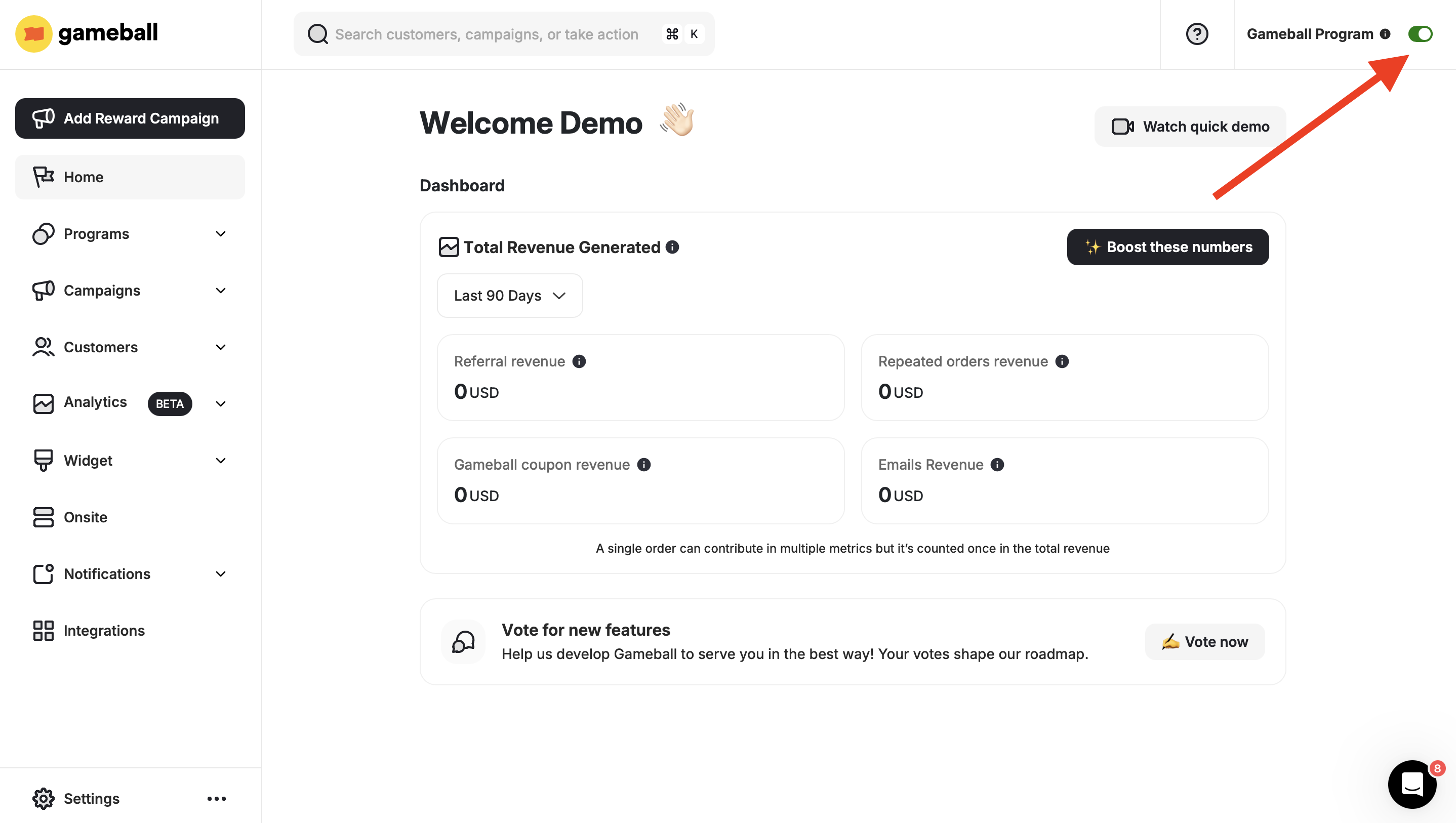
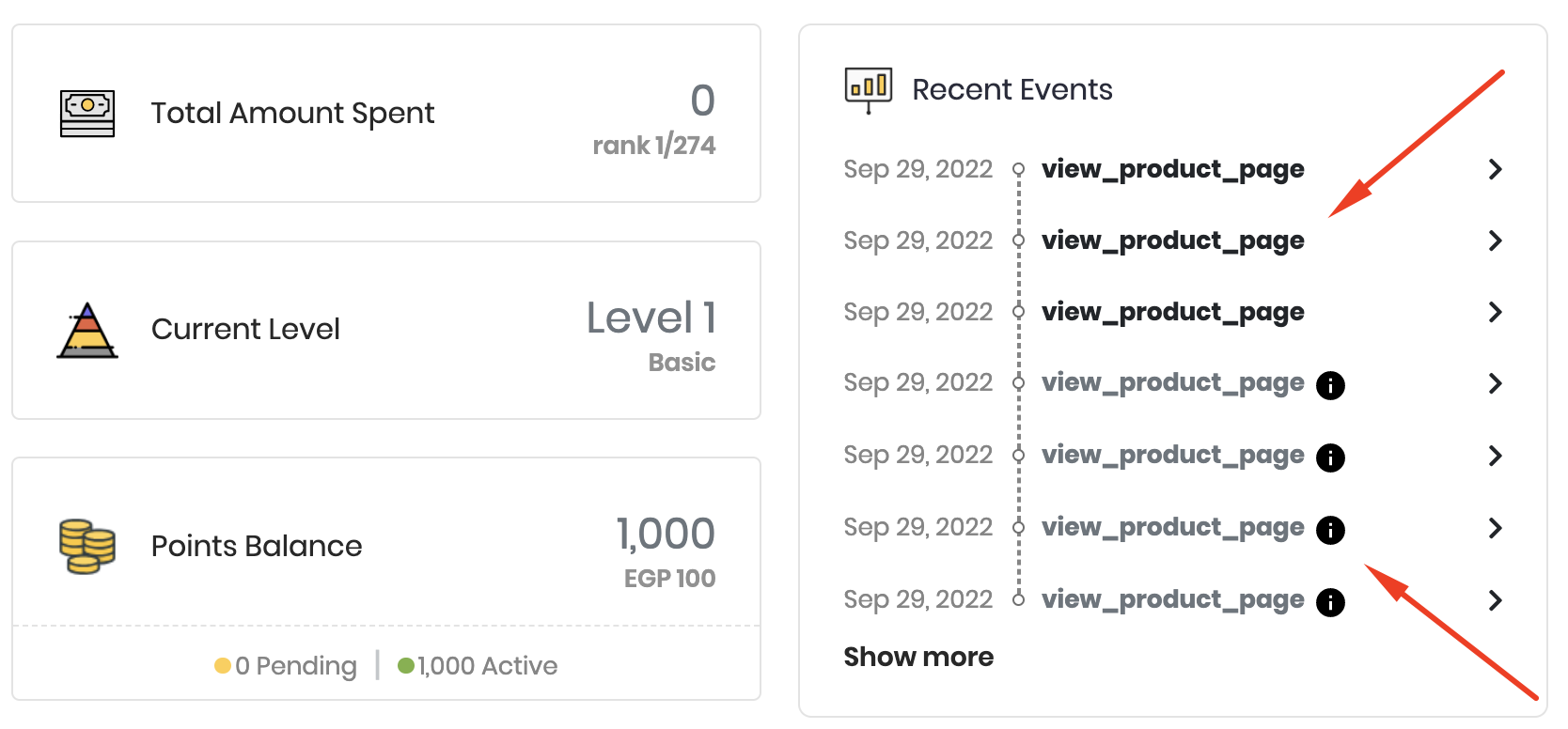
When the Gameball program is switched to unpublished, any customer event will still reflect on their profile on the dashboard; however, they will appear dimmed as these actions will have no consequence.
What happens when you deactivate the program by switching off the toggle?
When you disable Gameball:- Your loyalty program will not be visible to your customers.
- Your customers will not earn rewards.
- Your customers will not receive any messages, notifications, or emails.
- Your customers’ actions will be added to Gameball.
- Your customers will be able to use coupons they had already claimed before disabling the program.
Stage 2: Hiding and Unhiding Gameball Widget
You can completely hide Gameball’s widget without deactivating the loyalty program, which means your customers will still be rewarded for their interaction; however, they will not be able to track their progress or find anything related to the configured loyalty program.Go to Widget Visibility Settings
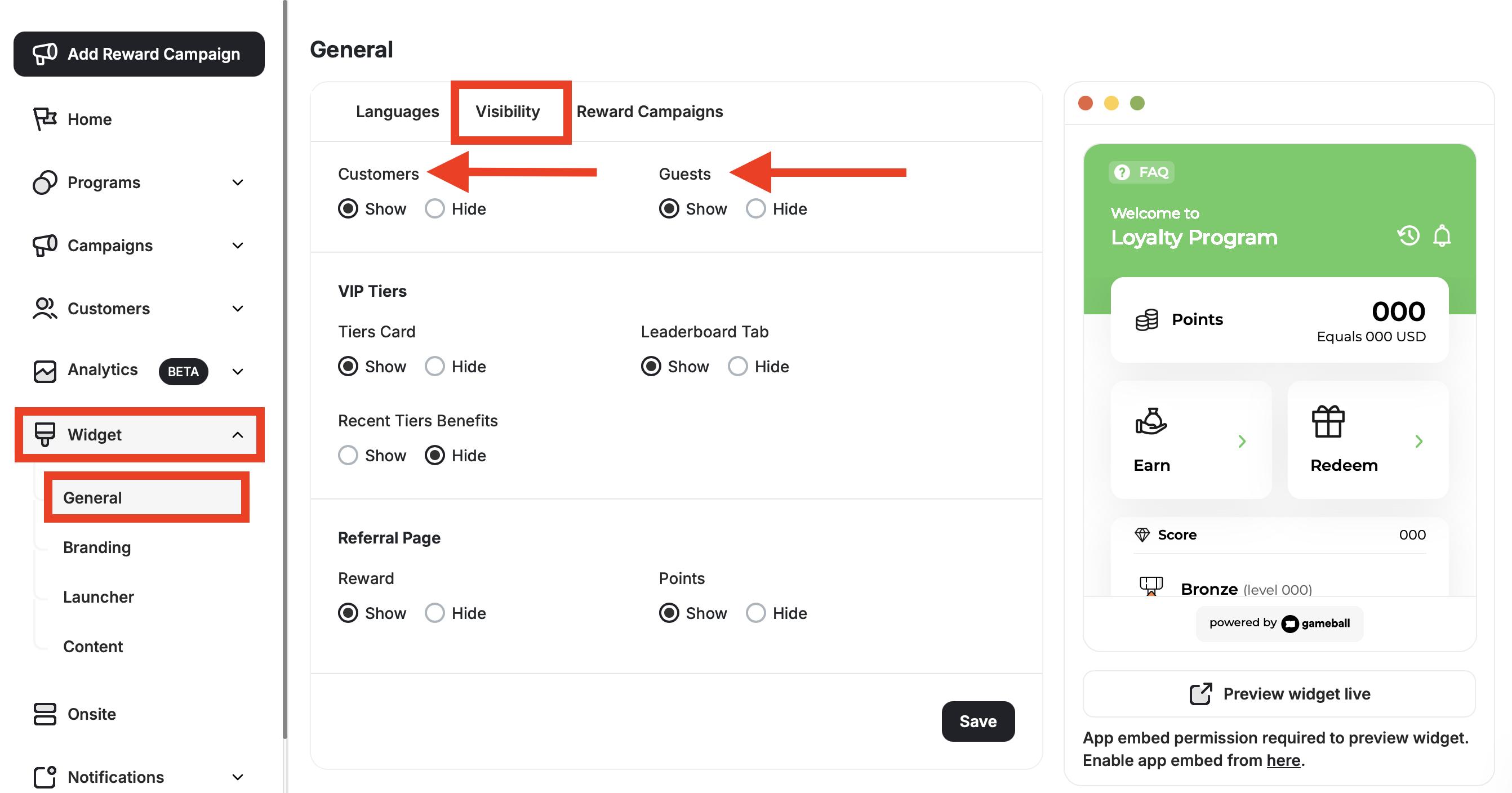
In the Gameball Admin Dashboard, click Widget > General: Visibility.
Set Visibility for Customers and Guests
Choose whether to display or hide the Gameball widget by checking Show or Hide under Customer and Guests.
Stage 3: Hiding and Unhiding Gameball Widget Button
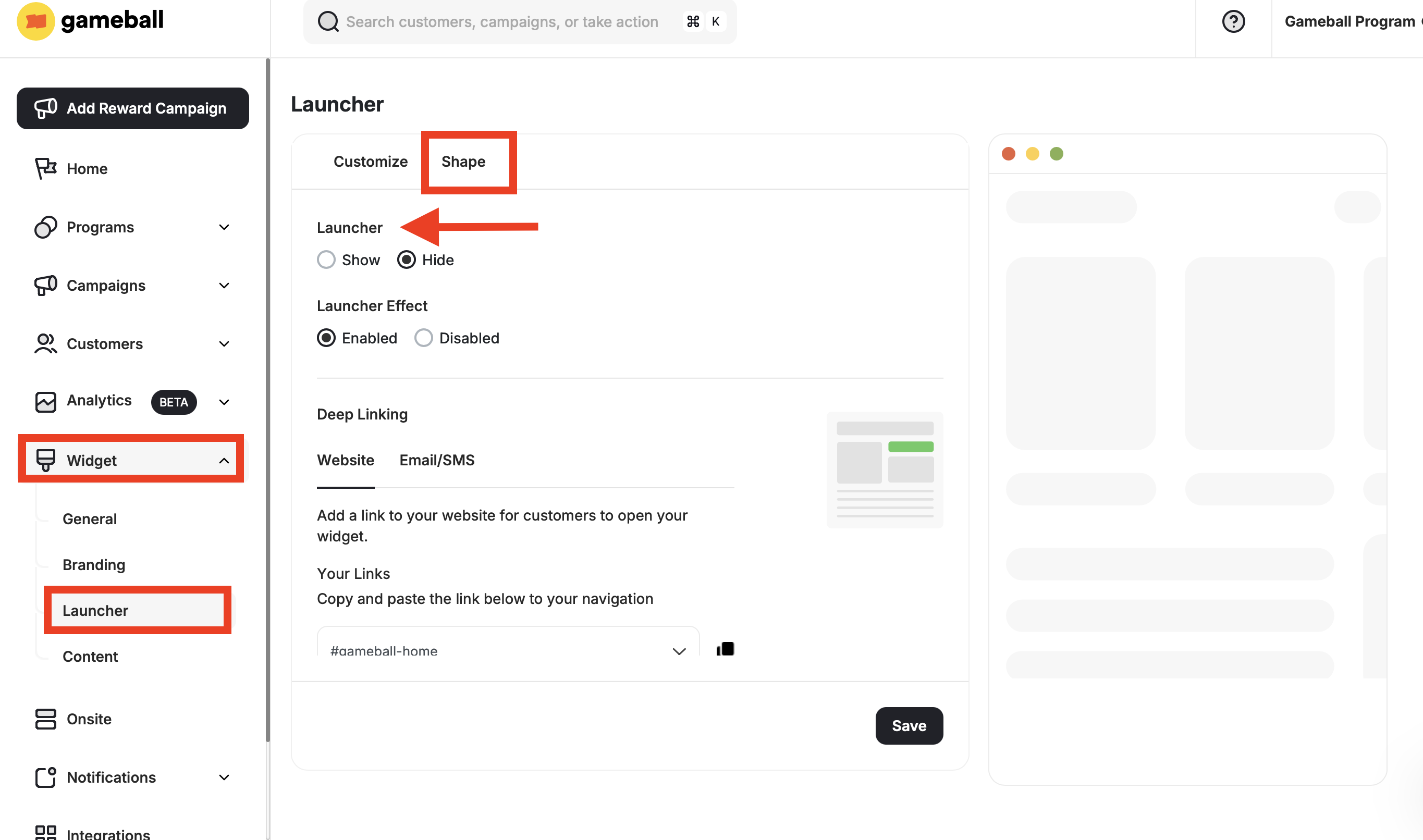
Lastly, you can choose between hiding or displaying the Gameball launch button on your platform. If there is no space for the Gameball launch button on your platform, or none of Gameball’s available buttons match your brand theme, you can simply hide it and let other inline buttons or any other interactive elements open the Gameball widget. Read more on Enabling Opening Gameball Widget by Using Deeplinks.
Now, the Gameball button will no longer appear on your platform, so make sure to use our Deep Links if you still want your customers to access the widget from a different place on your platform.
Related Articles
Customize Widget to Match Your Brand
Adjust colors, fonts, and identity to align the widget with your platform’s look and feel.
Customize the Widget Launcher
Control the shape, position, icon, and visibility of your loyalty launcher button.