

Plan Availability
- Shopify & Salla
- Non-Platform
| Feature | Plan |
|---|---|
| Basic customization | All plans |
| Theme, Font, Points/Score names & icons | Pro, Guru |
| Guest widget image | Pro, Guru |
Colors
To brand your Gameball customer widget to match your website or app, go to the Gameball Admin Dashboard and navigate to Widget > Branding: Colors.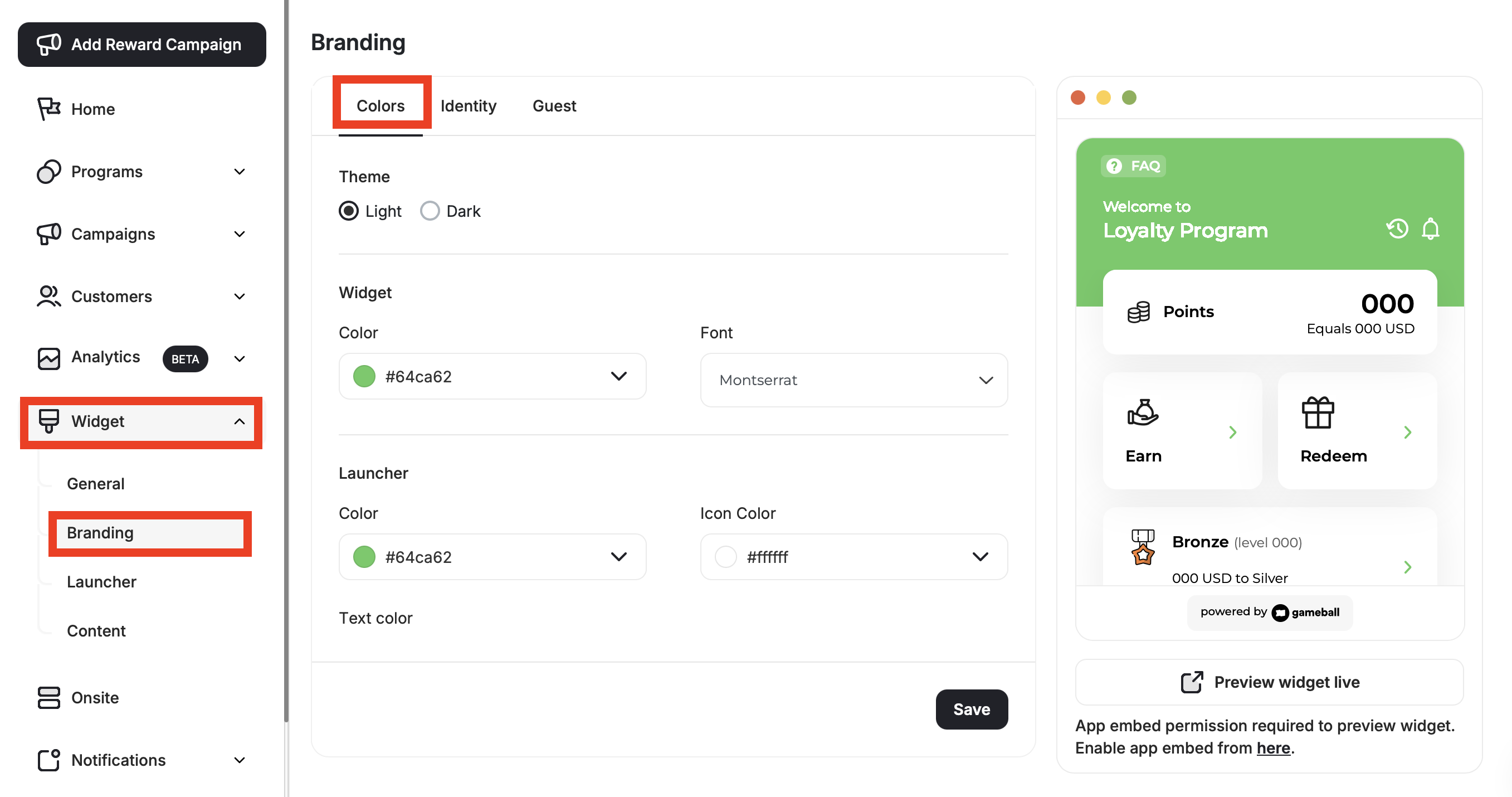
Theme
Theme
Available on: Shopify & Salla Pro/Guru | Non-platform Growth/EnterpriseChoose between two modes:
- Light: Light mode is the default mode unless set otherwise.
- Dark: The main layout color will change to black.
Widget Color
Widget Color
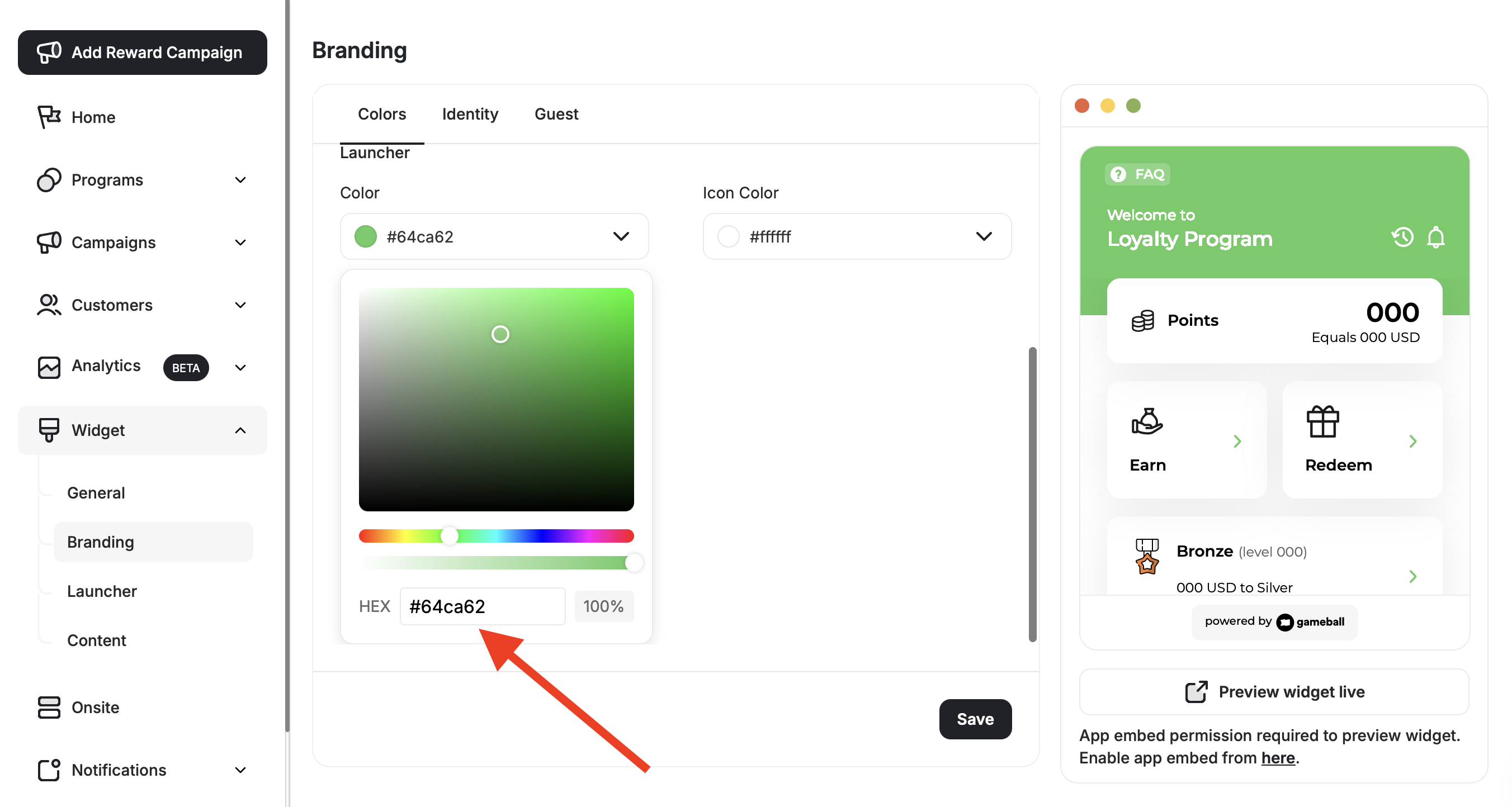
This is the main color that will be applied to all tabs of the profile. You can easily choose the brand colors you use on your platform.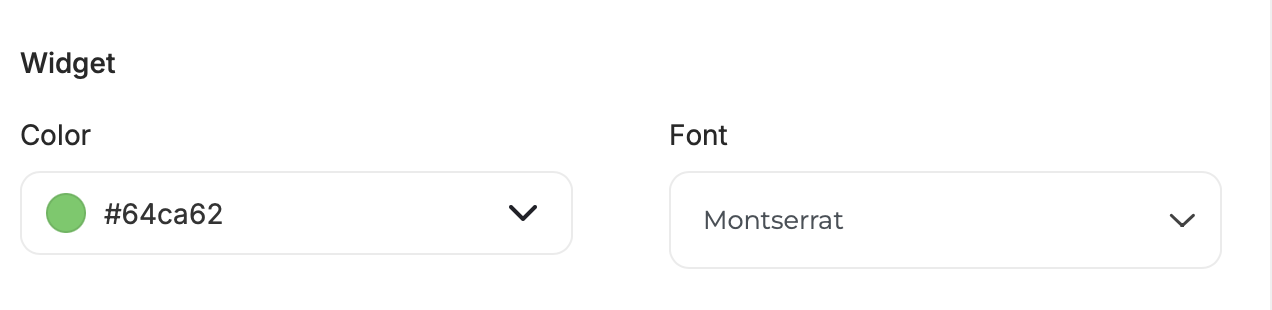
Widget Font
Widget Font
Available on: Shopify & Salla Pro/Guru | Non-platform Growth/EnterpriseYou can choose one of the following 7 fonts:
- Montserrat
- EB Garamont
- Roboto Slab
- Sansita Swashed
- Mali
- Work Sans
- Rubik
Launcher Button Colors
Launcher Button Colors
Available for web only.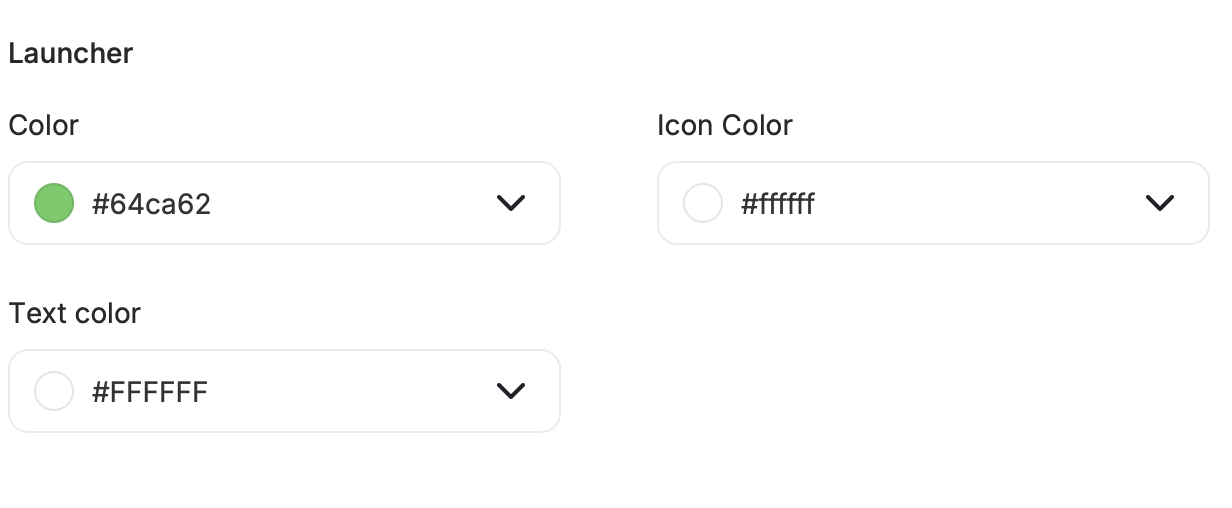
- Launcher Main Color
- Icon Color
- Text Color
Identity
To give your loyalty assets unique names and icons, switch to the Identity Tab.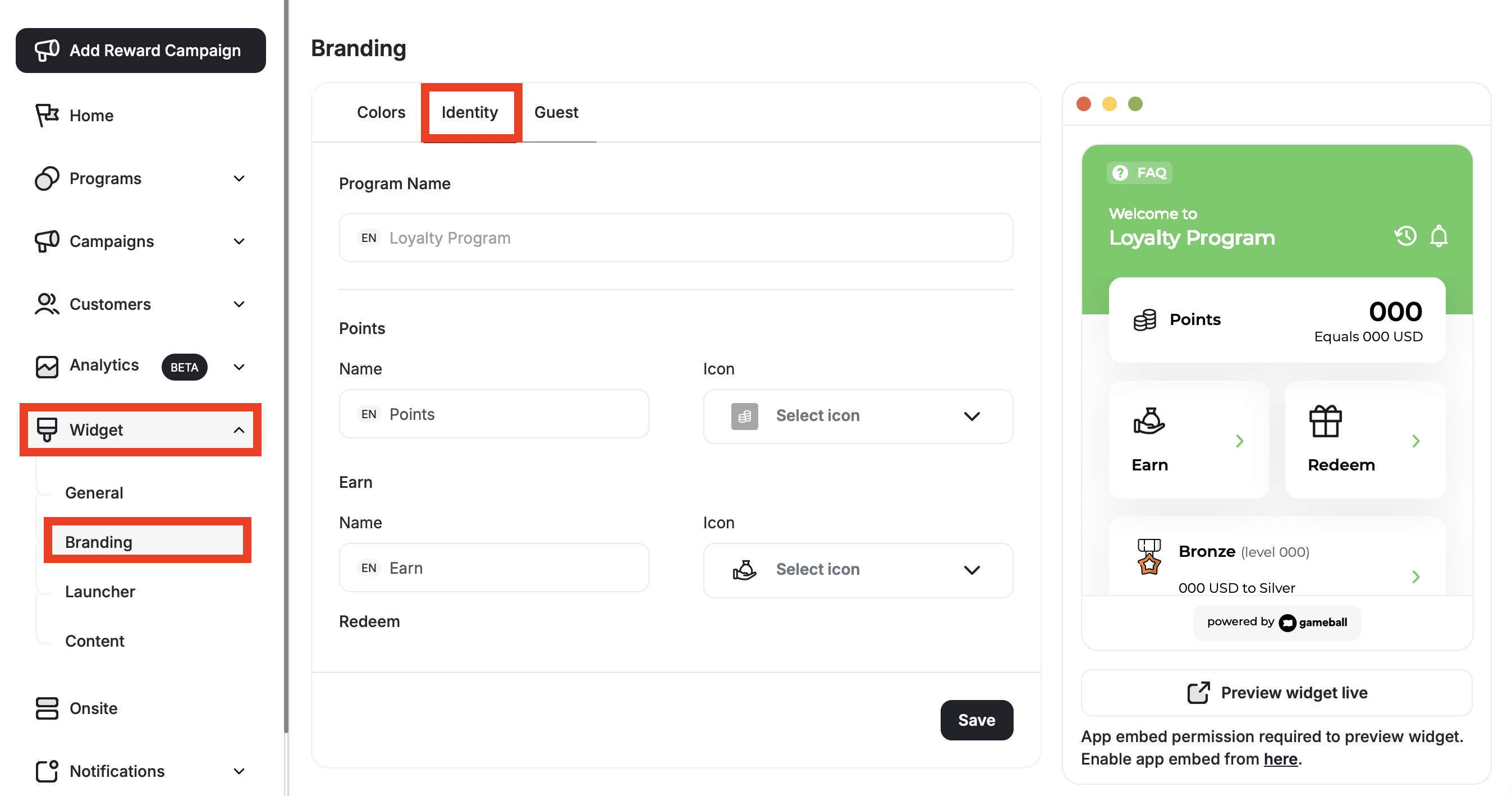
Program Name
Program Name
Give your loyalty program a name that goes well with your platform’s identity. For example, if your platform sells flowers, then a good name for your rewards program could be “Lily Rewards.”
- Program Name Examples: Plus Rewards, Adventure Rewards, Fun Portal, etc.
Points / Score / Earn / Redeem Names
Points / Score / Earn / Redeem Names
Available on: Shopify & Salla Pro/Guru | Non-platform Growth/Enterprise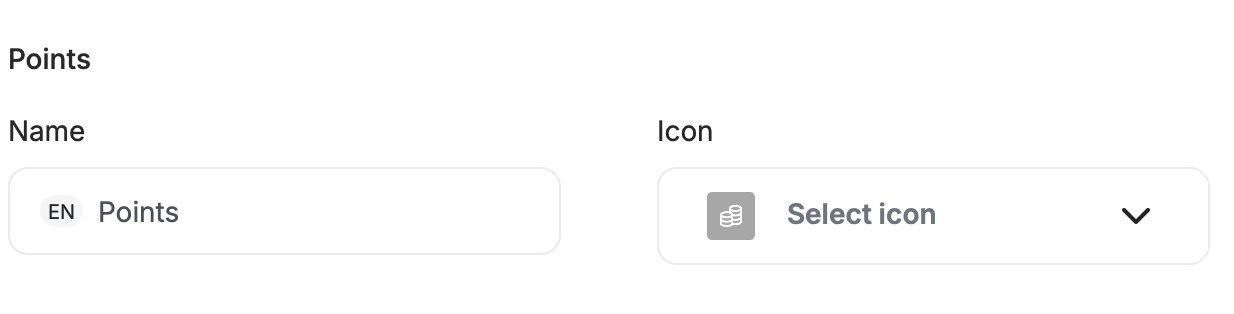
- Points Name Examples: Coins, Tokens, Credit, etc.
- Score Name Examples: Freebies, Rank, Gems, etc.
- Earn Name Examples: Win, Acquire, Save, etc.
- Redeem Name Examples: Spend, Exchange, etc.
Points & Score Icons
Points & Score Icons
Available on: Shopify & Salla Pro/Guru | Non-platform Growth/EnterpriseChoose icons from Gameball’s icon library for:
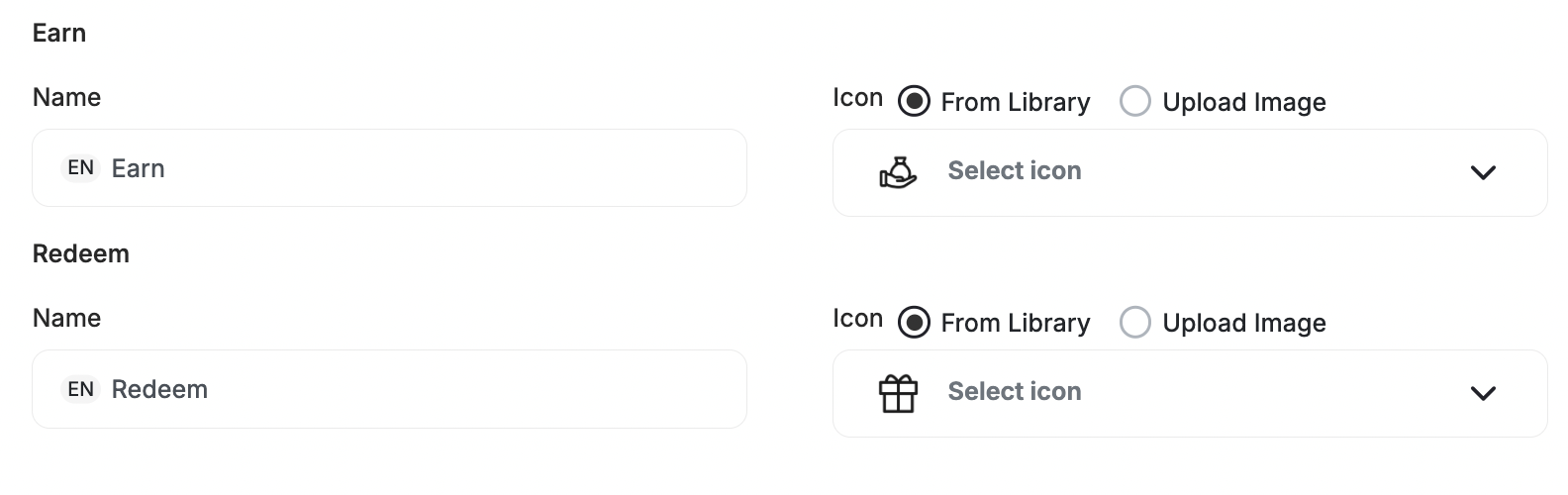
- Points Icon
- Score Icon
- Earn Icon
- Redeem Icon
Guest Widget
Available on: Shopify & Salla Pro/Guru | Non-platform Growth/EnterpriseUploading an Image as a Widget Icon for Guests
One of the things that directly affect the branding is the main widget icon that shows on the guest landing page of the widget. You can choose an icon that represents your idea of loyalty without drifting from the platform’s main theme. To change the main guest widget icon, go to Widget > Branding: Guests in the Gameball Admin Dashboard.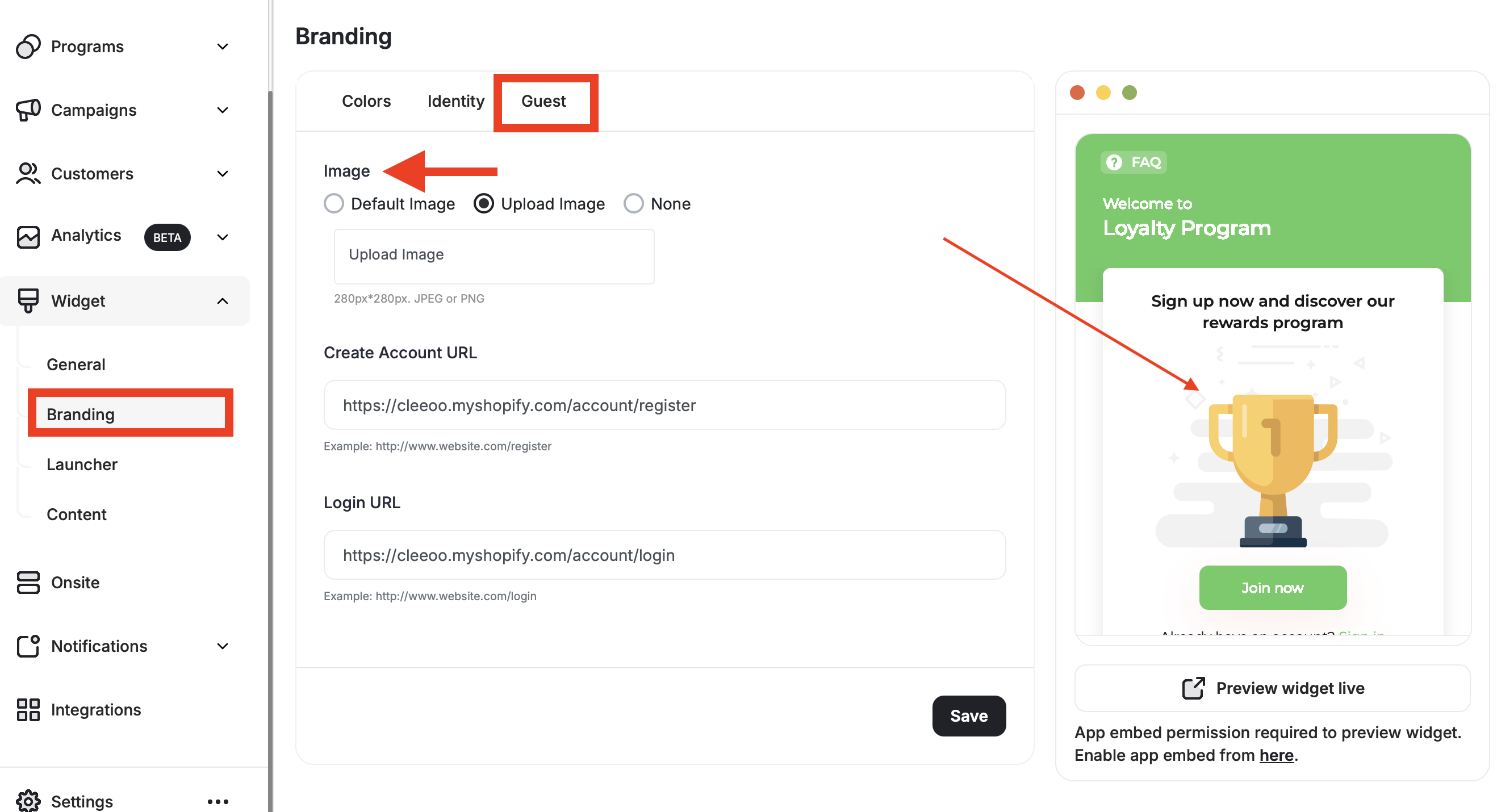
- Default Image: Leave Gameball’s default icon as it is.
- Upload Image: Upload your own image from your own library to match your theme.
- None: Leave the guest widget without an icon.
When choosing “Upload Image,” the image size and type must be: 280px x 280px. JPEG or PNG.
Create Account URL
Paste the website link where customers can create a new account.Login URL
Paste the website link where customers can log in. Lastly, click Save.What’s Next?
Customize the Widget Launcher
Control the shape, position, icon, and visibility of your loyalty launcher button.
Customize Tabs Visibility and Order
Control which tabs appear in your widget and in what order they are displayed.
Guest Profile Configuration for Web
Configure the guest experience, including images, sign-up URLs, and login redirects.
Configure Widget Language
Set a default language and add additional languages to serve a multilingual audience.