

Plan Availability
| Platform | Plan |
|---|---|
| Shopify | Add-on for Pro / Available on Guru |
| Non-Platform | Add-on (Contact Support) |
| Salla | Add-on for Pro / Available on Guru |
How Does Gameball Leaderboard Work?
The leaderboard lets the customer track their progress and compare it to all your other customers. The customer will be ranked based on their progress according to the method of Tiering up that you have configured in the Tier program. For example, if you chose “Amount Spent” to be the tiering up method, the customer will be ranked based on the amount they spent in comparison to other customers’ spending. To view the leaderboard, the customer needs to click on the Progress bar or the Tier found on the home section of the widget, then switch to the Leaderboard tab. The customer will then see their rank amongst other customers.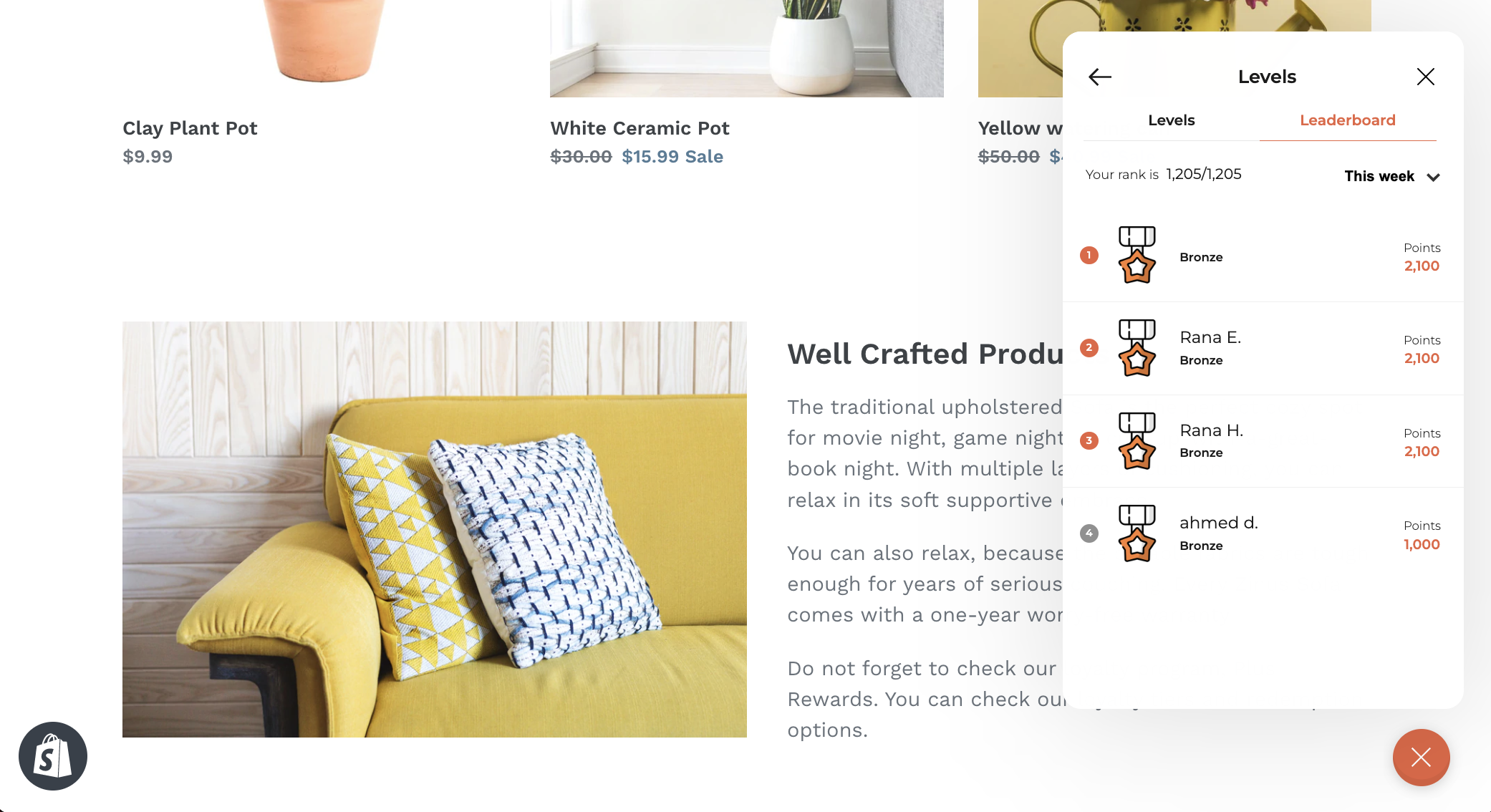
How Can a Customer Know Their Exact Rank?
Customers can see their rank in comparison to the rest of the customers in the text above the customer list.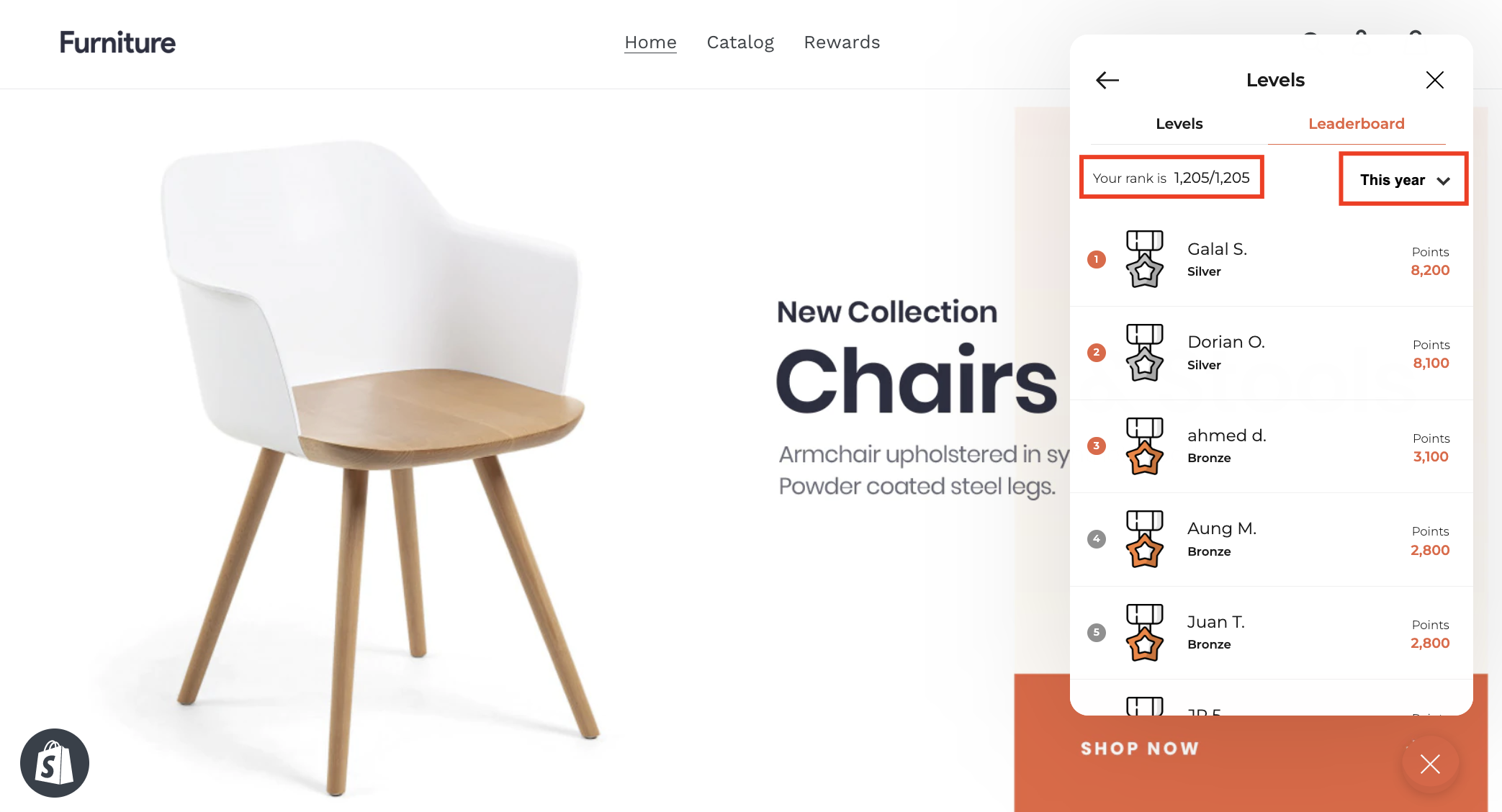
- Today
- Yesterday
- This week
- Last week
- This month
- Last month
- This year
- All-time
How to Show or Hide the Gameball Leaderboard from the Widget
Navigate to Visibility Settings
On the Gameball Admin Dashboard, go to Widget > General: Visibility.
Toggle Leaderboard Visibility
Under the Leaderboard Tab, check Show or Hide based on your objective.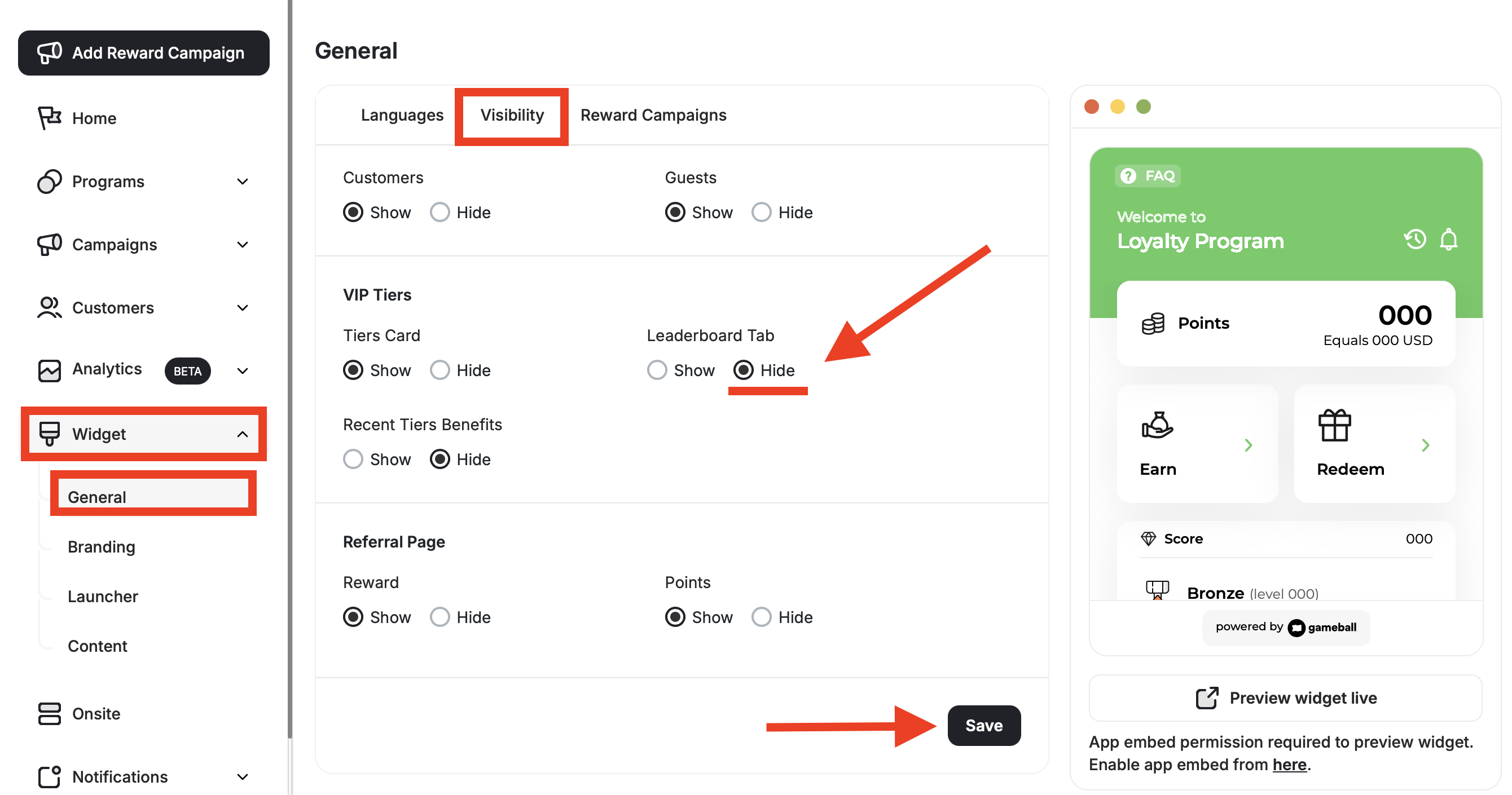
Related Articles
Customize the Widget Launcher
Control the shape, position, icon, and visibility of your loyalty launcher button.
Customize Tabs Visibility and Order
Control which tabs appear in your widget and in what order they are displayed.