

How to Create Real-Time Notifications for Transactional Rewards
Navigate to Transactional Rewards Notifications
In the Gameball Admin Dashboard, from the left bar, click Notifications. Choose between In-App, Emails, & SMS. Scroll to Rewards and select between Points Redemption, Points Refund, Points Expiry Reminder, and Coupon Expiry Reminder. In case it is an email notification, you can also choose to create a notification for Coupon Earned.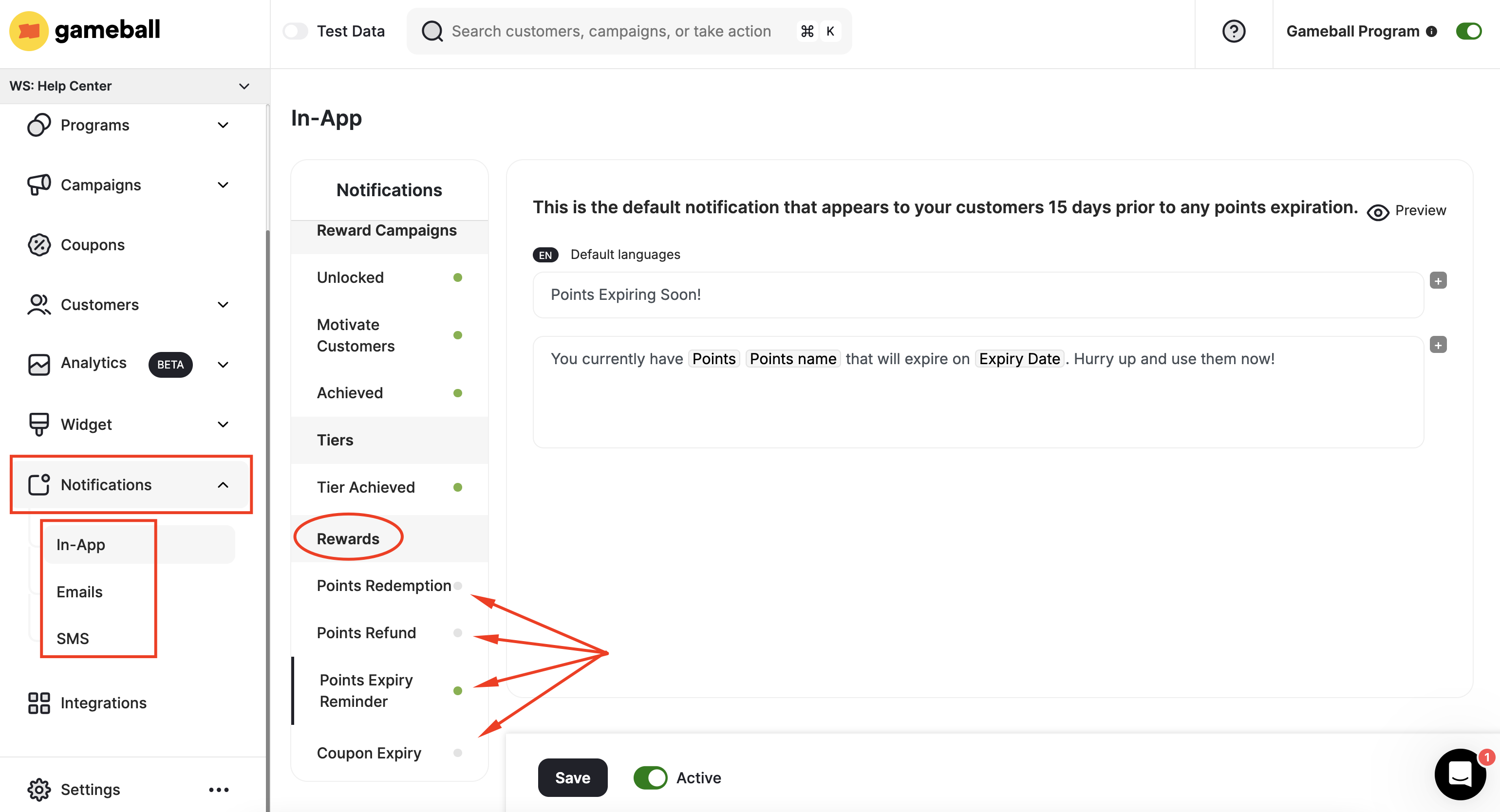
Write the Notification Message
Construct a heading and a body for the notification. In case you are creating an email notification, write a clear subject line and body. Learn how to write an email notification.
Configure the Notification Script
Add your message script for each transactional rewards notification type:
Points Redemption Message
Points Redemption Message
Send real-time transaction notifications for any points redeemed by a customer. Inform your customer how many points they have redeemed, and their current points balance.
Points Refund Message
Points Refund Message
Send a real-time notification to your customers upon a points refund. If the points are deducted for a specific reason, make sure to inform them of how many points have been taken back and what their current points balance is.
Coupon Expiry Reminder
Coupon Expiry Reminder
Send a real-time notification to your customers if a group of points is soon to expire. Inform them of the number of points that might expire as well as the date they will no longer be available.
Coupon Earned (Email Only)
Coupon Earned (Email Only)
Available only under email notifications. Send a real-time notification to your customers if a coupon is soon to expire. Inform them of the exact available coupon that might expire as well as the date it will no longer be available.
Add Script Variables
To send more personalized, relevant, and clear notifications, add variables in between your messages by clicking the + icon.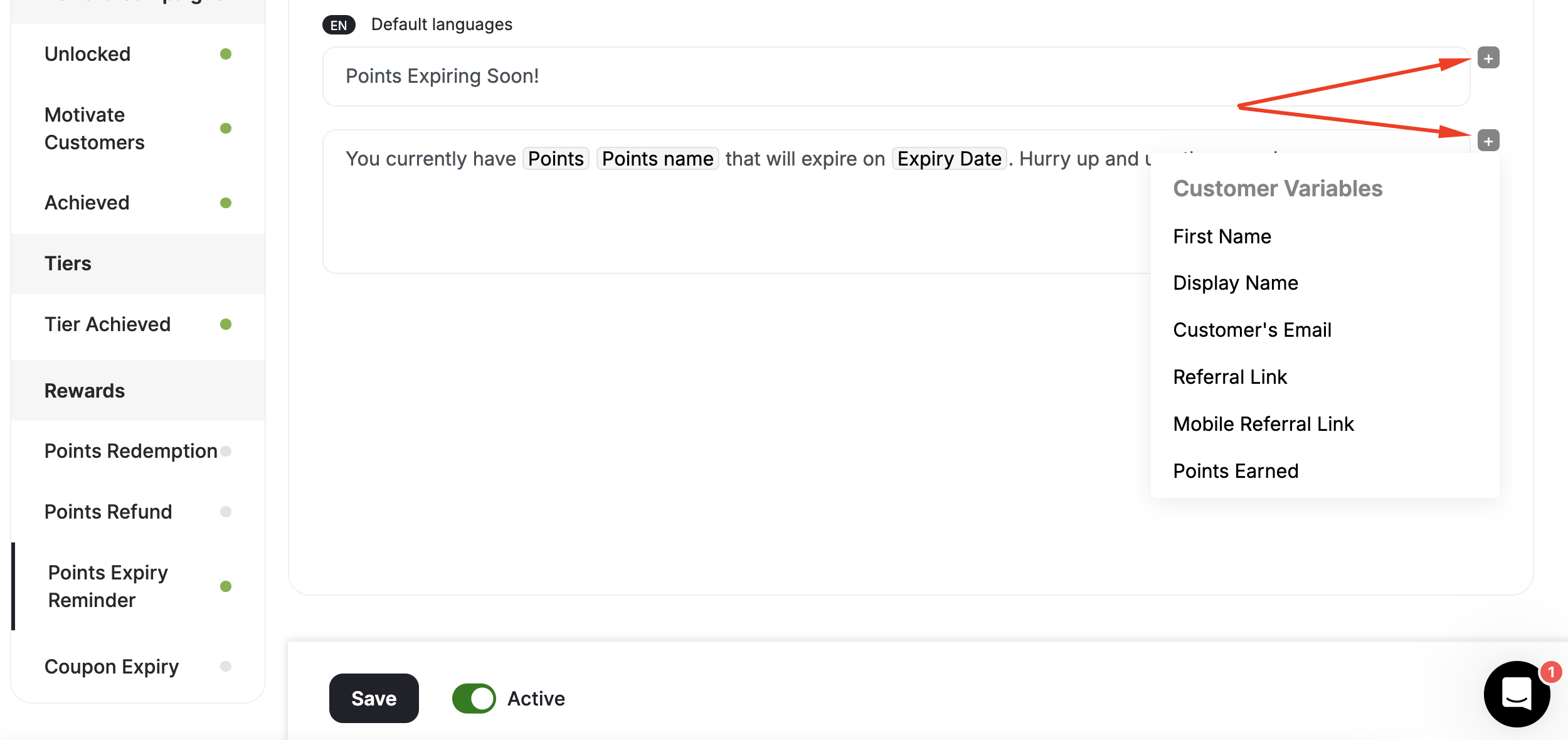
- Customer Variables: First Name, Display Name, Customer’s Email, Referral Link, Mobile Referral Link, Points Earned, Tier-up Progress, Points, Points Before, Tier Up total progress.
- Transaction Variables: Equivalent value of total points, Equivalent value of earned points, Redeemed Points, Expiry Date, Currency, Points Name, Referral Link, Mobile Referral Link.
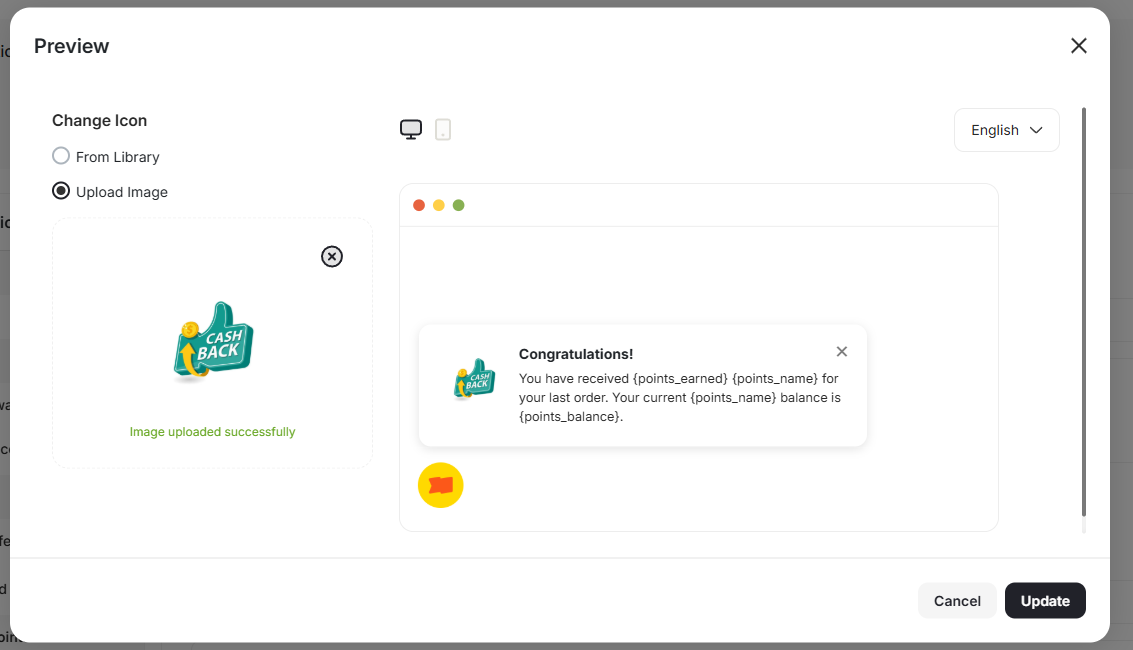
Preview and Update Notification Icon
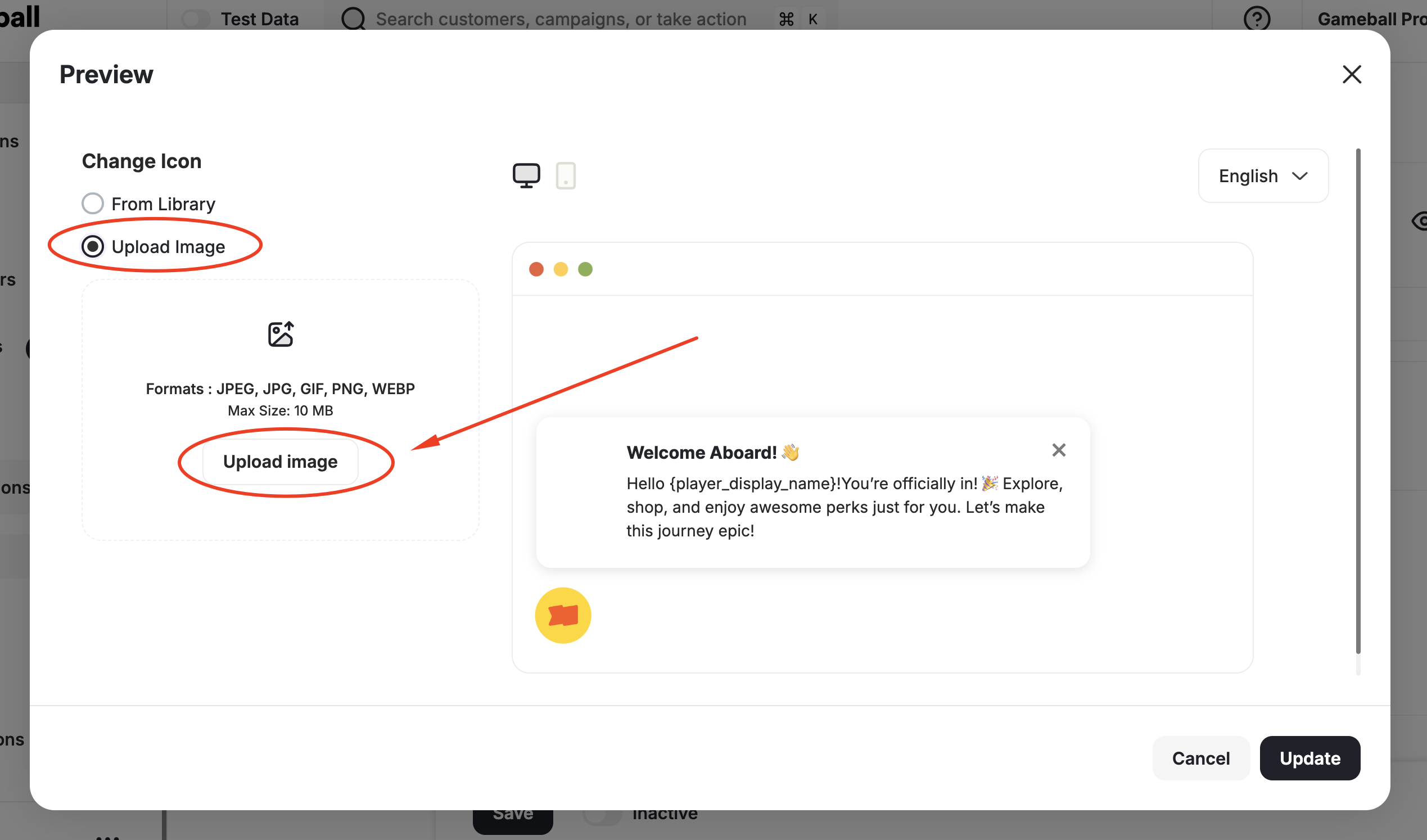
Before activating the notification, click Preview on the top right of the edit page to see what the notification will look like for customers.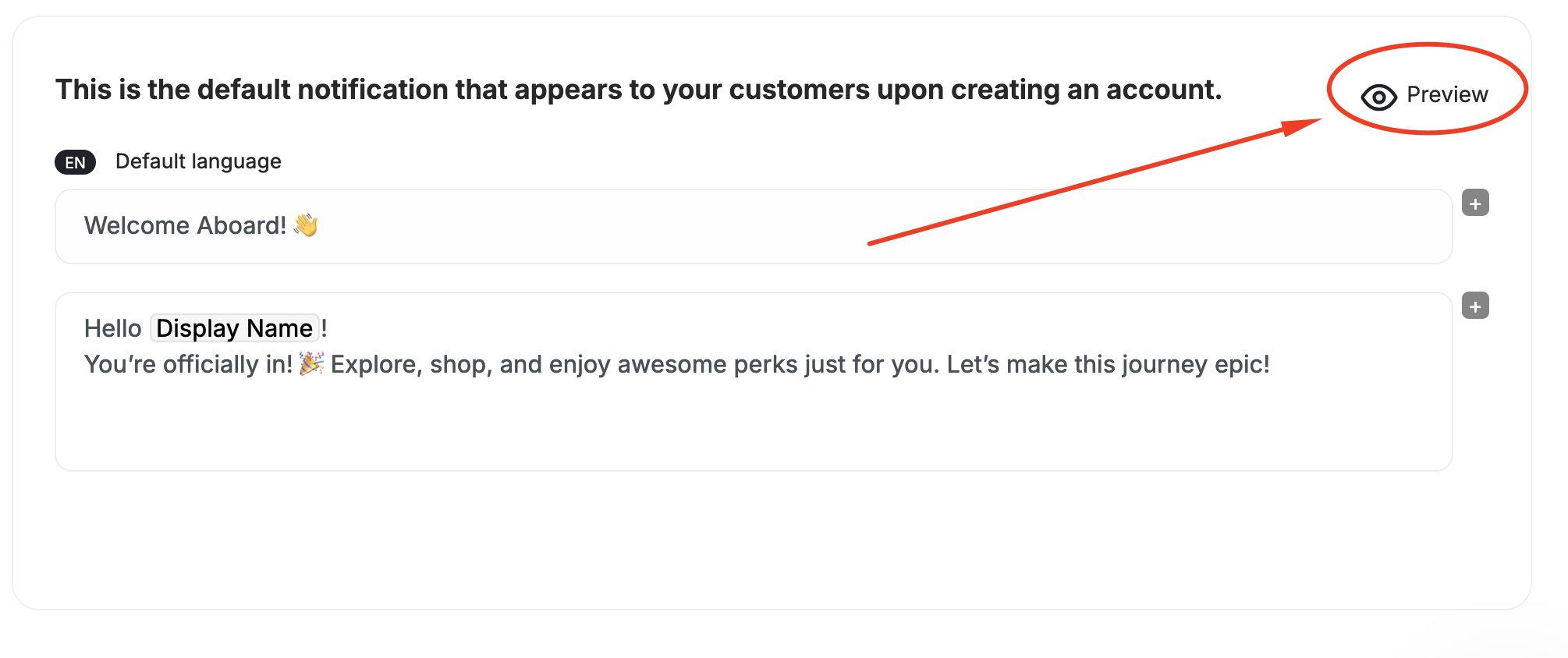
Related Articles
Send Real-Time Notifications for Tiers
Notify customers when they level up to a new tier in your loyalty program.
Send Real-Time Notifications for Reward Campaigns
Keep customers informed of reward campaign unlocks, progress, and achievements.
Send Real-Time Notifications for Referrals
Alert customers when a referral is successful or when a referral reward is earned.
Send Real-Time Notifications for Cashback
Notify customers of cashback rewards earned or canceled for their transactions.
Sending Customers Emails Celebrating Achievements
Send achievement emails to drive customers back to your platform.