

Step 1: Export Old Rewards Program Data
All you need to do is head to your current rewards program and ask for your customers’ export files. It is preferable that you collect the following information for every customer:- Shopify
- Non-Shopify
| Field | Required |
|---|---|
| Customer Email | Mandatory |
| Birthday | Optional |
| Customer Points | Optional |
| Required Tier Name (Level) | Optional |
Step 2: Migrate to Gameball
Go to the Importing Page
From Gameball Admin Dashboard, go to Customers > Customers Tab > More > Update/Migrate Customers.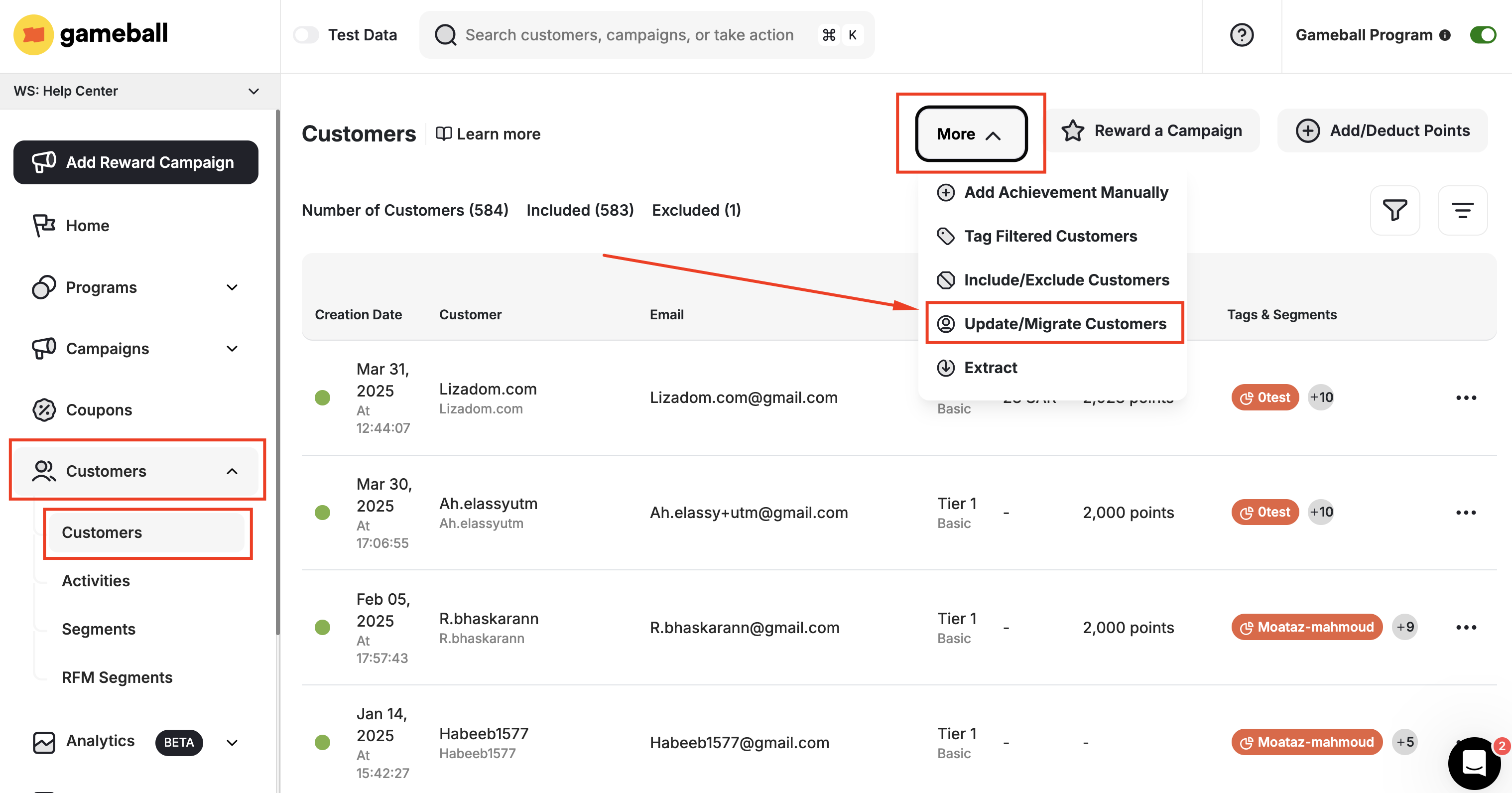
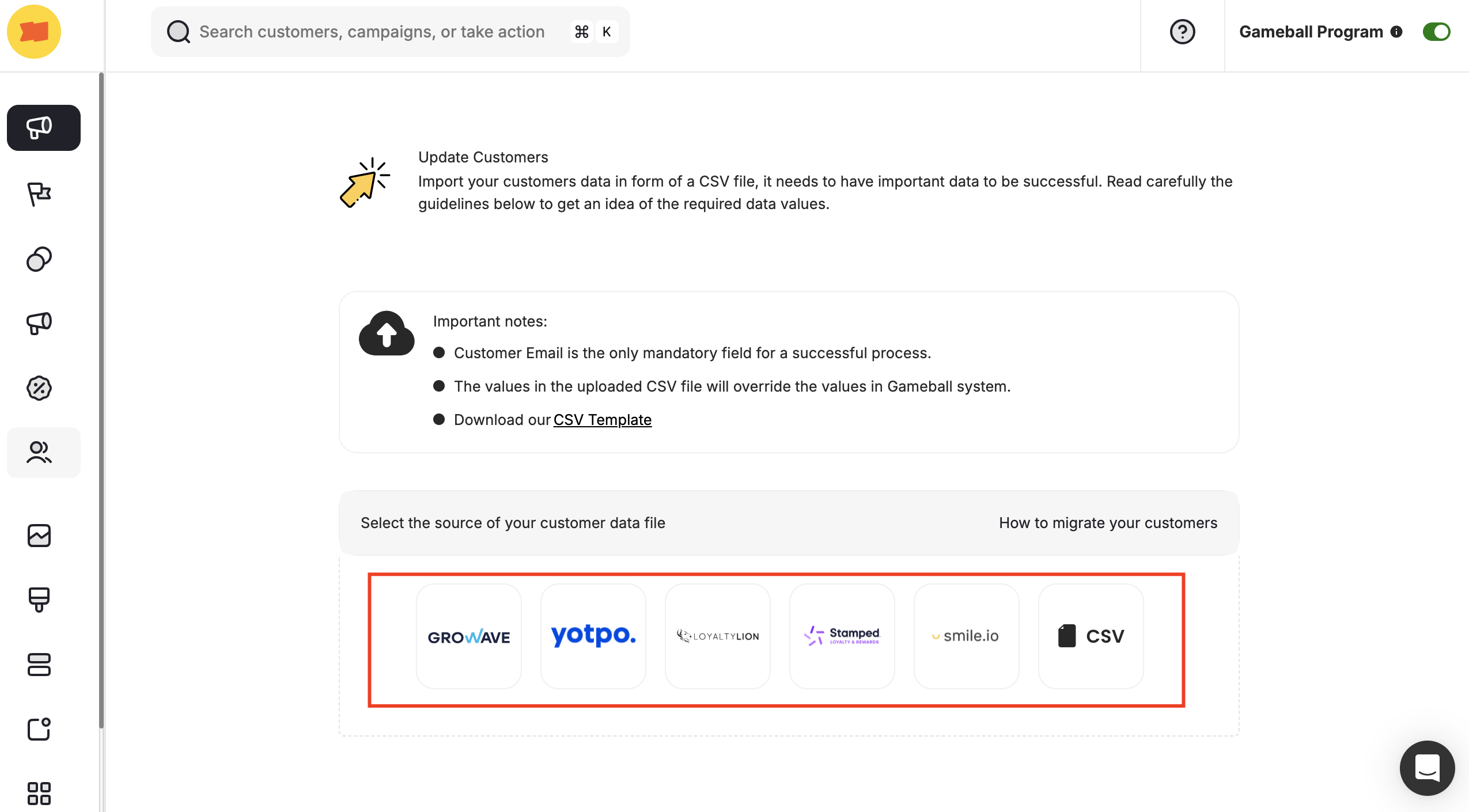
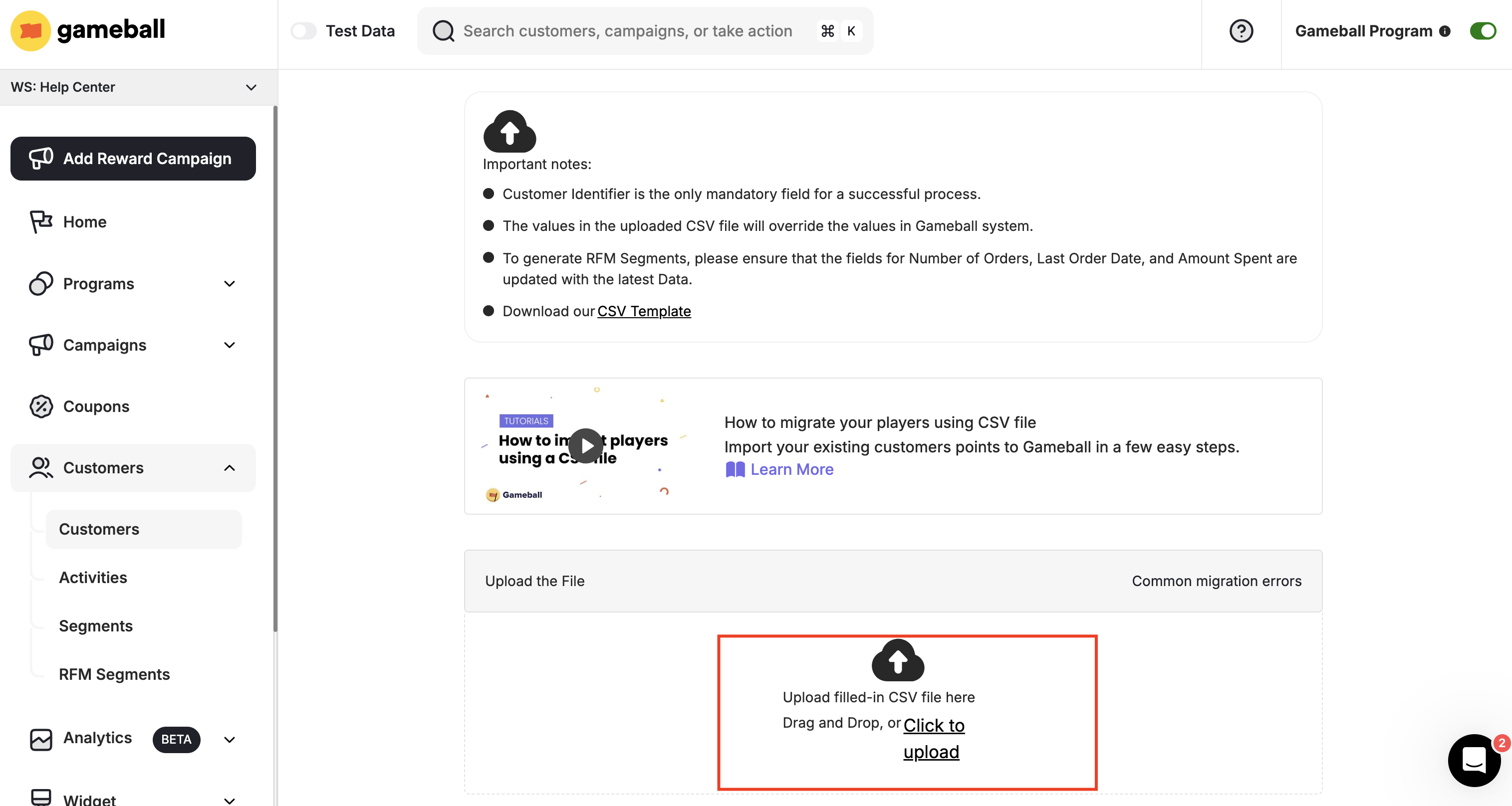
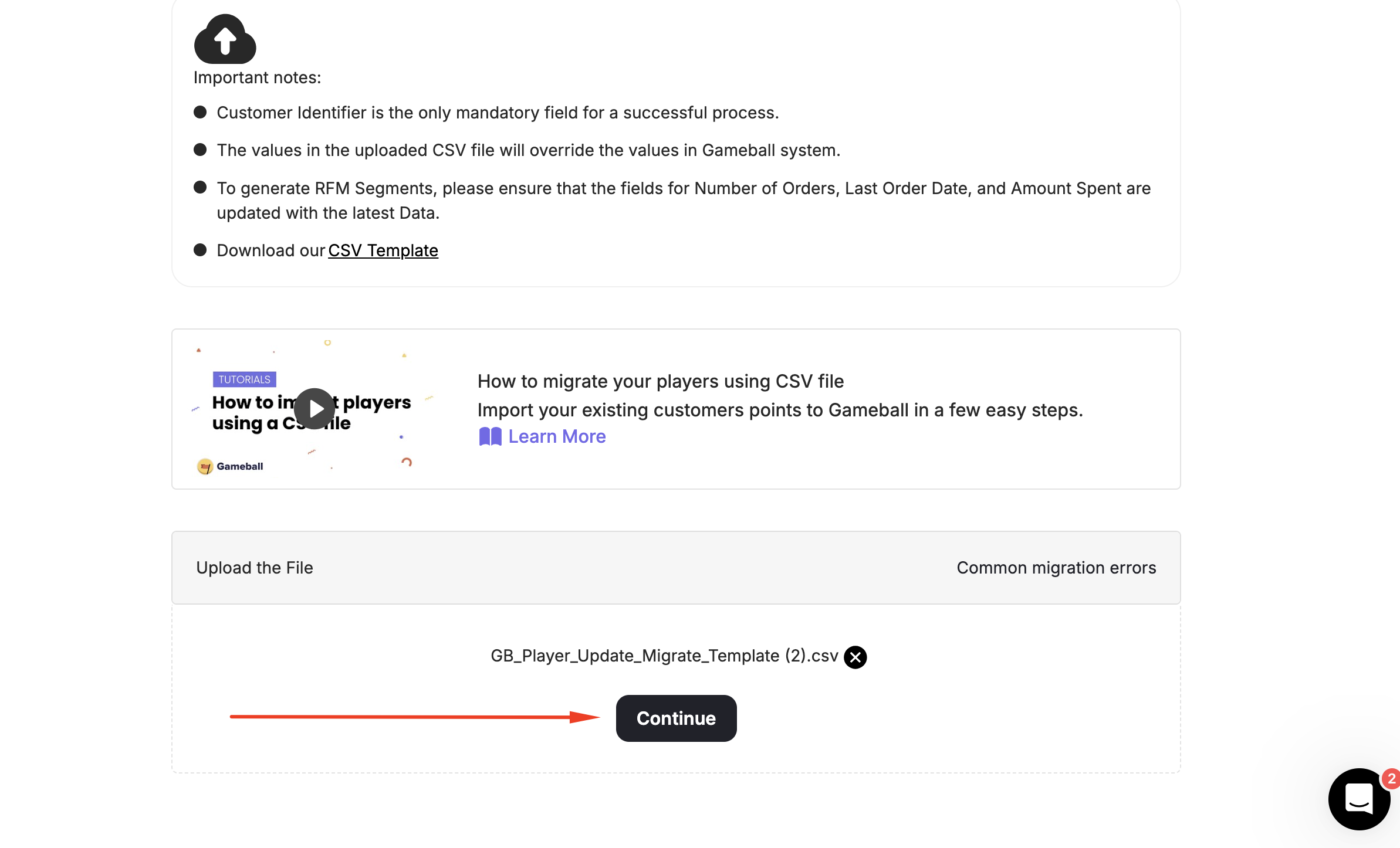
Upload Your Extracted Customers File
Choose the downloaded CSV file and click Open.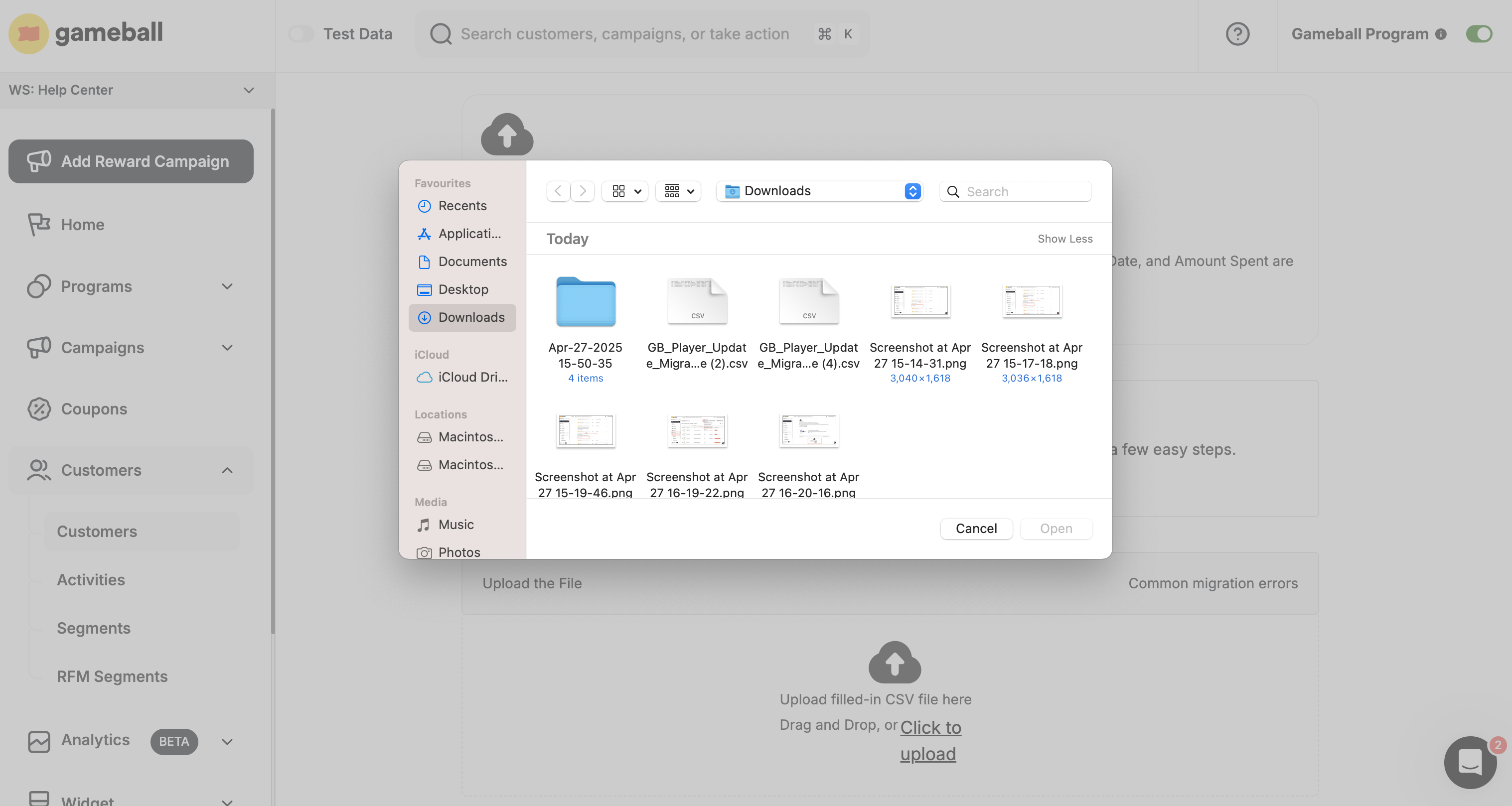
Map Your Attributes
In order for Gameball to correctly place the customers’ data into their corresponding attributes, you will have to map the CSV file headers with Gameball’s requested attributes.For example: if the CSV file has a column titled “Email address,” then select this header under Your File Attribute, right beside “Customer Email.” This way Gameball will understand that data under the “Email Address” column should be placed in the Customer Email attribute.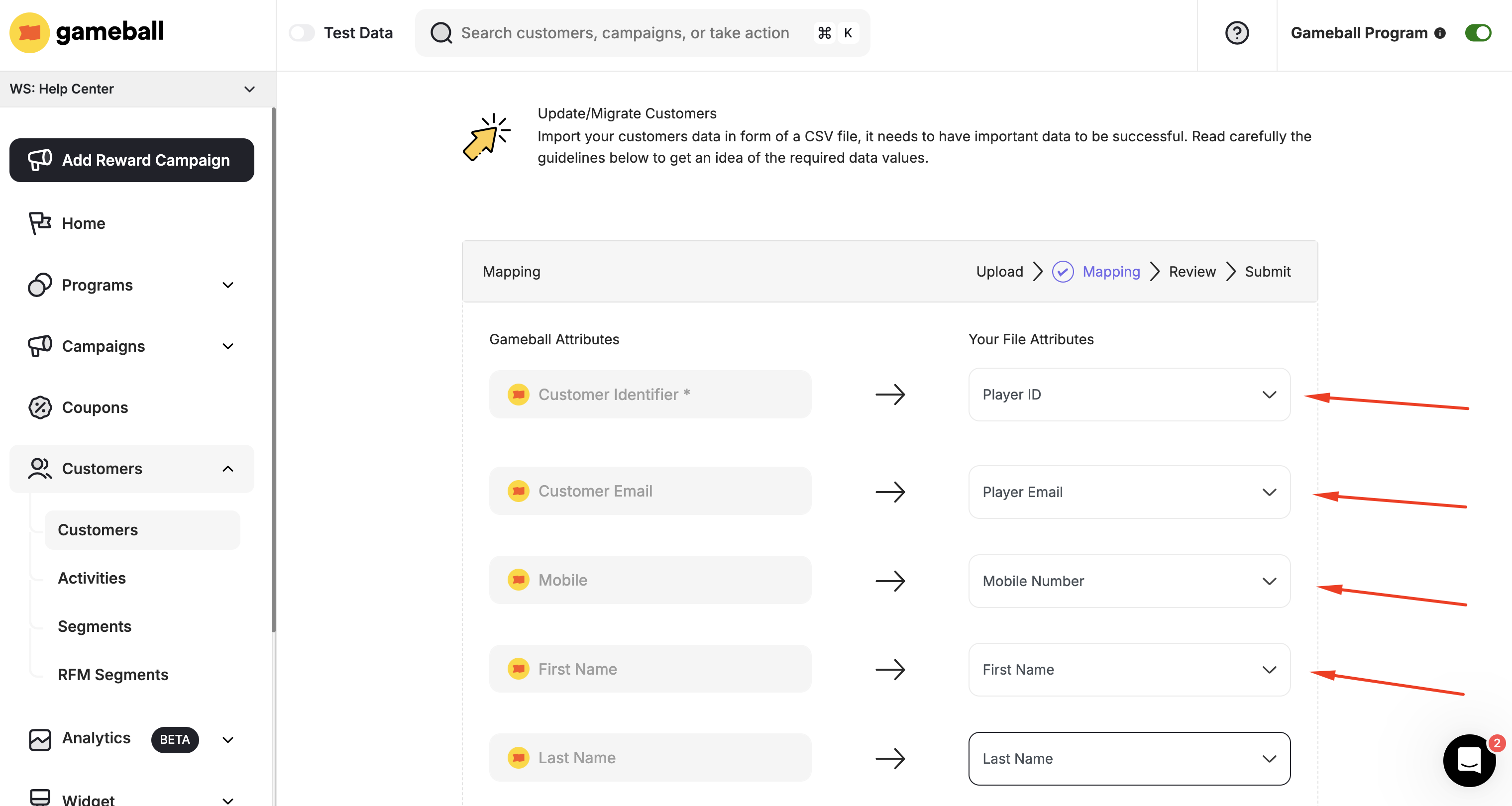
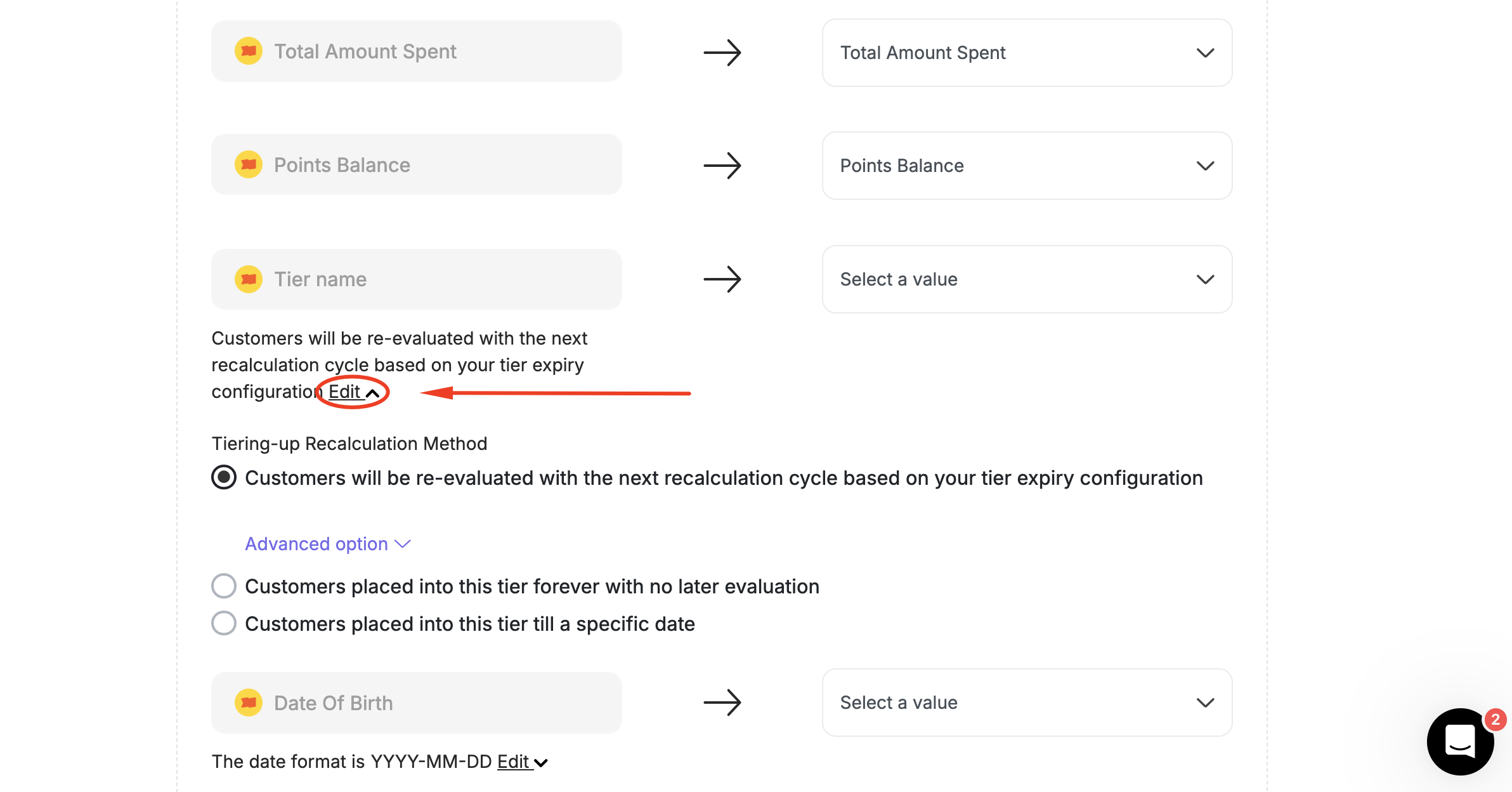
If you are adding customers’ birth dates, choose the date format under Date of Birth that matches the format in the CSV file: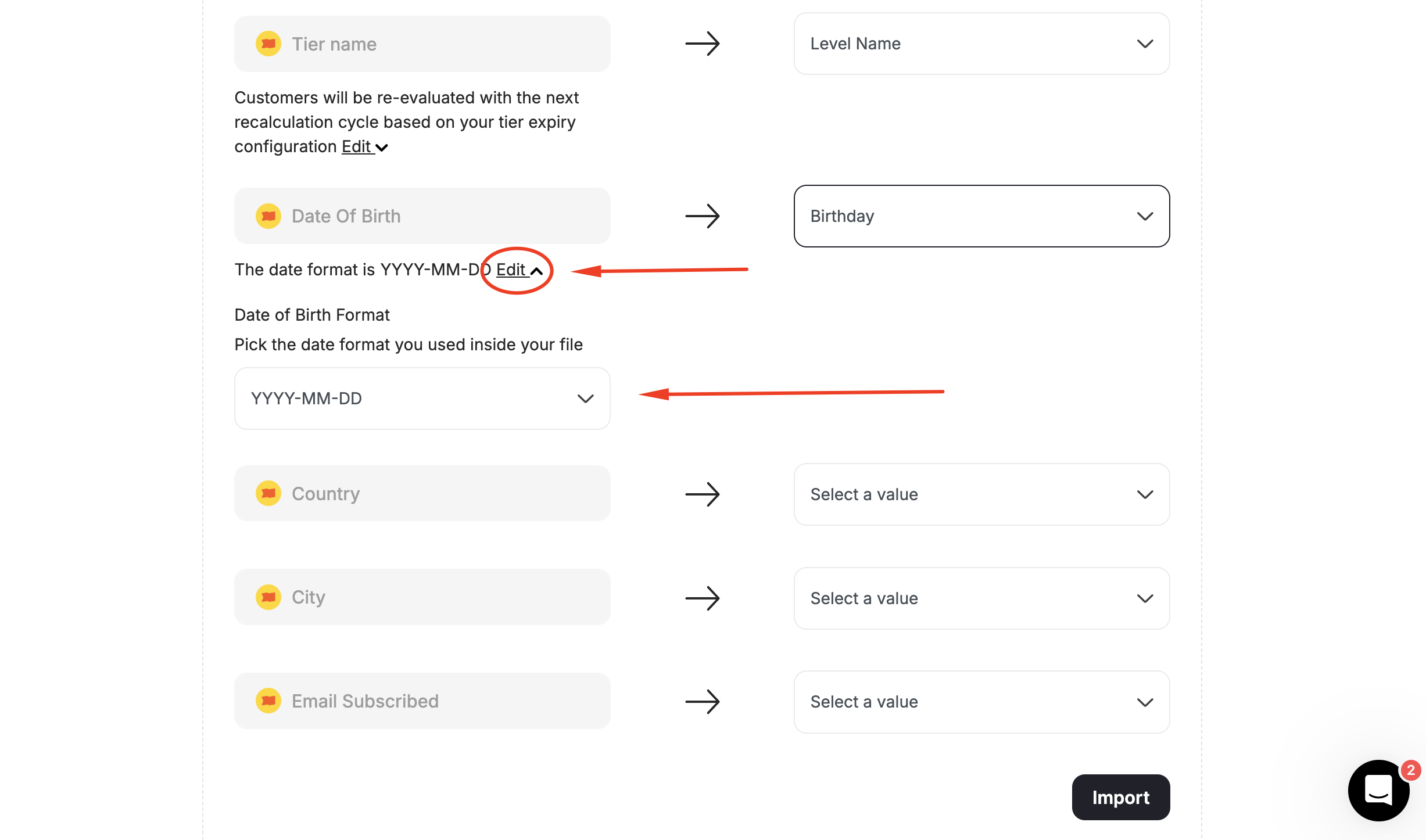
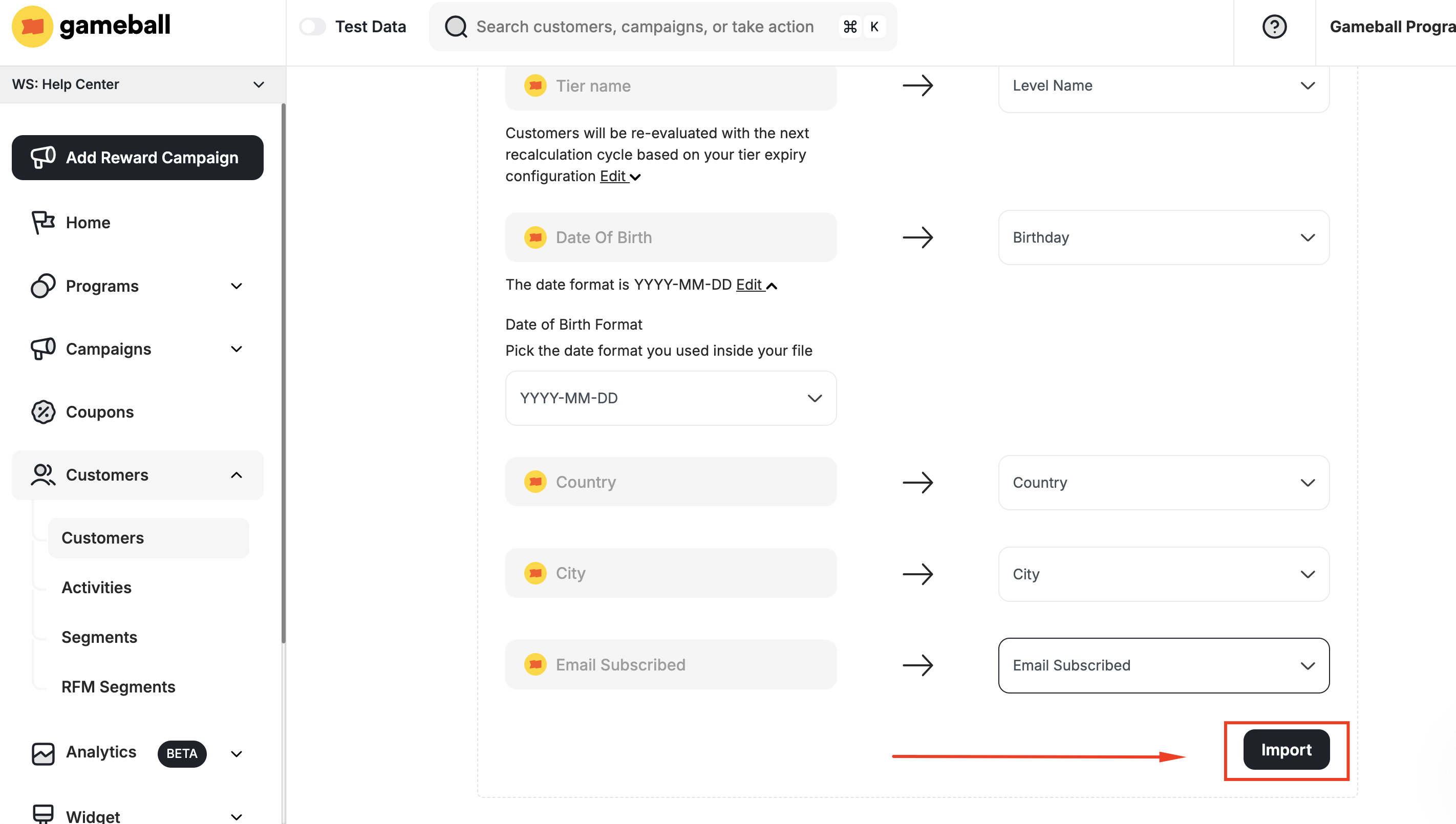
The only mandatory data/customer attribute is the Customer Identifier, which could be placed with the email address if no unique ID/number is assigned to each customer.
| Option | Description |
|---|---|
| Re-evaluate on next cycle | Customers will be re-evaluated with the next recalculation cycle based on your tier expiry configuration |
| Place in tier forever | Customers are placed into this tier forever with no later evaluation |
| Place in tier until a date | Customers are placed into this tier until a specific date |
YYYY-MM-DD, MM-DD-YYYY, DD-MM-YYYY, YYYY/MM/DD, DD/MM/YYYY, MM/DD/YYYYClick Import.Review Your Errors
If the CSV file you uploaded has unmatching data that doesn’t comply with the original format, Gameball will show you the errors that need to be fixed for a successful migration.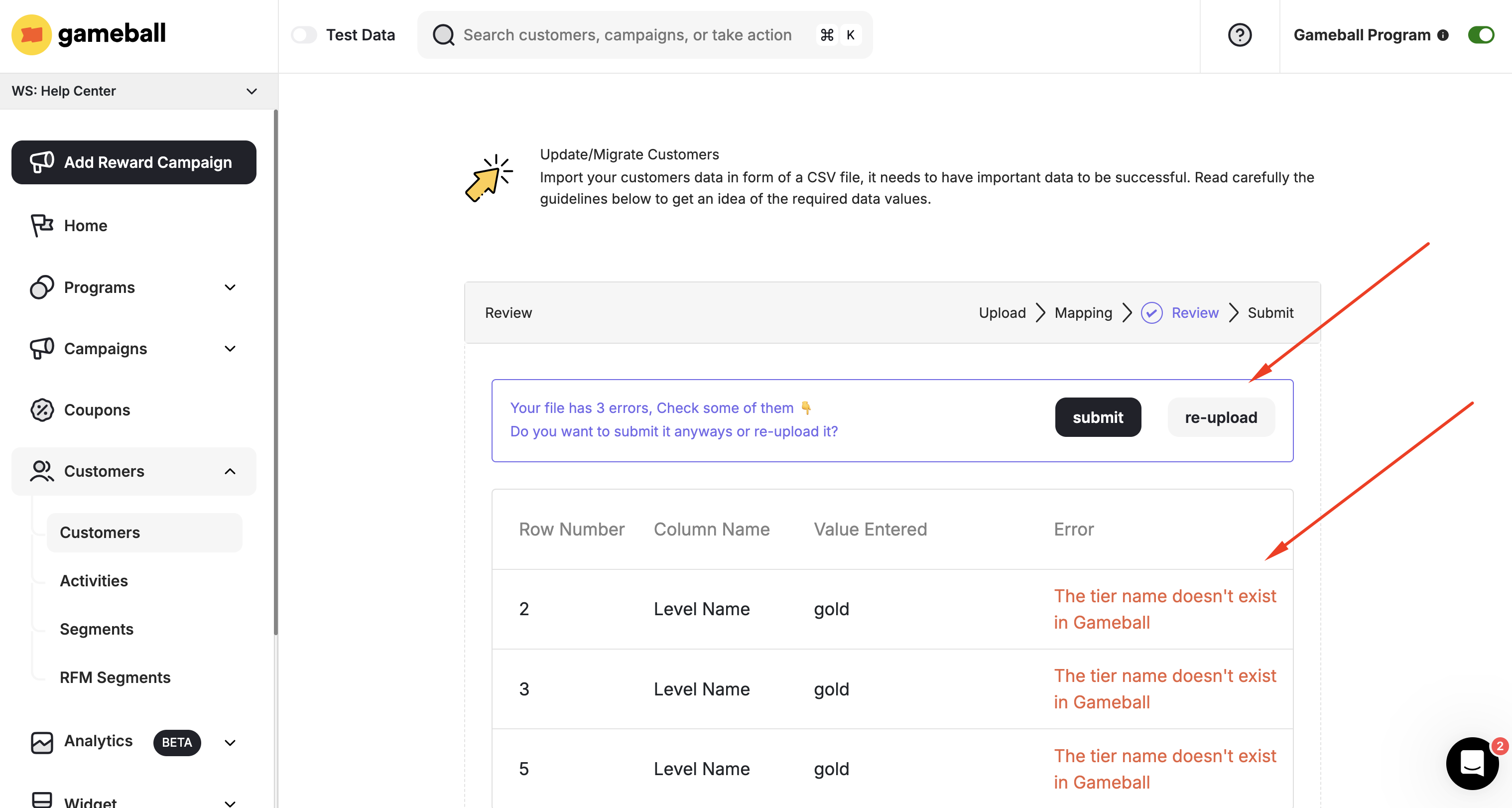
If there are more than 10 errors in the file, you will need to download the error sheet to check all your errors, as you will not see all the errors on the reviewing page.
Submit the File to Complete the Migration
If you have fixed all your errors, you can submit your file.You will then be redirected to the Customers page, where you will find the list of the new customers added, as well as a sheet of all the existing errors to be downloaded.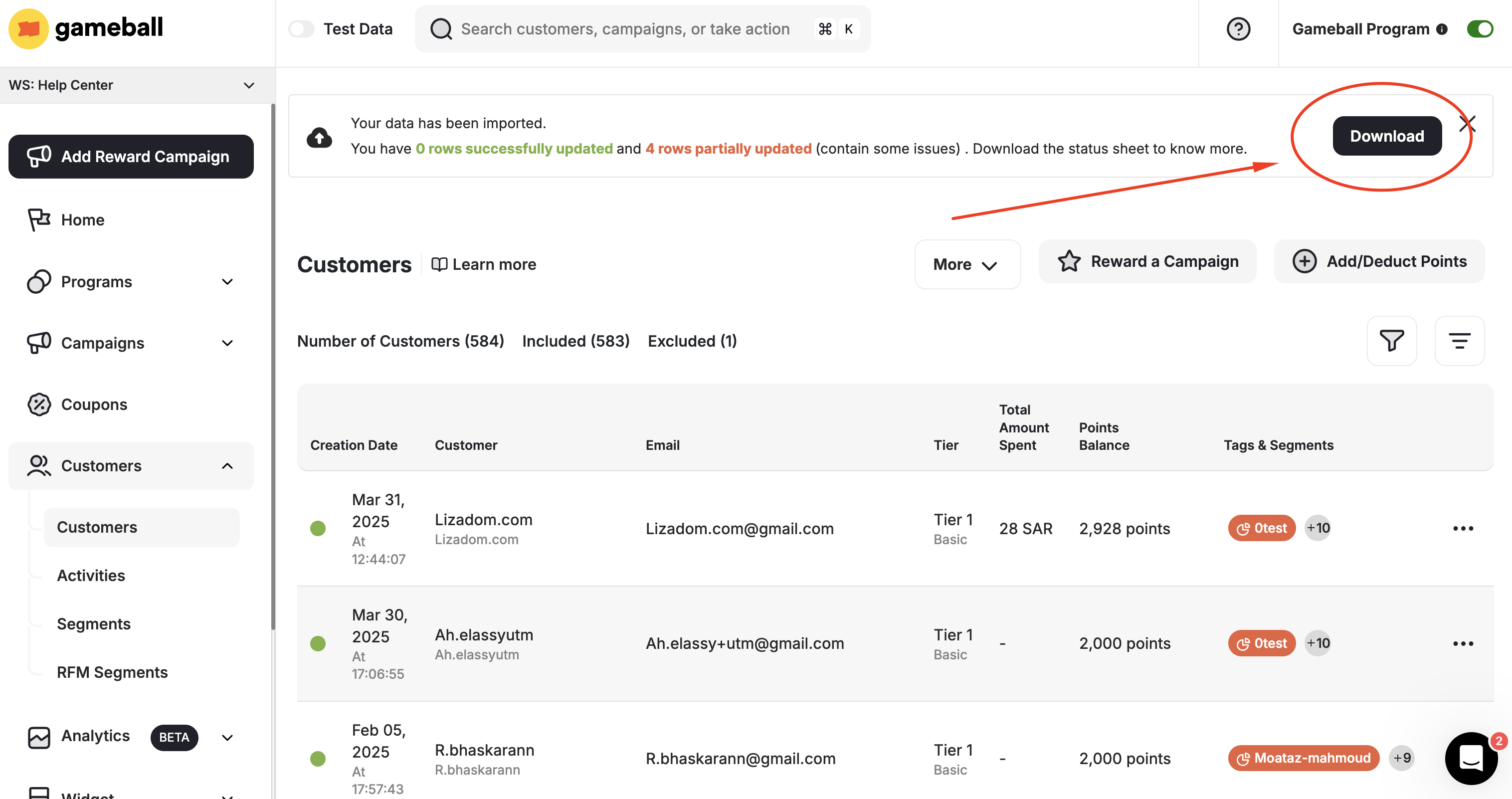
An email will be sent with the errors sheet to the admin account’s registered email.
How to Migrate Guests (Customers Who Are Not Registered)
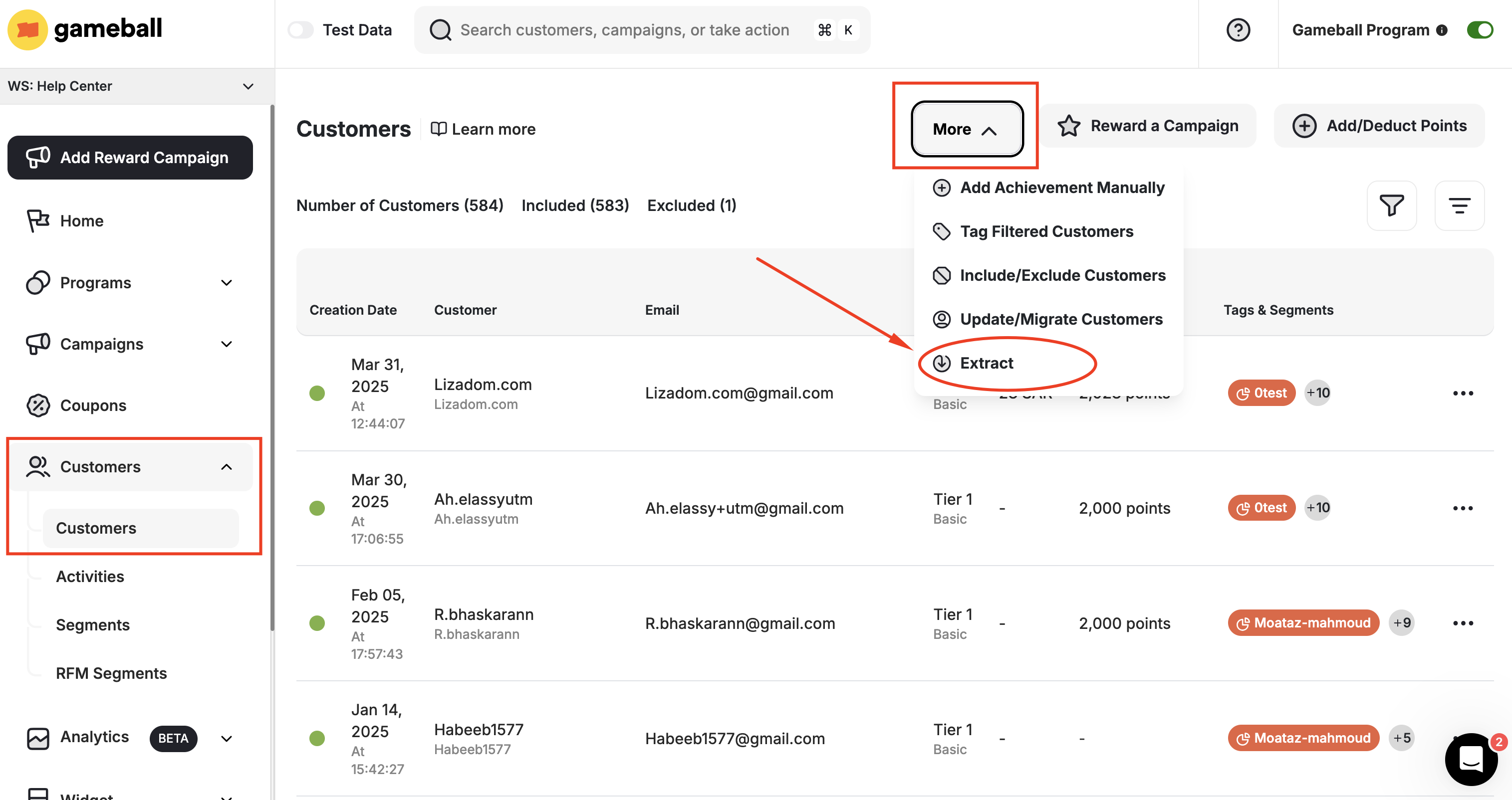
When migrating your customers from other loyalty programs or through a CSV file, some of the customers’ data might not be registered. If you still want these customers to be part of your loyalty program, you will have to enable guest customers to integrate them with your loyalty program. Learn how to integrate your guest customers into your rewards program.How to Extract Your Current Customer Data
Related Articles
Introduction to Customers on Gameball
Learn more about how customer data is managed in Gameball.
Common Customer Update/Migration Errors
Troubleshoot errors that may occur during the customer migration process.