

Plan Availability
- E-commerce Platforms
- Custom Integrations
| Platform | Plan |
|---|---|
| Shopify | Guru |
| Salla | Guru |
Overview
Events are the actions performed by your customers on your platform. Your platform should fire signals to Gameball when important events occur. In other words, Gameball should be notified when customers perform certain actions or sequences of actions on your platform. Learn more To configure these events on the Gameball dashboard, go to Settings > Admin Settings > Integrations: Events.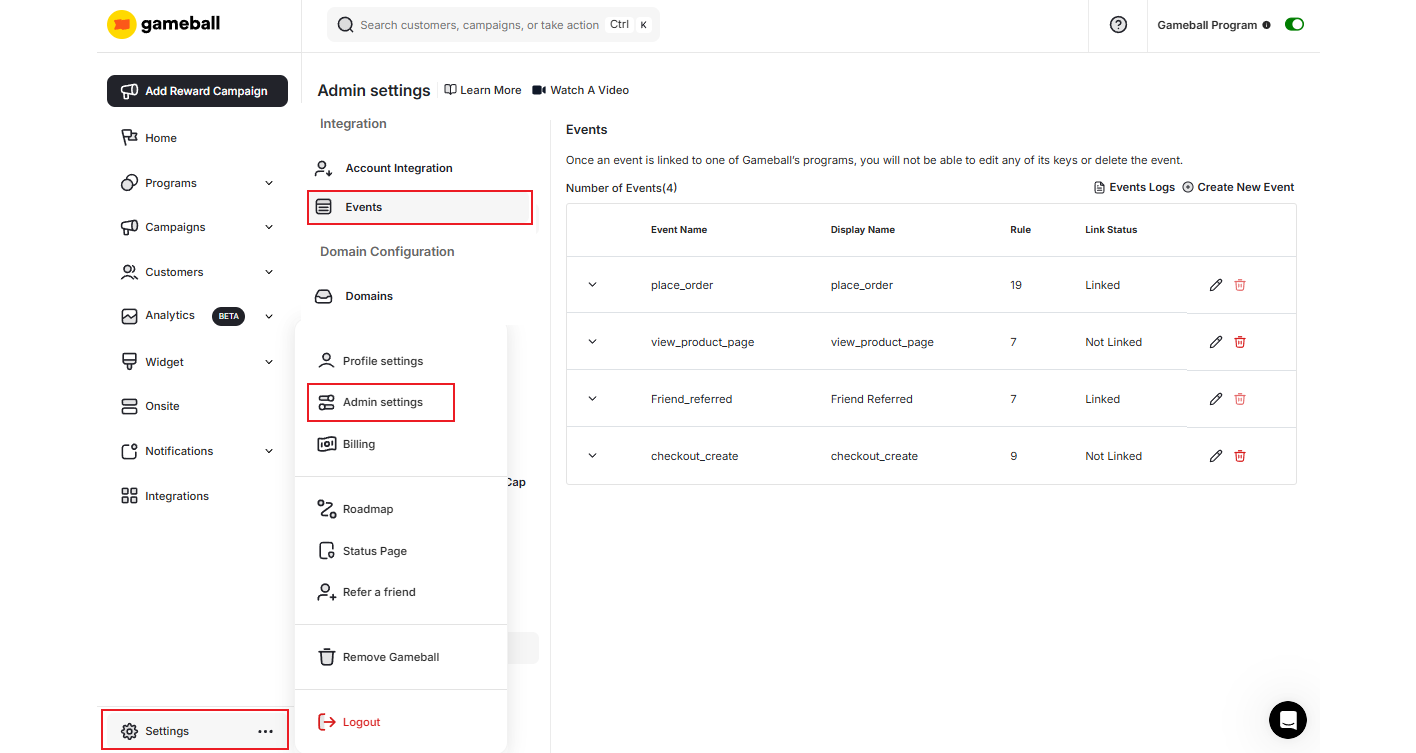
Adding Events
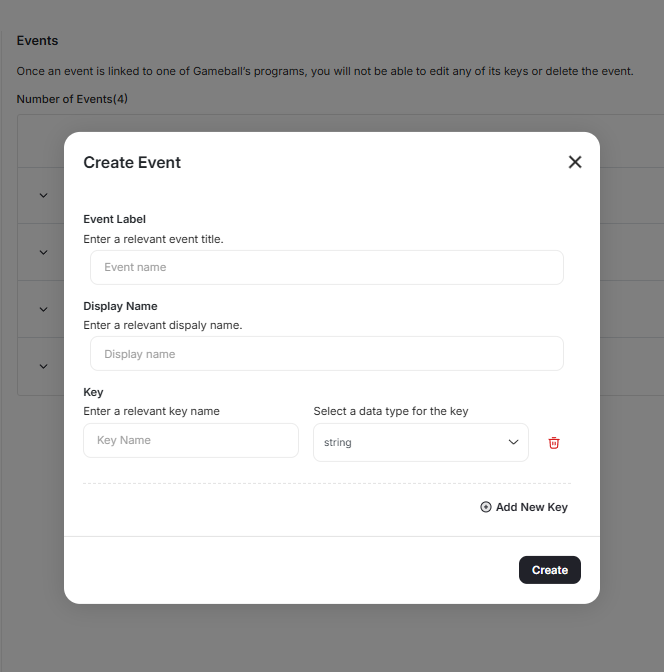
Once an event is sent from your platform to Gameball, it automatically appears on the events page. You can edit or delete the event as long as it is not linked to any Gameball configurations. Once an event is linked to a campaign, you will not be able to edit it or delete it unless you unlink it. You can configure and edit event details before linking an event on the Gameball dashboard. Here is a brief description of each field:Event Label
Event Label
The event name as sent from your platform.
Display Name
Display Name
A relevant event name as chosen by you for display in the dashboard.
Key
Key
Includes two variables: the key name and the data type for the key.
Enable and Disable Internal Events
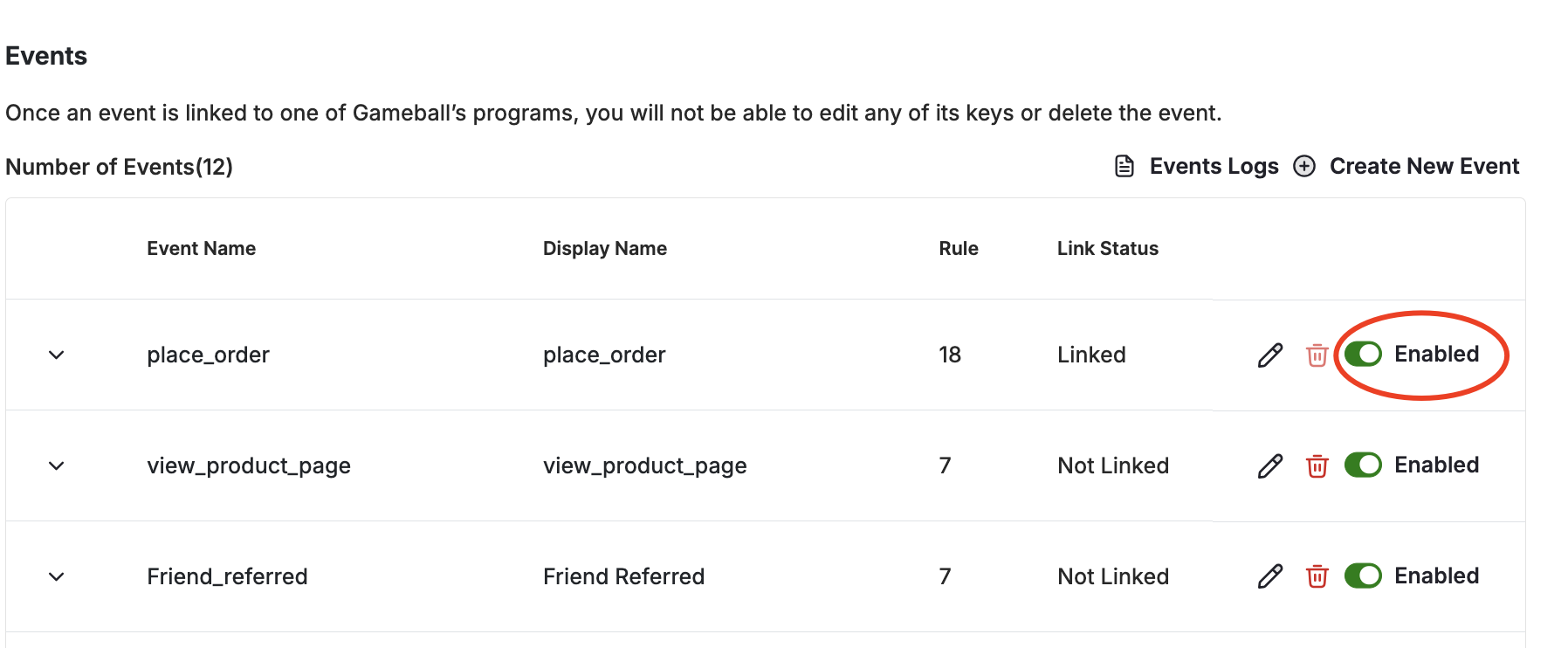
place_order, view_product, order_refunded, add_to_cart, etc.).
Why This Matters
This gives you complete control over the events you track and process, allowing you to:- Eliminate unnecessary or duplicate events.
- Customize your tracking to fit your business logic.
- Decide which events should (or shouldn’t) be fired to your system.
Key Details
Dedicated Settings Page
A dedicated settings page lists all auto-fired Gameball events with toggles to enable or disable them individually.
Real-Time Effect
Changes apply in real time — once an event is disabled, it stops being fired immediately.
Disabled Event Behavior
When disabled, the event will no longer be sent to your system or used in internal Gameball flows unless you manually fire it.
Access Control
Only Admins, Workspace Owners, or Workspace Admins can control event toggles. If custom roles are enabled, this action is assignable.
Remarks
The event and rules stored for each event must be synced across your mobile and web integrations to provide your customers with a consistent experience.
Related Articles
Understand Your Players' Events
Learn how customer events are tracked and stored in Gameball.
Challenge Event(s) Rule Engine
Understand how the event-based rule engine works for challenges.
Events Log
Monitor live events being sent from your platform to Gameball.
Using Events on Shopify
A step-by-step guide to configuring and using events on Shopify.