

Plan Availability
| Platform | Plan |
|---|---|
| All | Upon Request (Contact Support) |
Prerequisites
Ensure you have the necessary permission levels to access this feature. Only users with the roles of Workspace Owner, Admin, or Merchant/Branch Manager can manage third-party coupons.
Step-by-Step Instructions
Create a New Coupon Group
Go to your Gameball dashboard and click Settings, then navigate to the Admin Settings section.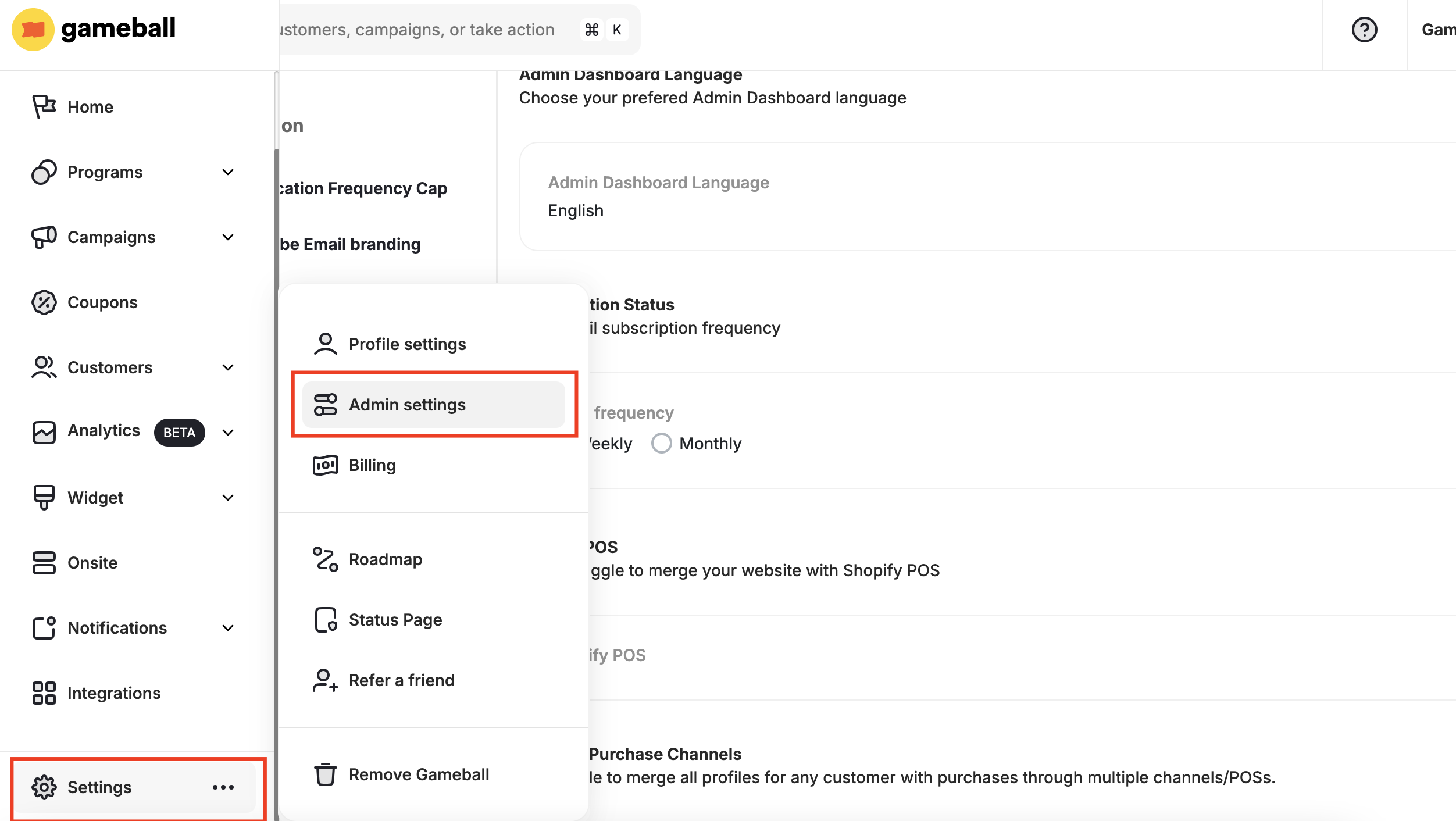
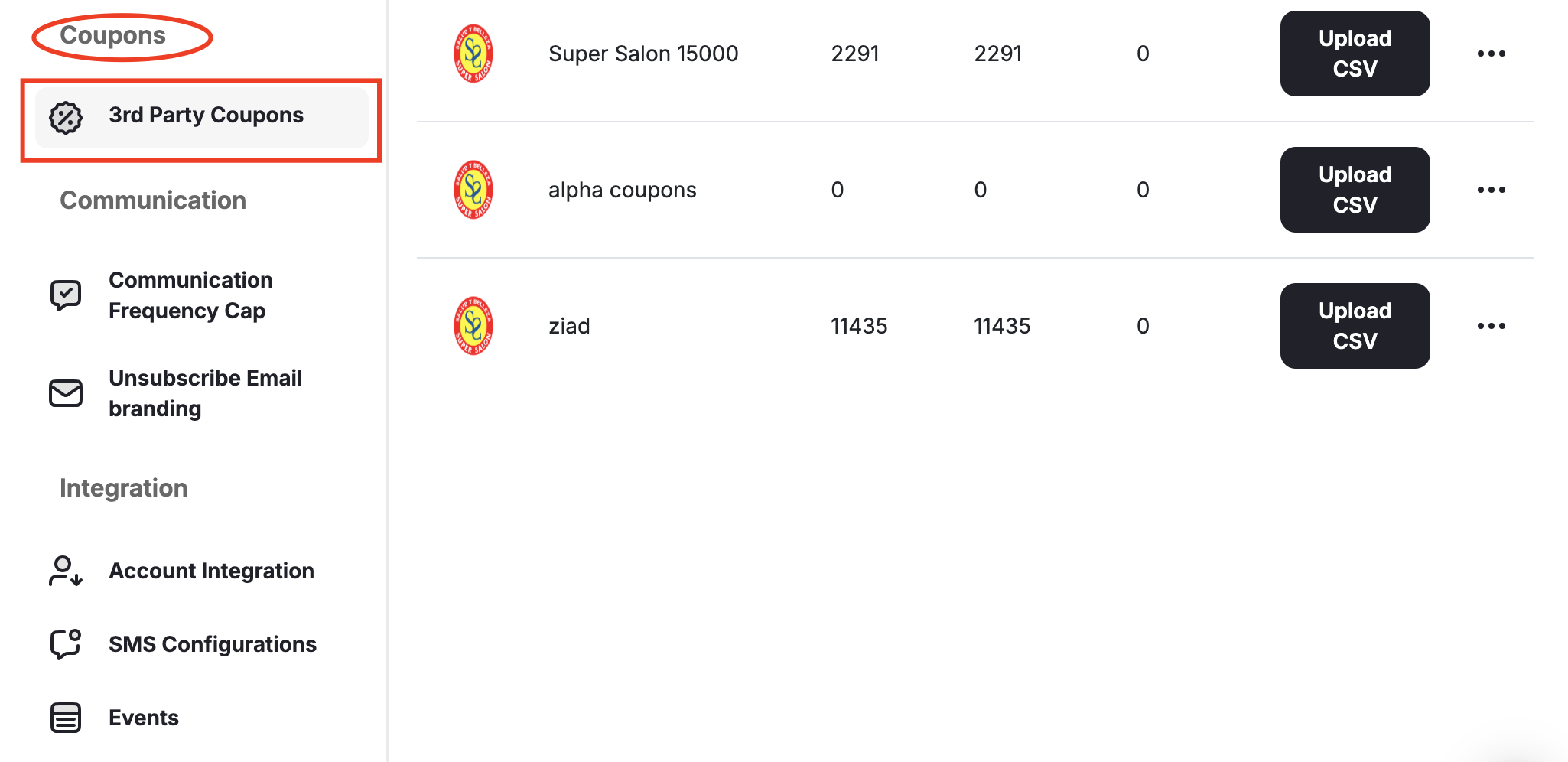
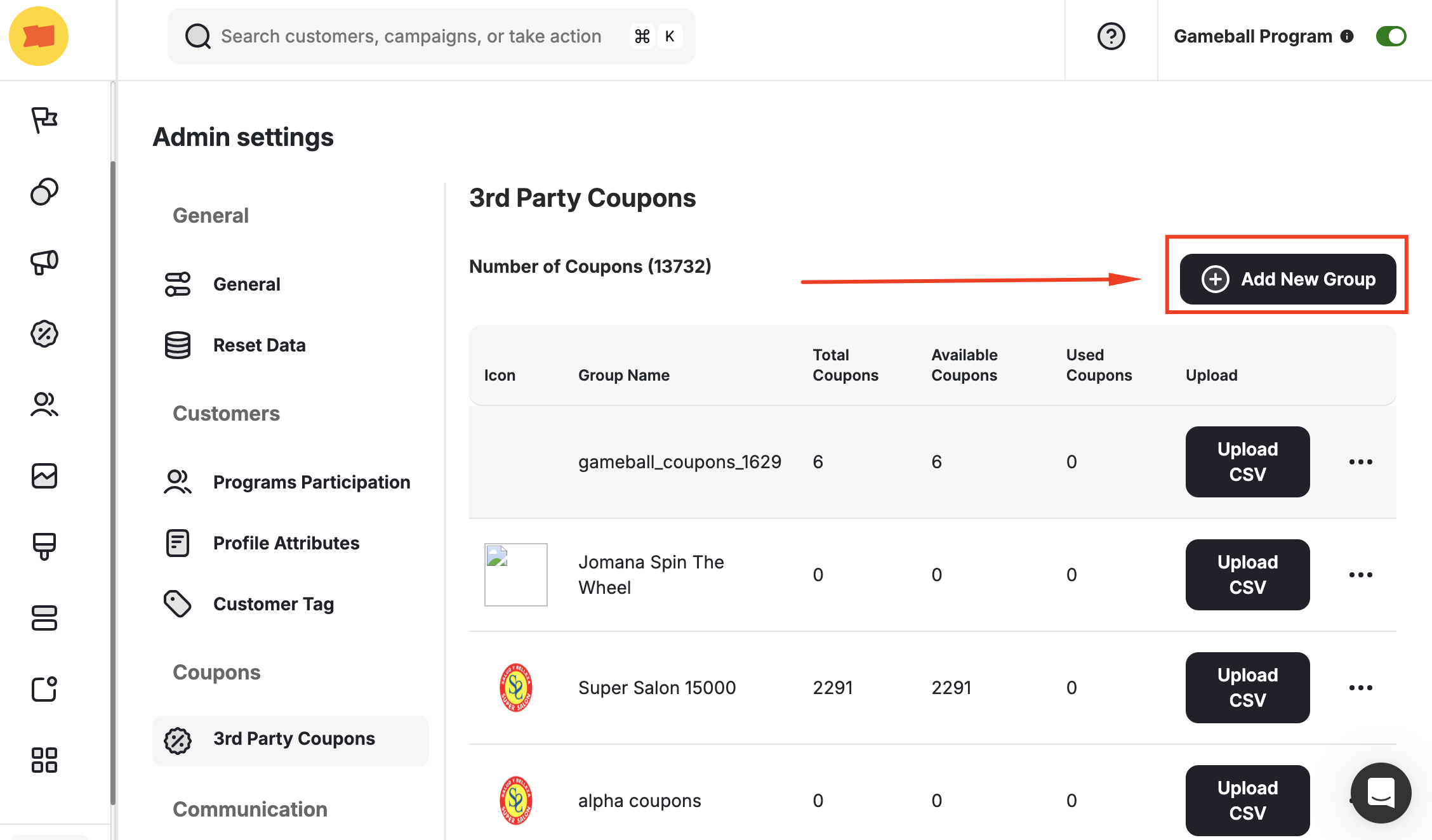
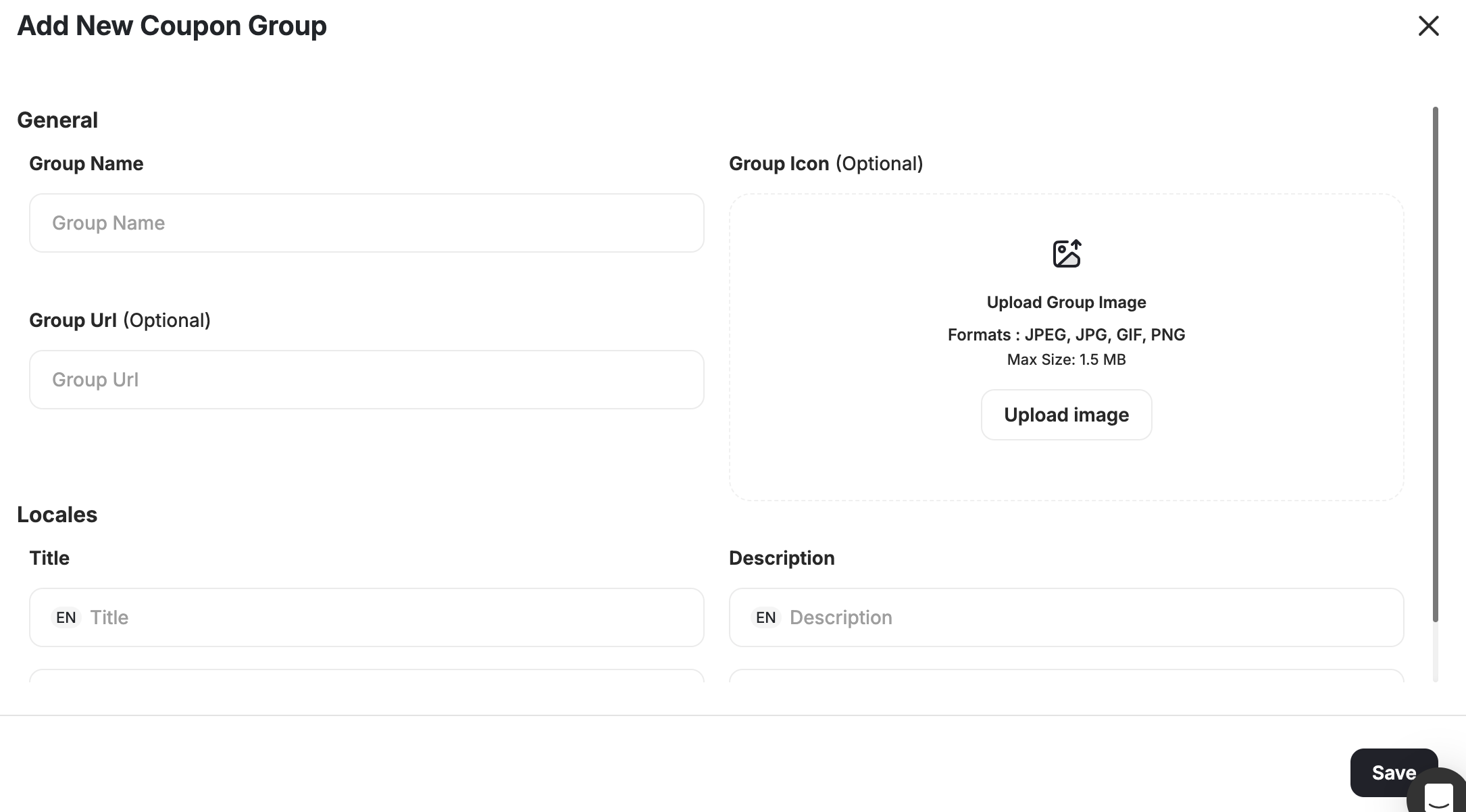
- Name
- Group URL
- Title
- Description
- Upload Image under Group Icon
Upload a CSV File of Coupons
Once the coupon group is created, you can upload a CSV file that includes third-party coupon codes. Next to the new coupon group created, click Upload CSV.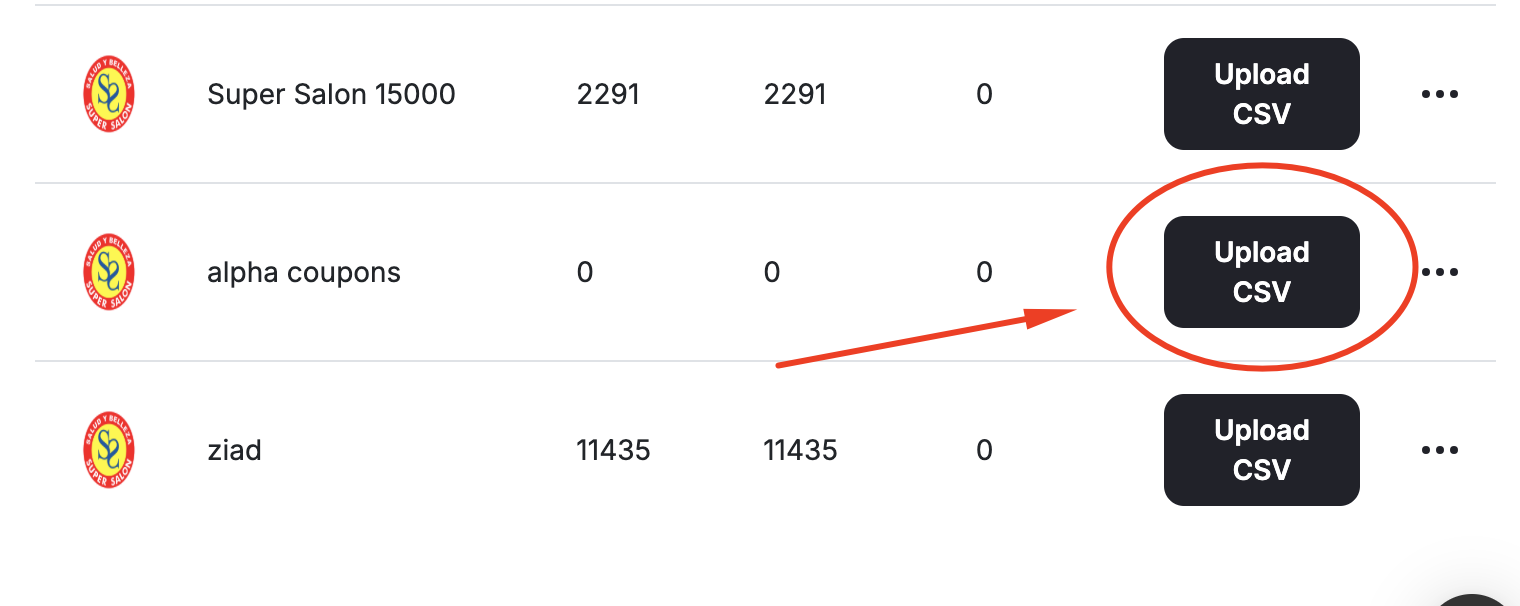
The system will validate your file for any missing or duplicate codes. You will receive an email notification confirming whether the upload was successful or not.
| Column | Required |
|---|---|
| Coupon Code | Required |
| Start Date | Optional |
| Expiry Date | Optional |
| Expiry Window | Optional |
| Capping | Optional |
| Minimum Order Value | Optional |
| Combine with Product Discounts | Optional |
| Combine with Order Discounts | Optional |
| Combine with Shipping Discounts | Optional |
Manage Coupon Inventory
Go to the Coupon Inventory tab to view all uploaded third-party coupons. The table displays each coupon along with its status:
| Status | Meaning |
|---|---|
| Available | The coupon has not yet been claimed by any customer |
| Used | The coupon has already been redeemed |
Common Questions
What happens if I upload duplicate coupon codes?
What happens if I upload duplicate coupon codes?
The system will reject duplicates during validation and notify you via email.
Can I reuse a coupon code that has been marked as Used?
Can I reuse a coupon code that has been marked as Used?
No, once a coupon is used, it cannot be reassigned or reused.
Ensure your CSV file is correctly formatted to avoid upload issues. Only users with the appropriate permission levels can manage coupons.
Related Articles
Request Coupon Creation from Your Couponing Engine
Configure Gameball to request coupons from your custom couponing engine.