

After setting up your loyalty program, you always need to make adjustments along the way. You can give access to as many people as you want to allow other employees to make the appropriate changes to your program.
Creating a New User Account on Gameball Dashboard
Navigate to Accounts
Go to Gameball dashboard > Settings > Admin Settings, scroll down, and click Accounts under Users.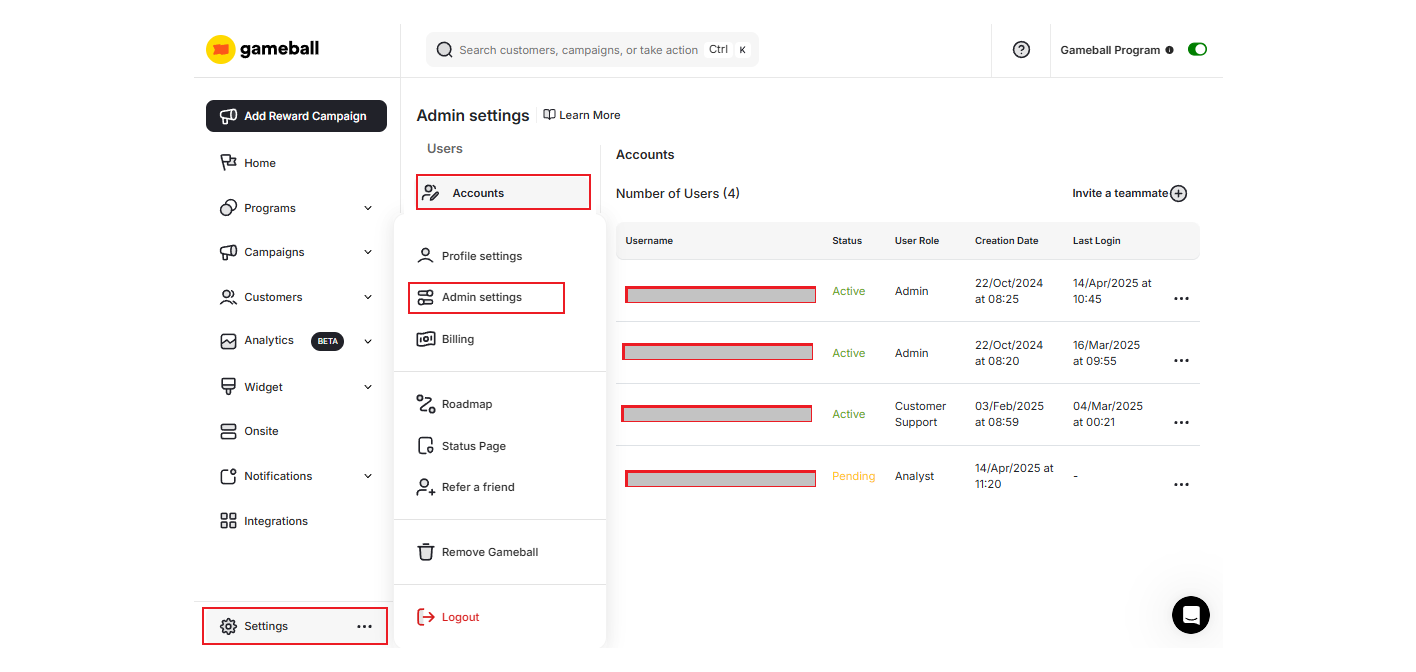
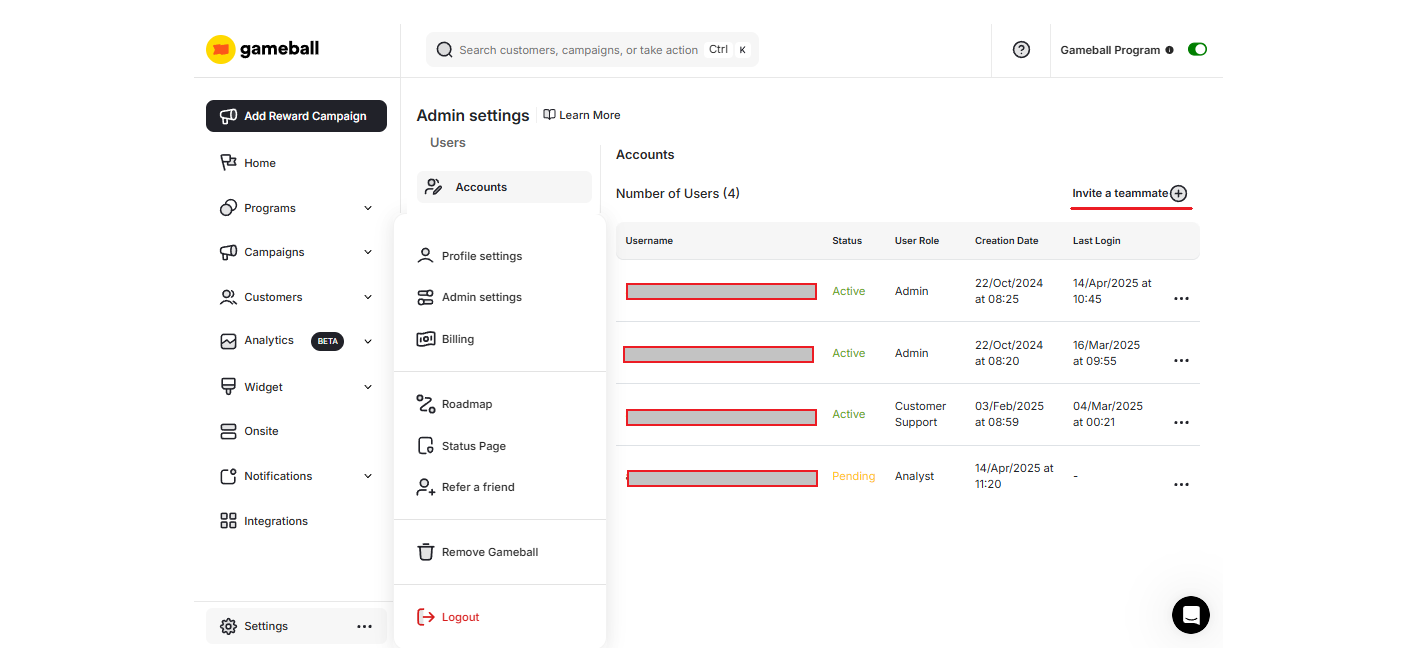
Fill in the New User's Details
Complete the invitation form with the following fields: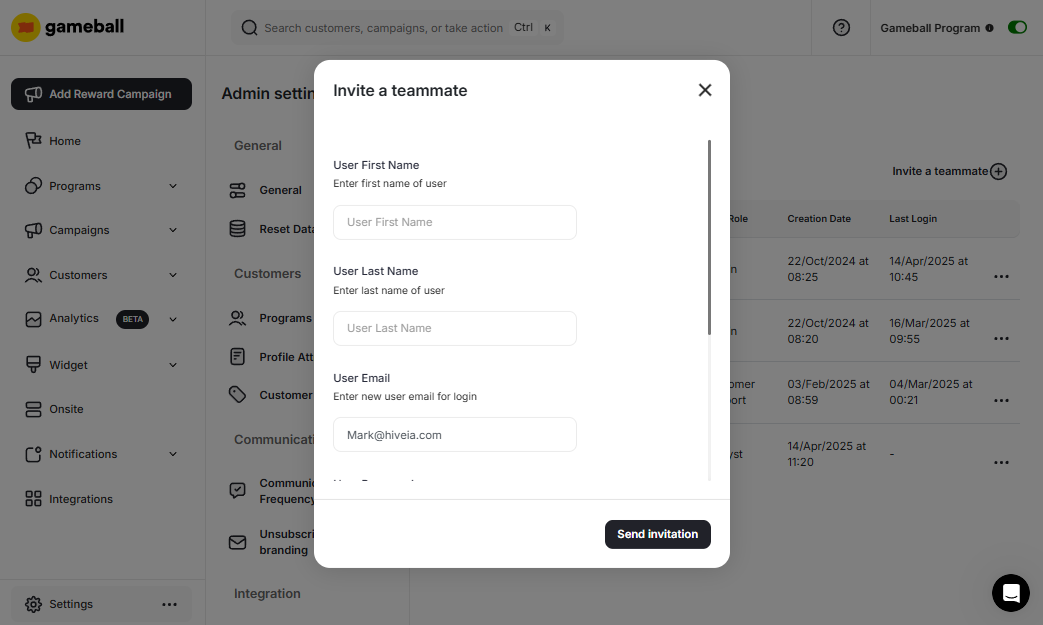
- User first name
- User last name
- User email
- User password — create a password your teammate can use for their first login.
- User Role — choose the role to decide the level of authority this teammate should have over the dashboard.
- User Workspace — in case you have multiple workspaces, choose which of them your teammate should have access to. Learn more
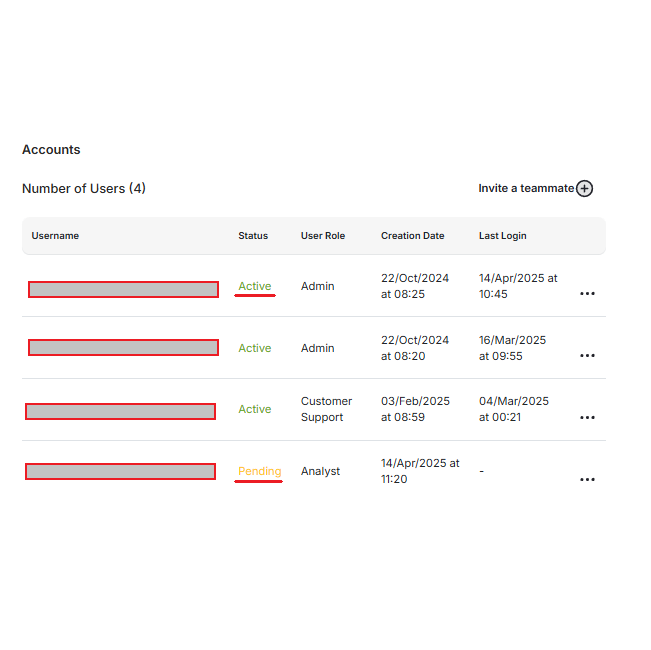
Choosing Roles
You can decide the level of access your invited teammate should have from the following roles:Owner
Owner
This role gives full authority, allowing teammates to edit, configure, or even add new admins to the dashboard, including creating and managing all workspaces.
Admin
Admin
This role gives full authority allowing teammates to edit, configure, or even add new admins to the dashboard, except for creating new workspaces or accessing workspaces they are not given access to by the owner.Allowed Actions:
- Access premium features (features with a crown icon)
- View and update the Gameball Program Status (from the top bar)
- View all customer details, including segmenting and achievements
- Manually adjust customer levels, and add/deduct points to customers’ accounts
- Access detailed points transactions and view referral data
- Set and configure points-earning rules and redeeming settings for your loyalty program
- View, create, and manage automation (set conditions and triggers for customer actions)
- Send and test notifications (like emails or push notifications) and manage communication campaigns
- View and configure app integrations (add, update, or remove apps)
- Manage settings (including account settings and integrations)
- Configure the widget settings (like launcher branding, languages, and visibility on the website)
- Create workspaces
- Access reports and analytics related to customer activity and rewards
- Deleting workspaces (Admins cannot delete workspaces)
Customer Support
Customer Support
This role only allows the teammate to make a few changes related to customers only.Allowed Actions:
- View the Gameball Status from the top bar
- Access and view basic customer details (including segments and points transactions)
- View points earning and redeem history
- View notifications and access communication campaigns (emails, messages)
- View settings for accounts and manage communication preferences
- Access reports for customer interactions and referrals (read-only)
- Premium features access is hidden (these features are restricted)
- Cannot update the Gameball Status
- Cannot adjust customer levels or manually adjust points
- Cannot create or manage automation
- Cannot modify or update any app integrations
- Restricted from changing any settings (e.g., time zone, account setup, widget configurations)
- Widget configuration options are hidden
- Essentially, all actions involving changes to configurations or updates are restricted
Customer Support Lite
Customer Support Lite
This role only allows the teammate to make a few changes related to customers only.Allowed Actions:
- View the Gameball Status from the top bar
- Access and view basic customer details (including segments and points transactions)
- View points earning and redeem history
- View notifications and access communication campaigns (emails, messages)
- View settings for accounts and manage communication preferences
- Premium features access is hidden (these features are restricted)
- Cannot update the Gameball Status
- Restricted from changing any settings (e.g., time zone, account setup, widget configurations)
- Widget configuration options are hidden
- All Campaigns are hidden
- Essentially, all actions involving changes to configurations or updates are restricted
Dashboard Viewer
Dashboard Viewer
This role does not allow the user to execute any action on the dashboard. They can only view dashboard sections for information.Allowed Actions:
- View the Gameball Status from the top bar
- View all customer details, points transactions, and referrals
- View notifications and communications campaigns to track customer interactions
- View automation and settings for general monitoring purposes (read-only)
- Access reports and dashboards for data analysis on customer activities
- Premium features access is hidden (these are restricted)
- Cannot update the Gameball Status
- Cannot adjust customer levels or manually modify points
- Cannot create or manage any automation
- Cannot edit any apps integrations or change any settings
- Widget configurations (e.g., branding, launcher settings) are hidden
- Essentially, all functionalities related to changing or modifying system settings are restricted
Analyst
Analyst
Allowed Actions:
- View the Gameball Status from the top bar
- Access all customer data, including points transactions and referral statistics (view-only)
- Access points earning and redeem history data for analysis
- View notifications and communications campaigns (e.g., email or push notifications sent to customers)
- View automation to monitor customer triggers and rules (but no editing allowed)
- Access reports for customer behavior, rewards data, and referrals
- Premium features access is hidden
- Cannot update the Gameball Status
- Cannot manually adjust customer levels or modify points
- Cannot create, edit, or manage automation
- Restricted from editing any settings or changing app integrations
- Widget configuration (launcher, languages) is hidden
- Any actions that allow making modifications to the platform are restricted
Developer
Developer
Allowed Actions:
- View the Gameball Status from the top bar
- Access all customer data, including points transactions and referral statistics (view-only)
- Add points to customers manually
- Access points earning and redeem history data for analysis
- View notifications and communications campaigns (e.g., email or push notifications sent to customers)
- View automation to monitor customer triggers and rules (but no editing allowed)
- Allowed to edit settings and change app integrations
- Access reports for customer behavior, rewards data, and referrals
- Premium features access is hidden
- Cannot update the Gameball Status
- Cannot manually adjust customer levels
- Cannot create, edit, or manage automation
- Widget configuration (launcher, languages) is disabled
- Any actions that allow making modifications to the platform are restricted
Marketer
Marketer
Allowed Actions:
- View the Gameball Status from the top bar
- Access all customer data, including points transactions and referral statistics
- Add points to customers manually
- Access points earning and redeem history data for analysis
- View and edit notifications and communications campaigns (e.g., email or push notifications sent to customers)
- View and edit automation to monitor customer triggers and rules
- View settings and change app integrations
- Access reports for customer behavior, rewards data, and referrals
- Premium features access is hidden
- Cannot update the Gameball Status
- Widget configuration (launcher, languages) is disabled
- Any actions that allow making modifications to the platform are restricted
Customize Role
Admins can easily grant each user precisely the permissions they need, improving data security and operational control.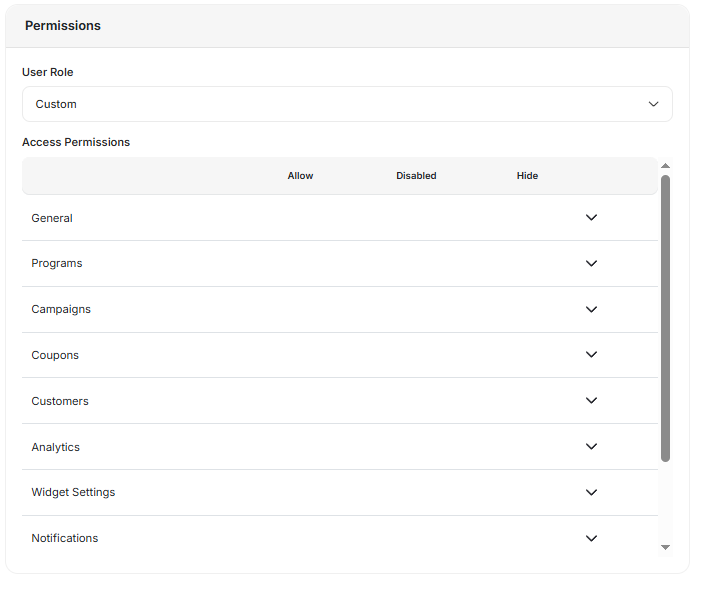
Granular Permissions at Invitation
Granular Permissions at Invitation
While inviting a new user, Admins can set permissions per dashboard section:
- Hide: Section hidden from the user.
- Disabled: The user can view but not edit it.
- Allow: User has full access (including create/delete, where applicable).
Permissions Configuration UI
Permissions Configuration UI
Permissions options are presented during invitation via toggles or radio buttons for each key section:
- Customers
- Campaigns
- Coupons
- Analytics
- Settings
- Notifications
- Integrations
- Billing
- And more…
Edit Permissions Anytime
Edit Permissions Anytime
Admins can modify any user’s permissions later from the User Management page.
Security by Default
Security by Default
New users are granted No Access by default and must be explicitly assigned permissions.
Changing Passwords
When the user signs in, they can change their password by navigating to the page, then next to your user email, click the Three dots icon, then Reset Password.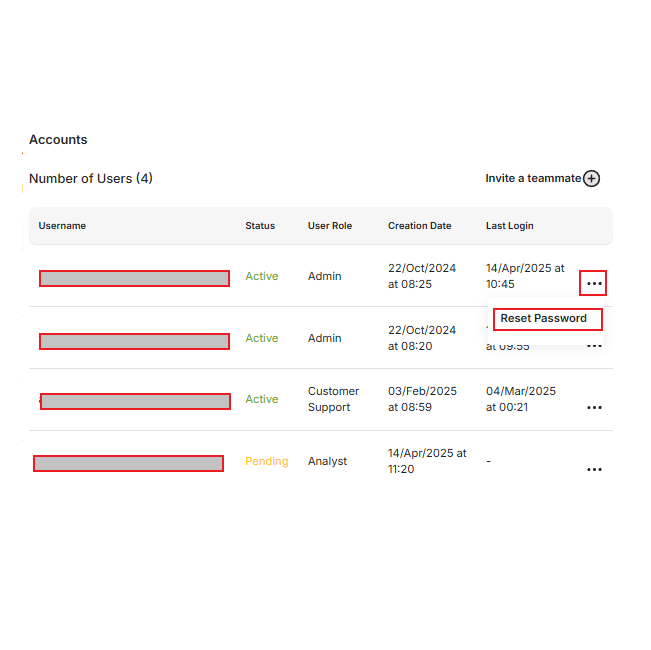
Editing, Deleting, and Resending Invitations
Ensure Admin Access
To execute any of these actions on another user account, your account must be under the Admin role.
Choose an Action
Choose between: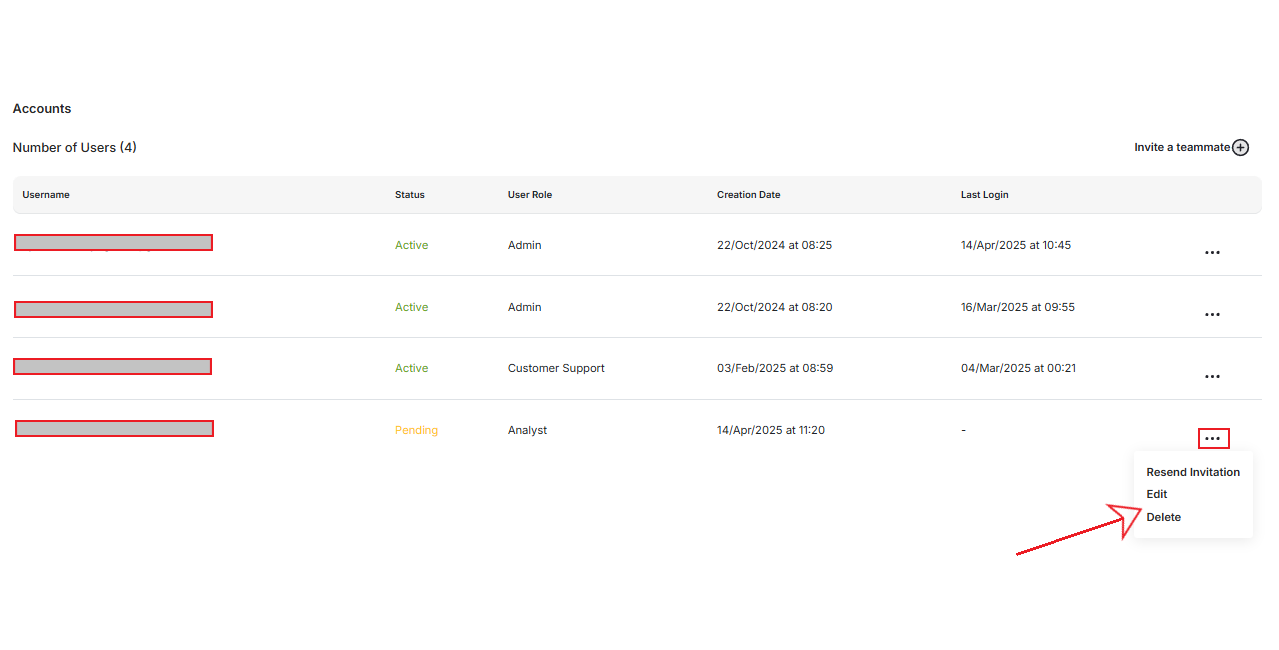
- Resend Invitation — only valid on pending accounts/users who have yet to sign in. The teammate will once again receive an email with their credentials.
- Edit — you can only change their Role and Workspaces they are allowed on.
- Delete — their account will be terminated, and they will no longer have access to the dashboard.