

| Platform | Plan |
|---|---|
| Shopify | Starter, Pro & Guru |
Triggers
Customer Tier Changed (Up/Down)
Customer Tier Changed (Up/Down)
This trigger activates when a customer tiers up or down, either manually or automatically.Example: When a customer’s tier changes to the Gold tier.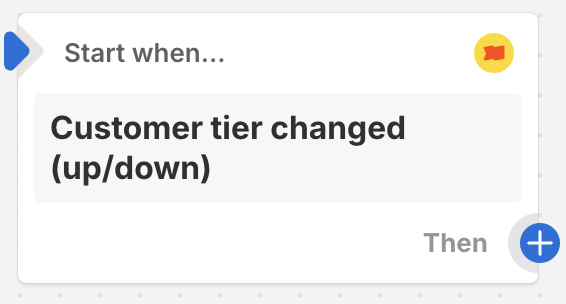
Reward Campaign Achieved
Reward Campaign Achieved
This trigger activates when a customer achieves a new Reward Campaign, either manually or automatically.Example: When a customer earns a new reward campaign when they complete their First Order.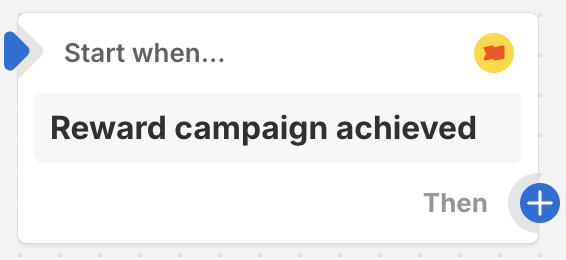
Customer Entered a New Segment
Customer Entered a New Segment
This trigger activates once a customer is added to a new Segment.Example: When a customer is placed in the Inactive segment.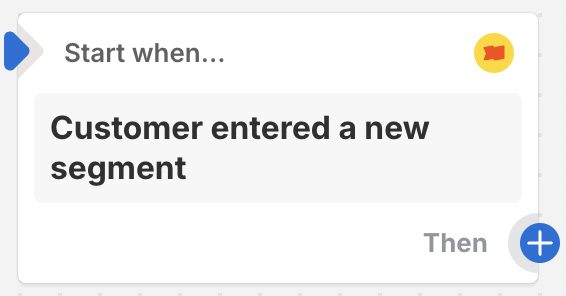
Customer Added a Birthday
Customer Added a Birthday
This trigger activates once a customer adds their birthday to Gameball’s widget.
Actions
Send an Event
Send an Event
This action allows you to send a custom event to Gameball. Learn how to set it up.Example: A customer completed a survey, so we will send this event (Survey_Completed) to Gameball.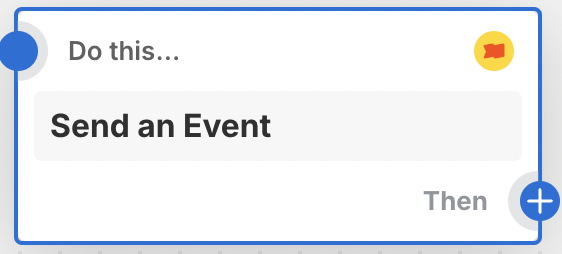
This action is only available on the Guru Plan.
Reward a Campaign
Reward a Campaign
This action rewards a customer with a specified Reward Campaign manually. Learn how to set it up.Example: Rewarding a customer with the ‘Completed First Order’ Reward Campaign.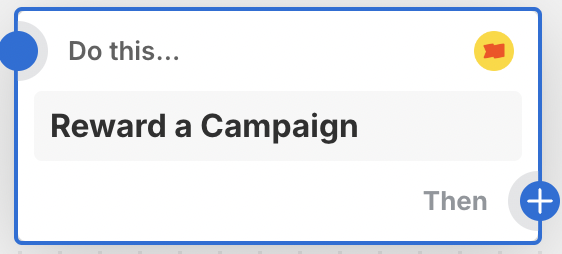
Deduct Points
Deduct Points
This action deducts a specified number of points from a customer’s account for a given reason. Learn how to set it up.Example: Deducting 50 points from a customer’s balance for a reward they got in-store.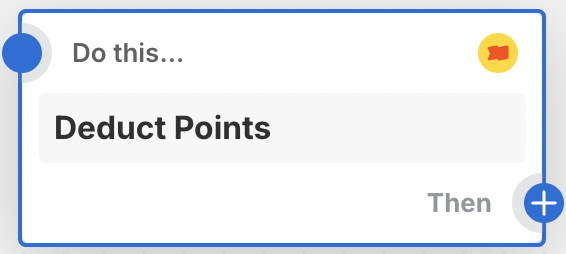
Adjust Customer Tier
Adjust Customer Tier
This action adjusts a customer’s tier to a specified tier name. Learn how to set it up.Example: Adjusting the customer tier from the Bronze tier to the Gold tier.
Add Points
Add Points
This action adds a specified number of points to a customer’s account for a given reason. Learn how to set it up.Example: Adding 100 points for a customer for adding a review on your product.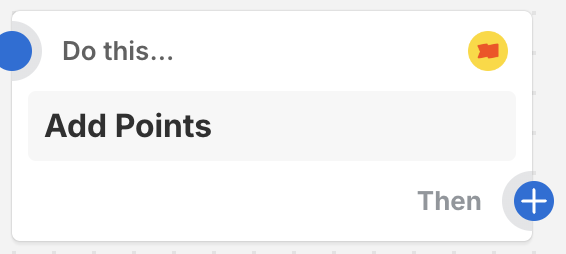
Action Setups
Send an Event Setup
This action allows you to send a custom event to Gameball. Attributes:- Customer Email: Skip the email if the trigger already passes the ID. Select it from “Add a variable”.

- Event Name: The event name to be sent to Gameball.
- Event Attribute Name X: The event attribute name (up to 5 attributes).
- Event Attribute Value X: The event attribute value.
This action is only available on the Guru Plan.
Reward a Campaign Setup
This action rewards a customer with a specified Reward Campaign manually. Attributes:- Customer Email: Skip the email if the trigger already passes the ID. Select it from “Add a variable”.
- Campaign ID: Copy the ID next to the title on the campaign details page in Gameball.

Deduct Points Setup
This action deducts a specified number of points from a customer’s account. Attributes:- Customer Email: Skip the email if the trigger already passes the ID.
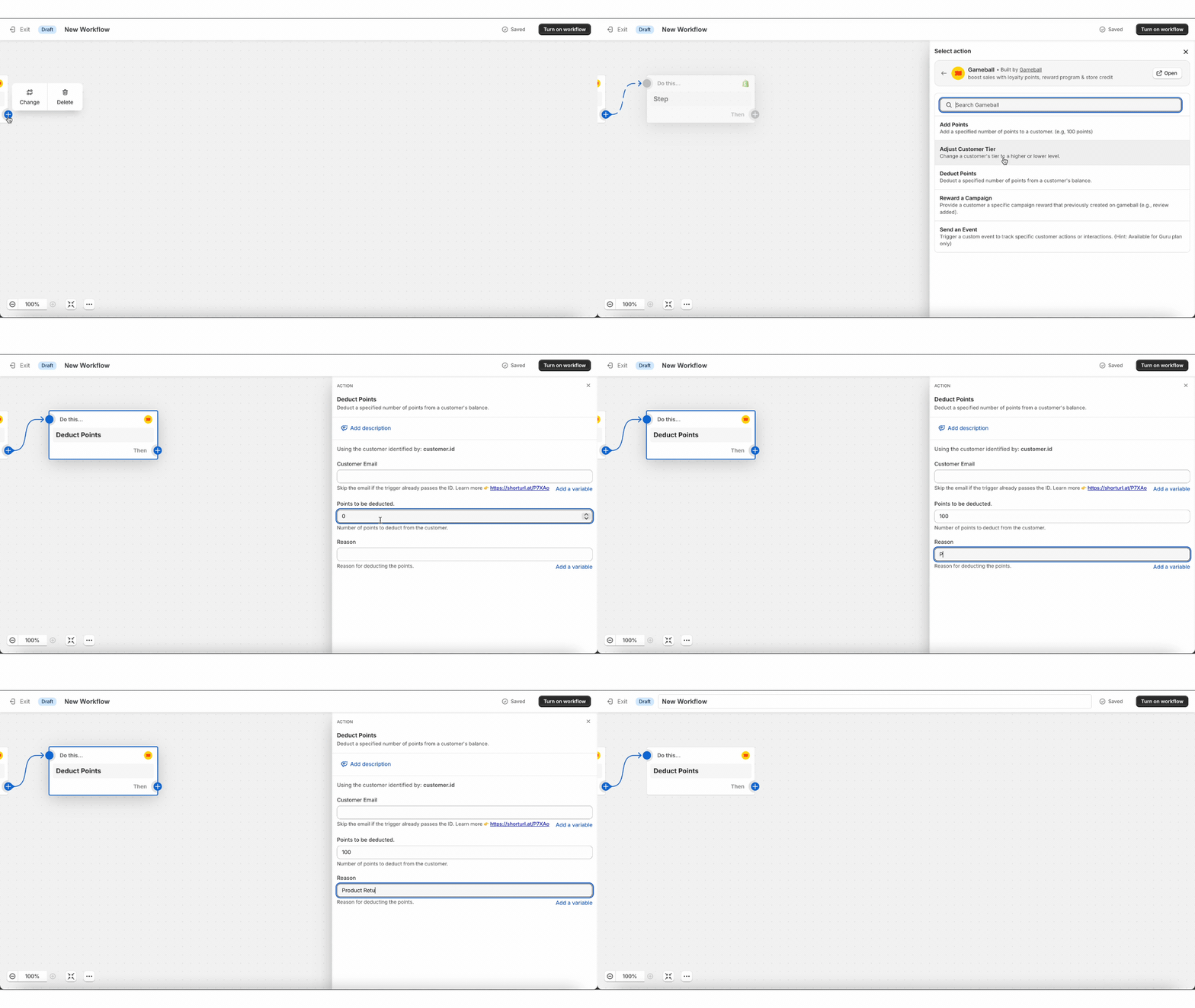
- Points to be deducted: Number of points to deduct.
- Reason: Reason for deducting the points.
Adjust Customer Tier Setup
This action adjusts a customer’s tier to a specified level name. You can choose the level behavior (forever, until a specific date, or evaluated normally). Attributes:- Customer Email: Skip the email if the trigger already passes the ID.
- Tier Order: The tier number in Gameball (e.g., 1, 2, 3).
- Tier Behavior:
- System Evaluate: Based on Gameball’s evaluation according to the chosen tiering-up method.
- Forever: The customer stays on this tier unless manually reassigned.
- Temporarily till Specific Date: The customer stays on the tier until a specific date.
- Temporarily Specific Date: If selected, add the date in format
yyyy-MM-dd. - Reason: The reason for the tier adjustment.
Add Points Setup
This action adds a specified number of points to a customer’s account. Attributes:- Customer Email: Skip the email if the trigger already passes the ID.
- Points to be added: Number of points to add.
- Reason: Reason for adding the points.
Setting Up Gameball Triggers and Actions in Shopify Flow
Create a Workflow
Click Create Workflow and choose a trigger from the Gameball triggers listed above.
Add an Action
Select an action from the Gameball actions listed above and configure it with the necessary details.
Use Cases
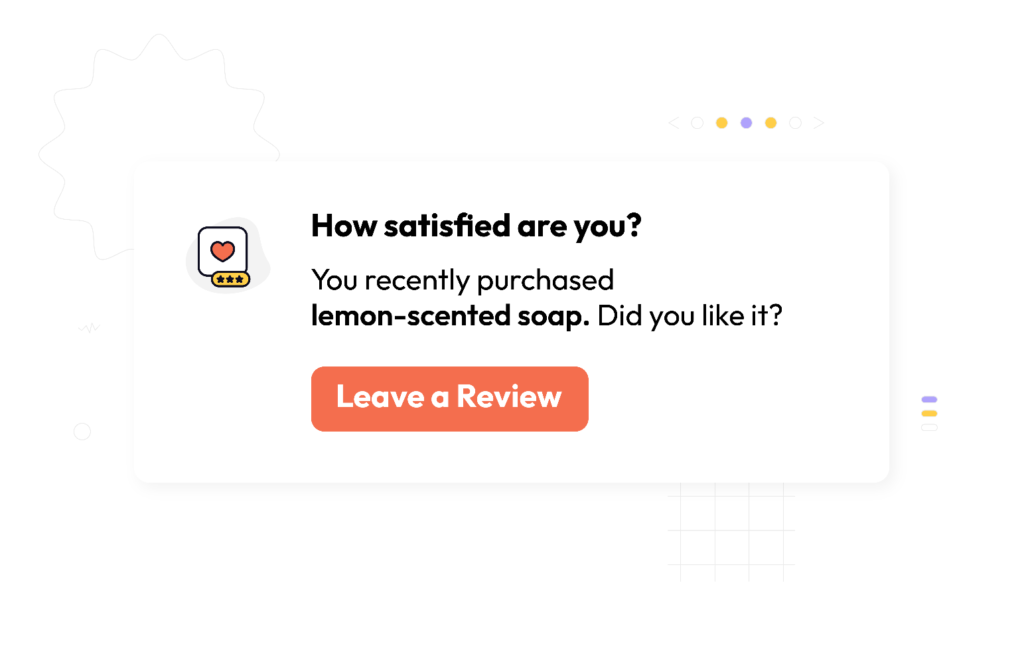
1. Rewarding Customers Who Gave a Review
- Trigger: Use an external reviews app like Reviews.io to trigger the action whenever a customer leaves a review.
- Action: Use Gameball’s Reward a Campaign action to reward customers for their feedback.
2. Adding Points for Survey Completion
- Trigger: Use an external survey app, such as Okendo, to trigger the action when a customer completes a survey.
- Action: Gameball will automatically Add Points to the customer’s account.
3. Celebrate Customer’s 3-Year Anniversary
- Trigger: Set a date trigger to recognize when a customer has been with your store for three years.
- Action: Use Gameball’s Send Event action to trigger a personalized communication campaign.
Reviews.io via Shopify Flow
Reward customers for Reviews.io reviews.
Yotpo via Shopify Flow
Reward customers for Yotpo reviews.