How to create a Zapier connection?
Step 1: Choosing a Trigger and an Action Apps
Follow these steps to create a zap between Gameball and any other app on Zapier:- Go to zapier.com
- In the left box search for any app you want to set as the trigger app.

- Search for “Gameball” in the right box

- Select a trigger that will
- Choose “Send Event” to be the selected action Gameball will execute

- Click Try it
Step 2: Configure Trigger On Zapier
On Zapier, a trigger is any event that you want to use to start a Zap. Read more on triggers on Zapier. Once you’ve set up a Zap, Zapier will keep monitoring that player event. In this use case, the trigger will be done through SurveyMonkey. But first, you must make sure that your players submit their email addresses in the survey. We will be using the email address to identify your players, so the email address submitted must match the one on your platform that is stored at Gameball. Follow the below steps to create a Zap between SurveyMonkey and Gameball:
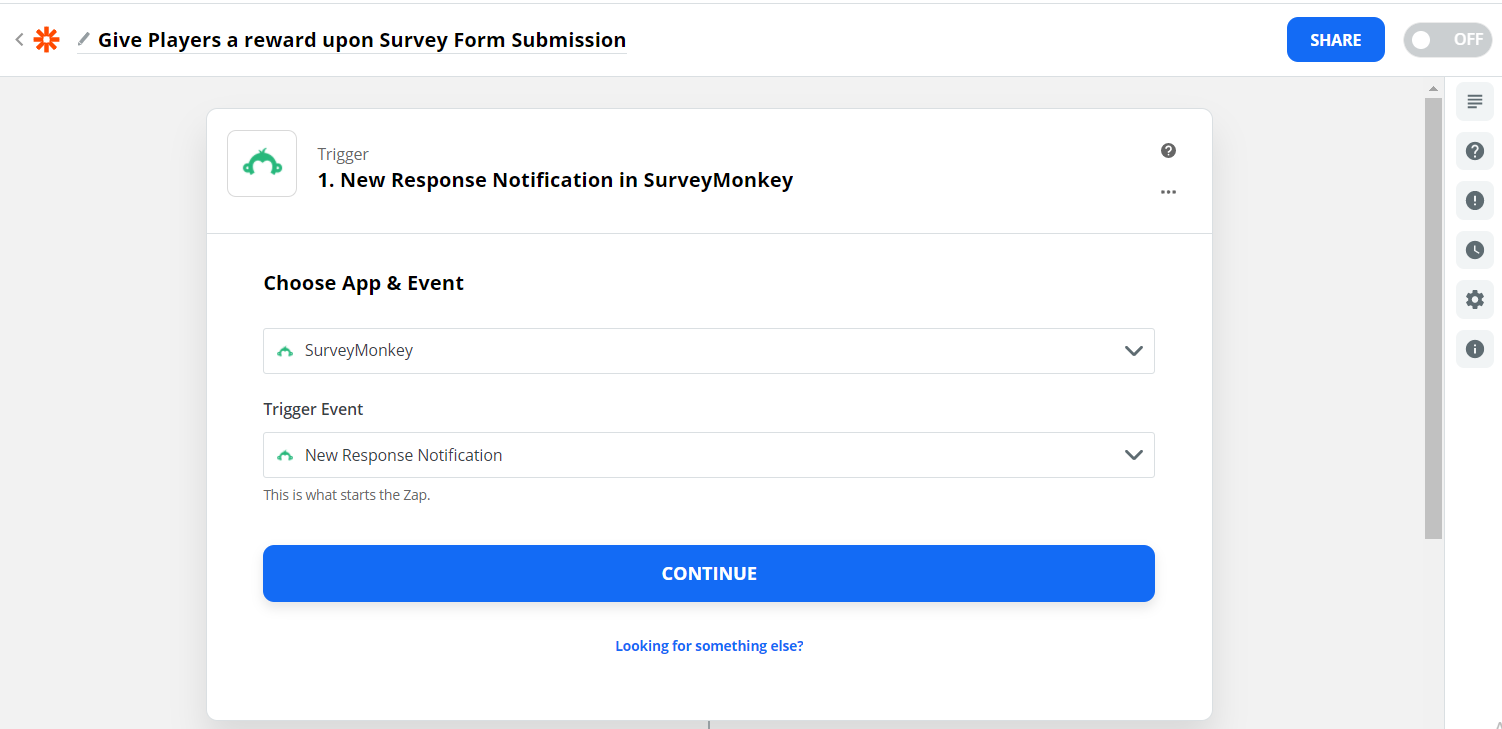
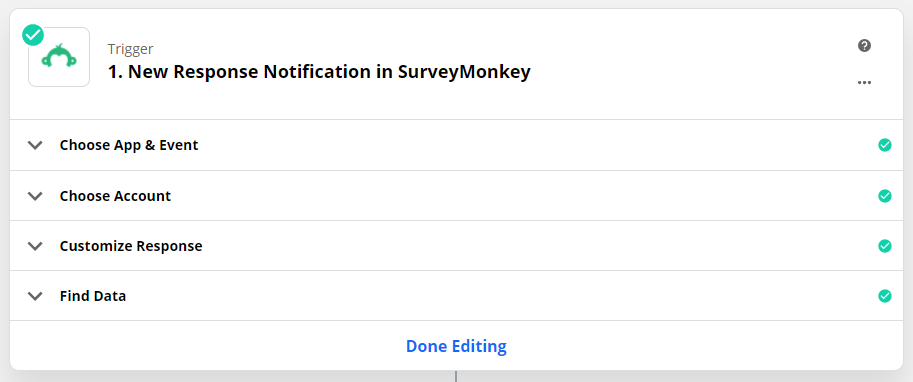
A. Choose App and event
Choose SurveyMonkey app and select Trigger Event as “New Response Notification”
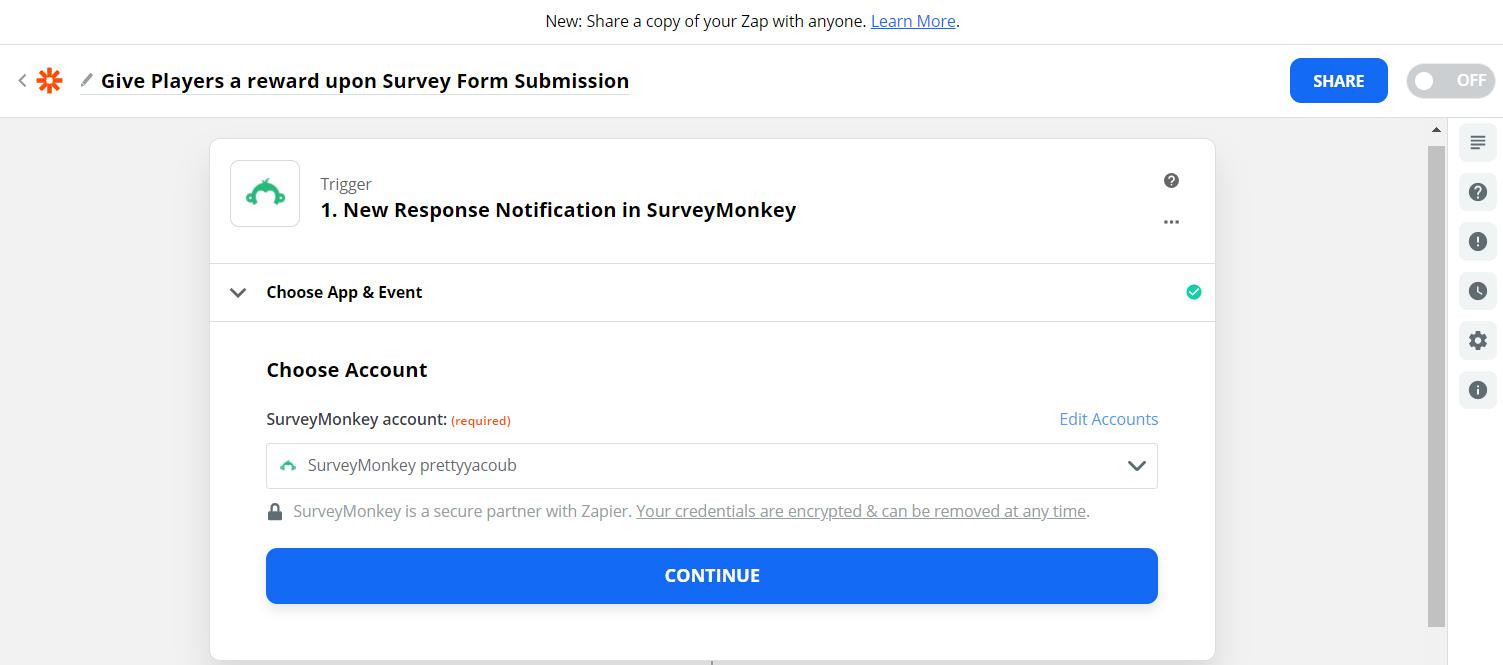
B. Choose Account
In case you have different Surveymonkey accounts, choose the one you are expecting campaigns through.
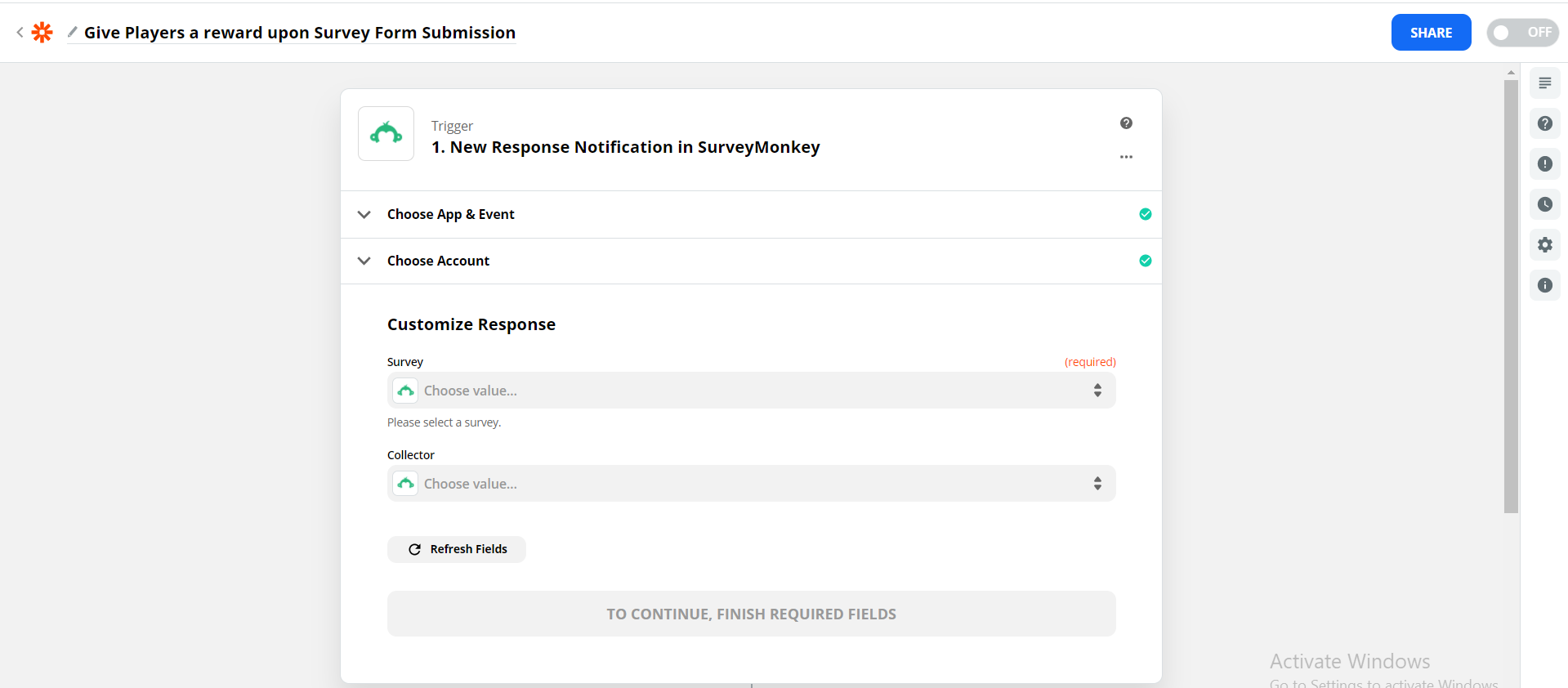
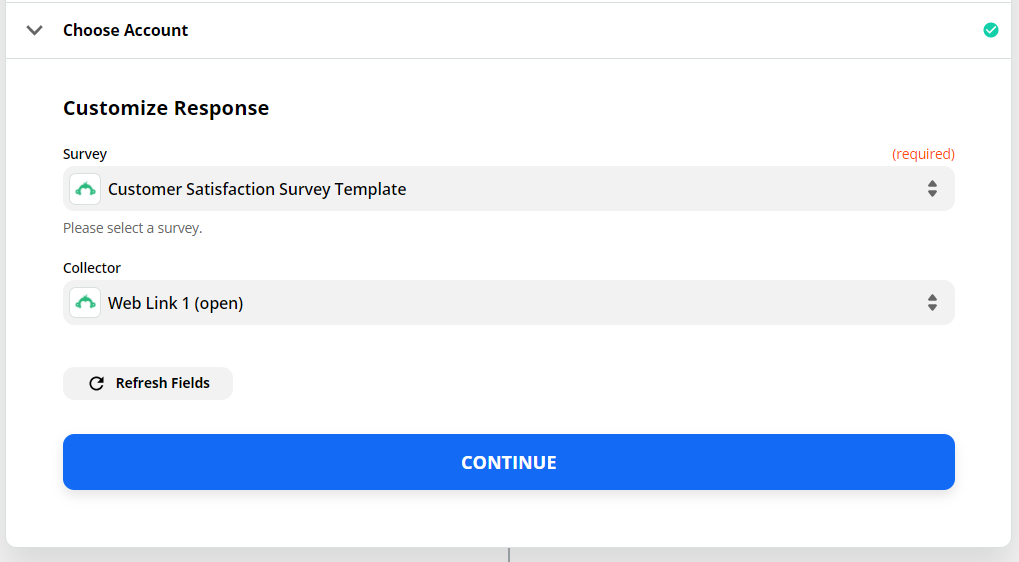
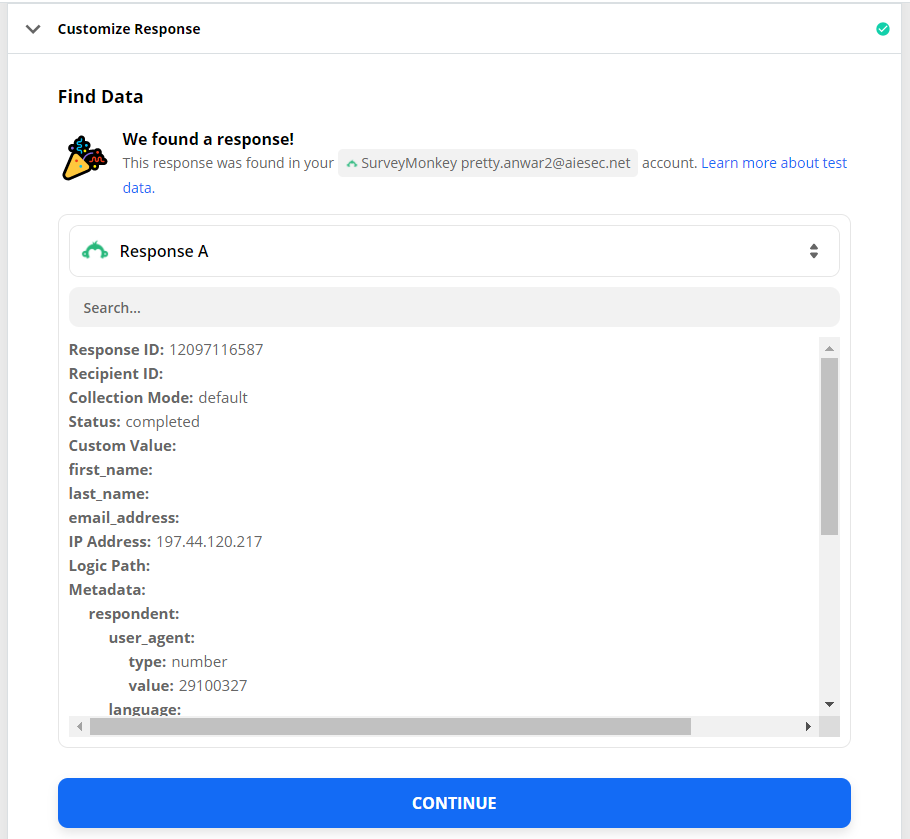
C. Customize Response
Choose the name of the survey you’re expecting the response to.
D. Choose collector
Choose the collector you’re expecting this response on. Note: a collector on Surveymonkey is a shorthand for describing the way responses are being collected on Surveymonkey.

Step 3: Configure Action
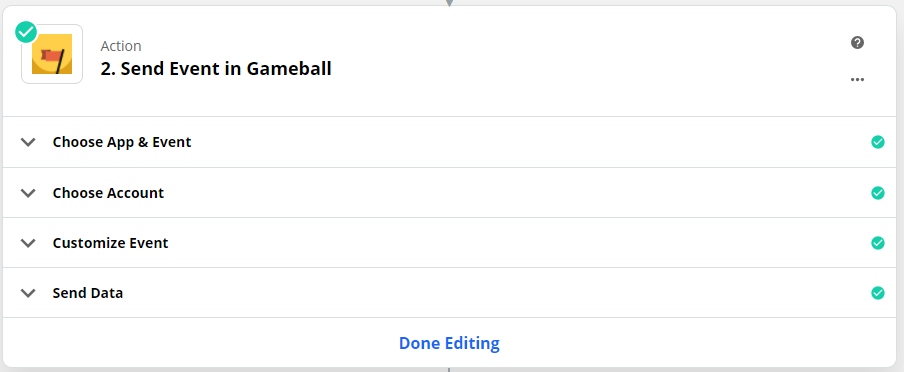
An action is a job your Zap does once your trigger event occurs. Read more on actions on Zapier. In this use case, the action will be done on Gameball through the following steps:
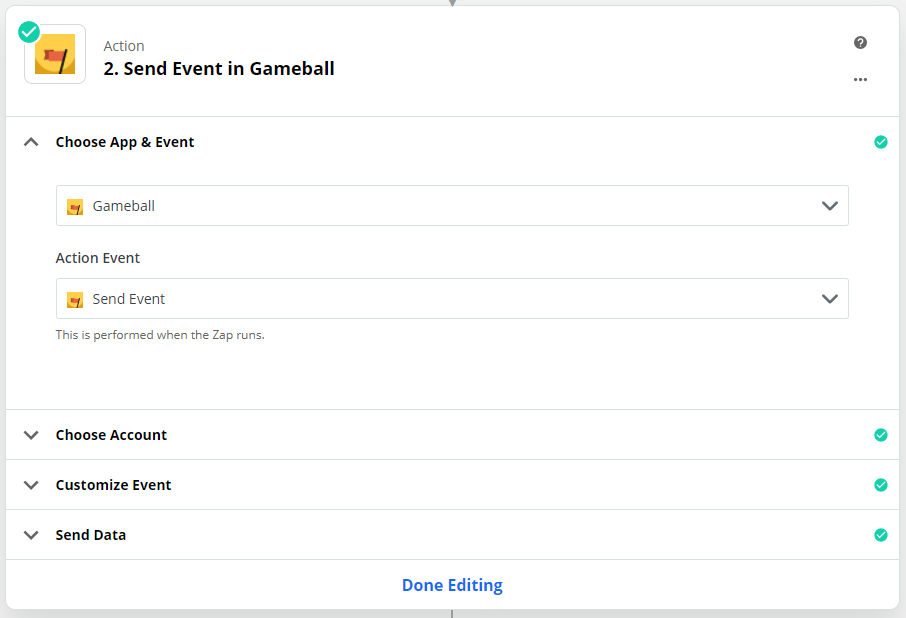
A. Choose App & Event
Choose App as Gameball and Action as “Send Event” Note: this is the only event
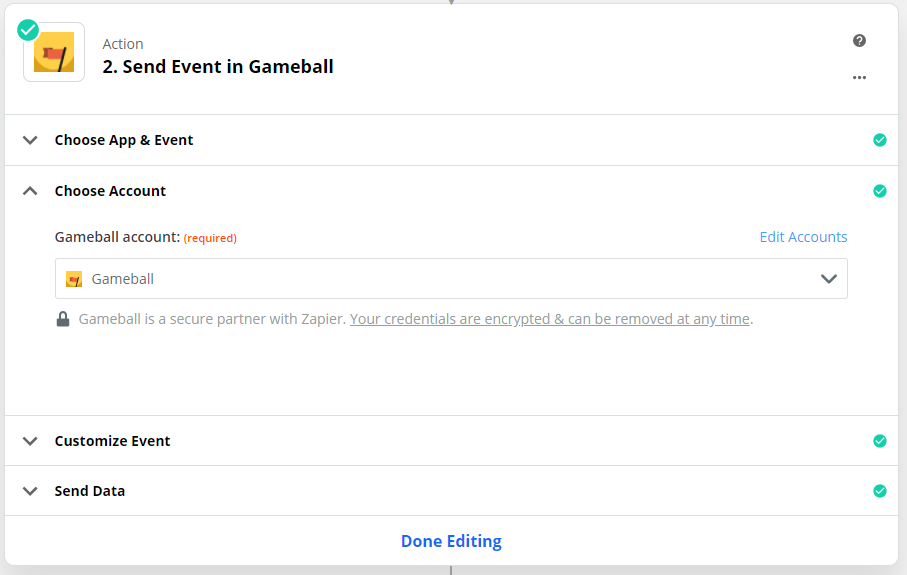
B. Choose Gameball Account
Note: You might need to add your API key. For more info on how to get it, read Get Your Account Integration Details: API Key and Transaction Key
C. Customize Event
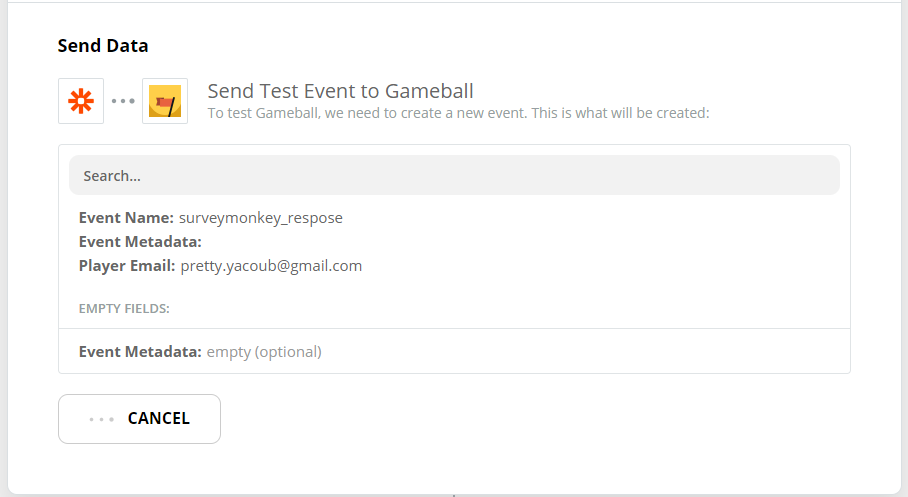
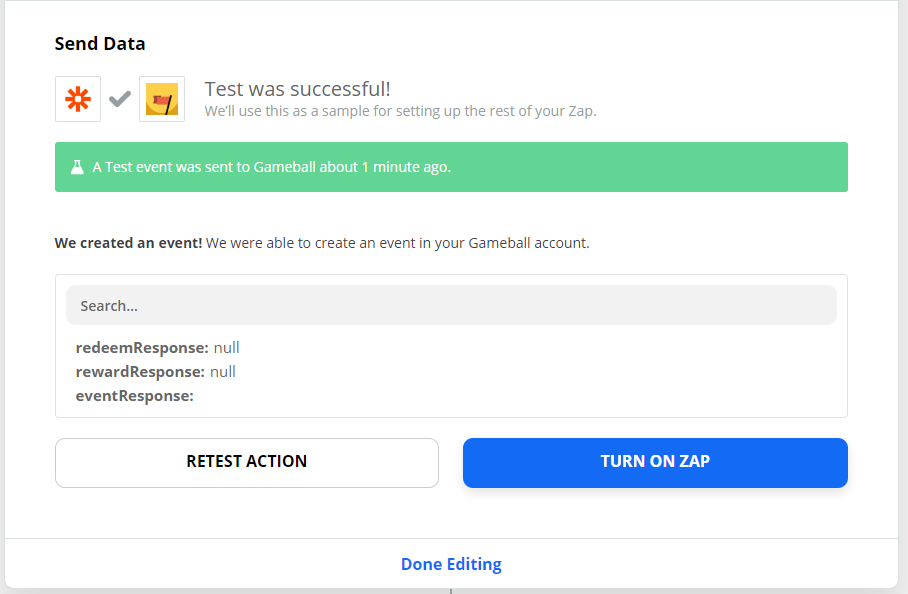
Add the event name, event metadata (if needed), and player email. Note: Make sure you add the name in this format: “appname_eventname”, leave metadata empty if metadata is not needed and finally add the player email to choose the player you want to give this reward to. If you enter an email to a player that is not already created on Gameball, this event will not be sent and the player will be created on Gameball.D. Send Data
Click on Test & Review or Test & Continue
- Finally, click turn on Zap and move to configure challenge on Gameball.

Step 3: Configure challenge on Gameball
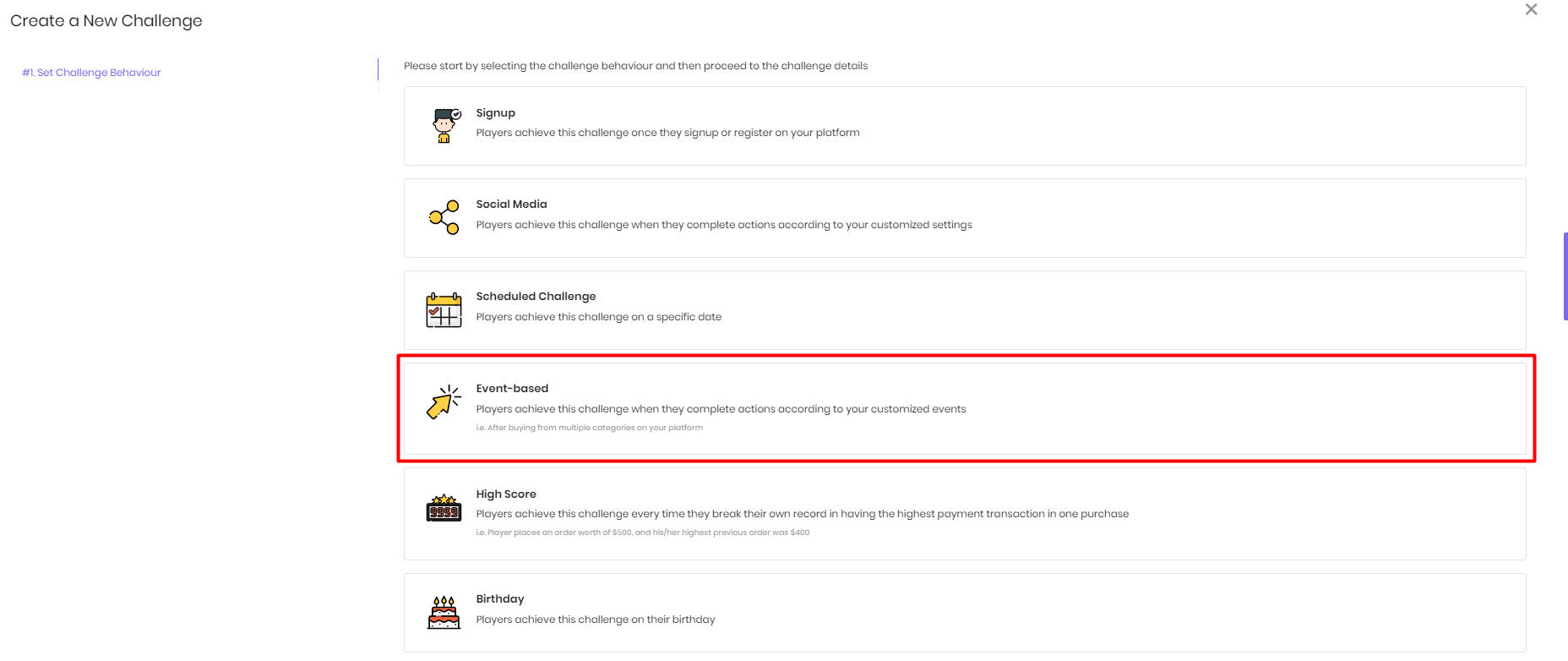
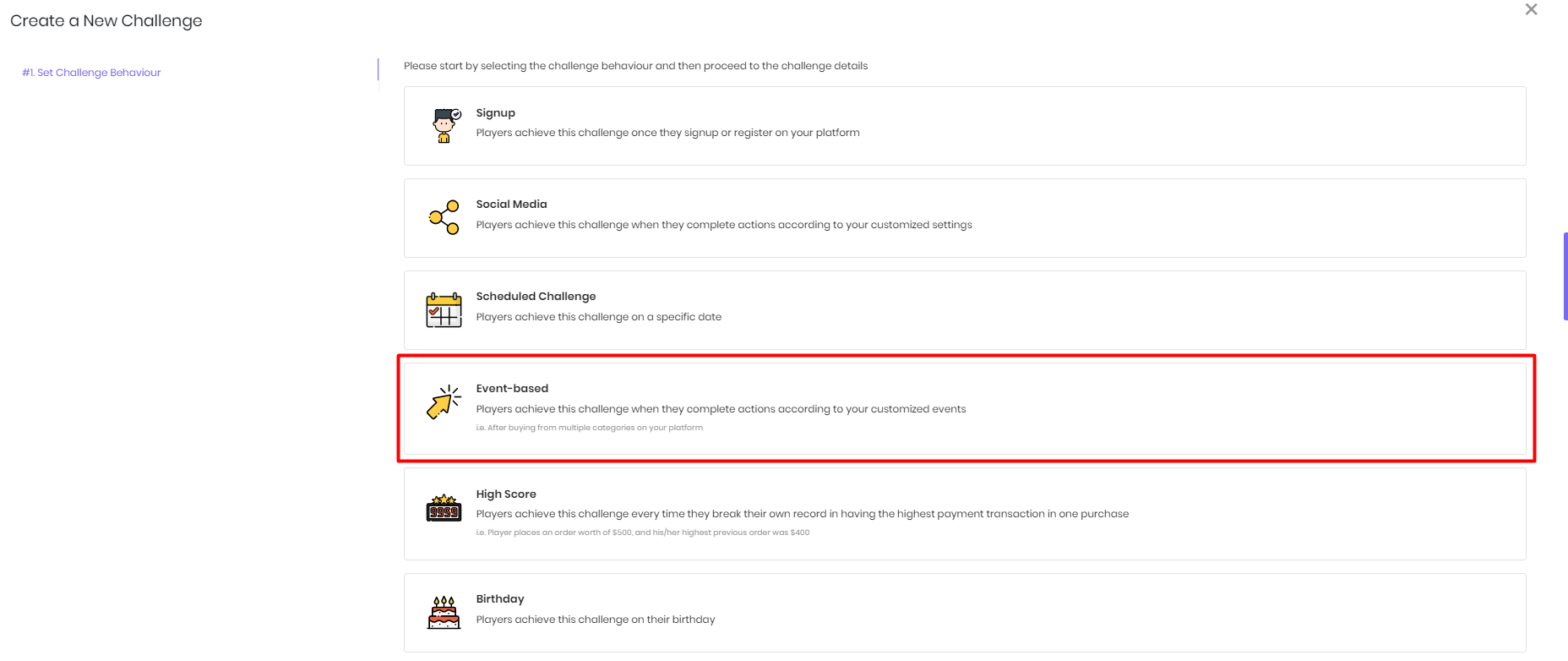
In this step, log in to your Gameball Admin Dashboard, go to Programs > Challenges. Click Add New Challenge and follow the below steps:A. Set Challenge Type
Choose Event-based as challenge type, and click Next
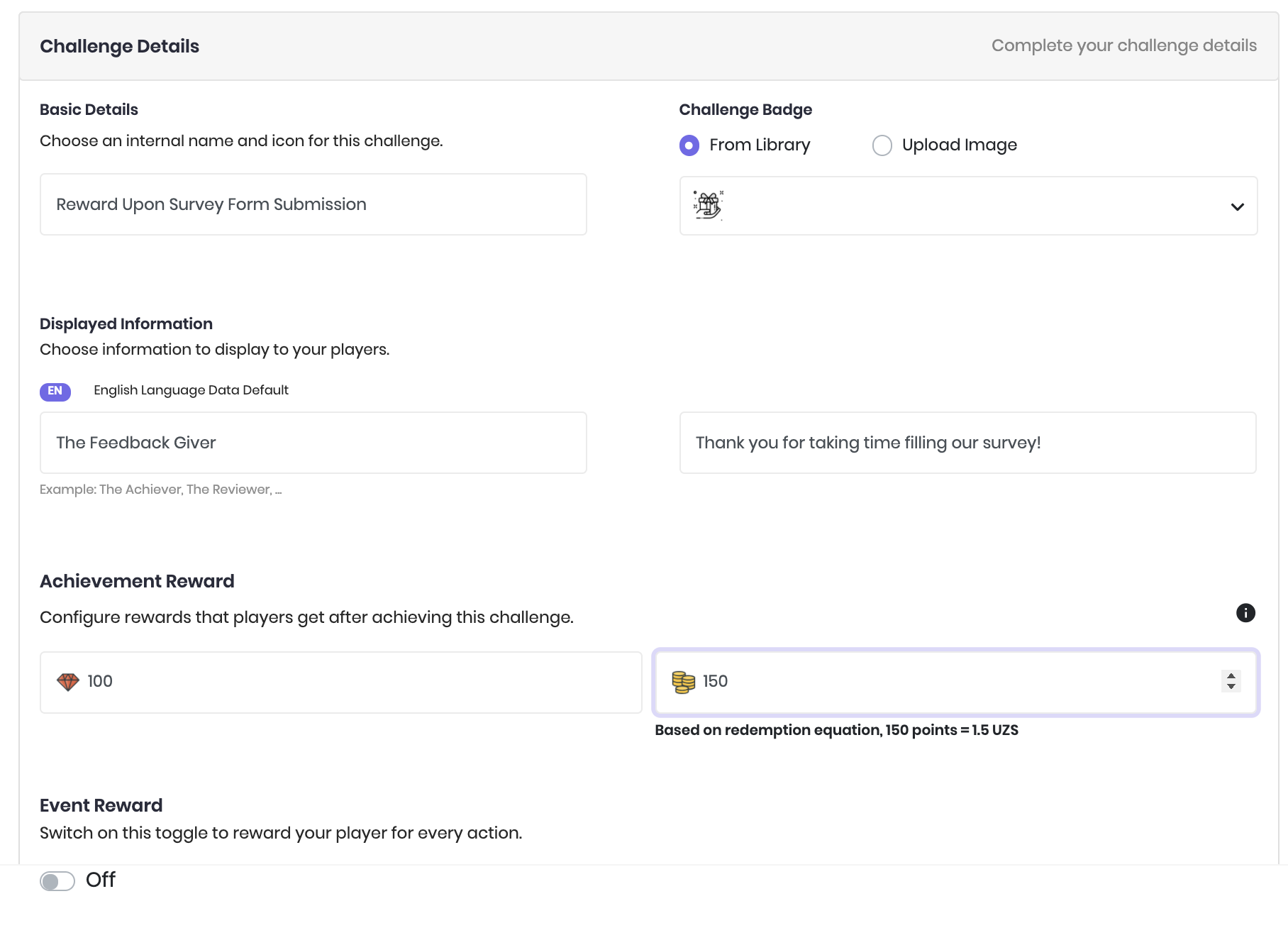
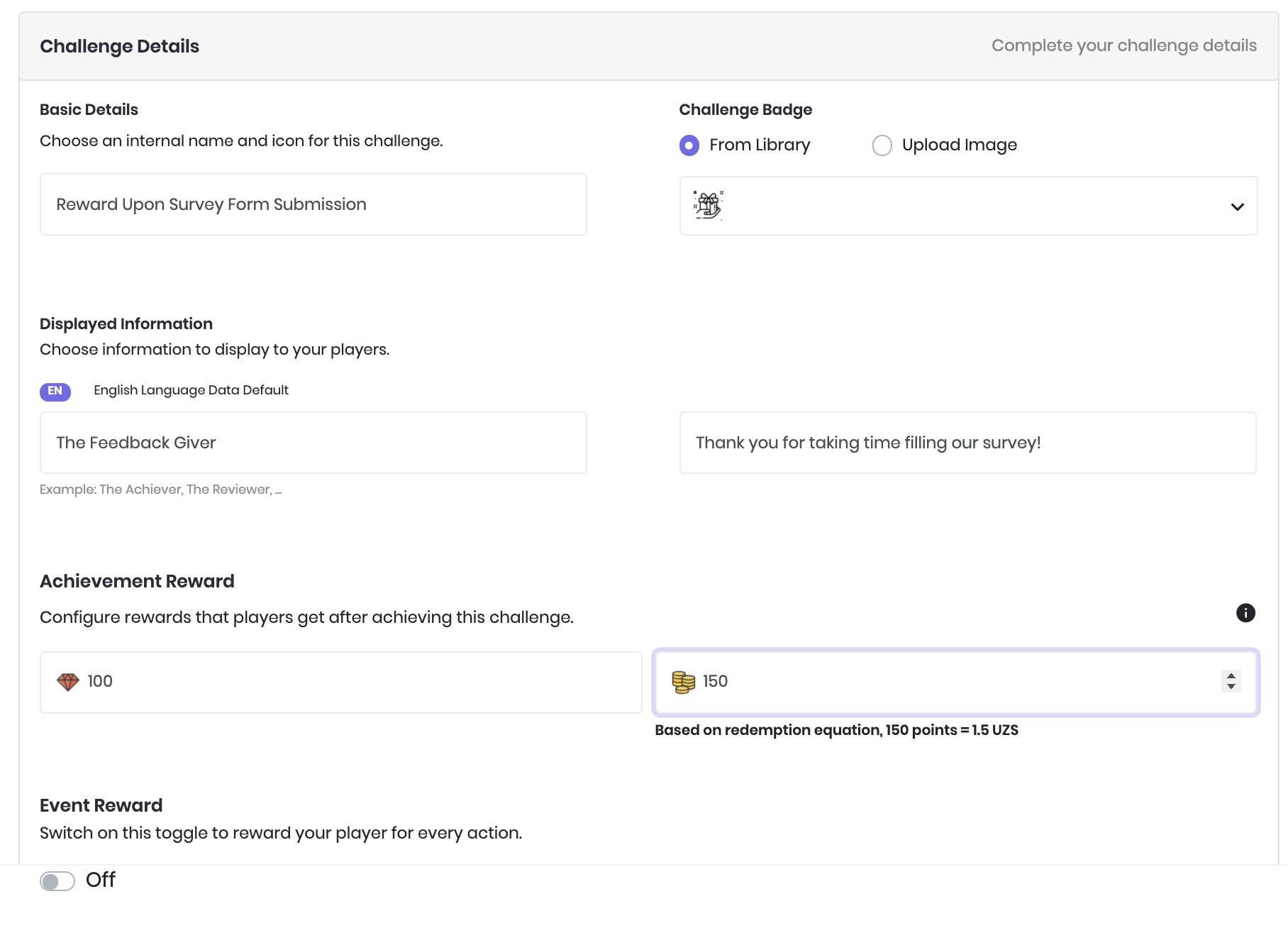
B. Set Challenge Details and Rewards
On this step, you will set the challenge details that will be used internally and displayed to the users including challenge internal name, challenge displayed badge, and displayed information. You will also choose the size of reward you want to grant your players upon completing the action. Choose the points reward for this challenge achievement, and the score reward for this challenge achievement. (if you have chosen score as your leveling up method. Learn more)
C. Set Challenge Details
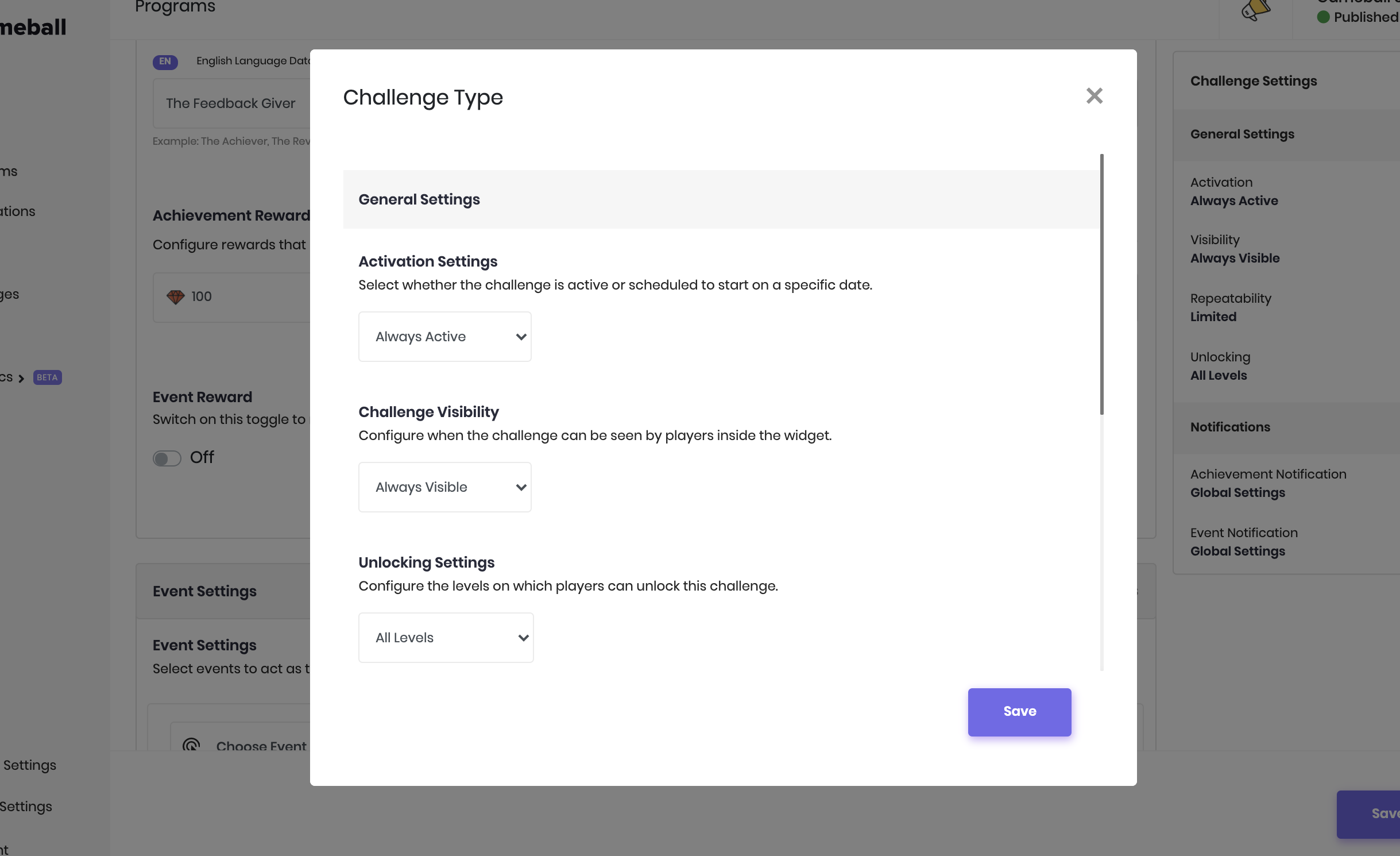
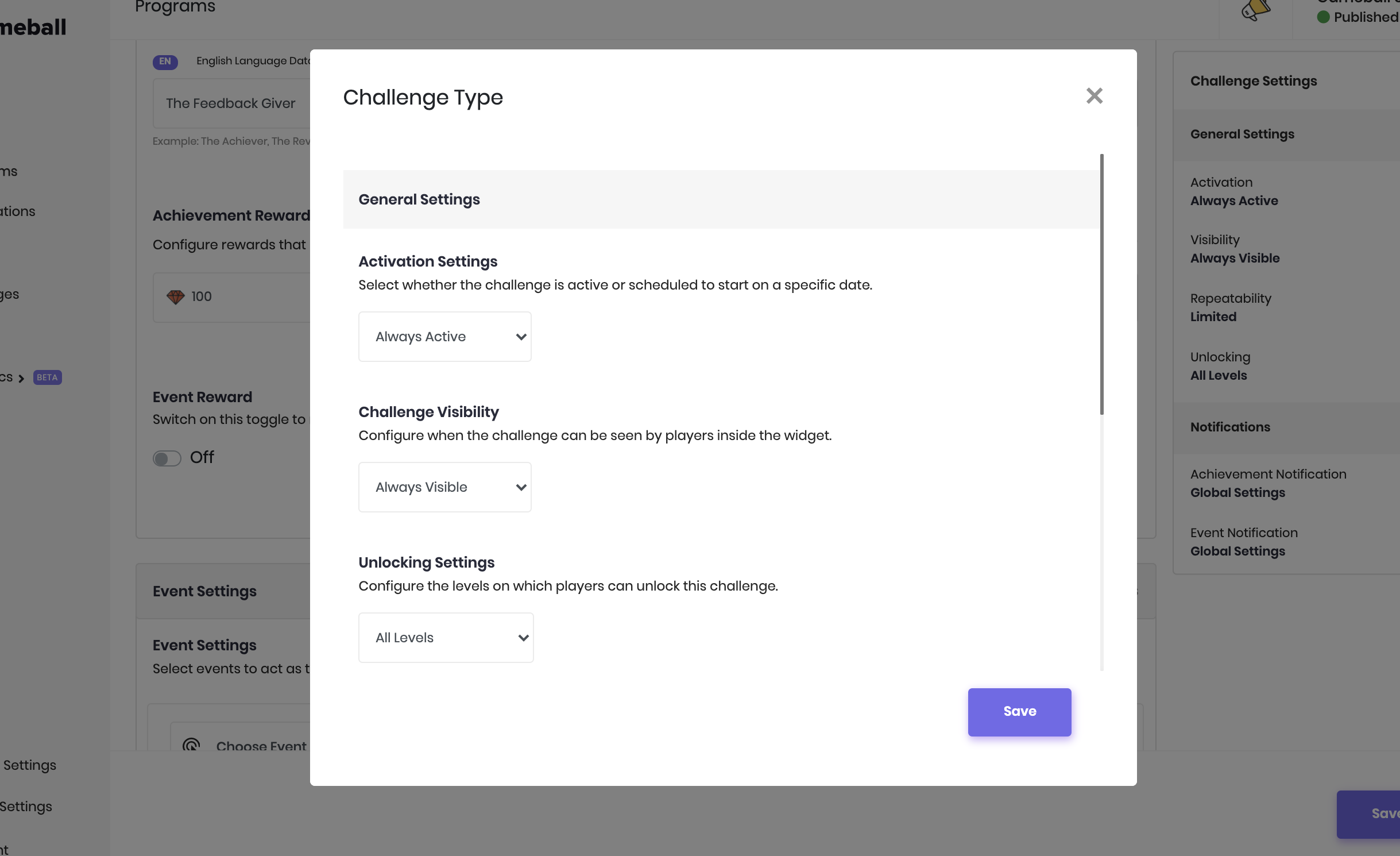
In this step, configure the challenge details by clicking the Edit Icon next to Challenge Settings.
- Activation Settings: Is this Challenge always active for players to achieve?
- Challenge visibility: is the challenge displayed on the player widget?
- Unlocking settings: On which, level(s) should this challenge be unlocked?
- Repeatability Settings: How many times this challenge can be won? Only once? or more?
- Player Notification Settings: Do you want to notify the player when this challenge is achieved?
- Event Notification Settings: is the player notified after every action taken that leads to achieving the challenge?
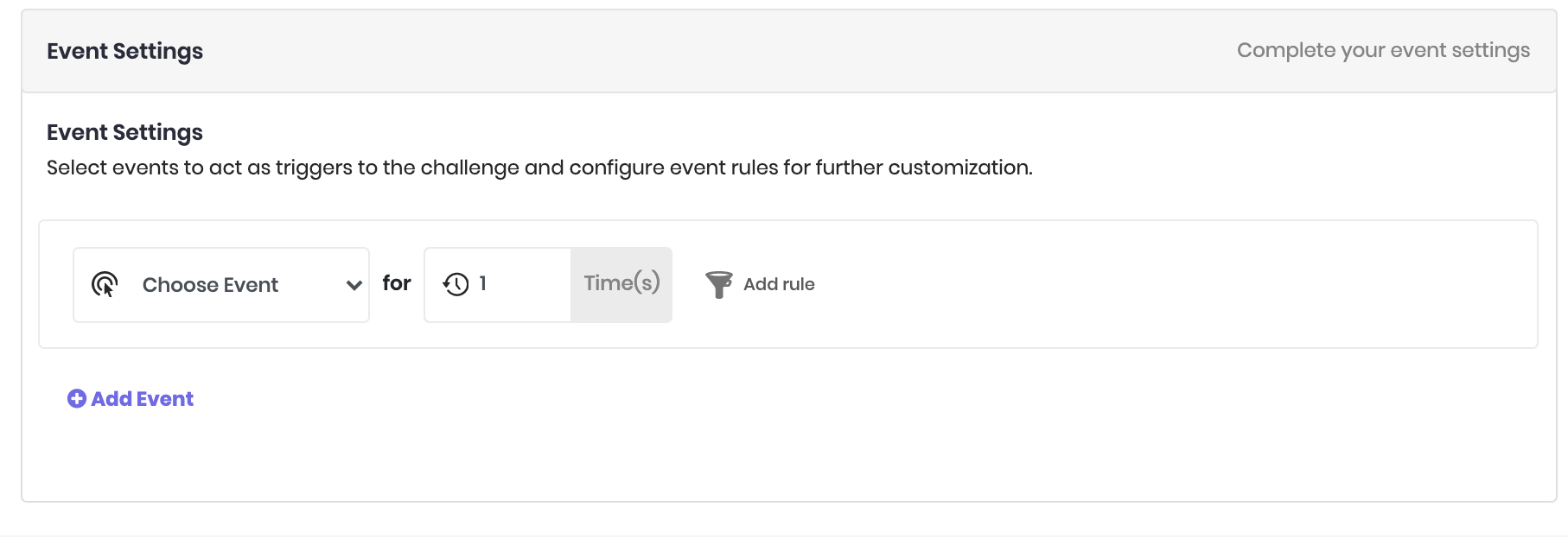
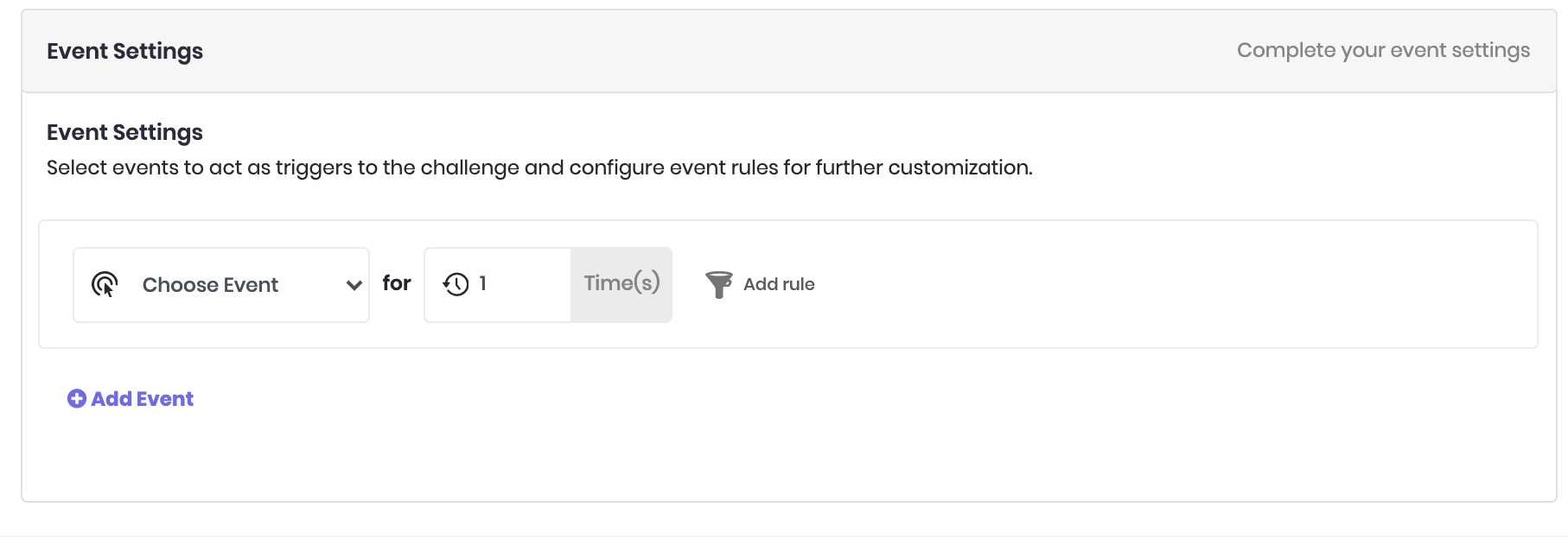
D. Set Event Settings
On this page, from the event list, choose the corresponding Event Name you have added during the “Customize Event” step. Select it and make sure the number of times this event to be completed is one.